
README file from
Github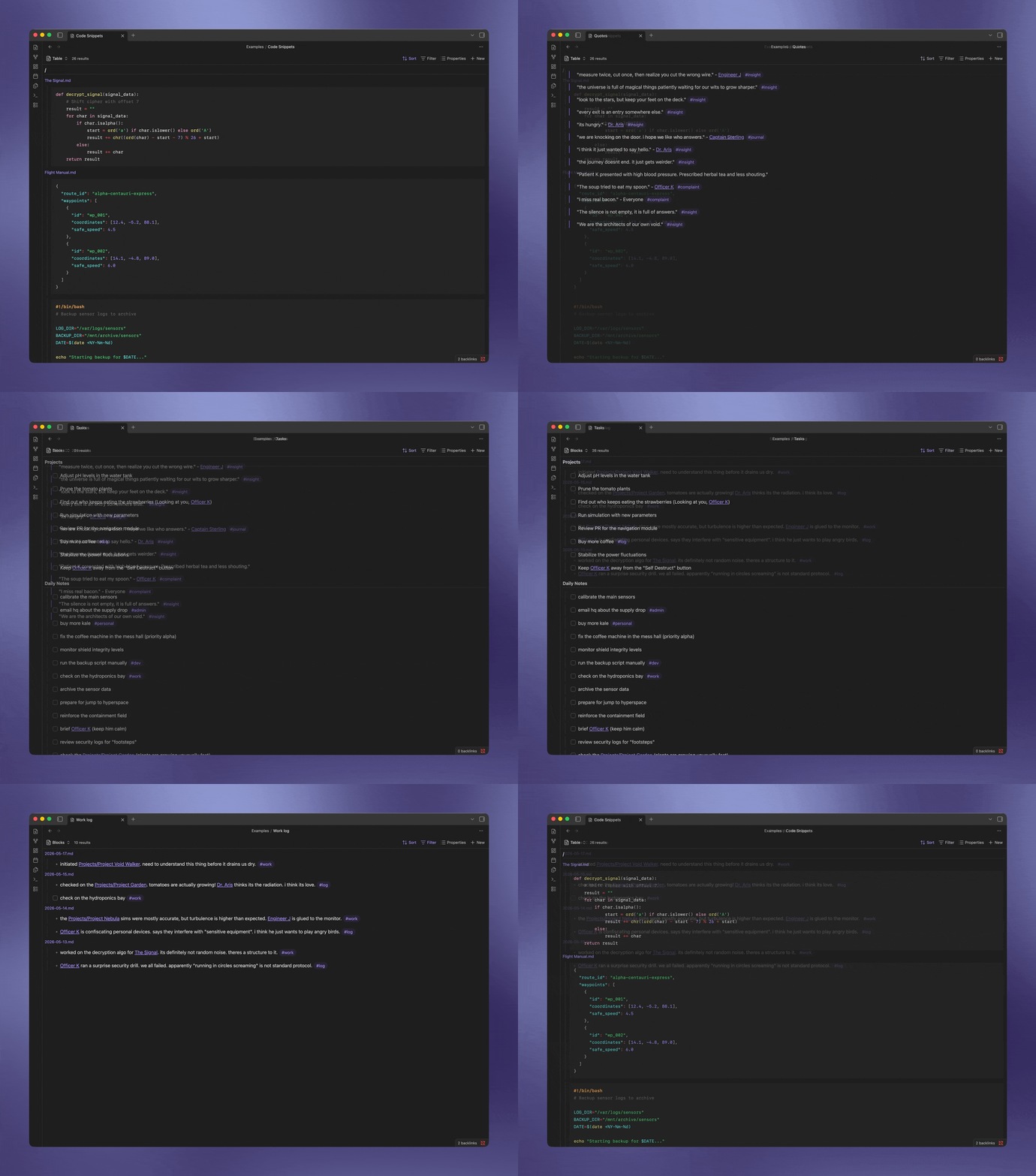
Table of Contents
What is Block View?
Block View is an extension for the Bases core plugin that lets you list and filter the content of your notes - "blocks" - across your entire vault.
For example, you could resurface specifically tagged bullet points from your daily notes every week. Or build a vault-wide library of quotes.
Because it works as a Bases view, you can still use the standard features like file filtering, sorting, and grouping. Block View then divides each file's content into blocks, so you can filter and display specific sections from multiple notes in the same view.
Installation
Install from the official community plugins store: https://community.obsidian.md/plugins/block-view
Examples
Still not sure what this is? Let's look at some examples.
1. Daily Logs
Review your work history by listing every paragraph tagged with #log or #work from your daily notes in a single timeline, without opening each file individually.
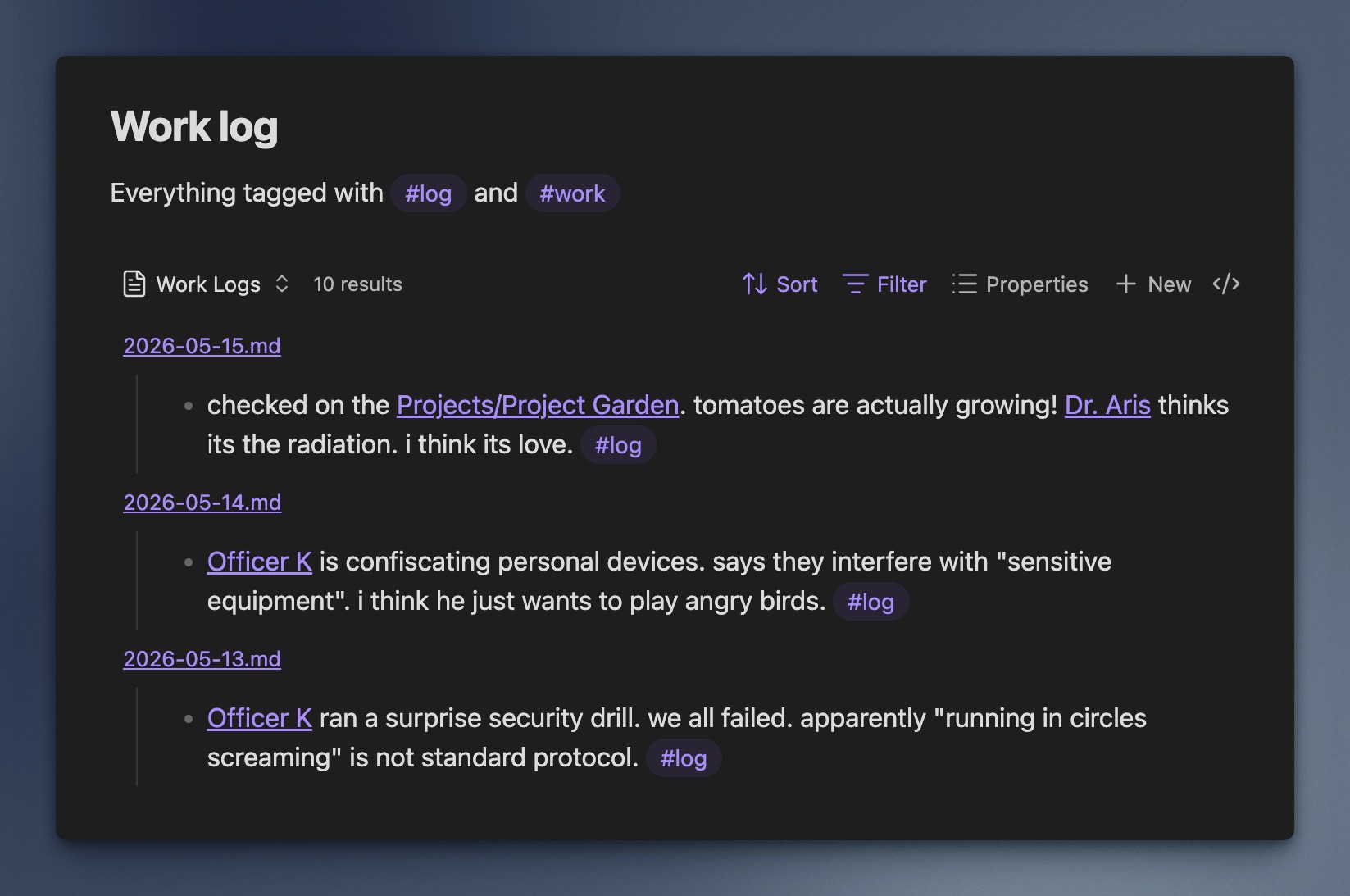
```base
views:
  - type: block-view
    name: Daily Logs
    filters:
      and:
        - file.folder == "Daily Notes"
    sort:
      - property: file.mtime
        direction: DESC
    tagFilter:
      - "#log"
      - "#work"
```
2. Project Tasks
Collect all incomplete tasks from your project folders in a single list. You can group them by project and check them off directly in the view, without opening the corresponding note.
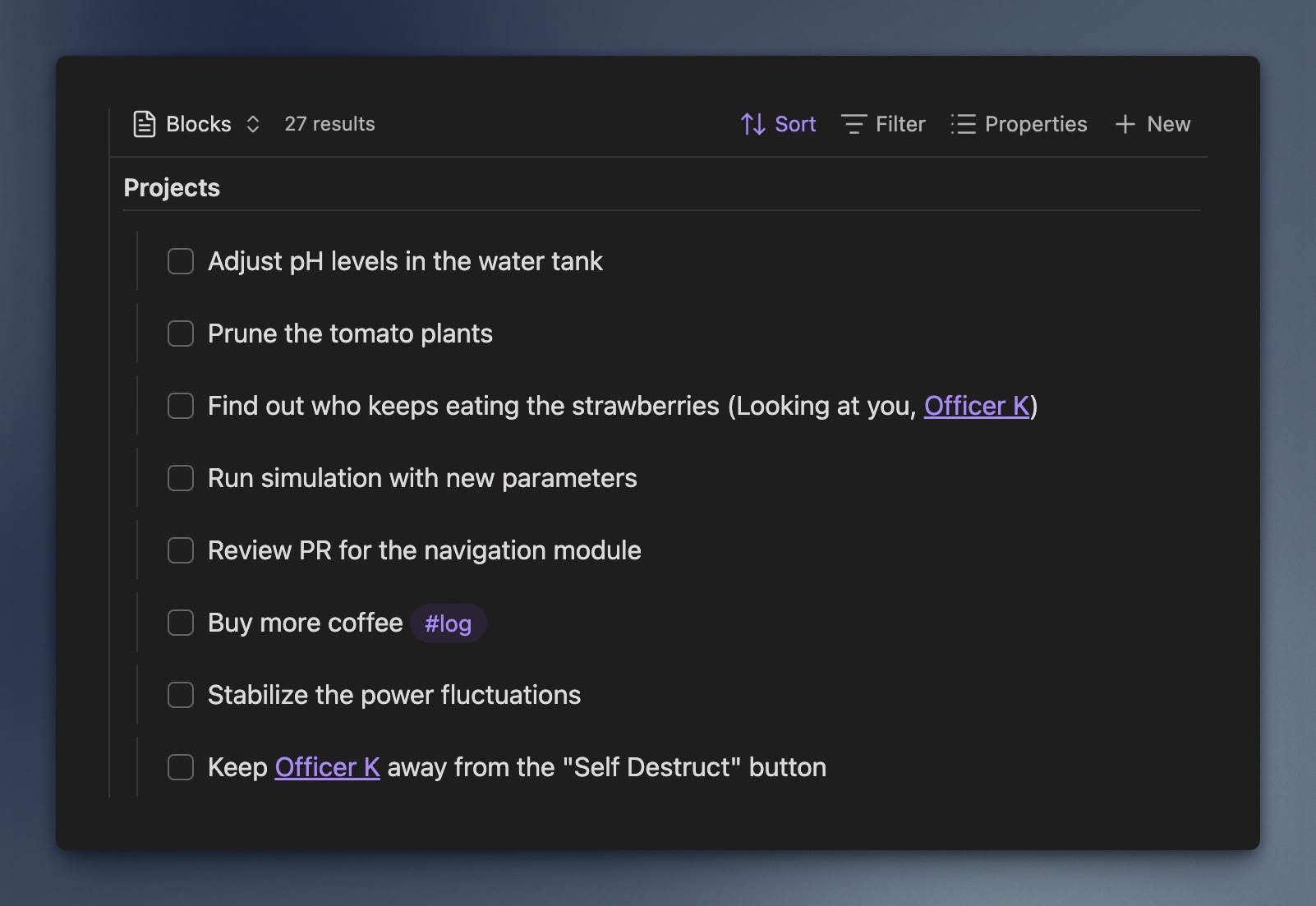
```base
views:
  - type: block-view
    name: Active Tasks
    groupBy:
      property: file.folder
      direction: ASC
    filterTasks: true
    filterTasksType: incomplete
```
3. Code Snippets
Build a searchable library of your code snippets. This example collects every python code block scattered across your vault into one reference list.
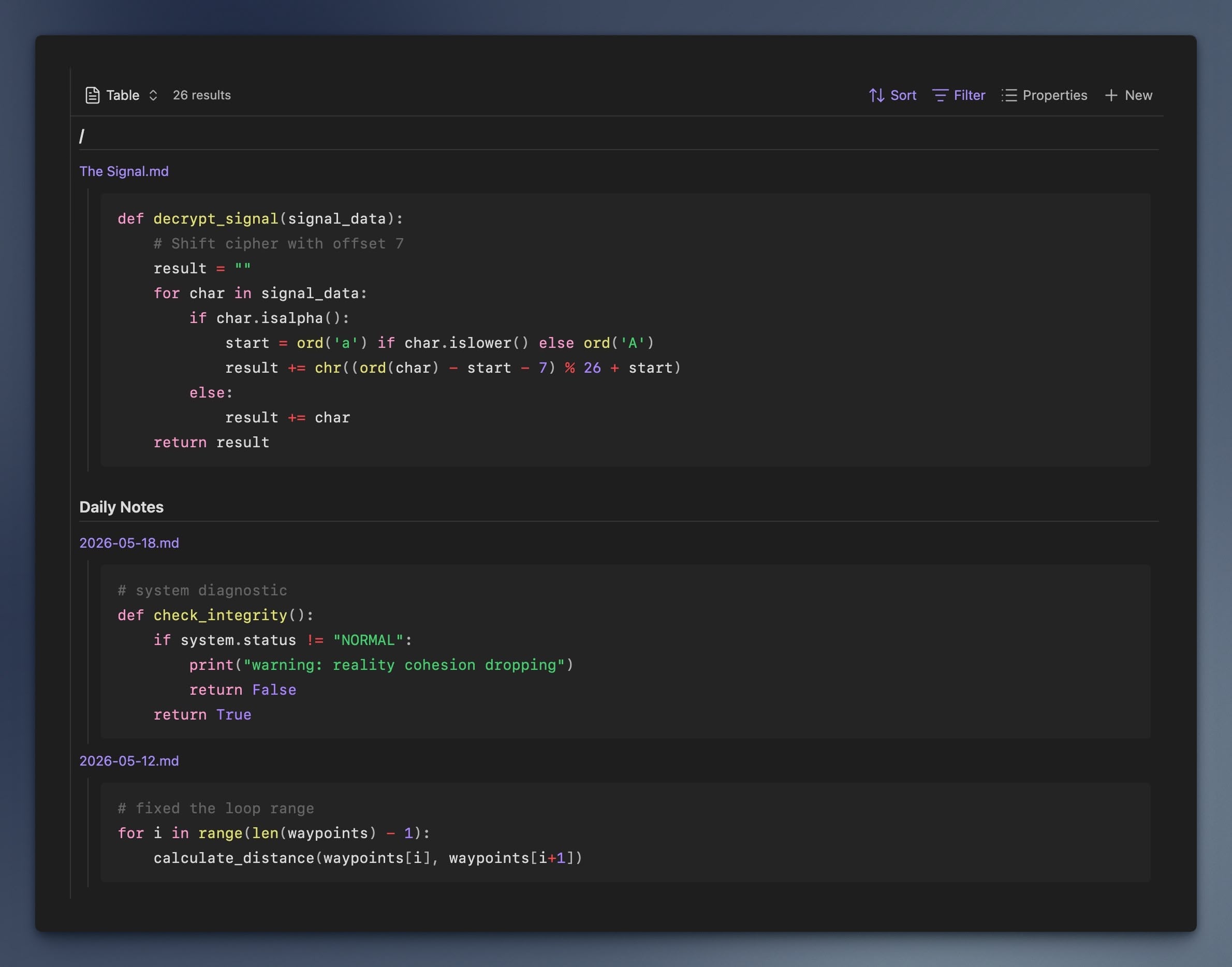
```base
views:
  - type: block-view
    name: Python Snippets
    filterCodeBlocks: true
    filterCodeBlocksLanguages:
      - python
    groupBy:
      property: file.folder
      direction: ASC
    sort:
      - property: file.mtime
        direction: DESC
```
4. Quotes and Highlights
Surface key information from your notes. This collects every blockquote tagged #insight so you can review all your insights in one place.
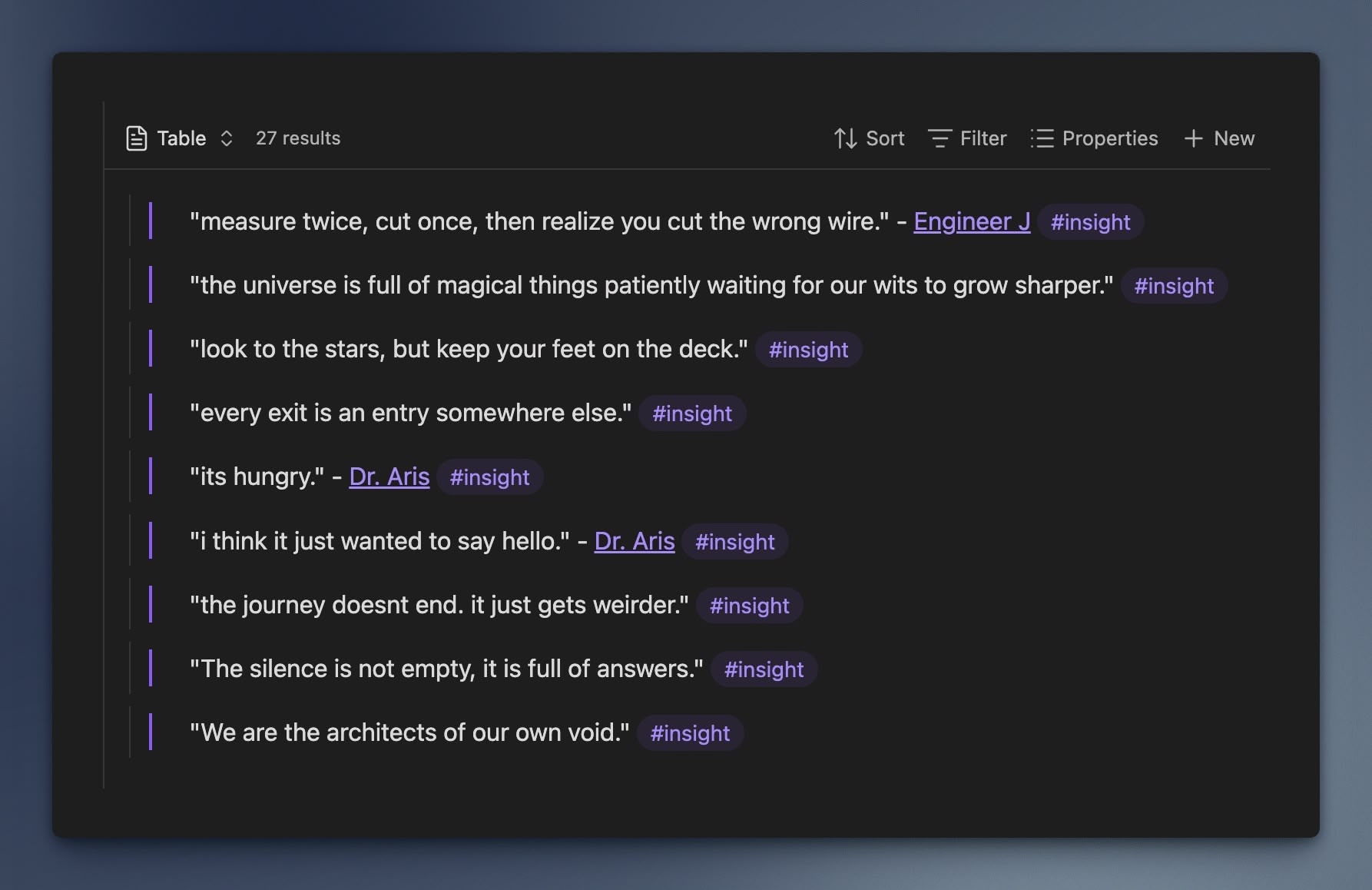
```base
views:
  - type: block-view
    name: "Highlights"
    filterQuotes: true
    tagFilter:
      - insight
    matchLogic: all
```
How it works
Block View filters blocks by checking if any line in a markdown section matches your filters.
For example:
- Quotes: If any line in a blockquote matches the filter, the view includes the content of that blockquote.
- Headers: If a header matches the filter, the view includes the content of that section up to the next header of the same level.
- Lists: If a list item matches, it includes all nested children items and continuation paragraphs.
- Paragraphs: If a paragraph matches, the view includes the content of that paragraph.
Filters & View Options
You can configure these settings via the view options panel in the Bases view.
| Option | Description |
|---|---|
| Tasks | Toggle to include task items (- [ ]). |
| Show | If tasks are enabled, choose Any, Incomplete, or Complete. |
| Quotes | Toggle to include quotes (> quote) and/or callouts. |
| Quote type | If quotes are enabled, choose Any, Blockquotes, or Callouts. |
| Code Blocks | Toggle to include fenced code blocks. |
| Languages | Multi-select language filter for code blocks. Use - prefix to exclude (e.g., ts, js, -base). Default excludes base. |
| Tables | Toggle to include Markdown tables. |
| Images | Toggle to include images. |
| Links | Toggle to include blocks containing links. |
| Show | If links are enabled, choose Any internal link, Links to current file, or Links to selected file. |
| Tags | Multi-select list of tags to filter by. Use - prefix to exclude (e.g., #work, -#archived). Supports nested tags. |
| Text pattern | Match any line in a block by plain text or regex. Plain text matches the start of a line. For regex, use something like /^## ToDos/i. |
| Invert text filter | Include blocks whose lines do not match the text pattern. |
| Include if | Any filter matches or All filters match. |
| Display Options | Show files without matches, include non-Markdown files, only include matching table rows, and cap max blocks per file. |
Text pattern example:
meetingmatchesMeeting notes, but notNotes from the meeting. Use regex like/meeting/ito match anywhere in a line.
Style Settings
Block View supports configuring some of the styles via the Style Settings plugin.
Contributing
Development
This project uses bun as a package manager.
Install dependencies
bun install
Build
bun run build
Commit messages
This project follows the Conventional Commits guidelines. I recommend using commitizen for automated commit messages.