
README file from
Github
Obsidian Bases Image Gallery
Obsidian Bases Image Gallery is a zero setup masonry image gallery for Obsidian. This is based off the work by Luca Orio — Obsidian Image Gallery — but updated for the Obsidian Bases plugin. It makes it very easy to make a beautiful image gallery in your notes with very little effort.
Table of Contents
- Requirements
- Installation
- Setup
- Usage
- Configuration
- Notes
- Changelog
- Acknowledgments
- License
- Contacts
Requirements
- Obsidian
(ver >= 1.10.2)— the Bases core plugin must be available. - Images somewhere in your vault that you want to display.
Installation
Community plugin
Search for Bases Image Gallery in Settings → Community plugins → Browse.
BRAT (for beta testing newest features)
Install it with BRAT:
- In Obsidian, go to Settings → Community plugins → Browse, then install and enable BRAT.
- Settings → BRAT → Add beta plugin.
- Enter the repository
ghyatt/obsidian-bases-image-galleryand click Add Plugin. - Enable Bases Image Gallery under Settings → Community plugins.
BRAT auto-updates you to each new beta release. For full usage and testing notes, see BETA-TESTING.md.
Setup
Create an Obsidian Base (or place a Base in a note), and select the "Image gallery" view. To create a dynamic gallery, add a filter to select which images to show. The configuration Obsidian generates will look something like the examples below.
Example 01
All images in vault
- base file — as a standalone base file
- embedded in note — as a note
Example 02
Images in directories below this note's parent
- base file — as a standalone base file
- embedded in note — as a note
Usage
- Once the Base is created you can update configuration settings from the Base's view-config dialog.
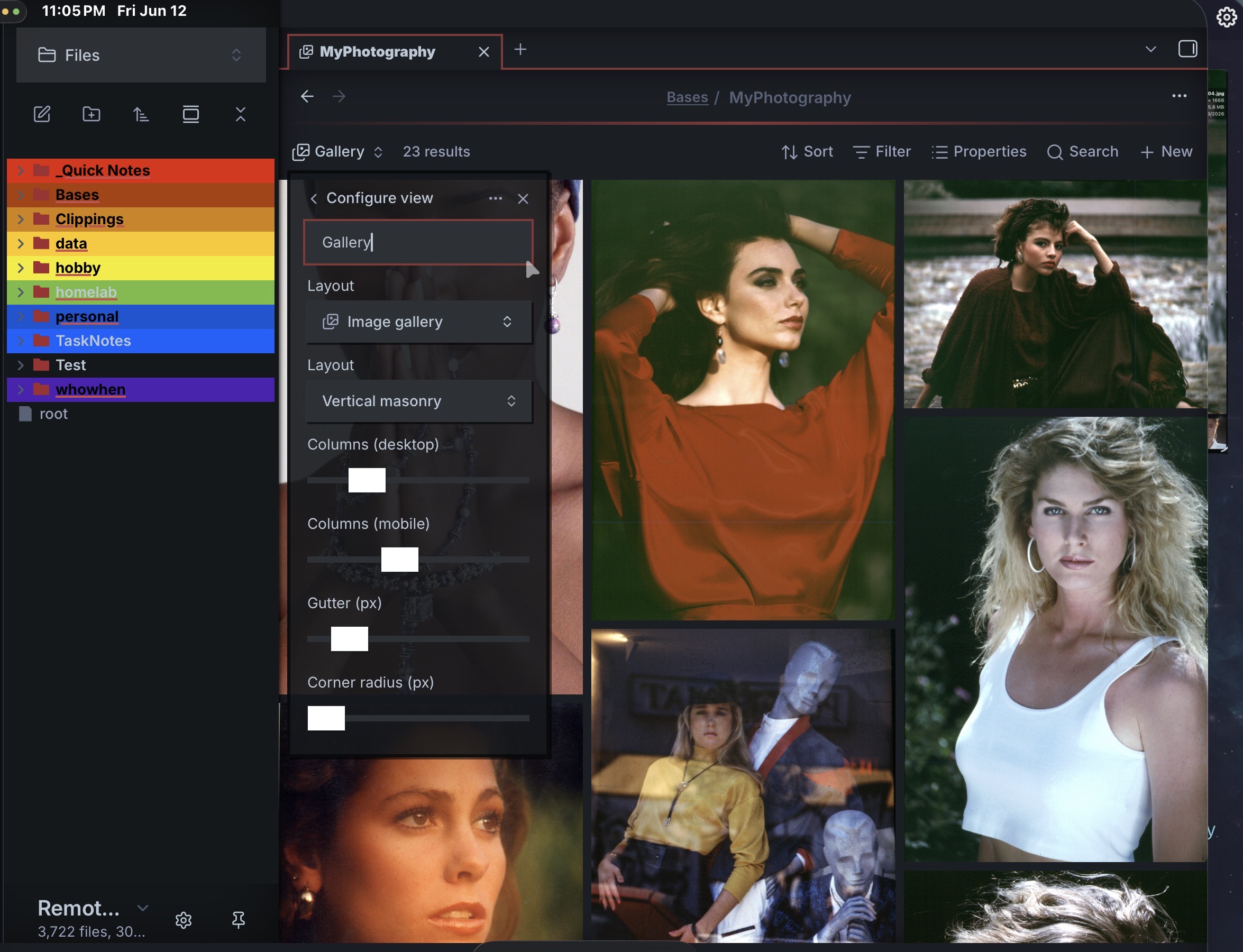
- Take a look at Configuration to see how to tweak the gallery; see the examples above for filtering possibilities.
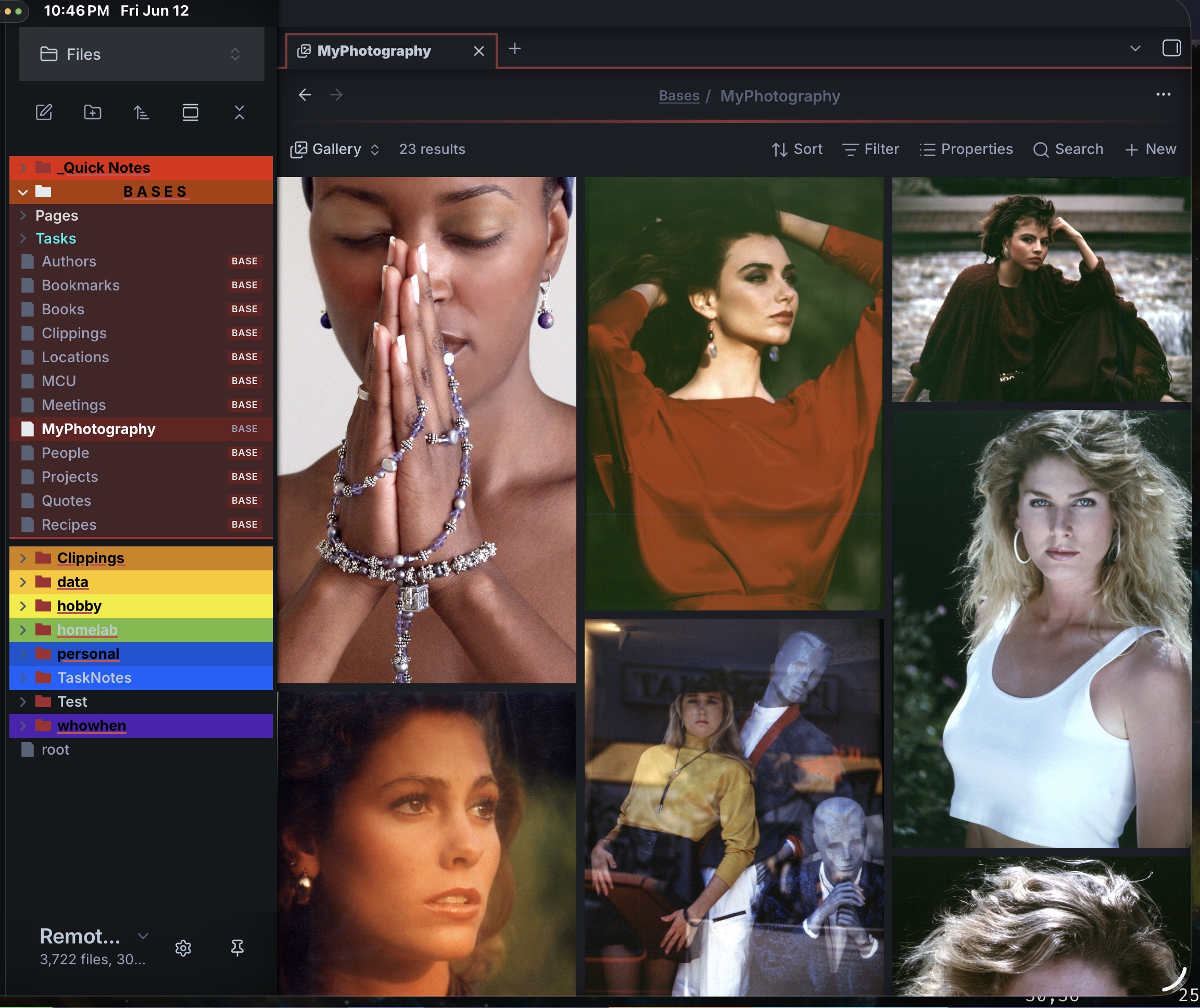
The gallery renders directly in the Base view as soon as the Base's filters select one or more images — there is no code block to trigger and no preview mode to switch to. Add or remove a matching image in your vault and the gallery updates live.
Orientation Vertical:
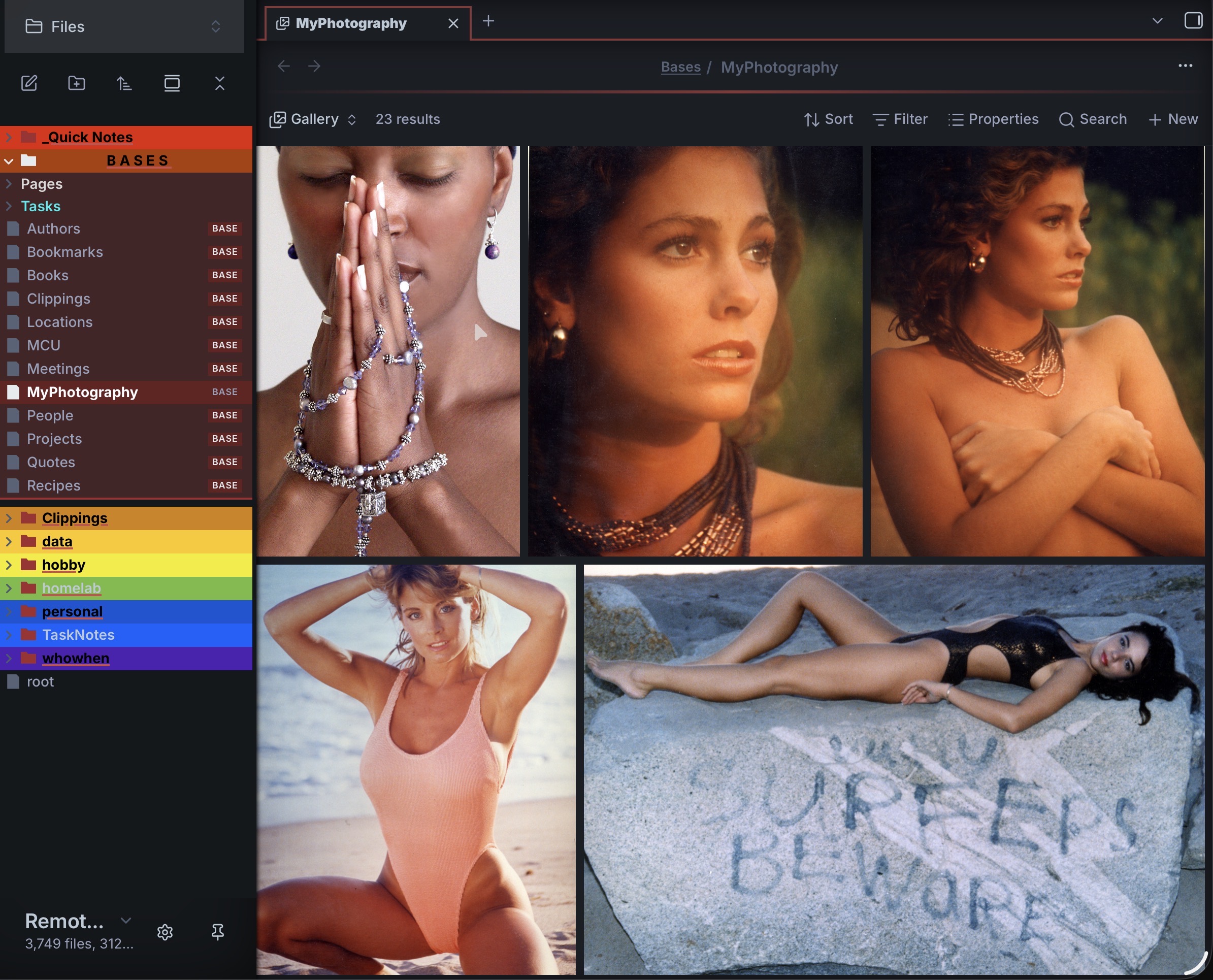
Orientation Horizontal:
-
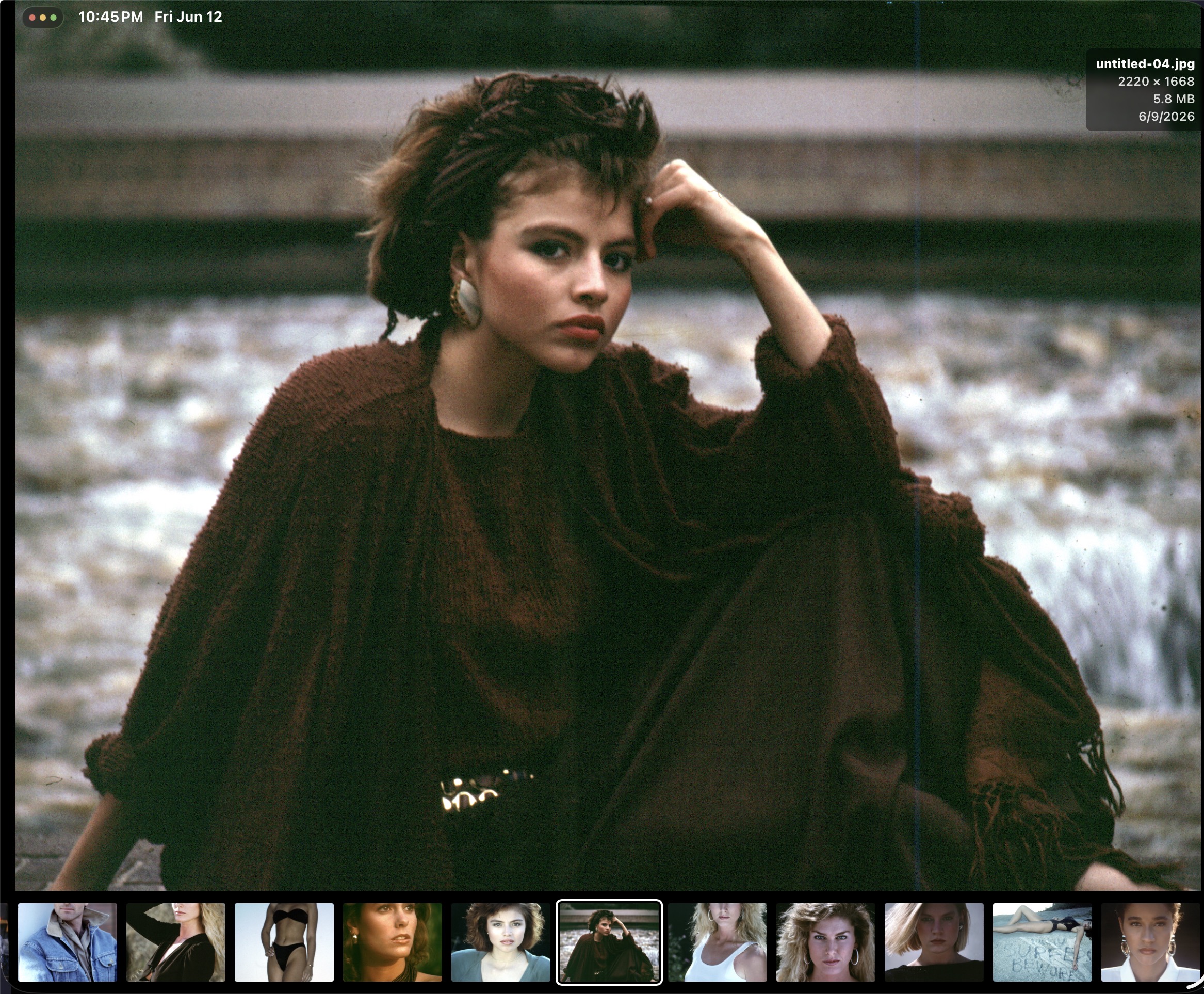
Clicking on an image will take you to a lightbox style screen.
-
In desktop you can click the X icon, or in mobile & desktop you can double click to exit back to the original masonry image display.
Configuration
All options are set from the Base view configuration menu — there is no YAML to write by hand, and your choices are saved into the .base file automatically. Which images appear (and in what order) is controlled by the Base's own filters and sort, not by this view, so there are no path, sortby, or sort options.
| Option | Default | Range / Options | Applies to | Description |
|---|---|---|---|---|
| Layout | Vertical masonry |
Vertical, Horizontal | both | Masonry orientation. Vertical is the recommended default (see Notes). |
| Columns (desktop) | 3 |
1–10 | vertical | Number of columns on desktop. |
| Columns (mobile) | 2 |
1–6 | vertical | Number of columns on mobile. |
| Row height (px) | 260 |
50–1000 | horizontal | Height of each row. |
| Gutter (px) | 8 |
0–64 | both | Spacing in px between the images. |
| Corner radius (px) | 0 |
0–64 | both | Border radius in px of the images. |
Notes
- Right now the photo date is the filesystem creation date, if people request it I will add in the photo EXIF data.
- Vertical layout is the default. The horizontal layout renders justified rows — images keep their aspect ratio and each row fills the container width.
- Make sure the images to embed have a reasonable size: generating a masonry with 60 4k photos will most likely slow down the app to a crawl!
- The images display can be from anywhere in your vault, just write Bases filter statements to select
- As mentioned in the Requirements section, only local images are accepted. This plugin was designed with a specific use case in mind: create a gallery from a folder of images with as little setup as possible.
A note about ordering in the vertical layout: until a true masonry layout is available for native css grids, the visual ordering is approximate — elements flow top-to-bottom within each column rather than strictly left-to-right (see this article for why). For most galleries this is fine; exact ordering is a known limitation of the CSS-column approach. The horizontal layout orders left-to-right more intuitively (justified rows) if strict ordering matters to you.
Changelog
0.1.6
- Horizontal layout: the last (partial) row no longer over-stretches its images — a trailing spacer absorbs the leftover width so they keep their natural size.
0.1.5
- Fixed the horizontal layout: images now render as justified rows that keep their aspect ratio and fill the row width (was inherited broken from the original plugin).
0.1.4
- Catalog review fixes: moved remaining inline styles into
styles.css(error box, notice, view width, mobile control hiding); standard MITLICENSE; tighter typing (removedany); use elementownerDocument; dropped thebuiltin-modulesdependency.
0.1.3
- Moved masonry layout styling from JavaScript into
styles.css(configurable values passed as CSS custom properties).
0.1.2
- Catalog-readiness: compliant manifest description; replaced an
innerHTMLclear withempty().
0.1.1
- Renamed the plugin
idtobases-image-galleryfor community-catalog compliance (ids cannot contain "obsidian"). - Documented BRAT installation in the README.
0.1.0
- initial release.
Acknowledgments
- Top photo by Luca Orio images source Unsplash.
- Other image by Gilbert Hyatt Photography
- Code based on the original work by Luca Orio.
License

Provided AS IS — like most Obsidian plugins this is just a hobby for me, but I hope you find it useful. You can file bugs or feature requests on GitHub. Thank you for taking a look at my plugin!
Contacts
- Email: [email protected]