
README file from
GithubAutism Task Planner
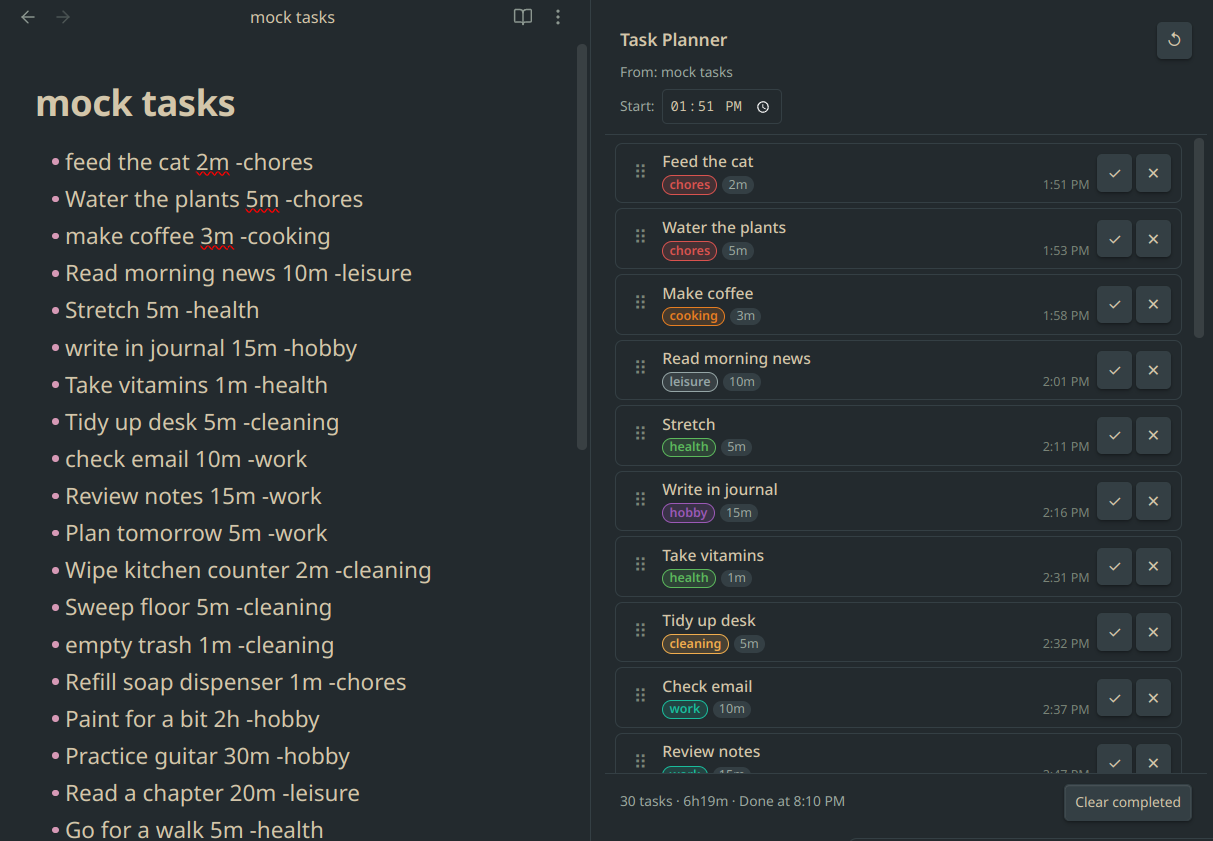
A sidebar panel for Obsidian that turns your markdown task list into a sequenced schedule — with live time estimates, drag-and-drop reordering, and category labels. Built for people who need to see exactly what comes next and how long everything will take.
How it works
Open any note that contains a task list, then run Open Task Planner from the command palette. The panel reads your list and displays every task as a card with a calculated start time based on how long everything before it takes.
Reorder cards by dragging. Edit a duration by clicking it. Change a category by clicking the label. Mark tasks done as you go. The schedule updates instantly every time.
Task list format
Write tasks in any markdown note using this format:
- Task name 5m -category
- Another task 1h30m -category
| Part | Format | Examples |
|---|---|---|
| Task name | Any text | brush teeth, Record video |
| Duration | Nm, Nh, or NhMm |
5m, 2h, 1h30m |
| Category | -word at the end |
-health, -work, -hobby |
Capitalization and trailing spaces are preserved exactly as written. A line with no duration defaults to 0m. A line with no category tag is labelled other.
Features
Time planning
- Set a custom start time at the top of the panel, or let it default to right now
- Every card shows its calculated start time based on all tasks before it
- Footer shows total duration and estimated finish time
- All times use your local timezone
Reordering
- Drag any card to a new position
- All start times downstream recalculate immediately
Editing
- Click a duration badge to edit it inline (
5m,1h,1h30m,90m, or a plain number of minutes) - Click a category badge to pick a new category from a dropdown
Completing tasks
- Check off a task — it dims and moves out of the active schedule
- Click the undo arrow to bring it back
- "Clear completed" removes all done tasks at once
Syncing back to your file (optional, off by default)
- Completions can be written back as
- [x] ...checkboxes - Reorders can be written back to the file in the new order
- Edited durations and categories can be written back inline
The file is never touched unless you explicitly enable a sync setting.
Built-in categories
| Category | Category | ||
|---|---|---|---|
hygiene |
blue | work |
teal |
grooming |
slate blue | cooking |
orange |
health |
green | exercise |
forest green |
cleaning |
amber | social |
pink |
chores |
red | errands |
brown |
hobby |
purple | finance |
cyan |
other |
gray | learning |
indigo |
creative |
deep orange | ||
selfcare |
rose | ||
family |
amber-gold |
Category colors can be changed per-category in Settings → Autism Task Planner.
Settings
| Setting | Default | Description |
|---|---|---|
| Default start time | Current time | Set a fixed start time (e.g. 09:00) or leave blank to use now |
| Sync reorder to file | Off | Writes the new task order back to the markdown file after dragging |
| Sync completions to file | Off | Marks completed tasks as - [x] ... in the file |
| Sync edited durations/categories to file | Off | Writes duration and category edits back inline |
| Category colors | Per built-in defaults | One color picker per category |
Installation
Via BRAT (recommended for early access)
- Install BRAT from the Community Plugins browser
- Open BRAT settings → Add Beta Plugin
- Paste:
mm0x1/obsidian-autism-task-planner
Via Community Plugins
Search for Autism Task Planner in Settings → Community plugins → Browse.
Manual
- Download
main.js,manifest.json, andstyles.cssfrom the latest release - Copy them into
.obsidian/plugins/obsidian-autism-task-planner/inside your vault - Enable the plugin in Settings → Community plugins