
README file from
GithubCross-App Notes Bridge
An Obsidian plugin that exports notes as portable Markdown and bridges your vault with other note-taking apps — Bear (via x-callback-url), WPS Cloud Note, Youdao Note, and Flomo (via their respective CLI/MCP clients).
Mobile-safe: stdio MCP transports and Bear are guarded at runtime and degrade gracefully on iOS/Android.
Why one plugin instead of four?
These integrations share the same pipeline — selection → Markdown transforms → provider dispatch — and most users who care about Markdown portability use more than one of these apps. Bundling avoids duplicating the transform layer and keeps the right-click menu unified. Each provider can be enabled/disabled and trusted independently in settings, so you only see what you configure.
The plugin is intentionally scoped to first-class clients for these apps; there is no generic "add any MCP server" UI yet, because no single integration shape works across arbitrary MCP servers. New providers will be added as first-class clients in future versions.
Features
Export as pure Markdown
Transform Obsidian-specific syntax into portable Markdown that works anywhere:
- Copy as pure Markdown — transform the active note and copy to clipboard.
- Export to folder — write transformed notes to a configurable export directory.
Transform options
| Option | Description | Default |
|---|---|---|
Resolve [[wikilinks]] |
Convert wikilinks to standard Markdown links | On |
| Embed handling | What to do with ![[embeds]] |
Replace with link |
| Flatten callouts | Convert > [!note] callouts to blockquotes |
On |
| Drop frontmatter | Remove YAML frontmatter from output | Off |
| Rewrite attachments | How to handle image/attachment paths | Vault-relative |
Bear (macOS / iOS)
- Send active note to Bear — dispatched via
bear://x-callback-url/create. Tags from frontmatter are preserved. - Import from Bear — enter a note UUID or Bear URL; the plugin opens Bear and writes the returned content into your vault.
WPS Cloud Note (desktop)
Send notes to WPS Cloud Note via the WPS Note CLI or its MCP server endpoint. Configure transport, command path, and headers in settings.
Youdao Note (desktop)
Send notes to Youdao Note via the official youdaonote CLI. The plugin can detect the CLI, push your API key to it, and run a connection test from settings.
Flomo
Export memos to Flomo via its official streamable-HTTP MCP server at https://flomoapp.com/mcp. Requires a Flomo Pro account and a personal API token, configured per provider in settings. Push-only — Flomo's MCP is a write surface today, so importing memos back into the vault isn't supported.
Context menu
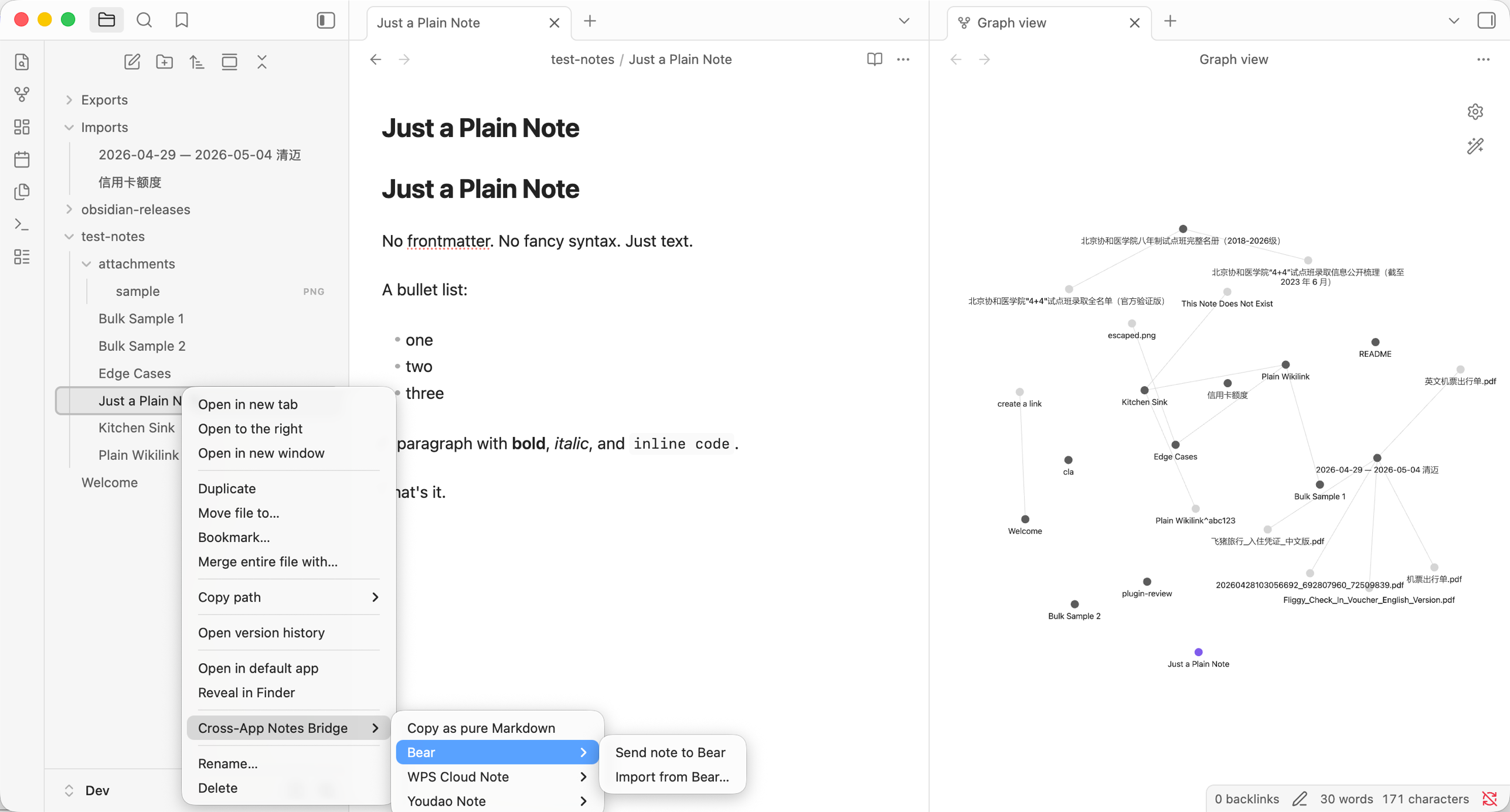
Right-click any file in the file explorer (or select multiple files) to find the Cross-App Notes Bridge submenu with all available actions.
Settings
Configure via Settings → Community plugins → Cross-App Notes Bridge.
- Export folder — directory for exported notes (default:
Exports) - Import folder — directory for imported notes (default:
Imports) - Concurrency — parallel export workers (default: 4)
- Transform options — configure Markdown output format
- Providers — enable, trust, and configure Bear / WPS / Youdao / Flomo independently
Commands
| Command | Description |
|---|---|
Copy as pure Markdown |
Transform and copy the active note to clipboard |
Export current note as pure Markdown |
Export the active note to folder |
Send active note to Bear |
Dispatch the active note to Bear |
Import from Bear |
Import a Bear note via UUID or URL |
Send active note to WPS Cloud Note |
Dispatch the active note to a configured WPS provider |
Send active note to Youdao Note |
Dispatch the active note to a configured Youdao provider |
Send active note to Flomo |
Dispatch the active note as a memo to a configured Flomo provider |
Installation
Via BRAT (recommended for beta testing)
The plugin isn't in the official community catalogue yet. The easiest way to install and stay up-to-date is through BRAT (Beta Reviewers Auto-update Tool):
- Install BRAT from Settings → Community plugins → Browse, then enable it.
- Open Settings → BRAT → Add Beta plugin and paste
huangcheng/cross-app-notes-bridge. - BRAT downloads the latest release into your vault and tracks new versions automatically.
See the BRAT plugin docs for details on auto-updates and pinning to a specific version.
From GitHub release
- Download
main.js,manifest.json, andstyles.cssfrom the latest release. - Copy them into
<vault>/.obsidian/plugins/advanced-import-export/. - Enable the plugin in Settings → Community plugins.
Build from source
git clone https://github.com/huangcheng/cross-app-notes-bridge.git
cd cross-app-notes-bridge
npm install
npm run build
Copy the output files (main.js, manifest.json, styles.css) into your vault's plugin directory.
Development
npm install        # install dependencies
npm run dev        # watch mode — auto-rebuild on changes
npm run build      # production build
npm run lint       # run ESLint
Privacy
- No telemetry. The plugin does not call any analytics, tracking, or "phone home" endpoint.
- Credentials stay local. API keys and provider configuration are stored in your vault's plugin data file (
.obsidian/plugins/advanced-import-export/data.json) and never leave your machine, except for the explicit calls you trigger to the configured provider (e.g. WPS server endpoint, Youdao CLI subprocess, Bear's URL scheme). - Network calls are scoped to the provider you configure. Disabling or untrusting a provider stops all calls for that provider.
- Outbound URLs: Bear →
bear://URL scheme (local IPC, no network); WPS → the server URL or CLI binary you configure; Youdao → the localyoudaonoteCLI (calls Youdao's API on your behalf using the API key you provide it); Flomo →https://flomoapp.com/mcpwithAuthorization: Bearer <your-token>.