
README file from
Githubtbdl — Obsidian theme
An editorial news-magazine theme for Obsidian. Serif body type (Merriweather), condensed sans headings (Oswald), a signature yellow accent, a fuchsia interactive accent, a drop-cap on the first paragraph (colored to match the surrounding text), styled lists, blockquotes, code, tables and callouts. Ships with the Google Material Icons font for use in notes, plus a dedicated dark palette.
What's new
- v2.0.3 — CSS-lint cleanup. Dropped
text-underline-offsetfrom links (Obsidian's review lint flags thetext-decoration-*longhand family as only partially supported). The!importanton table header/cell colors stays: it's there specifically to beat an inline style Obsidian's own core table rendering applies (column resize/sort state), which selector specificity alone can't override — removing it would bring back the black-on-dark table header bug fixed in 2.0.1. - v2.0.2 — drop-cap actually renders now. Reading view wraps every block in a
div.el-<tag>(e.g.div.el-p), so the old.markdown-preview-section > p:first-of-typeselector never matched — the drop-cap never appeared in a real vault, only in mockups. Fixed with a selector that finds the first paragraph wrapper regardless of preceding headings, and recolored it to follow the body text (black in light mode, near-white in dark) instead of a fixed fuchsia tint. - Fuchsia accent (
#e5006f): the interactive color — buttons, toggles, checked tasks, tags, H3 headings. Yellow stays the editorial/masthead accent (rules, dividers, H1/H2 bars). - Bullet dot in Live Preview (edit mode) is now explicitly black in light mode (was inheriting the blue
--text-accent), and fuchsia in dark mode for visibility. - Dark mode contrast pass: fixed several elements that were unreadable or invisible in dark mode (italic text, blockquote text, text selection) and re-tuned the fuchsia tint used for on-background text so it keeps solid contrast against the dark palette.
Features
- Typography: Merriweather for the body, Oswald for headings and the UI.
- Editorial accents: yellow (
#FFE200) rules under H1, left bar on H2, fuchsia (#e5006f) H3, a drop-cap on the first paragraph (colored to match the body text). - Lists: square yellow bullet markers (reading view), black/fuchsia bullet dot (Live Preview), Oswald blue ordered-list numerals.
- Blockquotes: yellow left bar on a soft cream background.
- Code & tables: styled code blocks, yellow header rows, themed frontmatter and callouts.
- Material Icons: the Google Material Icons font is loaded; use
<span class="material-icons">home</span>in notes and callouts. Sizes (.mi-sm/.mi-lg/.mi-xl) and colors (.mi-yellow/.mi-blue/.mi-fuchsia/.mi-muted/.mi-accent) are provided. - Dark mode: dedicated dark palette, tuned for reading comfort and contrast.
- Editor gutter colors via
--line-number-color/--gutter-background(for the note's line-number gutter).
Install
From the community directory
- Settings → Appearance → Themes → Manage → Browse community themes → search tbdl → install.
- Select tbdl as the theme.
Manually
Copy manifest.json and theme.css into <vault>/.obsidian/themes/tbdl/, then select the theme in Appearance.
Showcase / screenshot
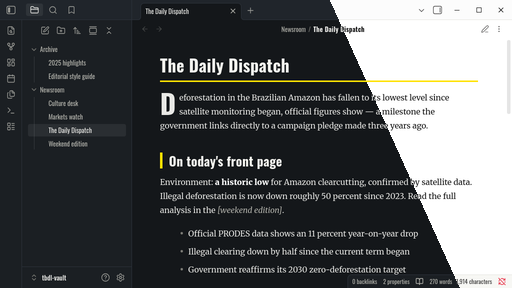
Real Obsidian captures (not mockups) showing the theme's distinctive elements — headings (including the fuchsia H3), the drop-cap, a task list, an inline tag, a pull-quote, a callout, a table, code and Material Icons, in both dark and light mode.
Recommended companion: line numbers in code blocks
Obsidian does not number lines inside code blocks natively. To get copy-safe line numbers (numbers that are not included when you copy the code), install the Codeblock Customizer plugin and enable its "Enable line numbers" option. Its gutter is non-selectable, so copying code never includes the numbers.
Suggested gutter colors to match this theme (set them in Codeblock Customizer → Appearance & Styling):
| Color | Light | Dark |
|---|---|---|
| Gutter text | #b9b9b0 |
#5f5f5a |
| Gutter active line | #1d3566 |
#ffd84d |
| Gutter background | #f7f7f4 |
#1b1f23 |
This theme works on its own without any plugin; Codeblock Customizer is only needed for line numbers in code blocks.
Material Icons usage
<span class="material-icons">home</span>
<span class="material-icons mi-yellow mi-lg">star</span>
<span class="material-icons mi-blue">push_pin</span>
Icon names come from the Material Icons catalog. The font loads from Google Fonts (cached after first load).
License
MIT © ledokter