
README file from
GithubOne Half Dark
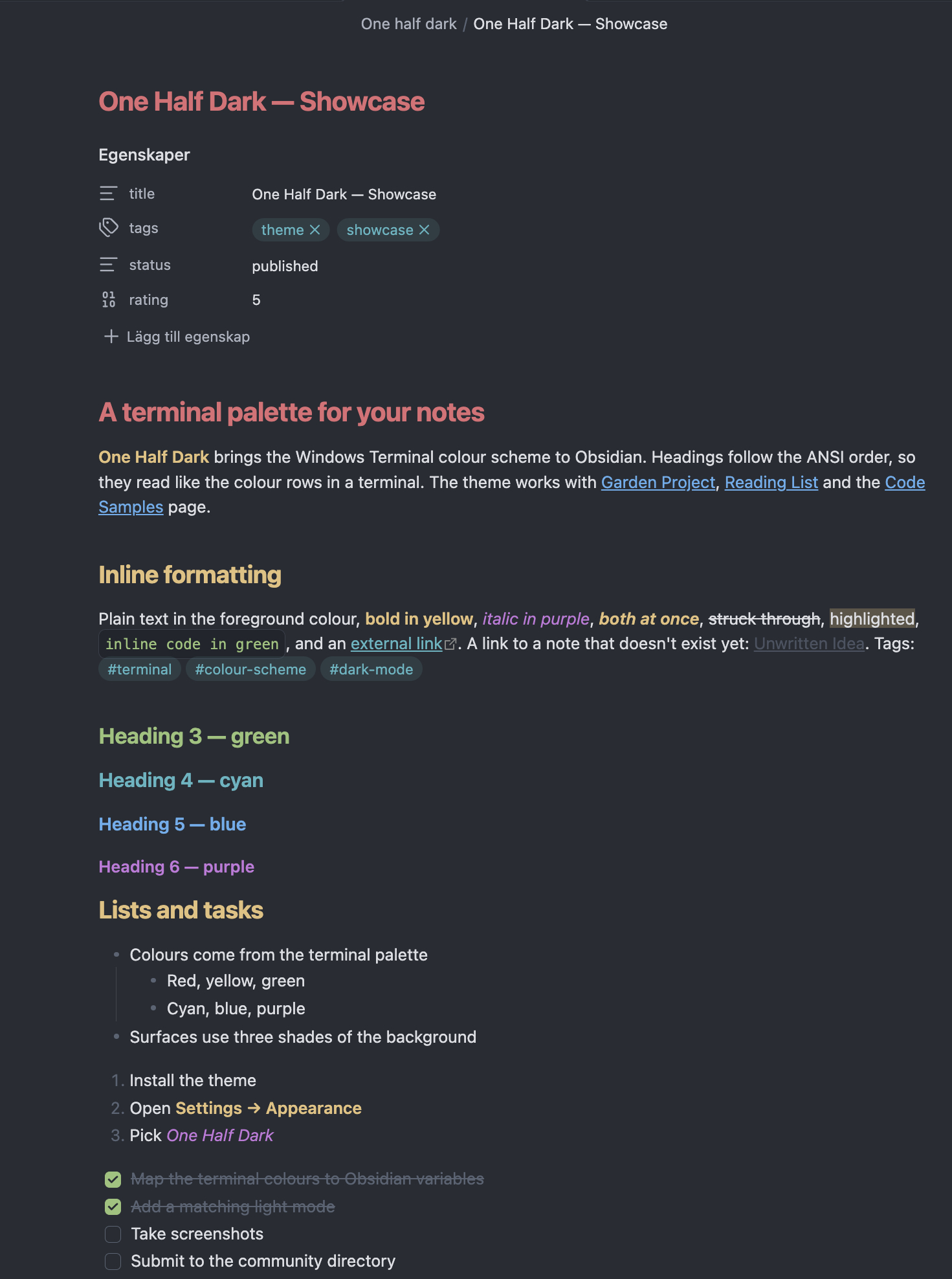
An Obsidian theme based on the One Half Dark colour scheme from Windows Terminal, with a matching One Half Light mode.
| Callouts | Code highlighting | Tables and code | Project note |
|---|---|---|---|
 |
 |
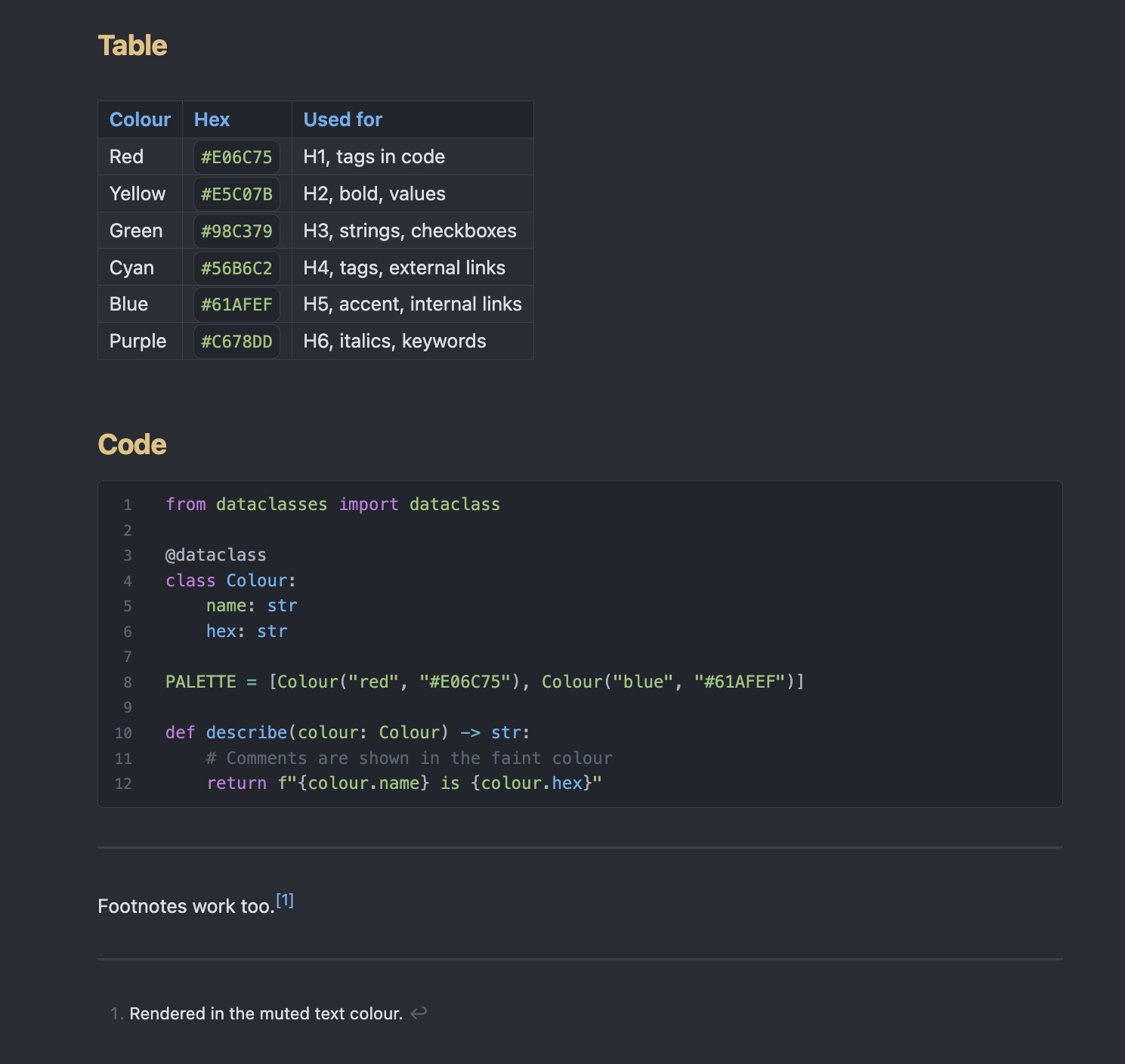 |
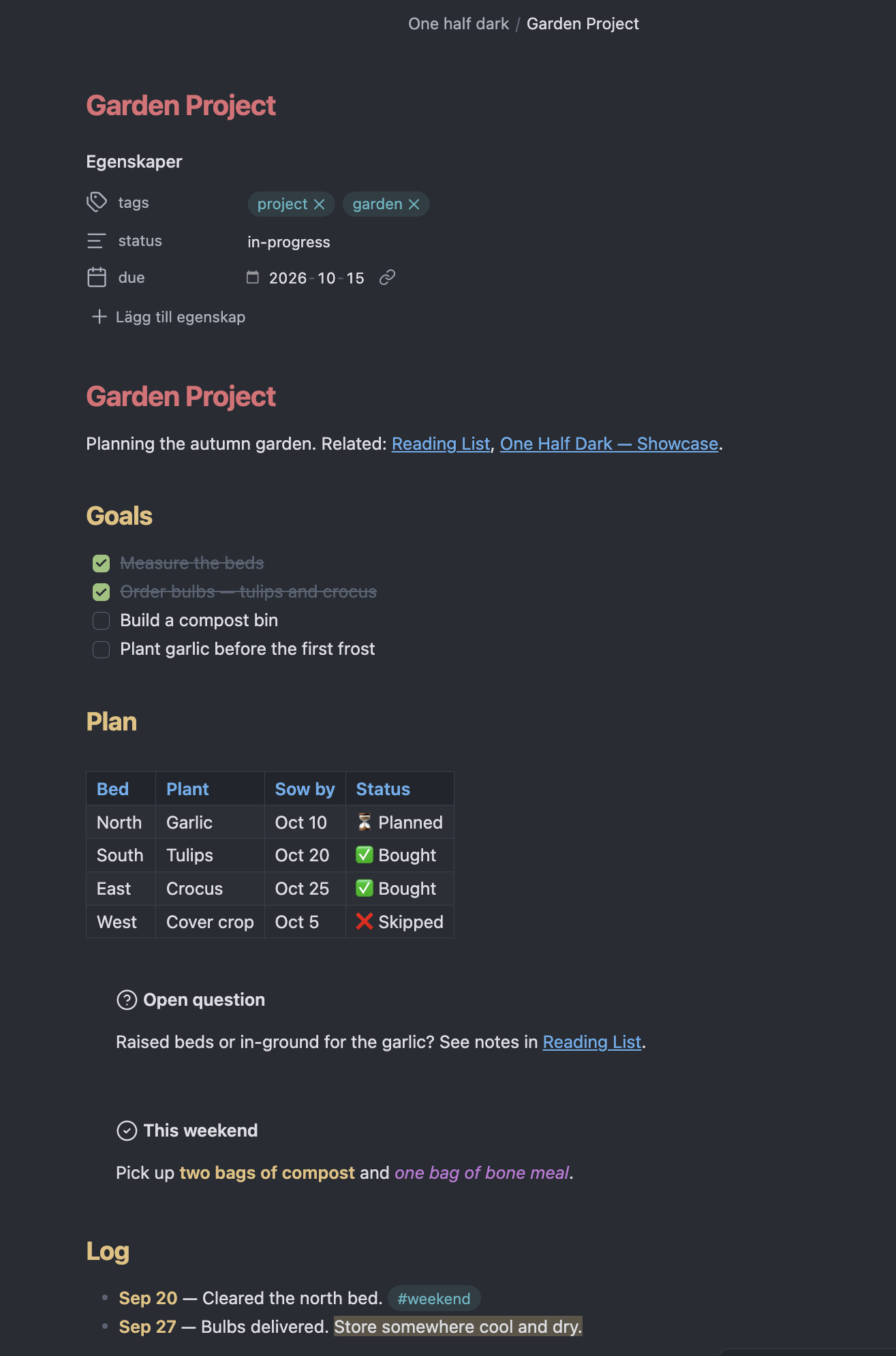 |
Palette
| Role | Dark | Light |
|---|---|---|
| Background | #282C34 |
#FAFAFA |
| Foreground | #DCDFE4 |
#383A42 |
| Faint (bright black) | #5A6374 |
#A0A1A7 |
| Red | #E06C75 |
#E45649 |
| Yellow | #E5C07B |
#C18301 |
| Green | #98C379 |
#50A14F |
| Cyan | #56B6C2 |
#0997B3 |
| Blue (accent) | #61AFEF |
#0184BC |
| Purple | #C678DD |
#A626A4 |
Features
- Headings H1–H6 follow the ANSI order: red → yellow → green → cyan → blue → purple
- Bold in yellow and italic in purple
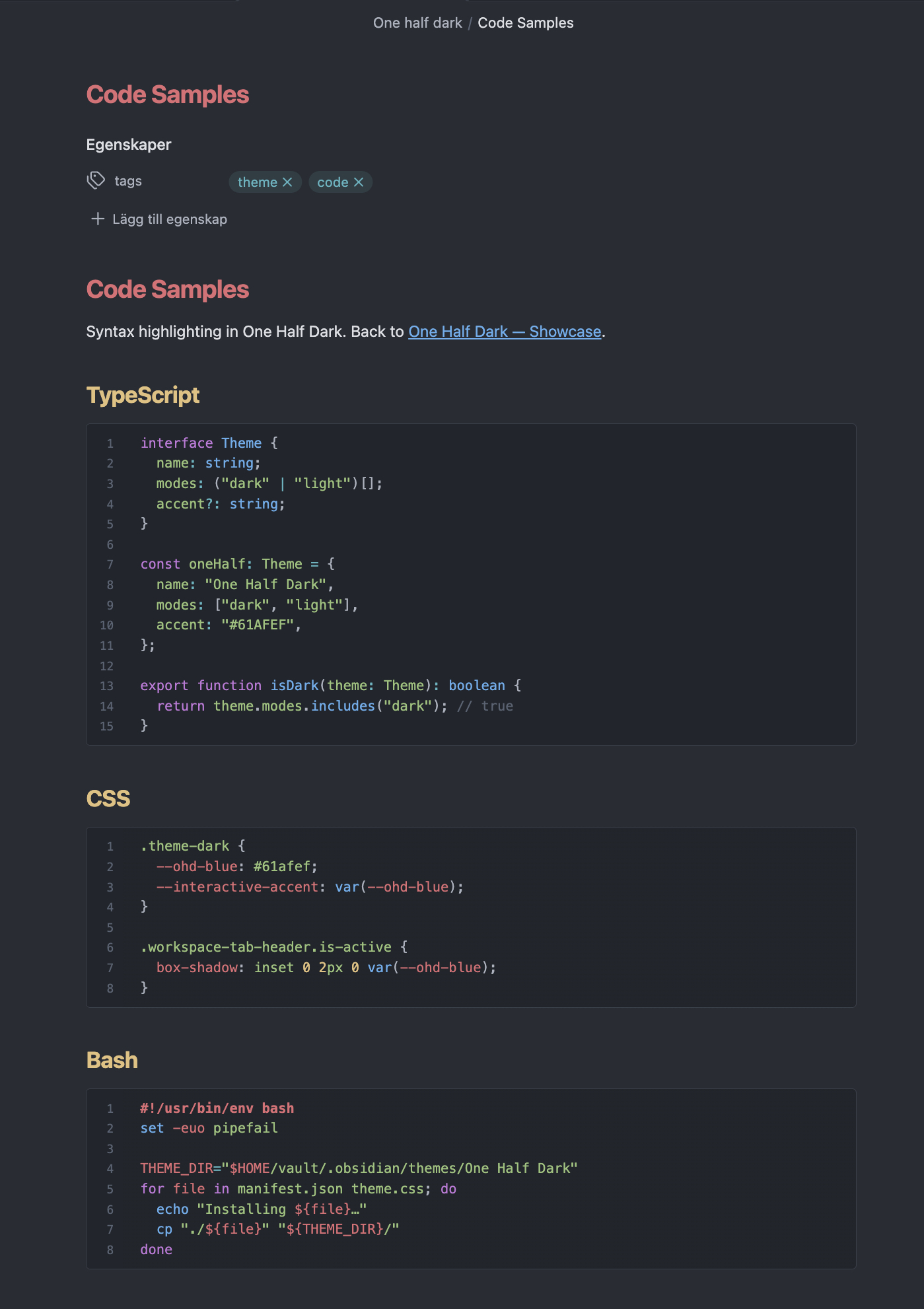
- Code syntax highlighting follows the One Half colours
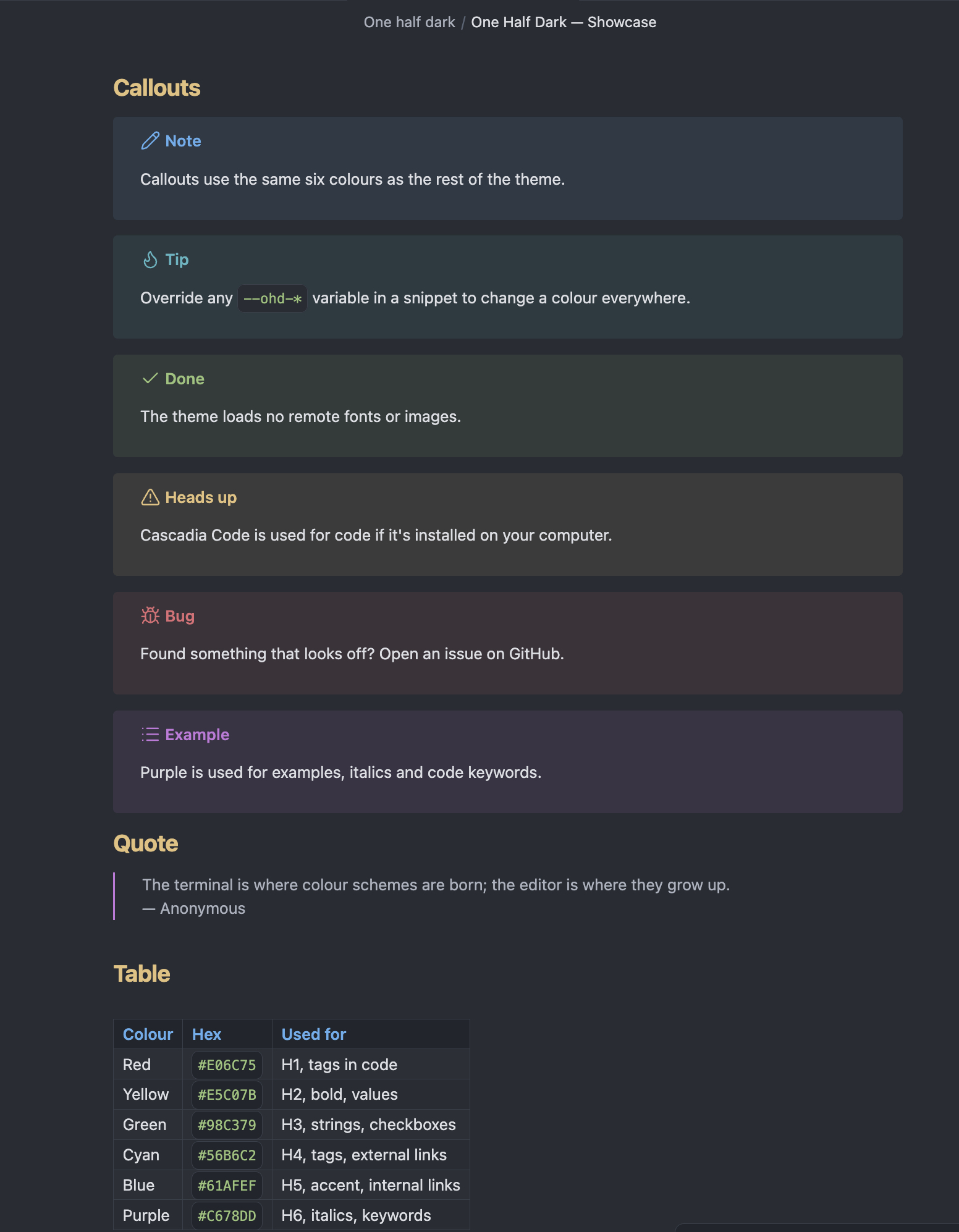
- Callouts, tables, tags, graph view and checklists use the same palette
- Blue accent line on the active tab, like Windows Terminal
- Monospace font order: Cascadia Code → JetBrains Mono → SF Mono → Menlo, using fonts already on your computer (no remote assets)
- Built only on Obsidian CSS variables with low-specificity selectors and no
!important, so you can override anything with a snippet
Installation
From Obsidian (recommended)
- Open Settings → Appearance.
- Under Themes, select Manage.
- Search for One Half Dark and select Install and use.
Manual installation
- Download
manifest.jsonandtheme.cssfrom the latest release. - In your vault, create the folder
.obsidian/themes/One Half Dark/and put both files in it. - Restart Obsidian or reload the theme list, then pick One Half Dark under Settings → Appearance → Themes.
Usage
- Dark and light mode: switch under Settings → Appearance → Base colour scheme. Dark uses One Half Dark and light uses One Half Light.
- Code font: install Cascadia Code to get the Windows Terminal font in code blocks. Without it, the theme falls back to JetBrains Mono, SF Mono or Menlo.
Customising
The theme has no Style Settings options. You customise it with a CSS snippet instead:
- Open Settings → Appearance → CSS snippets and select the folder icon to open the snippets folder.
- Create a file such as
one-half-tweaks.cssand add your overrides (examples below). - Back in Obsidian, reload the snippets and switch on
one-half-tweaks.
Every colour is set once at the top of theme.css as an --ohd-* variable (--ohd-red, --ohd-yellow, --ohd-green, --ohd-cyan, --ohd-blue, --ohd-purple, --ohd-bg, --ohd-fg and so on), and everything else is built from them.
/* Plain white bold text instead of yellow */
.theme-dark {
  --bold-color: var(--ohd-fg);
}

/* Use green as the accent colour */
.theme-dark {
  --accent-h: 95;
  --accent-s: 38%;
  --accent-l: 62%;
  --interactive-accent: var(--ohd-green);
  --link-color: var(--ohd-green);
}

/* All headings in one colour */
.theme-dark {
  --h1-color: var(--ohd-blue);
  --h2-color: var(--ohd-blue);
  --h3-color: var(--ohd-blue);
  --h4-color: var(--ohd-blue);
  --h5-color: var(--ohd-blue);
  --h6-color: var(--ohd-blue);
}
Use .theme-light instead of .theme-dark to change light mode.
Credits
The palette comes from One Half by Son A. Pham (MIT), as shipped in Windows Terminal.