
README file from
Github★ ICE BLOCK
A Sharp, Neo-Brutalist Theme for Obsidian



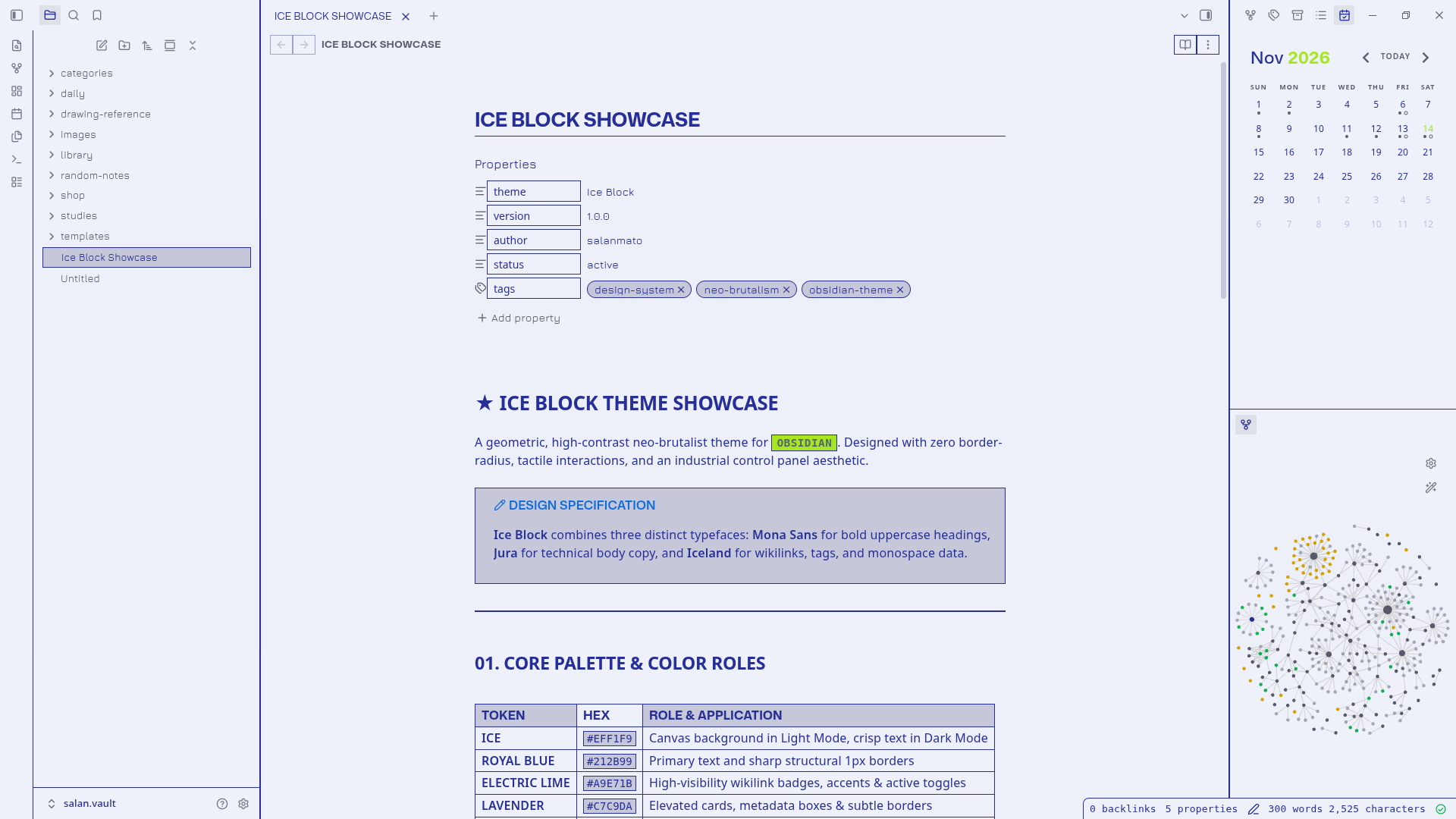
🧊 Overview
Ice Block is a geometric, high-contrast neo-brutalist theme for Obsidian, inspired by industrial telemetry, avionics control panels, and clean technical documentation.
Built with zero rounded corners, tactile micro-interactions, and signature high-contrast wikilink badges, it turns your digital notes into a sharp, legible knowledge workspace.
✨ Features
- Sharp Neo-Brutalism: Zero border-radius (
0px) applied universally across all UI elements — buttons, note tabs, modal dialogs, search inputs, task checkboxes, and tags. - Signature Wikilink Badges: Internal links (
[[Note]]) stand out instantly as electric lime badges styled with the technical monospace font Iceland. - Tactile Button Physics: Solid
0 2px 0block shadows with subtletranslateY(-2px)elevation on hover, giving controls a satisfying physical click feel. - Dual Contrast Modes:
- Light Mode: Cool Ice canvas (
#EFF1F9), Royal Blue typography (#212B99), and Electric Lime accents (#A9E71B). - Dark Mode: Deep Slate background (
#5F6173), Lavender body text (#C7C9DA), and glowing Lime highlights.
- Light Mode: Cool Ice canvas (
- Curated Typography:
- Headings:
Mona Sans— bold, architectural, left-aligned uppercase headers. - Body & Interface:
Jura— technical, clean, legible modern sans. - Code, Links & Metadata:
Iceland— crisp retro-futuristic monospace.
- Headings:
📸 Screenshots
Note Editor & File Structure
Palette, Geometry & Task Execution
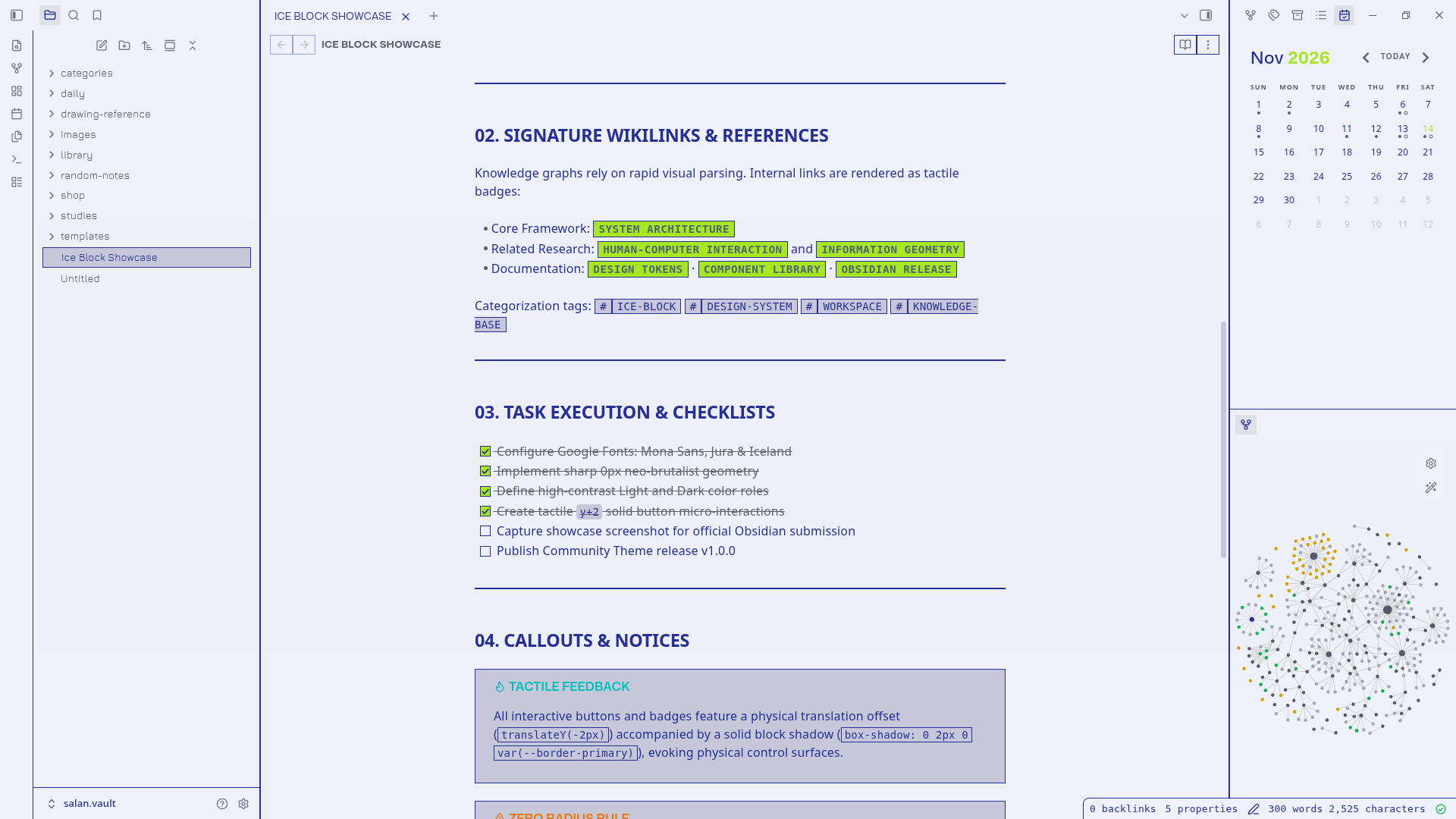
Callouts, Code Blocks & Technical Tables
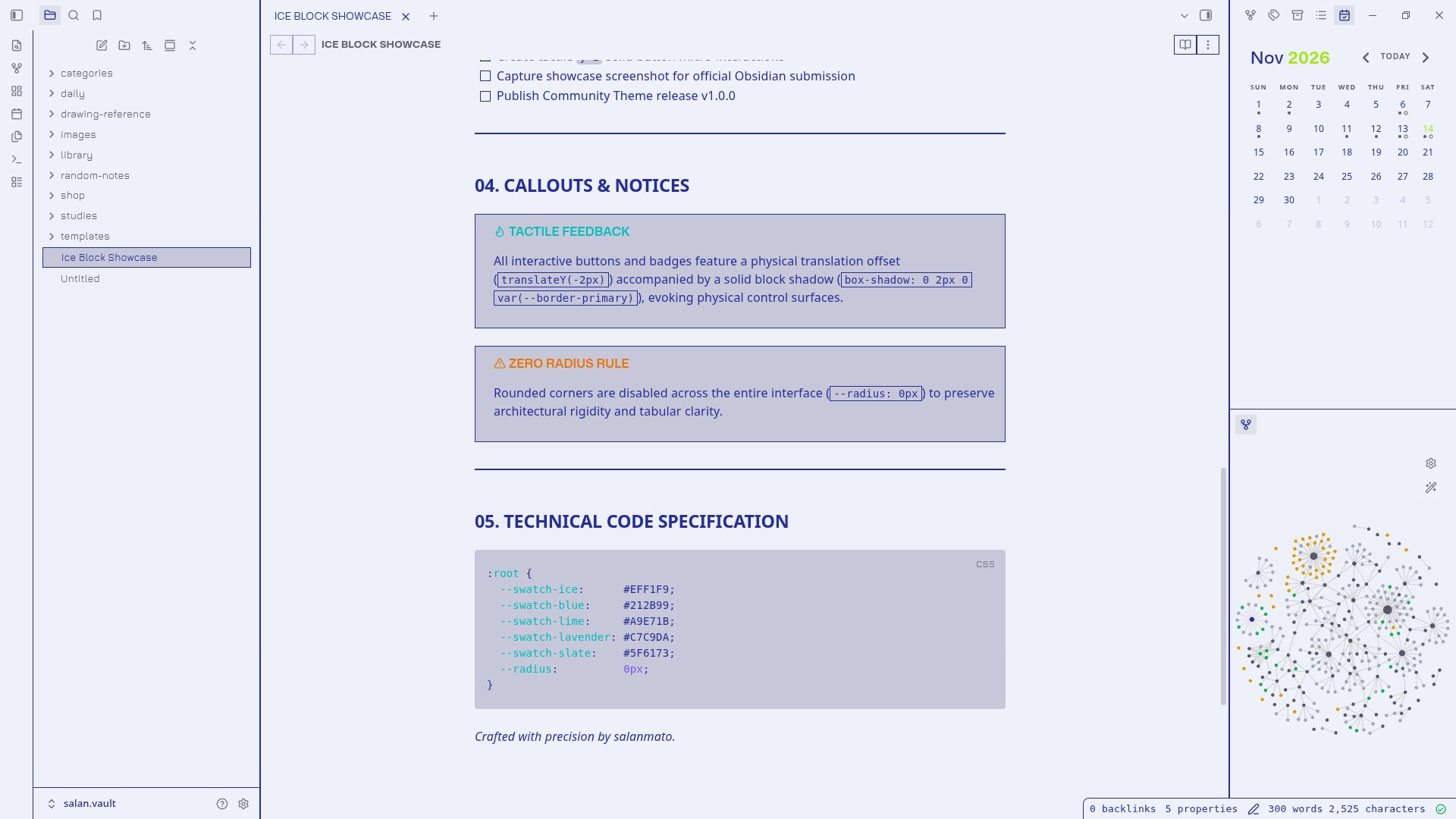
🎨 Color Palette
| Swatch | Name | Hex | Usage |
|---|---|---|---|
 |
Ice | #EFF1F9 |
Light mode canvas & crisp dark mode highlights |
 |
Royal Blue | #212B99 |
Primary text, active states & structural borders |
 |
Electric Lime | #A9E71B |
Signature wikilink badges, accents & active indicators |
 |
Lavender | #C7C9DA |
Elevated cards, metadata surfaces & dark mode text |
 |
Slate | #5F6173 |
Dark mode canvas & light mode muted metadata |
 |
Alert Red | #CC3C1C |
High-priority warnings & destructive actions |
🚀 Installation
1. Obsidian Community Themes (Official)
(Available once approved in the Community Directory)
- In Obsidian, go to Settings (
Ctrl + ,/Cmd + ,) $\rightarrow$ Appearance. - Under Themes, click Manage.
- Search for Ice Block and click Use.
2. Via BRAT (Beta Reviewers Auto-update Tester)
- Install the BRAT plugin from Community Plugins.
- Go to Settings $\rightarrow$ BRAT $\rightarrow$ Themes.
- Click Add Beta Theme and enter:
salanmato/obsidian-ice-block - Activate Ice Block in Settings $\rightarrow$ Appearance $\rightarrow$ Themes.
3. Manual Installation
- Download
manifest.jsonandtheme.cssfrom the latest Release. - Open your vault folder and navigate to
.obsidian/themes/. - Create a folder named
Ice Blockand place both files inside. - Reload Obsidian and select Ice Block in Appearance.
📄 License
Licensed under the MIT License.
Designed with care by salanmato © 2026.