
README file from
GithubTufte for Obsidian




English | 简体中文
An Obsidian theme adapted from Tufte CSS, carrying Edward Tufte's book design — ET Book type, marginalia, restrained rules, one deliberate red — into every corner of the app, with a full Chinese typographic system (宋体正文、楷体示例、黑体数据) alongside the Latin one.
Please visit the documentation for a full description: Documentation
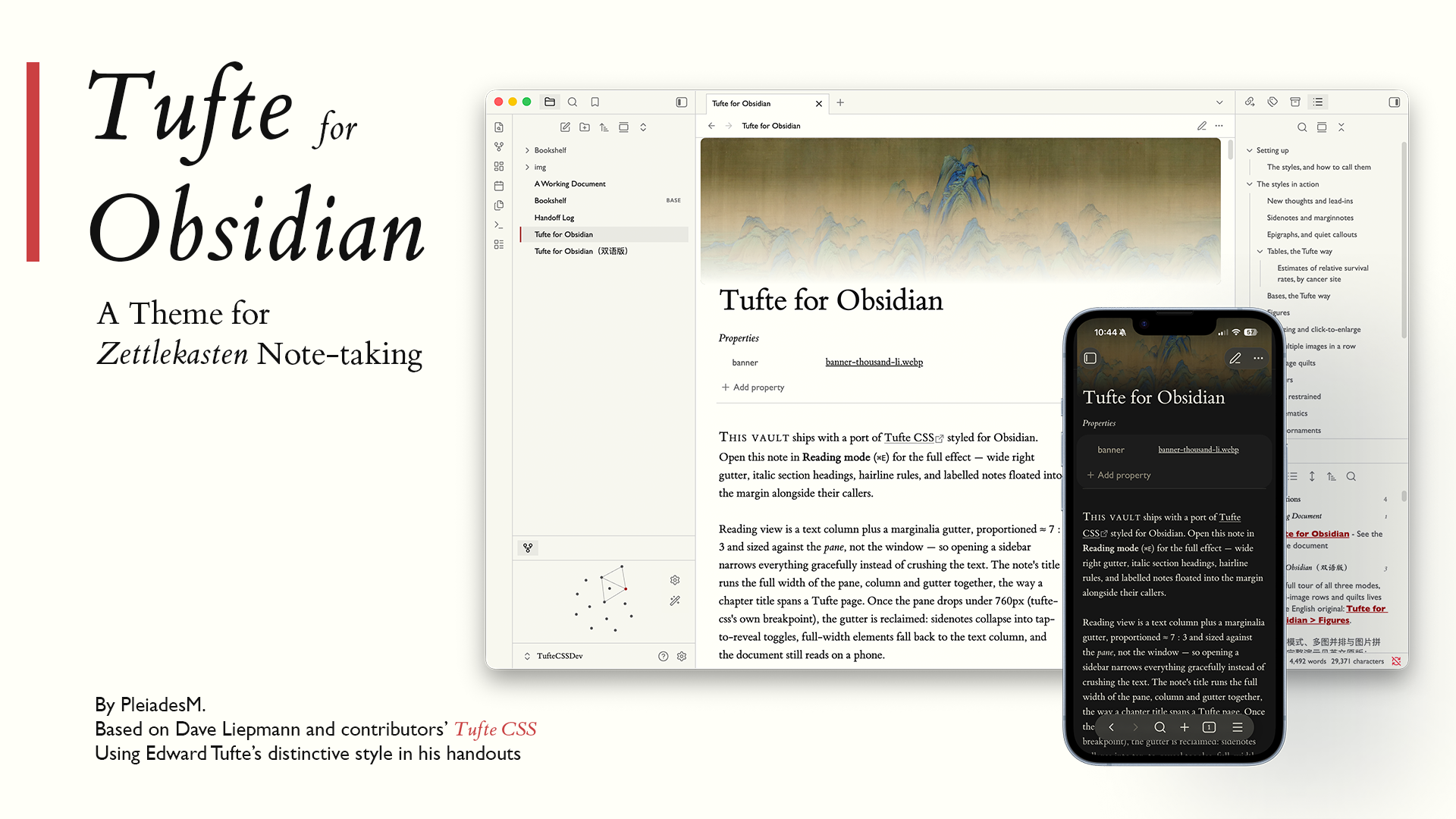
What the theme covers
- Typography — ET Book (embedded, offline; MIT-licensed) with Palatino/Georgia fallbacks; Gill Sans for data, chrome, and (since 1.17.0) the whole interface; a 55rem reading measure with a marginalia gutter; lining tabular figures wherever digits stack. Every face and weight is a knob: serif, sans and the Chinese companions — Source Han presets, the bundled Cabin, or any installed font — are chosen from Tufte Suite's Typefaces settings.
- Tables and Bases — prose tables and Obsidian's Bases database views share one specimen-table register modeled on Beautiful Evidence: a single hairline under the head, no vertical rules, alignment does the work. The Bases cards view renders as a bookshelf gallery — frameless covers on a shelf line with centered title-page captions.
- Banners — a CSS-native
[!banner]callout that opens a note with a full-bleed plate, the way Tufte's chapters open. - Quiet chrome — sidebars, tabs, menus, and the graph in paper-and-ink; glass chrome at 95% opacity with a frost, including a whole-window translucent mode (three Style Settings sliders).
- Chinese typography — 宋体 body, 楷体 for italic contexts (epigraphs, captions, attributions), 黑体 for data labels, punctuation squeeze at wraps, and CJK-aware fallbacks for Windows.
- Tags, highlights, callouts — colored text instead of pills; a six-hue accessory palette held below the accent's chroma so red keeps its pointer meaning.
Light and dark modes throughout; WCAG AA contrast documented in the stylesheet.
Sidenote Function as Edward Tufte's Handout Design
One of the core features of Tufte's handout and book design is the sidenote, which can be traced back to the Marginalia commentary. I found this feature helpful for my note-taking process—once I started to use it, I gradually found many places to insert a sidenote where I didn't notice before.
Backlink Renderer
Backlinks are a core feature of the Zettelkasten (or slipbox) note-taking method. I made a plugin so that it renders the Markdown format instead of displaying the source code directly.
Enhancing Figure Function
The theme supports three modes of figure display, including displaying figures on the sidenote area.
If you drag the image into the pane, a modal will pop up and ask you for more details of that figure, including captions, numbers, and names. It also supports multiple image displays and image quilts.
The companion plugin — Tufte Suite
The theme stands alone, but one plugin completes the Tufte writing system: Tufte Suite. It carries four modules, each switchable on its own in Settings → Tufte Suite:
| Module | What it does |
|---|---|
| Tufte Sidenotes | Renders [^…] footnotes and [!sidenote]/[!marginnote] callouts as true sidenotes in the margin gutter (Reading view), keeping the editor single-column. |
| Tufte Figures | Drop or paste an image to compose column, full-width, and margin figures with proper captions; multi-image rows; an image-quilt generator; auto-numbered references. |
| Tufte Inline | Inline shorthands: ^^text^^ small-caps openers, &&text&& italic run-ins, @@字@@ two-line CJK drop caps. |
| Tufte Backlinks | Renders Linked/Unlinked mention snippets as formatted Markdown — headings at body size, the backlink reference itself bold, underlined and accent red. |
These four used to be four separate plugins, and are now archived. They shipped individually until August 2026 (Tufte Sidenotes 1.7.0, Tufte Figures 1.7.2, Tufte Inline 1.2.0, Tufte Backlinks 1.0.1); four installs, four update prompts, four sets of settings for what is one writing system. Tufte Suite 1.0.0 supersedes all four, and all future plugin work happens there — the standalone repositories and the frozen copies in
plugins/receive no further updates.Nothing is lost in the move: the Suite embeds each plugin's code byte-for-byte as a module, so behavior is unchanged, and turning a module off leaves you exactly where the standalone plugin was uninstalled. If you already run the four, disable them before enabling the Suite — otherwise everything renders twice. The Suite imports their settings and image-quilt store on first load, and keeps the old command ids so bound hotkeys keep working.
Install
Both halves are in Obsidian's community directories — nothing to download by hand:
- Theme: Settings → Appearance → Themes → Manage → search Tufte → Install and use. (Or open
obsidian://show-theme?name=Tufte.) - Plugin: Settings → Community plugins → Browse → search Tufte Suite → Install → Enable. (Or
obsidian://show-plugin?id=tufte-suite.)
Manual install still works: put theme.css and manifest.json from the latest release in YourVault/.obsidian/themes/Tufte/; put main.js, manifest.json, and styles.css from the Tufte Suite release in YourVault/.obsidian/plugins/tufte-suite/, then enable it under Community plugins.
Optional: install the community Style Settings plugin to get sliders for the glass chrome (opacity, blur, translucent-window sheet). Typeface choices live in Tufte Suite's own settings (the Typefaces tabs), not in Style Settings.
Requirements
- Obsidian 1.4.0 or newer (Bases styling targets 1.9+).
- No fonts to install and no network access needed — ET Book and Cabin are embedded in the stylesheet.
Credits
- Tufte CSS by Dave Liepmann and contributors — the typographic source this theme adapts.
- ET Book © Dmitry Krasny, Bonnie Scranton, Edward Tufte, Adam Schwartz — MIT license, embedded in
theme.css. - Cabin © the Cabin Project Authors — SIL OFL 1.1, embedded in
theme.cssas the bundled sans of the typeface settings. - Edward Tufte's books — The Visual Display of Quantitative Information, Envisioning Information, Visual Explanations, Beautiful Evidence — the design authority behind every decision here.
License
MIT © 2026 Daocheng Lin. The embedded ET Book (MIT) and Cabin (SIL OFL 1.1) fonts remain under their own licenses and copyrights.
Changelog
- 1.21.0 (2026-09-18)
- Bold Chinese takes Songti's Black cut
- Bold English a hairline heavier
- Cream labels on the red buttons in dark mode
- Tables centered in the text column
- 1.20.0 (2026-09-17)
- Code blocks take css4.pub's beige ground on light paper
- Syntax colors in Gruvbox, light and dark
- Code in the platform's monospace, at css4.pub's spacing
- Editor gutter numerals in the code face
- No spell-check underlines inside code
- 1.19.0 (2026-08-29)
- Now, the Style Settings panel speaks 23 languages
- Pair with Tufte Suite 1.3.0
- 1.18.0 (2026-08-14)
- Adjust the Properties panel
- Now, the Style Settings panel speaks Chinese
- Pair with Tufte Suite 1.2.0
- 1.17.0 (2026-08-14)
- Make typefaces adjustable: Latin and Chinese faces and weights (Tufte Suite → Typefaces)
- Bold follows the body weight
- Set the interface in Gill Sans, one size larger
- Embed Cabin as the bundled sans
- Pair with Tufte Suite 1.1.0
- 1.16.3 (2026-08-14)
- Limit the reading layout to note panes
- Update the print geometry for figure captions
- 1.16.2 (2026-08-11)
- Enlarge the lead-in slightly
- Tighten the space after H1
- 1.16.1 (2026-08-11)
- Inline shorthands now survive nested markup
- 1.16.0 (2026-08-04)
- Add print / PDF export in the Tufte style
- Reset tables on the booktabs model
- Tint highlights; tone down unresolved links
- Earlier releases — see Releases.