Zoomable Reader

by Yi Yang
5
4
3
2
1
Score: 50/100

Description

Read any note on a pan-and-zoom board: pinch to zoom on mobile, Ctrl and wheel on desktop. For wide diagrams, tables and screenshots.

Reviews

No reviews yet.

Stats

0
stars
147
downloads
0
forks
28
days
25
days
25
days
0
total PRs
0
open PRs
0
closed PRs
0
merged PRs
0
total issues
0
open issues
0
closed issues
23
commits

Latest Version

25 days ago

Changelog

Changelog

1.3.12

  • 图里的文字固定 ≤16px,不再被「拉伸」放大。 用户原话:「你的插件和主题在生成 mermaid 里面的 文字打小应该是固定的,不能超过 16px 的大小」。根因是 1.3.9 那条「图表撑满版心」的规则: 它把 svg 连字带线一起放大 —— 一张 478px 的图铺进 900px 版心是 1.9 倍(白板 1280px 时 2.7 倍), 图里 16px 的字渲染成 30~43px。现在图表只保证「不溢出」(max-width):窄图保持原尺寸, 宽图按比例缩进版心;主题侧把图内字号改成固定令牌(节点 14px、边标签与时序消息 12.5px), 不再跟着「设置 → 外观 → 字体大小」和分辨率增益浮动。
  • 长标签自动折行,不再「一行顶一个宽度」。 用户原话:「图形里面的文字内容太多了,你应该可以 换行呀,而不是一行顶一个宽度呀」。查证(Mermaid 10.9 实测):普通标签 A[长文本] 从不折行 —— 把 flowchart.wrappingWidth 从 460 改成 120,渲染结果一模一样(同一个 478×42 的框、同一行字)。 也就是说,过去插件里那个「标签最大宽度」滑块对普通标签其实是个空旋钮,这正是抱怨的根源。现在:
    • 插件把长标签改写成 markdown 字符串(A["长文本"])—— 只有这种标签 Mermaid 才按折行宽度排版; 同时打开 markdownAutoWrap,默认折行宽度 460 → 260(一行约 16 个汉字,长标签折成 2~3 行);
    • 白板 / 版面视图在渲染前改写(wrapMermaidFences);阅读视图由 Markdown 后处理器接管: 用 context.getSectionInfo 取回该块源码 → 改写 → 自己重渲染换上去。任何一步失败都保持宿主 原本那张图不换 —— 这块代码最坏的结局必须是「没折行」,而不是「图没了」;
    • 真实渲染实测(真 Mermaid + 真主题 CSS):同一个 43 字标签,改写前 1 行、框 678px; 改写后 3 行、框 278px,字号不变(14.96px),文字不溢出框。

Verification: 单元测试 100 条(新增 tests/mermaid-labels.test.ts 十条:只改长标签、短标签一字不动、 markdown 字符串不重复包装、边标签、幂等、围栏提取);npm run verify:layout 新增 6 条真实渲染断言 (改写前后的行数 / 框宽 / 字号 / 溢出);npm run verify:reading 37 条(「流程图按版心宽度显示」 那条按用户的新要求翻过来,改成断言保持自然宽度 478px)。

1.3.11

  • 查看器里给的是「原图」,不是正文里那张缩略图。 用户原话:「查看图片的时候,放大后,点击图片的时候, 你需要确定放大的图片是原图高清的」。正文里的 <img> 可能带 srcset(浏览器按正文的显示尺寸 × DPR 挑一张),也可能被懒加载插件塞了 1px 占位图、真图在 data-src 里。查看器现在自己挑: srcset 里取分辨率最高的一张,src 是占位图就用 data-src。顺带修掉一个真 bug —— srcset 不能按逗号 split:data: URL 里全是逗号,切完每个候选都成了半截地址 (在验证台里的表现是「查看器的图自然尺寸 0」)。
  • 右上角多了一个关闭按钮。 用户要求:「放大后的图片,右上角应该有一个关闭的按钮,方便关闭放大的图」。 它钉在图片区域的右上角(跟着安全区走),与图片的缩放平移无关 —— 图拖到哪儿它都在同一个位置; 桌面 34px、手机 44px(Apple HIG 的最小可点尺寸),鼠标 / 触摸 / Esc 三条路都能关。 工具条里那个 12px 的小叉已去掉:两个关闭按钮只会让人犹豫。
  • 点一下图片 = 落到原图 100%(已经在原图了就收回「适配」)。这是「点击图片 → 确认是原图高清」最直接的 落点:点完读数会写明 1600 x 900 px → 1600 x 900 px · 原图 / native。 三条防误触:位移 ≤ 8px、时长 ≤ 500ms、全程单指;拖动平移松手那一下不会触发 (手势层一旦判定为拖动就会 setPointerCapture,pointerup 根本回不到内容元素上)。 双击仍然是放大到 200%,两条路不打架。

Verification: 单元测试 88 条(新增 parseSrcset / pickHiResSource:data URL 里的逗号、 1x/2x 描述符、懒加载占位图、相对地址拼接);npm run verify:gestures 93 条断言, 其中 8 条新断言先在旧代码上跑出红色:懒加载只拿到 1x1、关闭按钮不存在(桌面与手机各两条)、 点图片没反应(0.533 → 0.533)、手机触摸图片同样没反应(0.642),红的时候 85/93。 诚实边界:无头 Chromium 自己给 srcset 挑的就是最大的那张,所以浏览器侧那条「拿到 1600px 原图」 证明的是最终结果;「比浏览器更会挑」这条逻辑由 tests/lightbox.test.ts 的单测钉住。

1.3.10

  • 手机上终于看得见那个放大的 icon 了 —— 这一条是用户直接点名的。 触屏设备上按钮以前是 @media (hover: none) { display: none } 被整个藏起来的,理由是「轻点图片就能放大,按钮不必占地方」。 用户的回答:「你应该展示放大的 icon,这样我就可以点击了,而不是依靠点击图片,因为图片点击的时候 可能点击到了背景上去了,所以体验不是很好」。现在触屏上按钮常驻可见(不再靠悬停提亮:触屏没有 悬停,0.42 的不透明度等于看不见),视觉 34px,触区用 ::after 外扩到约 46px —— 手指按不准也点得到。 轻点图片这条入口保留,但按钮才是明确的那一个。
  • 连点两下按钮不再进编辑。 按钮就贴在图片角上,而「双击」的第二次 tap 正是 Obsidian 「双击进入编辑」的触发点:现在第二次 tap 会被吃掉(第一次照旧打开查看器,且只打开一次)。
  • 查看器里的图现在是高清的,不是被压缩后再拉大的。 两个独立原因,都修了:
    • 100% 的基准错了:以前「1 个源像素 = 1 个 CSS 像素」,所以在 DPR=3 的手机上,一张 1600px 的 截图被铺到 4800 个物理像素上 —— 横向拉伸 3 倍,这就是用户说的「放大查看都模糊了」。现在按 naturalWidth / devicePixelRatio 排版:100% 就是原图分辨率(1 源像素 = 1 设备像素),读数也 对得上(1600 x 900 px → 1600 x 900 px)。再往上放大才是放大镜。
    • 画布上带着 will-change: transform:它把画面钉死在提层时的比例上,之后放大只是把旧位图拉大 (照片发软、图表里的 CSS 文字直接糊)。已去掉。
    • 另外,打开小图不再「适配」放大(适配比例封顶 100%),并解除主题/宿主塞给 img 的 max-width: 100%(它会把刚摆好的 1:1 又压回去,窄屏上高清立刻失效)。
  • 细节:插件的手机手势拦截器现在会避开自己的放大按钮 —— 按钮里的图标是 <svg>,不排除就会被 「这是不是图表」的判定当成一张 18px 的图表打开。

Verification: 单元测试 82 条(新增 tests/lightbox.test.ts 钉住 1:1 的换算,含 devicePixelRatio 不老实的情况);npm run verify:gestures 82 条断言,npm run verify:reading 36 条断言。 新断言先在旧代码上跑过一遍确认它们能失败:1.3.9 上触屏的按钮是 display=none opacity=0.42 0x0、 小图打开是 426%、will-change 计算值是 transform。

1.3.9

  • Fixed: flow charts (and every other diagram) ignored the line width. 1.3.7's width rules only targeted img and video, but a Mermaid flow chart is an <svg> — and themes set flowchart.useMaxWidth: false (that is what makes boxes follow the text), so Mermaid renders at its natural width and the diagram stayed at 478 px inside a 900 px column, or overflowed on a phone. The rules now cover .mermaid svg, .block-language-mermaid svg, .excalidraw-svg svg and .block-language-chart svg/canvas as well, and the plugin's own view got the same treatment in styles.css.
  • Scaling is by ratio (SVG is vector, so the text scales with it): measured in a real browser, a 478 × 98 diagram becomes 900 × 184 with the 478:98 ratio intact, and on a 390 px phone viewport both the diagram and a photo land at 342 px — one screen wide, as asked. Double-tap still opens the zoomable viewer, which is where detail reading now happens.
  • The setting is now called 阅读视图图片/图表宽度 (it always governed both, the label just lied).

Verification: npm run verify:reading is now 32 assertions — the new ones measure the diagram in the DOM: fill → 900 px with the aspect ratio preserved, contain → stays 478 px, and on a phone viewport the diagram and the photo are both clamped to the same screen width.

1.3.8

  • Fixed: double tapping still opened the editor. 1.3.7 only intercepted double taps on images, but Obsidian's double-tap-to-edit is a gesture of the whole reading view — tapping text triggers it too, so in practice nothing changed. The interception now covers every double tap inside the reading view (text, images, diagrams); double tapping an image or diagram opens the zoomable viewer instead. Two separate switches: 手机:双击不进编辑 and 手机:双击图片 = 放大查看.
  • Three more real bugs, all found by the browser harness rather than by reading the code:
    • The same event was handled twice (the module listens on both window and document in the capture phase), so one tap looked like two and a single tap opened the viewer. Events are now deduplicated.
    • A two-finger pinch was counted as a tap, poisoning the next double tap. Multi-touch now cancels tap tracking, and only touchend counts as a tap (pointerup/click are used for swallowing only).
    • Within one gesture, touchstart targets the image but touchend and the synthetic dblclick target the container, so the hit test concluded "text" and the image never zoomed. The hit is now resolved from the touch-start element and the coordinates as a fallback.
  • A touch double tap also produces a synthetic dblclick (in an unstable order) and both used to open the viewer; they now share a short window so one double tap opens exactly once.
  • 手机:双击自检 (off by default) shows a notice for every intercepted double tap — if a gesture still misbehaves on a real phone, the notice tells whether the plugin saw it at all.

Verification: npm run verify:reading — 28 assertions. Besides the earlier reading-view checks: a single tap does nothing, a double tap on text does not enter editing and opens nothing, a double tap on an image opens the viewer exactly once and the simulated editor handler records zero events, gestures outside the reading view are ignored, and mobile: false (desktop) does not intercept at all.

1.3.7

  • Images follow the line width, scaled by ratio. In the reading view every image is now scaled to exactly the line width you chose (900 px by default) with `height: auto`, so nothing is cropped or stretched and a 600 × 200 screenshot becomes 900 × 300. Explicit widths (`![[image.png|300]]`) are normalised too — one page, one image width, as asked. Two other policies stay available (fit within the line width, natural size), and the rules only ever touch `.markdown-reading-view`, never the editor.
  • Mobile: double-tapping an image zooms it instead of entering editing. In Obsidian's reading view a double tap on an image means "edit", which is exactly wrong while reading on a phone. The plugin now intercepts that gesture inside the reading view and opens the zoomable viewer instead; the edit path is suppressed (use the menu button when you really want to edit). A single tap does nothing new, gestures outside the reading view are ignored, and desktop is untouched — as asked, this is a mobile behaviour.
  • Two ordering bugs found by the browser harness, both fixed rather than papered over. A touch double tap also produces a synthetic `dblclick`, and which one arrives first is not stable — the first version opened the viewer twice. Both paths now share a short mutual-exclusion window: one double tap opens the viewer exactly once. The harness also had to be honest: its simulated "Obsidian edit" listener originally counted every tap, which proved nothing; it now does real double-tap detection, so "0 edits" means the double tap was genuinely consumed.

Verification: npm run verify:reading is now 26 assertions — the image policies are measured in the DOM (fill: 600 px image → 900 px, ratio still 3:1; contain: stays 600 px; natural: no rules injected), the desktop path is asserted not to open the viewer, and on a phone viewport a real CDP double tap opens the viewer exactly once while the simulated edit handler records zero events.

1.3.6

  • The reading view itself now has a width and a zoom. Obsidian's own reading view is not taken over — the plugin changes two CSS properties of it: the line width (default 900 px, the value that was asked for, with 760–1200 px and 跟随主题 / follow-the-theme options) and a zoom level (60 %–200 %, default 100 %). Your theme files are untouched, and follow the theme + 100 % injects nothing beyond one `touch-action` line.
  • Zoom reflows instead of stretching. It is applied as CSS `zoom` with the sizer's `max-width` divided by the same factor, so the text gets bigger while the measure on screen stays exactly the line width you picked. A screenshot-level stretch would have changed the line length; this does not.
  • You operate it: pinch, Ctrl+wheel, or commands. Pinch inside the reading view on mobile, Ctrl / ⌘ + wheel on desktop, or the three new commands (阅读视图放大 / 缩小 / 复位到 100 %, each showing the new level). Only two-finger pinches and Ctrl+wheel are intercepted — one-finger scrolling, taps and the plain wheel remain Obsidian's.
  • A real bug found by the browser harness. The first implementation listened for pointer events and the browser claimed the two-finger gesture for itself: of ten gesture frames only two arrived (pointercancel). The fix is to listen for `touchstart`/`touchmove` and to declare `touch-action: pan-y` on the reading view — vertical one-finger scrolling still belongs to Obsidian, while the two-finger pinch now belongs to the plugin (measured: zoom 1 → 1.86 in one pinch).
  • New settings group 阅读视图(Obsidian 自带的页面)/ Reading view, with the three settings above.

Verification: npm run verify:reading — 17 assertions in a real Chromium against a page that mimics the reading view (a theme width of 720 px, a long document): follow-the-theme really is 720 px with no width rules injected, 900 px really measures 900 px, zoom 150 % keeps the on-screen measure at 900 px while paragraphs get 1.5x taller, the clamp holds at 60–200 %, Ctrl+wheel zooms inside the reading view and is ignored outside it (and after the listener is removed), and on a phone viewport a real CDP two-finger pinch raises the zoom while the throttling keeps the reflow count below the frame count.

1.3.5

  • The card concept is gone. Whiteboard mode used to compile the note into a board of cards: one card per heading, connectors, folding, a card limit, and a column or flow layout. It is now what it should have been: one page, 1280 px wide, on a surface you pan, zoom and scroll. The width setting belongs to the page, not to a card.
  • Removed along with it: src/board-model.ts (the heading→card compiler), src/board-layout.ts (tidy tree / single-column geometry), src/board-render.ts (card DOM, connectors, focus buttons), the five card settings (排版 / 展开层级 / 间距 / 连线 / 数量上限), every card style in styles.css, and the 43 unit tests that covered them. The verification suite now asserts the absence: no card class names or card settings in the built bundle, no card modules in the tree, and zero card artifacts in the live DOM.
  • What is left is the part that made the plugin worth having: one page whose width is a setting (1280 px default, A5/A4 presets one slider step away), recompiled every time you enter the mode and following the note as you edit, with the same gesture layer as before — drag to pan, pinch to zoom, 适配宽度 to pull the whole page into the viewport and then simply scroll down.
  • Settings are now: 打开笔记时的默认模式 / default mode and 白板版面宽度 / whiteboard page width.

Verification: npm run verify:board (34 assertions) now checks the whiteboard itself — the page is 1280 px by default (from the shipped settings data), the page mode follows the theme line width (760 px), changing the width setting really changes the page, one page element exists, the bundle and the DOM contain no card artifacts, wheels scroll to the last paragraph, fit-width puts the whole page inside the viewport, and the mobile touch gestures keep their anchor invariant.

1.3.4

  • The column is 1280 px by default — a desktop web content width. A5 (560 px) turned out to be the wrong default for reading on a screen: long Chinese lines wrapped early and the column felt narrow. 1280 px is the width a web page uses, so lines are long, tables have room, and the column fills a normal screen — which is what makes reading a purely vertical gesture. The slider still names the paper presets (A5 = 148 mm ≈ 560 px, A4 ≈ 794 px) and the readout says 1280 px · 网页宽 Web or 560 px · A5 · 148mm so the choice is obvious either way.
  • 适配栏宽 / fit column width — a new toolbar button that fills the viewport with the column width, so on a phone (or a small window) you can see a whole line and then just scroll down. The board still opens at 100% (readable), and you decide when to trade size for the whole column.
  • Indentation scales with the column: 18 px per level was invisible in a 1280 px column, so it is now about 3% of the width (≈ 38 px), still capped at three levels.

Verification: npm run verify:board is now 49 assertions — the default is asserted to be 1280 px with the readout naming it (网页宽 Web), A5 is still asserted to be 148 mm ≈ 560 px as a preset, and the new fit column width assertion measures the real DOM: after one tap the widest card edge lands inside the viewport and the scale is below 1.

1.3.3

  • Two layouts for the whiteboard, and the default is the one you read. The board used to be a branch tree only: headings in columns with connectors. On a phone that means hunting for content sideways. The default is now 单栏纵向流 / single column — one A5-wide sheet per section, stacked in document order, so scrolling down is reading down, with indentation (up to three levels) and the left accent bar carrying the hierarchy instead of connectors.
  • 分支树 / branch tree is still there for the other job: seeing the whole outline at a glance. Pick it in the settings (设置 → 白板模式 → 白板排版) or flip it from the view toolbar; connectors belong to that layout, and the single column draws none (a line inside a one-wide column only overlaps the cards).
  • Why cards at all, if it reads like a document? Because the board is zoomable when Obsidian's reading view is not: each section stays a sheet you can pinch into, tap to bring to the front, and the sections still fold by heading depth and by card limit. It is a page you can zoom, not a scroll that cannot.

Verification: npm run verify:board is now 48 assertions. The new ones assert the shipped default layout is flow (read from the real settings data, not a number copied into the test), that every card shares the paper width with y strictly increasing in document order, that a single column draws zero connectors, and — the behavioural one — that scrolling down alone reaches the last section (the final card enters the viewport). Switching to branch tree flips the connector assertions back on (count = parent/child relations, endpoints on the card edges), and switching back drops them again.

1.3.2

  • Cards are paper now: A5 by default (148 mm ≈ 560 px). The default card width was 320 px, so a card held only about twenty Chinese characters per line and the board read like a narrow strip rather than a page — reported as "the whiteboard looks tiny". A5 is the width a Chinese book line actually uses (30–40 characters), so it is now the default; A6 and A4 are one slider step away and the readout shows millimetres and the paper name (560 px ≈ A5 · 148mm).
  • The board opens at natural size (100%), not fitted. Previously it focused the title card — which holds a title and a card count and nothing else — so the screen showed one small box in the middle. Now it opens at 100% with the root card in the top-left corner: one A5 page at reading size. The board still zooms and pans, and 回到全图 / 回到标题卡 are still in the toolbar.
  • Parents are top-aligned with their children, not centred against them. A tidy tree centres a parent against its children band; on a document board that pushes a short title card into the middle of the screen and leaves the top half empty — the other half of "it looks tiny". Top aligned, the top-left corner is content and you read downward, like paper.
  • The whiteboard is a view: it recompiles every time. Entering whiteboard mode compiles the Markdown again from scratch, reading the live editor text when the note is open in a pane (so unsaved edits show up), and it recompiles again when the note changes — a save, or typing in another pane, throttled to 400 ms. Nothing is written back, and there is a new 重新编译 / recompile button in the toolbar for a forced refresh.
  • Board positions are now keyed by card width: change the paper size and the saved zoom/pan is dropped rather than restored onto a board whose geometry no longer matches.

Verification: npm run verify:board is now 42 assertions — the new ones assert the shipped default is A5 (560 px ≈ A5 · 148mm, from the real settings data, not a number copied into the test), that opening lands at scale 1 with content within one margin of the top-left corner, and that every card's real DOM width equals the configured paper width.

1.3.1

  • Fixed: opening a note as a whiteboard showed an empty view. Obsidian's view lifecycle is onOpen() and then setState(). onOpen() reads the configured default mode (page) and paints the mode classes on the root element; setState() then switches the mode to whiteboard because the command asked for it — but nothing repainted the classes. The board was rendered into .zr-board-host, which .zr-mode-page .zr-board-host { display: none } hides, and the visible layer was the empty page. Symptom: run 编译成白板 / open as a whiteboard and see nothing at all (setting the default mode to whiteboard worked, because then onOpen() painted the right classes).
  • The mode classes are now applied inside the render path (renderFile()), not merely while building the UI: whichever layer is about to be filled is made visible first. The rule is written down next to the code, because "visibility is not a one-time setup" is exactly the sort of invariant that silently rots.
  • npm run verify:board now reproduces the bug before asserting the fix (35 assertions): it paints the page classes, renders the board without re-aligning them, and asserts that exactly 0 cards are visible — then re-renders through the real path and asserts all of them are. A test that cannot fail is not a test.
  • Board rendering failures are no longer silent: a caught error raises a Notice (and a console error) instead of leaving a blank view — on a phone there is no console to open.
  • Keyboard shortcuts (+ - 0) are registered once per view instead of once per UI rebuild, so toggling the mode no longer handles the same key twice.

1.3.0

  • Whiteboard mode: the note is compiled into a board, instead of being put on one. The previous version rendered the whole note as one tall page inside a zoomable surface. This version adds the other reading model: the Markdown itself becomes the board. Every heading turns into a card holding that section's content, frontmatter is dropped (it is metadata, not the note), and code fences, tables, callouts, quotes, math, images and Mermaid blocks become typed blocks inside their card — a # inside a code fence is deliberately not a heading. Cards are laid out as a tidy tree (children in the next column, vertically centred against their parent) with bezier connectors from the parent's right edge to the child's left edge, so the outline is visible at a glance on a phone and readable after a pinch.
  • Heights come from the real DOM, twice. Estimating Chinese text height is guesswork, so the board is laid out once from an estimate (the board appears immediately) and again from measured offsetHeight values. Tables, images and long paragraphs then take exactly the room they need, and no card can overlap another.
  • Deep headings fold into their ancestor card. Chinese notes often run four or five heading levels deep, and one column per level turns the board into a thin ribbon: sections deeper than the configured depth are folded in as subsections. A card limit folds deeper automatically, so a note with hundreds of headings cannot stall a phone, and the root card says how many cards there are.
  • Tap a card title to bring that card to the front, 回到全图 fits the whole board, 回到标题卡 returns to the root. Links inside a card keep their normal meaning: only the card head and its focus button zoom. The board transition is 240 ms, and it is cancelled the moment a pointer goes down so dragging never feels laggy.
  • The settings page is bilingual and searchable. Every setting now reads 中文 / English — name, description and the options of every dropdown — and on Obsidian 1.13+ the page is declared through getSettingDefinitions(), so settings appear in the settings search: typing 双指 or pinch jumps straight to the two-finger switch (双指捏合缩放 / Two-finger pinch zoom), which is exactly what could not be found before. The content lives in one data module (src/settings-spec.ts) and is rendered twice — declaratively on 1.13+, imperatively on 1.5.7–1.12 — so older versions get the same page. A new 手势速查 / gesture cheat sheet lists every gesture in both languages.
  • Two-finger pinch is now a setting, with a sensitivity slider. Turning it off leaves two fingers panning with their midpoint (handy when an IME or stylus emits a phantom second pointer); the slider scales the pinch ratio between 0.5x and 2x.
  • The zoom button on images and diagrams moved to the top-left corner by default. The top-right corner is where Obsidian puts its own 编辑源文件 / edit source and more-options controls, and the button used to cover them (reported from a real phone). The corner is a setting, so anyone who preferred the old position can put it back — and both placement paths (persistent inline button and hover singleton) follow it.
  • New settings: 打开笔记时的默认模式 / default mode (page or whiteboard), 卡片宽度 / card width, 卡片展开层级 / outline depth, 卡片间距 / card spacing, 显示连线 / connectors, 卡片数量上限 / card limit, 放大按钮的位置 / zoom button corner.
  • Zoom and position are now remembered per mode (page and whiteboard have different sizes, so sharing one transform made them fight). Whiteboard positions use the same data.json, with a #board suffix.
  • Whiteboard mode is reachable from the command palette, the ribbon icon, the view toolbar, and the file-list context menu (编译成白板 / open as a whiteboard) — the last one so a phone user can go straight from the file list into a board without opening the note first.

Verification: npm test now has 84 unit tests, including the board compiler (fenced code, frontmatter, table detection, heading level jumps, folding) and a contract test that fails if any setting is missing its Chinese or English half. npm run verify:board is new: 32 assertions in a real Chromium, asserting the geometry from the DOM — cards never overlap, every card is inside the board bounds, every connector lands on its cards' edges, the measured height equals the layout height (the second pass working), Ctrl+wheel keeps its anchor, a drag keeps panning without zooming, and a click on a card title really centres that card — on a desktop viewport and with real CDP touch events on a phone viewport. npm run verify:gestures grew the zoom-button corner assertions (default top-left, the top-right edit zone stays clear, and switching the setting moves the button back).

1.2.4

  • Wider diagram boxes: boxes now follow the text, the way PlantUML lays them out. Mermaid caps a label at flowchart.wrappingWidth = 200, so a long Chinese label folds into four or five narrow lines — a 46-character label rendered as a 215 by 143 box. Raising the cap to 460 gives 478 by 98 with two lines. This is a rendering parameter, not styling, so it cannot live in the theme: a theme is CSS, and CSS cannot reach the layout engine. The plugin does it instead, and the theme stays as it is.
  • The host's own settings survive. mermaid.initialize() replaces nested config objects rather than merging them — passing { flowchart: { wrappingWidth: 460 } } on its own drops Obsidian's flowchart.useMaxWidth: false and themeVariables.fontFamily: var(--font-mermaid), which sends Chinese back to Mermaid's default "trebuchet ms". The plugin reads the live config first (mermaid.mermaidAPI.getConfig()), deep-merges its parameters on top and hands the whole thing back, so useMaxWidth, securityLevel and the theme font are untouched.
  • Mermaid loads lazily, so window.mermaid often does not exist yet when the plugin starts. It retries (every 500 ms, up to 30 s) and re-checks on layout-change. Diagrams already on screen pick the new layout up the next time they render.
  • Settings: Wider diagram boxes (on by default) and Max label width (240–800 px, default 460).

Verification: npm run verify:layout — 17 assertions against real Mermaid and the real theme, driven through the plugin's own code (window.DiagramLayout), not a copy of it: the long label goes 4 lines → 2, the box 215 px → 478 px, the host's useMaxWidth / fontFamily / securityLevel stay exactly as they were, and installing twice is a no-op. Plus 6 unit tests for the merge itself.

1.2.3

  • The viewer keeps the diagram's ancestor semantics. Moving only the <svg> into the viewer dropped the .mermaid class from its ancestry — and every text style a theme (or Obsidian's own app.css) declares for diagrams hangs off that class: .mermaid svg text, .nodeLabel, .label, .labelText — font size, colour, line height. Without it, the HTML labels Mermaid renders inside foreignObject fell back to Mermaid's inline font size, and because those labels are sized by their own <span>, they overflowed their boxes and overlapped each other. The holder now carries the class. It is only a semantic marker; the appearance still comes from the theme.
  • The pinned size is the rendered size, not getBBox(). The two are not the same thing: a theme that fits a diagram to the text column renders it at, say, 80%, while getBBox() reports the diagram's own user units. Pinning the latter meant the viewer silently scaled the diagram back to 100%, so every label reflowed and overflowed — the "放大后编成鬼样子" screenshot. getBoundingClientRect() now supplies the pinned pixels, and getBBox() is kept only for the "original size" readout.

Verification: new tools/verify-diagram-labels.mjs (npm run verify:labels), wired into npm run check. It builds a real page, loads the built theme and the plugin's styles.css, renders an actual Mermaid flowchart whose labels contain <br/> line breaks, measures the label boxes in user coordinates, opens the viewer, neutralises the canvas transform and measures again. 9 assertions, all passing. It was confirmed to fail (8/9, "搬移后没有标签明显溢出外框") when the companion theme fix is reverted, so the guard actually fires.

Companion change in the theme (1.2.4): the label resets are no longer scoped to .markdown-rendered, and the in-diagram text carries its own font-family and text metrics.

1.2.2

  • The viewer shares the note's background colour (--background-primary). Some parts of a diagram are opaque by design — an edge label carries a backing rectangle so the connector line does not cut through its text — and on a differently coloured surface those rectangles read as bright patches. With the same background, a diagram in the viewer looks exactly like the diagram in the note, only bigger.
  • The canvas layer itself stays transparent; only the viewport carries the colour.
  • Verified with two new assertions (70 in total, all real events): the viewport's computed background equals --background-primary, and the canvas computes to rgba(0, 0, 0, 0).

Companion change in the theme (1.2.3): diagram nodes are now drawn as coloured outlines with a transparent interior, so a box has colour where it should (the stroke) and no fill inside.

1.2.1

  • The zoom button is always visible now (default), instead of appearing only while the pointer is over an image. Hunting for a button that disappears the moment you move towards it was the wrong interaction. It sits in the top right corner of every image and diagram, at 42% opacity so it does not shout, and goes fully opaque when you point at it. The old hover behaviour is still available: turn off Always show the zoom button in the settings. On touch devices the button is hidden entirely, because a tap already opens the viewer.

Panels are wrapped rather than repositioned: each image gets a small wrapper that carries the button, so it scrolls and reflows with the image — no scroll or resize listeners, nothing to get out of sync. The wrapper is removed when the plugin unloads.

Three things the harness caught while building this, all of them invisible in code review:

  • Wrapping an SVG in an inline-block wrapper collapses a width="100%" SVG to zero width, because its size then depends on the wrapper and the wrapper on its content. Diagrams are therefore hosted by their existing container (only position: relative is added), and only images get wrapped.
  • Applying the wrapper class to a chart container has the same effect, so the two concerns are now two classes: .zr-zoom-host (positioning only) and .zr-zoom-host-wrap (the image wrapper).
  • A button appended inside an <svg> is not rendered at all — its box is 0 by 0 and clicks do nothing. The host is now always an HTML element, climbing out of the SVG namespace if needed.

Verification: 68 assertions, all driven by real events — the button is visible without hovering, measured inside the image's top right corner, clicking it opens the viewer, clicking the image does not, the viewer content computes to no background, border or shadow, three common SVG shapes each open and zoom to 35x, and switching the setting back to hover mode restores the old behaviour.

1.2.0

  • The zoom entry point is now a small button in the top right corner of an image (and of a diagram), shown only while the pointer is over it. Clicking the image itself keeps its usual meaning, which is the calmer interaction for reading: the button appears when you want it and stays out of the way otherwise. On touch devices — where there is no hover — a tap still opens the viewer.

  • New setting Open the viewer by clicking images too (off by default) for anyone who prefers the direct click on desktop.

  • Nothing is decorated in the viewer. An image is shown as it is; a diagram keeps its transparent background with solid lines and text, exactly as it looks in the note — no card surface, no border, no shadow, no rounded corners. What you zoom into is what you saw.

  • Zooming in is no longer capped at 8x. The default limit is now 64x (settings allow up to 256x), because reading the small print of a 4K screenshot regularly needed more than 8x. The corner button is also clamped into the visible area now, so it stays clickable on diagrams that are wider than the window.

  • SVGs drawn by other plugins zoom too. The button and the viewer used to look only for .mermaid svg; now any reasonably large <svg> in the rendered note is picked up (Excalidraw embeds, chart blocks, plain <svg> in a note), while icons — callout icons, button icons, inline symbols — are excluded by size and by their container.

Fixed, and this one is why "other SVGs" could not be zoomed at all: the viewer measured a diagram after moving it into the overlay, where getBBox() and getBoundingClientRect() both return zero on an element that is not in the document. With no measured size, the fit scale was garbage and the diagram's own size depended on its container. It now measures and pins the pixel size first, then moves the node.

Verification grew from 43 to 65 assertions, all driven by real events: the button is absent until the pointer is over an image, sits 6px inside the image's top right corner (measured against the image's own bounding box), opens the viewer when clicked, does not open it when the image itself is clicked, both the image and the diagram inside the viewer compute to background: rgba(0, 0, 0, 0), border: 0, box-shadow: none, and three SVG shapes that plugins commonly produce (viewBox only, width="100%", fixed pixels) each open, get their size pinned, and keep zooming to 35x.

1.1.0

  • Image and diagram viewer. Click an image in a note to open it full screen, zoomed to fit; zoom with the wheel (Ctrl or Cmd and wheel), the toolbar buttons, + / - / 0, or a pinch on mobile; drag to pan; double-click toggles 100% and the fit scale. Esc, the close button or a click on the empty background closes it.
  • The toolbar shows the image's real pixel size next to the size you are currently looking at (for example 1600 x 900 px → 852 x 479 px), so you always know how far in you are.
  • Diagrams open in the same viewer. Clicking a Mermaid diagram moves it into the viewer and puts it back afterwards, which keeps the theme's #id-scoped styling intact instead of re-rendering a copy.
  • Three new settings: click images to open a zoomable viewer, click diagrams to open a zoomable viewer, and fit to window when the viewer opens.
  • Verified with 43 assertions driven by real events in Chromium, including this release's new ones: opening by a real click, fit scale, toolbar zoom, wheel zoom with the anchor invariant, drag panning, Esc, background-click close, diagram move-and-restore, and a mobile pass (touch to open, pinch to zoom, overlay fully removed on close).

Fixed along the way, both found by that harness rather than by reading code:

  • The pan flag used to be cleared on pointerup, so the click that ends a drag was treated as a click on empty space and closed the viewer. It now survives until the click is consumed.
  • The viewer used Obsidian's addClass helper, which does not exist in a plain browser; the overlay ended up in the DOM while the module thought it had never opened, so every control was dead. It now uses standard classList and only attaches to the DOM once fully built.

1.0.0

First release.

  • New view that renders the active note on a pan-and-zoom board.
  • Mobile: one-finger pan, two-finger pinch zoom, double-tap to toggle 100% and 200%.
  • Desktop: drag to pan, Ctrl or Cmd and wheel to zoom at the pointer, plain wheel to pan, double-click to toggle, and + / - / 0 shortcuts.
  • Toolbar: zoom out, current zoom level (click to reset), zoom in, fit width.
  • Zoom and position are remembered per note, in the plugin's own data.json.
  • The note column follows the theme's --file-line-width and never exceeds the viewport on a phone, so 100% is one screen wide and zooming only magnifies.
  • Verified with 24 assertions driven by real events in Chromium (wheel, Ctrl and wheel, drag, pinch, double-tap) plus vitest suites for the zoom math and the repository contract.

README file from

Github

Zoomable Reader

两种读法:版面(跟随主题行宽)与白板(一整张 1280px 宽的版面)。 手机上双指捏合,桌面按 Ctrl 滚轮,拖动即平移,往下滑就是往下读。

Read any note on a pan-and-zoom board. The whiteboard mode renders the whole note as one 1280 px page (a desktop web content width) on a surface you can pinch, drag and scroll — no cards, no columns, just a wide sheet of paper you read downwards.

License

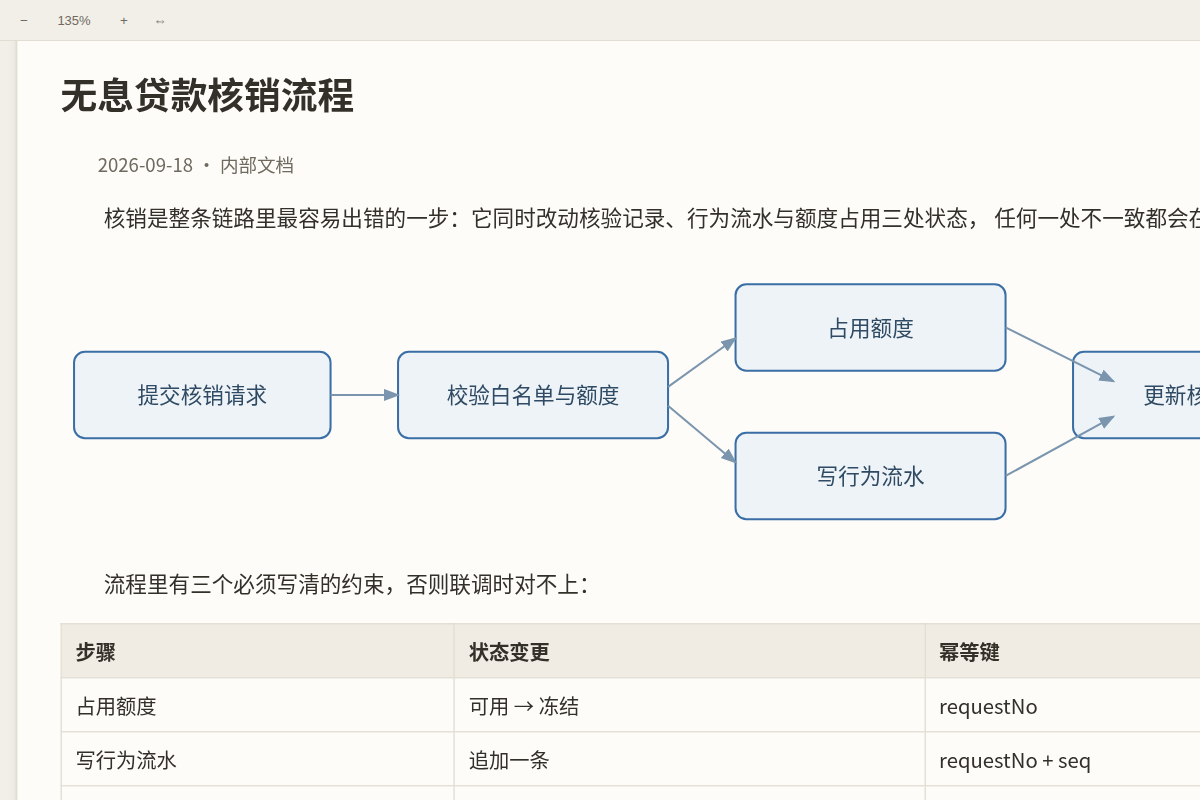
A note on the zoomable board, zoomed to 135%

中文速览

  • 阅读视图(Obsidian 自带的页面)也能改宽度、也能缩放:默认把版心放宽到 900px, 字号缩放默认 100%(60%~200% 可调)。手机上在阅读视图里双指捏合、桌面按 Ctrl+滚轮 就能自己调;命令面板还有「阅读视图放大 / 缩小 / 复位到 100%」。只看两条注入样式, 你的主题文件一个字节都不动;缩放是重排(字变大、版心宽度不变),不是把整页拉变形。

  • 白板模式:把整篇笔记渲染成一张 1280px 宽的版面(网页版心宽),放在可平移、缩放、 往下滑的板子上 —— 没有卡片、没有分栏,往下滑就是往下读。宽度可调(设置 → 白板模式 → 白板版面宽度;想按纸的感觉就选 560 = A5、794 = A4)。每次进白板都重新编译一遍, 笔记改了白板跟着变(只读,不落盘)。

  • 双指捏合在哪:设置页第一组就是 手势与缩放 → 双指捏合缩放(还有一张「手势速查」表)。 手机上要能缩放,必须用本插件的视图打开笔记(侧边栏放大镜图标、命令面板、或文件列表长按 →「编译成白板」)—— Obsidian 自带的阅读视图无法缩放,这是应用层限制,任何主题都改不了。

  • 设置页中英对照:每一项都是「中文 / English」,并且能进 Obsidian 1.13+ 的设置搜索 (打「双指」或 pinch 都能直接跳到那一项)。

  • 放大按钮默认在左上角:右上角是 Obsidian 自己的「编辑源文件 / 更多选项」入口,按钮贴在那儿 会把它盖住。想放回右上角:设置 → 图片与图表查看器 → 放大按钮的位置。

  • 手机上也看得见这个放大按钮:触屏没有悬停,所以它常驻显示、不再靠鼠标指到才亮(视觉 34px, 触区约 46px —— 手指按不准也点得到)。点这个 icon 就放大,不必去点图片本身(图片边缘容易点空)。

  • 放大查看就是高清:查看器按「1 个源像素 = 1 个设备像素」摆放 —— 读数显示 100% 时,你看到的就是 原图分辨率(DPR 3 的手机上,一张 1600px 的截图摆成约 533 CSS px,而不是 1600 CSS px)。 打开时也不会为了「适配」把小图拉大:放大是插值,插值就是糊。

  • 查看器拿的是原图,不是正文里那张缩略图:正文里的图片可能是 srcset 里挑出来的小图,或者被 懒加载插件换成 1px 占位图(真图在 data-src)。查看器会自己取分辨率最高的那张。

  • 点一下图片 = 原图 100%(读数会写明「原图 / native」),再点一下收回适配;右上角有一个关闭按钮 (手机 44px),不用去工具条里找那个小叉。

  • 图里的字号固定、长标签自动折行:Mermaid 图里的文字固定 ≤16px(不再被拉伸放大,也不随正文字号浮动); 超过折行宽度(默认 260px ≈ 16 个汉字)的标签会自动折成两三行,不再「一行顶一个宽度」。 折行宽度可在设置里调:图表排版增强 → 标签折行宽度。

Why this exists

Obsidian's reading view cannot be pinch-zoomed on mobile, and no theme can change that: the app runs in a WebView whose zoom is a native, app-level switch (Capacitor's zoomEnabled, off by default), plus a user-scalable=no viewport declaration. CSS cannot reach either one.

A plugin can. Zoomable Reader opens the note in its own view, renders the Markdown into a transformable layer, and handles the gestures itself — so pinch-to-zoom finally works on a phone, and wide tables, diagrams or screenshots can be read at 1280 px instead of being squeezed into a 700 px column.

Usage

  1. Open a note, then run Zoomable Reader: 打开当前笔记 / open the active note from the command palette, or click the zoom-in icon in the ribbon. On mobile you can also long-press a file in the file list and choose 编译成白板 / open as a whiteboard.
  2. Gestures:
手势 / Gesture 手机 / Mobile 桌面 / Desktop
平移 Pan 单指拖动 one-finger drag 拖动 drag, wheel, trackpad
缩放 Zoom 双指捏合 two-finger pinch Ctrl / ⌘ + wheel
放大到 200% 双击 double tap 双击 double click
放大 / 缩小 / 复位 工具条按钮 toolbar 工具条, + - 0
适配宽度 Fit width 工具条「适配宽度」 同左
  1. The toolbar has zoom out, the current zoom level (click it to reset), zoom in, fit width, reset, and the mode switch (page ⇄ whiteboard). In whiteboard mode there is also a 重新编译 / recompile button.

Notes:

  • 版面模式 follows your theme's line width (--file-line-width, usually 700–760 px) and never exceeds the viewport — it looks exactly like your reading view, only zoomable.
  • 白板模式 uses its own width (default 1280 px) and does not shrink to fit: on a phone you pan and pinch, or hit 适配宽度 to see the whole page width at once and then just scroll down.
  • Zoom and position are remembered per note and per mode, and are dropped when the page width changes (a saved camera is only meaningful for the geometry it was taken in). Everything is stored in this plugin's own data.json inside your vault.
  • The view is a board, so dragging pans instead of selecting text. Use the normal reading view when you need to select or edit text.
  • The zoom button is always visible, on touch too. In 1.3.9 and earlier it was hidden entirely on touch devices (@media (hover: none) { display: none }) in favour of "just tap the image" — which meant tapping near an image edge often missed. It is now 34 px visually with a ~46 px tap area, and tapping it opens the viewer for that image or diagram (tapping the image still works).
  • Diagram text stays at a fixed size and long labels wrap. Mermaid text is capped at 16 px and is never scaled up (the plugin no longer stretches diagram SVGs to the line width — that is what used to turn 16 px labels into 30–43 px on a wide page). Labels longer than the wrap width (260 px by default, about 16 Chinese characters) are rewritten into Mermaid markdown strings so the layout engine itself wraps them into two or three lines instead of one line spanning the whole width.
  • The viewer opens the original file, not the thumbnail the note happens to show. If the <img> carries a srcset, the viewer takes the highest-resolution candidate; if src is a 1 px lazy-load placeholder, it follows data-src. Tapping the image jumps to 100 % (the readout says 原图 / native), tapping again fits it, and there is a dedicated close button in the top-right corner (44 px on touch) instead of hunting for the small × in the toolbar.
  • The viewer shows images at their real resolution. The probe is laid out at naturalWidth / devicePixelRatio, so 100 % is 1 source pixel = 1 device pixel — on a 3× phone a 1600 px screenshot sits at ~533 CSS px instead of being stretched over 4800 physical pixels. Opening a small image never upscales it (fit is capped at 100 %), and the canvas no longer carries will-change: transform, which used to pin the rasterization scale and turn zooming into bitmap stretching.

Whiteboard mode: one 1280 px page
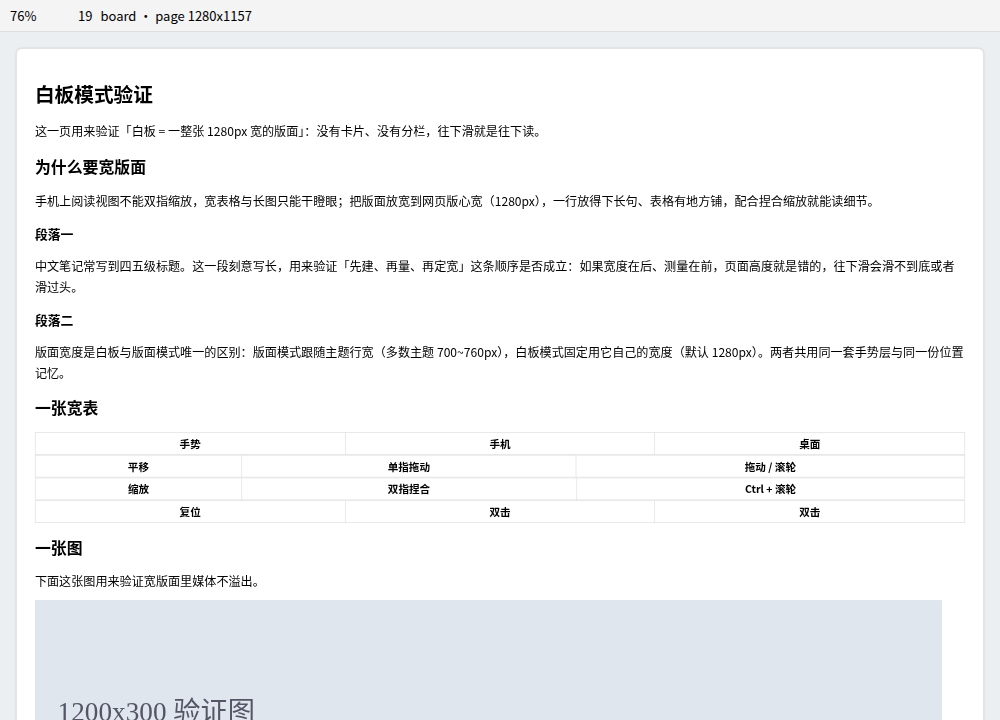
The whiteboard: one 1280 px page on a zoomable surface

  • One page, not a pile of cards. The whole note is rendered into a single page element; there is no card, no column, no connector, and no per-section box. Its width is the setting (1280 px by default), so a wide table, a Mermaid diagram or a 4K screenshot has room, and long Chinese lines stop wrapping early.
  • Reading is vertical. Scrolling down is reading down; on a phone you can either pan around at 100% (readable text) or press 适配宽度 / fit width to bring the whole page width into the viewport and scroll only downwards.
  • A view, recompiled every time. Entering whiteboard mode compiles the note again from scratch — reading the live editor text when the note is open in a pane, so unsaved edits show up — and it recompiles again when the note changes (a save, or typing in another pane, throttled to 400 ms). Nothing is written back; the toolbar's 重新编译 / recompile button forces a refresh.
  • Paper presets if you want them. The width slider names the classic measures: 1280 px (网页宽 Web, the default), 560 px (A5, 148 mm) and 794 px (A4); the readout shows millimetres so the choice is obvious.
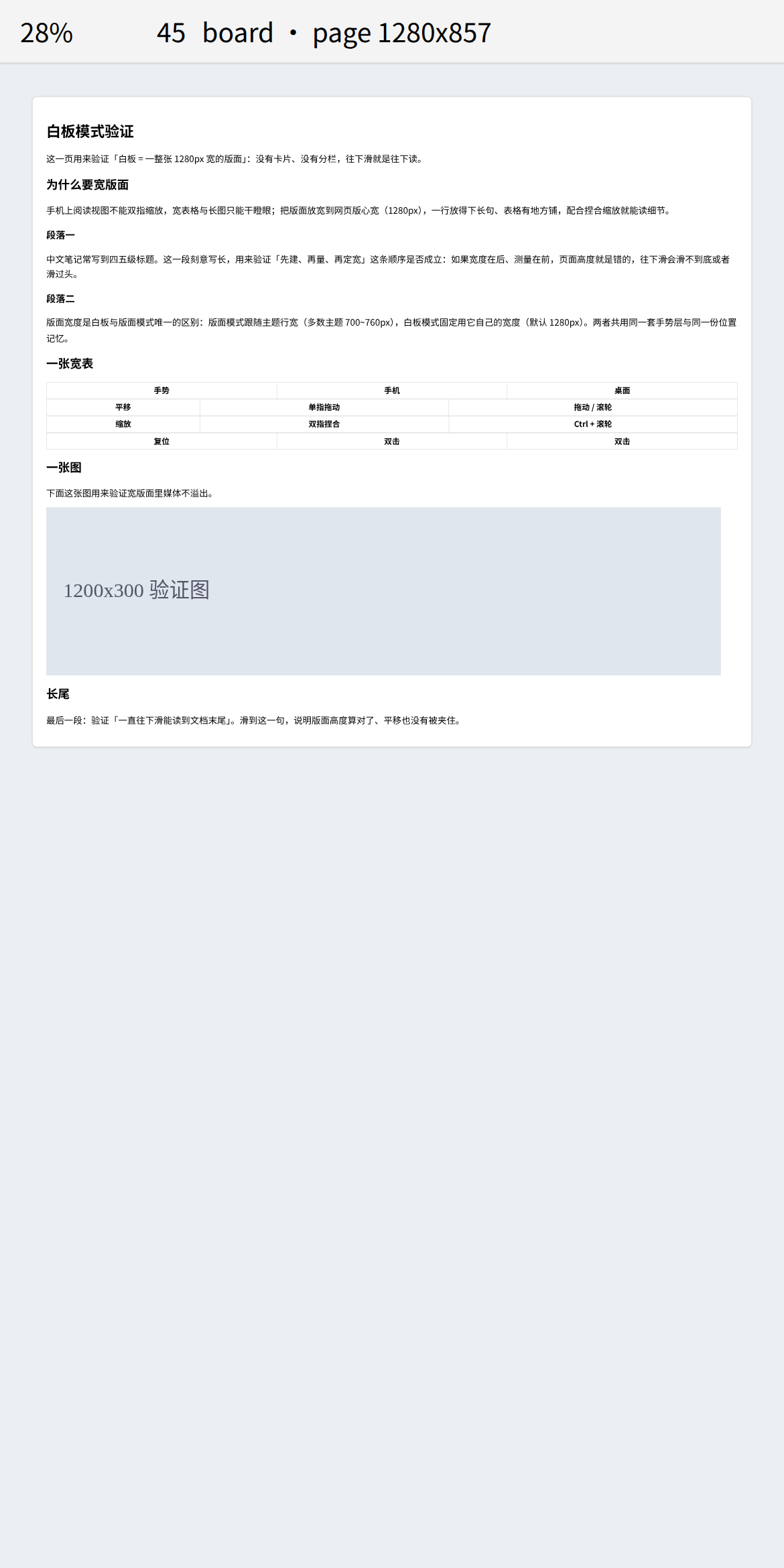
The whole page fitted to a phone screen

Whiteboard settings: 打开笔记时的默认模式 / default mode, 白板版面宽度 / whiteboard page width (480–1920 px, default 1280 px).

Reading view: line width and zoom

The reading view is Obsidian's own page, so the plugin does not take it over — it changes two CSS properties of it and leaves your theme files untouched:

  • Line width (default 900 px, options 760–1200 px or 跟随主题 / follow the theme). The plugin sets --file-line-width / --line-width on .markdown-reading-view and adds a max-width fallback on the sizer, so it works with themes that hard-code the width. Choose follow the theme and nothing at all is injected.
  • Zoom (60 %–200 %, default 100 %). Applied as CSS zoom, which reflows: the text grows while the measure stays exactly the line width you chose (the sizer width is divided by the zoom factor). It is not a transform, so nothing stretches or overflows sideways.
  • Gestures: pinch inside the reading view on mobile, or Ctrl / ⌘ + wheel on desktop. Only two-finger pinches and Ctrl+wheel are intercepted — one-finger scrolling, taps and the plain wheel stay with Obsidian. Pinches outside the reading view are ignored, and switching the gesture setting off removes the listener entirely.
  • Images and diagrams fill the line width (default) and are scaled keeping their aspect ratio — no cropping, no stretching, and an explicit ![[image.png|300]] is normalised too. Diagrams matter as much as photos here: themes set flowchart.useMaxWidth: false (so boxes follow the text), which makes Mermaid render at its natural width; the plugin pulls it back to the line width, so on a phone a flow chart is one screen wide and double-tap opens it for detail. Switch the policy to fit within the line width or natural size if you prefer the old behaviour.
  • Mobile: double tapping no longer opens the editor — anywhere in the reading view. Obsidian's reading view uses a double tap to enter editing, which is the easiest gesture to trigger by accident while reading, so the plugin intercepts it across the whole reading view (text as well as images). Use the menu button when you really want to edit. Double tapping an image or diagram opens the zoomable viewer instead. Desktop is deliberately untouched.
  • A self-check switch (手机:双击自检) makes every intercepted double tap show a notice saying what was caught and whether the viewer opened — the fastest way to tell whether a problem lives in the plugin or in the host.
  • Commands: 阅读视图放大 / 阅读视图缩小 / 阅读视图复位到 100% — bind them to hotkeys if you prefer buttons. Each shows the new level in a notice.

Why this works where the WebView does not: the app-level pinch zoom is a native switch we cannot reach, but the page's own CSS is ours — and CSS zoom reflows content instead of scaling a bitmap, which is what you want for text.

Privacy and disclosures

  • No network access. This plugin makes no HTTP requests and loads no remote assets.
  • No telemetry. Nothing is collected, and nothing leaves your device.
  • No access outside your vault. The plugin only reads notes through Obsidian's own vault API.
  • The only data it writes is data.json in this plugin's folder (your zoom levels and positions).
  • No ads, no accounts, no payment.

Settings

Every setting is labelled in Chinese and English, grouped by what it does, and indexed for Obsidian 1.13+ settings search — typing 双指 or pinch jumps straight to the two-finger switch.

设置 / Setting 默认 / Default 作用 / What it does
双指捏合缩放 / Two-finger pinch zoom on The mobile zoom gesture. Off: two fingers only pan with their midpoint
捏合灵敏度 / Pinch sensitivity 1x 1x doubles the zoom when the finger distance doubles
双击放大倍数 / Double-tap zoom 2x How far a double-click or double-tap zooms in
最大放大倍数 / Maximum zoom 64x Upper limit for pinch and wheel zoom
阅读视图版心宽度 / Reading view line width 900 px Obsidian's own reading view; 跟随主题 injects nothing
阅读视图缩放 / Reading view zoom 100% Reflows (text grows, line width unchanged); pinch or Ctrl+wheel
阅读视图手势缩放 / Reading view zoom gestures on Pinch inside the reading view / Ctrl+wheel; the plain wheel and one-finger scroll are untouched
阅读视图图片/图表宽度 / Image & diagram width 撑满版心 fill Scale images and diagrams (Mermaid/Excalidraw/charts) to the line width; or fit-within / natural
手机:双击不进编辑 / Mobile: double tap does not open the editor on Anywhere in the reading view (text and images). Use the menu button to edit
手机:双击图片 = 放大查看 / Mobile: double-tap an image to zoom on Opens the zoomable viewer from an image or diagram
手机:双击自检 / Mobile: double-tap self-check off Shows a notice for every intercepted double tap (diagnostics)
打开笔记时的默认模式 / Default mode 版面 page 版面 page (theme line width) or 白板 whiteboard (1280 px page)
显示工具条 / Show toolbar on Zoom buttons, zoom level, fit width, mode switch
版心四周留白 / Page padding 16 px Gap between the page and the edge of the view
白板版面宽度 / Whiteboard page width 1280 px(网页宽 Web) 1280 = desktop web width; 560 = A5, 794 = A4 for a paper feel
放大按钮的位置 / Zoom button corner 左上 左上 or 右上 — the top-right belongs to Obsidian's own controls
放大按钮常驻显示 / Always show the zoom button on Off: the button only appears on hover
点击图片打开可缩放查看器 / Click images to open a viewer on Full-screen image viewer
点击图表打开可缩放查看器 / Click diagrams to open a viewer on Same viewer for Mermaid, Excalidraw, charts
点图片本身也打开查看器 / Open the viewer by clicking images too off On: a plain click on an image opens the viewer
查看器打开时适配窗口 / Fit to window when the viewer opens on Off: images open at 100%
图表框随文字走 / Wider diagram boxes on Raise Mermaid's 200 px label cap so Chinese labels stop folding
标签最大宽度 / Max label width 460 px How wide a label may get before it wraps
记住每篇笔记的缩放与位置 / Remember zoom and position on Per note and per mode, stored locally
清除已保存的缩放与位置 / Clear saved zoom and positions — Forgets every note's saved zoom

Image viewer

Every image and diagram carries a small button — by default in its top-left corner, because the top-right corner is where Obsidian puts its own 编辑源文件 / edit source and more-options controls, and the button used to cover them. Move it back in the settings if you prefer.

  • Zoom: mouse wheel with Ctrl or Cmd, the toolbar buttons, + - 0, or a two-finger pinch on mobile.
  • Pan: drag. Double-click (or double-tap) toggles between 100% and fit.
  • Close: Esc, the x button, or a click on the empty background.
  • The toolbar shows the real size and the size currently on screen, so you can tell when you are at 100% of a 4K screenshot.
  • Nothing is decorated: images are shown as they are, and diagrams keep their transparent background with solid lines and text — the same look as in the note, only bigger.
  • A diagram in the viewer looks like the diagram in the note, not merely similar: the moved node keeps its .mermaid ancestry, so the theme's text styles still apply, and its size is pinned to the size it had in the note — no silent rescale, so labels do not reflow.

The same diagram in the note and in the viewer: same layout, only bigger

Diagram layout: boxes follow the text

Mermaid caps a label at flowchart.wrappingWidth = 200, so a long Chinese label folds into four or five narrow lines. PlantUML does the opposite — a box grows to fit its text and only wraps where the author breaks a line — and that is the look this plugin brings to Mermaid:
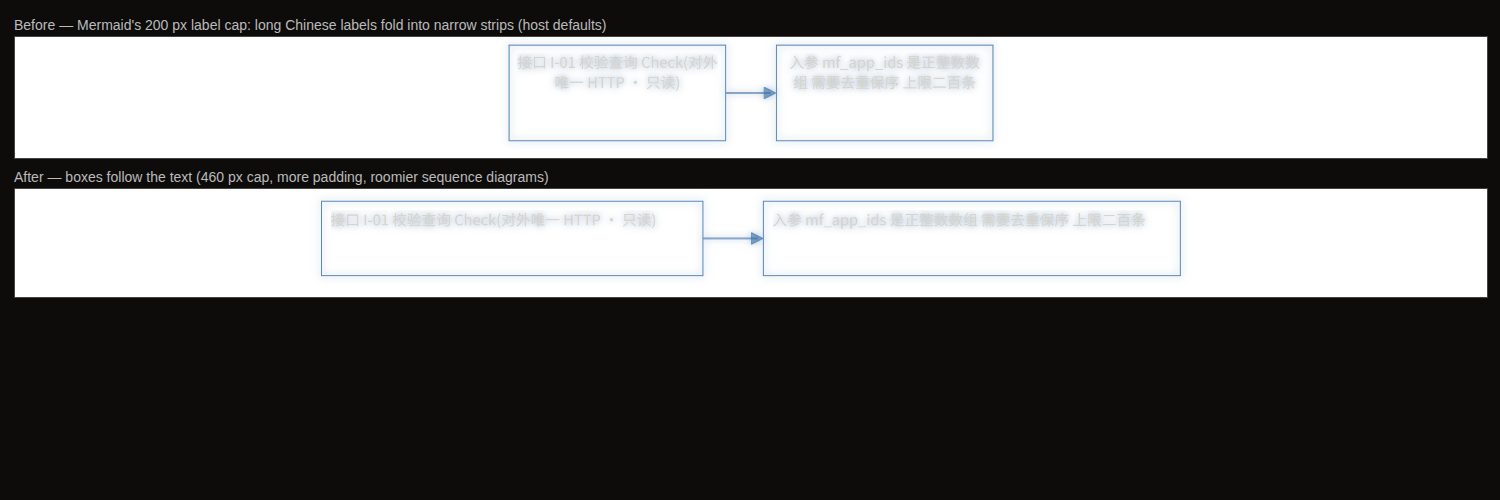
Before: narrow folded boxes. After: boxes that follow the text

  • Max label width (default 460 px) replaces Mermaid's 200 px cap. A 46-character label goes from four lines in a 215 px box to two lines in a 478 px box.
  • More padding and spacing — the box interior (15 px → 18 px), node and rank spacing, and roomier sequence diagrams (participant margin 50 px → 60 px).
  • It is a rendering parameter, not styling: CSS cannot reach the layout engine, which is why this lives in the plugin rather than in the theme.
  • Your host's own settings are left alone. mermaid.initialize() replaces nested config objects instead of merging them, so passing a partial config would drop Obsidian's themeVariables.fontFamily: var(--font-mermaid) and send Chinese text back to Mermaid's default trebuchet ms. The plugin reads the live config first, merges on top of it, and hands the whole thing back.
  • Mermaid loads lazily, so the plugin retries until it appears and re-checks on layout-change. Diagrams already open pick the new layout up the next time they render.
  • Turn it off in the settings if you prefer Mermaid's own sizing.

Installation

From the community directory (after this plugin is published): Settings → Community plugins → Browse → search for "Zoomable Reader".

Manually

  1. Download main.js, manifest.json and styles.css from the latest release.
  2. Put them in <your vault>/.obsidian/plugins/zoomable-reader/.
  3. Enable Zoomable Reader in Settings → Community plugins.

Development

npm install
npm run dev             # esbuild watch → main.js
npm run typecheck       # tsc --noEmit
npm test                # vitest: zoom math, settings contract
npm run verify:gestures # real Chromium: wheel, Ctrl+wheel, drag, pinch, double-tap, button corner
npm run verify:board    # real Chromium: whiteboard width, gesture invariants, no-card regression
npm run verify:reading  # real Chromium: reading view line width, reflow zoom, pinch/Ctrl+wheel
npm run build           # production bundle
npm run check           # everything above, in order

Nothing about the gestures is taken on faith: verify:gestures drives a real Chromium with mouse.wheel, pointer drags and CDP-synthesised touch events, and asserts the anchor invariant — the content under your finger must not move while zooming. verify:board asserts the whiteboard from the DOM: the page really is 1280 px wide by default (read from the shipped settings data, not a number copied into the test), the page mode really follows the theme line width, one page element and zero card artifacts exist in the source, the bundle and the live DOM, wheels scroll to the very end of the document, and fit-width brings the whole page inside the viewport.

Repository layout:

main.ts               plugin entry: view registration, commands, file menu, settings storage
src/view.ts           the ItemView: page mode and whiteboard mode (one page each)
src/zoom-pan.ts       zoom math (pure functions) + ZoomPanLayer (pointer gestures)
src/settings-spec.ts  settings as data: bilingual labels, controls, search aliases
src/settings.ts       the settings tab: declarative (1.13+) and imperative fallbacks
src/lightbox.ts       the image and diagram viewer
styles.css            view styles, using Obsidian CSS variables only
tests/                vitest suites + the browser harnesses
tools/                the Playwright verifiers

Compatibility

  • Obsidian 1.5.7 or newer (uses MarkdownRenderer.render and View.scope for the keyboard shortcuts). On 1.13+ the settings page is declared through getSettingDefinitions, so every setting shows up in the settings search; older versions get the same content rendered imperatively from the same data.
  • Desktop and mobile. No Node.js or Electron APIs are used, hence isDesktopOnly: false.
  • Works with any theme: the page is rendered with your theme's styles, and the board itself uses Obsidian's public CSS variables.

License

MIT — see LICENSE.

If this plugin saves you some squinting, you can support its development.