
README file from
GithubZhushroom Calendar(猪事顺利)
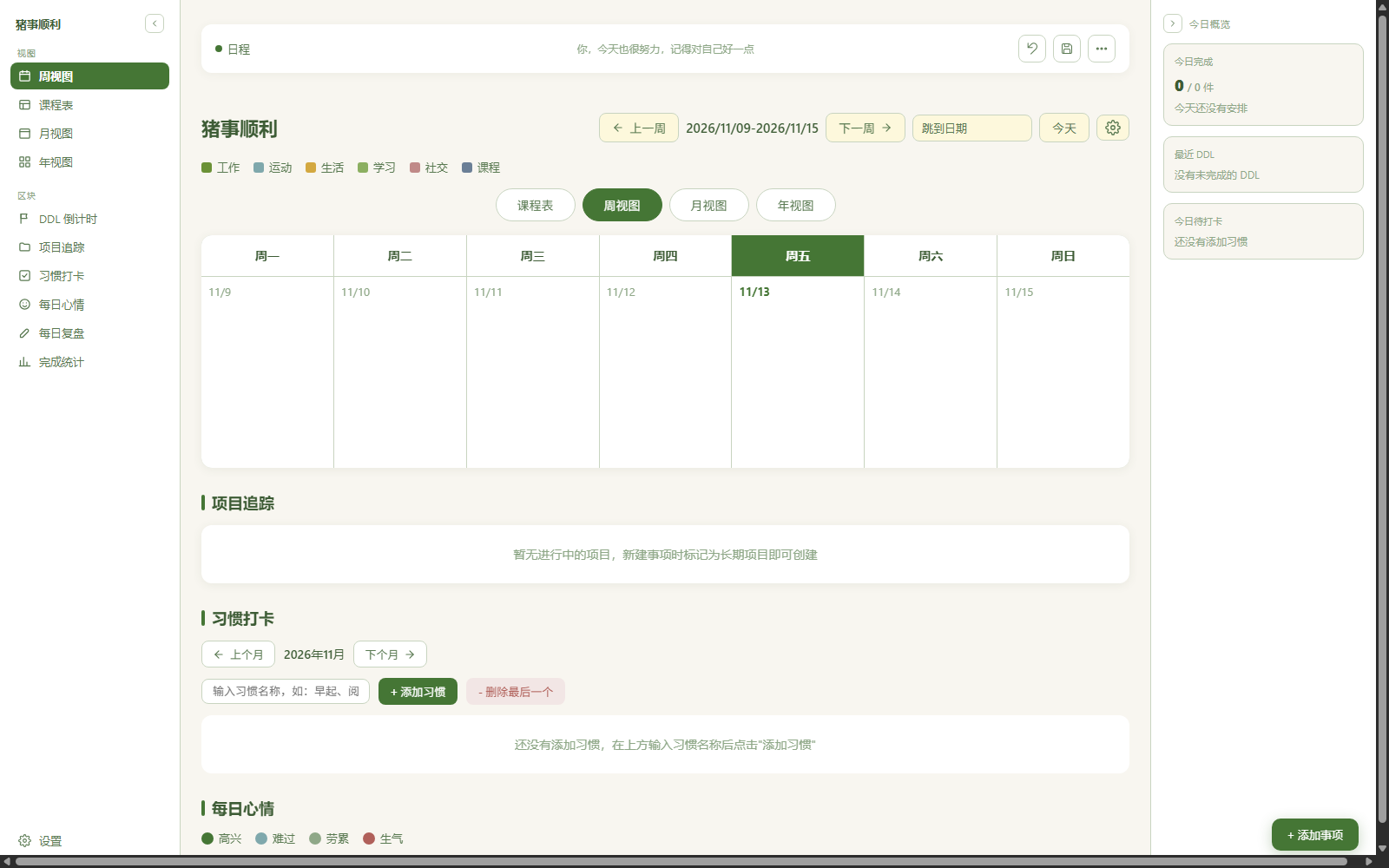
A complete calendar inside an Obsidian tab: week, month and year views, timetable, DDL countdown, habit tracking, daily mood and daily review. Everything is stored as Markdown notes in your vault, so it syncs with the rest of your notes.
The calendar is a single-file page bundled with the plugin. Nothing is downloaded after installation.
Installation
From the community directory:
- Open Settings → Community plugins → Browse
- Search for Zhushroom Calendar
- Install, then enable it
Manually, without the directory:
- Download
main.jsandmanifest.jsonfrom the latest GitHub release - Create the folder
<your vault>/.obsidian/plugins/zhushroom-calendar/ - Put both files in that folder
- Reload Obsidian, then enable Zhushroom Calendar in Settings → Community plugins
Desktop only: the calendar is rendered in an iframe, so the plugin is not available on mobile.
Usage
- Click the pig icon in the left ribbon (or run Zhushroom Calendar: Open calendar from the command palette) to open the calendar in a tab
- The first launch shows a three-step wizard: your name, whether to seed sample events, and where data should live
- Switch between week, month and year views, the timetable, DDL countdown, habits and daily mood from the left sidebar
- Events are created with the Add event button in the lower right corner; clicking a day header adds an event to that day
Everything the plugin writes — events, moods, habits, daily reviews — lands in the 日程 folder and stays readable as plain Markdown, so you can edit the notes by hand at any time.
Settings
| Setting | Description |
|---|---|
| Page source | Bundled page (default), or a single-file HTML page stored in your vault |
| Page file path | Only used with "vault file", defaults to 猪事顺利.html |
| Data folder | Defaults to 日程; events, moods, habits and reviews are written here |
| Ribbon icon | Pig or mushroom |
Where the data lives
日程/
├── 01-每日日程/      # daily events
├── 02-总结报告/      # daily review
├── 07-习惯打卡/      # habits
├── 08-文艺审美/      # daily mood
└── 09-项目追踪/      # project notes
The plugin only reads and writes inside that folder; other notes in your vault are never touched.
Network and privacy
- The plugin makes no network requests: page, icons and styles are bundled into
main.js, and no code is loaded remotely - The 学在浙大 (university timetable) sync and DingTalk push entries that exist in the original page are hidden in this build, and the sync functions return early, so nothing fires automatically
- Data is written to your vault as Markdown only — no upload, no telemetry, no online validation
Limitations
- Desktop only: the page is rendered in an iframe, which requires the desktop app
- No 学在浙大 (ZJU course site) sync; that part is a separate local helper and is not part of this plugin
- The page also keeps a copy of its data in browser
localStorage; back up with Settings → Data → Export before switching machines
Development
node tools/build.js <single-file page path>   # inline the page into main.js
node --check main.js                          # syntax check
node test/harness.js                          # smoke test in a fake Obsidian environment
node tools/check-manifest.js                  # manifest compliance check
node tools/check-listing.js                   # review and listing status in the community directory
src/main.js is the plugin source template, main.js is the build artifact (committed so Obsidian can download it directly).
See CONTRIBUTING.md for the workflow.
License
MIT
中文说明
在 Obsidian 标签页里打开完整日历:周 / 月 / 年视图、课程表、DDL 倒计时、习惯打卡、每日心情与每日复盘,数据以 Markdown 写进库内 日程/ 目录。
- 安装:设置 → 第三方插件 → 浏览 → 搜索 Zhushroom Calendar;或手动把
main.js、manifest.json放进<库>/.obsidian/plugins/zhushroom-calendar/ - 使用:点左侧小猪图标,或命令面板「打开猪事顺利」;首次打开有配置向导
- 仅桌面端;不含学在浙大同步;插件不联网