
README file from
Githubyorum — talk with your notes
Yorum is Turkish for "comment" and "interpretation". It's an AI commentary layer for Obsidian: you write, and the AI answers in a panel beside your note, pinned to the passage you asked about.
[!WARNING] This is an MVP, and the codebase was built by an AI coding agent. A human set the direction, made the product calls and tested it in Obsidian; the code itself was written by the agent. It has a test suite (mocked LLM), but expect rough edges. Read the code before trusting it with notes you care about, and keep your vault in git or backed up.
Two promises
Read-only. yorum never writes to your notes. Everything the AI says lives in a hidden .yorum/ folder at the vault root, one JSON file per note, mirroring its path:
vault/
  Study/Recursion.md             ← yours, never written by yorum
  .yorum/Study/Recursion.json    ← intent + comment threads for that note
There is one exception, and it's a button: Insert below passage copies an answer into your note as a callout when you click it.
Bring your own key (BYOK) or ChatGPT account. There is no yorum account, server or telemetry. You point it at any OpenAI-compatible endpoint (OpenAI, OpenRouter, a gateway, a local server) with your own key, or no key for a local server. You can instead sign in with your ChatGPT account, and answers count against your ChatGPT plan. Requests go straight from your device to that endpoint. The key and the ChatGPT sign-in are kept in Obsidian's Keychain on that device, never in the vault. What the AI sees shows the exact request before you rely on it.
Network use and accounts
- The only remote services are the AI endpoint you configure (with a ChatGPT account:
chatgpt.com, plusauth.openai.comto sign in and renew the sign-in). yorum sends a request there when you ask something (a question, a quick action, a lens, a suggested intent), when you click Browse models in settings (it fetches the endpoint's model list), and at no other time. The request contains the current note, excerpts of up to four related notes, the passage and the thread. What the AI sees shows exactly what goes out. - Web search: with a Gemini model and Web search on, the request asks the model to use Google Search. That search happens on the provider's side; yorum itself contacts nothing else.
- Account and payment: you need either an API key with an AI provider of your choice (most charge for API use) or a ChatGPT plan that includes Codex. A self-hosted OpenAI-compatible server needs no account and no key.
- No telemetry, no analytics, no update checks, no yorum server.
What it does
Select text, ask about it
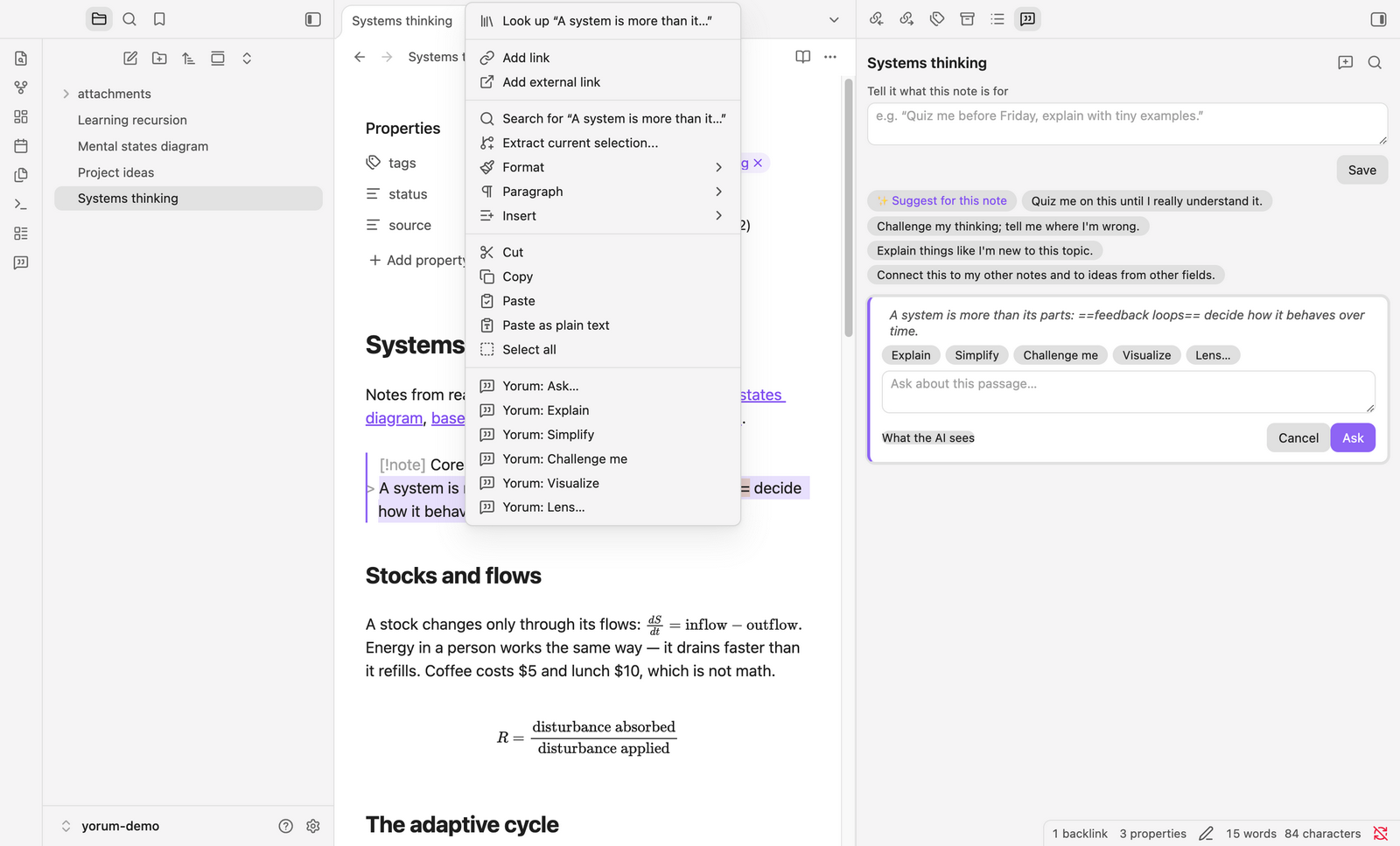
Select a passage → right-click → Ask… · Explain · Simplify · Challenge me · Visualize · Lens… (the same commands are in the command palette). Commented passages are highlighted in the editor. Click a highlight to open its thread.
A thinking partner, not a ghostwriter
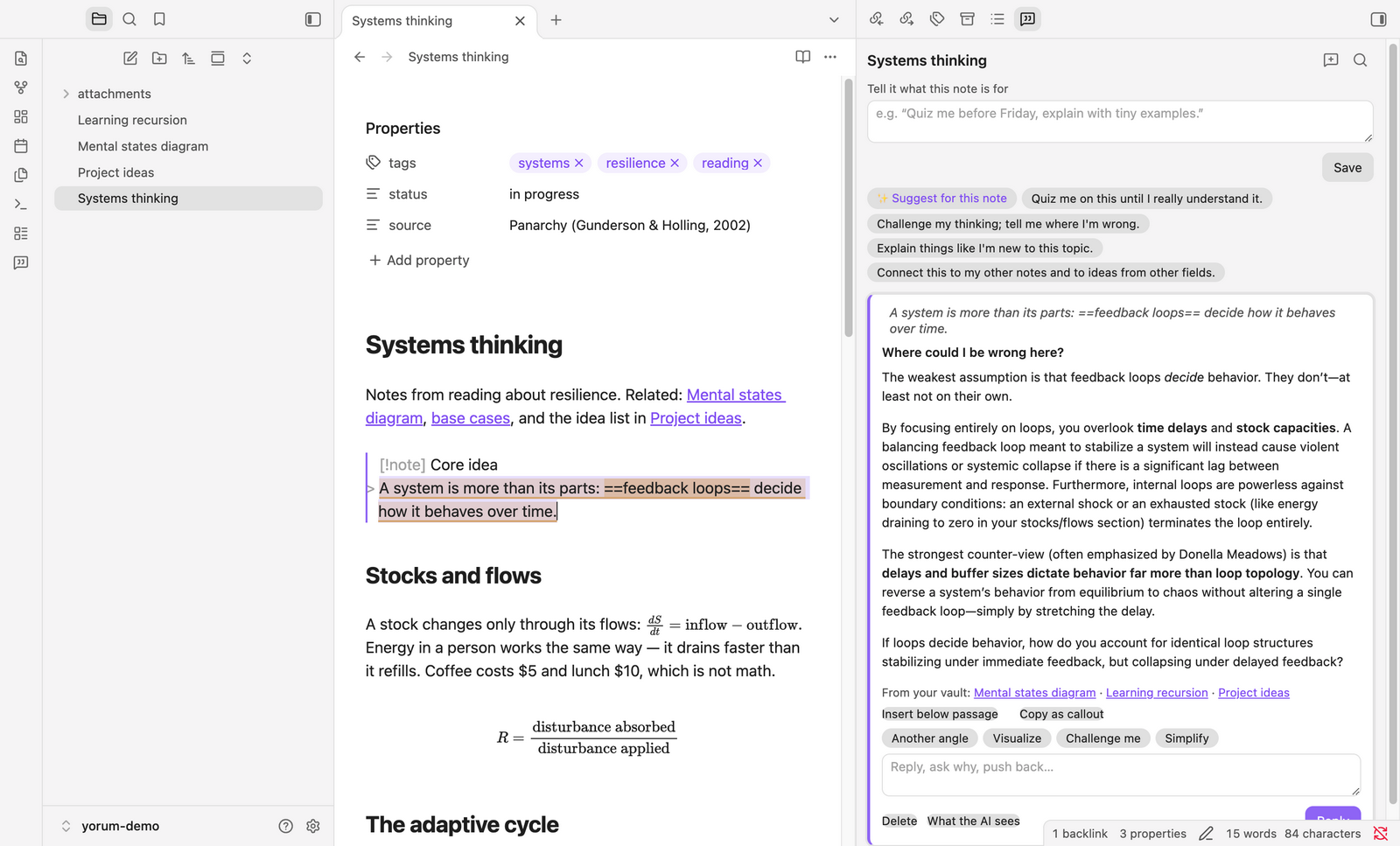
The AI comments, answers and asks one sharp question back. It never rewrites your note. Challenge me goes after your weakest assumption. Related notes from your vault (links, backlinks, similar notes) go into the request, and answers link them as [[Note]].
Lenses from other fields
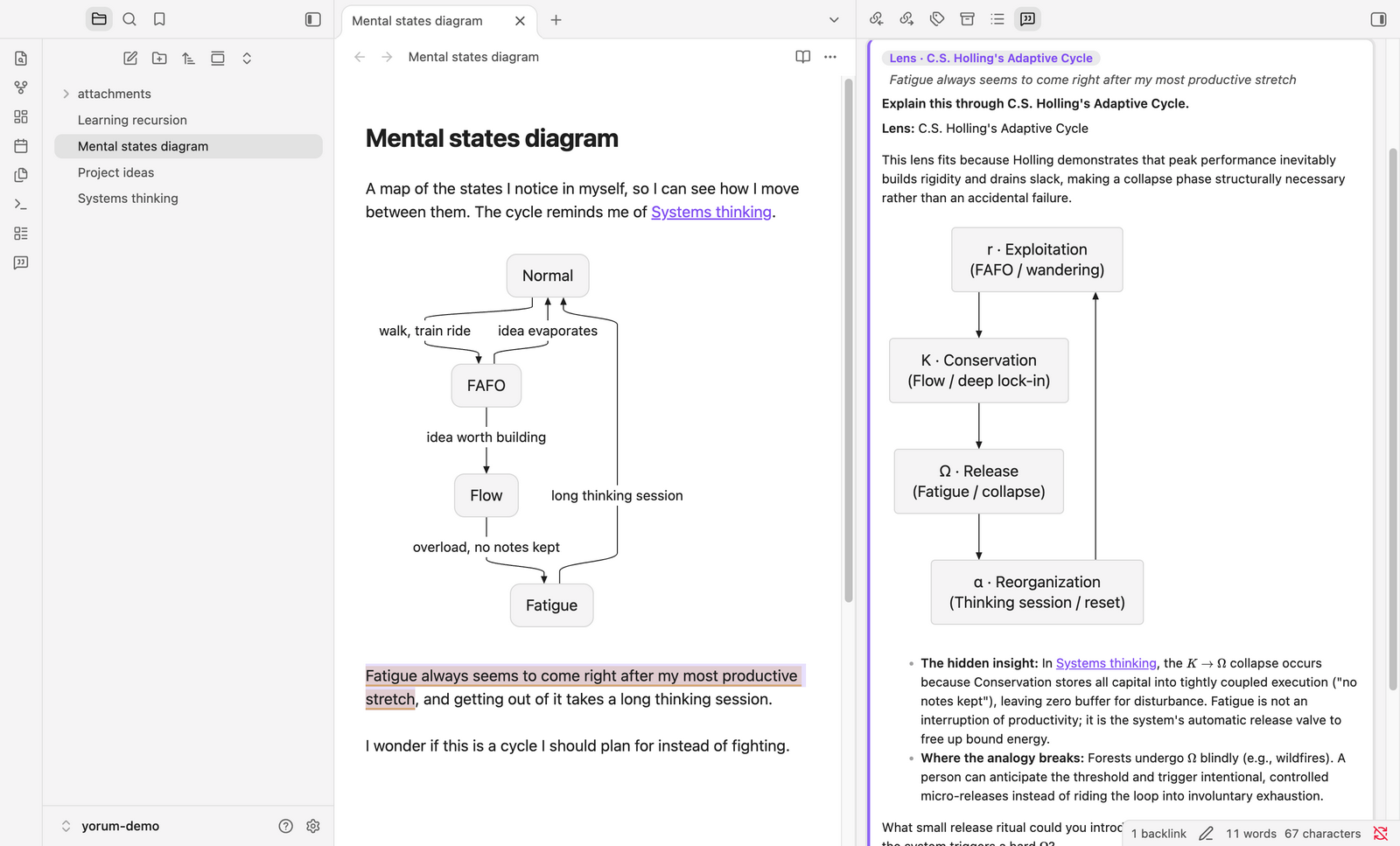
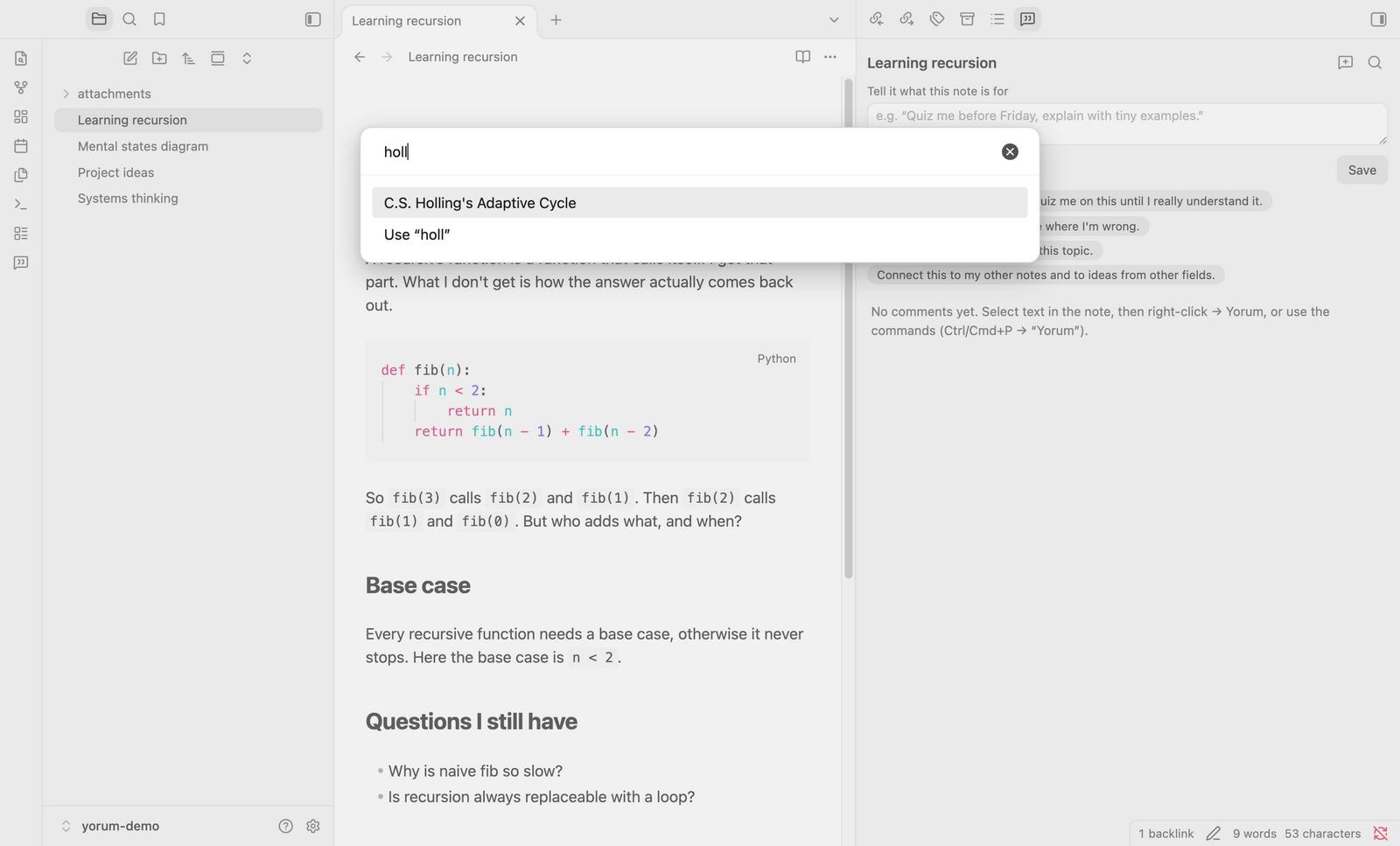
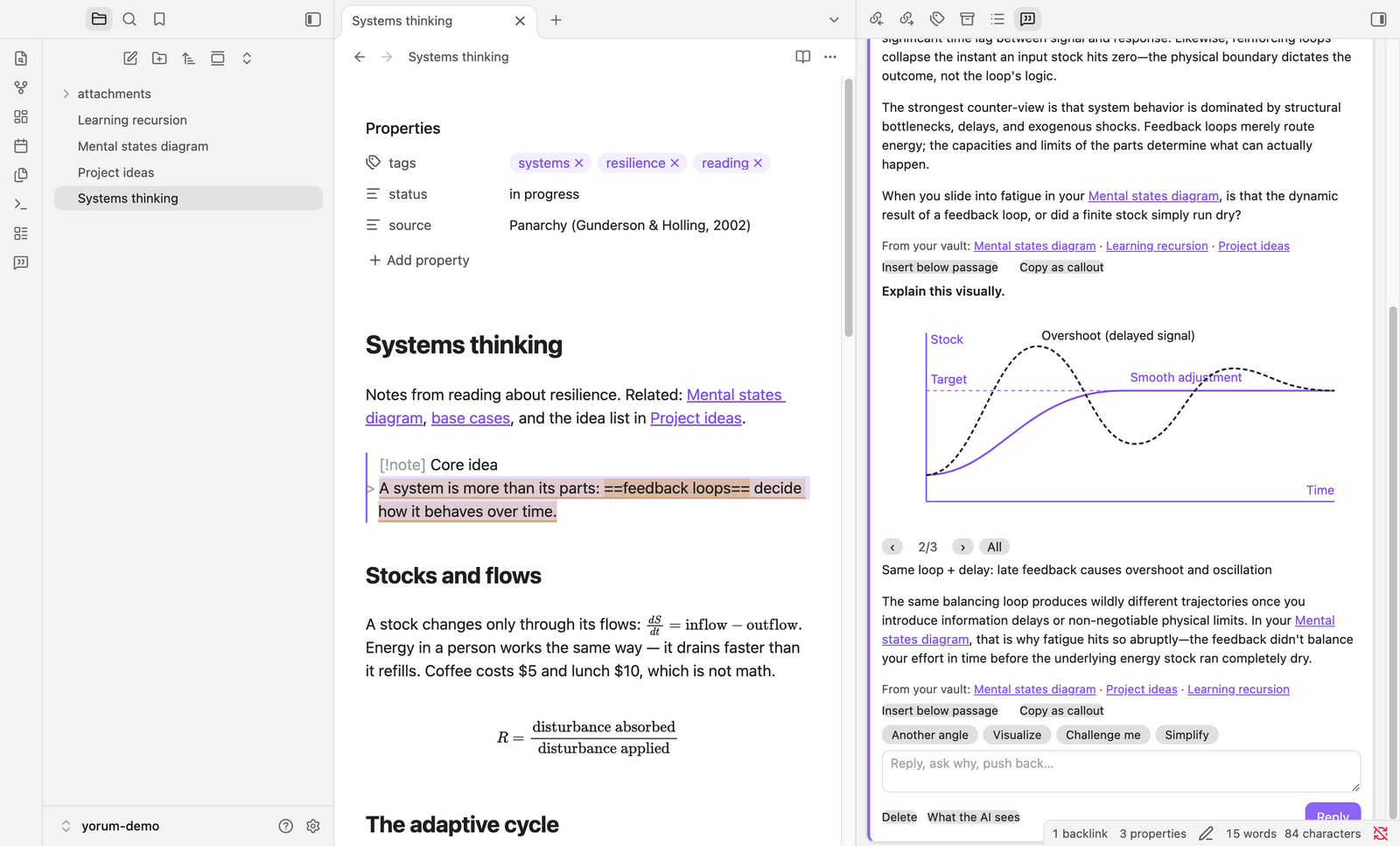
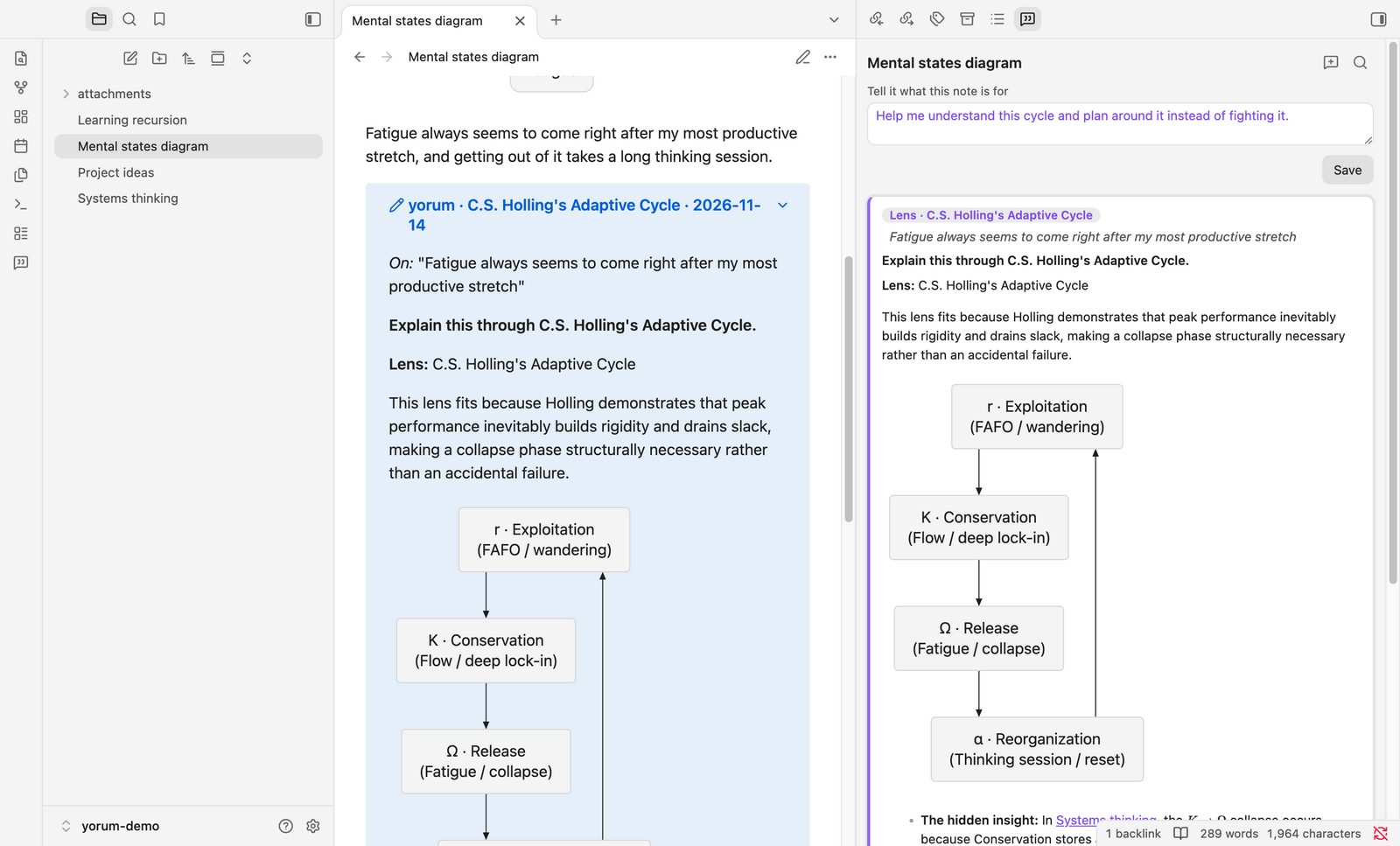
Lens… explains a passage through a framework from another field: C.S. Holling's Adaptive Cycle, game theory, thermodynamics, and more. ✨ Surprise me lets the AI pick one. You get a mapping, the insight it reveals, and where the analogy breaks (see the screenshot at the top).
Visuals
When a picture helps, or you click Visualize, answers include a Mermaid diagram or an SVG sketch that builds up step by step.
Web search with sources
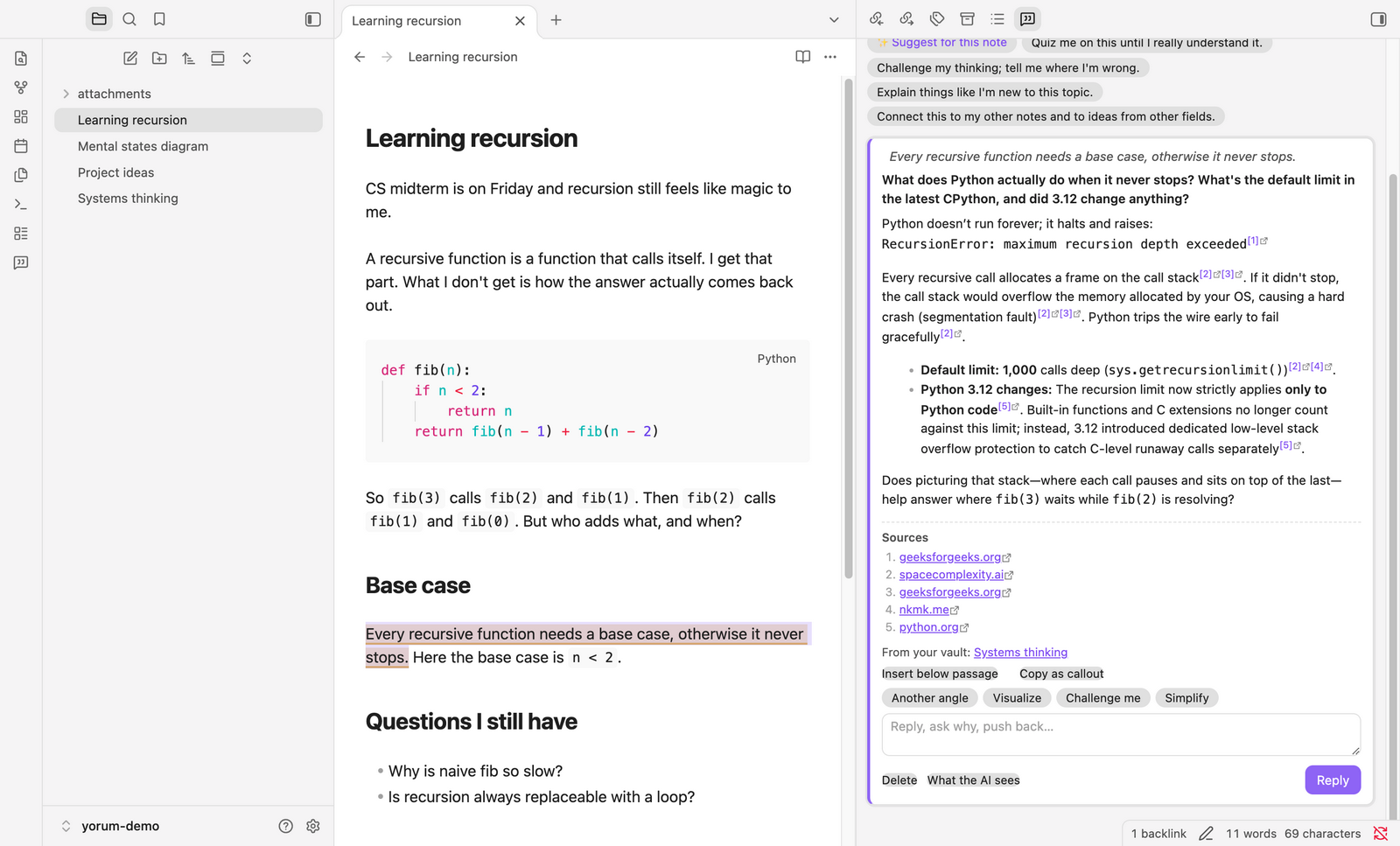
With a Gemini model, the AI searches the web when a question needs current facts. It cites inline and lists its sources.
What the AI sees
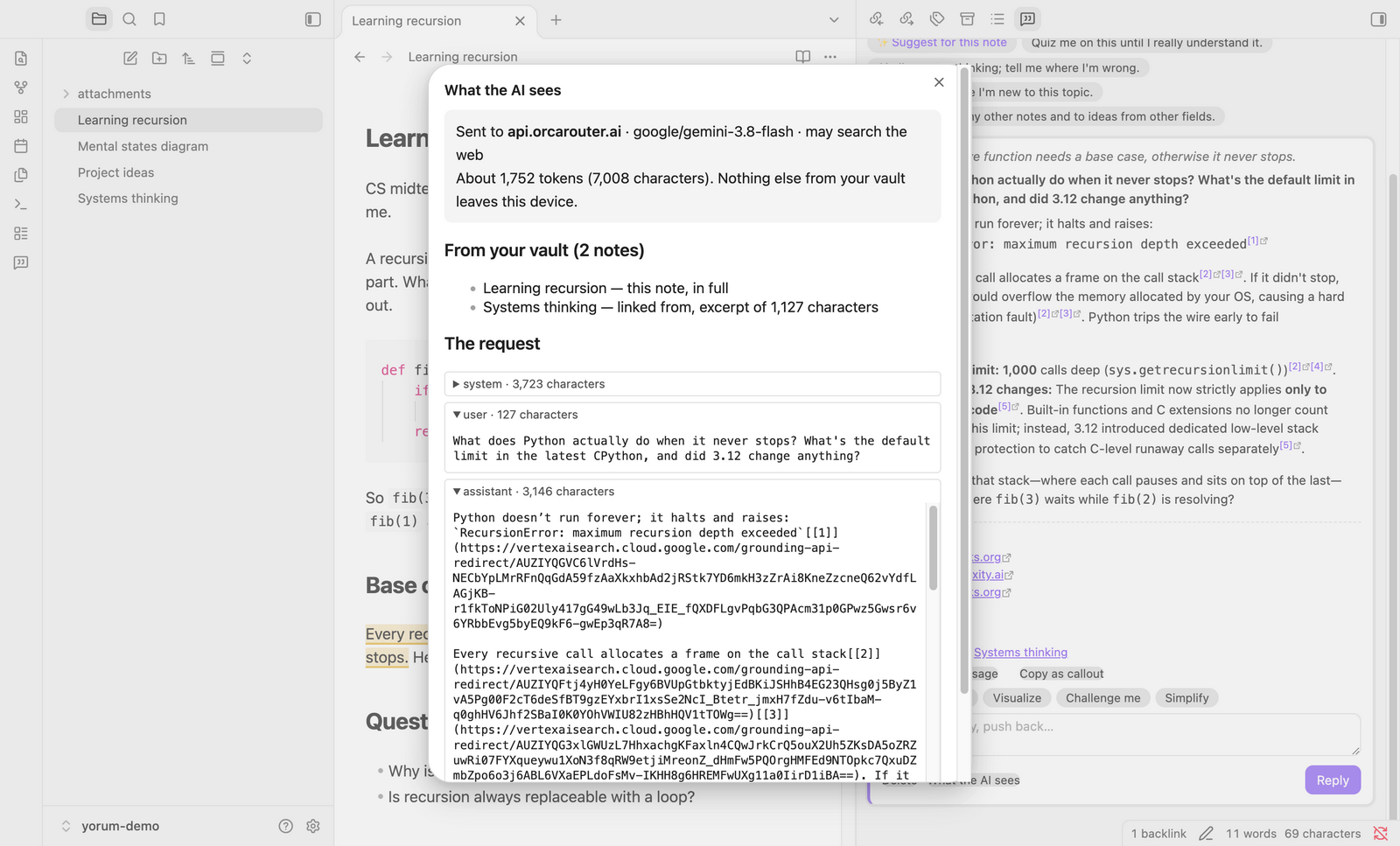
Every thread can show the exact request: destination, model, which vault notes were included and how much, and every message.
Search notes and AI comments
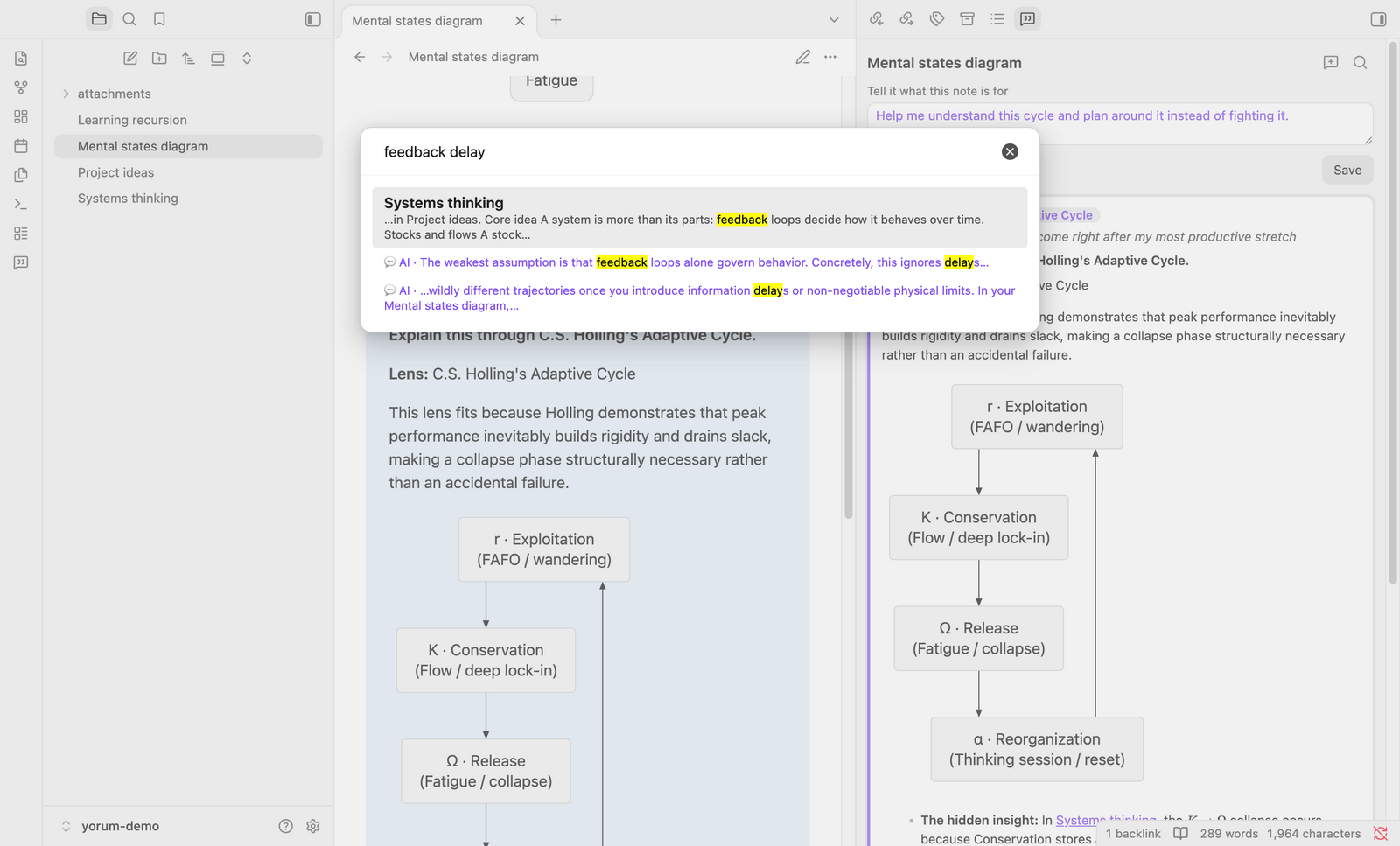
Search across note titles, note text and AI comments. Accents are ignored, and Turkish ı matches i.
Bring an answer home
Insert below passage adds an answer to your note as a foldable [!ai] callout, with the passage, the question, the answer, its diagram and its sources. Copy as callout puts the same text on your clipboard.
Also
- Tell it what a note is for: a per-note instruction in your words ("I'm struggling with recursion, quiz me"), or pick a starter or ✨ Suggest for this note.
- Threads: reply, push back, or use Another angle · Visualize · Challenge me · Simplify. Answers stream in. The AI only speaks when asked.
- Renames and moves follow the note in Obsidian, including whole folders.
- Delete AI comments with their note: optional, off by default.
Install
Yorum is in Obsidian's community plugin directory. In Obsidian (1.11.4 or newer):
- Go to Settings → Community plugins → Browse, search for Yorum, install and enable it.
- In its settings, pick a provider:
- ChatGPT account: click Sign in (your browser opens) or Use a code (enter a one-time code on OpenAI's page), then type a model your plan offers in Codex (e.g.
gpt-5.6-terra) or click Browse models to search your plan's list. - OpenAI-compatible API: set the base URL, pick or create the API key secret (optional; leave it empty for a local server), then type the model ID or click Browse models next to it to search the endpoint's model list.
- ChatGPT account: click Sign in (your browser opens) or Use a code (enter a one-time code on OpenAI's page), then type a model your plan offers in Codex (e.g.
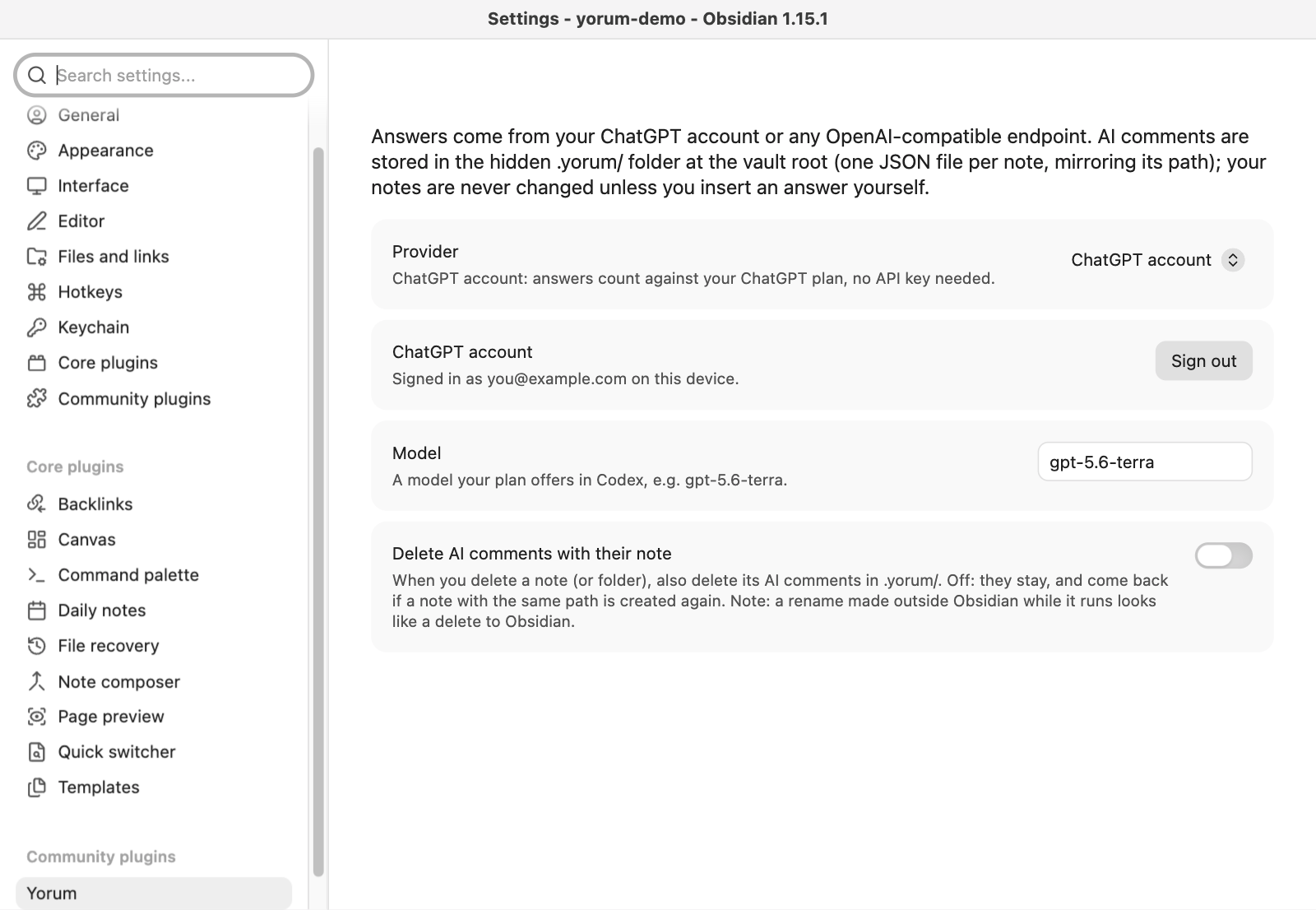
- API key: optional. Kept in Obsidian's Keychain (secret storage) on that device.
data.jsononly stores the secret's name, so it is safe to commit. Enter the key once per device. - ChatGPT account: uses the same sign-in as OpenAI's Codex CLI. The sign-in is kept in Obsidian's Keychain on that device (sign in once per device) and renewed automatically; Sign out forgets it. Browser sign-in listens on
127.0.0.1:1455for the redirect (desktop only). Code sign-in works everywhere but must first be turned on in ChatGPT → Settings → Security. Web search isn't offered with a ChatGPT account. - Endpoint: any OpenAI-compatible endpoint works, as long as it allows requests from Obsidian (CORS).
- Mobile: untested. The plugin uses Node APIs only on desktop (ChatGPT browser sign-in and requests to
chatgpt.com, which doesn't allow CORS). On mobile, ChatGPT answers arrive all at once instead of streaming. - Panel: open it from the ribbon icon or "Yorum: Open panel". It follows the active note. Click a diagram to see it full size.
With obsidian-git
.yorum/is committed, diffed and synced like your notes. Files are pretty-printed JSON, written only when you ask, reply, save an intent or delete a thread. obsidian-git commits hidden folders unless your.gitignoreexcludes them.- A rename made in Obsidian moves the
.yorum/file in the same commit, so a pull on another device brings both. - Obsidian doesn't report changes inside hidden folders. After a pull, new comments appear when you switch notes.
Known limitations (MVP)
- Two devices, same note: commenting on the same note from two devices between syncs can conflict on the sidecar's
updatedAtline. - Renames outside Obsidian: a rename made outside Obsidian while it runs (Finder,
git mv) reaches Obsidian as a delete plus a create. The comments stay at the old path; with Delete AI comments with their note on, they are deleted. - Mobile: untested.
- No local-model preset: a local endpoint works if it speaks the OpenAI API.
Sidecar format (.yorum/<note path>.json)
{
  "version": 1,
  "intent": "I'm struggling with recursion, quiz me",
  "threads": [
    {
      "id": "…",
      "anchor": { "blockIndex": 2, "quote": "how the answer actually comes back out" },
      "createdAt": "…",
      "lens": "C.S. Holling's Adaptive Cycle",
      "messages": [
        { "id": "…", "role": "user", "content": "Explain this visually.", "createdAt": "…", "action": "visualize" },
        { "id": "…", "role": "assistant", "content": "… [\\[1\\]](https://…)", "createdAt": "…",
          "sources": [{ "title": "python.org", "url": "https://docs.python.org/…" }],
          "related": ["Systems thinking.md"] }
      ]
    }
  ],
  "updatedAt": "…"
}
Fields:
blockIndexis the top-level Markdown block of the note body (frontmatter excluded). If the note changes, the quote is found again anywhere in the note. If it's gone, the thread is marked as changed.anchor: nullmeans a note-level thread.- Optional fields:
lens(the thread's concept lens),action(the quick action that sent a user message),sources(web search),related(vault notes given to the AI for that answer). - Old locations: sidecars from earlier versions (
.margin/…json, or<note>.ai.jsonnext to the note) are moved into.yorum/automatically.
Each request sends:
- base instructions
- your intent
- the current note
- related vault notes (excerpts)
- short summaries of the note's other threads
- the anchored passage
- any lens or quick-action instruction
- the thread history
Explain and Simplify use the model's faster thinking level.
Development
npm test                                      # Vitest, mocked LLM
npm run lint                                  # Obsidian's review rules (eslint-plugin-obsidianmd)
npm run build                                 # release build → main.js
npm run build:dev                             # dev build with source map → main.js
npm run install-plugin -- /path/to/your/vault # dev build, copied into the vault
Releasing the plugin: set the new version in manifest.json (and its minAppVersion if needed), commit, then push a tag with exactly that version, no v prefix (git tag 0.1.1 && git push origin 0.1.1). The Release plugin GitHub Action builds main.js and creates the GitHub release with main.js, manifest.json and styles.css attached, which is what Obsidian downloads.
src/: the plugin (NoteStoreon Obsidian's vault API, panel, editor highlights, modals, ChatGPT sign-in).src/core/: Obsidian-free, I/O-free logic: theNoteStoreinterface, note parsing, sidecars, vault connections, search, quick actions and lenses, prompt assembly, LLM clients with streaming and Gemini grounding, callout export, andCommentaryService.tests/: Vitest suites; core tests run against a folder on disk (tests/fs-store.ts).sample-vault/: a few demo notes to try it on (the screenshots use them).docs/images/: README screenshots, taken in Obsidian 1.15.1 with real model answers.