
README file from
GithubXMind Maps
XMind Maps lets you open local .xmind files directly in Obsidian and embed them inside Markdown notes as a read-only viewer.
Features
- Open
.xmindfiles from your Obsidian vault in a dedicated XMind view. - Embed
.xmindfiles in Markdown notes with Obsidian syntax such as![[Map.xmind]]. - Preview embedded mind maps in Reading view and Live Preview.
- Edit the raw
![[Map.xmind]]embed text when your cursor is on that line in Live Preview. - Switch between multiple sheets in the same XMind file.
- Search the current sheet and jump between matching topics.
- Use a full-page outliner view to read the map as a hierarchy.
- Zoom, fit the map to the pane, and pan around large maps.
- Use trackpad gestures, mouse wheel scrolling,
Command+ wheel zooming, and right-button dragging. - Expand and collapse branches while respecting the folded state saved by XMind.
- View common XMind content such as relationships, boundaries, summaries, markers, labels, notes, links, tasks, images, callouts, floating topics, and topic shapes.
- Copy the file path from the Obsidian pane menu.
- Use English or Simplified Chinese UI text, following your Obsidian language when possible.
Screenshots
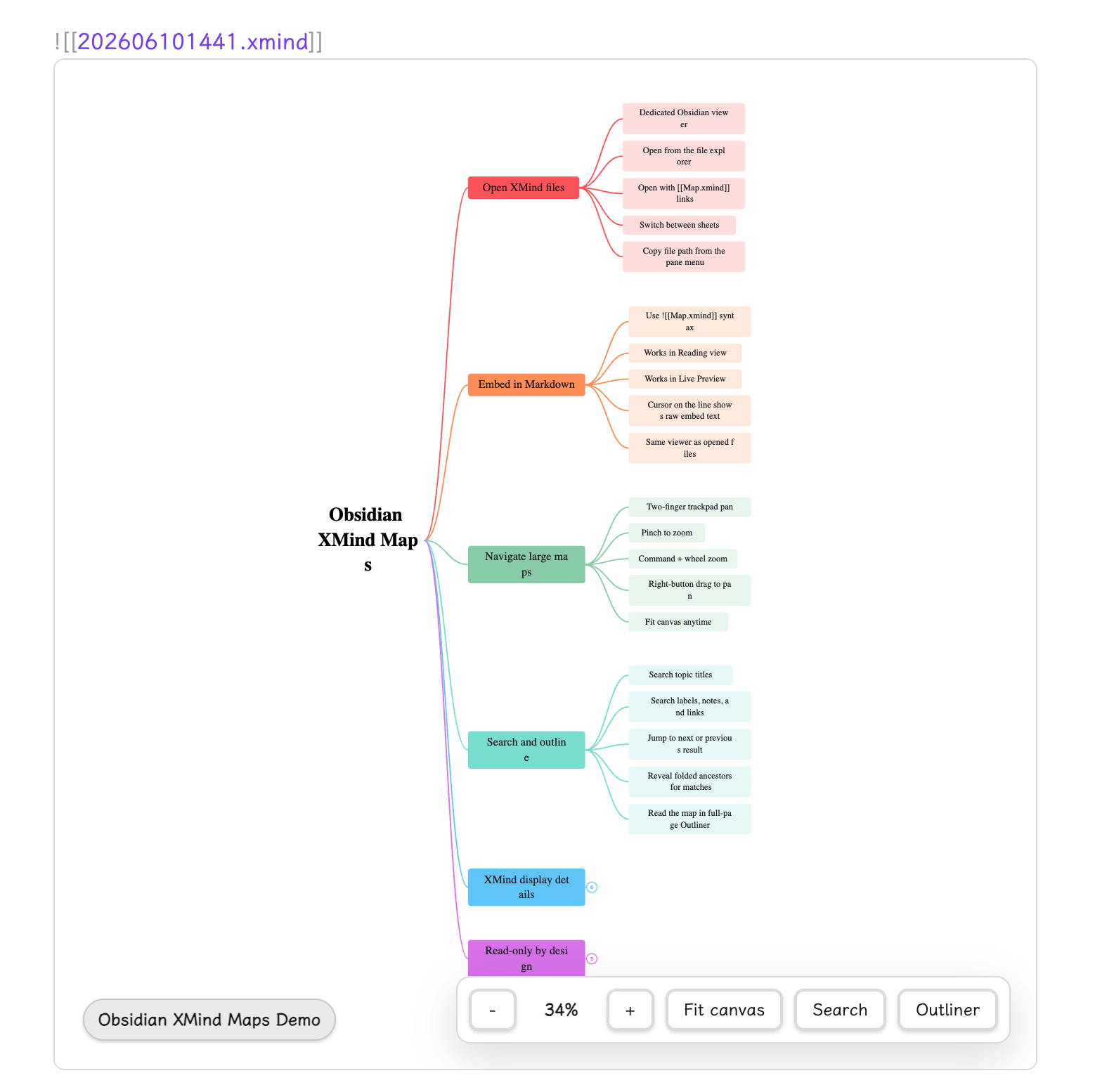
Embedded inside a Markdown note:
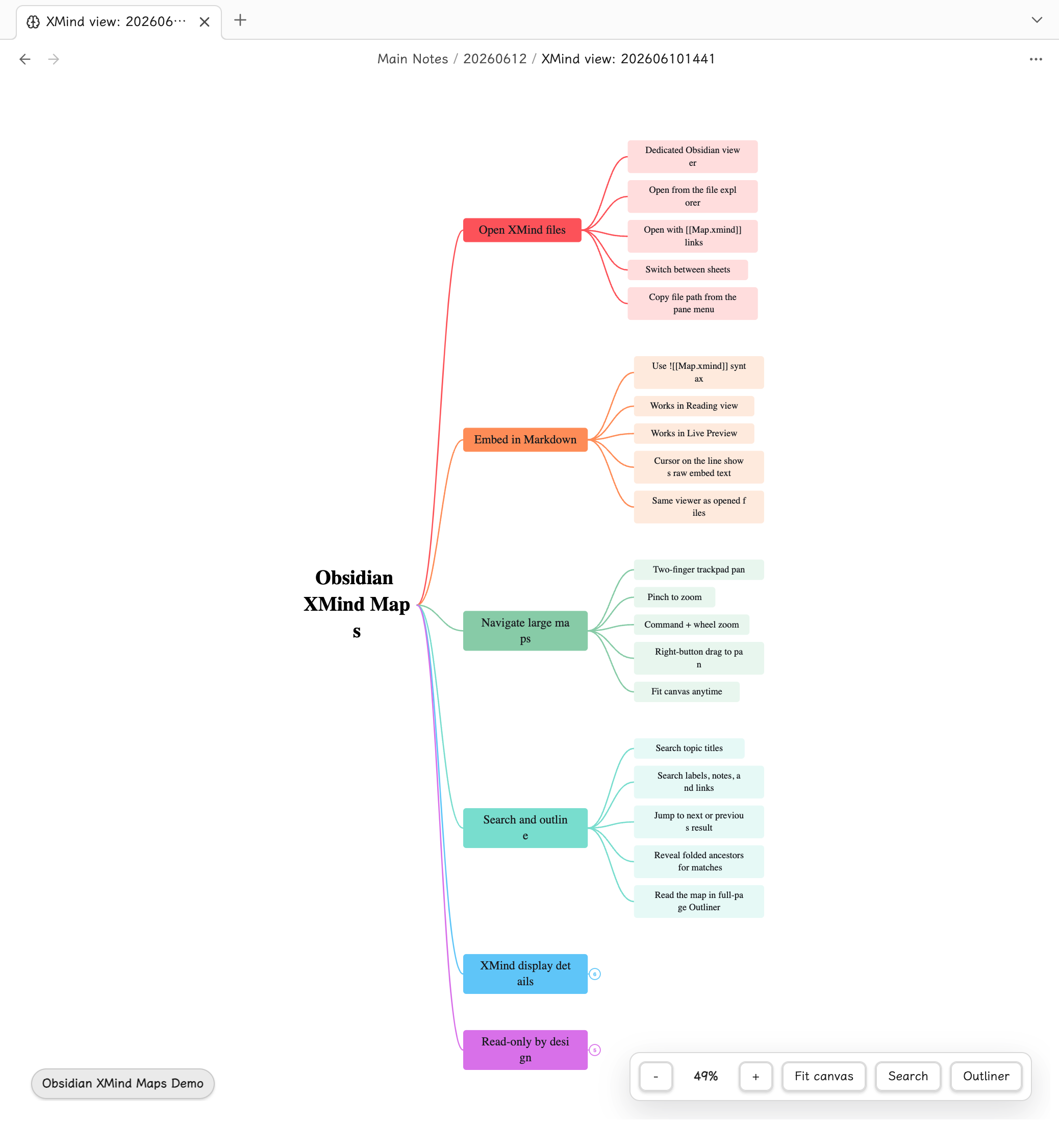
Opened as a dedicated XMind file view:
Installation
Install XMind Maps from Obsidian Community Plugins when it is available there.
For manual installation, download the release assets and place these three files in:
<vault>/.obsidian/plugins/xmind-maps/
Required files:
main.jsmanifest.jsonstyles.css
Then open Obsidian settings, go to Community plugins, and enable XMind Maps.
Usage
XMind Maps supports both opening .xmind files as Obsidian files and embedding them inside Markdown notes.
Opening XMind Files
Put a .xmind file anywhere inside your Obsidian vault, then open it from the file explorer or a normal Obsidian link:
[[Map.xmind]]
Obsidian will open the file in an XMind Maps view instead of a Markdown editor.
Embedding In Notes
To embed a mind map in a Markdown note, use the normal Obsidian embed syntax:
![[Map.xmind]]
The embedded viewer works in both Reading view and Live Preview. In Live Preview, XMind Maps behaves like Obsidian's native embeds: when your cursor is not on the embed line, you see the mind map; when your cursor moves onto that line, the raw ![[Map.xmind]] text is shown so you can edit it.
Embedded maps use the same read-only viewer as opened files. XMind Maps does not edit, save, or write back to the original .xmind file.
Viewer Controls
-and+: zoom out or zoom in.- Zoom percentage: shows the current zoom level.
Fit canvas: fit the whole map into the current pane.Refresh: reload the current.xmindfile after it changes on disk.Search: open the search panel for the current sheet.Outliner: switch to the full-page hierarchy view.- Sheet tabs: switch between sheets when the XMind file contains more than one sheet.
- Two-finger scroll or mouse wheel: pan around the map.
- Trackpad pinch gesture: zoom the map.
Command+ mouse wheel: zoom the map.- Hold the right mouse button and drag: pan the canvas.
Branches
Branches that were collapsed in XMind open collapsed in XMind Maps, and expanded branches stay expanded.
- Click a numbered circle beside a topic to expand that hidden branch.
- Hover an expanded topic or its branch line to reveal the collapse control.
- Click the collapse control to fold that branch again.
- If a hidden count is larger than
999, the control shows.... - Manual expand and collapse changes only affect the current Obsidian viewing session.
Search
Use Search to find content in the current sheet. Search covers topic titles, labels, notes, and links.
- Press
Command+Fon macOS, orCtrl+Fon Windows/Linux, while focus is inside the XMind viewer to open search. - Press
Enterto jump to the next match. - Press
Shift+Enterto jump to the previous match. - If a match is inside a folded branch, XMind Maps temporarily opens the needed ancestor branches in the current viewing session so the result is visible.
Outliner
Use Outliner to switch from the canvas to a full-page outline view.
- The outliner follows the same initial expanded and collapsed state as the mind map.
- Click a disclosure arrow to expand or collapse a topic in the current viewing session.
- Folded topics show their hidden descendant count.
- Click a topic in the outliner to select and locate it on the map.
XMind Content Display
XMind Maps focuses on viewing. It reads the local .xmind package and displays common XMind structures when they are present:
- Multiple sheets
- Folded branches
- Topic colors, text styles, shapes, and map backgrounds
- Relationships and relationship labels
- Boundaries and summaries
- Callouts and floating topics
- Markers, priorities, progress, tasks, labels, notes, and links
- Topic images and basic attachment, equation, or audio indicators
Some advanced theme details may still differ from the XMind desktop app. The original .xmind file is never modified.
Pane Menu
Use the three-dot pane menu in Obsidian to copy the path of the current .xmind file.
Depending on your Obsidian version, Copy path may include:
as Obsidian URLfrom vault folderfrom system root
Notes
- XMind Maps is read-only and does not edit, save, or export XMind files.
- Opening or embedding a mind map will not modify the original
.xmindfile. - Viewer state such as zoom, pan, search, outliner mode, and manual branch expand/collapse is kept only for the current viewing session.
- Visual details may not match every XMind desktop or web theme exactly.
- If a file does not open, confirm it is a valid
.xmindfile and try opening it again from the Obsidian file explorer.
License
Apache-2.0. Copyright 2026 yuanzhixiang.