
README file from
GithubWord by Word
Word by Word reads a note aloud one word at a time in Obsidian. It speaks the next word only when you press a key.
I built it for copying journal entries from Obsidian into a paper notebook. Looking up at the screen and back down to the page is slow, and it's easy to lose your place. With Word by Word you keep your eyes on the paper: press a key, hear a word, write it, press again.
It's useful any time you copy text by hand: journals, letters, lyrics, revision notes, or practising handwriting or a new script.
Features
- Strictly one word per press. Nothing is spoken until you ask for the next word. Pressing again mid-word cuts the old word off at once, so presses never queue up or overlap.
- Simple keys while reading: → next word, ← previous word, Space repeat, ↓ spell, Esc stop. You can change them in the plugin's settings. Spelling reads the word letter by letter ("capital D, o, n, apostrophe, t") for tricky names and words.
- Click any word to jump to it, in editing or reading view.
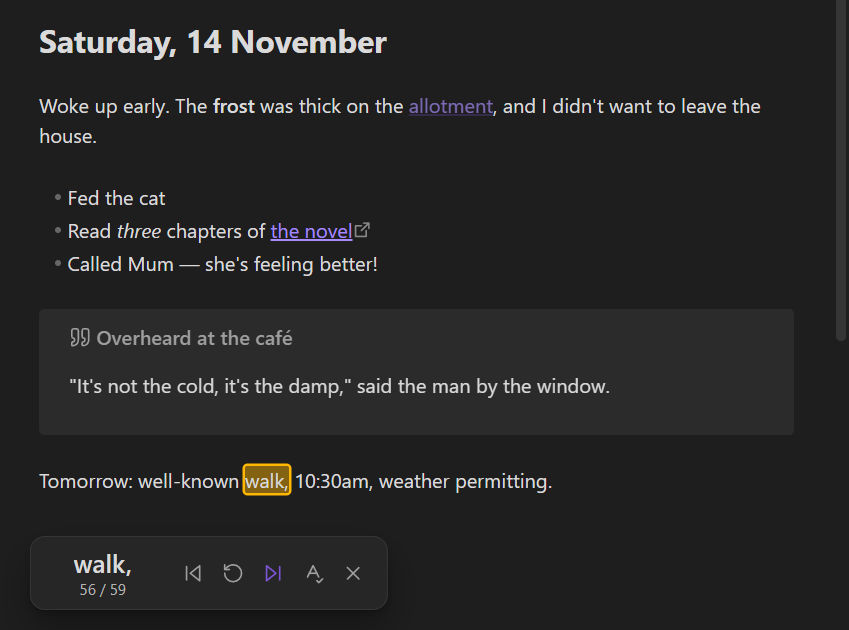
- Highlights the current word in editing view (Source mode and Live Preview) and in reading view, and scrolls to keep it in sight.
- A small control bar shows the word, your position (e.g.
42 / 310) and buttons for each action. You can use it with a mouse, a touchscreen, a foot pedal or a clicker. - Reads what you see, not the markdown. Frontmatter,
#heading marks, list markers,**bold**markers, link URLs, wikilink brackets, HTML comments and callout markers are all skipped. Links are read by their text, and wikilinks by their alias or note name. - Optional punctuation mode says "comma", "full stop", "open quote", "new line", "new paragraph" and so on as separate steps, so you know exactly where punctuation goes on the page.
- Selections. Select some text first to read only that part.
- Remembers where you stopped in each note, so you can resume later.
- Works offline with your device's built-in voices. No accounts, no API keys, no network requests, no telemetry.
Installation
From Community plugins (once it's accepted)
- Open Settings → Community plugins and turn off Restricted mode if it's on.
- Select Browse, search for Word by Word, then select Install and Enable.
With BRAT (beta versions)
- Install and enable BRAT from Community plugins.
- Run BRAT: Add a beta plugin for testing and enter
joshbroa/word-by-word. - Enable Word by Word in Settings → Community plugins.
Manually
- Download
main.js,manifest.jsonandstyles.cssfrom the latest release. - Create the folder
<your vault>/.obsidian/plugins/word-by-word/and put the three files in it. - Reload Obsidian, then enable Word by Word in Settings → Community plugins.
How to use it
- Open a note.
- Start reading. Use Word by Word: Start from cursor or Start from beginning from the command palette, or select the speaker icon in the left ribbon. If text is selected, only the selection is read.
- Press → for each word. Press Space to hear the word again, ← to go back and ↓ to spell it out. Click any word in the note to continue from there.
- Press Esc (or × on the control bar) when you're done. Your place is saved; run Resume where you left off next time.
Keys while reading
While the reader is running, these keys control it without any modifier keys:
| Key | Action |
|---|---|
| → | Next word |
| ← | Previous word |
| Space | Repeat current word |
| ↓ | Spell current word |
| Esc | Stop and close |
Change them under Settings → Word by Word → Keys while reading: select a key's button, then press the new key. They only take over while the reader is running, and only in the note being read. In other notes, the note title, properties, search boxes, menus and dialogs (such as the command palette) they work normally. Holding a key down doesn't race through the note, and Shift+arrow still selects text. If you'd rather keep the keys normal, turn off Use keys while reading and use hotkeys instead.
Click to jump
While reading, click or tap any word to make it the current word and hear it. It works in editing view (including inside callouts and tables in Live Preview) and in reading view. Clicking a link jumps to it instead of opening it. You can turn this off with Click a word to jump to it.
Commands
| Command | What it does |
|---|---|
| Start from beginning | Read the note (or the selection) from the start. |
| Start from cursor | Read from the word at the cursor. In reading view, from the first visible line. |
| Resume where you left off | Continue from the word you stopped on last time. Only shown when a position is saved. |
| Next word | Speak the next word. Starts reading from the cursor if nothing is being read. |
| Repeat current word | Say the current word again. |
| Previous word | Go back one word. |
| Spell current word | Spell the current word letter by letter. |
| Pause or resume auto-advance | Only shown when auto-advance is turned on. |
| Stop and close | Stop speaking, remove the highlight and close the control bar. |
If nothing is being read, Next word (the command) starts reading from the cursor. That means a single pedal or clicker button bound to it is enough to begin.
Hotkeys (optional)
The keys above only work while reading. To start reading from the keyboard, or to control the reader with key combinations, give the commands hotkeys in Settings → Hotkeys (search for "Word by Word"). Word by Word sets no default hotkeys, so it never clashes with your existing shortcuts. The function keys are rarely used by Obsidian, so they're a good fit:
| Command | Suggested key |
|---|---|
| Next word | F9 |
| Repeat current word | F8 |
| Previous word | F7 |
| Spell current word | F10 |
| Start from cursor | Ctrl/Cmd + F9 |
| Stop and close | Ctrl/Cmd + F10 |
Obsidian warns you in the Hotkeys screen if a key is already in use. On many laptops you need to hold Fn to press function keys.
Tip: use a foot pedal or clicker
Your hands are busy writing, so the best setup is often one you don't press with your hands:
- USB foot pedals (the cheap one-, two- and three-pedal "programmable" pedals sold for transcription and gaming) can usually be set to send any key. The simplest setup is one pedal sending → (next) and another sending Space (repeat), which the reader understands out of the box. Alternatively, set a pedal to
F9and bind it to the Next word command, so the same pedal also starts reading. - Bluetooth presentation clickers and page turners usually send the arrow keys or
Page Down/Page Up. Arrow keys work straight away. ForPage Down/Page Up, set them as the next and previous keys under Keys while reading. - Set pedals to send one key press per press, not a repeating key while held, or you'll skip several words at once.
Hotkeys only work while the Obsidian window has focus, so click into Obsidian before you start.
Settings
| Setting | Default | Description |
|---|---|---|
| Voice | Automatic | Which installed voice to use. Automatic picks a British English voice if one is installed, otherwise your system's default voice. The speaker button plays a test phrase. |
| Speech rate | 0.9 | How fast each word is spoken (1 is normal speed). |
| Pitch | 1 | Voice pitch (1 is the voice's normal pitch). |
| Volume | 1 | Relative to your system volume. |
| Speak punctuation | Off | Say punctuation and line breaks as their own steps: "comma", "full stop", "question mark", "open quote", "close bracket", "new line", "new paragraph" and so on. |
| Skip code blocks | On | Leave out fenced code blocks. Turn off to read them word by word. |
| Click a word to jump to it | On | While reading, click or tap a word to continue from it. Links jump instead of opening. |
| Auto-advance (seconds) | 0 (off) | Speak the next word automatically this many seconds after the last one finishes. Leave at 0 to advance only when you ask. |
| Use keys while reading | On | Let plain keys control the reader while it runs (see Keys while reading). |
| Next word / Previous word / Repeat / Spell / Stop | → / ← / Space / ↓ / Esc | The key for each action. Select the button and press a new key; × removes the key; the arrow restores the default. Each key can only do one thing. |
| Highlight colour | Amber | Colour of the current-word highlight. |
| Show control bar | On | Show the floating bar with the current word, position and buttons. |
| Remember position in each note | On | Save the word you stopped on, per note, so you can resume. Positions follow renamed notes. |
| Forget saved positions | Clear all saved positions. |
What gets read
One step is one whitespace-separated word, with its punctuation still attached on screen (Hello,). Contractions (didn't), hyphenated words (well-known), numbers (3.5), dates (14/11/2026) and times (10:30am) each count as one word.
| In your note | What you hear |
|---|---|
| YAML frontmatter | Nothing |
## Heading |
"Heading" |
- item, 1. item, - [ ] task |
"item", "task" |
**bold**, *italic*, ~~struck~~, ==highlight== |
The words, without the markers |
[link text](https://…) |
"link text" (never the URL) |
[[Note name]], [[Folder/Note#Heading]] |
"Note name", "Note" |
[[Note name|alias]] |
"alias" |
> [!note] Title |
"Title" and the callout text |
`inline code` |
"inline code" |
| Fenced code blocks | Skipped (configurable) |
HTML comments, %% comments %% |
Nothing |
![[embeds]],  |
Nothing |
| Footnote markers, block IDs, HTML tags | Nothing |
#tags |
The tag without the # |
Mobile
Word by Word is marked as working on mobile and uses only web APIs that the Obsidian mobile apps support. On mobile:
- The control bar is the easiest way to use it. The buttons get bigger touch targets. You can also add the commands to the mobile toolbar.
- Voices come from your phone or tablet's text-to-speech settings. On Android, pick a voice and install voice data in your system's text-to-speech settings. On iOS and iPadOS, enhanced voices can be downloaded in Settings → Accessibility → Spoken Content → Voices.
- Speech may stop when the screen locks or you switch apps.
- Bluetooth foot pedals and clickers that act as a keyboard work if you bind their keys in Settings → Hotkeys.
Mobile hasn't been tested on real devices yet. Reports are very welcome; see Contributing.
Known limitations
- Voices depend on your device. The quality, the available accents and whether pitch is honoured all vary by operating system and voice. On Linux, speech needs
speech-dispatcherand an installed voice (for exampleespeak-ng); without one, there are no voices. - Windows voices add trailing silence. A short word takes about a second longer to "finish" than it sounds. This only affects auto-advance timing, which counts from the end of each word.
- Reading view matches by text. Reading view is rendered HTML, so the highlight is placed by finding the same occurrence of the word within its paragraph. Unusual content (transcluded notes, callouts without a title, plugin-rendered blocks) can occasionally put it on the wrong copy of a repeated word. The control bar always shows the right word. Editing view is exact.
- In reading view, selections aren't supported. Start from cursor begins at the first visible line instead. To read a selection, switch to editing view.
- Embedded notes and images aren't read, and neither is content generated by other plugins (such as Dataview queries) or inline maths.
- Older systems may not show the reading-view highlight. That highlight uses the CSS Custom Highlight API, which needs a recent Obsidian (desktop) or iOS 17.2+. Without it, the word still shows in the control bar.
- While reading, the reader keys don't type in the note being read. Pressing Space or an arrow there controls the reader instead. Stop the reader (Esc) to edit the note, or edit another note.
- Keys and hotkeys only work while Obsidian has focus.
Privacy
Word by Word makes no network requests and collects no data. All speech uses the voices installed on your device through the Web Speech API. Some systems offer "online" voices (labelled as such in the voice picker); if you choose one, your operating system or browser engine may send the spoken words to its own speech service. The automatic choice prefers offline voices.
Saved positions (note path, character offset and the word) are stored in the plugin's data.json inside your vault.
Contributing
Bug reports, feature ideas and pull requests are welcome. See CONTRIBUTING.md for how to set up the project, run the tests and load a development build into a test vault.
When reporting a bug, please include your operating system, Obsidian version, the voice you're using, and, if you can, a small piece of markdown that shows the problem.
Licence
MIT © joshbroa
Checklist: submitting to the community plugins directory
For maintainers. Plugins are now submitted through the Obsidian Community directory, not by pull request. Check the current submission docs first, in case the process has changed again.
-
npm run build,npm testandnpm run lintall pass. -
manifest.jsonis correct:idisword-by-word(no "obsidian"),versionmatches the release,minAppVersionandisDesktopOnlyare accurate, and thedescriptionstarts with a verb and ends with a full stop. -
versions.jsonmaps the new version tominAppVersion. -
README.mdandLICENSEare in the repository root. - Create the release. For the first release (0.1.0), the version is already set, so just tag it:
git tag 0.1.0thengit push origin 0.1.0. For later releases, runnpm version <x.y.z>(novprefix; it updatesmanifest.jsonandversions.json), thengit push --follow-tags. - Check the draft release that the GitHub Action created. It must have
main.js,manifest.jsonandstyles.cssattached as separate files, and its tag must exactly match the version. Then publish it. - Sign in at the Obsidian Community directory with an Obsidian account, and under GitHub select Connect. This gives the directory read-only access so it can check that you own the repository.
- Go to Plugins → New plugin. Enter
https://github.com/joshbroa/word-by-word, choose yourself as the owner and choose a payment category (Free). Agree to the developer policies and the support commitment, then select Submit. The directory readsmanifest.jsonfrom the default branch. - Wait for the automated review (manifest, releases, source code and build verification). Fix any Errors, then publish a new release with a higher version. Use Review branch to check a fix before releasing.
- Optionally, turn on Action required notifications on your Community profile.
- Once it's listed, announce it in the forum's Share & showcase section.
Later releases don't need resubmitting: publish a GitHub release, and the directory picks it up. You can also choose … → Check for new releases on the plugin's page.