
README file from
GithubWith Keyline
Less setup. More writing.
Pair With Keyline with the Keyline theme to make Obsidian feel ready to use. The theme supplies the visual foundation; this companion brings everyday tools to the text, files and workspaces you are already using.
中文 · Community · Downloads · Report a bug
Mobile support is Beta from 1.1.0. Phones and tablets can install this release, with a limited feature set and explicit in-app warnings. Physical-device acceptance is still outstanding. Desktop features are retained; the feature list and product screenshots below describe the full desktop experience.
Mobile Beta
On phones and tablets this release enables @ page/date menus, / and 、 insertion menus, basic formatting commands, file icons and typography. Basic formatting is available through Obsidian's command palette (or commands added to the native mobile toolbar); the desktop floating selection toolbar is not enabled.
Mobile menus have touch-sized rows, scroll without inserting, and fit the keyboard-reduced visual viewport. Opening a submenu must not select the item that appears beneath the same finger. Input-method composition does not commit a menu choice.
Not enabled on mobile: floating selection tools, block dragging/handles, desktop workspace switching, hover shortcuts, selection snapping, paragraph editing and custom typing/marker rewriting. Native Obsidian selection and typing remain available. These are runtime limits: existing desktop settings are preserved, not overwritten when loading on mobile. Explicitly changing supported settings can still sync between devices. Mobile uses automatic page inset.
Beta, not device certification. A startup reminder and persistent settings banner identify the mobile limitations. Test in a separate Vault and keep backups. Xiaomi/Android, iOS, real software keyboards and accessibility services still need physical-device acceptance; desktop-host emulation is not a substitute. See verification. The previous Keyline companion is desktop-only and is not a mobile fallback.
Your tools, where you need them
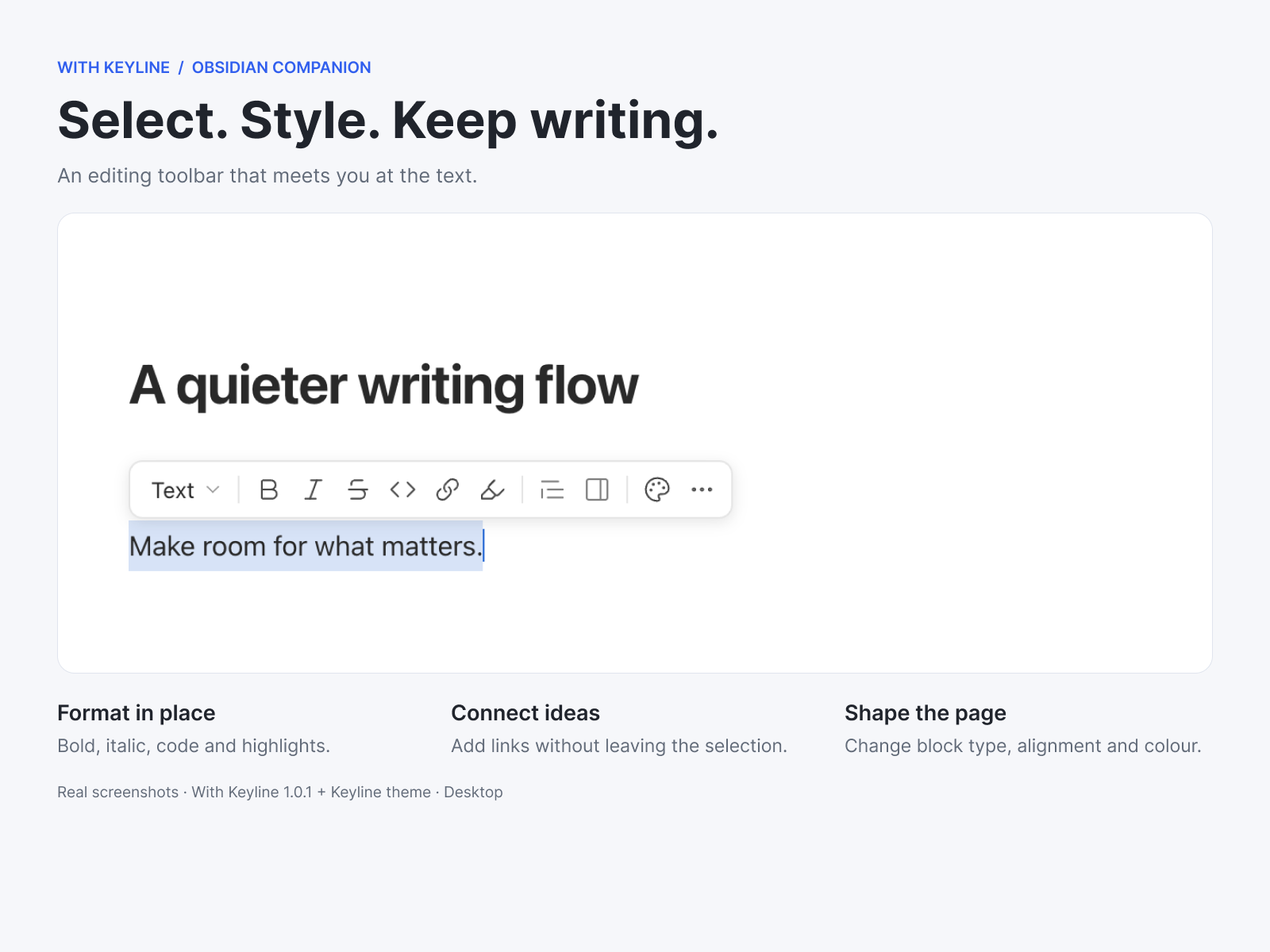
- Select text and keep writing. A compact toolbar appears beside your selection for formatting, links, colours and block types. Keep the selection while applying more than one action.
- Work with blocks. Hover for an insert button and drag handle. Move paragraphs and nested lists with their contents; undo supported edits through Obsidian. Native collapse arrows stay clickable beside the handle.
- Type
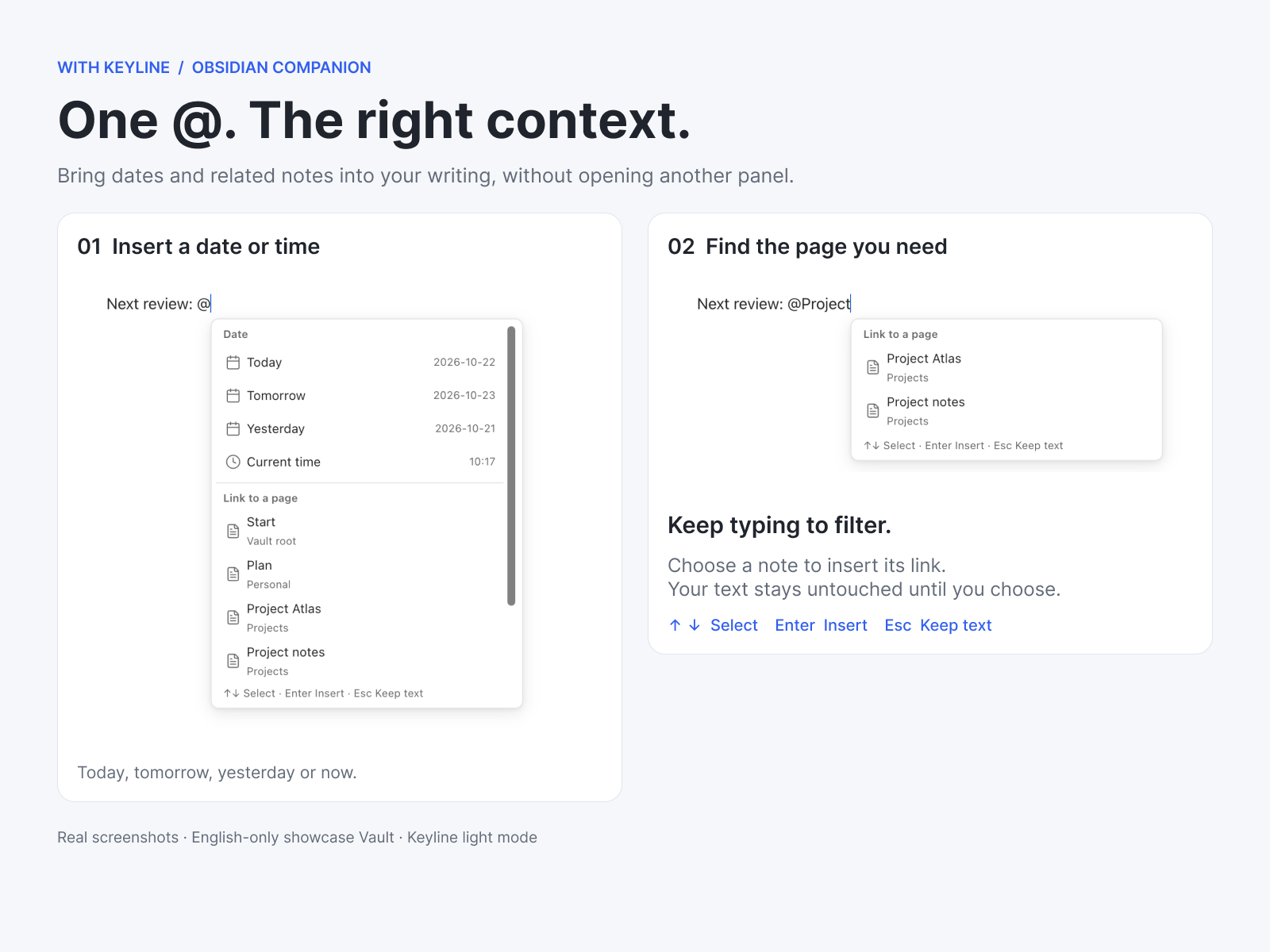
@for pages and dates. Search notes or insert today, tomorrow, yesterday and the current time. Chinese text can lead directly into@. Continue typing to filter; nothing is replaced until you choose an item. - Insert without breaking your flow. Type
/or、with the default trigger, or use the plus button, for headings, lists, tasks, callouts, links, images and attachments. Reorder or hide menu items and add registered commands. Explicit custom triggers and the inline-menu setting are respected. - Know your files at a glance. The original Keyline filled/sharp icon family distinguishes notes, folders and file types in the native sidebar and document tabs. Includes office/text documents, spreadsheets, presentations, databases, audio, video and archives. Give individual files their own icon and colour. Folder expansion stays in the same icon slot.
- One coordinated writing surface. Tune text width, paragraph rhythm, list indentation and headings from six clear settings categories: tabs on the left, options on the right. English and Chinese are built in.
- One rhythm for imported notes and new writing. Desktop Live Preview displays Markdown paragraph separators as one gap. Enter starts a paragraph; Shift+Enter stays within it. Lists, tasks, code and table cells retain their native keys. Paragraph editing is on by default with custom typography and can be switched off.
- Properties without a blank-state puzzle. Notes without properties show an empty name/value row, without recommendations or automatic frontmatter writes. Desktop date fields open a calendar that follows the theme, with month navigation, Today, Clear and keyboard access. Date-time fields retain their time and use an explicit Apply action. Manual entry, native undo and existing tag choices remain available; mobile uses the native date picker.
- Switch the whole working context. With core Workspaces enabled, switch saved layouts from a compact control, with a verified recovery snapshot before a switch.
Previous Keyline companion
With Keyline is an independently implemented successor to the integrated Keyline interactions plugin. Their main everyday features are broadly equivalent, with some safety and implementation differences—not byte-for-byte behaviour or settings compatibility.
On desktop, if you encounter a bug in With Keyline, try the previous GitHub version as a fallback. It remains available and is not replaced by this release; it does not support mobile. Disable With Keyline before enabling the previous plugin; do not run both together. They have separate settings, and switching does not automatically migrate them. Report the failing action and versions so the new implementation can improve.
Install
Open the With Keyline Community page for the current release and installation entry, or search With Keyline in Obsidian's Community plugins. Manual installation is also available from GitHub Releases:
- Back up your Vault's
.obsidianconfiguration and disable the previous Keyline companion if installed. - Create
.obsidian/plugins/with-keyline/and copymain.js,manifest.jsonandstyles.cssfrom the same release. - Reload Obsidian and enable With Keyline under Community plugins.
- Install the Keyline theme separately for the intended visual pairing. The theme does not install this plugin automatically.
No personal notes, demo workspace or old settings are installed automatically. Optional settings import is described in MIGRATION.md. Keep licences and notices with redistributed copies.
Compatibility and privacy
- Obsidian 1.13.7 or newer. Desktop functionality plus limited Mobile Beta. Current checks use macOS Obsidian 1.13.7 with Keyline 0.8.28. Other systems, physical mobile devices and third-party combinations need their own checks.
- The optional property presentation respects hidden properties, raw source mode and invalid frontmatter. Its narrow, feature-detected native metadata adapter falls back to Obsidian's UI if unsupported; it does not parse or save YAML itself.
- File icons identify formats; they do not add EPUB or other file readers. Workspace actions require core Workspaces. Iconic retains ownership when enabled.
- No telemetry or plugin-owned network requests. Settings and recovery data stay in the Vault configuration. User-invoked host commands and other plugins retain their own behaviour.
- Formatting and block commands can change selected note content. Imported files and newly created notes are retained when you undo their inserted links; they are not silently deleted.
- See release verification for the tested scope. Automated checks are not a promise of zero bugs.
- See the changelog for release updates.
Build and licence
Use Node 22+ and the package-manager version pinned in package.json: pnpm install --frozen-lockfile, then pnpm verify.
MIT. See LICENSE, third-party notices and implementation provenance. The original Keyline Icons artwork keeps its attribution; the runtime is a reference-informed independent implementation, not a claim of formal clean-room certification.