
README file from
GithubWindow Spaces - Obsidian Plugin
Save and restore window layouts for Obsidian popout windows. Seamlessly manage multi-window workspaces with high performance and zero DOM jitter.
🌐 Language / 語言
💡 Why Window Spaces? (vs. Native Workspaces)
Obsidian's built-in Workspaces plugin is designed for global application state—restoring a workspace overwrites your entire Obsidian setup (closing all open windows and replacing your main layout).
Window Spaces is purpose-built for individual popout windows:
- 🎯 Zero Main Window Interference: Captures and restores layouts only within a target popout window without touching your main workspace or sidebars.
- 🖥️ Multi-Monitor Friendly: Keep separate reference windows, Kanban boards, or research notes on secondary displays and swap their layouts independently.
- 🚀 Spawn New Windows on Demand: Click normally (or press
Enter) to restore any saved layout into a brand-new popout window instantly. - 🔄 Per-Layout Auto-Save: Enable auto-save individually on specific layouts with 5s debounce protection and window-close instant snapshot.
| Feature | 🏛️ Native Workspaces | 🪟 Window Spaces |
|---|---|---|
| Scope | Global: Overwrites main window & all sidebars | Window-Scoped: Affects only the target popout window |
| Multi-Monitor | ❌ Destroys setups across all screens | ✅ Manages individual screens independently |
| Spawn New Window | ❌ Always overwrites current layout | ✅ Click normally or press Enter to open in a new window |
| Auto-Save | ❌ Global manual save / hard overwrite | ✅ Per-layout 🔄 auto-save with 5s debounce |
| Smart Naming | ❌ Manual typing only | ✅ Pinned-first smart name (Pinned Note & Active Note) |
| Hover Preview | ❌ No content preview | ✅ File list tooltips on hover before restoring |
| Layout Integrity | ❌ Missing files cause tab collapses | ✅ Native empty tabs preserve pane shapes |
✨ Key Features
- Popout Window Preservation: Captures splits, tabs, active file, view modes, and exact window dimensions/position.
- Smart Layout Naming: Automatically generates intuitive names based on pinned files and active notes (
Pinned Note & Active Note). - Context-Aware Restoration: Click normally (or press
Enter) to spawn a new popout window; holdShift(or pressShift + Enter) to restore directly into the current popout window. Restoring a Space that is already open in a popout window focuses that window instead of duplicating it. - Per-Layout Auto-Save: Toggle 🔄 auto-save on specific layouts with a 5-second debounced background update and immediate save on window close.
- Unified Quick-Switch & Management Modal: Search layouts in real-time, view hover file tooltips, sort by 6 dimensions (gear menu ⚙️), rename, edit, auto-save, or delete. Opens as a popup window (with the same toolbar in its title bar), an editor-tab panel, or a sidebar panel.
- Safe Placement & Guardrails: Prevents off-screen windows on monitor changes and guards against accidental 0-file layout overwrites.
- Popout Panel Support: Supports Activity Bar and sidebar/panel rendering inside Popout windows without changing the main window layout.
🖼️ Screenshots
| Multi-workspace popouts | Popout window | Sidebar panel |
|---|---|---|
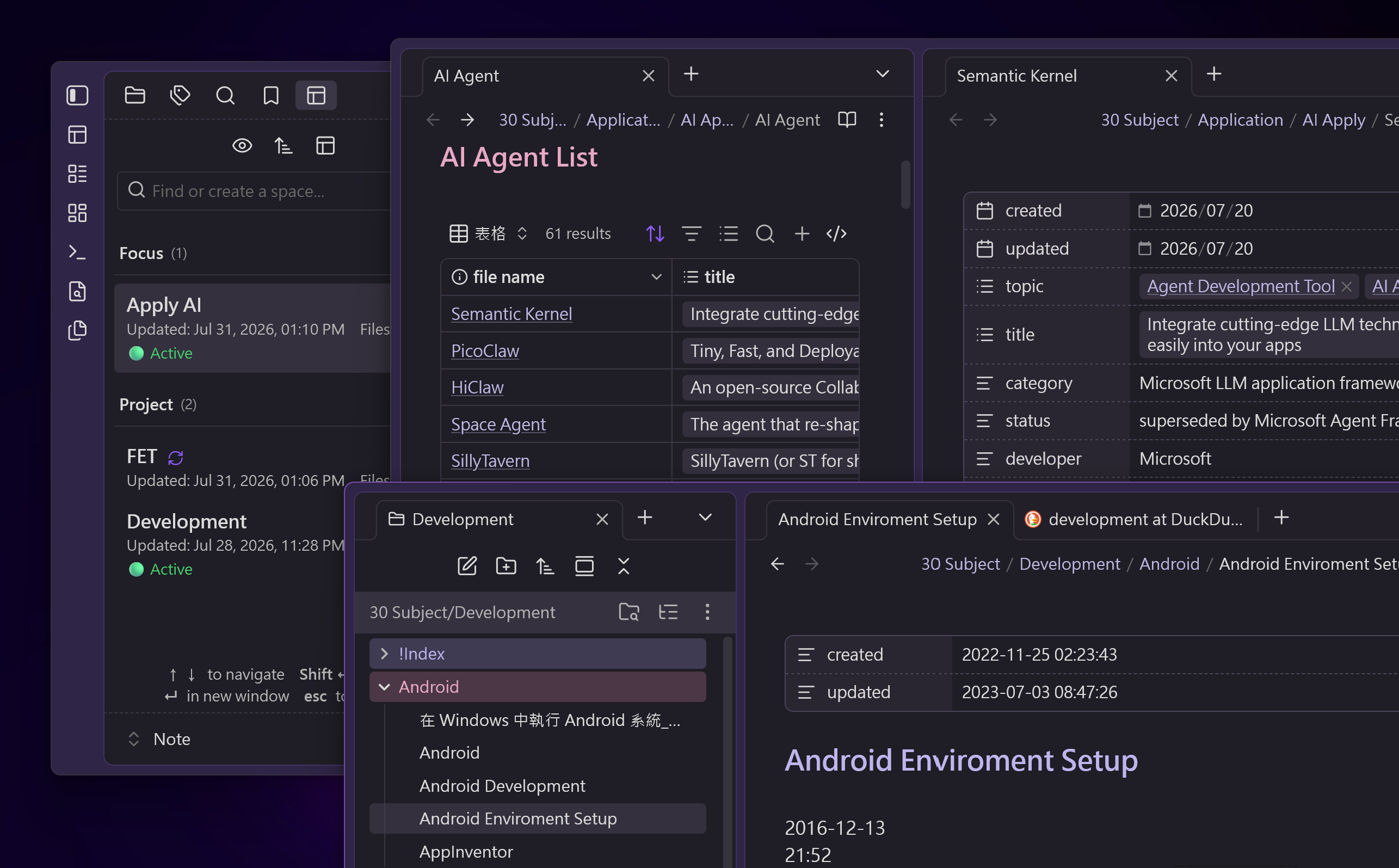 |
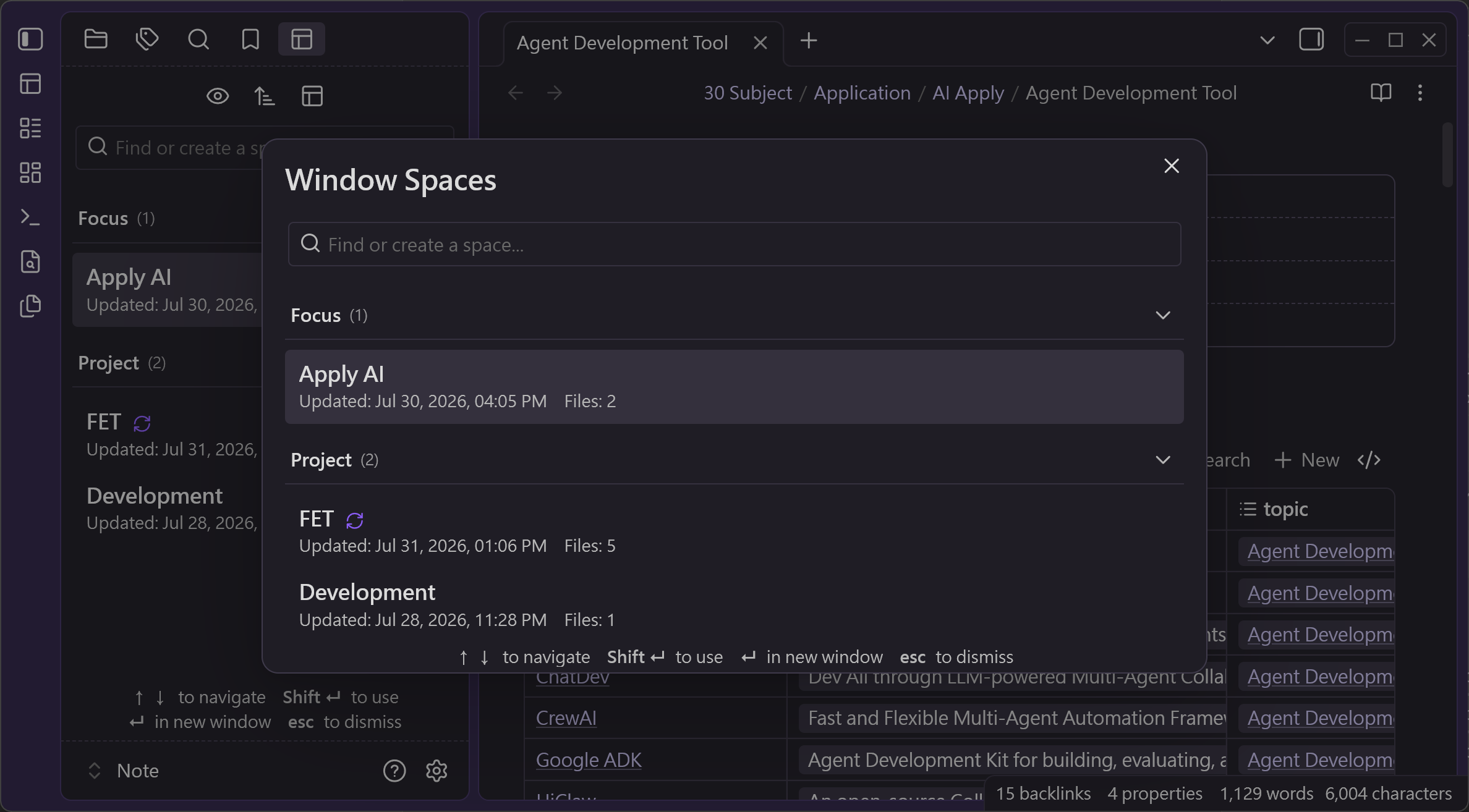 |
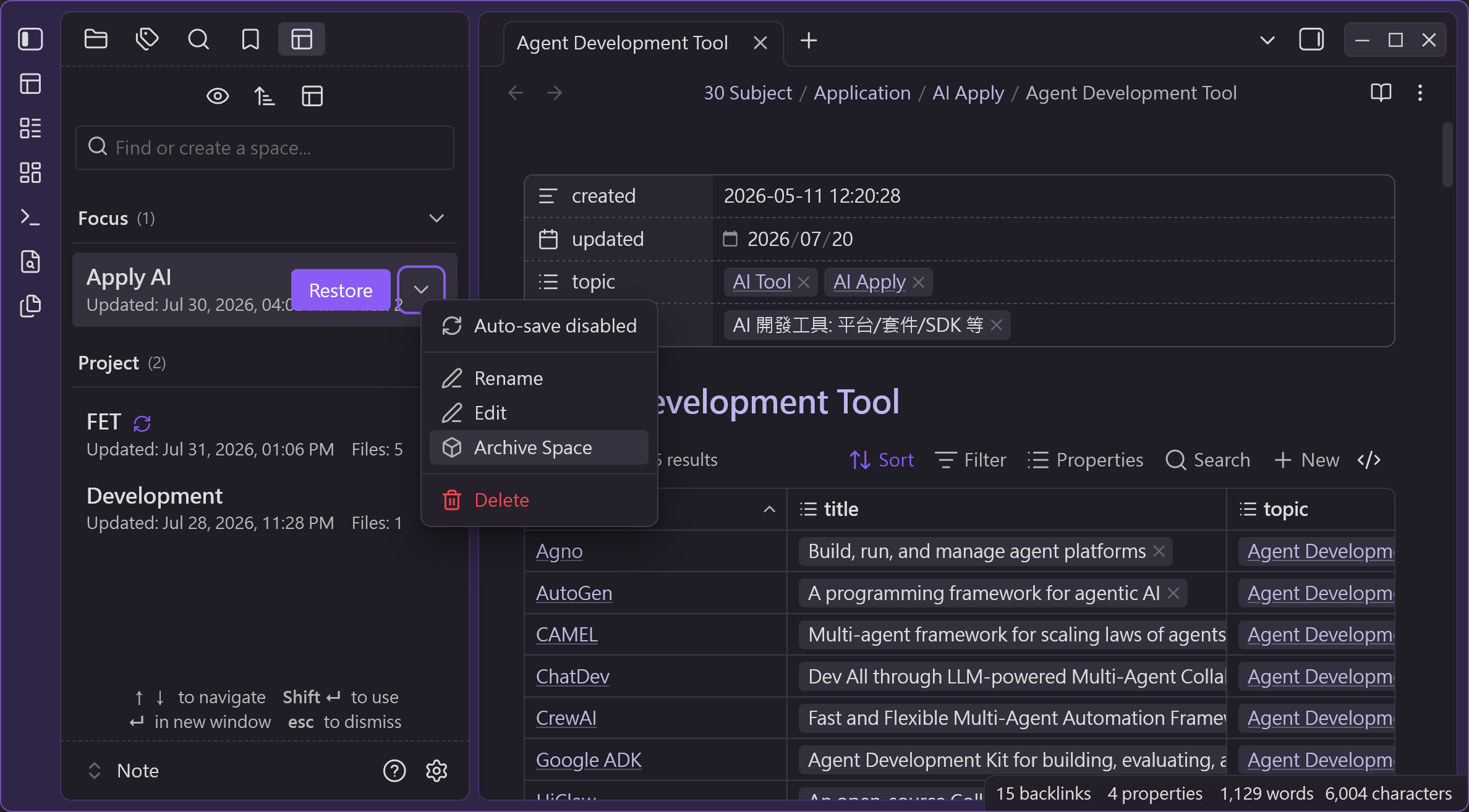 |
📥 Installation
From Community Plugins
- Open Obsidian Settings > Community plugins.
- Search for Window Spaces.
- Click Install and then Enable.
Manual Installation
- Download
main.js,styles.css, andmanifest.jsonfrom the latest GitHub Release. - Copy them to
<your-vault>/.obsidian/plugins/window-spaces/. - Reload Obsidian and enable Window Spaces in settings.
🚀 Usage
1. Save Window Layout
- Open the command palette (
Ctrl/Cmd + P) in any popout window. - Run
Window Spaces: Save current Space. - Enter a name or use the auto-generated smart name, then press
Enter.
2. Open Window Layouts
- Run
Window Spaces: Open as popup windowto open the picker in a popup,Open as tab panelto open it in a tab, orOpen in left/right sidebarto dock it in a sidebar. The tab and sidebar commands open in the focused window: run them from a popout window to open the panel inside that popout, or from the main window to open it in the main workspace. - Select a layout from the unified restore and management dialog.
- Click a layout normally, or press
Enter, to restore it in a new popout window. - Hold
Shiftwhile clicking a layout, or pressShift + Enter, to restore it in the current active popout window. - If the Space is already open in a popout window, restoring it again focuses that window instead of creating a duplicate.
- Access dropdown options (∨) to toggle auto-save, rename, edit, or delete saved layouts, and use the panel menu to move the picker to another location.
- See the Use Cases & Workflows section below for project, research, Canvas, Tasks, writing, meeting, and development workspace examples.
🚀 Use Cases & Workflows
Think of each saved Space as a reusable work cabin for a project, research topic, work session, or recurring process:
- Basic pattern: Pin a navigation view (Base, Canvas, or Tasks) on the left, keep the file you are working on to the right, and pin the nav view so clicking files never replaces it. Save the arrangement under a project or workflow name.
- Project control center (
Project — Map & Workbench): Pinned Base map on the left, project home, specs and meeting notes to the right. - Research literature (
Research — Literature Review): Literature Base on the left, reading notes and open research questions to the right. - Canvas visual planning (
Planning — Canvas & Notes): Canvas holds the big picture on the left while specs and decision notes are edited on the right. - Tasks cycle management (
Weekly Review — Tasks & Notes,Daily Focus): Tasks query on the left, daily note and source documents to the right. - Writing & content (
Writing — Draft & References): Content Base on the left, draft in the center, references and checklists to the right. - Meetings & decisions (
Meeting — Agenda & Actions): Meeting Base and agenda on the left, running notes and follow-up Tasks to the right. - Software development (
Dev — Issue Triage,Dev — Implementation,Dev — Code Review,Dev — Release): Issue Base on the left, specs and implementation notes to the right.
Once saved, a single click (or Enter) restores the whole cabin into a fresh popout window, or Shift + click (Shift + Enter) applies it to the current popout.
⌨️ Keyboard Shortcuts
- No default command shortcuts are assigned. You can assign optional shortcuts to
Window Spaces: Open as popup window(or the tab/sidebar panel commands) in Obsidian's Hotkeys settings. - Within the layout list,
Enterrestores in a new popout andShift + Enterrestores in the current active popout. - Arrow-key navigation only engages while the panel itself is focused; keys typed into the command palette, a rename dialog, a dropdown menu, or another window are never intercepted.
💻 Compatibility
- Obsidian Version:
v1.12.7+ - Platform: Desktop only (Windows, macOS, Linux)