
README file from
GithubWheel Picker -- Obsidian Plugin
What is it?
Wheel Picker is an obsidian plugin to help visualize and select from an item from a list in a fun way. It is intended to be used in 'View' mode, but works just fine in 'Edit' mode.
How do I use it?
Live Demo
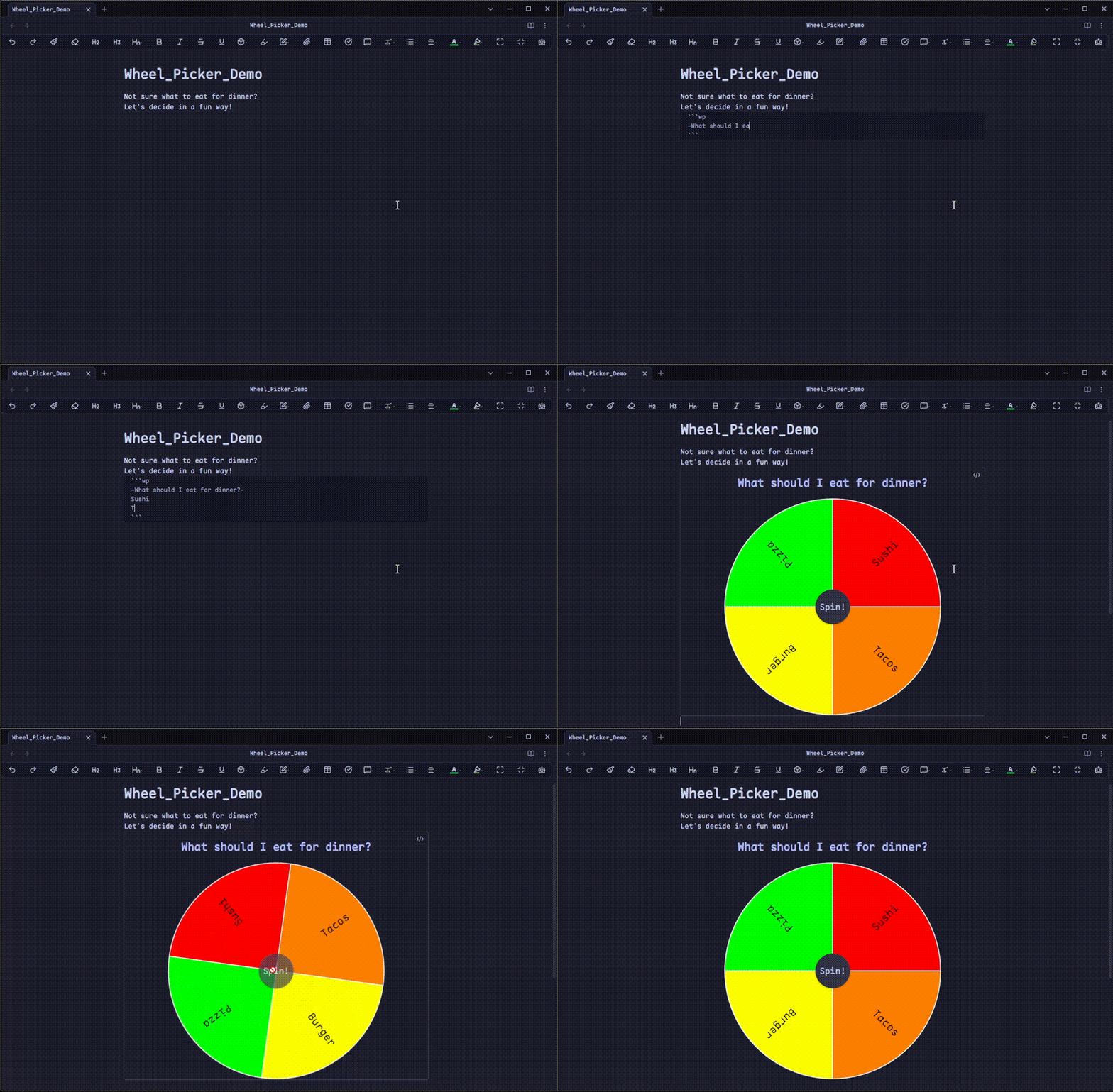
Sample Wheel Picker codeblock
```wp
-What should I eat for dinner?-
Sushi
Burger
Pizza
Tacos
```
How do I create my own wheel?
- Empty Codeblock
To create a codeblock, create a triplet of the ` character. On the next line, do the same. You should now see an empty codeblock.
```
```
- Connect with Wheel Picker
At the end of the first triplet, add wp.
This lets the plugin know that it's is going to read this codeblock.
```wp
```
- Add a Title
At the end of the first row, hit enter to make a new line.
Write a double hyphen (aka minus sign or dash) --.
Within this double hyphen create a title.
```wp
-The colors of the rainbow-
```
- Add some data
This is where you will be adding actual data to the wheel itself. Every row will indicate a new slice on the wheel. Let's add 3 new rows for the first three colors of the rainbow.
```wp
-The colors of the rainbow-
Red
Orange
Yellow
```
- Spin the wheel
The wheel now has all the data needed to be displayed properly. It should look like this:
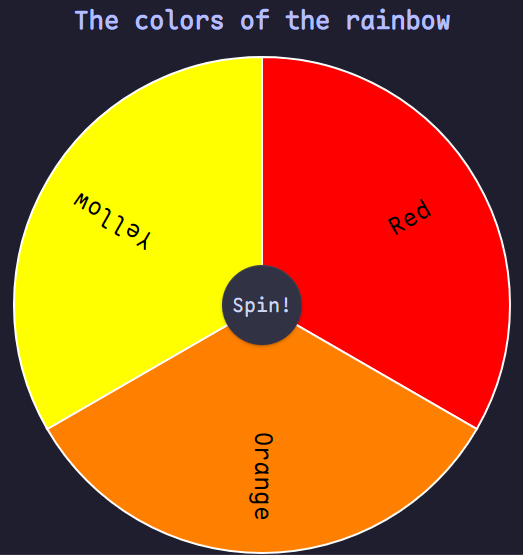
To spin it, tap/click the central button saying "Spin!" The wheel will now spin, and select an element at random from the wheel.
FAQ
Q: My wheel isn't displaying anything!
A: While a wheel does not need a title, it must have at least 2 rows of data. Make sure that you are putting each row of data onto its own line within the codeblock. See the above example for clarity.
Q: My wheel doesn't look good! >:( Can I change it?!
A: Absolutely! Locate the plugin specific settings found within Obsidian. Then you can change just about any cosmetic feature including colors, animation length, wheel size, and more! I encourage you to customize to your hearts content.
How to Install
The suggested way to install this plugin is via the list of obsidian community plugins
- Make sure that you have
Third-party pluginsenabled andSafe Modeis turned off. - Browse the community plugins for
Wheel Picker. - Install the plugin, close the window, then activate the freshly installed
Wheel Pickerplugin.
Tips/Donations
This plugin is made by me, for free to anyone and everyone. Any donations and tips are graciously accepted.
[!Note] The following link takes you to my personal website.
Link to the tip page on my website
Thank you very much if you donate!
Suggestions
If you have any suggestions or encounter any bugs/have bug-fixes please feel free to email me at: