
README file from
GithubWeekfit
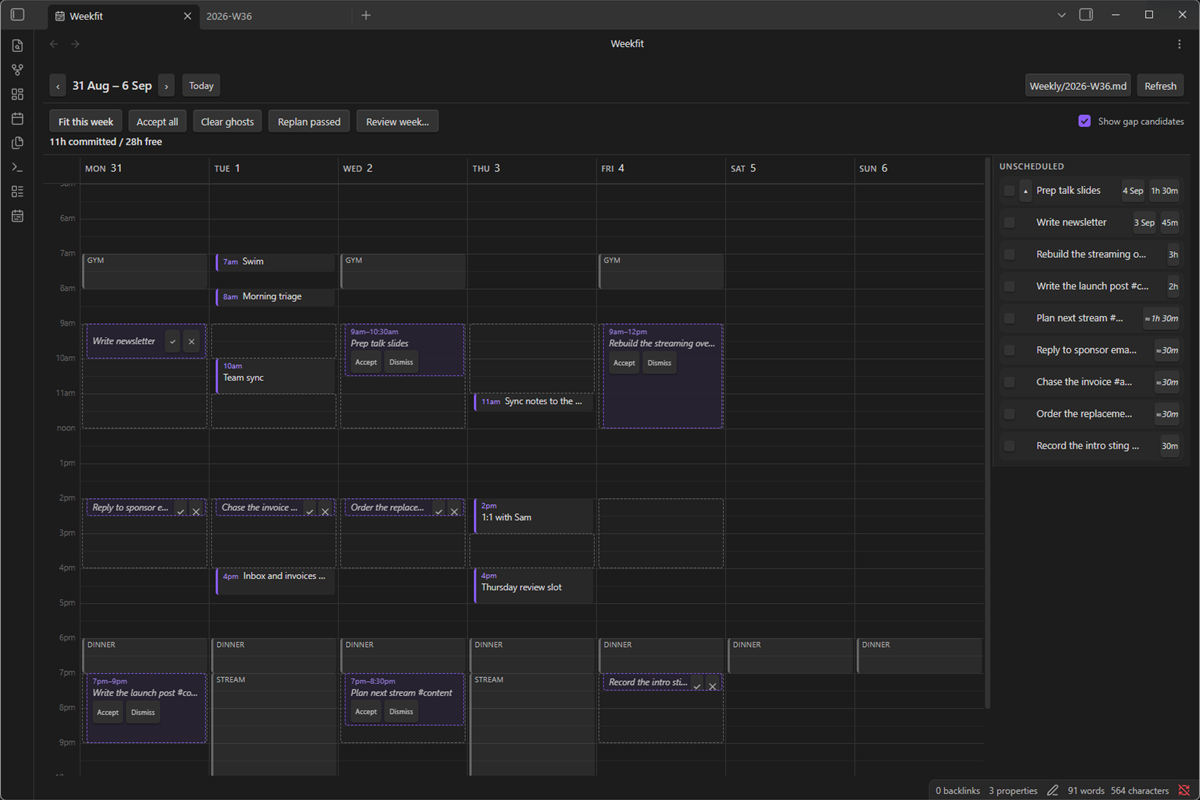
You have eleven hours of work and a week with holes in it. Press one button and see where it fits.
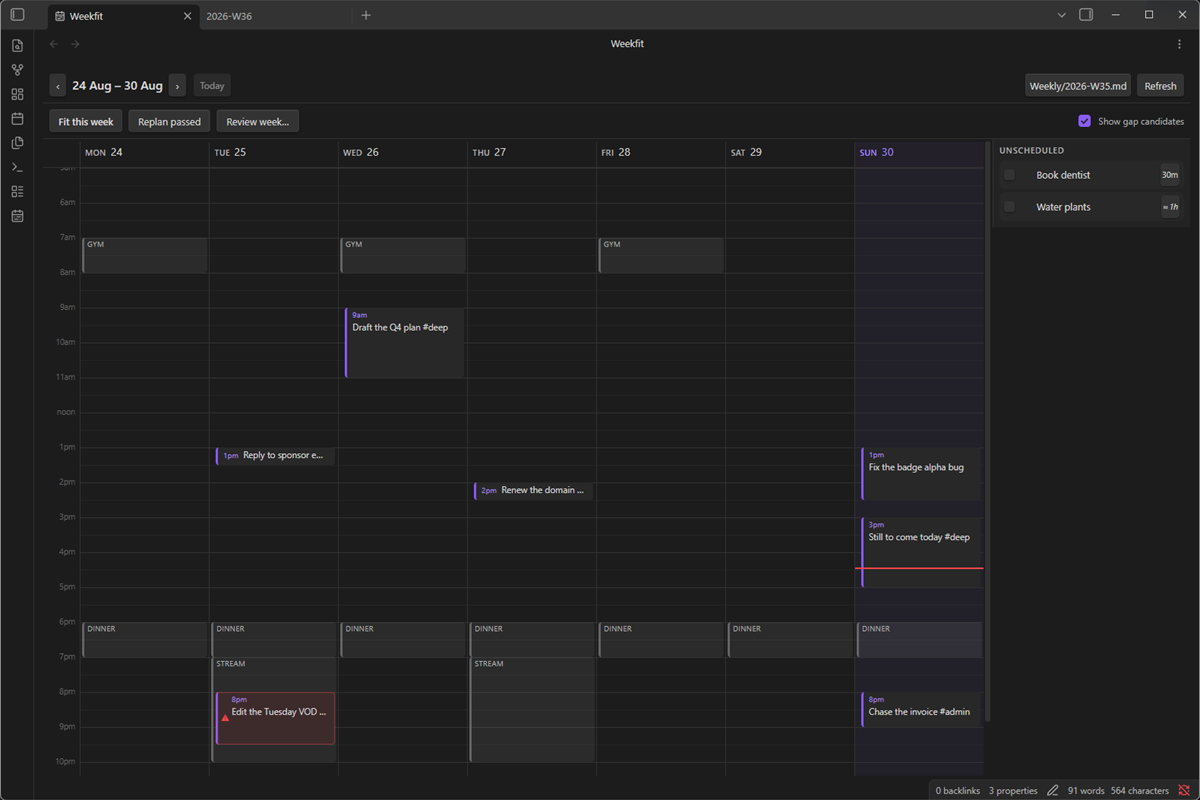
Weekfit takes the tasks you already have, the hours you're actually available, and the things already in your week — and proposes where the work goes. You accept what you like, drag what you don't, and it writes plain text back into your notes.
Getting started
Install from the Obsidian directory, then enable it in Settings → Community plugins.
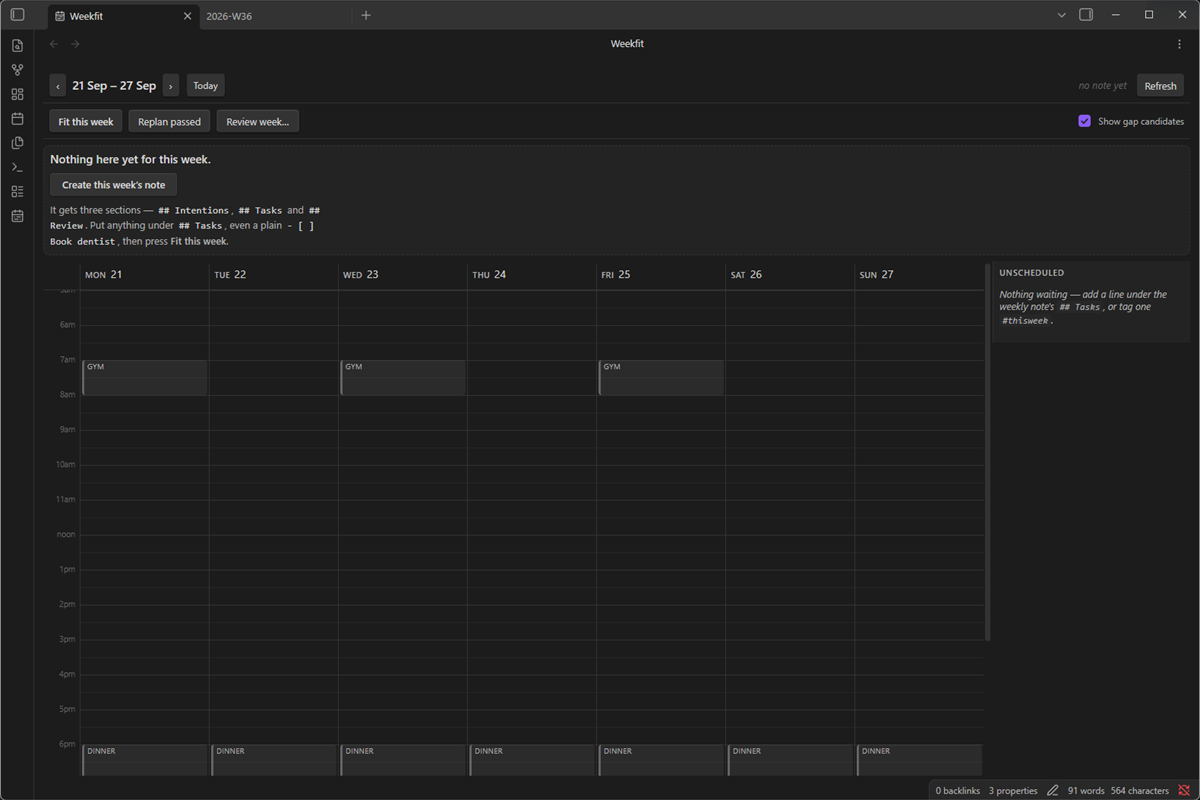
- Settings → Weekfit → add an availability window — when work could happen, e.g. weekdays 09:00–17:00. This is the one setting with no sensible default: without it there is nowhere to fit anything, and Weekfit says so rather than sitting there looking broken.
- (Optional) add your recurring commitments — gym, stream, a standing meeting. They're drawn behind the week and treated as busy.
- (Optional) set durations by tag, so untagged, unestimated tasks still get a size.
- Run
Weekfit: Create this week's notefrom the command palette (Ctrl/Cmd+P). You get a note with three sections and nothing else to learn. - Put anything under
## Tasks. A plain- [ ] Book dentistis enough. - Open the week view and press Fit this week.
You'll get ghosts — proposals, not commitments. Accept one, accept all, dismiss, or drag one somewhere else first. Nothing is written until you accept.
It works with the tasks you already have. No new syntax required.
This is the part most planners get wrong. Every comparable plugin needs you to annotate your tasks before it can do anything, which means a migration before you find out whether you like it.
Weekfit doesn't. A plain line works on day one:
- [ ] Book dentist
It gets a size from a duration default for its #tag, or a global fallback if it
hasn't got one. Nothing to migrate, nothing to learn, and the rail marks a size Weekfit
guessed differently from one you wrote.
If you do annotate, Weekfit reads the Obsidian Tasks
standard in both flavours — emoji and Dataview inline fields — plus a ~90m duration
extension:
- [ ] Edit the Tuesday VOD ~90m 📅 2026-09-04 🔼 #content
- [ ] Write newsletter [est:: 45m] [due:: 2026-09-03] [priority:: high]
All of it is optional. All of it is read, and almost none of it is written.
Plan with us. View it wherever you like.
Weekfit writes Day Planner format — the same HH:MM - HH:MM lines the
Day Planner plugin already renders:
- [ ] 09:00 - 10:30 Fix badge alpha ⏳ 2026-09-04
So there is nothing to switch. If you use Day Planner, keep using it — Weekfit fills in the timeline you're already looking at. If you use Tasks, keep using it — Weekfit reads its syntax rather than replacing it. If you stop using Weekfit tomorrow, your plan is still sitting in your notes in a format three other tools understand.
Your plan is a file, not a service.
What it does
| Fit this week | Schedules unscheduled work into your free slots. Nothing else in the directory does this |
| Availability windows | When could this kind of work happen — matched against a task's #tag |
| Recurring commitments | Drawn behind the week and treated as busy |
| Capacity line | 6.5h committed / 14h free, red when the week doesn't fit |
Duration defaults per #tag |
Works on a vault where nothing is annotated |
| Drag and edge-resize | Move a block, or drag its edge to change how long it takes |
| Conflict marking | Says when a hand-placed block lands on a commitment — marks it, never refuses it |
| Splitting | A task too big for one gap becomes several sittings, written as sub-tasks |
| Replan | Re-fits what didn't happen. The feature that makes this useful on a Wednesday |
| Weekly review | Planned vs kept, plus frontmatter an Obsidian Bases table can read |
| Roll forward | Carries unfinished work into next week, keeping every annotation. Leaves anything still scheduled later in the week where it is |
| Edit in place | Click the due date, duration or priority on a rail row to change it — in the line's own emoji-or-inline dialect |
| Deadlines first | Slots are offered in due-date order, then by priority — note order only breaks a tie |
| Balanced or soonest-first | Spread work across the week, or fill the earliest day first |
| Act from the rail | Drag a task onto the week, tick it done, open its line, or right-click for all three |
| Drag back to the rail | Takes a block off the week again |
| Backlog + capture | Somewhere for later, and a one-line way to get things there |
| Undo | Puts back the last change, across every file it touched |
| Calendar sync | One read-only ICS feed, drawn on the grid and blocking gaps by default — see below |
Calendar sync
One read-only feed URL, added in Settings → Weekfit. Its events appear on the grid alongside everything else and, by default, block scheduling gaps — Fit this week won't propose a slot your calendar already has claimed. The window is 2 weeks back to 8 weeks ahead.
Refresh is a manual command (Weekfit: Refresh calendar feed) or the
"Refresh now" button in Settings — never a background timer — and it's
rate-limited to once an hour so a slow or misbehaving feed can't be hammered
on every render. ICS events are read-only. Drag one onto the rail if you
need a task you can reschedule; that turns it into an ordinary line, and it
stops being drawn as a calendar block. A week already marked reviewed is
never touched by the feed.
How your notes are treated
This is the part worth trusting before you install anything that writes to your vault.
- One module writes. Every change — accept, re-time, resize, unschedule, roll forward — goes through a single verified path. A test gate asserts no other file can touch the vault.
- It re-reads the line before changing it. If the line moved or changed since Weekfit last looked, the write is refused and reported, never guessed at.
- Only the target line changes. No reformatting, no whitespace churn, no touching the final newline. Your line endings are preserved as they are, CRLF included.
- Nothing proprietary is written. A time range and a scheduled date, both standard Tasks syntax, in whichever flavour the line already uses.
Create this week's noterefuses to overwrite. It is a seed, never a reset.- Undo is a lifeline, not a guarantee. It restores what Weekfit wrote, and steps aside the moment you've edited the file yourself.
- Recurring tasks are left alone. A
🔁line belongs to the Tasks plugin; Weekfit never moves or rewrites one.
Commands
| Command | |
|---|---|
Open week view |
Opens the week |
Fit this week |
Proposes placements for everything unscheduled |
Replan what has passed |
Re-fits blocks that came and went undone |
Review this week |
Planned vs kept, and roll unfinished work forward |
Capture a task |
One line, into this week's ## Tasks |
Open backlog |
Unscheduled work across your configured folders |
Create this week's note |
Seeds the note with the three sections |
Previous week / Next week / Go to this week |
Navigation |
Toggle gap candidates |
Shows the free slots the engine can see |
Undo last change |
Puts back the last thing Weekfit wrote |
Refresh week |
Re-reads the vault |
Refresh calendar feed |
Fetches the ICS feed now, rate-limited to once an hour |
No hotkeys are claimed — bind your own in Settings → Hotkeys.
Where your notes live
Weekfit defers to the Periodic Notes plugin when you have it installed, and to core Daily Notes after that, rather than inventing a second note-location setting for you to keep in sync. You can override it.
What it deliberately doesn't do
- No Google Calendar OAuth. A plugin shipping one OAuth client ID to thousands of installs is a different legal posture from a personal app, and it's exactly what Google's verification exists to police. Dropping it removes the verification burden, the "unverified app" screen and the 100-user cap in one decision. The Calendar sync feed above — a read-only ICS URL, which Google Calendar (and most others) can export without any of that — covers the common case instead.
- No AI. Everything here works with every model switched off.
- No account, no server, no telemetry. It reads and writes files in your vault.
- No task format of its own. It reads the Obsidian Tasks standard and writes a time range and a scheduled date — both standard, both readable by other plugins and by you.
- It never edits your estimates.
~90mis how big a job is;09:00 - 10:30is when it's happening. Resizing a block changes the second, never the first.
Status
Released — 0.2.0, listed in the Obsidian directory. Still an early version, so treat it accordingly: it is in daily use by the author and has 982 tests, including component tests and an end-to-end pass that runs the real read → fit → write pipeline against real files on disk and asserts the resulting bytes — but nobody else's vault has met it yet. A scratch vault for the first hour is not a bad idea.
Requires Obsidian 1.7.2 or later.
Desktop only for now. Everything is pointer-based and should work on touch, but nothing has been tested on a phone or tablet, so the manifest says so rather than claiming support that hasn't been earned.
There is an undo. Weekfit: Undo last change puts back the last thing it
did — including a roll-forward that moved tasks between two notes, which Obsidian's own
per-file undo can't reach. It refuses rather than clobbers: if you edited a note after
Weekfit wrote it, that file is left exactly as it is and you're told which. It lasts for
the session, so a reload clears it.
Development
npm install
| Script | |
|---|---|
npm run dev |
esbuild watch |
npm test |
vitest |
npm run build |
typecheck + production bundle |
npm run deploy |
copy the build into a local test vault |
npm run deploy targets a scratch vault and refuses to write to any path containing
quetx, so it can't be pointed at the author's real vault by accident. Override the
target with WEEKFIT_VAULT.
src/lib/ is a byte-for-byte port of a proven planning engine and is checked against
its source on every phase gate. Treat it as vendored: don't edit it in place.
Licence
MIT — see LICENSE.