
README file from
GithubVoiceComment 2.0
Record a voice note and get a rectangle on your Excalidraw drawing that plays it.
The rectangle shows a self-contained HTML page with the audio inside — generated next to the MP3 and served by a small server the plugin runs on your own machine. It is always stopped: it never plays on its own, and it comes back when you reopen the drawing.
No ffmpeg, no Python, no cloud: the MP3 encoder ships inside the plugin.
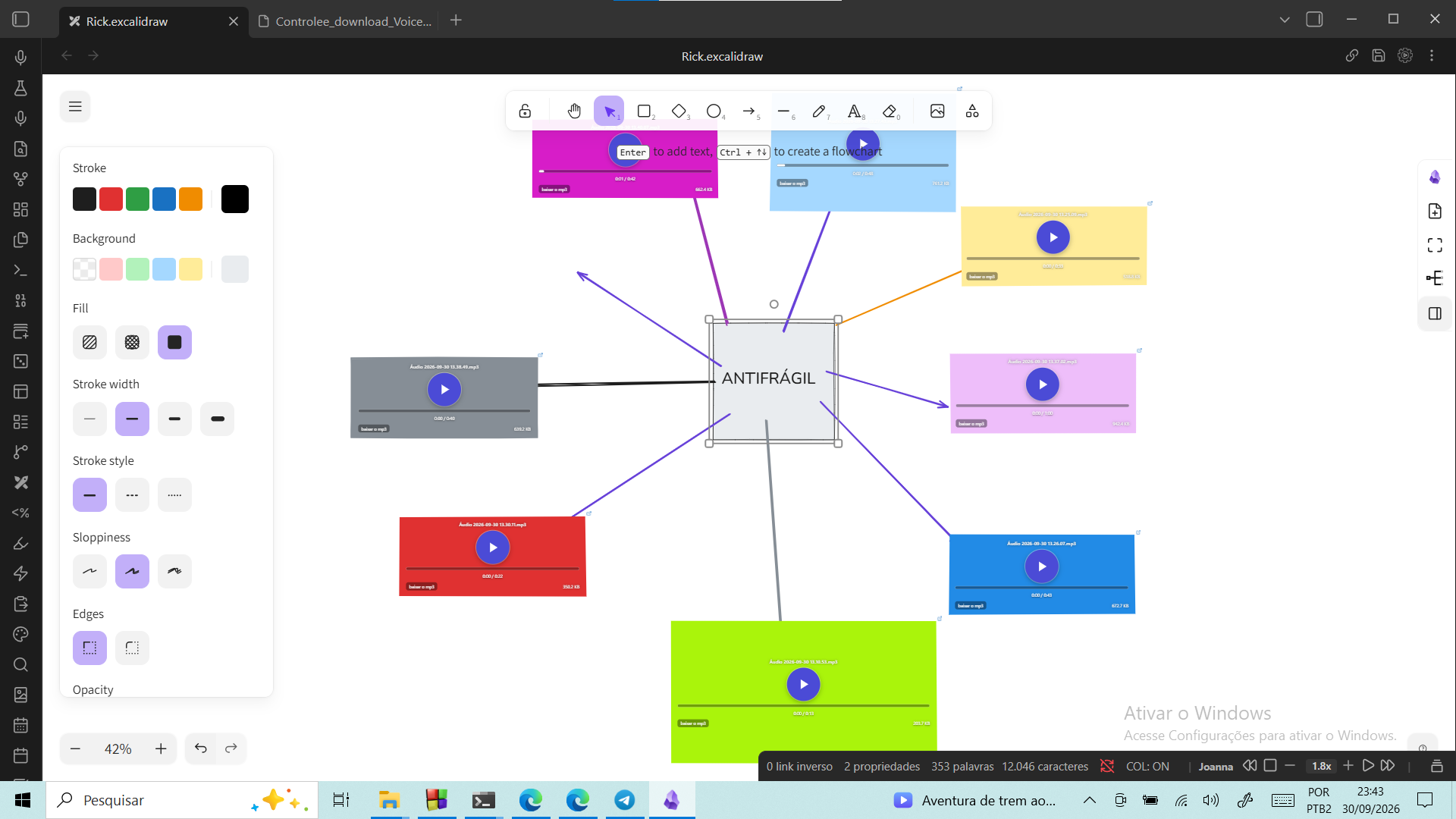
One comment per idea, parked on the drawing itself.
Why
Neither Excalidraw nor its plugin can record audio, and even embedding an existing audio file in a drawing is a manual workaround — issue #2278 is still open, and the suggested workaround is to add a card and drop an audio link into it. VoiceComment does that for you, with the recording included: one comment per idea, parked exactly where you were.
What you get
Every recording writes two files into your vault folder:
| File | What it is for |
|---|---|
VoiceComment 2026-01-31 18.20.33.mp3 |
the audio itself, usable in any other program |
VoiceComment 2026-01-31 18.20.33.html |
the page the rectangle shows — openable in a browser too |
and one element inside the drawing, which is what makes the rectangle come back.
The audio never plays by itself
Two guarantees, added up:
- The generated page has no
autoplayattribute. - Excalidraw creates the rectangle as a webview with
autoplayPolicy=document-user-activation-required— the drawing plugin itself requires a user click before any sound.
Measured in the app after closing and reopening the drawing: the player comes back with the audio loaded and ready (readyState: 4), at currentTime: 0, paused: true, no autoplay. It only plays when you click it.
Requirements
- Obsidian 1.4.0 or newer, desktop version — the plugin keeps a small local server and opens its log through Electron, so it is marked desktop-only
- A microphone, and permission for Obsidian to use it
- The Excalidraw plugin, version 2.x, for the drawing part
Installation
Community plugins
Settings → Community plugins → Browse → search "VoiceComment 2.0" → Install → Enable.
BRAT
Add Engenharick/voicecomment to BRAT.
Manual
Download main.js, manifest.json and styles.css from the latest release, put them in <vault>/.obsidian/plugins/voicecomment/, and enable the plugin in Settings → Community plugins.
Usage
- Open an Excalidraw drawing.
- Click the microphone in the sidebar — or run VoiceComment 2.0: record audio and plot it on the drawing.
- Talk. Click ■ Stop and plot to finish (or run the command again).
- The rectangle appears in the middle of the view, with the audio already loaded and stopped.
The plugin deliberately ships no default hotkey, so it never steals a key you already use — assign one in Settings → Hotkeys if you prefer the keyboard.
Two extra commands help when things move around:
- Replot the last recording on the drawing — for when you closed the view before the rectangle was written
- Rebuild the HTML pages of this folder — regenerates the page of every MP3 in the recordings folder with the current player and colors
Settings
| Setting | Description |
|---|---|
| Recordings folder | Vault folder for the MP3 and the HTML. Created if missing. |
| MP3 quality | 64 / 96 / 128 / 192 kb/s, mono. |
| Width / Height | Size of the plotted rectangle (470 × 200 by default). |
| Border colour / Background colour | Colours the drawing paints behind the page. transparent (default) keeps the rectangle colourless. |
| Port | Port of the local server (8781 by default), with a Restart server button. |
| Microphone icon | Show or hide the sidebar icon. |
| Diagnostic log | Opens the plugin log, which records every request the server answers. |
Limits (honest ones)
- This PC only. The rectangle shows a page served by the plugin running here. On another machine, or with Obsidian closed, the rectangle is empty — the MP3 and the HTML stay valid anywhere.
- Changing the port breaks the rectangles you already plotted: their URL is stored inside the drawing. If the port is busy, the plugin tries the next 10 and warns.
- The rectangle shows the browser's player inside a webview — not a native player.
- The drawing part needs the Excalidraw plugin; without it there is nothing to plot into.
Troubleshooting
- The rectangle is empty: check the diagnostic log. Every request the server answers is logged (
servidor: GET /… .html -> 200is what proves the page loaded). A port change is the usual cause. - "the port was busy": another program (or another copy of the plugin) took 8781. The plugin moves to the next free port and warns that old rectangles may not load.
- "microphone permission denied": allow microphone access for Obsidian in your system privacy settings.
- "nothing was recorded": open the log — it records the AudioContext state, the captured byte counts and the peak level of every recording.
How it works
microphone → PCM (WebAudio) → lamejs → MP3 ─┬─> <name>.mp3  (in the vault)
                     └── MediaRecorder ──────┘
                                            └─> <name>.html (audio in base64)
                                                     ↑
    local server 127.0.0.1:8781 (this machine only) serves that folder
                                                     ↑
    an "embeddable" element in the drawing points to http://127.0.0.1:8781/<name>.html
    (Excalidraw sends any protocol link to a webview with the no-autoplay policy)
- Capture runs two parallel paths: raw PCM through WebAudio straight into the MP3 encoder (a single lossy generation), plus a
MediaRecordersafety net. If the PCM path delivers nothing — a suspendedAudioContextis the classic cause, and the timer keeps running anyway, which is misleading — the compressed capture is decoded withdecodeAudioDataand re-encoded. A recording is never lost. - The server accepts only
GET/HEAD, only from127.0.0.1, and serves only files inside the recordings folder (no../). Every request is written to the plugin log.
Development
powershell -File build.ps1                 # main.js = src/lame.min.js + src/audiohtml.js, then installs into the vault
powershell -File build.ps1 -Vault "C:\path\to\vault"
node --check main.js
Checking it with the app open (Obsidian.exe --remote-debugging-port=9333):
node tools\verificar-retangulo.js 9333 "<path\to\an.mp3>" apagar voicecomment
node tools\limpar-teste.js 9333          # if a test died halfway: deletes only zz-teste files
verificar-retangulo.js records through the plugin's real path, plots, checks the server log for the page load, closes and reopens the drawing to prove the rectangle comes back — and deletes only the zz-teste- files it created. With a heavily loaded vault the reopen step can be slow: it fails soft, prints what it measured and still cleans up.
Credits
- lamejs (LGPL-3.0) — MP3 encoding, bundled unmodified. See THIRD-PARTY-NOTICES.md.
- Excalidraw for Obsidian by Zsolt Viczián — the
ExcalidrawAutomateAPI that makes the drawing part possible.
License
LGPL-3.0 — see LICENSE.