
README file from
GithubVisual Agent Map
English
Explore big questions with visual AI research in Obsidian
Start with a question. See the pieces. Follow the ideas worth exploring. Build a visual AI research map in Obsidian, or talk through a new idea in Coffee Tables. Keep what you learn in editable Markdown notes.
Get started · See the 0.13.0 release
Take a look
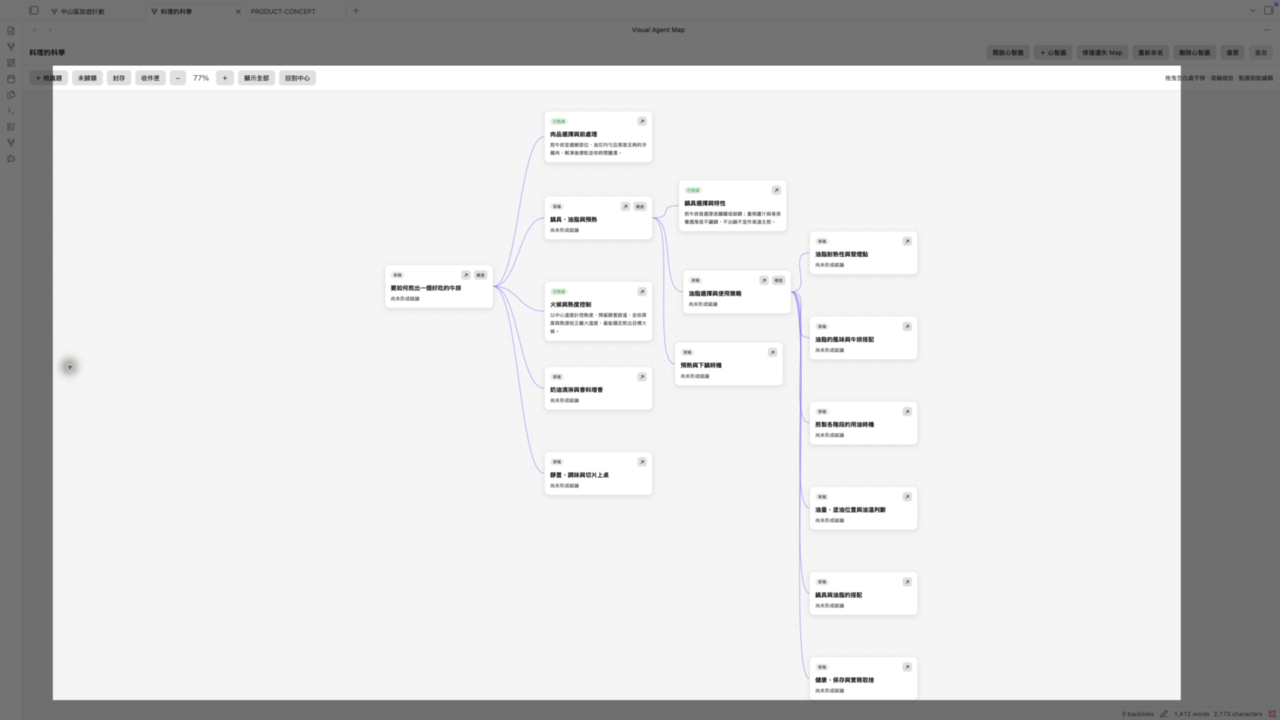
Example research map in Obsidian.
Two ways to explore
- Visual research map. Break a question into topics, research one branch with AI, and review suggestions before saving them. Your map and research stay in Markdown.
- Coffee Tables conversations. Bring an unfinished idea to simulated AI guests. Choose a conversation style, add
.txt/.mdbackground, or invite new guests with a question. Search growing observer insights and revisit their sources; segment summaries help you return to a discussion.
Coffee Tables guests are simulated, not real experts; the conversation is not fact-checked.
Get started
- In Obsidian Desktop → Settings → Community plugins → Browse, find Visual Agent Map, then install and enable it. Requires Obsidian 1.13.7+; macOS with 1.13.7 is the verified environment.
- Try the built-in sample or create a map. Manual mapping needs no AI. For AI research or Coffee Tables, sign in to Codex CLI or Claude Code, then check the CLI in VAM settings. Claude Code support is experimental.
Setup and troubleshooting: INSTALL.md · Manual installation from the 0.13.0 release
Your notes and privacy
Version 0.13.0 adds a floating AI action for selected Markdown text and clicked images. Drafts require explicit acceptance before changing a note. Image interpretation currently uses Codex and sends the selected image data only when you run the action; unreadable images fail clearly. Configure the selection command in Obsidian's Hotkeys settings.
Maps, research notes, Coffee Tables conversations, and observer notes are readable Markdown in your vault. VAM has no telemetry or stored API keys. AI tasks send relevant content, including selected background files and guest profiles, through your local CLI to OpenAI or Anthropic; your provider allowance or charges may apply. AI request/reply logging is off by default.
The CLI inherits Obsidian's OS permissions; its read-only or tool restrictions are not an OS sandbox. VAM may read vault Markdown paths to find its workspace and probe CLI paths outside the vault. Optional AI exchange logs and temporary files are stored in plugin data. Copy actions write the requested text to the clipboard; VAM does not read clipboard contents or install/update your CLI.
Current limitations
Desktop only; macOS is the verified platform. Claude Code live tasks remain unverified. Outline search covers titles in the current map, not full text. Map undo/redo is temporary and clears when you switch maps or close the view. AI answers depend on your CLI and account.
Help and license
Installation guide · Report an issue · Changelog · AGPL-3.0-only
Copyright © 2026 Kevin Tsai
繁體中文
在 Obsidian,用視覺化 AI 地圖探索問題
從一個問題出發,看見各個部分,再追你想探索的線索。 用 Obsidian 視覺化 AI 研究地圖探索分支,或到 Coffee Tables 聊出新角度;想留下的發現都能存成可編輯的 Markdown 筆記。
看看畫面
Obsidian 中的研究地圖範例。
兩種探索方式
- 視覺化 AI 研究地圖。 把問題拆成議題,用 AI 深入一個分支;建議先看過,再決定是否保存。地圖與研究成果都是 Markdown。
- Coffee Tables 對談。 把模糊念頭帶來,聽模擬 AI 來賓交流。選擇聊天室風格、加入
.txt/.md背景,或在追問時邀請新來賓。觀察者洞見持續累積,可搜尋並回看來源;段落摘要幫你找回想看的對話。
Coffee Tables 來賓是模擬角色,不是真實專家;對談內容不會自動查證。
開始使用
- 到 Obsidian 桌面版 → 設定 → 第三方外掛 → 瀏覽 搜尋 Visual Agent Map,安裝並啟用。需要 Obsidian 1.13.7+;已驗證環境為 macOS 與 Obsidian 1.13.7。
- 先試內建範例,或建立自己的地圖。手動繪圖不需要 AI。要使用 AI 研究或 Coffee Tables,登入 Codex CLI 或 Claude Code,再到 VAM 設定檢查 CLI。Claude Code 仍屬實驗性支援。
安裝與問題排除:INSTALL.md · 從 0.13.0 正式版手動安裝
你的筆記與隱私
0.13.0 新增選取 Markdown 文字與點選圖片的浮動 AI 操作。草稿必須由使用者明確接受才改動筆記。圖片辨識目前使用 Codex,僅在執行時傳送選取圖片的資料;無法讀取圖片會明確顯示失敗。可在 Obsidian 快捷鍵設定配置選取命令。
地圖、研究筆記、Coffee Tables 對談和觀察者筆記都是 Vault 裡可閱讀的 Markdown。VAM 不含遙測,也不儲存 API key。AI 任務會透過本機 CLI 將相關內容(含選取的背景檔與來賓設定)傳送至 OpenAI 或 Anthropic;可能使用帳號額度或產生費用。AI 請求/回覆紀錄預設關閉。
CLI 繼承 Obsidian 的作業系統權限;唯讀或工具限制不等於 OS sandbox。VAM 可能讀取 Vault 的 Markdown 路徑來尋找工作區,也會探測 Vault 外的 CLI 路徑。選用的 AI 往返紀錄與暫存檔會保存在外掛資料中。複製操作只將指定文字寫入剪貼簿;VAM 不讀取剪貼簿內容,也不會自行安裝或更新 CLI。
目前限制
僅支援桌面版,目前已驗證 macOS。Claude Code 的真實任務成功完成仍待驗證。大綱只搜尋目前地圖的議題名稱,不搜尋全文。地圖的復原/重做是暫存紀錄,切換地圖或關閉視圖後會清除。AI 回答品質取決於 CLI 與帳號。
支援與授權
安裝指南 · 回報問題 · 版本紀錄 · AGPL-3.0-only
Copyright © 2026 Kevin Tsai