
README file from
GithubVimium+
A Vimium-FF–style keyboard layer for Obsidian. It gives you two modes:
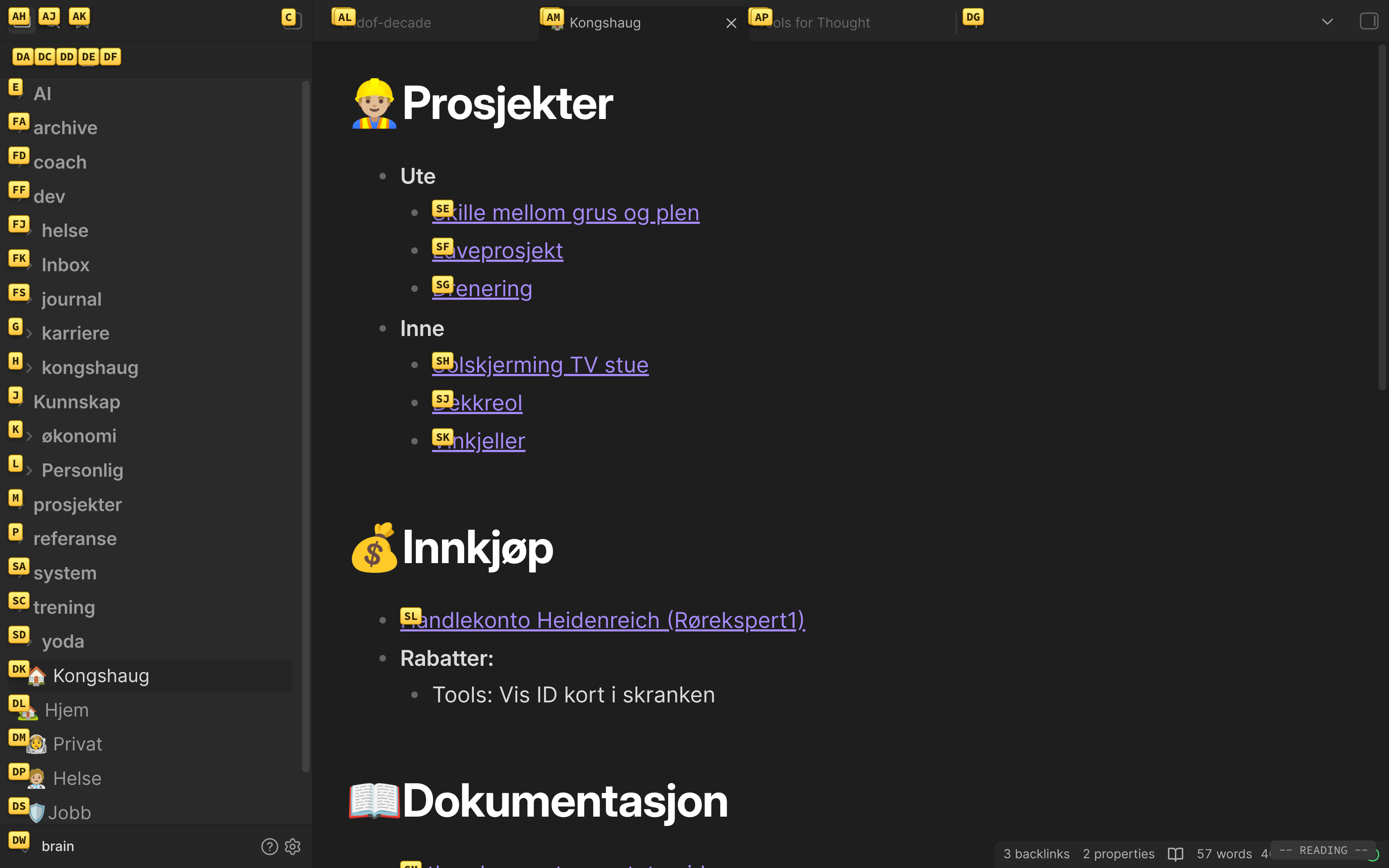
- Reading mode (the Vimium layer — the default): every note opens in Reading view. Scroll with
j/k, jump around withfclick-hints, and never touch the mouse. - Editing mode: press
ito drop into the editor, where Obsidian's built-in Vim key bindings take over. Double-pressEscapeto come back to Reading mode.
Not affiliated with the Vimium browser extension or the existing Vimium community plugin — this is an independent reimplementation of the Vimium idea for Obsidian.
Keybindings (Reading mode)
| Key | Action |
|---|---|
f |
Show click hints; type the letters to click that element (links, buttons, tabs, ribbon, file tree, checkboxes…). |
Shift+F |
Same hints, but open the chosen link in a new tab. |
j / k |
Scroll down / up. |
d / u |
Scroll a half-page down / up. |
g g / Shift+G |
Jump to top / bottom. |
Shift+J / Shift+K |
Switch to the next / previous tab. |
b / Shift+B |
Fuzzy-search your bookmarks; open the pick in the current / a new tab. |
Shift+O |
Omnibar: open a bookmark, recent file, or typed URL in a new tab. |
Shift+H / Shift+L |
Go back / forward in history. |
/ |
Search the current file. |
t |
Open a new tab. |
x / Shift+X |
Close the current tab / restore closed tabs. |
i |
Enter editing mode (focus the editor; native Vim active). |
Esc Esc |
(In editing mode) return to Reading mode. |
Any key — or a multi-key sequence like gT — can be bound to any command-palette command under Settings → Vimium+ → Custom key bindings. Type the keys as plain text; each character is one keypress. Two bindings ship by default: o (quick switcher) and p (command palette) — remap or remove them as you like. Custom bindings take priority over the built-in keys above; the settings dialog asks for confirmation before you shadow a built-in (or start a sequence with one, which delays it by the chord timeout).
While hints are showing: type the label to activate, Backspace to correct, Esc to cancel. Holding Shift on the last letter of a label opens that target in a new tab (even if you started with plain f).
Web viewer tabs
The vim keys also work inside pages opened with Obsidian's core Web viewer plugin. Web pages render in a separate Electron webview that the plugin can't reach directly, so a small self-contained script is injected into each page instead (toggleable in settings as Web viewer integration).
Inside a page: j/k/d/u/gg/G scroll, f/F show hints over the page's links and controls (F opens the link in a new Web viewer tab), H/L go back/forward in the page's history, and J/K/t/x switch/open/close Obsidian tabs. Typing in a page's text field passes keys through as usual; Esc blurs the field, and Esc again hands focus back to Obsidian.
Limitations: custom key bindings and terminal commands don't fire while the page itself has focus (the page-to-Obsidian channel is intentionally restricted to a small fixed set of actions, since a malicious page could forge it) — press Esc first, then they work as normal. Hints cover the page's top frame only, and some pages (PDFs, error pages) refuse script injection entirely.
How the modes map to Obsidian
The plugin ties "command mode" to Obsidian's Reading view rather than a fragile focus heuristic. It forces every note to open in Reading view (toggleable in settings) and turns on Obsidian's native Vim key bindings, so i lands you in a real Vim editor. Both overridden settings are restored when you disable the plugin.
The double-Escape exit is timing-based: the first Esc is left for Vim (insert→normal); a second Esc within the timeout (default 400 ms, configurable) flips the note back to Reading view.
Settings
Hint characters, hint font size, scroll step, force-Reading-view toggle, native-Vim toggle, double-Escape timeout, mode-indicator toggle, Web viewer integration toggle, and the list of CSS selectors that become hint targets.
Build
Requires Node.js (18+).
npm install
npm run dev      # esbuild watch → main.js
npm run build    # type-check + production bundle
Install into a vault
Copy (or symlink) manifest.json, main.js, and styles.css into:
<your-vault>/.obsidian/plugins/vimium-plus/
Then enable Vimium+ under Settings → Community plugins (turn on community plugins first if needed).
For active development, symlink the repo so each rebuild is picked up:
ln -s "$(pwd)" "<your-vault>/.obsidian/plugins/vimium-plus"
…and reload Obsidian (or use the Hot-Reload plugin) after each build.
Verify it works
- Open any note → it appears in Reading view.
j/kscroll;d/uhalf-page;gg/Gtop/bottom;Shift+J/Shift+Kswitch tabs.- Press
f→ hint letters appear over links/buttons (in the note and on tabs/ribbon/file tree); type a label to click it;Esccancels.Shift+Fopens the link in a new tab. - Press
i→ the note switches to the editor, focused, with native Vim (h j k l,ito insert). - Double-press
Esc→ back to Reading mode. - Typing in the search box is not hijacked by
j/k/f.