
README file from
GithubVault Assistant
Chat with an OpenAI-compatible model about your Obsidian vault. Search stays on your device. Notes are only sent when you chat, and only the pieces needed to answer. Creating, updating, or moving a note always waits for Apply.
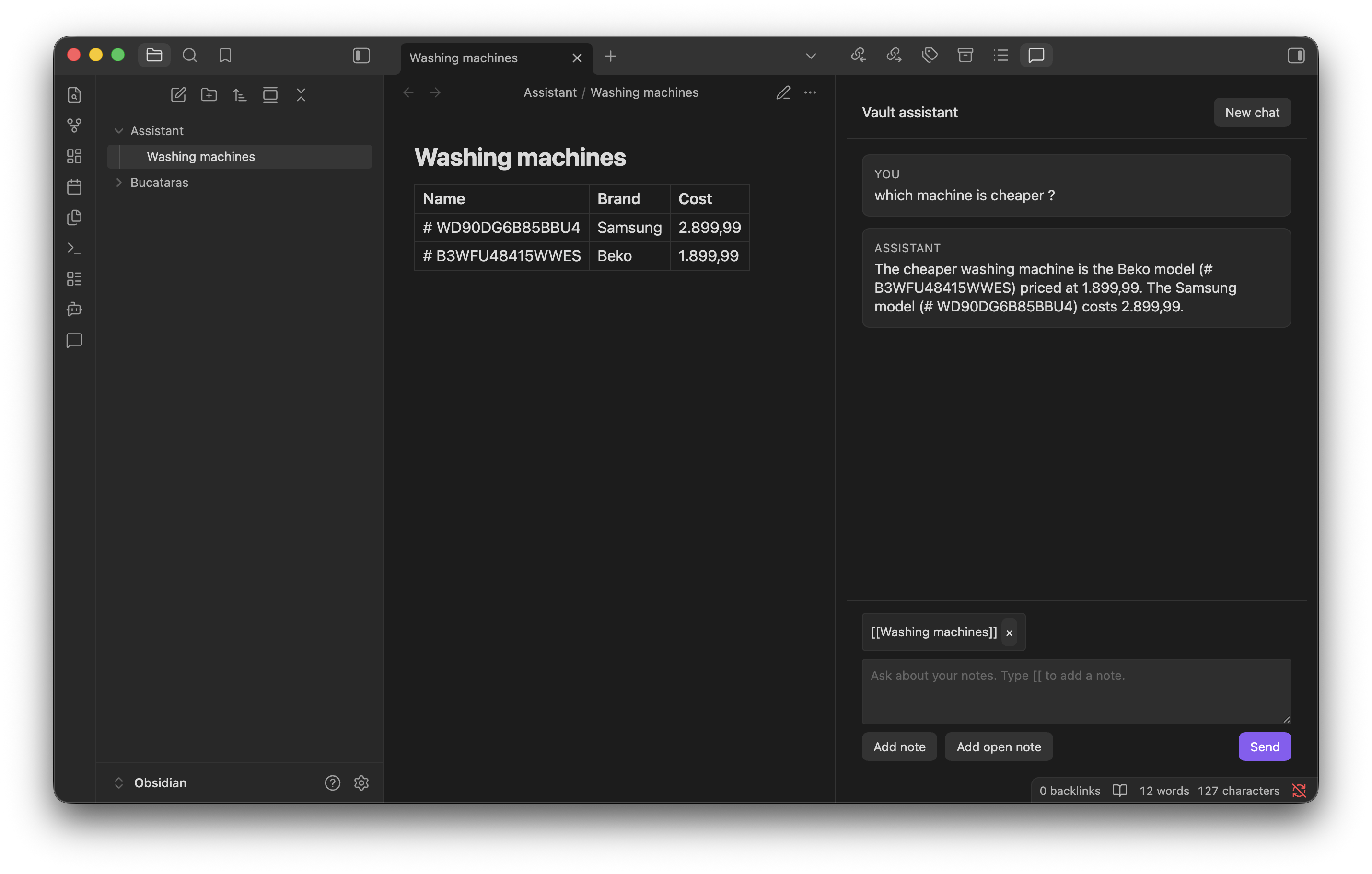
Requires Obsidian 1.13.0+.
Features
- Sidebar chat with markdown replies and
[[wikilinks]] - Bring your own key: OpenAI, OpenRouter, or Ollama (localhost or a custom URL)
- Local note search (no cloud indexing, no embeddings)
- Pin notes with Add note, Add open note, or
[[wikilinks]]on desktop - Propose new, updated, or moved notes in chat; nothing is written until you apply it
Getting started
- Install Vault Assistant from Settings → Community plugins, or copy a release’s
main.js,manifest.json, andstyles.cssinto.obsidian/plugins/vault-assistant/. - Enable the plugin, then open Settings → Vault Assistant.
- Read the privacy notice and turn on I understand what is sent to the provider.
- Choose a provider and model:
| Provider | Default endpoint | API key |
|---|---|---|
| OpenAI | https://api.openai.com/v1 |
Required |
| OpenRouter | https://openrouter.ai/api/v1 |
Required |
| Ollama | http://localhost:11434/v1 |
Not required locally |
- For Ollama, keep
http://localhost:11434or enter a customhttp(s)host. Do not put credentials in the URL. - Optionally Detect models and Test connection.
- Open chat from the ribbon or the command Open chat.
Ollama must expose /v1/chat/completions. OpenAI gpt-5.4+ models (including gpt-5.6-sol) use /v1/responses for tools; OpenRouter and Ollama stay on Chat Completions. Tools are defined once and converted per API. When search is enabled, the model calls search_notes on demand instead of receiving automatic context in every prompt.
Using chat
- Ask a question. When search is enabled, the model can call
search_notesto find relevant notes locally. - Add note picks any markdown note. Add open note uses notes already open in tabs. On desktop, type
[[to insert a wikilink. Open notes are never attached unless you add them. - Referenced notes take priority over search results (up to 10).
- When the assistant wants to create, update, or move a note, review the card and select Apply or Dismiss. Open note is available after you apply.
Commands
- Open chat — open the sidebar chat
- Add open note — pin an open markdown tab as context
- Rebuild search index — rebuild the local search index
Mobile
- Enter inserts a newline. Use Send in the composer field to submit.
- The composer stays above the keyboard. Tap the transcript to hide it.
- Use Add note and Add open note. The
[[picker does not open on a phone, so the keyboard stays focused. localhostOllama is usually unreachable from a phone. Set a reachable URL, or use OpenAI / OpenRouter.
Privacy
- On this device: API keys in the plugin
data.json, and the search index insearch-index.json. Optional Save chat history (Settings → Vault Assistant → Chat, off by default) stores conversation transcripts inchat-history.jsonin the plugin folder so you can resume them from chat. Keys are never logged. Optional Debug mode (Settings → Vault Assistant → Advanced) shows a Debug card in chat after each reply (endpoint, timing, tools) and writes one vault note per send underVault Assistant/Debugwith each request, response, and tool call. API keys are removed. That folder is excluded from search. Console lines stay metadata-only; set the log level to Verbose. - Indexing lists markdown note paths in the vault (
getMarkdownFiles) so search can run locally. It does not send notes anywhere. Use Exclude folders in settings to skip folders and everything inside them. - Chat sends your prompt, conversation history, notes you explicitly reference, and any notes the assistant reads or searches. The whole vault is not uploaded.
- There is no telemetry. Network calls happen only when you chat, detect models, or test the connection, and only to the provider you chose (OpenAI, OpenRouter, or your Ollama URL).
- Use Ollama on localhost if you do not want notes to leave the machine.
See CHANGELOG.md for release history.
Developers: see DEVELOPMENT.md.