
README file from
GithubURL Cards
Turn a web address into a card with the page's title, description, image and site icon, in Reading view and Live Preview.
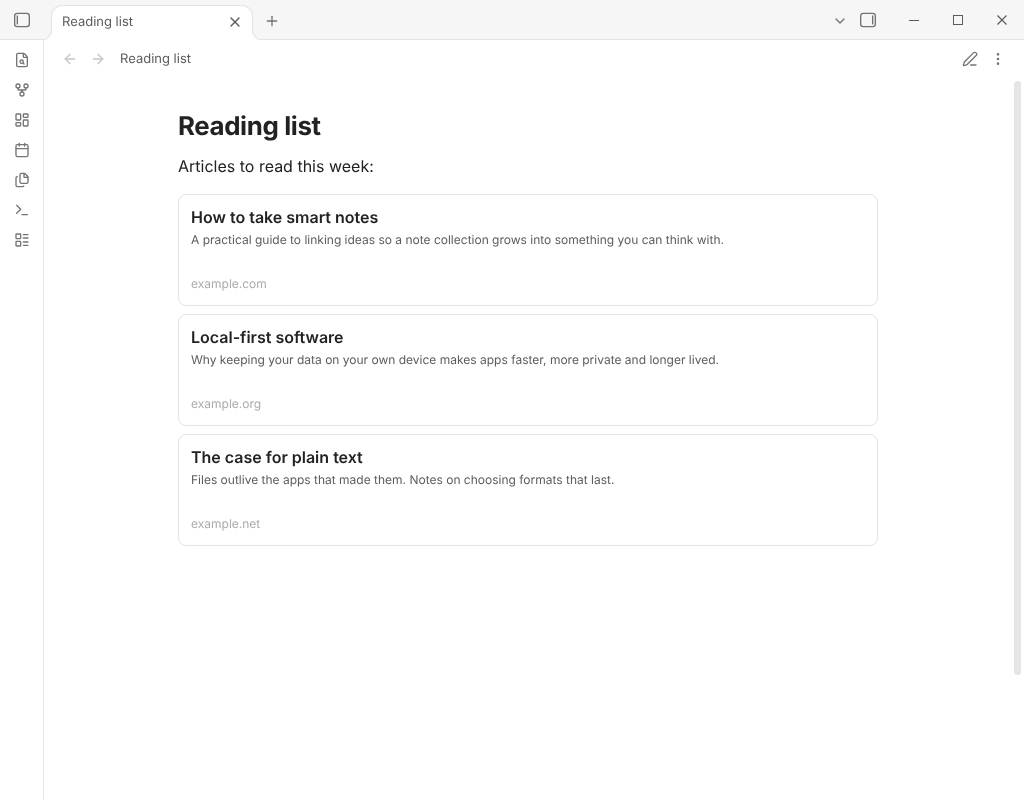
It reads and writes the same cardlink code blocks as Auto Card Link, so notes that already use that plugin show their cards untouched.
```cardlink
url: https://example.com/article
title: "An article"
description: "What it is about."
host: example.com
image: https://example.com/cover.png
```
Using it with Auto Card Link: only one plugin can draw cardlink blocks at a time. If Auto Card Link is on, it keeps drawing them and URL Cards says so once; its commands still work. Turn Auto Card Link off and restart URL Cards to switch over.
Network use
This plugin sends web requests. When you convert an address (or paste one, if you turn that on), it requests that page from your device with Obsidian's requestUrl to read its title, description, image and icon. With Save card images in the vault on, it also requests the card's image and icon from the servers that host them, once, to save them. The site you chose sees that request; nothing is sent anywhere else: no analytics, no third-party service. Only the first 300 KB are read, and only public http and https addresses are requested. Local and private addresses (localhost, 192.168.x.x, 10.x.x.x, .local) never are.
A card keeps its image and icon as addresses in the block. When a note with cards is shown, Obsidian loads those images from their servers, which tells them you opened the note. Turn off Show images from the web to avoid that: cards then show text only, and images from your vault (image: "[[cover.png]]") still load. Images from private addresses or other schemes are never loaded.
To keep a card's pictures with the note, turn on Save card images in the vault (see below). The image and icon are then requested once, when the card is made, and never again when the note is opened.
Commands
| Command | What it does |
|---|---|
| Convert URL to card | Turns the address under the cursor, in the selection, or the only one on the line, into a cardlink block. A bare address or a [text](address) link on its own line becomes the card; in the middle of a sentence the text is split around it; in a list item or task the card sits indented under it, and in a quote or callout every line of the card keeps the >. One Undo gives the address back. |
| Refresh card | With the cursor inside a cardlink block, fetches the page again and rewrites the block. |
| Save the images of every card in this note | Downloads the image and site icon of every card in the note that still points at a web address, and rewrites those two lines to point at the saved files. Cards that already use vault files are left alone. All the changes are one Undo. An image that cannot be saved keeps its web address. Works whether or not the setting below is on. |
If a page cannot be read or has no title, the card shows just the site name. No default hotkeys; assign your own in Settings → Hotkeys.
Settings
| Setting | Default | What it does |
|---|---|---|
| Make a card when pasting an address | Off | A lone address pasted on an empty line (or an empty list item) becomes a card a moment after it lands. Never inside a code block or in the middle of text. |
| Show images from the web | On | Loads each card's thumbnail and site icon from the addresses saved in its block. Images saved in your vault always show, even with this off. |
| Save card images in the vault | Off | When you convert, paste or refresh a card, downloads its image and site icon into your vault and writes them in the block as vault files, so the card works offline and opening the note contacts no server. Only images up to 5 MB are saved; anything else stays a web address. |
| Folder for saved card images | Attachment folder | Where those files go. Empty uses the attachment location from Obsidian's Files and links settings. |
Writing a card by hand
The block takes url and title (both required) and optionally description, host, favicon and image. image and favicon can be a web address or a [[wikilink]] to a file in your vault. Saved images are named after the site and a short code made from the image address, like example-com-1a2b3c4d.png, and the block holds image: "[[Attachments/example-com-1a2b3c4d.png]]". Making a second card for the same image reuses the file. Delete the file and the card shows no picture until you refresh it. Other plugins that read cardlink blocks may not show vault images. A block without url and title, or whose url is not http/https, shows an error instead of a card.
Installation
In Obsidian, open Settings → Community plugins → Browse and search for "URL Cards".
More plugins by Siulved54
| Plugin | What it does | Source |
|---|---|---|
| Shared Blocks | Write a block of text once and reuse it in any note. Edit the source and every reference re-renders live. | shared-blocks |
| Text Case and Cleanup | Change case, make camelCase or slugs, sort lines and remove duplicates, and repair text pasted out of a PDF, without touching code or URLs. | text-format |
| Typography as You Type | Curly quotes, dashes and ellipses as you type, kept out of code and maths, with Backspace to take one back. | smart-typography-plugin |
| Section Numbering | Number headings as an outline (1, 1.1, 1.2) and keep every link to them working when they renumber. | section-numbering |
| Spreadsheet to Table | Paste cells from Excel or Google Sheets as a Markdown table with a real header, insert CSV files, and copy tables back out. | spreadsheet-to-table |
| Hybrid Line Numbers | Relative and hybrid line numbers for Vim-style jumps, where a folded section counts as one line. | hybrid-line-numbers |
| List Item Callouts | Colour a single list item as a callout by starting it with a character such as &, ! or ?. |
list-item-callouts |
| Folder Counts | See how many notes or files each folder holds, right in the file explorer, with a vault total and folder exclusions. | folder-counts |
| Note Reading Time | Reading time of the current note or your selection in the status bar, optionally saved to a property. | note-reading-time |
| Task Rollover | Roll unfinished tasks from your last daily note into today's when it is created, with a real undo. | task-rollover |
| Zoom Into Section | Zoom into a heading or list item to see only it and its contents, with a breadcrumb bar to climb back out. | zoom-into-section |
| Link Title on Paste | Paste a web address and get a Markdown link with the page's title, fetched in the background and undone in one step. | link-title-on-paste |
| Update Radar | Checks your installed community plugins for updates in the background, shows what changed, and flags the ones that look abandoned. | community-update-checker |
| Dataview to Bases | Convert Dataview queries into Bases blocks, and see which queries in your vault can be converted. | dataview-to-bases |
| Line Editing Commands | Duplicate, join, sort and reverse lines, insert blank lines and jump to a line number, with multi-cursor support. | line-editing-commands |
| Note Mover Rules | Move notes into folders by ordered rules on tags, properties, titles and paths, with a preview before any bulk move. | note-mover-rules |
| Tab History | Keeps each tab's back and forward history across restarts, and adds commands to move, maximize and close tabs. | tab-history |
| Vim Config | Loads a vimrc-style file from your vault so your key mappings and editor commands are ready when vim mode starts. | vim-config |
| Task Archive | Moves completed tasks, with their sub-items, into an archive section or note. | task-archive |
| Revisit Later | Link the current note into a future daily note, with a date typed in plain English, so it comes back when you want to review it. | revisit-later |
| Explorer Colors Plus | Color files and folders in the file explorer, with a palette, cascading to children, and import from File Color. | explorer-colors-plus |
| Book Lookup | Create book notes from Open Library or Google Books, with cover images, ISBN search and Book Search compatible templates. | book-lookup |
| Web Search Menu | Search the web for selected text or the note title from the right-click menu, with engines you define. | web-search-menu |
| Word Lookup | Look up any word in a sidebar dictionary with definitions, phonetics, synonyms and antonyms, or create a note for it. | word-lookup |
| Quick Translate | Translate the selection or a whole note into another language with no account, keeping links, code and front matter untouched. | quick-translate |
| Dice Rolls | Inline dice rolls you click to reroll, in Live Preview and Reading view, with full dice notation, a roll dialog and a roll history. Reads Dice Roller notes. | dice-rolls |
| Claude Studio | Notion-style AI writing, chat and vault tools powered by your local Claude Code CLI. | claude-studio |
| Book Studio | Turn notes into a print-ready paperback PDF and an EPUB 3, entirely on your device. | book-studio |
| Emoji Search | Insert emojis from a searchable picker or by typing a :shortcode. | emoji-search |
| Inline TOC | Show a live table of contents inside any note with a toc code block, or insert a plain Markdown one. | inline-toc |
All of them are in the community directory: Settings -> Community plugins -> Browse, then search for the name. Demos and install links for every one: the catalog.
Follow new plugins and updates on X: @luenpereza