
README file from
GithubUnified Outliner
Reorganize heading sections and list subtrees in an Obsidian note without losing sight of the surrounding structure.
Unified Outliner is an Obsidian plugin for structural editing inside a single Markdown note. It lets you move, re-level, copy, inspect, and focus on heading sections, list subtrees, and body blocks through the editor, a dedicated Outline Tree View, and a Partial Edit Pane for editing a focused block. Same-note embeds of a heading or block (![[#Heading]], ![[#^block-id]]) can also be created and managed from the tree as mirrors.
Current version: 1.0.6 — see Releases for the full changelog.
Minimum Obsidian version: 1.8.7
Scope: one note at a time. Unified Outliner never moves or copies content between notes, and its mirrors refer only to headings and blocks in the same note.
Why Unified Outliner?
Obsidian's built-in Outline is excellent for navigating headings. List-focused outliner plugins make it easier to work with individual list items. Unified Outliner is designed for the point where both approaches are needed in the same note: reorganizing meaningful heading sections and nested list structures as visible, safe units.
| Capability | Obsidian built-in Outline | List-focused outliner plugins | Unified Outliner |
|---|---|---|---|
| Navigate heading structure | Yes | Varies | Yes, with synchronized tree selection |
| Move a whole heading section with its body and child sections | No | Not the primary focus | Yes |
| Move or reparent a nested list subtree | No | Often supported | Yes |
| Display headings and list items together in one structural tree | No | Varies | Yes, optional list display |
| Edit one selected section or list subtree in a focused pane, with the Markdown marker/checkbox/number separated from the body text | No | Varies | Yes, with explicit Apply and conflict protection |
| Edit a parent item's direct children (add, delete, reorder, indent/outdent, inline edit) without leaving the pane | No | Varies | Yes, for leaf children, one level at a time |
| Copy or duplicate a section, list subtree, or body block as an independent copy | No | Varies | Yes, from the tree or the Command Palette, within the same note |
| Show, create, and manage same-note embeds (mirrors) in the structural tree | No | No | Yes, as optional mirror rows |
| Preserve view folding per file | No | Varies | Yes, synchronized across open Outline Tree Views |
Unified Outliner does not try to replace search, task managers, Dataview-style aggregation, or AI writing tools. Its purpose is dependable structural editing of Markdown notes.
Install
From Community Plugins (recommended)
- In Obsidian, open Settings → Community plugins → Browse. Turn off Restricted mode if necessary.
- Search for Unified Outliner, select it, then choose Install.
- Enable Unified Outliner in Settings → Community plugins.
You can also open the Unified Outliner Community Plugins page in a browser.
Beta releases with BRAT
Use BRAT when you want to test beta releases or recent development builds.
- Install and enable Obsidian 42 - BRAT from Settings → Community plugins → Browse.
- Open the Command Palette and run BRAT: Add a beta plugin for testing.
- Enter
https://github.com/kazdonkai/unified-outlinerand confirm the installation. - Enable Unified Outliner in Settings → Community plugins after BRAT finishes.
BRAT checks the repository for updates, so use it only when you are comfortable testing changes before a normal catalog release.
Direct download from GitHub Releases
To install a specific release manually, download main.js, manifest.json, and styles.css from GitHub Releases.
-
In your vault, create this folder if it does not already exist:
<your-vault>/.obsidian/plugins/unified-outliner/ -
Copy all three downloaded files into that folder.
-
Open Obsidian and go to Settings → Community plugins, then enable Unified Outliner.
-
Reload Obsidian if the plugin does not appear immediately.
Update
Community Plugins and BRAT manage their own updates. For a direct-download installation, replace the same three files in <your-vault>/.obsidian/plugins/unified-outliner/, then reload Obsidian. Keep a backup of your vault as part of your normal update routine.
Example outline note
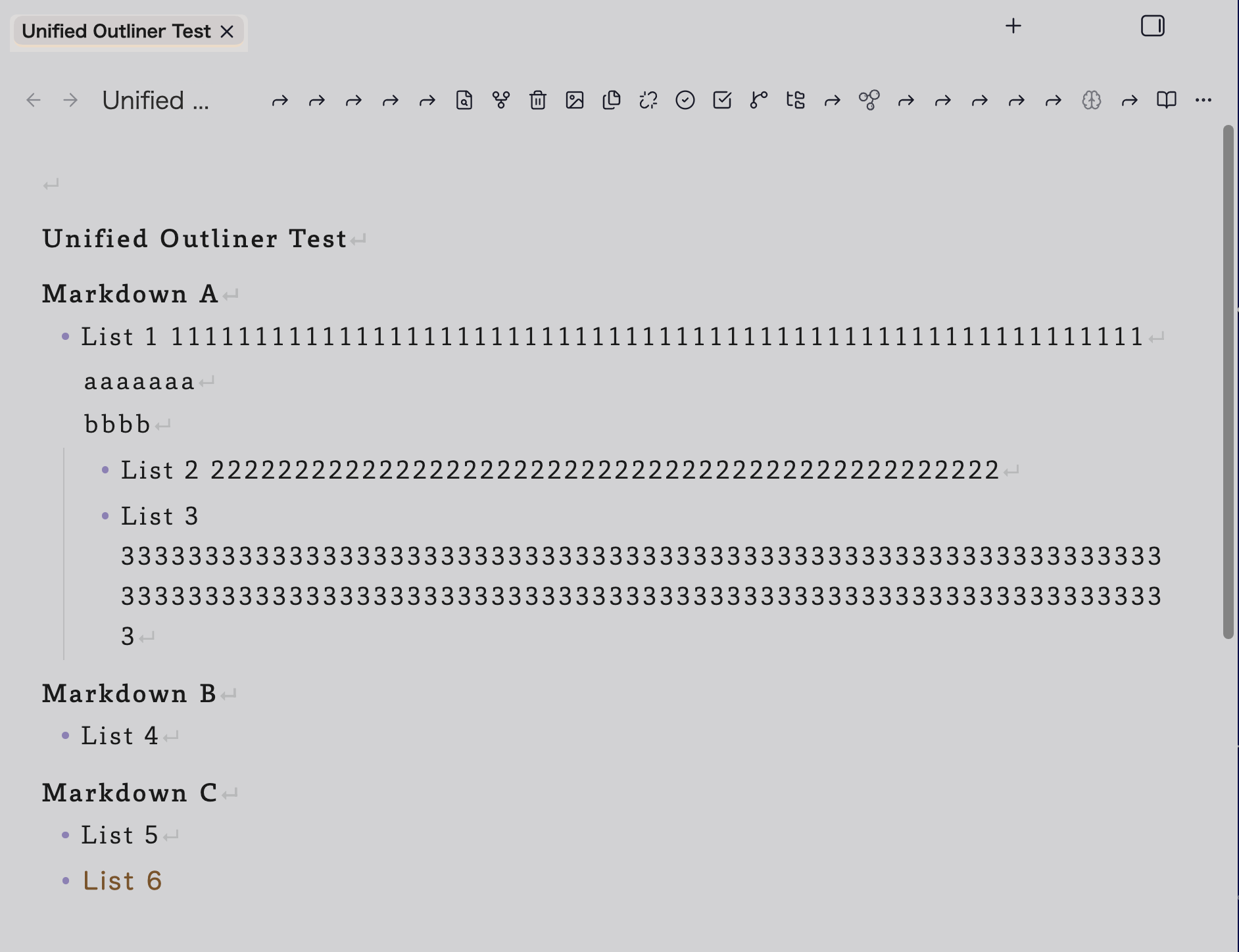
The screenshot shows Unified Outliner in use on iPad: the Outline Tree View (left) alongside the open Example outline note.md (center) and the Partial Edit Pane editing its Basic Blocks section (right). Try it yourself with examples/Example outline note.md in this repository — open it in your own vault and explore the Outline Tree View's rename, move, delete, and insert operations across paragraphs, headings, lists, callouts, and blockquotes.
- Open a Markdown note that contains headings or lists.
- Open the Command Palette and run Open outline tree view, or select the plugin's tree icon in the ribbon.
- The Outline Tree View opens in the sidebar chosen by the Outline Tree default sidebar setting (right by default; left is also available — see Settings below). Clicking a node moves the cursor to the matching location in the note. Moving the editor cursor highlights the corresponding tree node.
- Right-click a node to move, indent, outdent, copy, mirror, or open it in the Partial Edit Pane.
Opening a Partial Edit Pane while the Outline Tree View is in the right sidebar splits that sidebar so both stay visible together. Placing the tree in the left sidebar instead lets a Partial Edit Pane use the right sidebar on its own, for the three-pane layout — tree, note, and edit pane — shown in the screenshot above.
Enable Show list items in Outline Tree View in the plugin settings when you want list items to appear alongside headings.
Visual guide
Work from the Outline Tree View
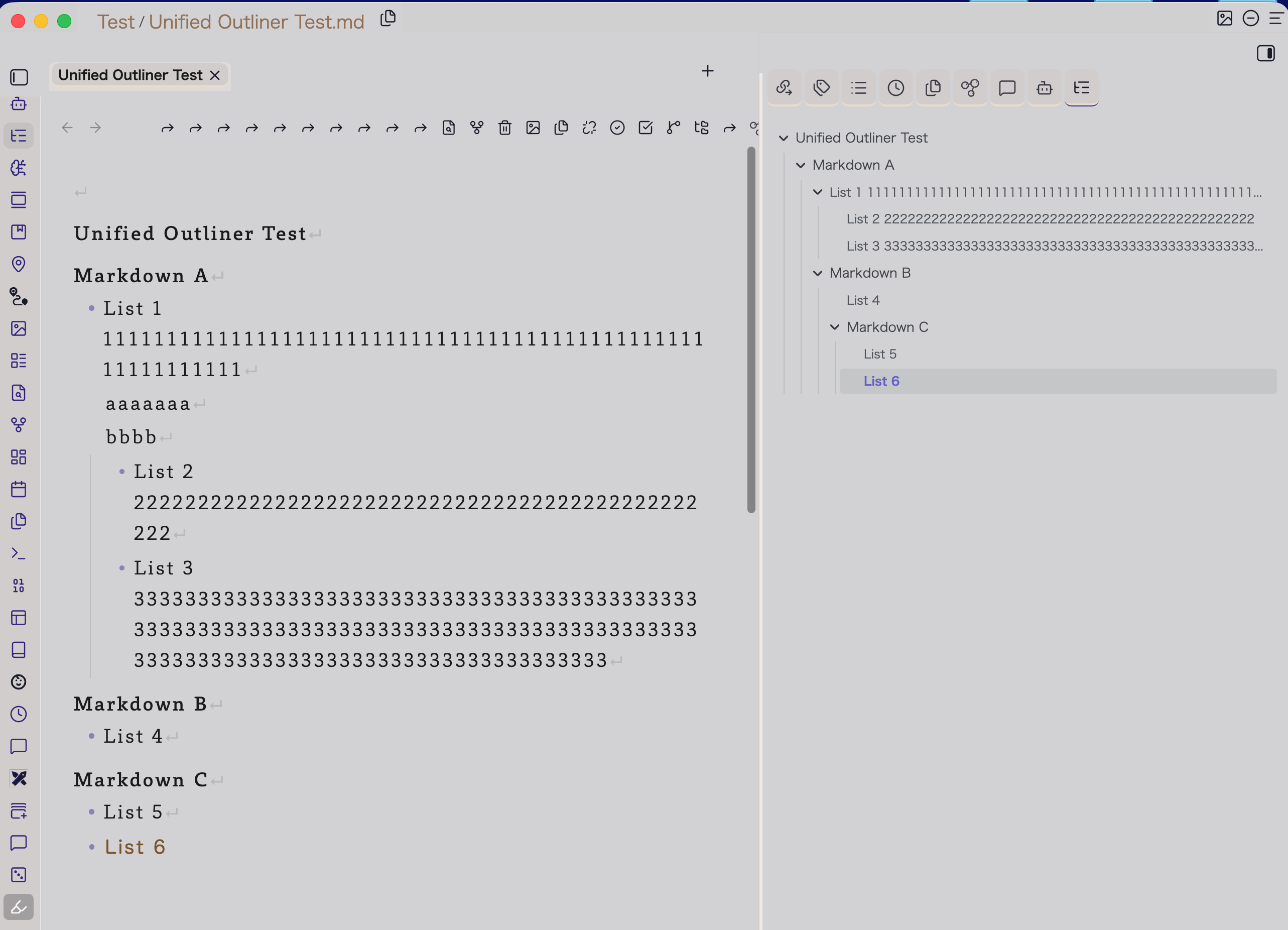
The Outline Tree View shows headings and, when enabled, list items beside the source note. Selecting a node locates its matching text, while the current editor position is reflected in the tree.
Right-click a selected node to choose a structural action. The menu exposes block movement, indentation, node-only heading actions, and focused editing from the same place.
Focus on and edit a selected block
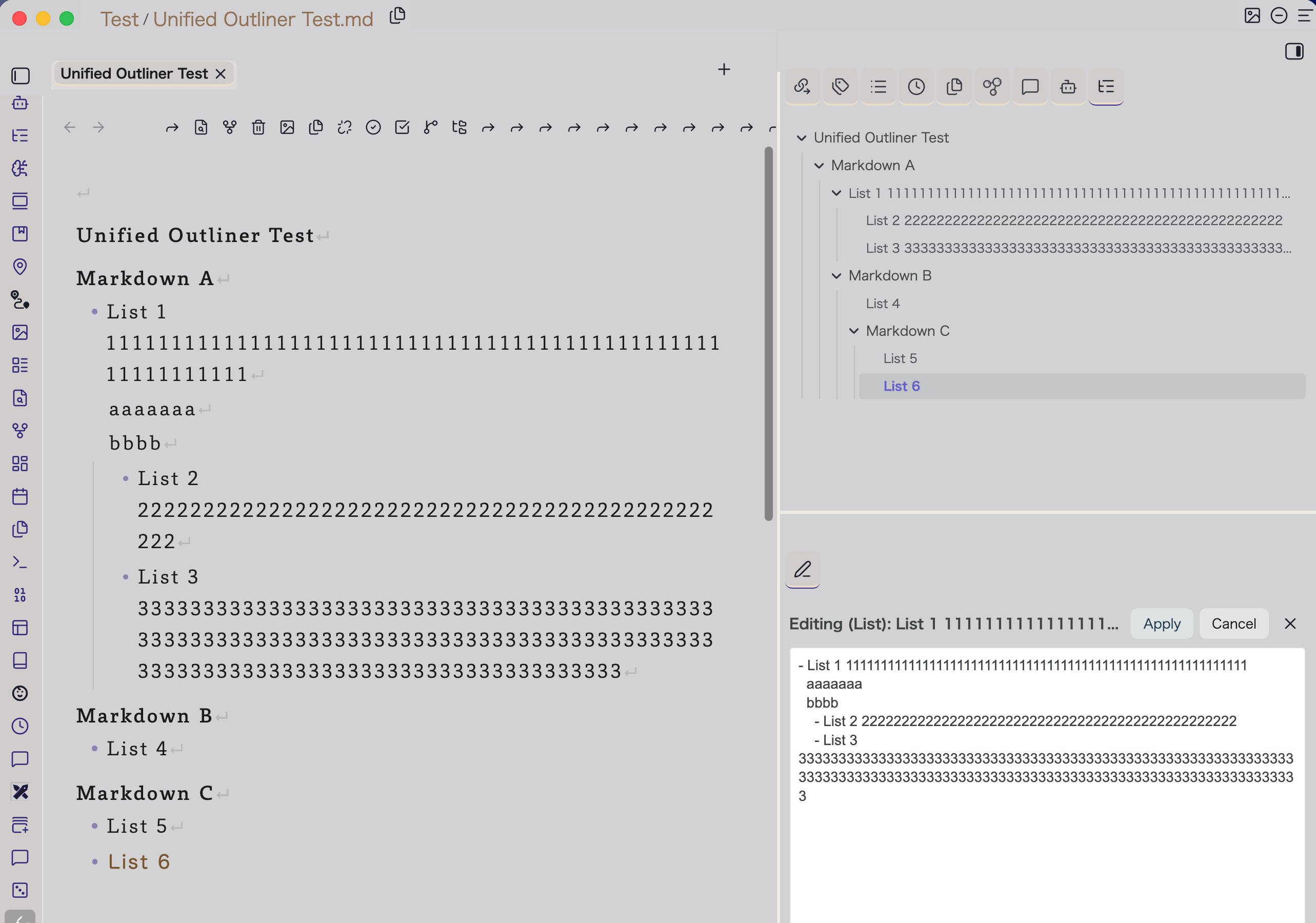
The Partial Edit Pane keeps the selected section or list subtree visible while preserving the surrounding outline for orientation.
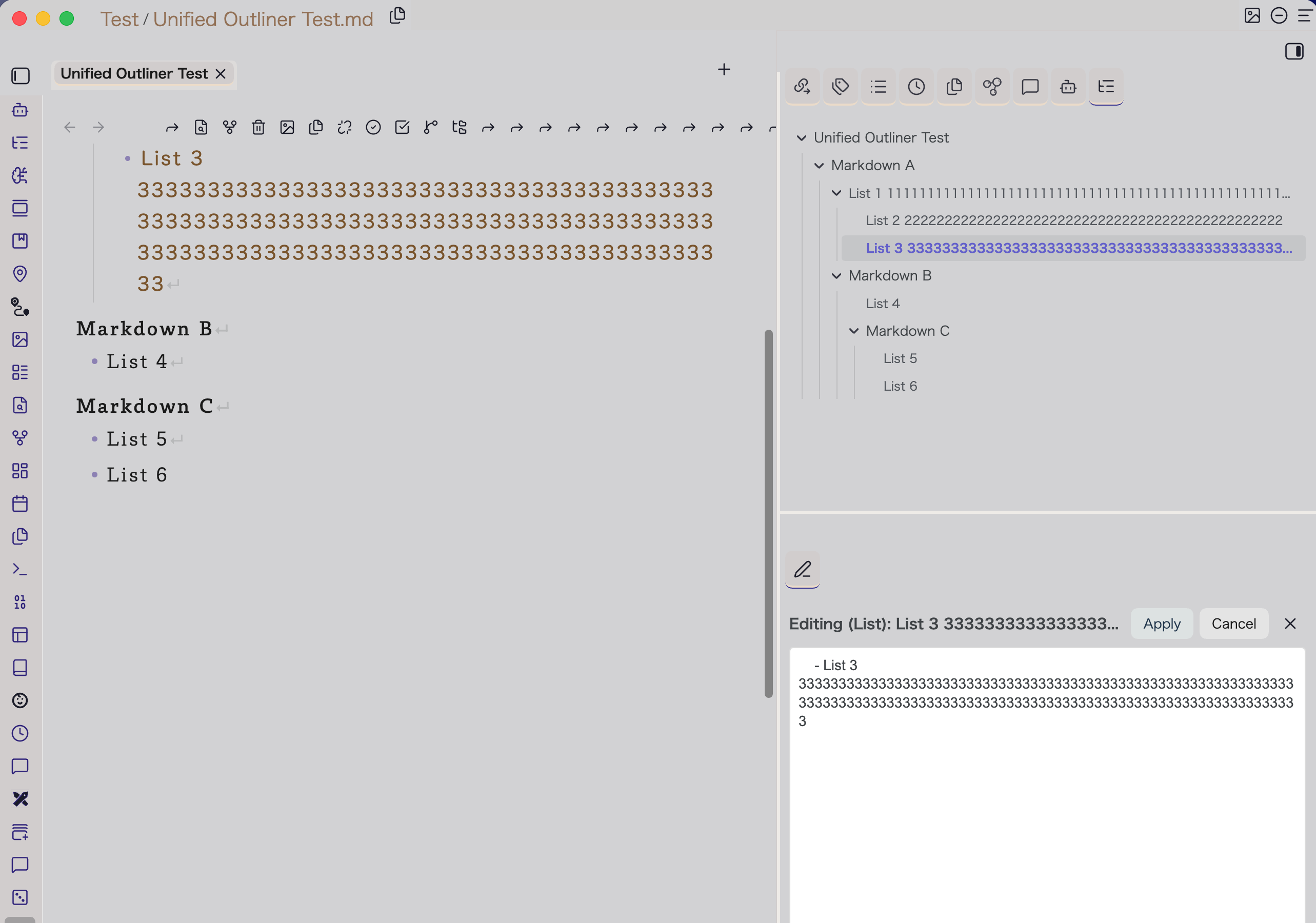
Apply writes back only after the pane verifies that its original source range has not changed. This protects the note from an accidental overwrite during a concurrent edit.
The two screenshots above predate the structured, marker-free editing and the parent/child controls described under "Edit a focused subtree" below — they still show the pane's original plain-textarea layout for a raw block. The underlying Apply/Cancel/conflict-protection flow they illustrate is unchanged; only the editor surface inside the pane has since gained the additional controls documented below.
Short video walkthroughs
| Task | Video |
|---|---|
| Open the Outline Tree View | Watch the 7-second MP4 |
| Collapse and expand a tree node | Watch the 20-second MP4 |
| Follow a selected item in the tree | Watch the 21-second MP4 |
| Move a list subtree | Watch the 14-second MP4 |
| Edit a selected subtree in the Partial Edit Pane | Watch the 49-second MP4 |
These videos, like the two screenshots above, predate the structured marker-free/parent-child editing controls; they still demonstrate the current Apply/Cancel/conflict-protection flow accurately.
How to use it
Move and re-level structures
Place the cursor on a heading or list item, then use the Command Palette or assign hotkeys in Settings → Hotkeys.
| Command | What it does |
|---|---|
| Move block up / down | Moves the minimal safe unit at the cursor — a heading section, a list subtree, a plain paragraph, or a whole callout, blockquote, fenced code block, or table when the cursor is inside one — before or after its sibling. |
| Move section up / down | Moves the whole enclosing heading section (heading, body, and any child sections), regardless of where the cursor is inside it. |
| Indent block | Reparents a list subtree, or safely lowers a heading section's level when the structure allows it. |
| Outdent block | Promotes a list subtree, or safely raises a heading section's level when the structure allows it. |
| Delete block | Deletes the current heading section or list subtree. |
| Insert sibling after current block | Inserts a new, empty heading section or list item after the current one. |
| Insert child list item | Inserts a new, empty list item as a child of the current one. |
| Move extended block up / down | Moves a List + Callout or List + Quote group (see Settings → Extended blocks) as one unit, when the cursor is inside it. |
The same actions are available from a node's context menu in Outline Tree View. Unavailable operations make no change. Enable Show no-op notices in the plugin settings to see the reason. A block that Move block / Move section just moved is briefly flash-highlighted in the tree, and, if enabled, a short notice names what moved.
Use the Outline Tree View
The tree — in either sidebar — is a working view, not only a navigator.
- Drag and drop sections to reorder section subtrees.
- Drag and drop list items to reorder or reparent list subtrees when list display is enabled.
- Drag and drop paragraphs and standalone callouts, blockquotes, fenced code blocks, and tables (when shown) to move them — including across section boundaries — with a blank line inserted automatically on either side when needed, on both desktop and mobile.
- Insert a new code block or table below a section heading or a list item with Insert code block below (choose a language, or enter a custom info string) or Insert table below (choose 1–8 columns, or use a minimal 2-column template). The new block opens directly in the Partial Edit Pane, and the insert and its first Apply are one Undo step. Positions where the result would be ambiguous show the item as unavailable, and selecting it explains why.
- Copy, duplicate, and paste blocks, and create mirrors of them — see "Copy and duplicate blocks" and "Mirrors: same-note embeds" below.
- Collapse or expand nodes to control the tree's own view state. This state is saved per file and stays in sync across open Outline Tree Views.
- Use contextual commands from the right-click menu. A collapsed section is treated as a subtree; an expanded section can use node-only actions.
- Rename a heading, list item, or paragraph in place: double-click a row (or select it and press F2, or choose Rename from its context menu) to edit its text directly in the tree. Press Enter to commit or Escape to cancel without changing the note.
- On mobile: tap a row to select it, tap an already-selected row again to start renaming it, and long-press a row to open its context menu.
- Section rows and list rows are visually distinguishable by an optional background or edge-stripe highlight, configurable in the plugin settings and further customizable through Style Settings (see below).
Reordering across levels — reparenting a subtree under a different ancestor, or moving it several positions at once — is a tree operation; it is not available from inside the Partial Edit Pane (see "What the Outline Tree and the Partial Edit Pane each do" below).
Work with paragraphs
Enable Show body paragraphs in Outline Tree View in the plugin settings to display ordinary body paragraphs as read-only navigation nodes (marked with ¶) alongside headings and list items — for top-level and section-direct paragraphs only, not ones nested inside a list item. Once shown, a paragraph row can be renamed in place like any other row, dragged and dropped to reorder it (including into a different section), and its context menu adds Move up/down, Move to top/bottom, Move before/after sibling…, Insert paragraph before/after, Delete paragraph (with confirmation), and Edit paragraph…, which opens it in the Partial Edit Pane. From the body editor, Move block up/down also treats the paragraph at the cursor as a movable unit, and the Edit paragraph at cursor command opens the Partial Edit Pane for it directly.
Work with callouts, blockquotes, and extended blocks
A standalone callout or blockquote — one not grouped into an extended block below — appears in the tree as its own node, with a context menu offering Move up/down, Delete, and Open in Partial Edit (including a popout option), the same focused-editing experience available for sections and list subtrees. It can also be dragged and dropped to reorder it, including across section boundaries, on both desktop and mobile.
List + Callout and List + Quote are two Outline Tree grouping rules (see Settings → Extended blocks). They group a single-line list item that is immediately followed, with no blank line, by a callout or blockquote, into one collapsible unit in the tree. These rules are structural — they do not require an image embed, OCR content, or any particular callout type. Move extended block up/down (Command Palette or the tree's context menu) moves the whole group together, and Delete extended block removes it as a unit. Opening an extended block's own row in the Partial Edit Pane edits its list member and its trailing callout/blockquote member together, in one Apply, whenever the block's shape allows a clean split (see "Structured, marker-free editing" below); disabling a grouping rule does not change the Markdown — the affected list item, callout, and blockquote are simply shown individually again, following their own normal Outline Tree display rules.
List + Paragraph is a third grouping rule. It groups a single-line list item that is immediately followed, with no blank line, by a paragraph indented to the item's own text (so that the paragraph belongs to that list item) — only when that paragraph is the item's only content. In the tree it appears as a ≡ List + Paragraph row holding the list item and a ¶ paragraph row; any block ID written at the end of the paragraph is not shown in the row. This group is read-only in the tree: it has no drag handle, cannot be renamed, moved, dragged, or deleted as a unit, and its right-click / long-press menu offers only Open in Partial Edit. In the Partial Edit Pane, the list item's text (marker hidden), the paragraph body, and the paragraph's existing block ID (in the ordinary Block ID field, where it can be renamed or cleared, like any other block's) are shown in that order; Apply keeps the paragraph's indentation and writes the block ID back at the end of the paragraph, in its original form — it is never moved to the list item, and no block ID is ever created automatically. An edit that would push the block ID out of the paragraph is refused. If an edit breaks the grouping conditions (for example, a blank line), the Markdown is saved as typed and the group is simply no longer shown.
A new fenced code block or table can be inserted from a section or list item row with Insert code block below / Insert table below (see "Use the Outline Tree View" above). Fenced code blocks (including Mermaid) and tables are recognized internally as safe, atomic units — Move block can still move one of these as a whole when the cursor is inside it in the body editor. Optionally shown in the Outline Tree as their own read-only rows (see Settings above), a standalone fenced code block or table can additionally be moved up/down (swapping with its adjacent sibling in the same section), deleted as one unit, dragged and dropped — including across section boundaries — and opened in the Partial Edit Pane, from a dedicated right-click menu or the tree's own drag handle (desktop and mobile alike). A fenced code block's fence lines themselves are hidden from the editable text, and its language (info string) is set separately with a dropdown of common languages plus a free-text "Custom…" option shown above the editor. A table opens with Raw and Table tabs: Raw edits the whole table as text (Apply validates the result is a structurally valid table); Table Mode shows each cell as an inline-editable field, with per-column alignment toggles, row add/move/delete controls, and column add/delete controls, all saving through the same Apply.
For example, this Markdown:
- Note on the source image
> [!note] Transcription note
> Preserve the original spelling exactly.
is shown in the tree as:
◉ List + Callout
  - Note on the source image
  ▣ Transcription note
And this Markdown:
- Quotation from the source text
> The boundary has stood at this point since ancient times.
is shown in the tree as:
❖ List + Quote
  - Quotation from the source text
  The boundary has stood at this point since ancient times.
The callout member gets the same ▣ prefix used for standalone callouts; the blockquote member does not.
And this Markdown:
- Source A: survey of common-land customs
  Recorded as village-held common land. ^lp-a
is shown in the tree as:
≡ List + Paragraph
  - Source A: survey of common-land customs
  ¶ Recorded as village-held common land.
Copy and duplicate blocks
Every section, list item (with its whole subtree), standalone callout, blockquote, fenced code block, table, and standalone paragraph row in the Outline Tree has Copy block and Duplicate below in its context menu (long-press on mobile).
- Duplicate below inserts an independent copy directly after the block — after the whole subtree for a section or list item.
- Copy block marks the block as the copy source: a banner with a cancel button appears above the tree, and the source row gets a dashed outline. Every row then offers Paste block (after that row), Paste block above, and — for section → section or list item → list item — Paste block as child.
- The copy state ends after a successful paste, or when you press Escape, select the banner's cancel button, or choose Cancel block copy.
The same actions are available in the Command Palette, acting on the minimal safe block at the cursor (the same unit Move block uses):
| Command | What it does |
|---|---|
| Copy block | Marks the block at the cursor as the copy source. |
| Duplicate below | Inserts a copy of the block at the cursor directly after it. |
| Paste block | Pastes the pending copy after the block at the cursor. |
| Cancel block copy | Ends the copy state without changing the note. |
Placement and blank-line handling follow the same rules as drag and drop. A copy only ever inserts lines: no existing line — the original included — is rewritten, and ordered lists are not renumbered. Pasting inside the source itself (onto its own descendant, or as its own child), inside an extended block, or inside frontmatter, a code block, or a callout is refused with a notice, and so is a source that changed after it was copied. Paste works only in the note the block was copied from, and extended-block rows can be paste targets but not copy sources. Each copy, duplicate, or paste is a single Undo step.
Mirrors: same-note embeds
A mirror is an ordinary Obsidian embed of a heading or block in the same note — ![[#Heading]], ![[#Parent#Child]], or ![[#^block-id]] — which Obsidian renders as a live view of that content. The embed line itself is the mirror's only record: Unified Outliner keeps no database or hidden state, so a note with mirrors stays plain Markdown that works without the plugin.
- Show mirrors in the tree: turn on Show mirror embeds in Outline Tree (off by default). Each embed line then appears as a read-only ⧉ Mirror: … row. Clicking the row (or pressing Enter) moves the cursor to the embed line itself, like any other row; to go to the referenced heading or block, double-click the row or choose Go to mirror source from its context menu. Clicking (on mobile, tapping) the already-selected row again switches between the referenced block and the embed line each time. A mirror whose target cannot be found is marked "(not found)" and one that forms a circular reference "(circular)", both in the theme's error color. With the setting off, embed lines appear as ordinary paragraphs.
- Create a mirror: section, list item, standalone callout/blockquote/fenced code block/table, and paragraph rows have Create mirror below (section rows: Create mirror above), and the Command Palette has Create mirror: insert embed below cursor block. A block's embed goes directly after it (a list item's after its whole list, so the list is never split). A section's embed goes directly above its heading, because everything below a heading belongs to that section and an embed there would embed the section inside itself. A block without a block id gets one automatically —
^uo-followed by 8 lowercase letters or digits, placed where Obsidian expects it — while an existing id is reused and headings never get one. The id and the embed are added as one edit, undone with a single Undo. A mirror that would be circular is refused; a missing target or an ambiguous reference (duplicate heading text or id — the first match is used, as in Obsidian) produces a warning. - Move or delete a mirror: a mirror row's context menu offers exactly Go to mirror source, Move mirror up, Move mirror down, and Delete mirror. Moving swaps the embed with the adjacent block in the same section. Deleting (after a confirmation) removes only the embed line and tidies the blank lines around it, leaving one blank line between the neighbouring blocks (none at the start or end of the note); the referenced heading or block and its block id are never changed. Each is a single Undo step.
- See where a block is mirrored: when the block open in the Partial Edit Pane is shown by one or more mirrors in the note, the bottom of the pane shows Mirrors referencing this block: N. Clicking it moves the note's cursor to each mirror in turn. The count updates as the note changes, and it never affects the pane's draft or Apply.
Mirror rows cannot be renamed, dragged, copied, or opened in the Partial Edit Pane; to change what a mirror shows, edit the referenced block itself. Embeds of other notes are not treated as mirrors.
Edit a focused subtree
Use Open partial edit pane for current section from the Command Palette, or choose the corresponding action from an Outline Tree View context menu. For a paragraph specifically, use Edit paragraph at cursor (or the Outline Tree's Edit paragraph… context-menu item) to open it here directly.
The Partial Edit Pane opens the selected section, list subtree, paragraph, standalone callout/blockquote, fenced code block, table, or extended block in a dedicated editor. Make your changes, then select Apply to write them back to the source note — the note's Markdown is always the single source of truth; the pane's structured controls (described below) are only a view onto it, never a separate model that could drift from what the note actually contains. If the source area changed after the pane opened, the pane protects the note by refusing to apply conflicting content; reload the target and review the change instead of overwriting it. If the note changes elsewhere — another pane, the Outline Tree, or an Undo/Redo in the body editor — while this pane is open with no unsaved changes, it resynchronizes automatically to match, including switching its own display between a leaf item's editor and a parent item's editor when that change adds or removes the last child.
The pane's editors are sized to what they hold. When an extended block or a single callout, blockquote, fenced code block, table (Raw tab), or paragraph is opened, the editor fits its current text (with one spare line, up to 70% of the pane) instead of filling the pane; an extended block's list row is a wrapping editor that shows the whole list text and never accepts a line break. A section or list subtree still opens with the editor filling the pane. Every editor has a resize grip at its bottom-right corner that can be dragged with a mouse or a finger (iPad included); the dragged height is kept until another block is opened.
For a paragraph, callout, blockquote, fenced code block, or table that has a block id (^id — for example one added by Create mirror), the id is kept out of the editor and shown in its own Block ID: field below it. Edit the field to rename the id, or clear it to remove the id; Apply writes it back in the same place it was (at the end of the last line, or on its own line after the block). The field is shown only for a block that has an id, and a value other than letters, digits, and hyphens is refused. When you rename an id, the mirrors in the same note that embed it (![[#^id]]) are updated in the same edit (one Undo step). Removing an id leaves those mirrors without a target, and you are warned. If links or embeds in other notes point at the id, a warning tells you they may now be broken; other notes are never changed.
An ancestor breadcrumb and a Subtree Navigator let you move up to a parent block or into a child block without leaving the pane. The pane can also be popped out into its own window from a node's context menu, and it asks for confirmation before navigating away from unsaved changes.
A List + Callout extended block opened in the pane also shows its ancestor breadcrumb and Previous / Next buttons that step through the note's List + Callout blocks in document order, each opened as a whole extended block (List + Quote blocks are not included). When you navigate from inside the pane — parent, child, sibling, breadcrumb, or Previous/Next — the body editor also moves to the same place, the same way clicking an Outline Tree row does; turn this off with Follow Partial Edit Pane navigation in the editor.
Structured, marker-free editing for list items
For an eligible standalone list item, the pane hides the Markdown syntax that carries no meaning to type directly — the list marker (-/*/+), the task-list checkbox ([ ]/[x]), or the ordered-list number and its delimiter — and shows only the item's own text, plus a small checkbox or number control alongside it when relevant. Apply always restores the original marker, checkbox syntax, delimiter, and indentation exactly, so the underlying Markdown only ever changes in the way you actually edited it.
This applies to a leaf list item (one with no nested child list) that is either a single line or spans multiple lines — including blank lines within its own continuation — whether unordered, task-list, or ordered. An item falls back to its full, raw Markdown line instead (no structured controls) whenever it: is part of an extended block that can't be cleanly split into its list and callout/blockquote members; contains a nested callout, blockquote, fenced code block, table, or thematic break within its continuation; has a continuation line indented more shallowly than the item's own text; or otherwise can't be safely reduced to a single list item by the note's own parser. This fallback is deliberate — an edit is never guessed at or forced through when a block's true boundaries can't be confidently resolved; ordered-list sibling numbering is likewise never auto-renumbered.
Editing a parent item and its direct children
Opening a list item that has its own children shows that item's own text in the same structured, marker-free editor described above, with its direct children shown just below as a live, read-only preview. From there, without leaving the pane, you can:
- Navigate into any previewed child (or grandchild) to open it as the pane's new target.
- Inline-edit one eligible direct child at a time, right inside the preview.
- Add a new, empty child to the end of the direct-child list.
- Delete an eligible direct child (behind a confirmation dialog).
- Reorder direct children with up/down controls, as long as there's no blank line separating them.
- Indent an eligible direct child into its immediately preceding sibling, or outdent a grandchild back out to a direct child — one level at a time.
- Add a first child to a leaf item that doesn't have one yet, right from that leaf's own editor.
All of these save together with the parent's own text in a single Apply, except indent/outdent, which cannot combine with an add, delete, reorder, or inline child edit in the same Apply (it can still combine with an edit to the parent's own text). Only a leaf direct child — one with no grandchildren of its own — can be inline-edited, deleted, or moved by indent/outdent; a child that itself has children must be opened as its own target to go any deeper. Deleting a parent's last remaining child returns that item to its own leaf editor; adding a first child to a leaf promotes it to a parent, with the same child preview and controls immediately available for it.
What the Outline Tree and the Partial Edit Pane each do
The Outline Tree View is where you reorganize the note's overall shape: reordering sections and list subtrees — including reparenting across levels — by drag-and-drop or the move/indent/outdent commands, renaming a row in place, and navigating by click or keyboard. It does not offer the marker-free body editing described above, and it does not let you edit a child's own text inline.
The Partial Edit Pane is scoped to one block and its direct children at a time. It does not move a block relative to its siblings, reparent it under a different, arbitrarily chosen ancestor, or edit a grandchild in place without first navigating to it — those remain Outline Tree operations.
A standalone callout or blockquote, and an extended block's own row, open in the Partial Edit Pane with their own structured, prefix-free editors (title, type, fold marker, and body edited separately for a callout/blockquote; an extended block's list member has its marker hidden the same way a standalone list item's does). For an extended block, the list member and the trailing callout/blockquote member are edited together and saved in a single Apply whenever the block's structure allows a clean split; an unsupported shape falls back to one raw-Markdown editor for the whole block, as before.
Node-only heading actions
The commands Move heading label up/down and Indent/Outdent heading level change only the current heading line. They deliberately leave that heading's body and child sections where they are. Use them only when that is exactly the structure you intend; for ordinary reorganization, prefer the block commands.
Settings
Open Settings → Community plugins → Unified Outliner to configure. The General tab is grouped as follows:
- Language: Auto (follows Obsidian's own language setting), Japanese, or English, for this plugin's own UI text.
- Outline Tree default sidebar: right (default) or left. Only affects where a brand-new Outline Tree View opens — an already-open one (including one you've dragged elsewhere) is never relocated by changing this. Placing the tree in the left sidebar frees the right sidebar for the Partial Edit Pane, for the three-pane layout shown in the screenshot above.
Outline Tree contents
- Show list items in Outline Tree View: includes list items in the tree.
- Show body paragraphs in Outline Tree View: shows ordinary body paragraphs as ¶-marked navigation nodes; top-level and section-direct paragraphs can also be edited, inserted, deleted, moved, copied, and mirrored from the Tree (see above). Off by default.
- Show fenced code blocks in Outline Tree View: shows a standalone fenced code block (including Mermaid, Dataview, and DataviewJS) as its own read-only row in the tree, labeled by its language and first body line. Clicking a row jumps to its opening fence; the row itself cannot be renamed from the tree, but its dedicated right-click menu offers Move up/down, Delete, Open in Partial Edit, Copy/Duplicate, and Create mirror, and its drag handle supports drag and drop (including across sections). Off by default.
- Show tables in Outline Tree View: shows a standalone Markdown table as its own read-only row in the tree, labeled by its header columns. Clicking a row jumps to its header row; the row itself cannot be renamed from the tree, but its dedicated right-click menu offers Move up/down, Delete, Copy/Duplicate, Create mirror, and Open in Partial Edit, which shows Raw and Table tabs — Raw edits the whole table (header row through the last data row) as text (Apply checks the result is minimally valid table structure: line count, pipe characters, a valid delimiter row, matching column counts, rejecting an edit that breaks it and leaving the note unchanged); Table Mode edits individual cells, per-column alignment, and row/column add/move/delete directly. Drag and drop (including across sections) is also supported. Off by default.
- Show mirror embeds in Outline Tree: shows a same-note embed line (
![[#Heading]]or![[#^block-id]]) as a read-only ⧉ Mirror: row (see "Mirrors: same-note embeds" above). Off by default; when off, embed lines are shown as ordinary paragraphs.
Outline Tree appearance
- Section background style in Outline Tree: subtle background, left-edge stripe, or off, for telling section rows apart from list rows.
- List row highlight style in Outline Tree: hover-only (default), always-on subtle background, or off.
- Heading prefix in Outline Tree: off by default, or the heading level as "H1"–"H6" or the literal ATX marker count ("#"–"######"). Purely cosmetic.
- List marker in Outline Tree: shows the Markdown list marker (
-,*,+,1., and so on) before each list item, or hides it (default).
Move operations
- Allow list moves across sections: permits root-level list items to move across section boundaries.
- Preview move target in Outline Tree: briefly flash-highlights the block a move command just operated on.
- Show notification after moving: shows a short notice naming what was moved after a move command.
Editing & interaction
- Normalize ordered list markers to "1.": normalizes ordered-list markers after structural edits.
- Follow keyboard selection into body editor: keeps the body editor synchronized while navigating the tree with the keyboard.
- Follow Partial Edit Pane navigation in the editor: when you move to another block from inside the Partial Edit Pane (parent, child, sibling, breadcrumb, or previous/next extended block), the body editor scrolls to the same place. On by default.
- Sync Outline Tree folding to editor: folding or unfolding a node in the tree also folds or unfolds the matching content in the active Markdown editor. Any node with something to fold gets a toggle — including a heading whose body is only text, a table or a code block, with no sub-heading under it. A heading with an empty body does not.
- Show no-op notices: explains why an unavailable operation made no change.
Settings are organized into two tabs, General (grouped above by category) and Extended blocks — the latter enables or disables the plugin's built-in List + Callout, List + Quote, and List + Paragraph grouping rules (see "Work with callouts, blockquotes, and extended blocks" above); rule names are shown in English in every interface language. Turning a rule off only stops that grouping display; the underlying Markdown, and the list item and callout/blockquote/paragraph it contains, are never changed.
Customizing appearance with Style Settings
Install the Style Settings community plugin to customize the Outline Tree View's appearance beyond the toggles above, without editing CSS by hand. Under Settings → Style Settings → Outline Tree View – Appearance you can adjust, separately for light and dark mode:
- Outline Tree font size (tree row labels) and Partial Edit pane font size, adjustable independently.
- Background color of the Outline Tree View panel.
- Text color, muted text color (secondary text, such as the empty-state message), and list item text color.
- Highlighted node color (the row matching the body editor's cursor) and keyboard selection background color (the row selected via keyboard navigation).
- Section row background and list row background — the colors used by the highlight styles above.
- Move target preview flash color — the color of the brief flash shown after a move command.
Under Partial Edit Pane – Editor Backgrounds you can set, separately, the always-on background of the extended block list row editor, the body editor, and the Block ID field. Until set, they follow the background color above (the Block ID field follows the body editor first).
Safe use and current boundaries
Structural changes alter Markdown text. Keep normal vault backups and review an edit if your note uses unfamiliar or highly customized Markdown.
- Unified Outliner works within the active note only. It does not move or copy content between notes, and Paste works only in the note a block was copied from.
- Frontmatter is excluded from all structural operations.
- A List + Paragraph extended block (a single-line list item and its indented paragraph) is read-only in the Outline Tree — it cannot be moved, dragged, deleted, or renamed as a unit — and is edited only in the Partial Edit Pane, which always writes the paragraph's block ID back at the end of the paragraph and never creates one automatically.
- A standalone callout or blockquote, and an extended block (List + Callout/List + Quote), can be moved, deleted, dragged and dropped (including across sections), and opened in the Partial Edit Pane directly from the Outline Tree View (see Visual guide and "Edit a focused subtree" above); an extended block's two members are edited together and saved in one Apply whenever their structure allows a clean split. A standalone fenced code block (including Mermaid) or Markdown table can be optionally shown in the Outline Tree as a read-only row, and from there moved up/down (same section only), deleted as one unit, dragged and dropped (including across sections), and opened in the Partial Edit Pane — a fenced code block's fence lines are hidden from the editable text, with a separate language selector above it; a table opens with Raw and Table tabs, the latter offering direct cell/row/column editing (Apply rejects an edit that breaks the table's structure, leaving the note unchanged). Move block can still move either kind as a whole when the cursor is inside it in the body editor, regardless of the Outline Tree setting.
- Editing a parent list item's direct children from the Partial Edit Pane (add, delete, reorder, inline edit, indent/outdent) is limited to leaf children — one with grandchildren of its own must be opened as its own target — and to one level of indent/outdent at a time; see "Editing a parent item and its direct children" above for exactly what can combine in a single Apply.
- Copy, Duplicate, and Paste only ever insert lines: no existing line — the original included — is rewritten, and ordered lists are not renumbered. A paste whose source has changed since it was copied, or whose position would land inside the source, an extended block, frontmatter, a code block, or a callout, is refused.
- Mirrors are plain Obsidian embeds of headings and blocks in the same note; no separate database is kept. Creating a mirror adds at most a block id (
^uo-…) to the referenced block and the embed line itself, and is refused if it would create a circular reference. Deleting a mirror removes only its embed line (and the extra blank lines around it) — the referenced heading or block and its block id are never changed. Mirror rows are otherwise read-only: they cannot be renamed, dragged, copied, or edited through. - The Partial Edit Pane's Block ID field changes only the block's own id and, when the id is renamed, the same-note mirror embeds that use it — in one edit. Removing an id, or an id that other notes link to, is warned about; other notes are never modified. Only letters, digits, and hyphens are accepted.
- A focused edit is applied only when the original target has not changed since it was loaded; if the note changes elsewhere while the pane is clean, it resynchronizes automatically rather than showing stale content.
Roadmap
Version 1.0 completes the plugin's core scope for editing a single note: structural move and level commands; Outline Tree navigation, renaming, drag and drop (including across sections), and insertion; a Partial Edit Pane with structured, marker-free editing for list items and their direct children (add, delete, reorder, indent/outdent, inline edit, one level at a time) and structured editors for callouts, blockquotes, extended blocks, fenced code blocks, and tables (including Table Mode), with a block's ^id edited in its own Block ID field; block copy (Copy / Duplicate / Paste); and same-note mirrors (show, create, move, delete, and see which mirrors reference a block).
Not yet started, and possible future work: cross-section support for the Move up/down commands themselves, free movement to an arbitrary depth or parent, subtree-level operations beyond one level of indent/outdent, drag and drop inside the Partial Edit Pane, richer fenced-code-block editing, for mirrors, editing through a mirror row, drag and drop of mirror rows, and mirrors of other notes; and, for block ids, adding a new id from the Partial Edit Pane and checking a new id for duplicates.
See the concise roadmap for later directions and deliberate non-goals.
Contributing
Bug reports and pull requests are welcome. Please include the smallest reproducible Markdown example, the command or tree action you used, the observed result, and the expected result. See CONTRIBUTING.md for the development workflow and required checks.
Do not include confidential or personal information in a report.
Development
Large parts of this plugin's implementation were developed with the assistance of Claude (Anthropic), under the direction and review of the maintainer.
License
Unified Outliner is released under the MIT License. Copyright © 2026 Kazdon Kai.