
README file from
GithubTubeSage
TubeSage is an Obsidian plugin that converts YouTube videos into structured notes using large language models. It extracts transcripts, generates summaries, and can add timestamped links back to specific moments in the video.
Demo — click the image to watch the walkthrough video:
Quick Start
Installation
Community Plugins: Install through Obsidian's Settings → Community plugins browser once TubeSage is listed in the directory.
Manual install from a GitHub release:
- Open the latest release page.
- From the Assets section, download
main.js,manifest.json, andstyles.css. Do not download "Source code (zip)" or "Source code (tar.gz)" — those are source archives and will not load as a plugin. - In your vault, create the folder
.obsidian/plugins/tubesage/. - Move the three downloaded files into that
tubesage/folder. - In Obsidian, go to Settings → Community plugins, toggle off "Restricted mode" if needed, refresh the installed-plugins list, and enable TubeSage.
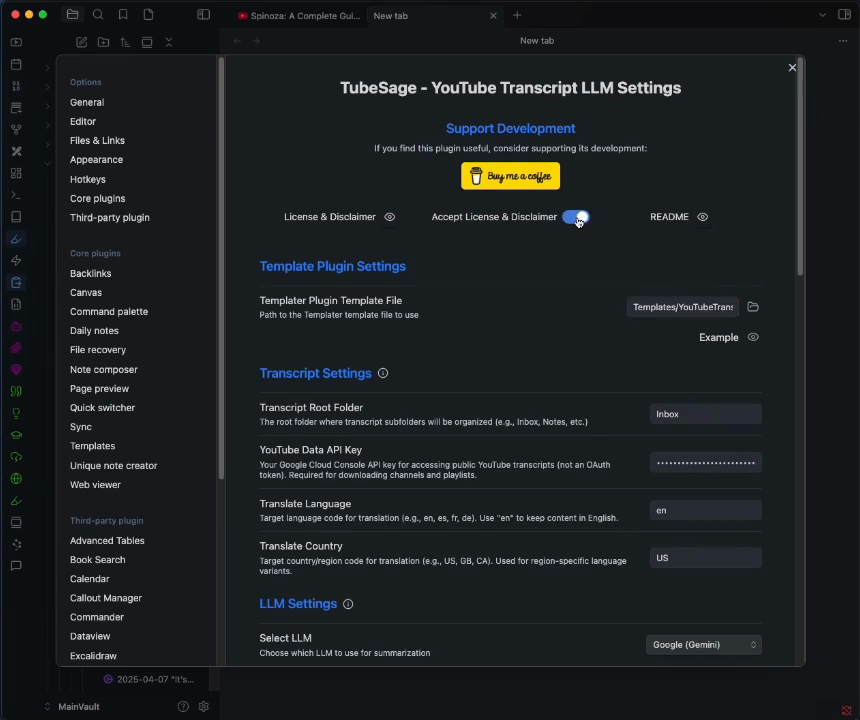
- Accept the license terms in TubeSage's settings panel.
- Configure API keys for your preferred LLM provider.
- (For YouTube notes) Install the Templater plugin for template-driven formatting.
Requirements
- Obsidian v1.13.0+ (TubeSage uses the declarative settings API introduced in 1.13.0; it also stores cloud API keys using Obsidian's secret storage, available since 1.11.4)
- Templater plugin (required for template functionality)
- An API key for at least one LLM provider:
- OpenAI
- Anthropic
- Google (Gemini)
- OpenRouter
- Ollama (local models)
- A YouTube Data API key (optional — required only for channel/playlist processing)
Features
- Transcript extraction from YouTube videos with fallback methods
- Summary generation using a configurable LLM provider
- Optional timestamp links added to section headings, linking to the moment in the video
- Works on desktop and mobile Obsidian
- Batch processing of YouTube channels and playlists
- Multi-provider support: OpenAI, Anthropic, Google Gemini, OpenRouter, and Ollama
- A cross-platform fetch shim so all providers work on mobile without Node.js dependencies
- Live progress while a job runs — a status-bar spinner on desktop, a tappable notice on mobile
Configuration
1. License acceptance
Accept the MIT license terms in the settings panel before using the plugin. Use the "View License" button to read the full text.
Recommended setup
For the most reliable results, use OpenRouter as the LLM provider together with ScrapeCreators for transcript retrieval. Direct YouTube transcript extraction breaks whenever YouTube changes or restricts how captions are served, so a paid transcript service is the dependable path. Gemini's lower-cost tiers are rate-limited and can be throttled or unavailable under load, whereas OpenRouter lets you pick a model with the capacity you need. Other providers still work; this is the combination the maintainer has found most dependable.
2. LLM provider setup
Choose and configure a provider in settings:
- OpenAI — models such as GPT-4o, GPT-4, GPT-3.5-Turbo.
- Anthropic — Claude 3 family models.
- Google Gemini — Gemini Pro models.
- OpenRouter — gateway access to models from multiple vendors.
- Ollama — local open-source models; runs offline, requires Ollama installed and running.
Where API keys are stored: cloud-provider keys (OpenAI, Anthropic, Google, OpenRouter) are saved in Obsidian's native secret storage, not in the plugin's data.json. Type a key into its provider field and it is written to the secret store automatically — there is no separate setting to enable this, and it is not optional. The Ollama field holds a server URL rather than a secret, so it remains in plugin data.
3. Other settings
- Summary modes: Fast (brief) or Extensive (detailed).
- Timestamp processing: enable or disable automatic timestamp links.
- Batch processing: sequential or parallel processing for collections.
- Performance monitoring: optional logging of processing times.
Usage
Basic workflow
- Click the YouTube icon in the ribbon, or use the Command Palette.
- Paste a YouTube video URL.
- Choose a summary mode and folder location.
- Run processing.
- The resulting note appears in the chosen folder.
Batch processing (channels/playlists)
- Configure a YouTube Data API key in settings.
- Paste a channel or playlist URL.
- Set the number of videos to process.
- Choose sequential or parallel processing.
Timestamp navigation
When enabled, each section heading includes a link that opens the YouTube video at the corresponding moment.
Mobile: switching apps
TubeSage keeps processing while Obsidian is in the foreground. If you switch to another app, the OS may suspend or terminate Obsidian, and there is no supported way for a plugin to keep JavaScript or network requests running through that — the host controls it, and its behavior is not documented for plugins. TubeSage does not promise execution through suspension.
A job lives and dies with the Obsidian instance that started it. Nothing is resumed, and nothing about a run is remembered across a restart: if Obsidian closes or is killed while a job is running, that job is over — an AI summary that was in flight is lost (and may still have been billed), and you submit the video again. Retrieval is one video at a time, so there is no list of jobs to keep track of.
Watching a job
While a job runs, its current stage is shown:
- Desktop — in the status bar, with a spinner. No popup.
- Mobile — as a floating notice. Obsidian has no status bar on mobile, so the notice itself is the control: tap it to cancel the job.
Running the same video twice
Obsidian's Vault.create rejects a path that already exists rather than versioning it, so processing a URL you have already done does not overwrite the old note or fail. It lands on the next free neighbouring name — Title 1.md, Title 2.md, and so on — which is the convention Obsidian itself uses.
Behaviour on desktop
- A successful note does not have a "Debug Information" callout appended to it.
- A failed transcript does not create a placeholder note. With debug logging turned on, an error note carrying the captured logs is written instead, so the failure can be diagnosed.
Batch jobs
Playlists and channels run as a series of single-video jobs and end with the app in the same way.
Technical Architecture
- Main plugin (
main.ts): coordinator and UI. - Transcript extractor (
src/youtube-transcript.ts): multi-method extraction with mobile fallbacks. - LLM factory (
src/llm/llm-factory.ts): constructs the provider client. - Transcript summarizer (
src/llm/transcript-summarizer.ts): orchestrates summarization. - LangChain client (
src/llm/langchain-client.ts): unified interface for cloud providers. - Fetch shim (
src/utils/fetch-shim.ts): cross-platform HTTP via Obsidian'srequestUrl. - Timestamp processor (
src/utils/timestamp-utils.ts): timestamp link generation. - Error utilities (
src/utils/error-utils.ts): error categorization and retry logic.
Architecture diagrams are in the docs/ directory:
Privacy & Security
API keys
Cloud-provider API keys (OpenAI, Anthropic, Google, OpenRouter) are stored in Obsidian's native secret storage, never written to the plugin's data.json. Keys saved by versions older than 1.3.0 are migrated into secret storage automatically the first time you open the plugin after upgrading.
Network requests
All requests use HTTPS. TubeSage contacts:
- YouTube, to fetch video metadata and transcripts.
- Your configured LLM provider (OpenAI, Anthropic, Google, or OpenRouter), to generate summaries. If you use Ollama, requests go only to your local Ollama server and nothing leaves your machine.
- ScrapeCreators (
api.scrapecreators.com) and Supadata (api.supadata.ai) — contacted only if you choose to configure an API key for one of them. These are optional paid transcript services used as alternatives or fallbacks to direct YouTube extraction; with no key set, neither is contacted.
That is the complete list. LangChain's bundled tiktoken helper, which would otherwise fetch tokenizer data from a third-party CDN, is replaced with a network-free stub at build time, so TubeSage contacts no other hosts.
No user data is stored on servers operated by the plugin author.
The plugin also bundles langsmith as a transitive dependency of @langchain/core. langsmith is LangChain's optional tracing library and contains a background cache-refresh timer. TubeSage never enables LangSmith tracing and never sets a LangSmith API key, so this code stays dormant and performs no background network transmission.
Static analysis of the bundled main.js shows a few atob()/btoa() (base64) calls. These all originate in bundled libraries, not in TubeSage's own code, and are all routine: decoding embedding vectors and image data URLs, reading a JWT header, and encoding Mermaid diagram syntax for rendering. None of them obscure code, API keys, or URLs.
Vault and system access
- Vault files: TubeSage lists the folders and Markdown files in your vault so you can choose where notes are saved and pick template files. It reads and writes only the note and template files involved in processing.
- Clipboard: write-only. The "Copy template" button in the template viewer writes template text from within Obsidian to your system clipboard. TubeSage never reads the clipboard, so it cannot access or expose anything copied from outside Obsidian.
Troubleshooting
- API key errors: verify keys are configured correctly in settings.
- Mobile processing issues: ensure a stable connection, or use Ollama for offline processing.
- Timestamp link failures: check video availability and URL format.
- Batch processing limits: monitor YouTube API quota usage.
License
This project is licensed under the MIT License — see the LICENSE file. A YouTube content-usage disclaimer is included in MIT-license-tubesage.md.
Support & Contribution
- GitHub Issues: bug reports and feature requests.
- Code contributions: fork the repository and open a pull request.
GitHub Repository: https://github.com/rmccorkl/TubeSage