
README file from
GithubTree Editor Linked Properties



Edit properties from linked notes directly beside the list items that reference them, without replacing Obsidian's Markdown editor.
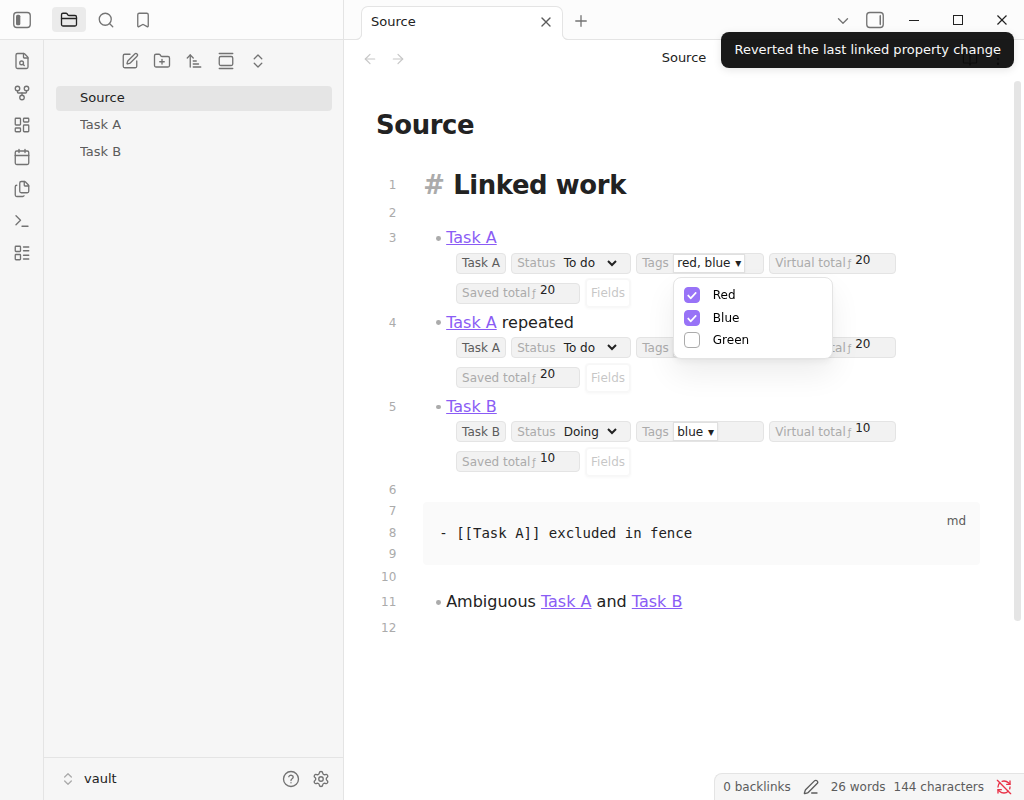
What it does
Tree Editor Linked Properties adds small, typed controls to a list row when that row contains exactly one link to another note. Each control reads and writes a property in the linked note's YAML frontmatter. The surrounding note remains a normal Obsidian editor, so editing, folding, dragging, Vim mode, Outliner, and other editor behavior continue to work as usual.
For example, this source note:
- [[Replace porch light]]
- [[Book the campsite]]
can show status, priority, and due beside each item. Changing a dropdown updates the corresponding linked note:
---
status: in-progress
priority: high
due: 2026-08-20
---
Nothing is sent outside the vault. The plugin has no account, network requests, telemetry, or external service.
Features
| Feature | What it means in practice |
|---|---|
| Native editor integration | Adds controls to Obsidian's existing Live Preview editor instead of implementing another Markdown editor. |
| In-note field chooser | Click Fields, use the command palette, or use the editor context menu. No trip to Obsidian Settings is required. |
| Immediate configuration | Field visibility, order, and alignment change on click; the chooser has no Apply or Cancel step. |
| Typed controls | Edit text, numbers, booleans, dates, single-select fields, and multi-select YAML arrays. |
| Immediate multi-select | Each option click writes immediately; there is no Apply or Cancel step. |
| Two layouts | Keep fields directly after the text or align them in spreadsheet-like columns at the right edge of the editor. |
| Horizontal overflow | Aligned columns share their scroll position and remain reachable with a scrollbar or Shift+wheel. |
| Calculated fields | Display a value derived from real frontmatter, either virtually or synchronized back into frontmatter. |
| Safe writes | Uses Obsidian's FileManager.processFrontMatter(), serializes writes per file, refreshes every visible reference, and provides one-step undo. |
| Note-specific views | Each source note remembers its own visible fields, field order, and layout. |
Installation
Community Plugins
Once the plugin is listed in Obsidian's community directory:
- Open Settings → Community plugins.
- Select Browse and search for Tree Editor Linked Properties.
- Select Install, then Enable.
BRAT
To try the current release before community-directory approval, install the BRAT plugin, choose Add Beta plugin, and enter:
https://github.com/siraht/ObsidianTreeEditor
Manual installation
Download main.js, manifest.json, and styles.css from the latest release. Put all three files in:
<vault>/.obsidian/plugins/tree-editor-linked-properties/
Restart Obsidian, then enable Tree Editor Linked Properties under Settings → Community plugins.
Use
Choose the fields for a note
On a list row with one resolvable wikilink or internal Markdown link, select Fields. The chooser lists properties found in that source note's linked notes.
- Select or clear a field to show or hide it immediately.
- Use the arrow buttons to change field order immediately.
- Select Edit to change the label, control type, unset behavior, or dropdown options.
- Choose After text for compact inline controls or Aligned columns for a table-like layout.
Visibility, order, and layout are saved as soon as you click them. Close the chooser whenever you are finished; there is no Apply or Cancel step.
The same chooser is available through Tree Editor Linked Properties: Choose linked fields for this note in the command palette and Choose linked fields for this note in the editor context menu. The alignment can also be switched with Toggle linked fields alignment for this note.
Configure a dropdown or multi-select
- Open Fields and select Edit beside the property.
- Choose Select or Multi-select.
- Enter one stored value per line. To show a friendlier label, use
stored-value | Visible label. - Save the definition.
For a multi-select control, every checkbox click saves the YAML array immediately while the picker remains open. Existing values that are absent from the configured options remain visible until you remove them.
Add a calculated field
Open Fields, then select New calculation. A calculation can be:
- Virtual — display only: recalculated from the linked note's frontmatter without creating a property.
- Saved — keep output in frontmatter: recalculated live and synchronized to the chosen output property.
Simple property names can be used directly, as in hours * hourly_rate. Put names containing spaces in braces: {hours worked} * rate.
Supported operations and functions:
| Kind | Available syntax |
|---|---|
| Arithmetic | +, -, *, /, % |
| Comparison | =, !=, <, <=, >, >= |
| Logic | and, or, not |
| Conditional and fallback | if, coalesce |
| Numbers | round, min, max, sum, average, abs, ceil, floor |
| Text and lists | length, concat, lower, upper |
Formulas run in a small purpose-built evaluator. They cannot execute JavaScript or access arbitrary object properties. Invalid results appear as errors and are not written, and dependency cycles are rejected when the calculation is saved.
Undo the last property edit
Run Tree Editor Linked Properties: Undo last linked property change from the command palette. This undo history is separate from the Markdown editor's normal undo history and stores the most recent plugin edit only.
How it fits into Obsidian
flowchart LR
    A["List row in the source note"] --> B["One linked note"]
    B --> C["Cached frontmatter"]
    C --> D["Typed row controls"]
    D -->|"edit"| E["Obsidian FileManager"]
    E --> B
    C --> F["Safe formula evaluator"]
    F --> D
    F -->|"saved calculation"| E
The implementation uses published Obsidian APIs and CodeMirror 6 extension points. It contains no extracted or decompiled Obsidian code.
Privacy and permissions
- Reads links and cached frontmatter from Markdown files in the open vault.
- Writes only the linked note properties that you edit or configure as saved calculations.
- Stores field definitions, per-note selections, layouts, and the last reversible change in the plugin's local
data.json. - Makes no network requests and includes no telemetry, advertising, or analytics.
- Does not access files outside the vault.
Compatibility
The current release targets Obsidian 1.13.1 or later and uses no Node.js or Electron-only APIs. It has been exercised on Obsidian desktop 1.13.7 with split panes, Vim mode, Outliner, Meta Bind, drag-and-drop, IME composition, touch emulation, dark mode, and right-to-left layout. Mobile compatibility is intended and the manifest permits mobile installation, but the current automated release checks do not replace broader testing on physical phones and tablets.
Limitations
- A row must be a bulleted or numbered list item containing exactly one resolvable internal link. Rows with zero or multiple links do not receive controls.
- The plugin edits YAML frontmatter properties, not values embedded in a note body.
- Property types discovered from existing data are inferred conservatively. Use Edit in the field chooser when you need a specific control or option list.
- Virtual calculations are display-only. Saved calculations intentionally write their output property whenever an input changes.
- Formula syntax is deliberately smaller than JavaScript and does not fetch external data.
- The plugin has no full settings tab; its configuration is kept near the rows where it is used.
Troubleshooting
No fields appear beside a row
Make sure the editor is in Live Preview, the row is a list item, and it contains exactly one link to an existing Markdown note. Then select Fields and enable at least one property. Links in YAML frontmatter and fenced code blocks are ignored.
A property has the wrong control type
Open Fields, select Edit beside the property, and choose its type explicitly. Saved field definitions take precedence over automatic inference.
A dropdown shows an unknown value
The linked note contains a value that is not in the configured option list. Add it to the field definition or select a known value. The plugin keeps unknown values visible so it does not silently discard data.
A calculation shows an error
Check the property names and operand types. Use braces around names with spaces. Division by zero, invalid operations, non-finite numbers, and cyclic calculation dependencies are rejected rather than written to frontmatter.
Manual installation does not load
Confirm that the plugin directory contains main.js, manifest.json, and styles.css directly, with no extra release-folder level. Restart Obsidian after copying the files.
Development
Requirements: Bun and a current Node.js-compatible development environment.
bun install
bun run typecheck
bun run lint
bun run test
bun run build
The production bundle is written to dist/main.js. Release assets are the bundle, the root manifest.json, and the root styles.css.
Frequently asked questions
Does this replace Obsidian's editor?
No. It decorates eligible rows in the existing Live Preview editor, leaving Obsidian responsible for normal Markdown editing.
Does it modify the source note?
Choosing fields and changing layouts do not modify the source note. Editing a row control changes the linked note's frontmatter. Saved calculations also write their configured output property to linked notes.
Can different source notes show different fields?
Yes. Visible fields, order, and alignment are stored per source note and follow the source note when it is renamed.
Can the same linked note appear more than once?
Yes. A successful edit refreshes every visible reference to that file, including references in split panes.
Can formulas run code or call the internet?
No. The evaluator supports only the documented operators and functions, and the plugin makes no network requests.
Why is there no settings page?
The common choices are note-specific, so they are available from Fields, the command palette, and the editor context menu. This keeps configuration next to the content it affects.
License
MIT © 2026 siraht.
Tree Editor Linked Properties is an independent project and is not affiliated with or endorsed by Obsidian.