
README file from
GithubTomato Clock
A minimal Pomodoro timer plugin for Obsidian. I needed something to help me focus without leaving the app. Obsidian is great, but normally I'd have to exit it to use a third-party timer—which is distracting. So I created this plugin to keep you focused within Obsidian. The UI is designed to be minimal and distraction-free while providing just enough feedback when a focus session ends.
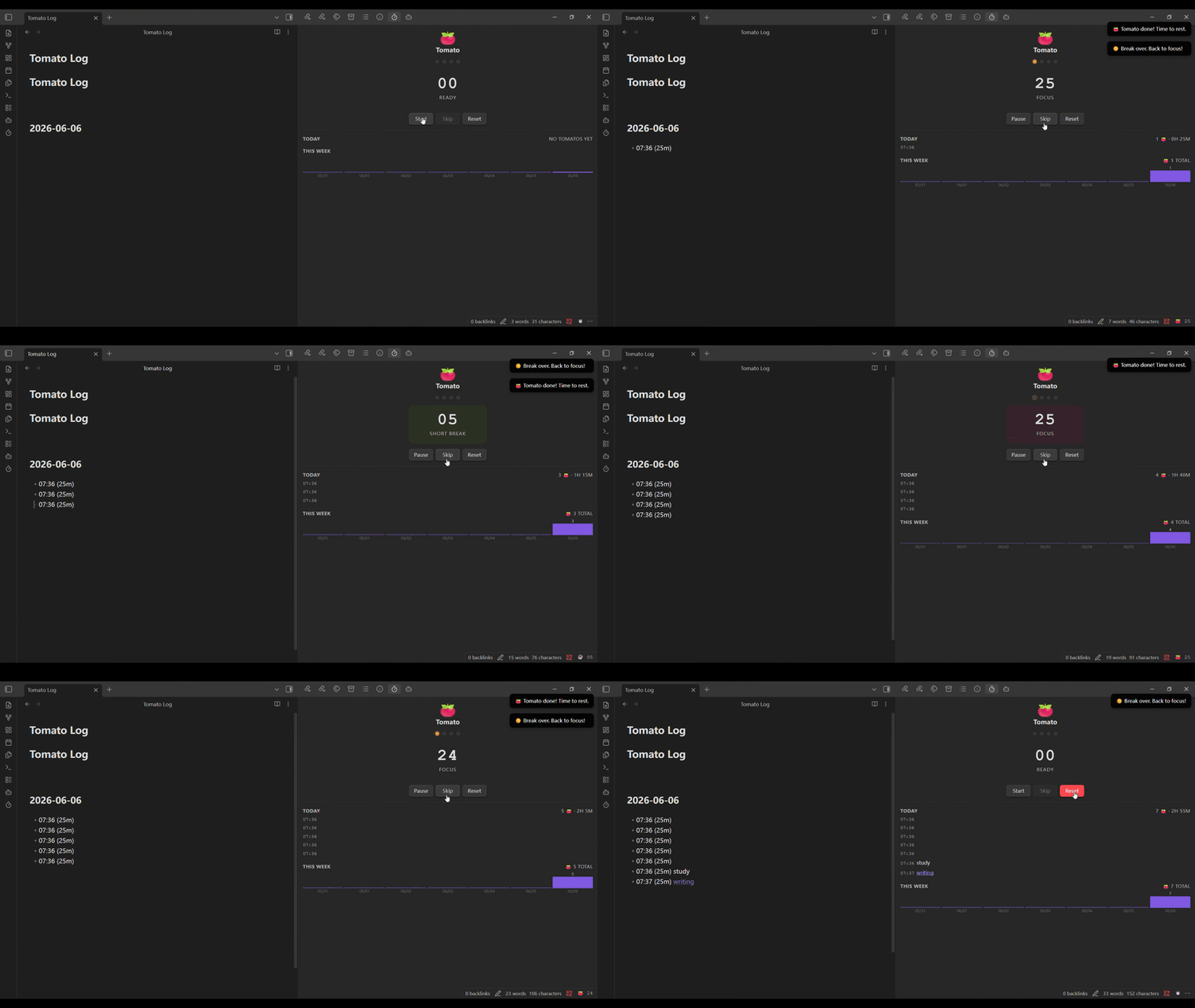
Features
- Sidebar panel with countdown, phase indicator (progress dots), and session controls (Start / Pause, Skip, Reset)
- Status bar — shows remaining minutes at a glance; click to open the panel
- OS notification and audio beep when a phase ends (audio synthesized in-browser, no files needed)
- Work sessions logged to a Markdown file (
Tomato Log.mdby default) - Log file opens automatically after each session — add notes and
[[wikilinks]]on the same line - Sidebar history: today's sessions with notes, weekly bar chart, all-time total
Usage
Click the 🍅 icon in the left ribbon to open the panel, or use the command palette (Tomato: Start / Pause). Write notes directly after the cursor on the log entry line — do not press Enter.
Settings
| Option | Default | Description |
|---|---|---|
| Work duration | 25 min | Length of each focus session |
| Short break | 5 min | Break after each session |
| Long break | 15 min | Break after a full cycle |
| Cycles per set | 4 | Sessions before a long break |
| Auto-start next phase | On | Automatically start the next phase |
| Sound alert | On | Beep when a phase ends |
| OS notification | On | System notification for background use |
| Log file path | Tomato Log.md | File where completed sessions are recorded |
Installation
Copy main.js, manifest.json, and styles.css from obsidian-plugin/ into .obsidian/plugins/tomato-clock/ in your vault, then enable the plugin in Obsidian → Settings → Community plugins.
Privacy & Data
All data is stored locally on your device:
- Timer sessions are logged to a Markdown file in your vault
- No data is sent to external servers
- No telemetry or analytics
- The plugin respects your vault — it only reads and writes to the log file you specify
Share Your Progress
How many Tomato sessions do you complete each day? Share your achievements and help inspire others to stay focused! 🍅