
README file from
GithubTLT - Timeline + Tasks
A timeline-first workbench for task management, schedule and project milestones: calendar, tasks, team workload, quick notes — plus a message center that works on its own.
中文 | English
Everything is plain Markdown inside your vault. Uninstall the plugin and your data is still there.
What you might be searching for
People find this plugin by many names — tasks, timeline, schedule, task manager, planner, gantt, kanban, project milestones. Here is an honest mapping of each:
| You're looking for | What TLT gives you |
|---|---|
| Task management / Tasks / To-do / Task manager | One - [ ] line inside a project note; tick to finish. Grouped as overdue / to do / done / unscheduled, with a range switch today / this week / this month / this quarter / all, filterable by tag |
| Timeline | Opens on today: what happened at what hour, what's still due. Entries pile up per day into a monthly file |
| Schedule / Calendar / Planner | A day laid out as time blocks and planned blocks; click empty space to slot a task into that day |
| Project / Milestone | One project = one markdown file, each ## section is a milestone; milestone view splits active vs done. A milestone is marked done by hand (the ✓ on its card) — checking off all its tasks only shows a hint, because a milestone is a delivery point, not a task list |
| Gantt | No gantt bars. Milestone view shows the schedule and the star chart spreads tasks by due date — enough to answer "which weeks are packed" |
| Kanban / Board | No drag-and-drop board. Tasks are grouped by state (the state is the column); drag-to-reorder isn't there yet |
| Workload / Capacity / Effort | Tasks carry person-day estimates; the team view computes each person's load (open person-days ÷ capacity) |
| Checklist / Sub-task | A task can carry indented sub-tasks (content + done state only). A small ring at the end of the task row shows the done ratio — click it to expand in place and tick / rename / delete / add |
| Progress / Timeline | Every task keeps its own created & done dates ([created::] / [done::], hidden by default); project, milestone and task lifecycle events are appended to the stream in TLT/events/ — the raw material for a timeline graph |
| Overview panel / Dashboard | A TLT panel for Obsidian's right sidebar: project count, overdue, due this month, unassigned, unscheduled, completion, people load — click a number to jump to that place in the workbench; follows the currently selected project |
| Pin / Favourite projects | Project card ⋯ → “Pin project”: pinned projects float to the top of the sidebar and take the first sector in the star map (stored as pin: true in the project file) |
| Project description | Click a project card to open “Project info”: a quick summary (milestones / tasks / done %), rename the project (file, heading and log references follow) and write a description — kept as desc in the project file's frontmatter, shown as a line on the card and above the milestone view |
| Sort / Order by date | Projects, milestones and tasks all sort by name / created / due — pick the same one again to flip direction (↑ / ↓); the choice is remembered per vault |
| Daily note / Log / Weekly review | Entries are filed under ## date into TLT/logs/YYYY-MM.md — copy from it when writing your weekly report |
| Messages / Notifications / Inbox / Feeds | A separate message center: feeds, timeline (cards / axis / lanes / heatmap), publish and subscribe |
It coexists with
obsidian-tasks,dataview,kanban,calendarand friends: TLT reads plain- [ ]lines and never requires or writes a#tasktag.
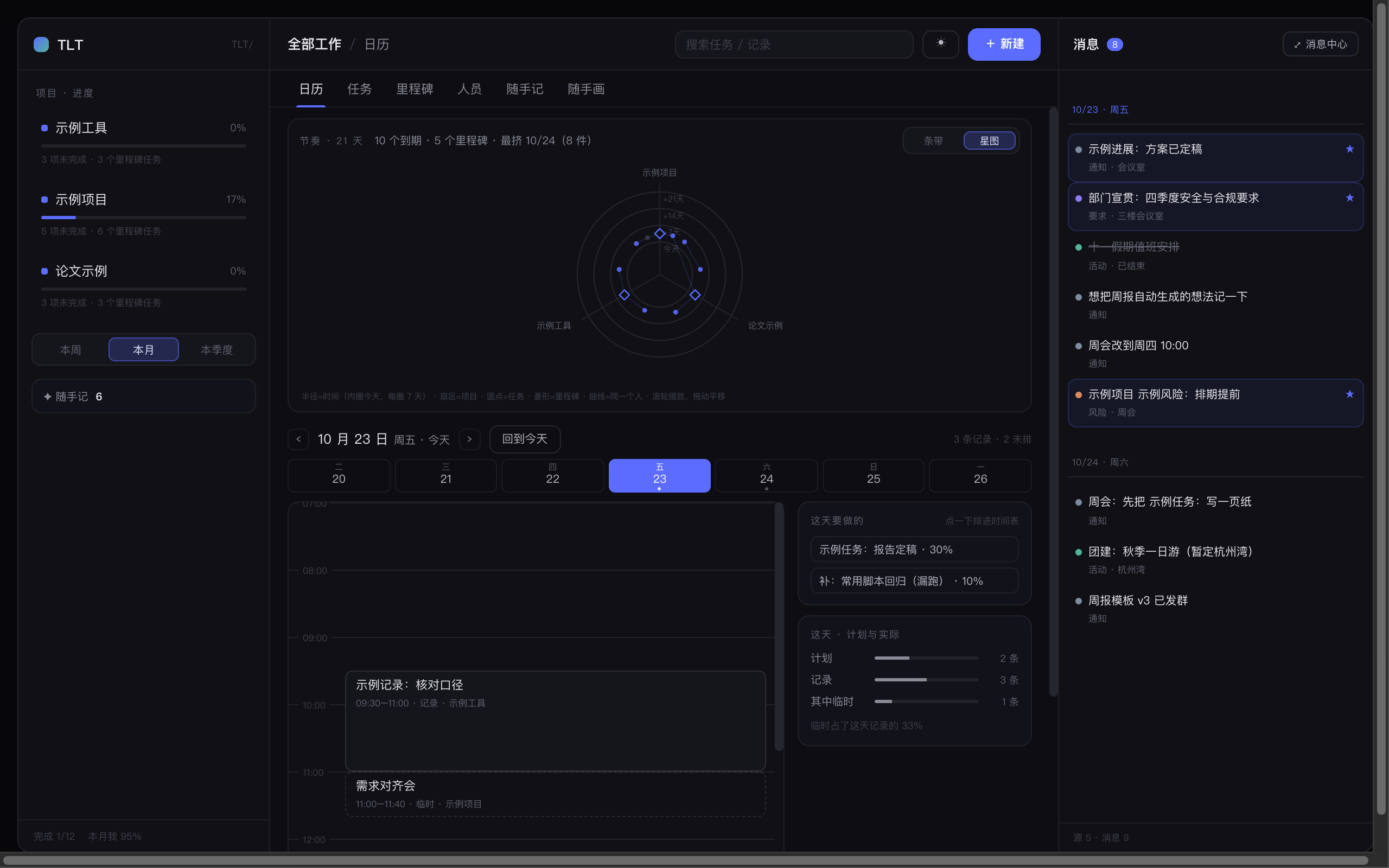
Screenshots
| View | What you see |
|---|---|
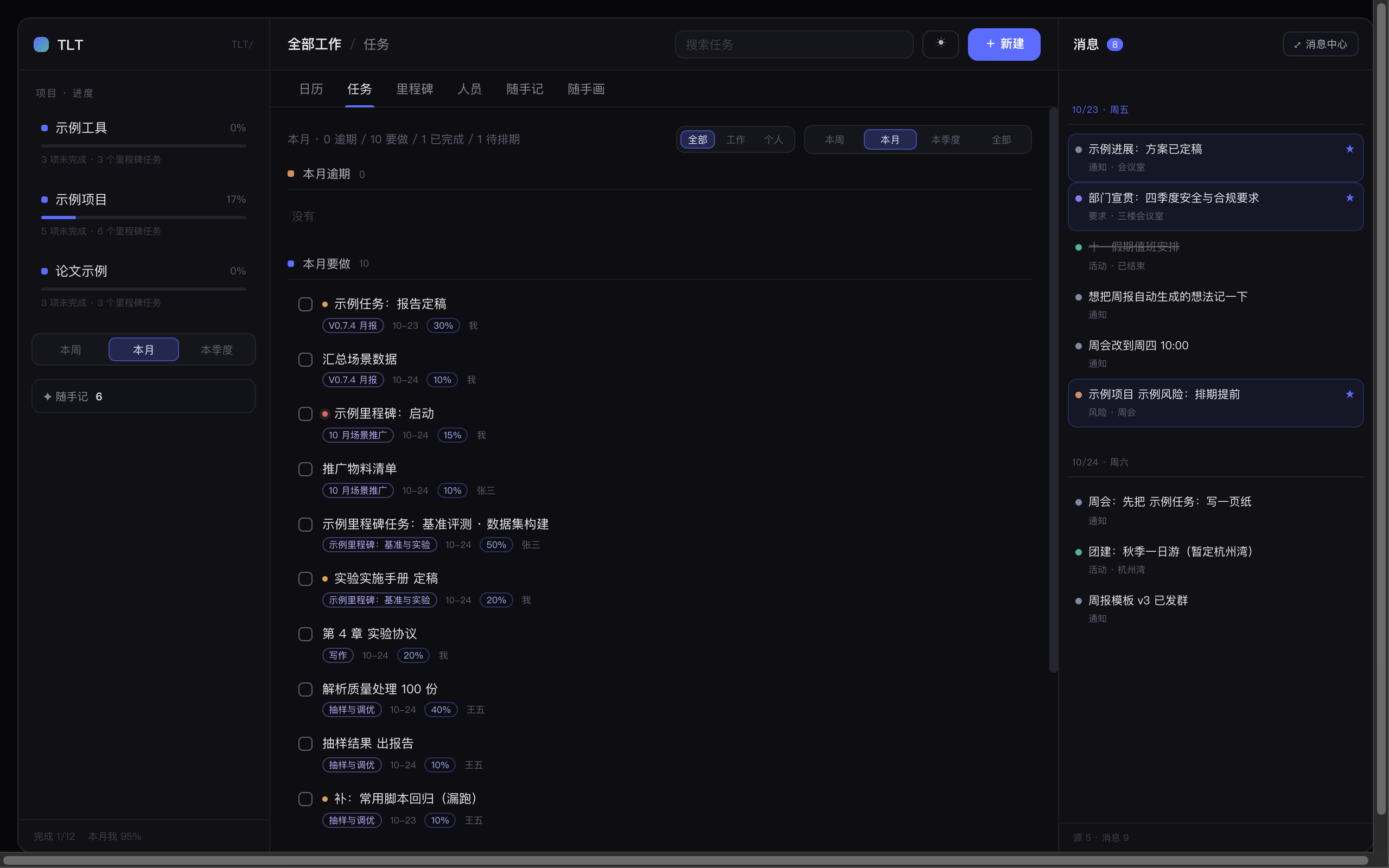 |
Tasks: overdue / to do / done / unscheduled, filterable by tag |
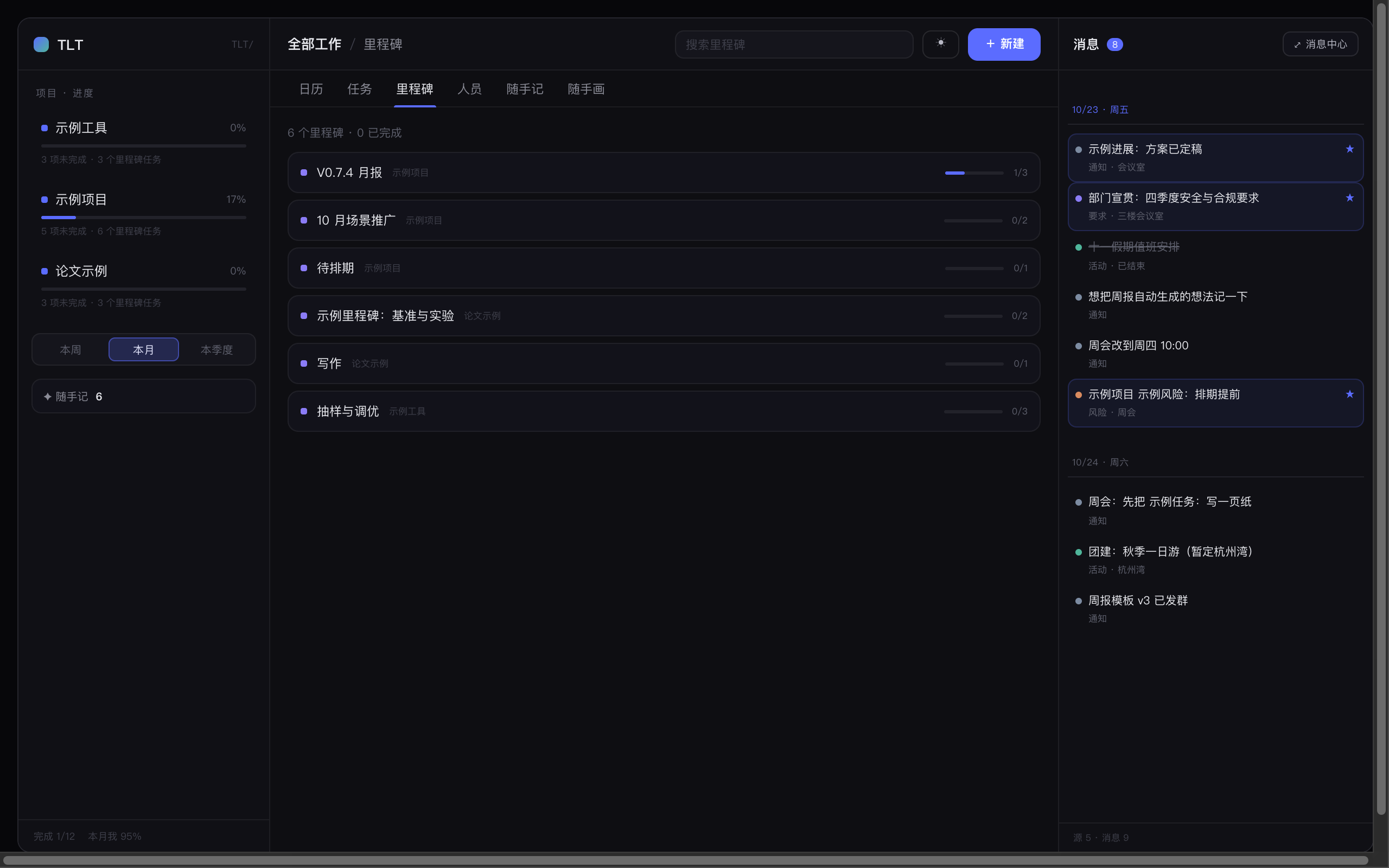 |
Milestones: one card per ## section, expand to tick tasks |
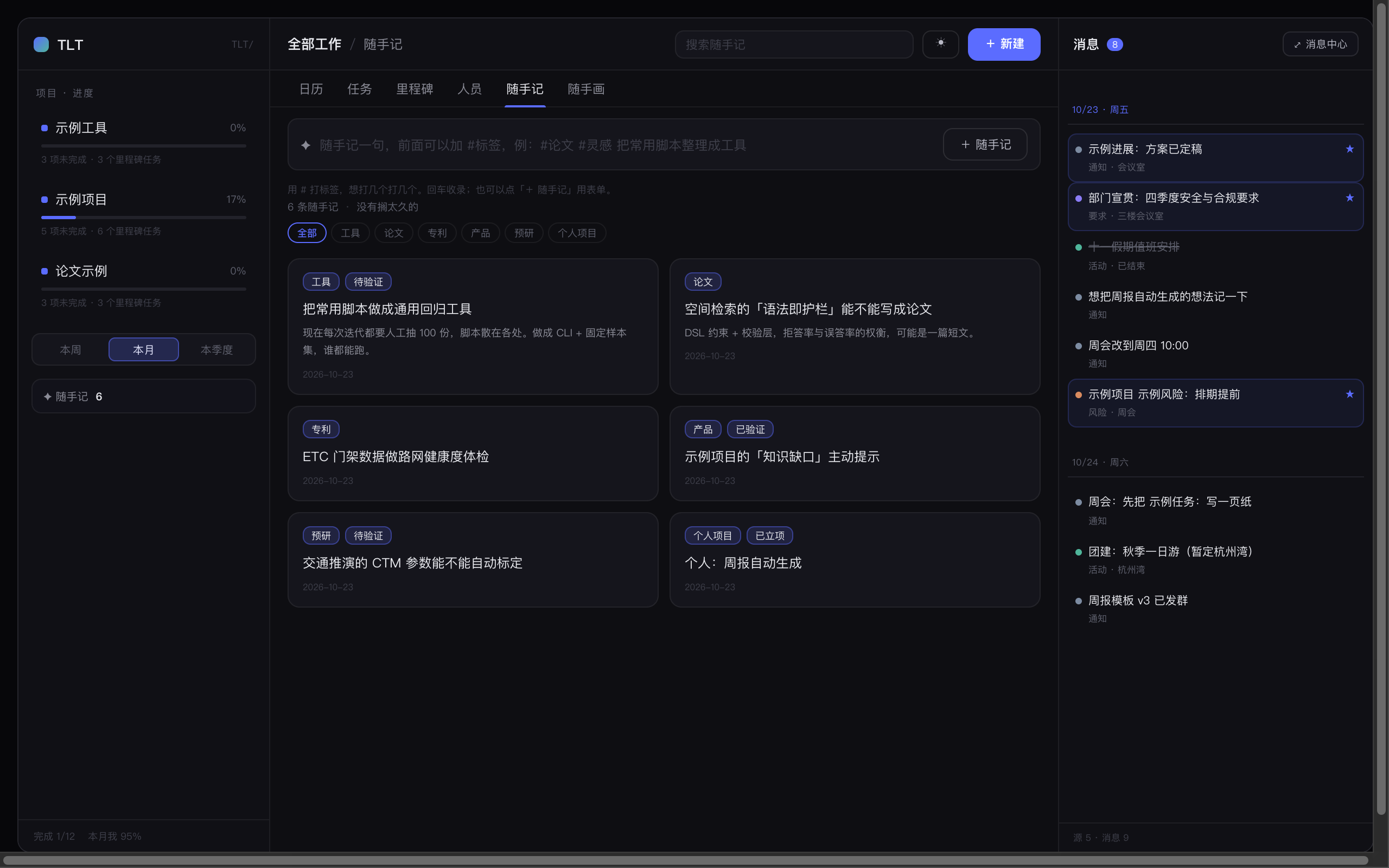 |
Quick notes: one line per idea, tag filter and tag library |
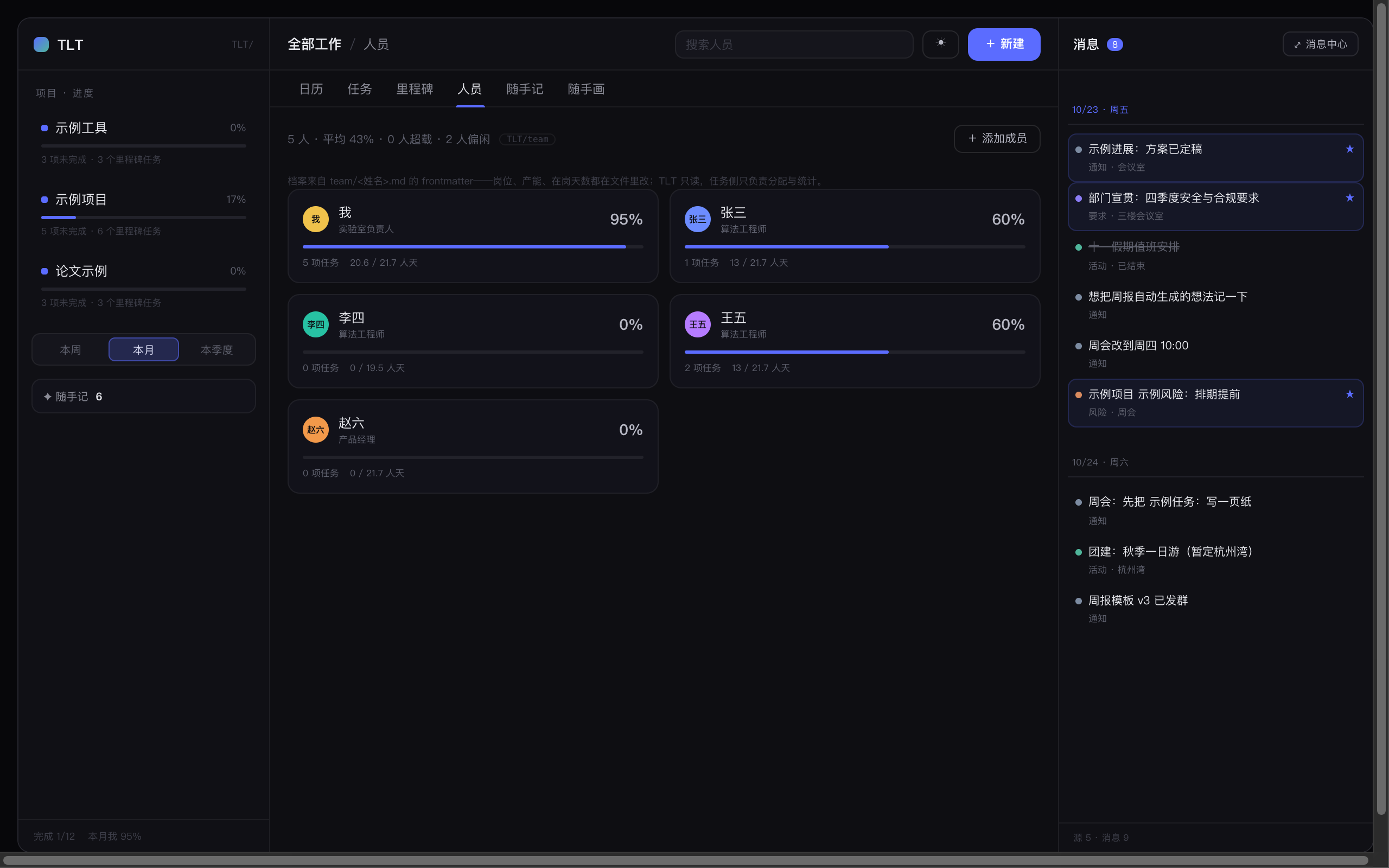 |
Team: profiles plus load (unfinished share ÷ capacity) |
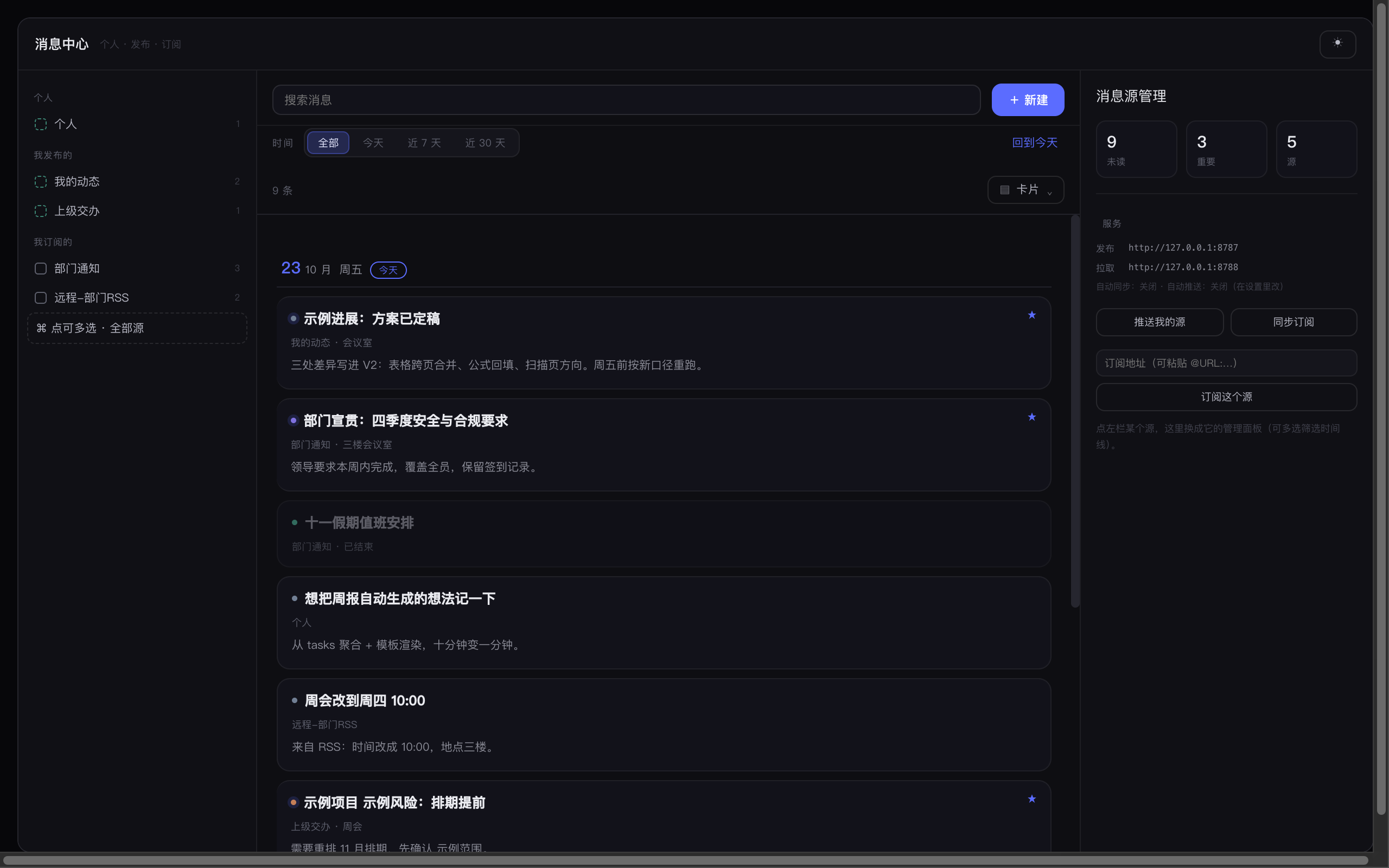 |
Message center: sources, timeline, source management |
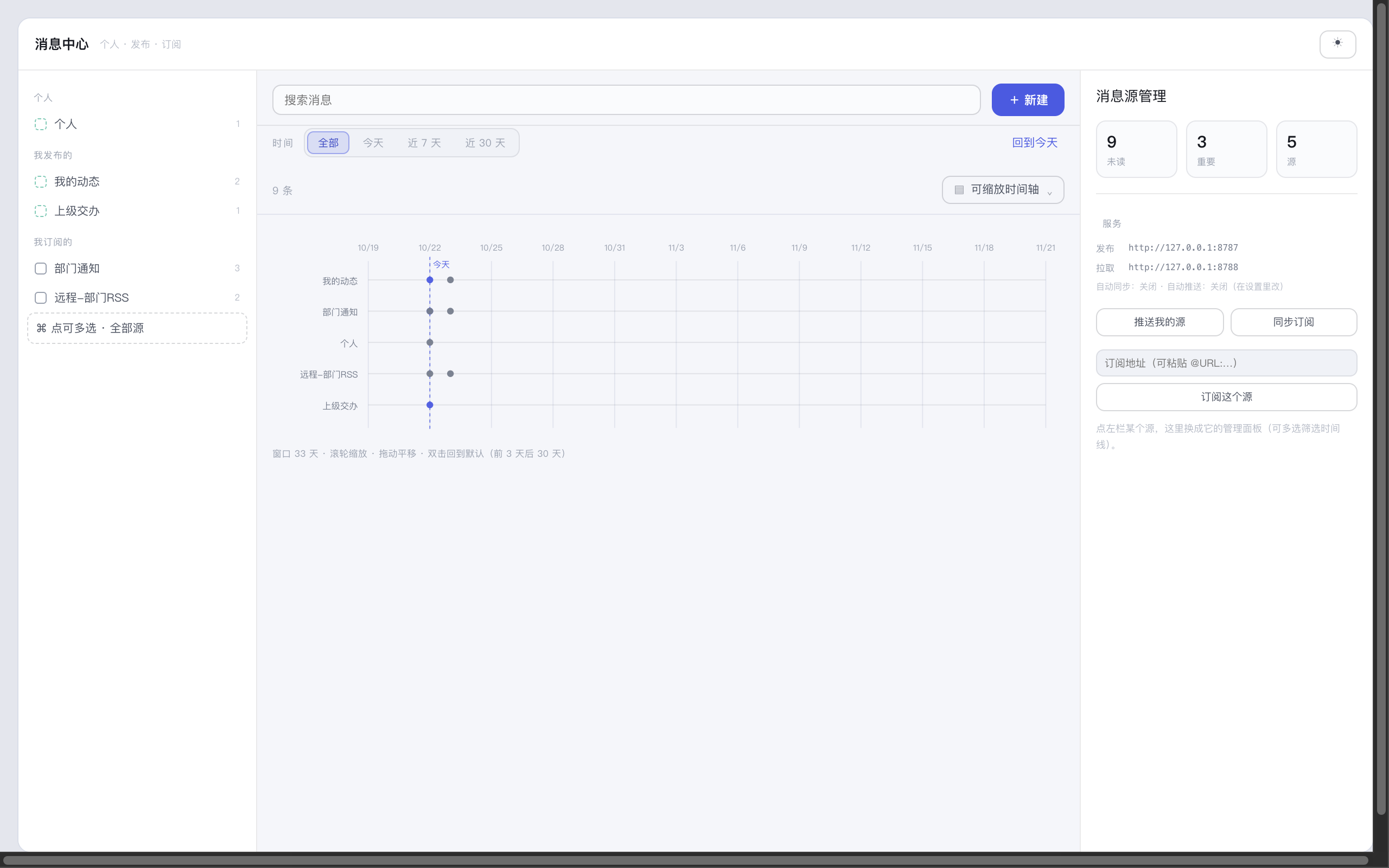 |
Layout: zoomable timeline (wheel to zoom, drag to pan) |
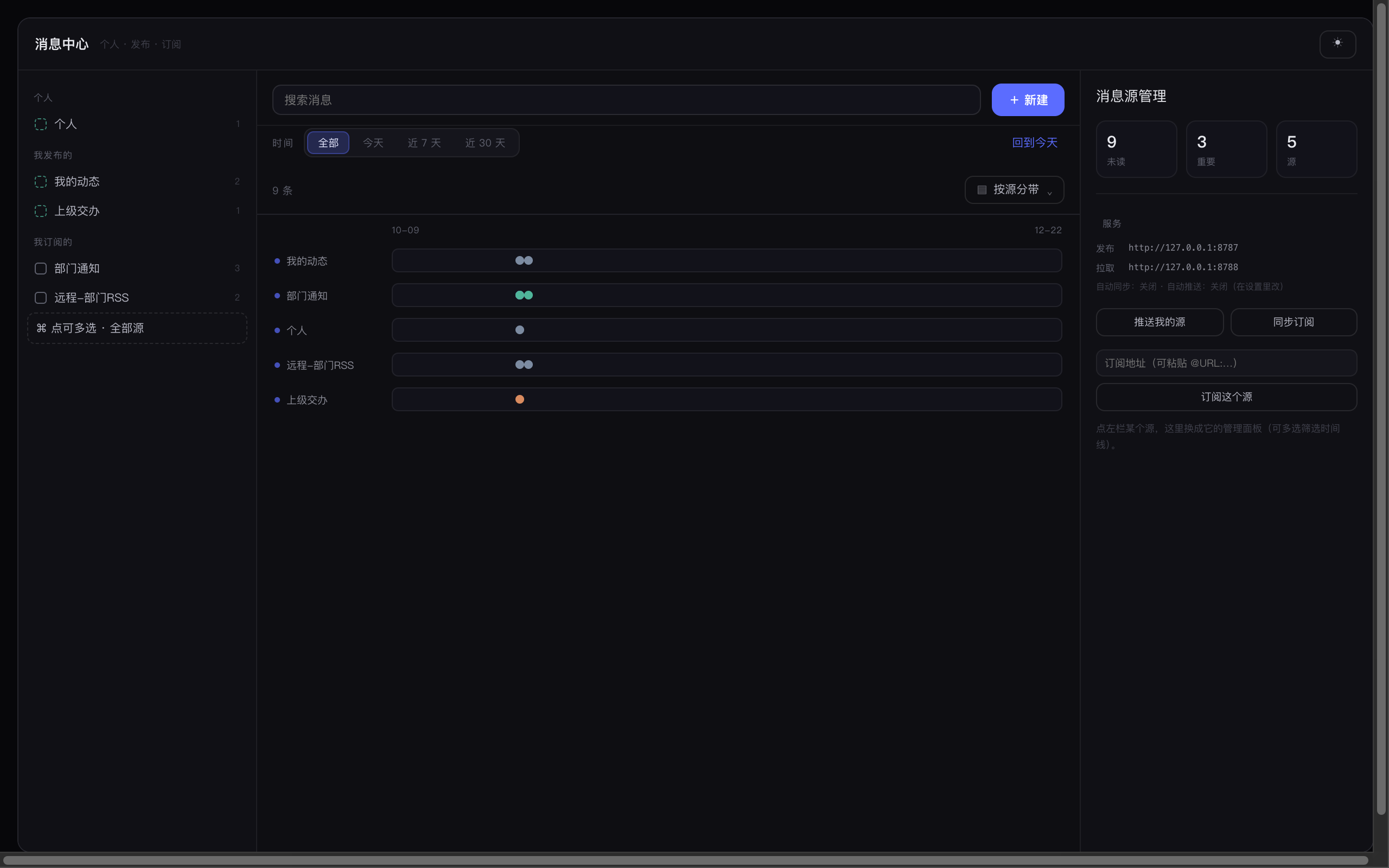 |
Layout: source lanes (one lane per feed) |
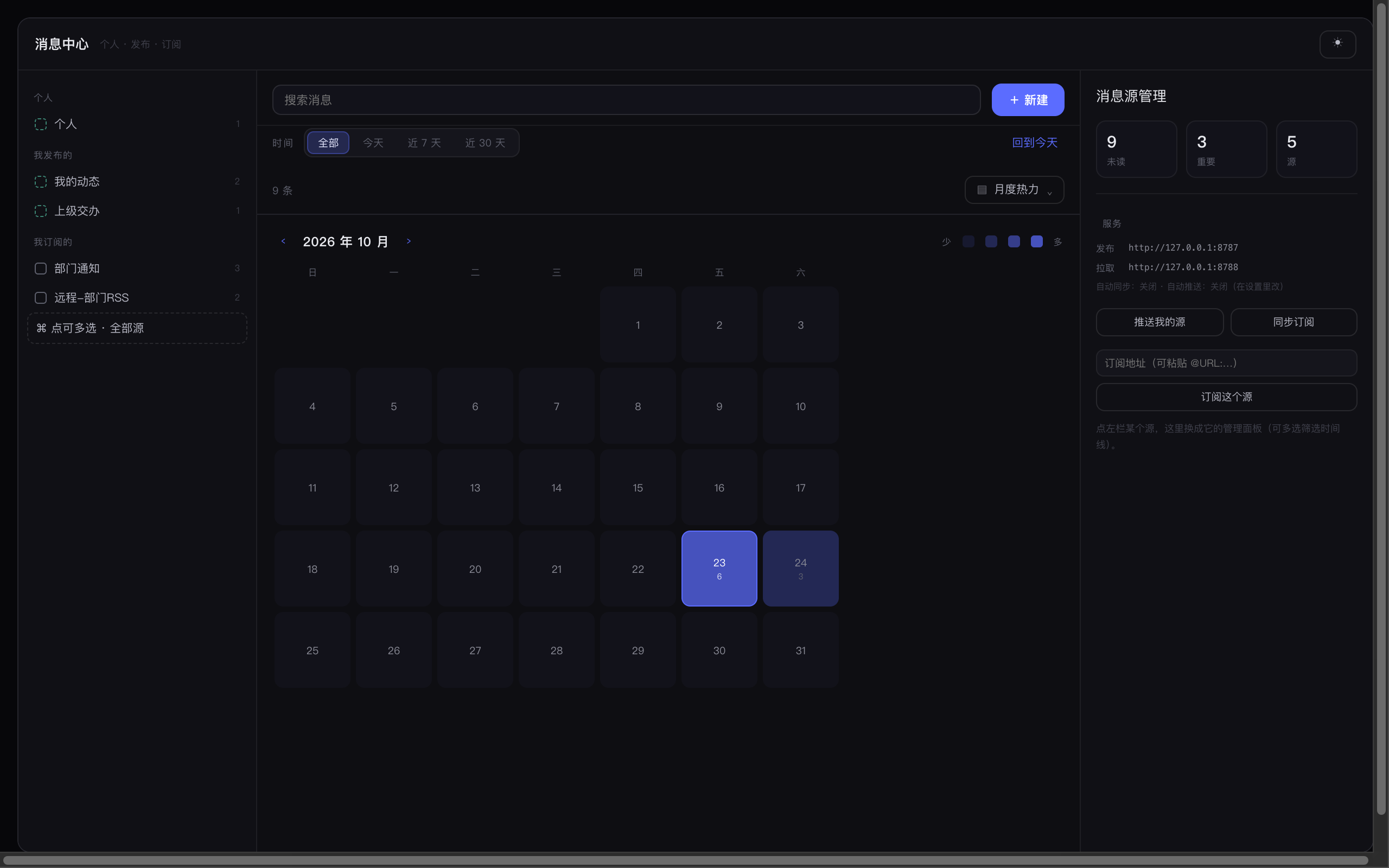 |
Layout: month heatmap (darker = more messages that day) |
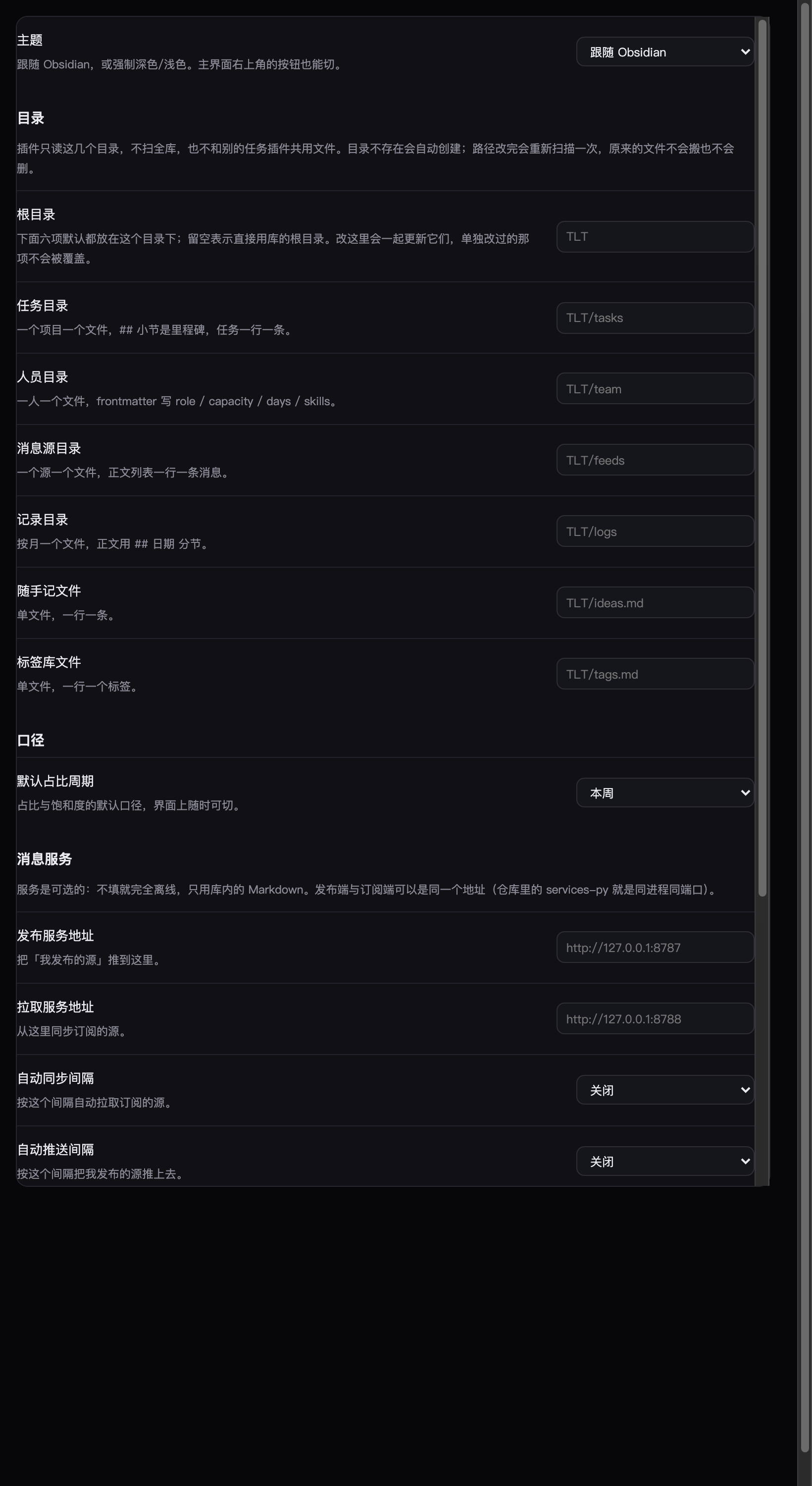 |
Settings: general options on top, then folders / period / message service / maintenance |
Install
- BRAT (beta): install BRAT → Add beta plugin →
sxinyuhoo/TLT-timeline-things - Manual: copy
main.js,manifest.jsonandstyles.cssinto<vault>/.obsidian/plugins/tlt-timeline-things/, then enable it in Settings → Community plugins
Folders are created on demand. To see it populated first: Settings → TLT → Maintenance → generate sample data — it writes a fictional sample (names, projects and messages are made up) and never overwrites existing files.
What makes it different
- Timeline first, project tree second. You open onto today: what happened hour by hour, what is still due, what got inserted. Projects and milestones organise things behind the scenes.
- No side database. Tasks are written back into the original note line (
🛫 📅 [wl::] [owner::] [tags::] [st::] [en::]) — and scheduling a task onto a day writes a plain line intoTLT/logs/instead of touching the task line, people live in frontmatter, a feed is just a list. Remove the plugin and the files still read, search and link. - The message center stands alone. It is a separate view that only deals with messages, so colleagues who do not use the task side can still subscribe to notices.
Six tabs
| Tab | What it does |
|---|---|
| 日历 / Calendar | Day timeline (records + planned blocks), what is due that day, rhythm chart (radius = time, sector = project, wheel to zoom) |
| 任务 / Tasks | Four groups (overdue / to do / done / unscheduled) plus tag filter; click a row to change due date, share, priority, owners |
| 里程碑 / Milestones | One card per milestone, expandable into task rows you can tick |
| 人员 / Team | Profiles (role / capacity / working days / skills), load and next-four-week bars |
| 随手记 / Notes | One line per idea, #tags, editable tag library, multi-select filter |
| 随手画 / Sketch | Reserved tab (drafts, whiteboard, screenshot annotations) |
A message rail is always on the right; “⤢ 消息中心” opens the standalone message center.
Message center
Pick sources on the left, read in the middle, manage a source on the right.
| Source | Where it comes from | Right panel |
|---|---|---|
| 个人 / Personal | Your own drafts | New message, publish as a source |
| 我发布的 / Published by me | Sources you published | Push now, unpublish (content folds back into Personal) |
| 我订阅的 / Subscribed | Sources written by others | Unsubscribe (local file goes to the trash) |
Seven layouts: cards / river / compact / source lanes / zoomable timeline / month heatmap / people graph.
A message is one line plus optional inline fields — the 5W fit in:
- 2026-10-22 Weekly report template finalised [place:: Room 3] [who:: [[Sun]], [[Xu]]] [why:: align next week] [tags:: weekly]
  > Send the template to the group
Publishing and subscribing
No service is required. Three ways to share:
- Sync the same vault through iCloud / Dropbox / Syncthing (simplest)
- A shared vault (network drive or Git)
- Run the message service (cross-machine, good for a department):
services-py/tlt_service.py— one file, one process, standard library only
python3 services-py/tlt_service.py --port 8787 --data ./data --seed
Publishing and subscribing live in the same process and port; put http://server:8787 in both fields of the plugin settings. Feeds can be our JSON, RSS 2.0 or Atom.
Where data lives
| Path | Content |
|---|---|
TLT/tasks/<project>.md |
Tasks: one file per project, ## = milestone, one line per task |
TLT/crew/<name>.md |
People: frontmatter with role / capacity / days / skills |
TLT/feeds/<source>.md |
Message sources: one line per message |
TLT/logs/<YYYY-MM>.md |
Records: ## date sections with time blocks and bodies |
TLT/ideas.md |
Quick notes: one line each |
TLT/tags.md |
Tag library: one per line |
Field-level syntax: docs/data-format.md.
All six paths live under TLT/ by default and the root folder is configurable — changing it updates all six without overwriting ones you customised.
Commands
Search TLT in the command palette (⌘P); bind your own hotkeys.
Quick commands (native since 0.5 — no QuickAdd or other plugin needed)
| Command | Effect |
|---|---|
| 快捷命令… (Quick commands…) | One launcher listing everything below |
| 登记任务 (Log a task) | Jot a task down and pick project / milestone / dates / priority / owner |
| 随手记 (Quick note) | One thought into the idea pool (TLT/ideas.md), #tags welcome |
| 新建消息 (New message) | Write a message into your personal or published source |
| 新建项目 (New project) | Create a project file (## sections are milestones) |
| 新建里程碑 (New milestone) | Add a ## section to an existing project |
| 归档项目 (Archive a project) | Move the whole project file into TLT/archive/, off the workbench |
| 删除任务 (Delete a task) | Pick project → pick task → confirm (filter as you type, or search across projects) |
Every list filters as you type, ↑↓ to move, Enter to confirm, Esc to cancel.
Other commands
| Command | Effect |
|---|---|
| 打开工作台 | Open the workbench |
| 打开消息中心(独立页) | Open the message center only |
| 切换明暗 | Toggle dark / light |
| 推送到发布服务 / 从拉取服务同步 | Manual message sync |
Tasks inside your daily notes (tlt-daily block)
Drop a code block into a note and today's tasks render right there; ticking writes back to TLT:
```tlt-daily
date: auto      # auto = date from the file name (so back-dated notes still work)
overdue: true   # list overdue tasks in their own group
wip: false      # add an "In progress" group (started, not yet due)
tree: true      # expand sub-steps
who: true       # show owners
scope: all      # all | work | personal
```
Four groups: Overdue / Due today / Planned for today / Done today, each line carrying project · milestone · effort · owner.
Add wip: true for a fifth group, In progress — started but not yet due, i.e. everything currently on your plate.
No Tasks or Dataview plugin needed — it reads TLT's own data.
“Done today” uses the real completion date ([done:: date]) and nothing else — no “file it by due date” guessing: a task due that day but ticked later shows up in the diary of the day it was actually ticked.
- Click the box = tick it and write back to the project file (it will not flip the block into source view)
- The 📝 after the task name = open the task's details (project / dates / owners / effort…), same as clicking a task in the workbench
Helper: tools/migrate-diary-queries.py (batch-replace old ```tasks queries with tlt-daily).
Overview panel (right sidebar)
Command palette → “Open/close the TLT overview panel (right sidebar)”, or the ▤ button in the workbench header. TLT isn't a file view, so Obsidian's usual outline/backlinks spot is empty for it — this panel fills that space with readings:
- Project count + four number cards: overdue / due this month / unassigned / unscheduled (click any card to jump to that tab)
- Completion: a bar plus “x of y done”
- Urgent / at capacity / with room: urgent = open tasks at highest priority; at capacity = people at ≥ 100% load; with room = below 60% (same thresholds as the people tab)
- Follows the project selected in the workbench — the chip in the top-left goes back to “all work”
⟳refreshes; task edits refresh it automatically
Sub-items and the progress ring
An indented checklist under a task is a sub-item — content and done state, nothing else:
- [ ] Collect data for the three task types 📅 2026-10-30
  - [x] Export October list
  - [ ] Check definitions
- A task with sub-items shows a small ring at the end of its row (done ÷ total)
- Click the ring to expand in place: tick on the left (hollow = open, filled + struck through = done), click the text to edit,
×to delete, Enter to add another - All sub-items ticked but the task itself not → the ring turns into a reminder colour
- Ticking the parent with open sub-items only warns, it never blocks you
Task times: created / done, and the event stream
- A new task gets
[created:: 2026-10-29]; ticking it adds[done:: 2026-10-29]; unticking removes it - Both stay invisible in the UI (rows stay clean). Finished rows carry a small “done 10-29”, and the task's timeline section shows created / done / sub-item progress
- Project, milestone and task lifecycle events are appended to
TLT/events/YYYY-MM.md(one line each, append-only) — that's the raw material for a future timeline graph:
- 2026-10-29 18:46 task.done project=mvlab_ops task=organise the task list
- 2026-10-29 18:47 ms.done project=mvlab_omniwise milestone=knowledge-base-vectorisation
Older tasks have no such fields (recording started in 0.9.0). The plugin never guesses — the UI says “not recorded”, and the daily block files them by due date with a visible marker.
Projects: pin, description, sorting
| What you want | How |
|---|---|
| Pin | Project card ⋯ → “Pin project”: pinned projects float to the top of the sidebar and take the first sector in the star map (pin: true in the project file) |
| See / edit name and description | Click the ✎ next to the project name: rename it (file, heading and log references follow) and write a description (desc in frontmatter, shown as a line on the card) |
| Filter | Click the card itself: calendar / tasks / milestones filter to that project; the breadcrumb clears it |
| Sort | Right side of the toolbar (the sidebar uses ⇅): name / created / due — pick the same one again to reverse |
Feeds: publishing, subscribing, cleaning up
- Publish: personal feed → “Publish feed…” gives a subscription URL (
http://server/feed?id=…) to hand out - Subscribe: paste the URL someone gives you. Only the feed you subscribed to is pulled — the server's subscription table is shared by everyone, so the plugin trusts its own list and filters the response again
- Alias: a subscribed feed can only be aliased (your own label); the publisher's name stays, and the details show “original name: …”
- Cleanup: a personal feed can be deleted (its messages go to the trash with it); a published one must be unpublished first (unpublishing also deletes it server-side; whatever subscribers already pulled stays in their vaults); subscribed feeds use “Unsubscribe”
- New feed: the
+on the “Personal” group header in the message centre
Archiving from the workbench
- Right-click a project card (or the
⋯on hover): new milestone / archive project / open file - "已归档 · N" in the sidebar (collapsed by default): archived projects; click to open the file, right-click for "restore to active"
- Right-click a task row: open / delete (tasks are not archived — see below)
Archive and restore both ask first and spell out the move.
How archiving works
- Archiving is project-level only: the whole
TLT/tasks/<project>.mdmoves toTLT/archive/, off the workbench; content and links are untouched. - Restorable: right-click an archived project → "restore to active"; the file moves back to
TLT/tasks/(number suffix if a name clash, never overwrite). - Tasks are not archived. A task's lifecycle is done / deleted — moving single lines to another file would break the "one project, one file" rule and split progress stats.
- Nothing is deleted; to really remove something use "Delete a task" or delete the file yourself.
Interface language
Settings → “Interface language”: Auto (follow Obsidian) / 中文 / English.
- Applies immediately: the settings tab, workbench, message center, every modal and the command-palette names all switch together — no reload.
- Your data stays as-is: task titles, project names and
工作/个人tags are written back unchanged; only UI text follows the language.
Privacy and network
- Requests only happen when you configure a message service; without one the plugin is fully offline.
- No telemetry, no analytics, no content upload.
- Service URLs and publish IDs live in the plugin's own
data.json.
Known limits
- No drag-to-reschedule on the day timeline yet (click a block to edit its time).
- Recurring tasks (
🔁) are not parsed. - “Read” state lasts for the session only.
- Publishing replaces a whole source; there is no incremental diff.
Development
npm install
npm run build      # produces main.js
npm test           # data layer + render smoke
npm run test:all   # also source lifecycle, RSS, Python service, hub end-to-end
npm run preview    # export each view as static HTML for styling work
TypeScript + esbuild (CJS); tests run real rendering through jsdom with an Obsidian stub. npm run play builds a clickable browser harness, npm run serve serves it.
Roadmap
See ROADMAP.md. Next up: calendar interoperability (import from macOS Calendar / .ics, two-way sync).
Keywords
tasks · todo · to-do · task manager · task list · checklist · timeline · schedule · scheduler · calendar · planner · project · project management · milestone · gantt · kanban · board · workload · capacity · effort · team · notes · inbox · messages · notifications · feeds · plain markdown · local-first · offline
任务管理 · 待办 · 时间线 · 日程 · 日历 · 项目管理 · 里程碑 · 甘特 · 看板 · 工作量 · 人员排期 · 随手记 · 周报 · 消息中心 · 订阅
License
MIT