
README file from
GithubTech Tree Companion
中文 | English
把常用操作放到鼠标旁,在 Excalidraw 中组织科技树。
Tech Tree Companion 是 Obsidian 中的 Excalidraw 辅助插件。用自定义快捷轮盘完成日常操作,用卡片和连线表达科技关系,再把卡片关联到笔记里的详细设计。
Tech Tree Companion extends Excalidraw with a customizable quick wheel, reusable SVG technology cards, linked Markdown notes, and canvas navigation. The interface supports Chinese and English. This independent companion is desktop-only and requires Excalidraw to be installed separately. See the English guide for the full illustrated introduction.
一套轮盘,保留你的操作习惯
内环放常用的绘图和节点操作;按需启用外环,放搜索、小地图、模板中心等导航与管理功能。内环仍由你自定义,外环也可以单独配置。
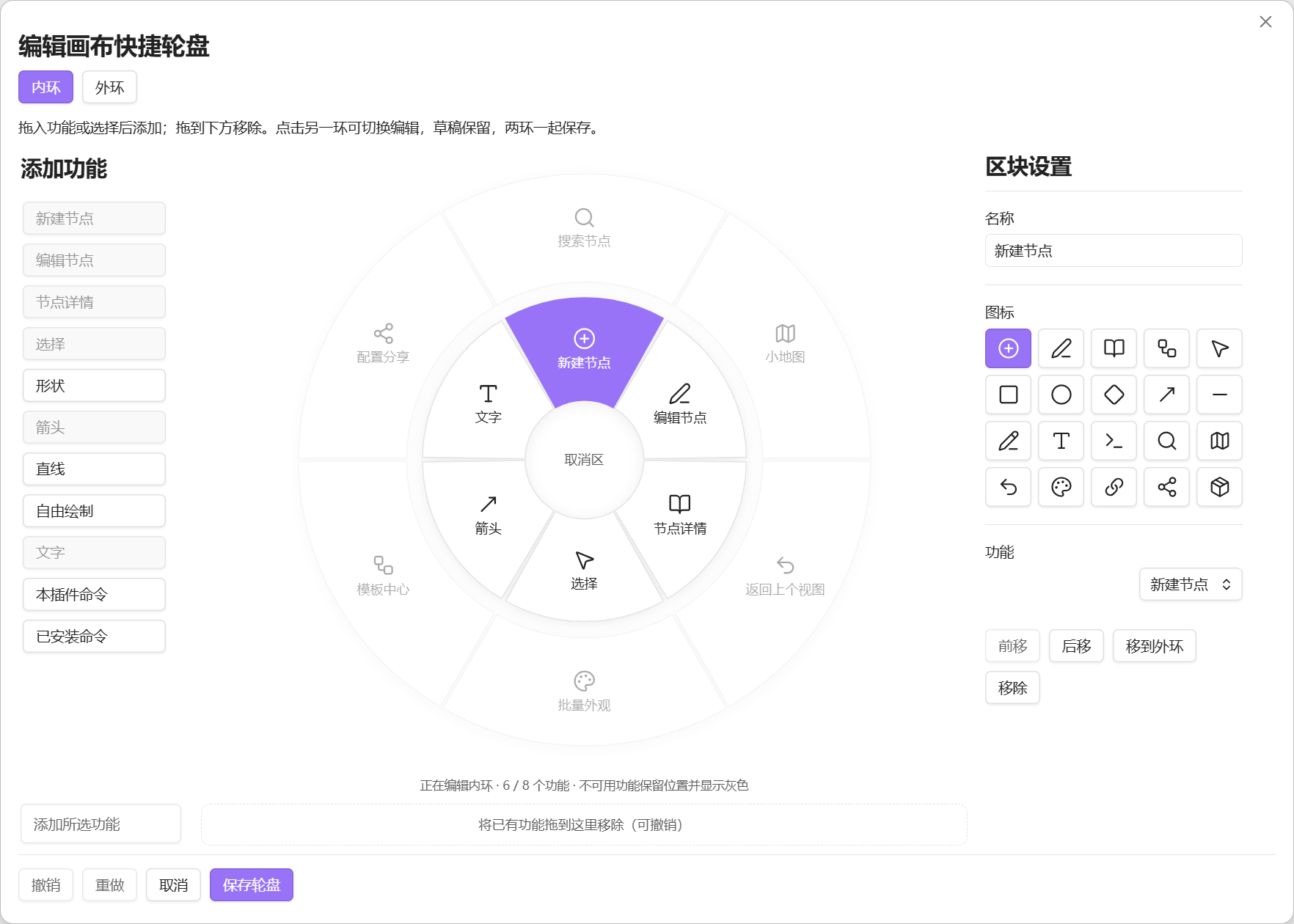
- 按住、选择、松开执行。 在中心或圈外松开即可取消;也支持键盘触发和选择。
- 按需切换内外环。 轮盘出现后按辅助层切换键,默认是 Shift;两环半径与触发方式均可调整。
- 在同一个编辑器里整理两环。 拖入、排序、改名、换图标或跨环移动;切换时保留草稿,保存时一起保存。
- 已有功能就地定位。 添加列表里已加入的功能只置灰;再次点击会选中轮盘上的对应位置,并给出轻微的图标提示。
可选的卡牌式模板选择
“创意卡牌选择”是可选功能,默认关闭。在设置 → 卡片模板启用后,新建节点先选模板,再进入编辑;常规模式仍直接进入原编辑界面和下拉框,已有手动选择的偏好保留。
实色扇形卡牌支持首尾循环、拖动吸附、可见侧牌点击、方向键与固定导航箭头,也可搜索或切换网格。点击“使用此模板”,或双击第一次点击前已经选中的牌确认;侧牌双击不会进入编辑。确认后卡牌轻抬并飞向编辑预览,减少动态效果时直接进入。首次取消不创建节点,编辑中改选取消保留字段和文档关联。
默认模板使用静态工程图签、尺寸、修订号和尺标。预览缓存有容量上限,关闭时释放;卡牌模式仍比普通下拉需要更多图形资源。
卡片放概要,笔记放细节
把科技名称、摘要、材料和研究点组合成 SVG 卡片,再用连线组织前置关系。卡片字段和布局由模板定义,适合逐步建立自己的科技树表达方式。
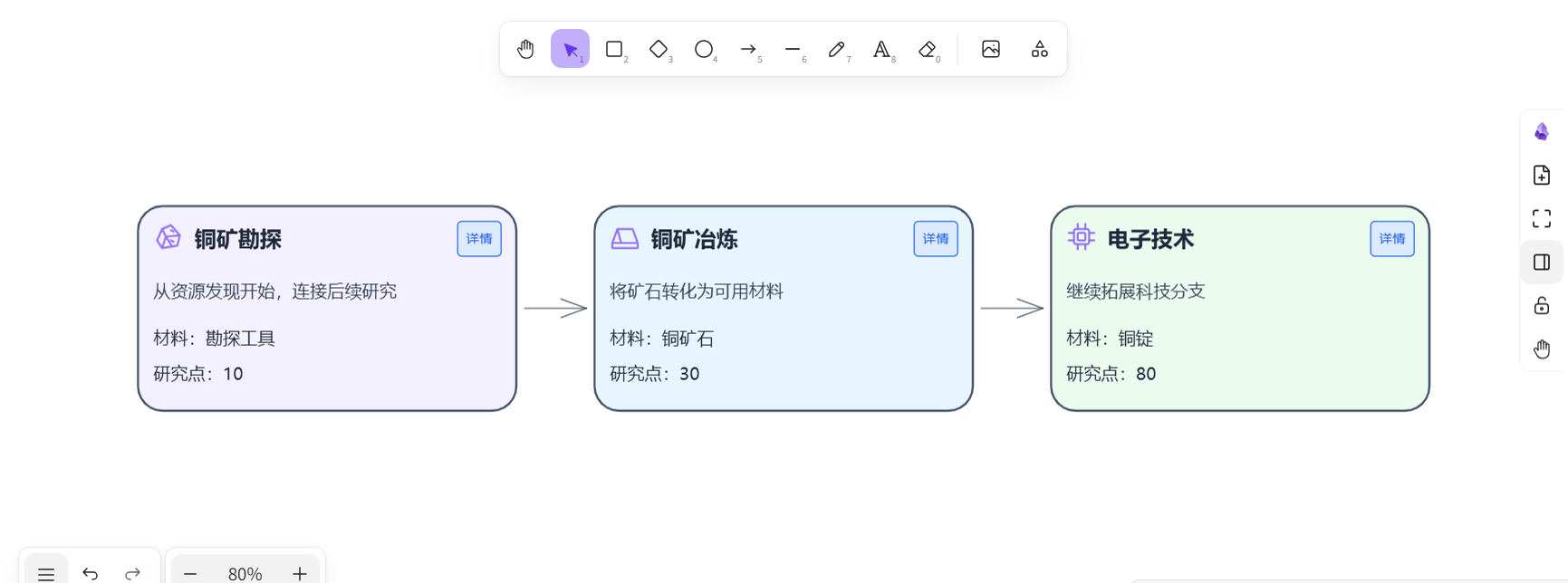
卡片可以关联整篇 Markdown 笔记或一个标题章节。打开详情即可阅读和编辑关联正文;双击普通阅读文字也能进入编辑状态。模板调整不会自动改写已有卡片,由你决定何时应用。
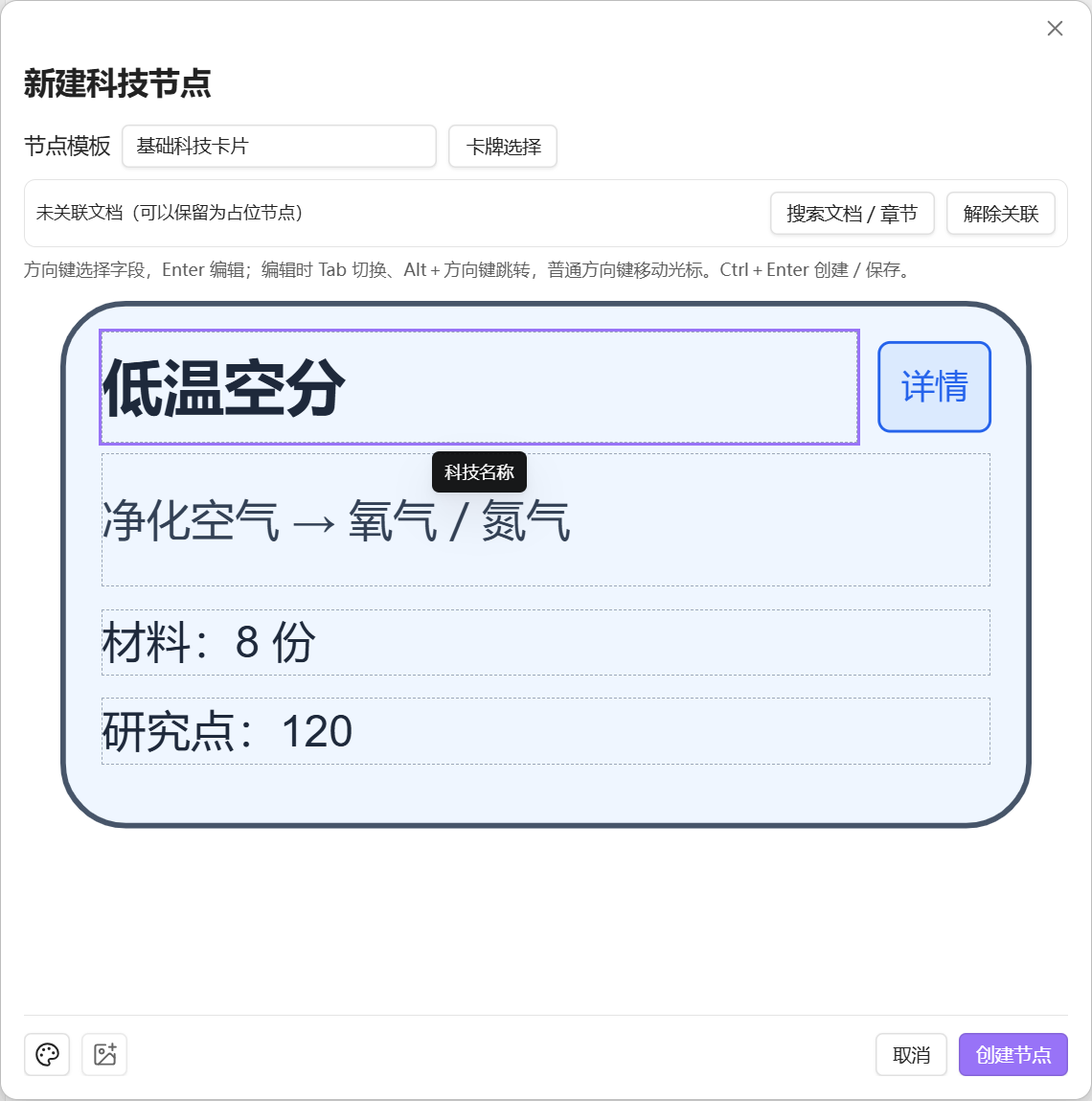
外观与图标工具位于固定底栏。编辑框保留模板字号和完整正文;可容纳的文字或空字段不再因额外行框显示滚动条,真正超出模块的内容仍会提示并可滚动编辑。模板中心使用同一字形排版判断。
外观可复用,图标快速调用
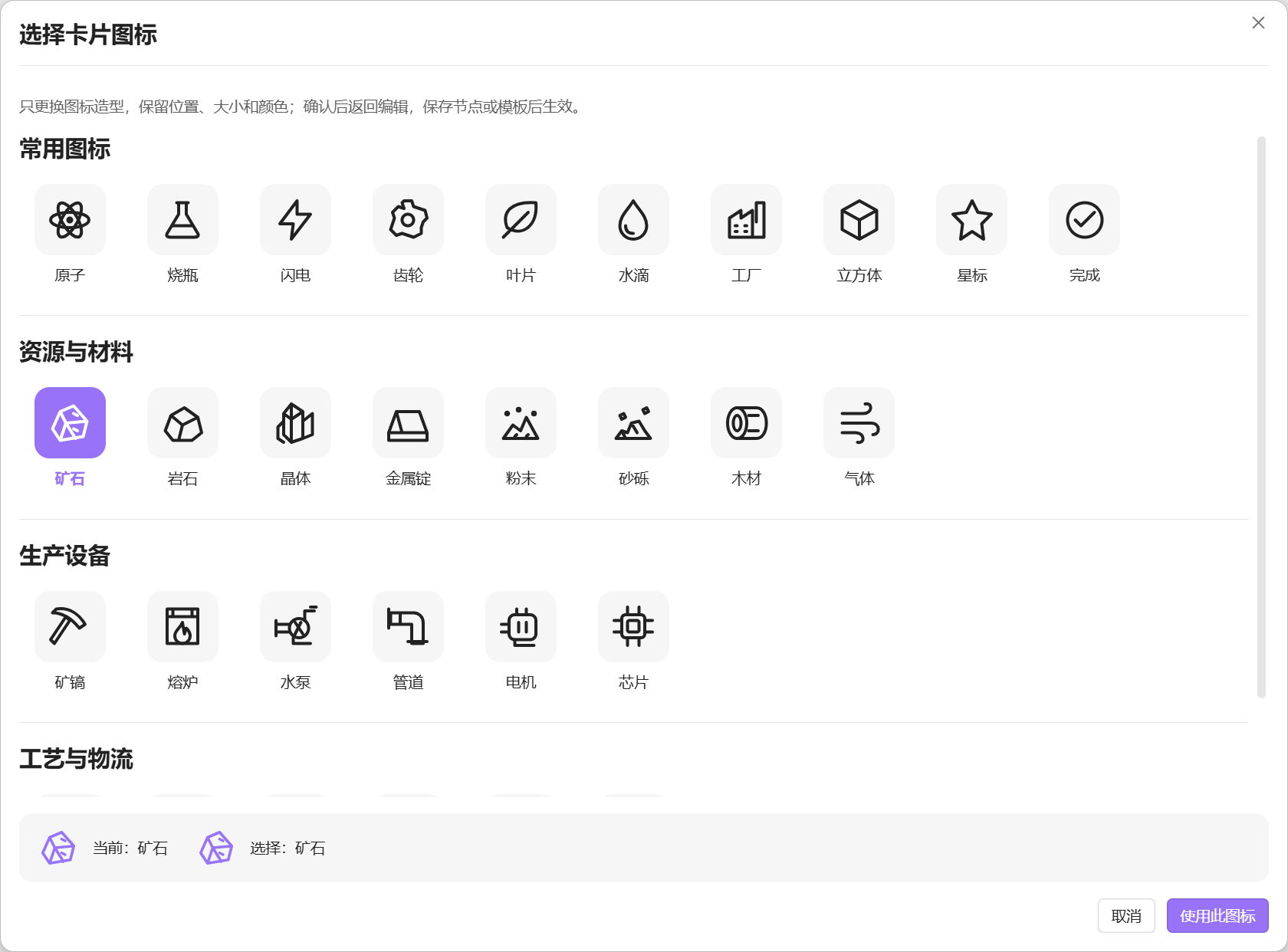
模板中心支持文字、字段、图标、分隔线和按钮模块。常用图标保留在属性栏中,更多图标在独立选择器里按类别浏览。换图标保留原有位置、尺寸与颜色;没有图标模块的模板需先添加模块。
图变大之后,也能找到方向
| 功能 | 用途 |
|---|---|
| 搜索与定位 | 在当前绘图中按名称、字段、模板或关联路径查找卡片 |
| 小地图 | 查看分布、点击定位、拖动平移;启用状态可跨绘图保留 |
| 前置与后续 | 在画布中突出当前节点、直接相邻节点和连线;查看模式下先开启关系浏览,再点击节点 |
| 返回上个视图 | 回到之前的画布位置与缩放,与文件历史中的“返回”区分 |
| 关联检查 | 检查笔记或章节是否仍可访问,再由你选择替换目标 |
| 批量外观 | 预览并统一选中卡片的外观或图标,保留正文、位置和关联 |
| 配置分享 | 导入导出模板、模块预设和轮盘配置,逐项处理冲突 |
小地图保留矩形、椭圆与菱形的简化轮廓、主色和箭头方向。关系浏览支持返回、空白处退出和 Esc,不改写元素外观或连线;关系模式内点击卡片不会误开文档或 SVG,退出后恢复原生链接行为。
模板中心可新建椭圆、圆形与菱形布局。已有卡片保持原样,不自动迁移。科技卡仍是 SVG 图片,并不具备原生图形的全部选择和手工连线能力;重叠元素和复杂曲线的关系遮罩也可能不够精确。
Installation
- Use desktop Obsidian 1.13.7 or later. Install and enable Excalidraw 2.25.3 or later first.
- In Settings > Community plugins, browse for Tech Tree Companion, install it, and enable it.
- For manual installation, download
main.js,manifest.json, andstyles.cssfrom GitHub Releases. Place these files in<vault>/<configDir>/plugins/tech-tree-companion/, reload Obsidian, and enable the plugin. The default configuration directory is.obsidian.
Save drawings and close editors before upgrading. Preserve data.json, generated card attachments, and font caches; replace only the three program files. Mobile is not supported. Windows is tested; macOS and Linux host integration remain unverified.
Usage
Open an editable Excalidraw drawing and run Create technology node from the command palette. Fill in the card fields and optionally link a Markdown note or heading. Use Template center to customize reusable layouts; existing cards change only when you explicitly apply a template update.
Configure the quick wheel in plugin settings. Use Search and locate nodes, the minimap, and View predecessors and successors to navigate. In native view mode, activate connection browsing before clicking a node; press Escape or click empty canvas to exit. The creative card picker and auxiliary outer wheel are optional and off by default. Interface language changes do not translate saved notes, cards, templates, or custom wheel names.
No account or telemetry is required. The only font network access downloads versioned Chinese handwriting font shards when needed and absent from the local cache; note text and paths are not uploaded. See Privacy and storage for network destinations and local file operations.
快速开始
- 使用桌面版 Obsidian 1.13.7 或更高版本,单独安装并启用 Excalidraw 2.25.3 或更高版本。
- 在 Obsidian 的第三方插件中搜索 Tech Tree Companion;也可从 GitHub Releases 下载手动安装。
- 打开可编辑的 Excalidraw 绘图,运行 新建科技节点,填写字段并按需关联笔记。
- 在插件设置中配置快捷轮盘;到 模板中心 调整下一批卡片使用的模板。
手动安装只需 main.js、manifest.json、styles.css 三个文件,放入 <仓库>/<配置目录>/plugins/tech-tree-companion/,重新加载后启用插件。默认配置目录为 .obsidian,无需额外的运行时文件夹。升级时保留 data.json、字体缓存和生成的卡片附件。
当前实机验证环境为 Windows 11、Obsidian 1.13.7 与 Excalidraw 2.25.3;macOS、Linux 尚未完成验证,暂不支持移动端。本插件是独立辅助项目,依赖 Excalidraw 提供绘图能力;不会自动安装或更新其他插件。
界面语言
插件设置顶部提供 跟随 Obsidian / 中文 / English,默认跟随 Obsidian;中文环境使用中文,其他语言环境使用英文。切换后重新打开已有编辑窗口即可更新显示。
语言设置只作用于插件界面。已保存的卡片文字、模板名称、轮盘自定义名称和笔记内容保持原样;Obsidian 与其他插件的界面语言由它们自己的设置控制。
隐私与存储
无需账户,无广告、分析统计或遥测。卡片、配置与关联笔记保存在本地仓库。仅在使用 Excalidraw 的中文手写字形且缺少缓存时,下载所需的版本化字体分片;不上传笔记正文或路径。
资源管理会在本地扫描仓库引用,避免误回收仍在使用的附件。扫描本身不移动或删除卡片附件;回收、恢复和移至系统回收站是独立操作。点击“复制草稿”才会写入剪贴板。
完整的联网域名、扫描范围、触发条件和保留期见 隐私与本地存储说明。
文档与项目
项目代码使用 MIT 许可证,版权归 HWMLlv 所有。感谢 Excalidraw 及相关开源依赖。依赖与字体遵循各自许可证,详见 第三方声明、Excalifont 声明 与 Xiaolai 字体许可。本项目不是 Obsidian 或 Excalidraw 的官方产品。