
README file from
GithubAlways-on-Top Tasks
Always-on-Top Tasks is an Obsidian plugin that pins one note above every other window as a compact, semi-transparent overlay docked to the edge of the screen. Every task line gets its own stopwatch: press play, work, press stop, and the elapsed time is appended to the line as ⏱️ H:MM:SS, with only one timer allowed to run at a time. A one-click emoji palette marks a line as in progress, blocked, deferred or done, and nested tasks keep their markdown indentation in the overlay. All of it is written back into the markdown file, so the time data stays plain text inside the vault and any assistant with access to the notes can read it. Desktop only, TypeScript bundled with esbuild.

The problems this solves
You lose the thread when several projects are open at once. The moment a browser, a terminal or a chat window covers your task list, the current task is gone from your head too. The overlay stays above every other window, including fullscreen apps, pinned to one half of the monitor — so what you are doing right now never leaves your field of view.
You do not know where the hours actually went. Each task line has its own
stopwatch: press ▶, work, press ⏹. The elapsed time is appended to the line as
⏱️ H:MM:SS, sessions add up to the second, and only one timer can run at a
time — which is the entire point of focusing.
Your time data is locked inside somebody else's app. Here it is stored as plain text inside your own vault, so anything that can read the vault can read the numbers — including an AI agent. Ask Claude (or any assistant with access to your notes) where last week went, and it can answer from the note itself. No export, no API, no separate database.
A flat checklist does not match the shape of real work. Nested tasks keep their markdown indentation in the overlay, and a one-click emoji palette marks what is in progress, blocked, deferred or done — right in the line, readable in any editor.
What it looks like
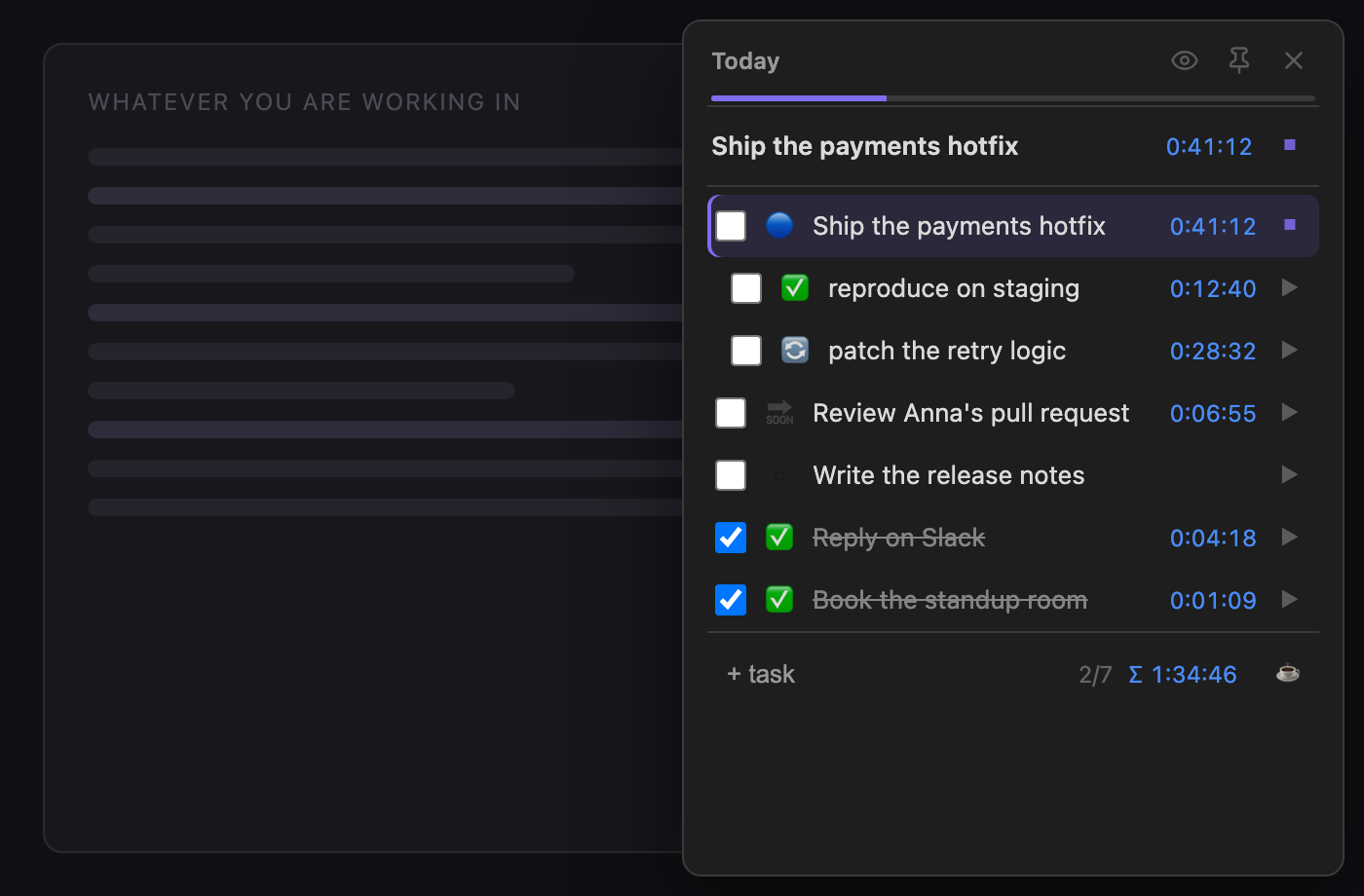
The overlay is docked to the right edge and floats above whatever you are working in. It never hides behind the window you switch to.
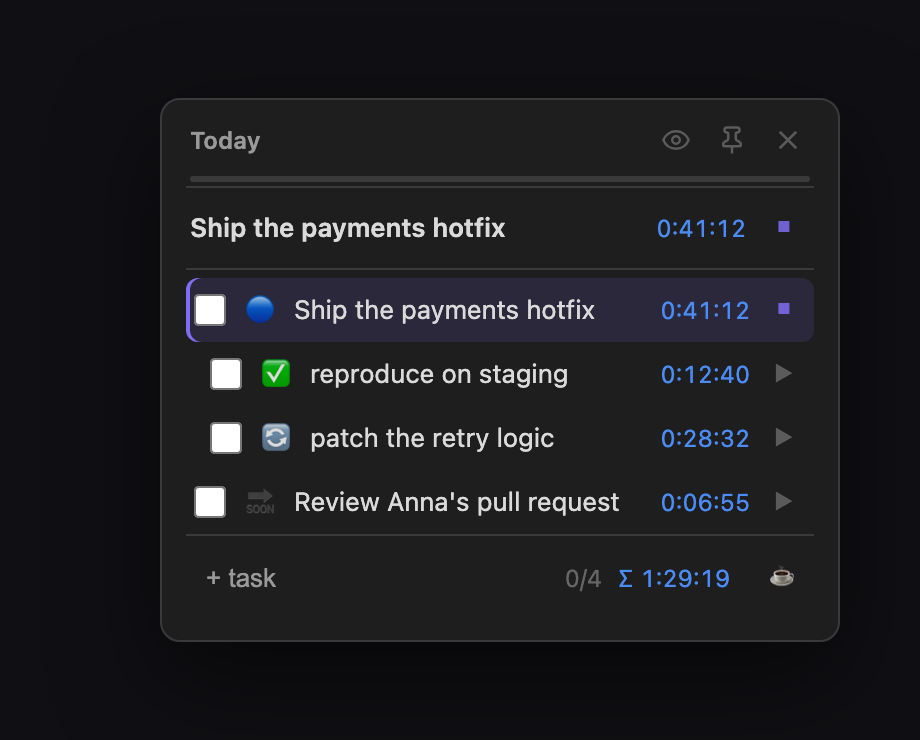
While a timer runs, a sticky header keeps the current task and its ticking time at the top, no matter how far the note is scrolled. The footer counts finished tasks and the total time of the note.
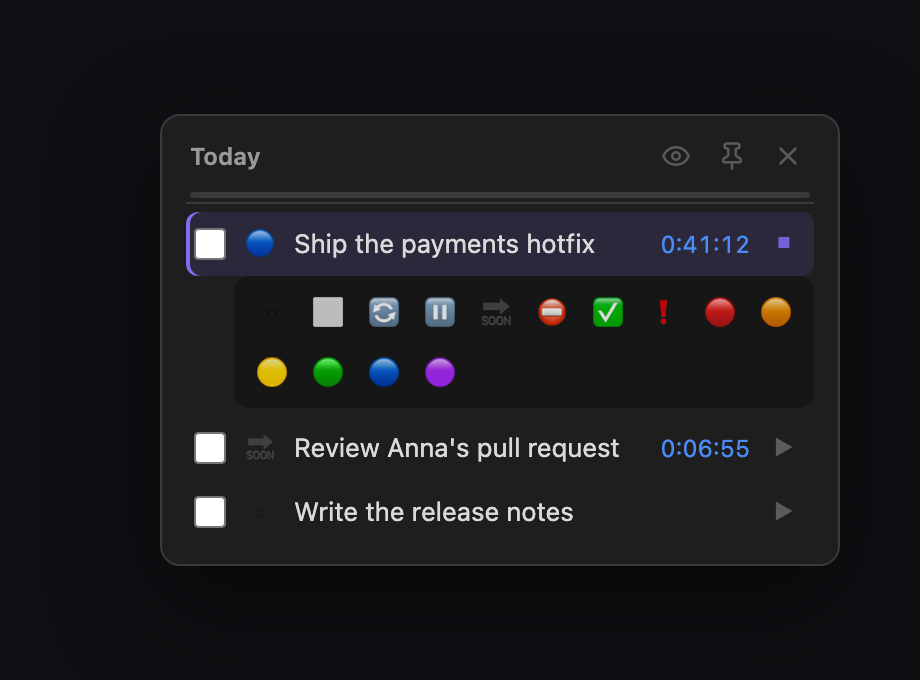
One click on the status button opens an inline palette. The chosen emoji is written into the task line, so the status is visible in plain Obsidian too.
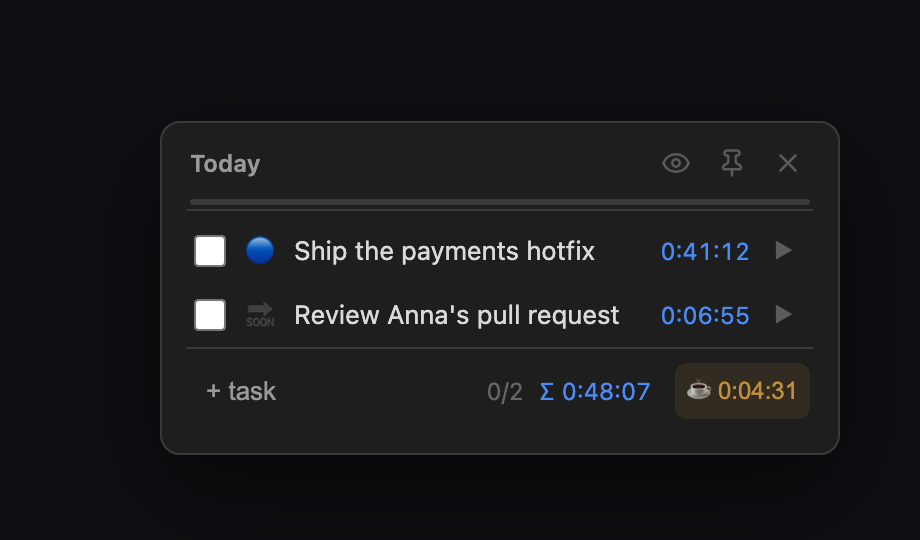
The optional ☕ button stops the task timer and starts a break stopwatch. Total break time accumulates in the note, and a long work session gets a gentle reminder instead of a forced pomodoro stop.
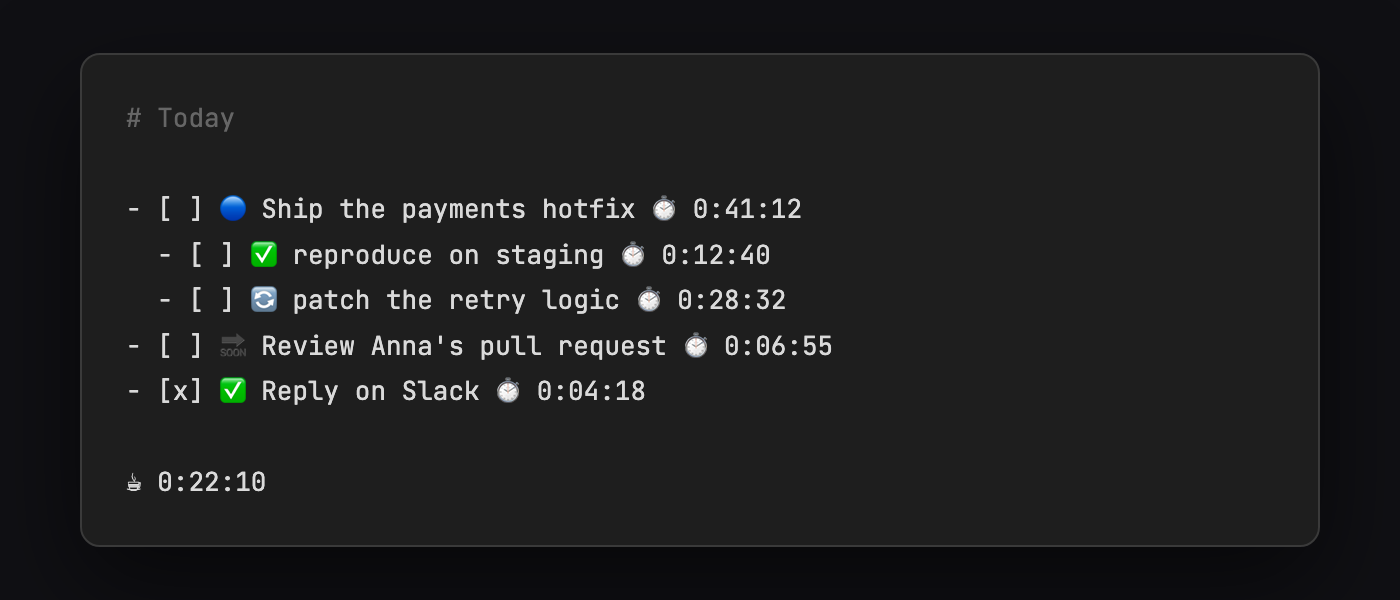
The same note in a normal editor. No hidden database, no sidecar files — which is what makes the data readable by other tools and by AI agents.
Screenshots are rendered from the plugin's own styles.css by
docs/screenshots/render.mjs.
Data format
A task line is ordinary markdown: a checkbox, an optional status emoji, the text, and the accumulated time at the end.
- [ ] 🔵 Ship the payments hotfix ⏱️ 0:41:12
  - [ ] ✅ reproduce on staging ⏱️ 0:12:40
- [x] ✅ Reply on Slack ⏱️ 0:04:18

☕ 0:22:10
Statuses: ⬜ not started · 🔄 in progress · ⏸️ paused · 🔜 deferred · ⛔ blocked · ✅ done · ❗ important · 🔴 🟠 🟡 🟢 🔵 🟣 colour labels.
The plugin stores no task IDs or session metadata blocks in the note.
Its data.json holds settings, the running task timer and the current focus
session or its latest summary, so these survive an Obsidian restart.
Focus sessions
Turn Focus sessions off in settings to use the overlay without session controls or filtering. An unfinished session is kept on pause; turn the feature back on and choose Resume focus when you are ready.
Open the overlay and press Start 3-task session to work through a small selection of open tasks. Use the 1 / 3 / 5 presets, enter a goal from 1 to 20, or press Choose tasks to select individual tasks before starting. The note determines their order; tasks already completed do not count.
- One task at a time. The current selected task stays visible. Up next shows the remaining queue; Show all tasks returns to the full note.
- A clear finish line. Progress counts completed selected tasks. Unchecking one subtracts it again. Adding unrelated tasks does not change the goal.
- Pause and return. Pause freezes session time and saves the task timer. Resume continues the selected work. Paused sessions survive restarting Obsidian.
- Finish deliberately. Reaching the goal freezes session time and shows a finish action. Finishing early saves a summary and leaves unfinished tasks in the note.
Starting a session starts its first task timer. Completing a task reveals the next one; start that timer when ready. Session time includes transitions between tasks and excludes pauses. It is separate from recorded per-task work time. The command Pause or resume focus session can be assigned a hotkey.
Task matching uses unique titles without adding IDs to Markdown. Give duplicate tasks distinct names to select them. Inline edits in the overlay preserve the session link; external title changes may require restoring the title or finishing early. Missing or ambiguous tasks do not count as completed. Markdown examples inside fenced code and frontmatter are excluded.
Only one focus session is active at a time. Opening another note shows a return action. A failed timer save keeps the session recoverable, with Retry save. The coffee-break stopwatch also survives restarting Obsidian. Time while the app is closed counts toward an active break. Ending a break freezes its duration before saving; a failed save remains available through Retry break save, even after restart. Recovery checks the existing coffee total to avoid adding the same break twice. If that total was changed externally, restore it before retrying.
Installation
Desktop only.
Settings → Community plugins → Browse, search for "Always-on-Top Tasks", install and enable.
To install manually instead:
git clone https://github.com/n23eos/obsidian-always-on-top-tasks
cd obsidian-always-on-top-tasks
npm install
npm run build
Copy manifest.json, main.js and styles.css into
<your vault>/.obsidian/plugins/tasks-for-focus-adhd/, then enable the plugin in
Settings → Community plugins. Prebuilt files are also attached to every
release.
Commands
| Command | What it does |
|---|---|
| Open current note as focus overlay | Pins the active note; the path is remembered for next time |
| Hide or show overlay content | Replaces the overlay contents with a neutral placeholder; timers keep running. Bind a hotkey for quick access. |
| Toggle focus overlay | Shows or hides the overlay — worth binding to a hotkey. The target icon in the ribbon does the same |
| Toggle always on top | Lets the overlay drop behind other windows for a moment without closing it; the pin button in the overlay header does the same |
| Stop the running timer | Commits the session from anywhere — the status bar item in the main window does the same on click |
| Toggle completed tasks in the overlay | Hides or shows checked tasks; the eye button in the overlay header does the same |
None of the commands ships with a default hotkey; bind your own in Settings → Hotkeys.
Settings
Grouped into five sections. On Obsidian 1.13 and later every setting is also found by the settings search; older versions get the same tab drawn the classic way, so the plugin keeps working from Obsidian 1.4.
Overlay window — the note to pin (with a file picker), position (docked to the right or left edge, or free: the window stays wherever you drag it, and the place is remembered), width of the docked overlay, full-height toggle, custom height (200-1200 px), opacity.
Timer and breaks — the running timer in the main window's status bar, breaks and the reminder threshold.
Focus sessions: off by default. Enable sessions, set the default task goal, and choose whether to show only the current task. Session setup uses one labeled task-count field.
Appearance — font size, hide completed tasks, tasks only (skip the prose between tasks), the emoji status button, your own status emoji palette, the ribbon icon.
Advanced — two experimental switches, click-through and never-take-focus, off by default, and a reset to defaults that keeps the pinned note and a running timer.
Behaviour worth knowing
-
Failed timer writes preserve a stopped session with its original end time. Use Retry save on the task or status bar after resolving the error. Starting another task first retries that pending save.
-
The pinned task summary appears only after its row scrolls above the header. Narrow panels place task time and controls below the title.
-
Timer operations run sequentially, including rapid switches and repeated stops.
-
One timer at a time. Starting a timer commits and stops the previous one.
-
Checking a task stops its timer and writes the session first.
-
A running timer survives a restart of Obsidian.
-
The plugin never loses time silently. If the task line was renamed or duplicated while the timer ran, you get a notice with the exact session length instead of a wrong write. A session longer than two hours is committed with a "looks like the timer was left running" warning.
-
Editing is one click. Click the task text to rename it in place; the footer has a field for adding new tasks.
-
The top block is a handle. Drag any noninteractive part of the top block, including its side padding; in the free position mode it stays where you leave it, and a saved position on a monitor that is no longer connected falls back to the right edge.
Quick privacy: the shield button and Hide or show overlay content command hide the overlay title, tasks and session details. Timers continue running. Hidden state survives plugin reload and workspace restoration. Use Show content to return. This affects only the overlay, not other notes or the status bar. The command supports Obsidian hotkeys; it does not add a global shortcut or Win+D integration.
Platform limitations
- Desktop only. The overlay needs Electron window APIs, which mobile Obsidian does not have.
- Clicking the overlay activates Obsidian. Electron has no equivalent of a macOS non-activating panel. Focus is released right after each button click, but that one focus switch is unavoidable.
- Linux/Wayland: whether a window can stay on top is up to your window manager.
- The always-on-top behaviour uses Electron APIs that are not part of the public Obsidian plugin API. Every call is guarded: if a future Obsidian version breaks them, the plugin degrades to a normal, unpinned window instead of failing.
Development
npm install
npm run dev     # watch build
npm test        # vitest — unit tests for the pure core
npm run check   # tsc --noEmit
npm run lint    # typescript-eslint + eslint-plugin-obsidianmd, the rules ObsidianReviewBot runs
src/core/       pure logic, no Obsidian imports (fully unit-tested)
  focusSession.ts task selection, matching, duration and stored-session validation
  taskLine.ts   task line parser and serializer (emoji palette, elapsed time)
  timer.ts      timer sessions, line addressing (line number + exact text)
  breakLine.ts  the "☕ H:MM:SS" total-break line
src/settings.ts settings model, migration of old data.json, reset (unit-tested)
src/SettingDefinitions.ts  the settings described once, as Obsidian 1.13 definitions
src/SettingsTab.ts  getSettingDefinitions() for 1.13+, a display() adapter for older versions
src/electron.ts BrowserWindow access: always-on-top, geometry (all guarded)
src/TimerService.ts  the single running timer, atomic writes via vault.process
src/FocusSessionService.ts  session lifecycle and safe coordination with task timers
src/StatusBarTimer.ts  the running timer in the main window's status bar
src/overlay/    popout window controller and the overlay view
macos/          the standalone SimpleFocus app, unrelated to the plugin build
For a browser UI check with synthetic notes, run node scripts/ui-preview.mjs
and open http://127.0.0.1:4319. This runs the production overlay and timer
service against a small Obsidian adapter. It covers scrolling, narrow panels,
light/dark colors, duplicate tasks and simulated write failure. Native Electron
window behavior still requires Obsidian.
Put VAULT_PATH=/path/to/vault into .env and run npm run install-local:
it creates the plugin folder in your vault and symlinks main.js,
manifest.json and styles.css into it, so npm run dev reloads live.
With the Obsidian CLI enabled in Settings → General, a running Obsidian can be driven from the terminal:
obsidian plugin:reload id=tasks-for-focus-adhd   # pick up a fresh main.js
obsidian dev:errors                              # what the plugin logged
obsidian dev:screenshot path=overlay.png
Attribution
The @electron/remote runtime resolver is adapted from
obsidian-synaptic-hatch
(MIT).
Also in this repository: SimpleFocus
A native macOS menu bar app with the same idea — a floating task panel above all windows — but without Obsidian, and with a true non-activating panel that never steals keyboard focus. See docs/simplefocus.md.
License
More projects
Obsidian plugins
| Plugin | What it does |
|---|---|
| Graph Insight | Explore large vaults as an interactive graph. |
| Always-on-Top Tasks | Keep a note and its tasks in a focused floating overlay. |
| Column Explorer | Browse a vault with Finder-style Miller columns. |
| Vault Sunburst | Visualize folder sizes, word counts and file counts. |
| Vault Telegram Bridge | Capture Telegram messages and media in an Obsidian vault. |
Browser extensions
| Extension | What it does |
|---|---|
| FloatPlayer - Picture in Picture | Keep YouTube video in a floating picture-in-picture player. |
| Eye Rest 20-20-20 | Gentle 20-20-20 reminders for your eyes. |
Support
If this project was useful to you, feel free to support further development:



Quitting Obsidian with a popout on macOS
For Obsidian 1.13.7 with Electron 39.8.3 on macOS, a guarded workaround completes Quit from a single request when only the current vault and one focus overlay are open. It saves pending session and timer state before allowing windows to close, then completes the requested exit after both windows have closed. A failed save leaves the windows open and shows a notice. It never force-closes a window or bypasses Obsidian's save handlers.
The workaround stays inactive with other vaults, settings popouts or other BrowserWindows, unsupported versions, or a later registered Quit handler. These cases retain Obsidian's normal behavior, which can leave the process running after closing popouts. Issue Quit again if needed. This conservative scope avoids interfering with another window's save or cancellation. See the safety and restart checks.
Collapse nested tasks
Use the arrow beside a parent task or list item to hide or show its descendants. The arrow also works with Enter and Space. Fold state stays while the overlay view is open and survives task updates. The note itself is unchanged.
Hidden tasks still contribute to totals. If a hidden task has a running timer, its stop button remains in the pinned header. Current-task session mode shows the selected task regardless of folds.