
README file from
GithubTask Trellis
Turn tasks scattered across your vault into a clear plan.
Task Trellis is a configurable kanban board for Obsidian. Bring tasks from daily notes, meeting notes and project pages into one view, while keeping each task in its original note. See what you're working on now, what needs to get done this week, and what should come next from your backlog.
Build boards around the way you work, use color to distinguish projects and categories, and capture ideas from your phone while they're fresh.
Quick start · iPhone capture · AI agents · Guides
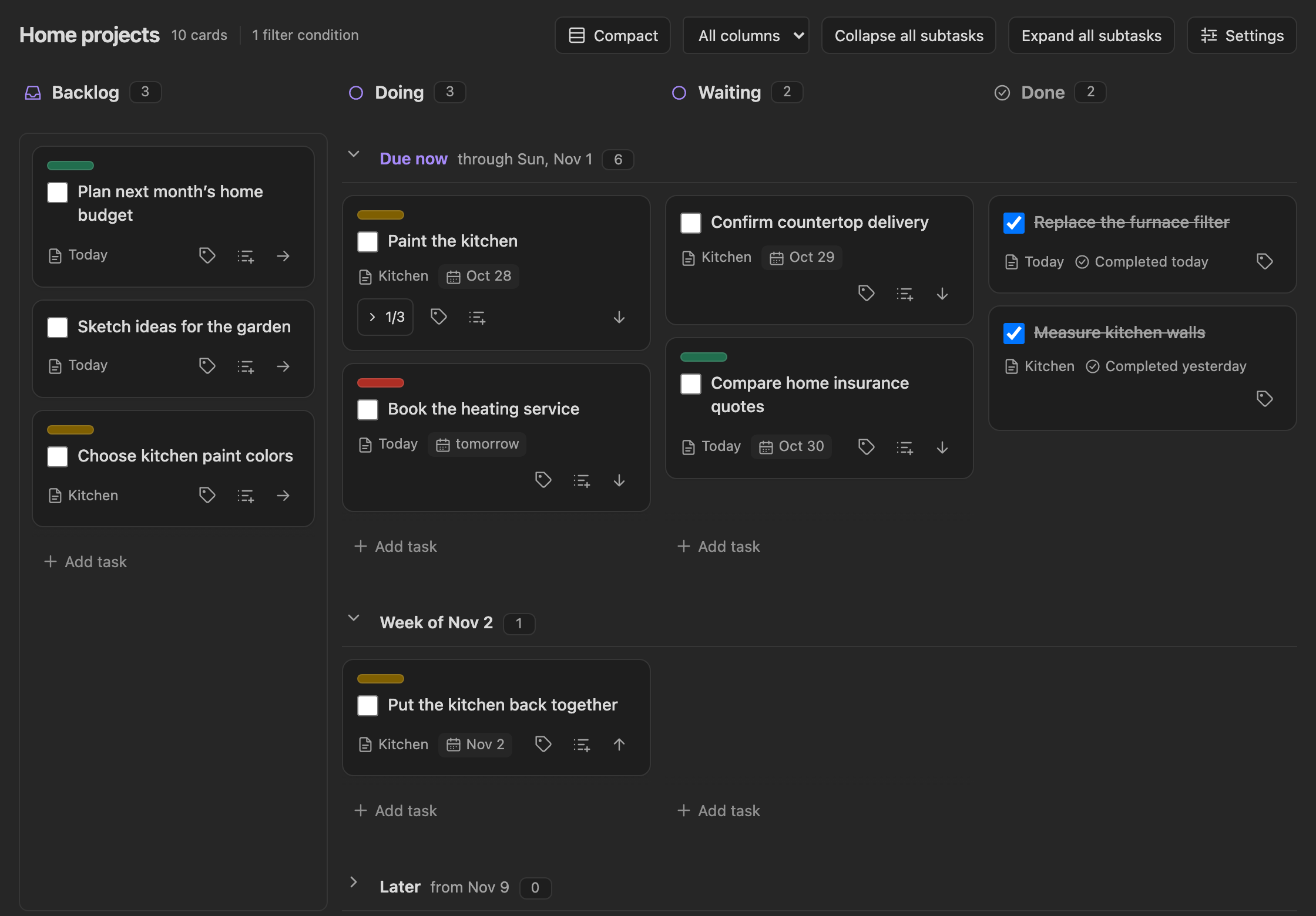
See progress and timing together: columns show where work stands, and date rows show when it needs attention. The board above is a sample Work board in Obsidian; the phone screenshot below uses sample tasks in the browser preview.
See what matters and decide what comes next
- Know what you're working on. Give work a clear place in columns such as Backlog, Doing, Waiting and Done—or name your own stages.
- Plan the week ahead. See overdue tasks, upcoming deadlines and undated ideas together. Choose the planning window and drag cards between date rows to reschedule them.
- Give your backlog a useful order. Reorder cards, bring the next task into focus, and leave ideas without a due date in their own row or column until you're ready to schedule them. Arrange → Sort by due date puts every date row in order, sooner first, moving as few cards as it can.
- Triage a group at once. Select cards individually, by column, or after filtering, then change their column, due date, labels or priority together. Bulk triage →
- Recognize projects and categories at a glance. Assign multiple colored labels to a card: Urgent, Financial planning, Paint kitchen, or whatever matters to you. Each board has its own label names and colors, shown as pills, circles or squares.
- Choose the right scope. Build separate views for work, home or a specific project. Include or exclude tasks using tags, folders and note properties.
- Keep the context close. Add subtasks from the card, expand them when you need the detail and collapse them for an overview, and reorder them by dragging on desktop. Open any card's note in a pop-up editor over the board, or in a tab.
- Let an AI agent help. Agents such as Claude Code and Codex, and your own scripts, can read boards and add, move, complete and triage tasks through Obsidian's command line, with the same safety checks and Undo as the board. Agents and the CLI →
Keep working with the tasks you already have
Your tasks stay as Markdown checkboxes in your notes. Board actions update those tasks directly, and board placement and label assignments are stored as ordinary tags. Your notes remain available to Obsidian search, task queries and workflows built around your Markdown.
The same task can appear on several boards without being copied. Each board can give it a different column, order and set of labels; completion and due dates belong to the shared task. For example, Review the budget can appear on both a Work board and a Financial planning board, and completing it updates both.
The optional Tasks plugin adds its task editor and recurring-task behavior. New tasks can go into a specific note or today's daily note, with an optional heading. You can keep capturing work where it already belongs. Integration details →
Capture an idea from your phone
Add a task as soon as it occurs to you, with a due date or without one, and with its labels. + Add task sits at the top of each mobile task list, and under the open board in the boards sidebar, which adds to the top of that board's backlog. The ready-made iOS shortcut sends a task to your chosen vault and board, opens Obsidian, and saves it to the board's configured note.
When you're ready to review, swipe between full-width columns, check off tasks, assign labels, and move cards using the drag handle or Move to… menu. You can capture on your phone and plan on a larger screen using your existing vault sync.
Work with AI agents and scripts
Ask an agent to "add a Paint kitchen task with three subtasks to my Kitchen note" or "move everything overdue on my Home board to next week", and it can do it with commands such as:
obsidian task-trellis:boards
obsidian task-trellis:show board=home
obsidian task-trellis:add board=home note="Projects/Kitchen.md" text="Paint kitchen" subtasks='["Buy paint","Tape the edges","Paint the walls"]'
The commands answer in JSON. They see each board as you do, refuse to overwrite tasks that changed since they were read, and offer a dry run and Undo. They need desktop Obsidian 1.13.7 or later with Settings → General → Advanced → Command line interface turned on, and Obsidian running. Set up agents and the CLI →
Make it pleasant to come back to
Choose from eleven label color schemes or create your own colors. Switch back with Previous scheme if you prefer the old palette. Resize columns on desktop and tablet, use compact spacing when you want more on screen, and collapse subtasks to keep the board easy to scan.
Find a card by typing in Search cards…, or press Cmd/Ctrl+F in a board: it matches the card's text, note name and labels, and a matching subtask brings its card along. Narrow the board in one click with quick filters in the toolbar. Boards start with some, such as High priority and Overdue, and you can add your own for priorities, labels, due dates, tags, folders or note properties. Turn on several at once to focus further, keep the ones you use less in a menu, and each board remembers which ones you left on. Color rules tint the cards they match, such as everything in a client's folder, using the same choices as quick filters, in any color and opacity, solid or in a pattern such as stripes.
In Appearance, choose the label shape, whether completed subtasks move to the end of their list or are hidden, whether overdue cards get a red edge, and whether notes open in a pop-up or a tab. Big boards stay quick: a long cell shows 25 cards at a time, with more for the rest.
Rename a board from its title or Settings → General, optionally renaming its tags with a preview and a recovery copy. General also duplicates a board, giving the new one the same columns, labels and filters, and deletes one. Deleting moves only the board note to the trash; none of your tasks are deleted.
Theme-aware styling, keyboard controls for cards, subtasks and settings, screen-reader announcements, and save buttons above the mobile keyboard make everyday interactions easier. Undo is available for task moves, completion changes, label assignments, bulk edits, subtask reordering and sorting.
Quick start
- Install and enable Task Trellis from Settings → Community plugins → Browse in Obsidian. The installation guide also covers installing a release by hand.
- Run Task Trellis: Create board from the command palette, give it a name, and choose what it starts from: a plain Kanban board, a Weekly planner, a Project, an Eisenhower matrix, or an Example board full of sample tasks to try things out.
- The New tasks settings open automatically. Choose A specific note, such as
Tasks/Inbox.md, outside the boards folder. Or choose today’s daily note if Daily notes is enabled. - Under Filters in the Setup tab, choose which tasks belong here. Leave filters empty to show tasks across your vault. The destination note must satisfy your filters.
- Save with the green checkmark, then select + Add task at the top of a column on your phone. Use the tag icon to assign colored labels.
The Tasks plugin is optional; it adds a task editor and recurring tasks. Set up the ready-made iOS shortcut for faster capture.
Guides
| I want to… | Guide |
|---|---|
| Customize columns and due-date groups | Board settings |
| Show the right tasks on each board | Filters |
| Search a board for a card | Search the board |
| Add one-click quick filters to the toolbar | Quick filters |
| Color cards by folder, label, priority or property | Color cards |
| Add tasks, move cards or manage subtasks | Tasks and cards |
| Update several tasks at once | Bulk triage |
| Create and assign colored labels | Labels |
| Capture tasks from an iPhone shortcut | iOS Shortcuts |
| Let an AI agent or script read and update tasks | Agents and the CLI |
Your vault stays yours
Task Trellis works locally, requires no account, and collects no telemetry. Your existing vault sync carries the task lines and board settings between devices. Privacy and integrations.
Everything is stored in ordinary tags and note properties, and every 1.x release reads what earlier ones wrote. Formats and compatibility.
Help and feedback
Fix common problems · Report a bug or suggest a feature
Development and credits
Build and test locally · Release checklist
Task Trellis is licensed under the MIT license and is inspired by the work of Jaroslav Krčál on 4D Eisenhower Matrix. The runtime also includes monkey-around by PJ Eby (ISC). See third-party notices and the provenance record; all notices are embedded in the generated bundle.