
README file from
GithubTask Planner
Plan the tasks already in your vault.
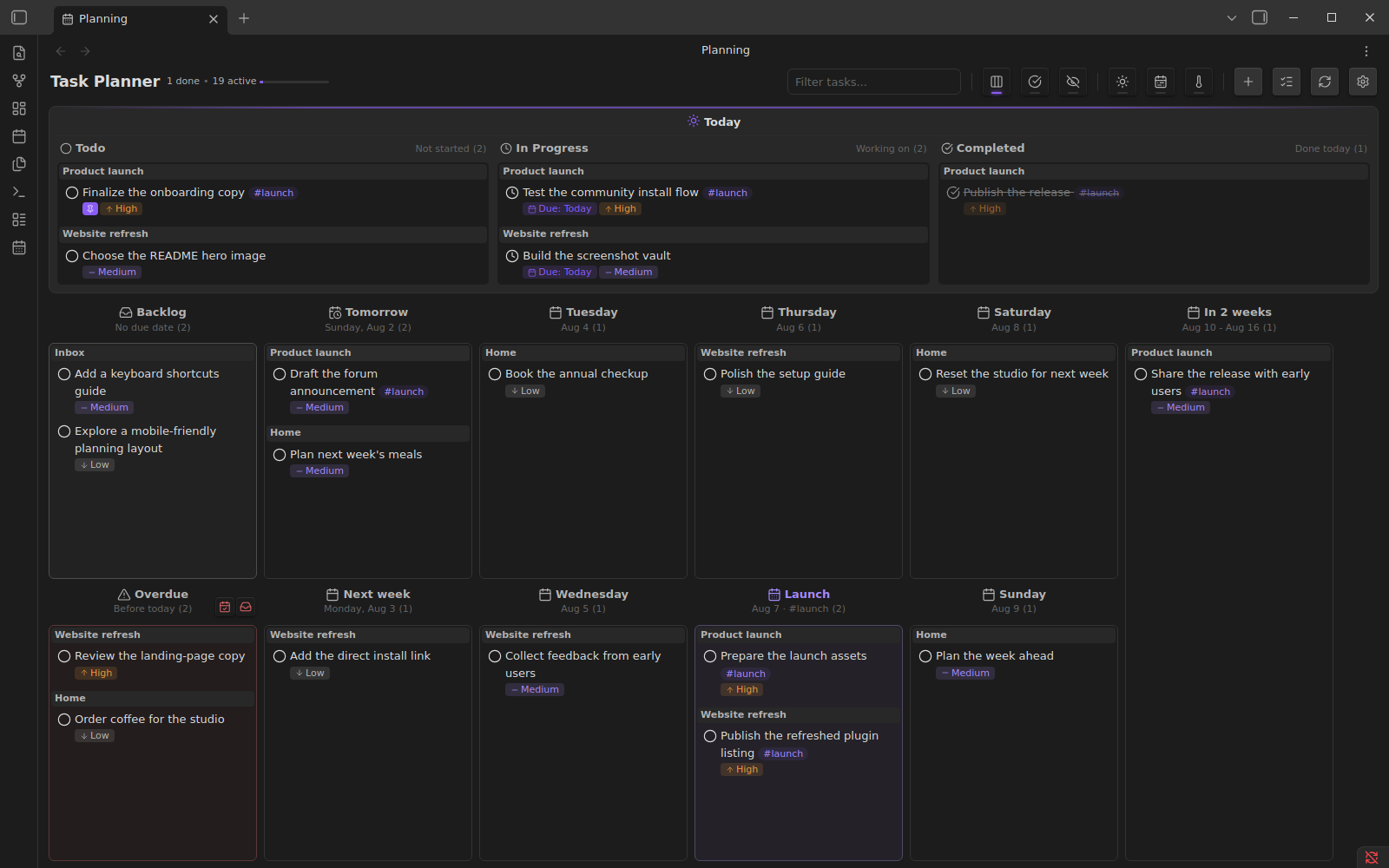
Task Planner turns Markdown checkboxes across your notes into a drag-and-drop time-planning board for Today, backlog, overdue, and future horizons. Move a card and its source task updates in place.
Install from Obsidian's plugin directory



Why Task Planner
- Keep tasks in your notes. Task Planner reads ordinary Markdown checkboxes throughout your vault instead of moving them into a separate database.
- Plan by time. Drag tasks between Today, backlog, weekdays, weeks, months, quarters, years, or your own custom horizons; overdue tasks remain visible for rescheduling.
- See the day clearly. Todo, In Progress, and Completed columns provide a focused daily workflow, with an optional WIP limit.
- Update the source. Moving a card changes the status, due date, or optional tag on its original Markdown task.
Quick start
- Open Task Planner in Obsidian's plugin directory, then install and enable it.
- Run Task Planner: Open planning from the command palette.
- Drag tasks into Today or a future horizon. Task Planner writes the change back to the source note.
Add tasks anywhere in your vault using Markdown checkbox syntax:
- [ ] Review the launch brief [due:: 2026-08-07] [priority:: high] #launch
- [>] Prepare the demo [due:: 2026-08-01]
Task Planner does not require a special task file or a separate database.
Core capabilities
Plan across the whole vault
- Gather tasks from any Markdown file
- Filter by task text
- Ignore selected folders or archived content
- Group cards by their source note
- Pin important tasks so they remain visible
- Collapse and expand subtasks
Work with time horizons
- Backlog and overdue columns
- Today, tomorrow, and individual weekdays
- Configurable week, month, quarter, and year horizons
- Custom horizons based on a date and, optionally, a tag
- Today and Future focus modes
- Drag-and-drop movement between horizons
Manage status and priority
Supported task statuses:
- [ ] Todo
- [>] In progress
- [x] Completed
- [-] Canceled
- [d] Delegated
- [!] Attention required
Priority values are critical, high, medium, low, and lowest.
Use readable Markdown metadata
Task Planner reads and writes Dataview-compatible inline fields:
- [ ] Schedule the review [due:: 2026-08-10] [priority:: medium]
- [ ] Keep this visible [selected:: true]
Dataview is not required. The Markdown remains readable and editable without Task Planner.
Optional shorthand expansion can convert attributes when you complete a line:
@today→[due:: YYYY-MM-DD]for the current day@tomorrow→[due:: YYYY-MM-DD]for the next day@high→[priority:: high]
Enter several shortcuts without leaving the task
Write the shortcuts on the same task line, for example:
- [ ] Schedule the review @tomorrow @high
While editing that line, run Task Planner: Complete line attributes from Obsidian's command palette. It expands the enabled shortcuts in place without creating another line. For repeated use, assign the command a hotkey under Settings → Hotkeys.
With Settings → Task Planner → @ shortcuts → Auto-convert enabled, leaving the task line also expands its shortcuts. Enter retains its normal Markdown editing behavior; use the command when you want to keep editing the same task.
Choose a due date from a note
On a task line, type @date to choose a due date directly in the suggestion popup—no second dialog. You can also run Task Planner: Set task due date from the command palette. Save keeps the task on the same line. The command works when @ shortcuts are disabled and can be assigned a hotkey.
The picker uses your configured due-date field and lets you change or remove an existing date. Cancel leaves the note unchanged, and normal editor undo restores a saved change. If the note changes while the picker is open, it asks you to reopen rather than overwriting that edit. A custom date shortcut takes precedence over the calendar suggestion.
You can still edit inline metadata directly, for example [due:: 2026-10-20] (or your configured field name).
Commands
- Open planning — open the planning board
- Open todo report — review completed tasks
- Quick add task — create a task in the configured destination
- Mark task as checked / unchecked — toggle completion
- Mark task as ongoing / unchecked — toggle in-progress status
- Complete line attributes — expand enabled date, priority, and custom shortcuts
- Set task due date — choose, change, or remove the current task's due date
Configuration
Open Settings → Task Planner. All preferences are on one page, in Obsidian's native searchable groups—no Essential/Advanced subpages or collapsed sections.
- Planning board: maximum horizons per column, daily WIP limit and fuzzy search.
- Quick add: destination, insertion point and task template.
- Horizons: weekdays, week start, weeks, months, quarters and next year. Custom horizons use native add, edit, reorder and delete controls; edits are saved explicitly, and Cancel leaves the original untouched.
- Task attributes and @ shortcuts: field names, automatic conversion and custom expansions.
- Indexing: excluded folders, applied immediately without restarting.
- Undo and Follow-up tasks: history limits, notifications and what follow-ups copy.
Maximum horizons per column is the first setting. Choose 1–6 to limit vertical stacking in the future board. 0 preserves automatic layout (up to two normally, three in Future focus). This is a maximum: a short pane may fit fewer. Today is unchanged, and additional horizons remain reachable by horizontal scrolling.
Existing preferences and custom lists are preserved on upgrade; no notes are rewritten. Invalid edits show validation feedback rather than silently storing an unusable value. Use Obsidian's settings search to find a preference directly.
Compatibility and data ownership
- Requires Obsidian 1.13.4 or newer as of Task Planner 2.2.0, the first public desktop release with the canonical settings API. Task Planner 2.1.0 remains available for older hosts.
- Desktop only
- Stores tasks in user-owned Markdown files
- Uses inline fields for planning metadata
- Does not require Dataview or an external service
Task Planner updates the specific source task when you change it from the board. Keep normal vault backups or version control as you would for any tool that edits notes.
Support
- Report a bug or request a feature
- View releases and release notes
- Open the Obsidian community listing
Development and contributing
See CONTRIBUTING.md for the development environment, validation commands, real-Obsidian tests, and pull-request guidelines.
License and attribution
Task Planner is licensed under the GNU General Public License v2.0.
It is based on Proletarian Wizard by cfe84 and contributors, also licensed under GPL v2.0.