
README file from
GithubTask Gantt
English | 日本語
An interactive project-management Gantt for Obsidian. One Markdown file = one task; a configured folder is shown and edited as a "table + timeline" Gantt — drag bars to reschedule, link dependencies, set milestones, sort and filter, and move tasks between folders by dragging.
Requires Obsidian 1.11.4 or later.
Screenshots
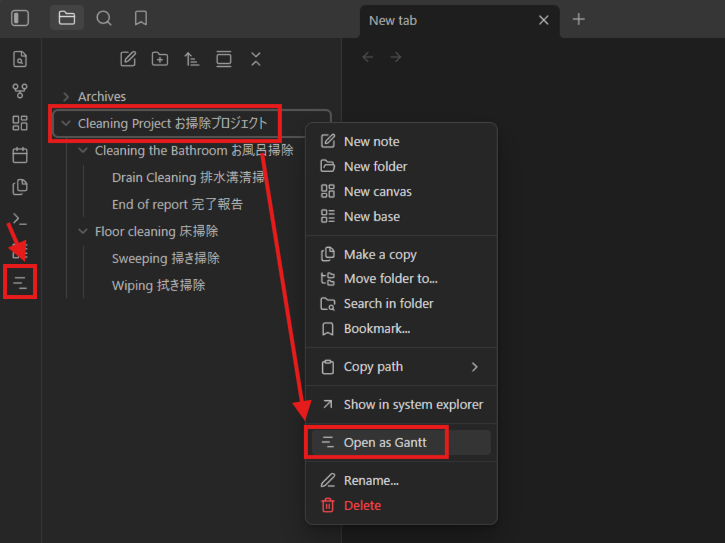
Open a folder as a Gantt from the left-column ribbon button, or by right-clicking the folder → Open as Gantt:
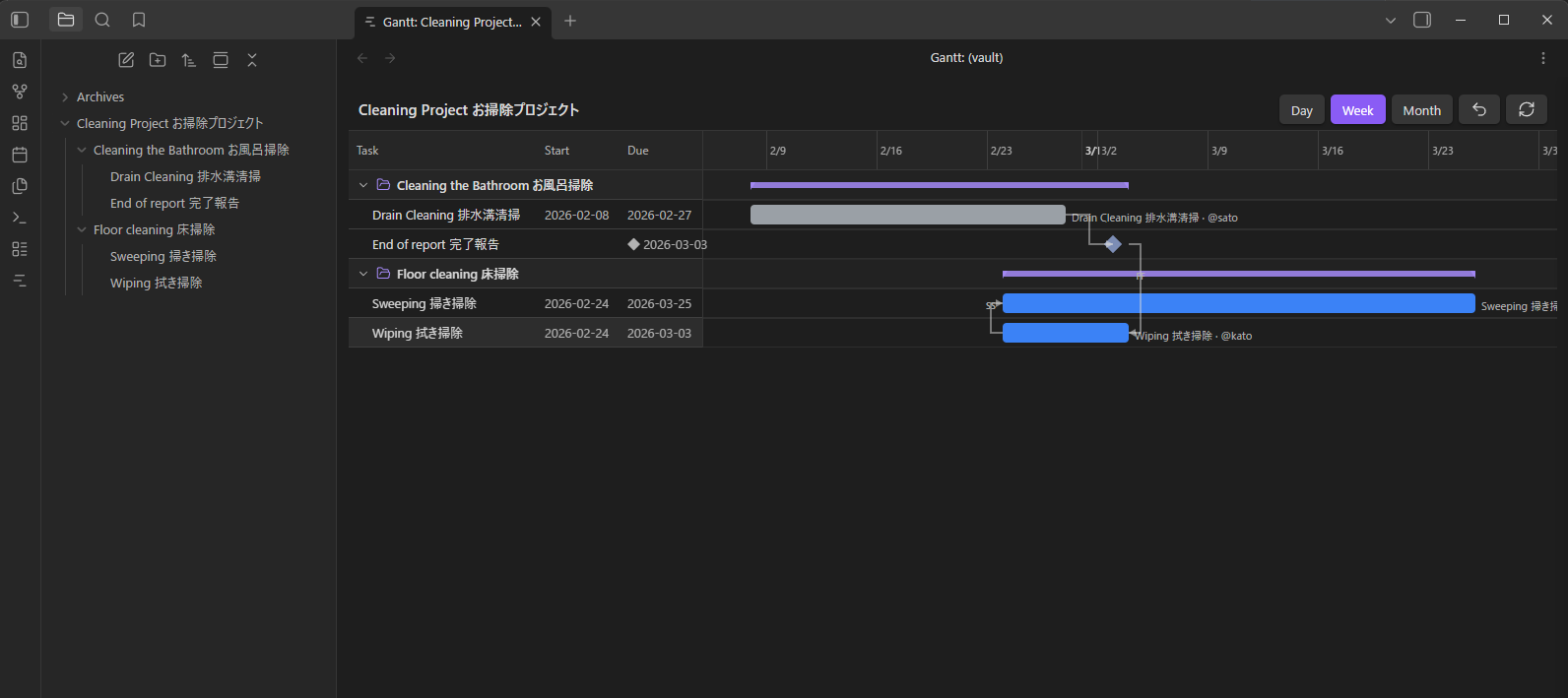
The folder opens as a table + timeline, with groups, bars, milestones, and dependency arrows:
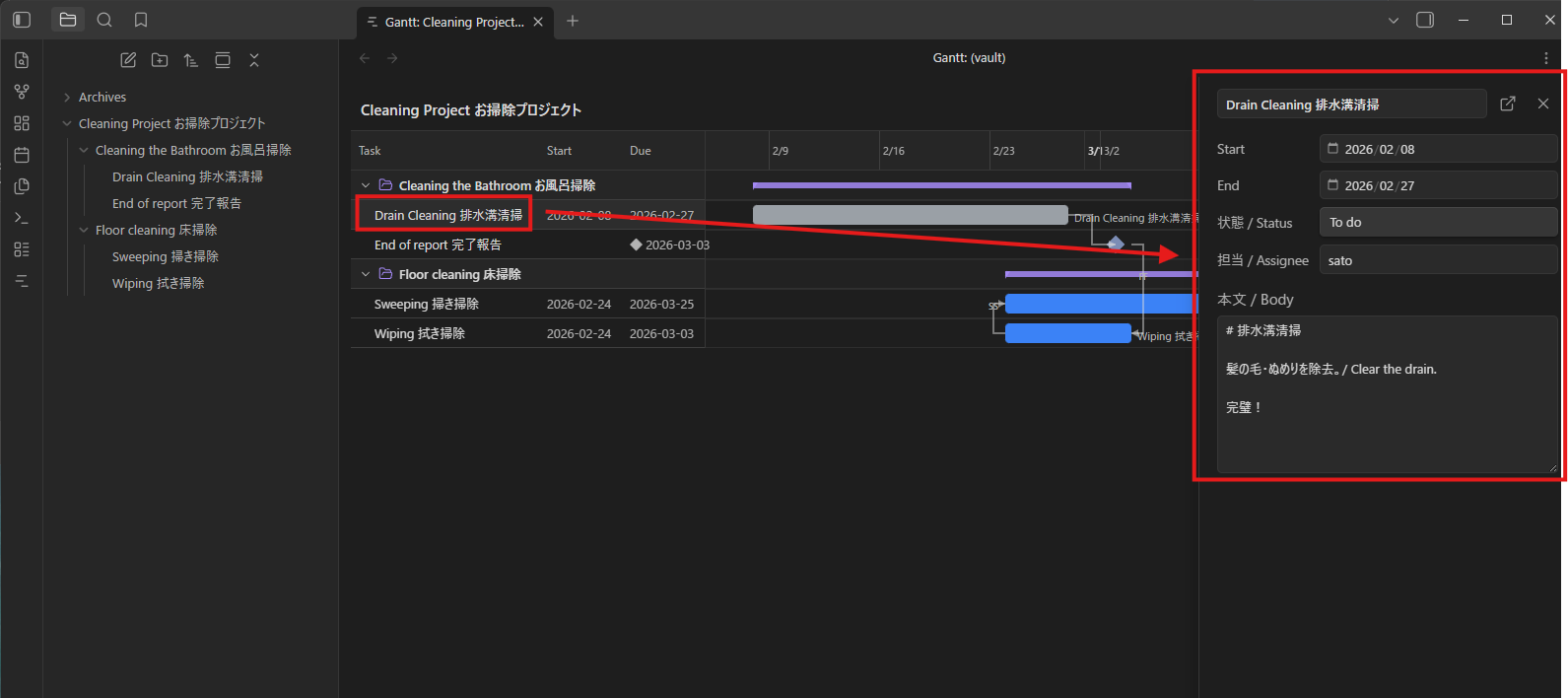
Click a task to open the detail panel and edit its dates, status, assignee, progress, and body:
Usage
- In Settings → Task Gantt, set the target folder (e.g.
Projects/Cleanup). - Open the view from the "Open Gantt" ribbon icon in the left column (or the command "Open Gantt"). The ribbon opens the Gantt for the folder of the currently open note — or the folder selected in the file explorer — and falls back to the default folder in settings (the vault root when none is set). You can also right-click any folder → Open as Gantt.
- Direct subfolders become groups, and the
.mdfiles inside them become tasks. - Drag a bar / resize its edges to write the new dates back to that file's
start/endfrontmatter. Every column the table can show is editable in place — just double-click the cell. Start and Due open a calendar, Duration takes a number of workdays, Progress takes a percentage (0–100; blank or 0 clears it), Status opens a dropdown, Assignee is a text field that suggests names already used in the board (type[[to link a note instead), and Tags opens a small editor with a chip per tag (× to remove) and an add field that suggests the vault's existing tags. Enter or clicking away saves, Esc cancels. - Click a task in the table — or double-click its bar — to slide in a detail panel (dates, status, assignee, progress, body) from the right. Links in the body are clickable (internal links open the note, Ctrl/Cmd-click for a new tab, with Page preview on hover); click anywhere else in the body to edit it, and type
[[to insert a link to a note. - Use the + New task button to create a one-day task in the current folder and name it on the spot, and Today to scroll the timeline to the current date.
- Use the Day / Week / Month / Fit buttons to change the timeline scale. Fit auto-scales to the pane width and re-fits when you resize.
The UI follows Obsidian's display language. Supported: English, Japanese, Korean, Chinese (Simplified & Traditional), French, Spanish, and Russian; any other language falls back to English.
View options
An options row above the table shapes how the board is displayed.
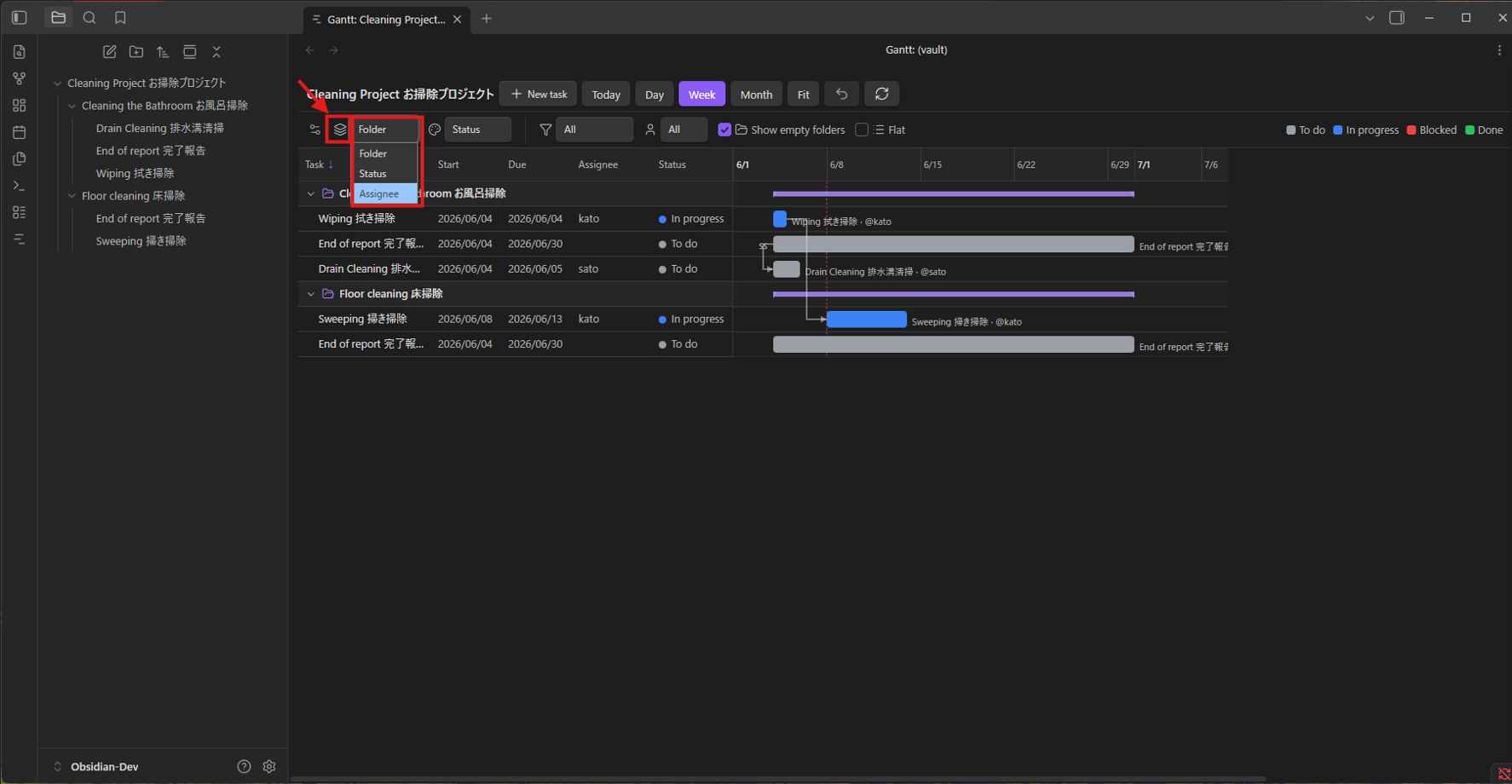
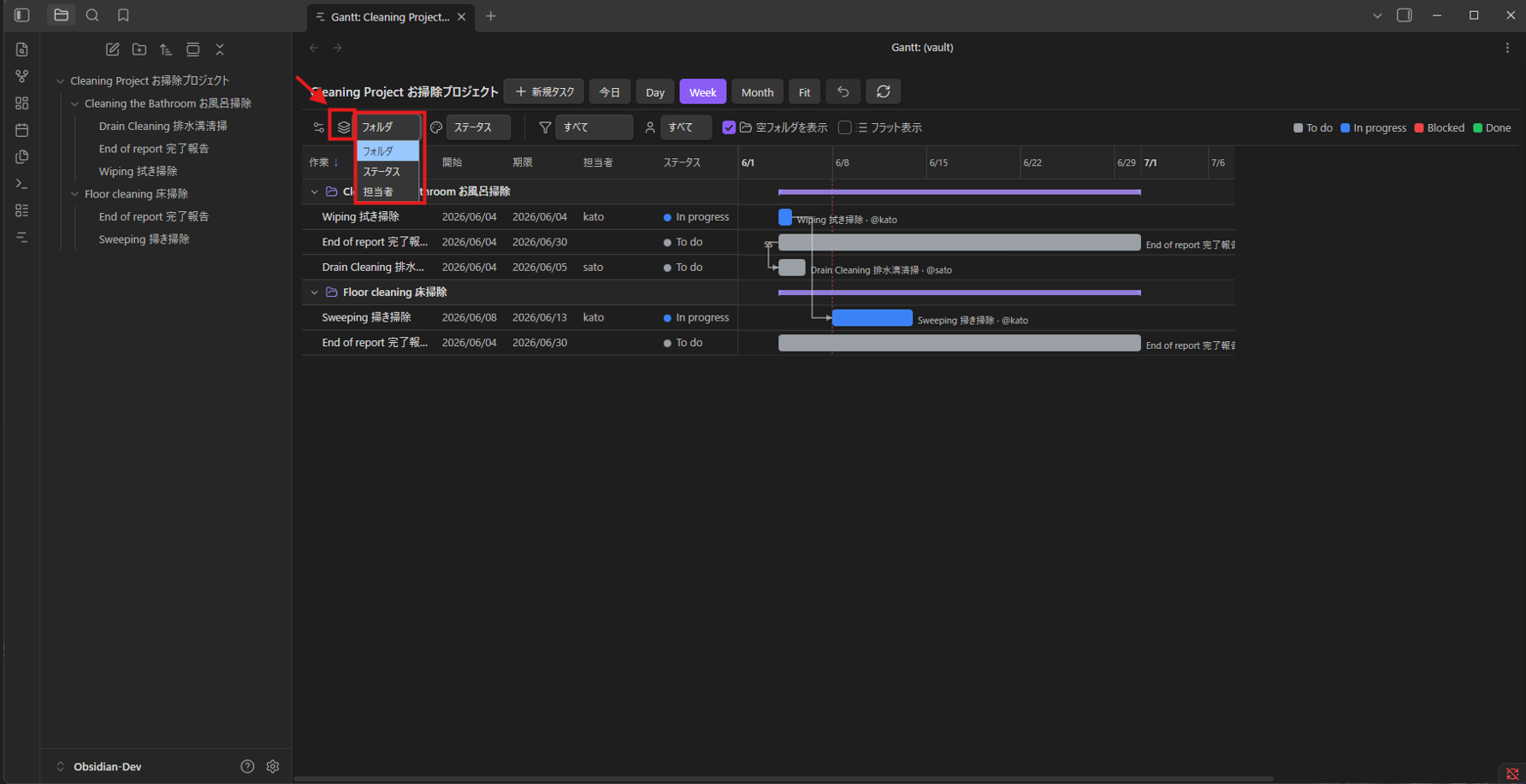
Group by folder, status, or assignee, and color by status or assignee (with a legend):
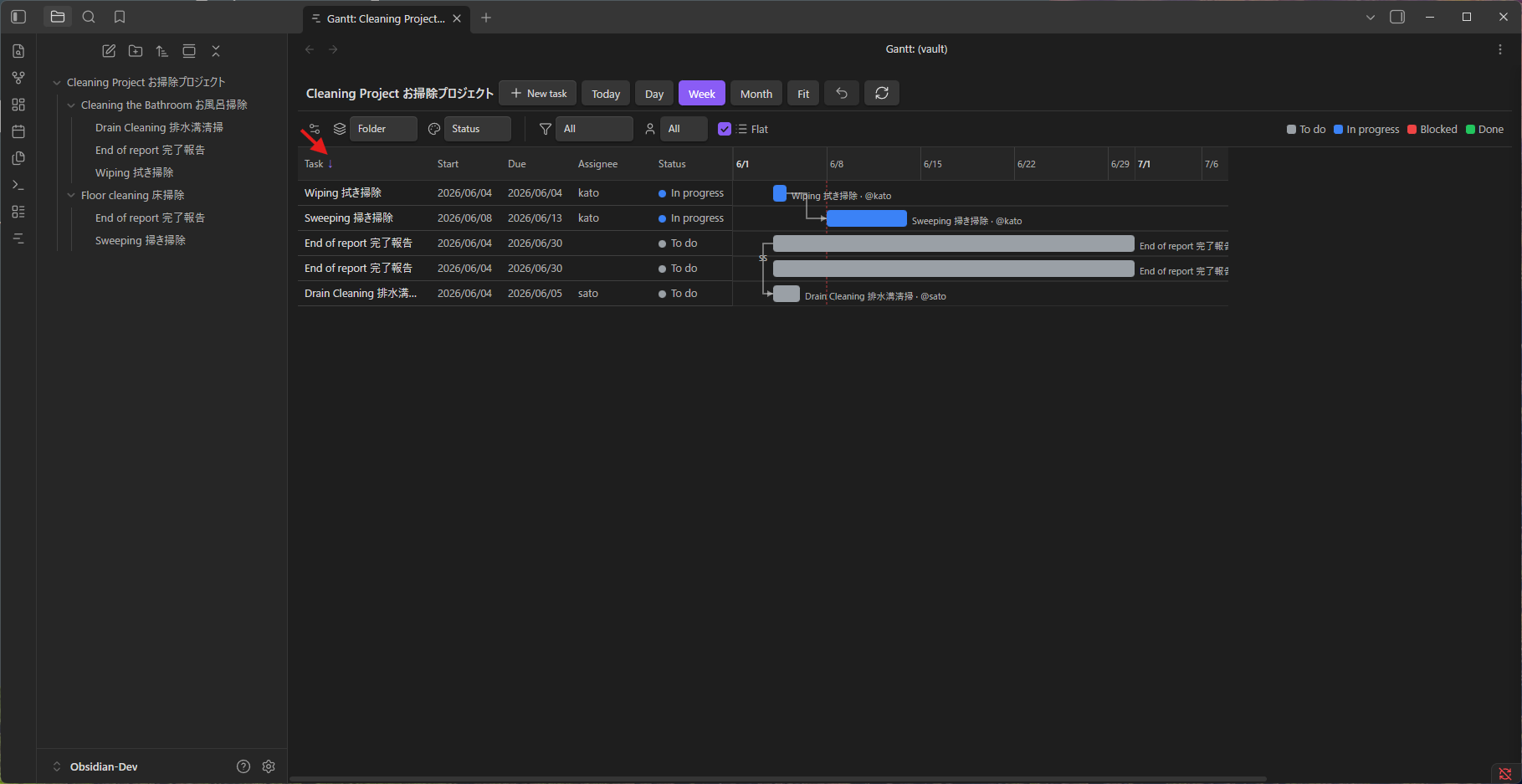
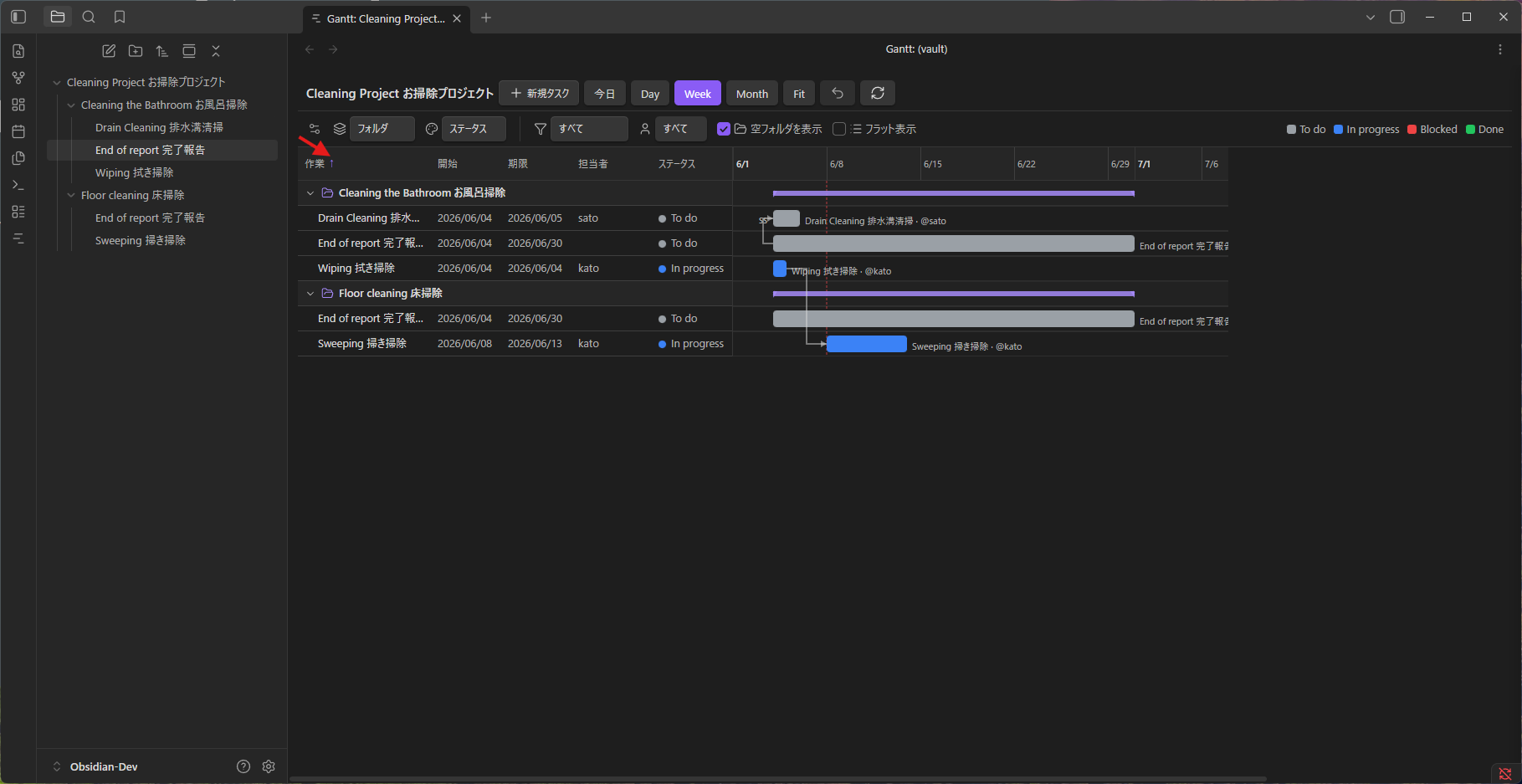
Sort by clicking a column header; click it again to flip ascending/descending (↑/↓):
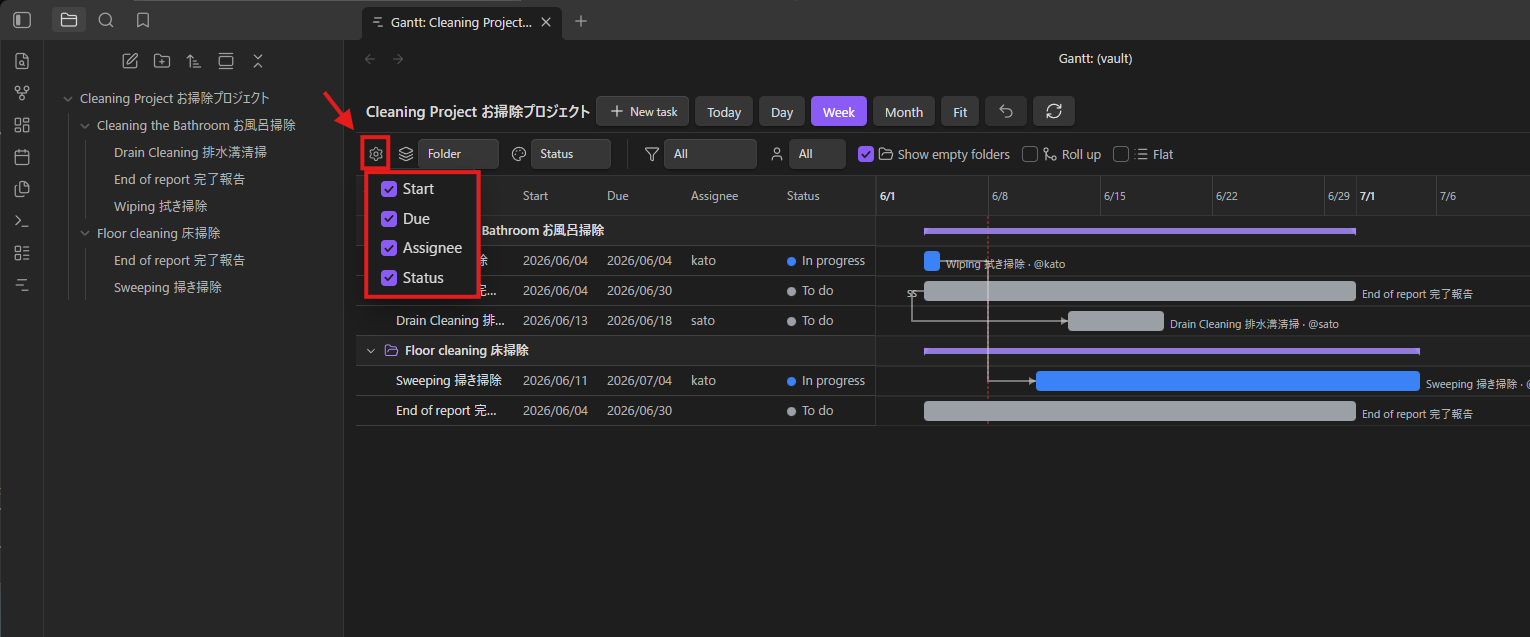
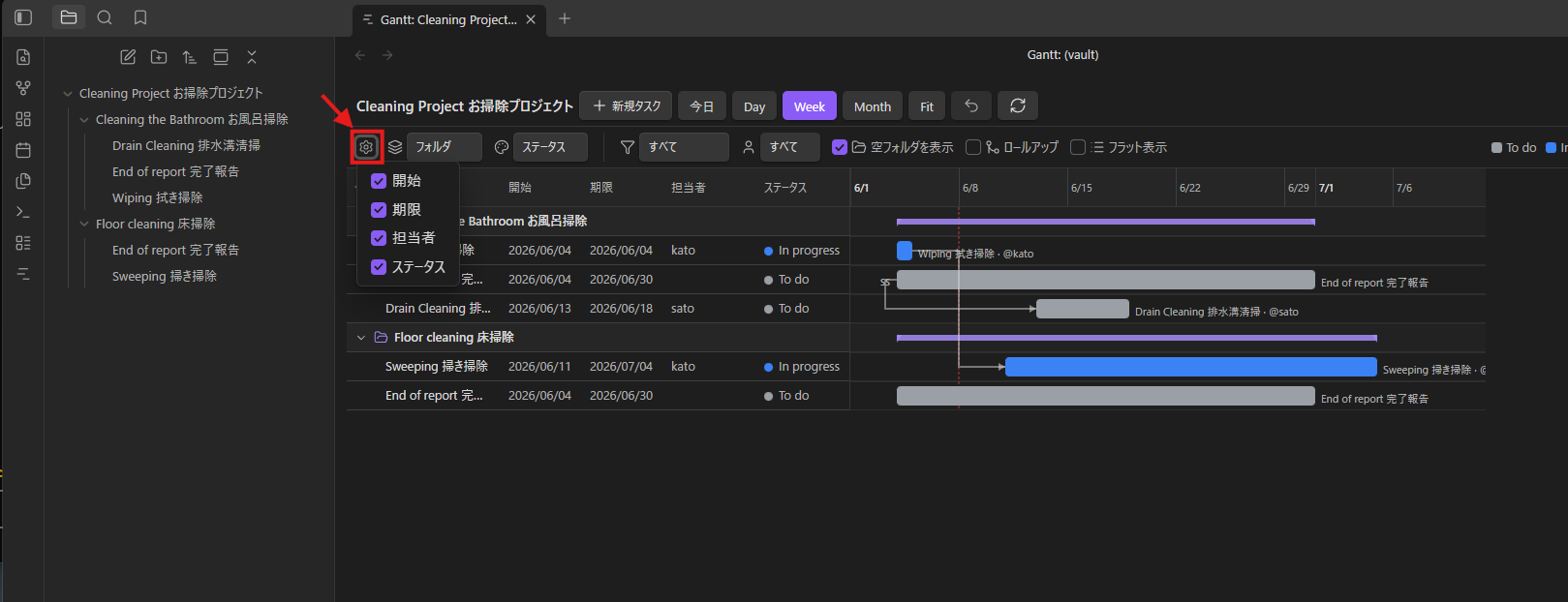
Choose columns with the gear button — show or hide Start, Due, Duration, Progress, Assignee, Status, and Tags. Any column shown here can be edited by double-clicking its cell. The column layout and sort are remembered across sessions:
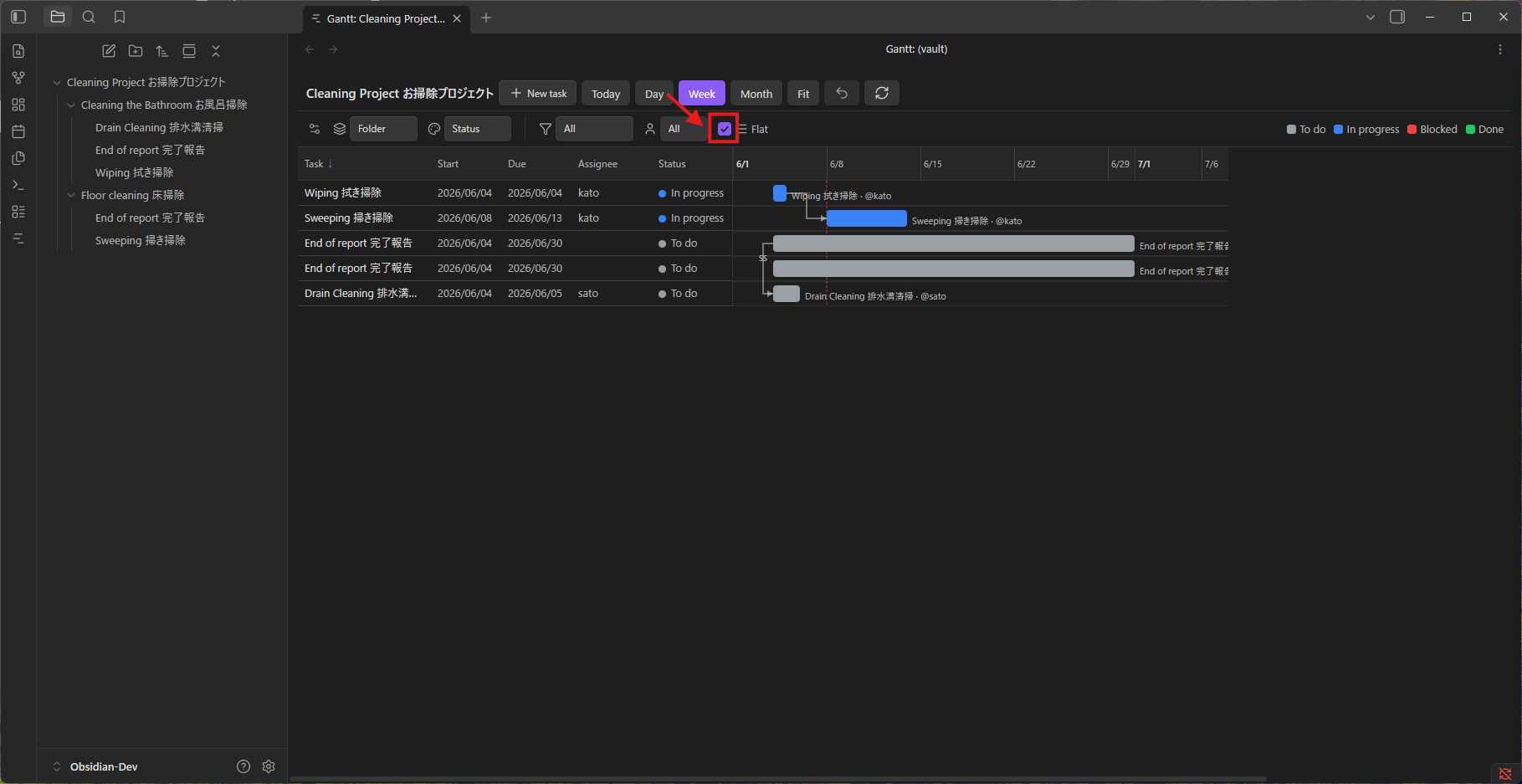
Flat view lists every task in one sorted list, ignoring folders and nesting:
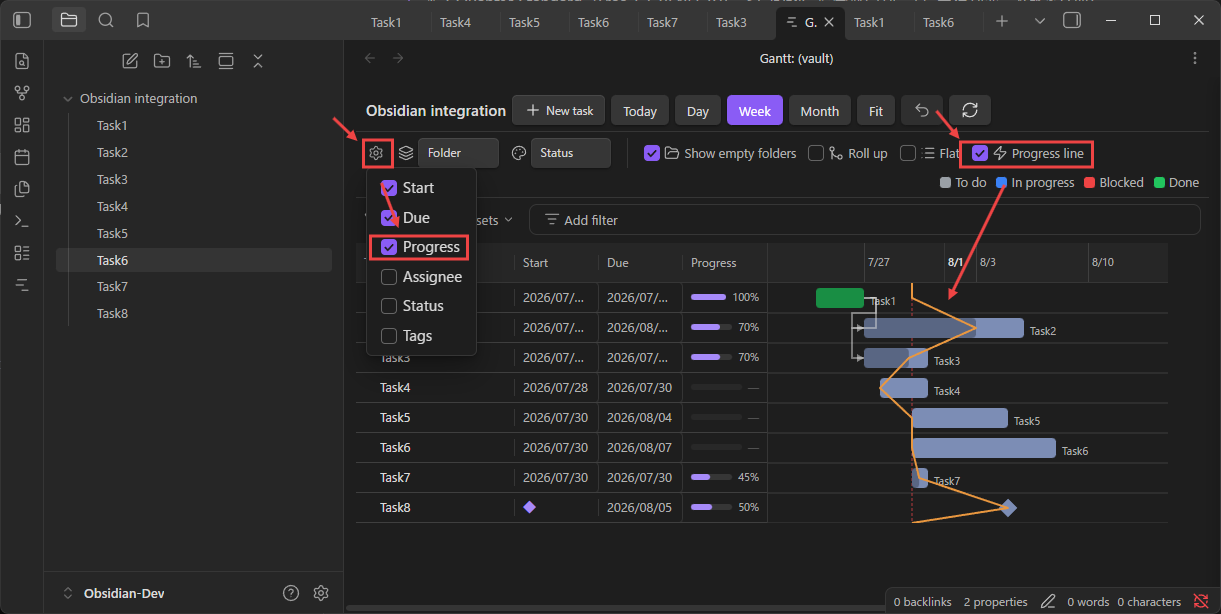
Progress line draws a jagged line down the board from today, bending to each task's achieved progress: left of today means behind schedule, right means ahead. Per row, the line sits at the point on the bar matching the task's progress — so a task due last week but only 40% done pulls the line back to its 40% mark. Tasks at 100% and tasks that haven't started yet (and aren't due to) stay on the today line, as do folder rows and rolled-up parent bars. A task past its start date with no progress pulls the line back to its start date. Its color is configurable in Settings → Task Gantt → Progress line color.
Custom fields
Show any frontmatter key as a table column. In Settings → Task Gantt → Custom fields, click Add field and give it a key (the frontmatter property, e.g. client), an optional label for the column header, and a type:
- Text — shown as is. A list value is shown comma-separated, and editing it writes a list back.
- Number — right-aligned and sorted numerically.
- Date — shown in your date format and edited with the same calendar as Start / Due (the date part only).
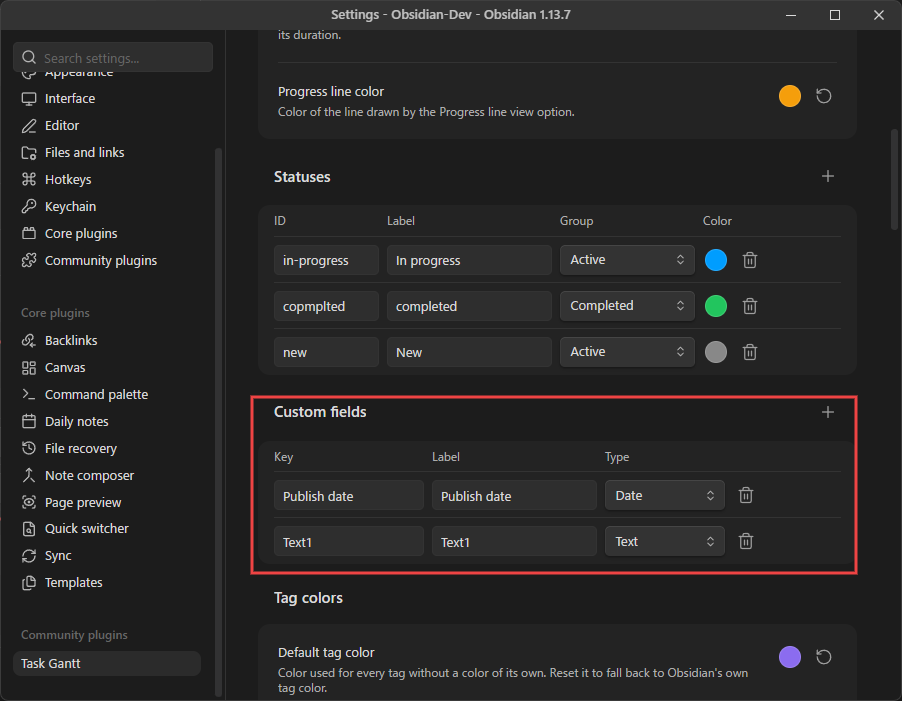
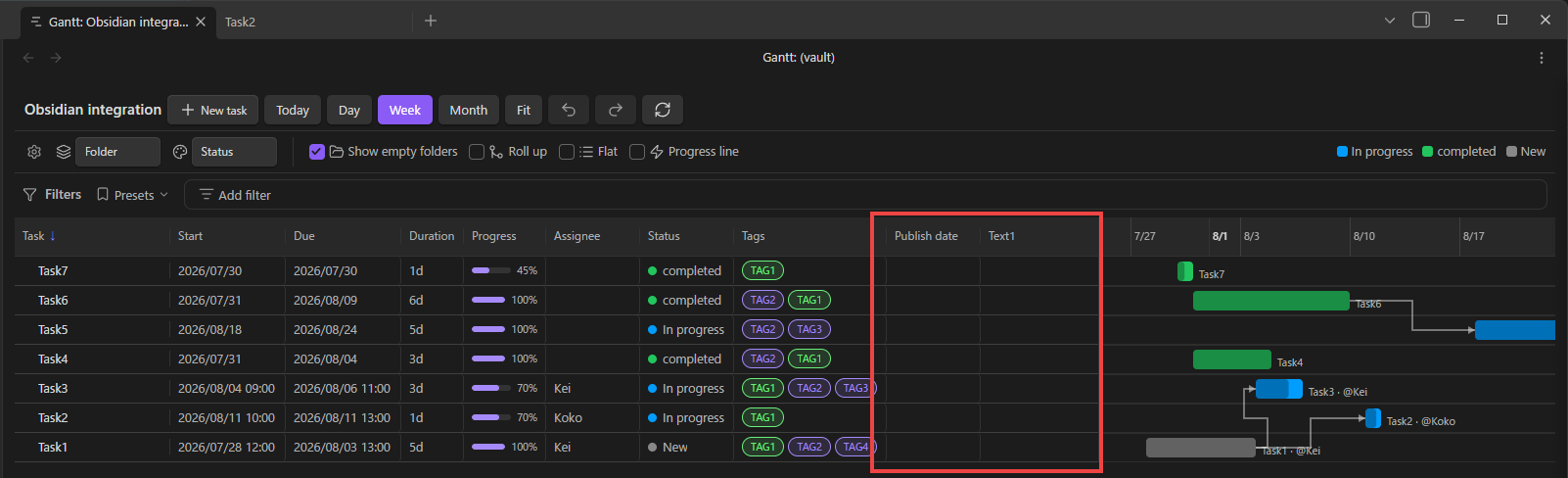
A new field's column is shown right away; hide or show it from the gear menu like any other column. Custom columns sort by clicking their header and are edited by double-clicking a cell, and every edit can be undone. Changing a field's key keeps its column's visibility, width and sort, and takes effect when you press Enter or leave the box. If notes still hold values under the old key, you're asked whether to rename that property in those notes too (a note that already has a value under the new key is never overwritten) or only to point the column at the new key. Keys the plugin already reads (the Start / Due / Status / … keys under Frontmatter keys, and tags) can't be used, and if two fields share a key only the first becomes a column — the settings tab says so.
Filters
A filter row below the options narrows the board. Click Add filter and pick a field — Name, Status, Status group, Assignee, Tag, Start date, or Due date — then set its condition. Each filter shows as a chip you can click to edit or remove with ×.
- Name matches with is / is not / contains / does not contain / starts with / ends with.
- Status / Status group / Assignee / Tag let you tick several values — including (none) for unset — with is / is not / is empty / is not empty.
- Start date / Due date compare against a preset (yesterday/today/tomorrow), a specific date, a relative date (e.g. 1 week from now, recomputed each day), or a date range, with is / before / after / on or before / on or after / empty / not empty.
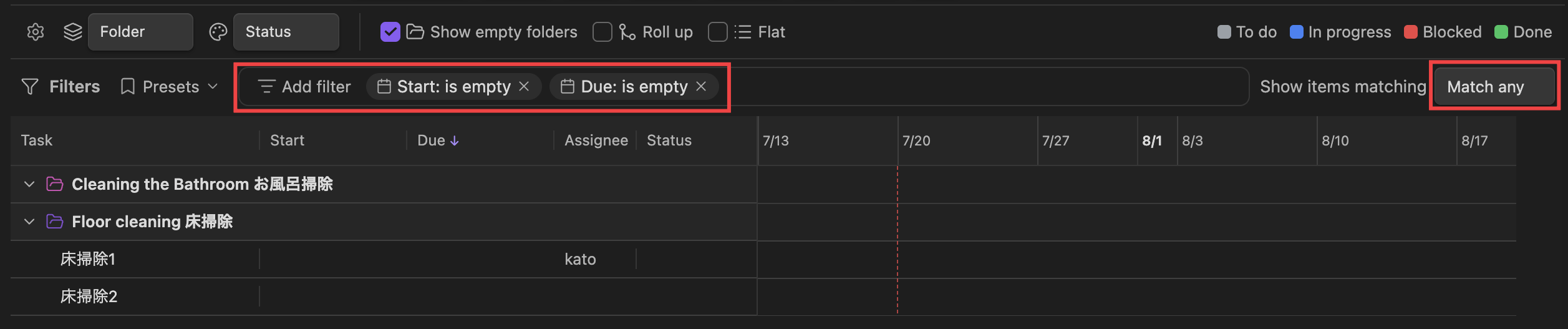
With two or more filters, choose Show items matching → Match all (AND) or Match any (OR) on the right.
Presets
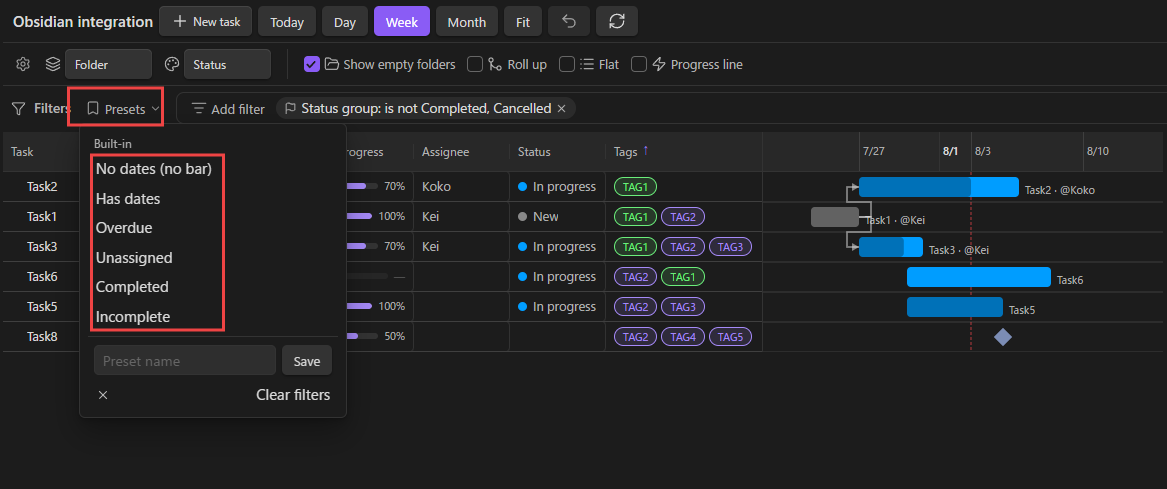
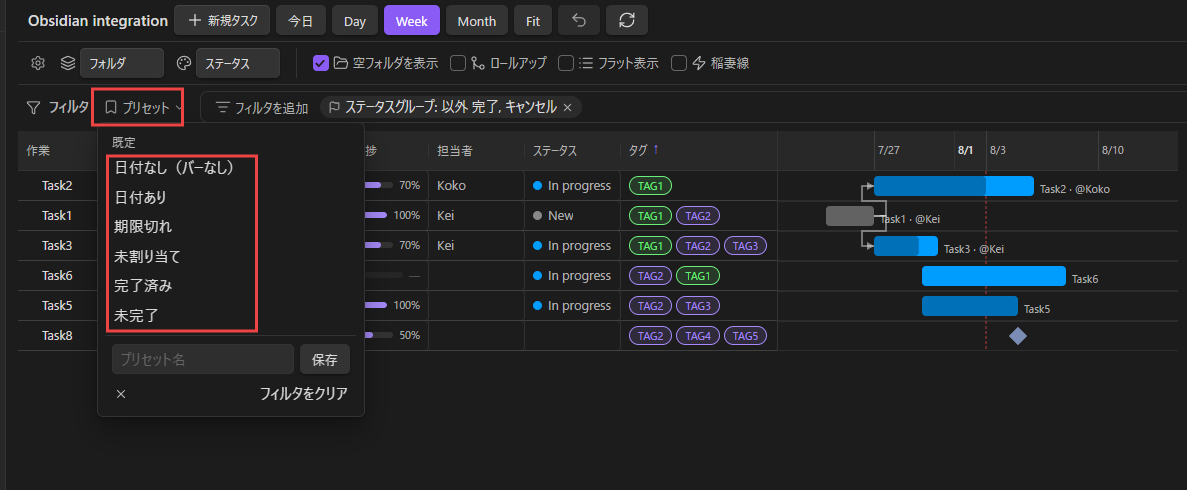
Open Presets for one-click filter sets. Built-in presets are No dates (no bar), Has dates, Overdue, Unassigned, Completed, and Incomplete. The last two read the status group rather than status names: Completed is everything in the Completed group, and Incomplete is everything that is neither Completed nor Cancelled — active work, deferred work, and tasks with no status at all. Build any combination of filters and save it as a preset by typing a name — saved presets can be re-applied or deleted, and Clear filters removes them all. Filters and presets persist across sessions.
Moving tasks between folders
When grouped by folder, drag a task row onto a folder to move the task into it (or onto another task to drop it into that task's folder). Links are updated automatically, and the move is undoable with Ctrl/Cmd+Z or the undo button. Empty folders stay visible as rows so you always have a drop target; the Show empty folders toggle (on by default) controls this.
Subtasks
Give a task a parent (a single wikilink to another task) and it nests under that parent in the table, with a chevron to collapse or expand. When grouped by folder, drag a task onto another task to make it a subtask — it moves into the parent's folder with its whole subtree; drag it onto a folder to detach it back to the top level. Cycles are blocked, and every move is undoable. The Roll up toggle draws a parent's bar (and its Start/Due cells) as the span of its descendants. Set or clear the parent from the detail panel.
Tags
Tasks use Obsidian's native tags (frontmatter tags: plus inline #tag), so they stay in sync with Obsidian's search and tag pane. Group by Tag to see a task under each of its tags — a multi-valued task appears in several groups — filter by tag, and show a Tags column of chips. When grouped by tag, drag a task onto a tag group to add that tag, distinct from a folder drop, which moves the task. Add or remove tags in the detail panel, or double-click the Tags cell to open the same editor there. Either way, tags are written to frontmatter tags: — a #tag written in the body is shown but can't be removed from here.
Coloring tags and folders
Every tag starts from a single Default tag color — Obsidian's own tag color unless you change it in Settings → Task Gantt → Tag colors — and you can override any individual tag on top of that. Folders get an automatic color from their name instead.
Right-click a folder heading, a tag heading, or a tag chip to change or reset its color. Setting a color registers that tag under Per-tag colors in settings; resetting removes it again, so the list holds exactly the tags you have deliberately coloured — everything else follows the default. You can also add a tag there by picking it from your vault's tags, and removing one asks for confirmation, since the settings tab has no undo. Rows are listed alphabetically. Folder colors are right-click only.
If the video doesn't play above, watch it here.
Creating tasks
Press + New task to create a dated note in the current folder and rename it immediately. You don't have to start there, though: every note inside the target folder already appears as a row — including notes with no dates yet — so you can also click an existing note and set Start / Due in the detail panel to turn it into a scheduled task. Empty cells are double-click editable too, so you can fill a blank value straight from the table.
Task frontmatter
Each task is a single Markdown file. The schedule lives in frontmatter; the description is the body.
---
start: 2026-02-04
end: 2026-02-07
status: in-progress
assignee: kato
progress: 40
after:
  - "[[Sweeping]]"     # predecessor (dependency arrow)
---

# Wiping
The body is the task description (shown in the detail panel).
| Frontmatter | Meaning |
|---|---|
start / end |
Start / end date YYYY-MM-DD (bar position and length). A time of day can be added as YYYY-MM-DDTHH:mm+09:00 (edit via the detail panel; the offset follows the Timezone setting). |
status |
Status ID (defined in settings, reflected in bar color; its status group drives the Completed / Incomplete filters). |
assignee |
Assignee (label shown next to the bar). Can be a note link such as "[[John Doe]]" — it's shown as a clickable link, and the note's name is used for the label, legend, filters and grouping. |
progress |
Progress 0–100 (fill inside the bar; editable with the detail-panel slider, or by double-clicking the Progress column). |
after |
Array of wikilinks to predecessors (dependency arrows; violations turn red). |
milestone |
true for a diamond (zero duration). |
gcal |
true opts the task into Google Calendar sync (only used when Sync flagged tasks only is on). |
gcalId |
Set automatically once the task is pushed to Google Calendar — the linked event's ID. Don't edit by hand. |
Milestones: a task that has only an end date (no start) is automatically treated as a milestone and drawn as a diamond. Setting milestone: true does the same. To turn a milestone back into a ranged task, give it a start date.
The task name is the file name (without extension); the group is the parent subfolder name. Frontmatter key names can be changed in settings.
Sample data for a quick try lives in examples/Cleaning Project お掃除プロジェクト/ (point the target folder at it).
Dependencies
Drag from a bar's round handle to another bar to create a dependency. The connected ends decide the type: FS (finish→start), SS (start→start), FF (finish→finish). SS/FF successors snap to their predecessor when you reschedule. An FS successor is pushed later when its predecessor slips into it — it moves to the next workday after the predecessor's due date and keeps its duration — and the push carries on down the chain. Moving a predecessor earlier never pulls its successors back, so gaps you left on purpose stay. Turn this off with Push FS successors automatically in settings. Milestones never move through dependencies. Click a dependency line to remove it (undo with Ctrl/Cmd+Z or the undo button).
Duration
The Duration column (turn it on from the gear menu) shows how many workdays a task spans, counting both ends and skipping the non-working days set in settings (Saturday and Sunday by default). It isn't stored anywhere: it's worked out from start and end, which stay the source of truth.
- Change the duration (double-click the cell, or use the field in the detail panel) and the start stays put while the due date moves. A task with no start date starts today.
- Change only the start date and the due date moves with it, so the duration stays the same — the bar slides. Changing the due date changes the duration instead. Dragging a bar's edge on the timeline resizes it as before.
- Together with FS dependencies you can schedule by duration: give each task a duration, chain them with FS links, and a slipping task pushes everything after it.
Undo and redo
Every change made on the board can be undone with Ctrl/Cmd+Z or the undo button, and redone with Ctrl/Cmd+Shift+Z, Ctrl/Cmd+Y or the redo button: cell edits, everything in the detail panel (including renames and body text), dragging bars, dependencies, moves and subtasks, tags, and creating or deleting a task. Undoing a delete re-creates the note in place. Successors that moved along with a task move back with it. While you are typing in a text field, the shortcuts undo your typing instead. Renaming or moving the board's tasks or folders from the file explorer joins the history too, so undo always walks back in the order things happened. The history lasts while the board is open.
Changes made outside Obsidian — renaming, moving or deleting notes in Windows Explorer or macOS Finder, or by a sync tool — are not part of the history: Obsidian only sees them as a file disappearing and another appearing. Undoing an earlier change to such a note does nothing, so rename and move tasks inside Obsidian (the title field, or Obsidian's own file explorer) if you want to be able to undo it.
Settings
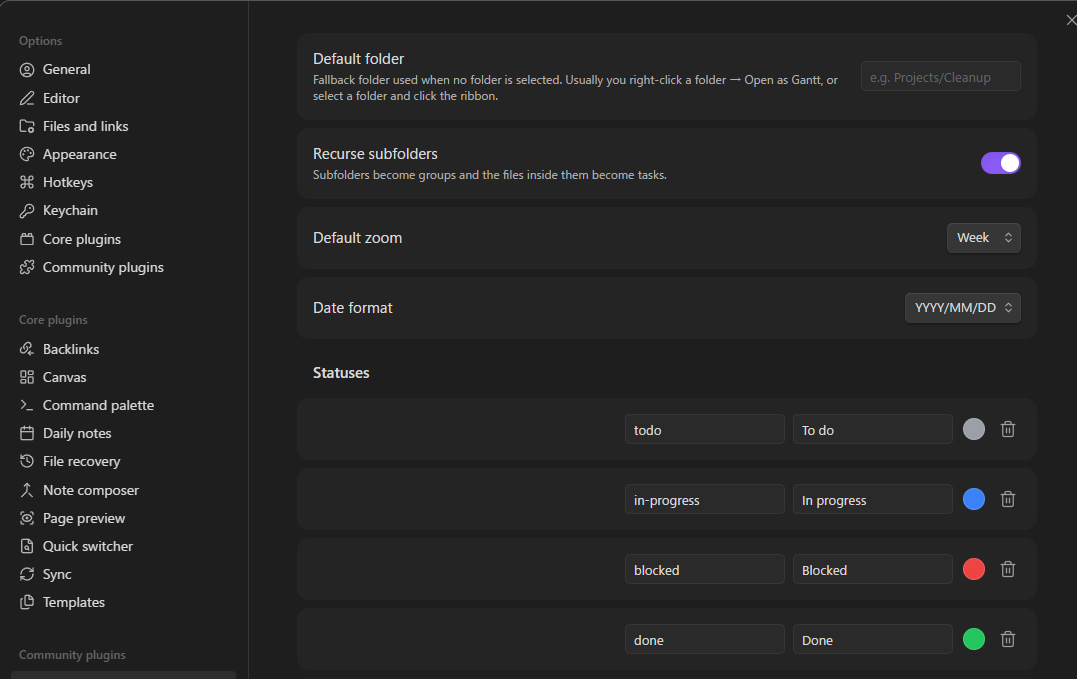
Open Settings → Task Gantt to configure the default folder, subfolder recursion, default zoom, and the date display format (YYYY/MM/DD, DD/MM/YYYY, or MM/DD/YYYY; stored dates always stay ISO YYYY-MM-DD).
The Timezone setting (system or a fixed GMT offset, listed with representative cities) controls how times of day are displayed and saved. Changing it re-displays stored times in the new offset.
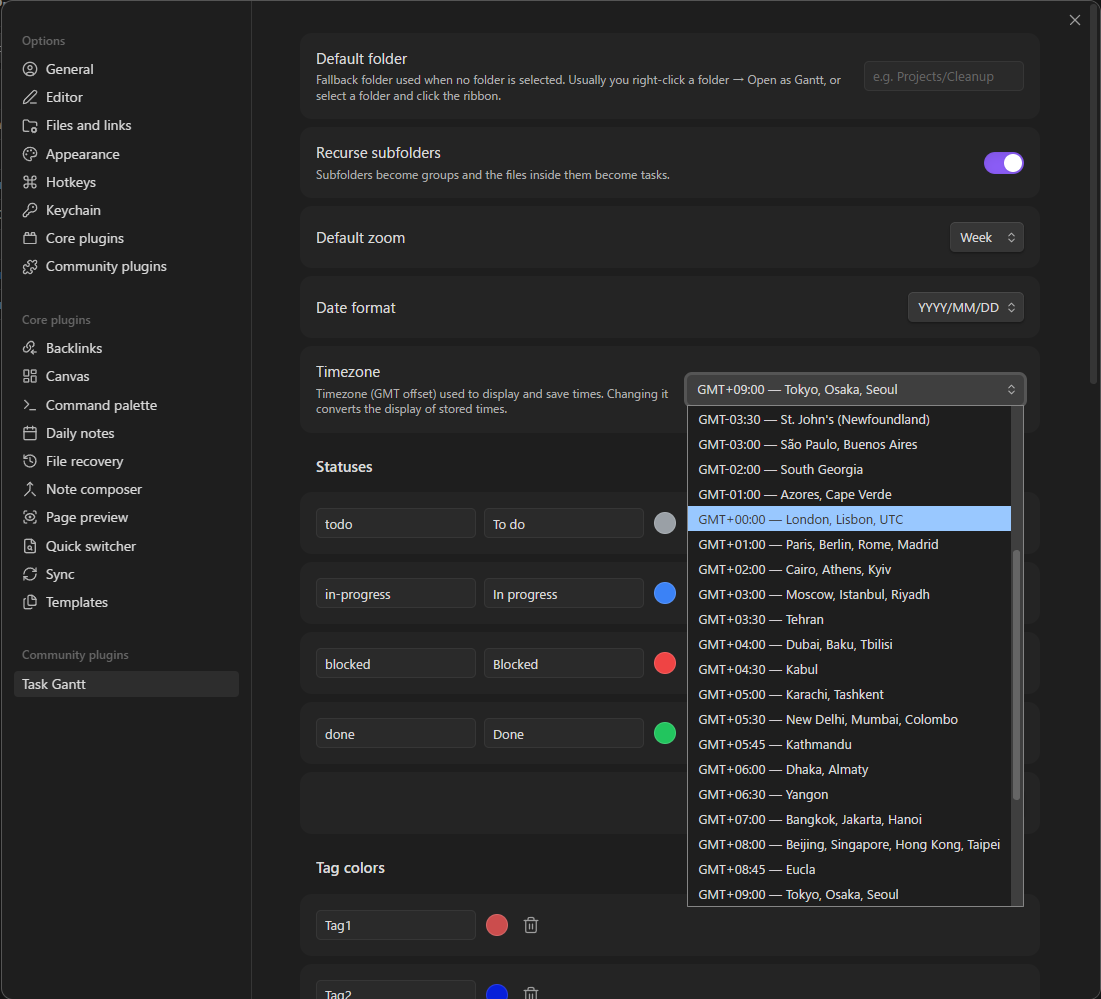
Non-working days (Saturday & Sunday, Friday & Saturday, Sunday only, or none) are skipped when counting a task's duration and when dependencies move tasks. Push FS successors automatically (on by default) controls whether a slipping predecessor pushes its FS successors.
The Progress line color setting sets the color of the jagged line drawn by the Progress line view option, with a button to reset it to the default amber.
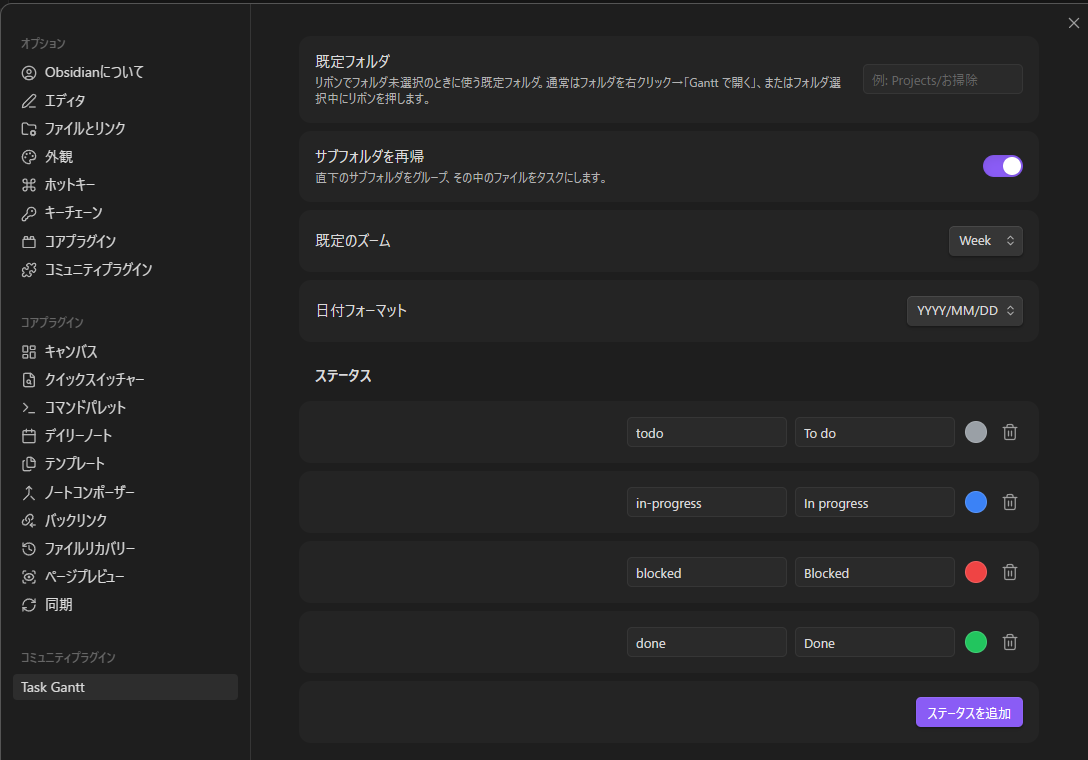
Statuses are fully customizable — add, edit, or delete them. Each status has an id (matches the status frontmatter value), a label, a group, and a color reflected in the bar.
The group is what tells the plugin whether a task is finished. There are four, borrowed from Wrike and not extensible: Active (being worked on), Completed (done), Deferred (paused — on hold, blocked, waiting), and Cancelled (dropped). Every status belongs to exactly one, and the Completed / Incomplete filter presets read only the group, never the status name — so a status called Shipped counts as finished as long as it sits in the Completed group. If no status is in the Completed group, settings say so and the Completed preset stays empty.
Upgrading from 2.8.x: existing statuses are assigned a group once, guessed from their id and label (
done/完了→ Completed,cancelled/中止→ Cancelled,on hold/blocked/保留→ Deferred, everything else → Active). Check the list after upgrading and correct anything the guess got wrong.
You can also rename the frontmatter keys the plugin reads (start, end, status, assignee, after, progress, milestone) to match your own vault conventions.
Notifications (optional)
Task Gantt can post reminders for tasks that have a time of day to Discord and/or Slack via incoming webhooks. In Settings → Task Gantt → Notifications, set the webhook URLs, choose the targets (start / due), and pick the lead times (1 week / 1 day / 1 hour / 10 minutes before, or at the exact time). Use Send a test message to verify the webhook instantly.
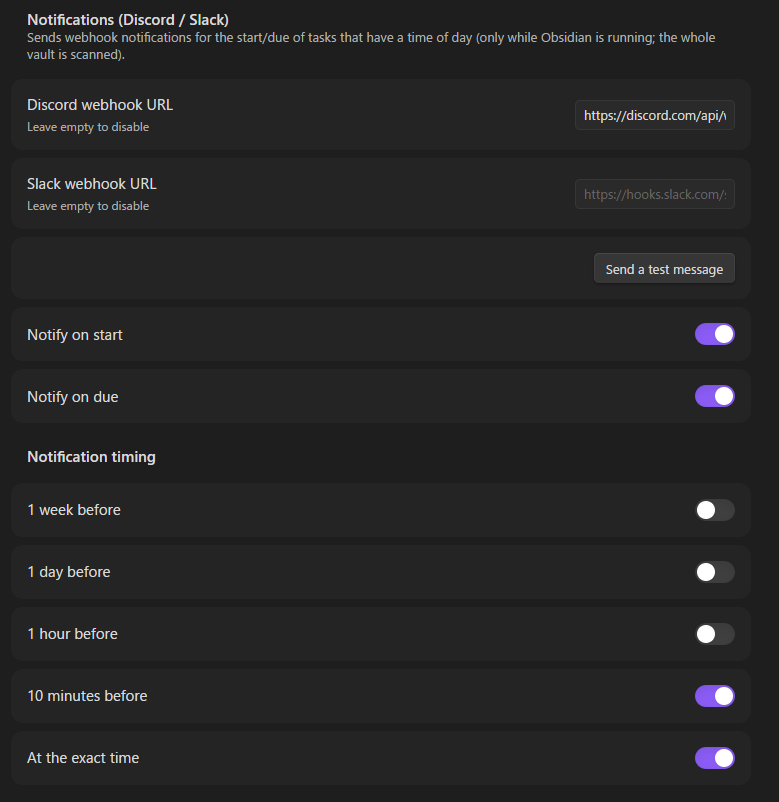

- Network use: when enabled, the plugin sends HTTP POST requests containing only the task name and its date/time to the webhook URLs you configured — nothing else is sent, and nowhere else. Leaving both URLs empty (the default) disables all network access.
- Notifications fire only while Obsidian is running. Triggers that passed while Obsidian was closed are skipped, and each trigger is sent at most once.
- Date-only tasks (without a time of day) are never notified.
- The whole vault is scanned — no folder configuration needed; any task with a time of day qualifies.
Google Calendar sync (optional, desktop only)
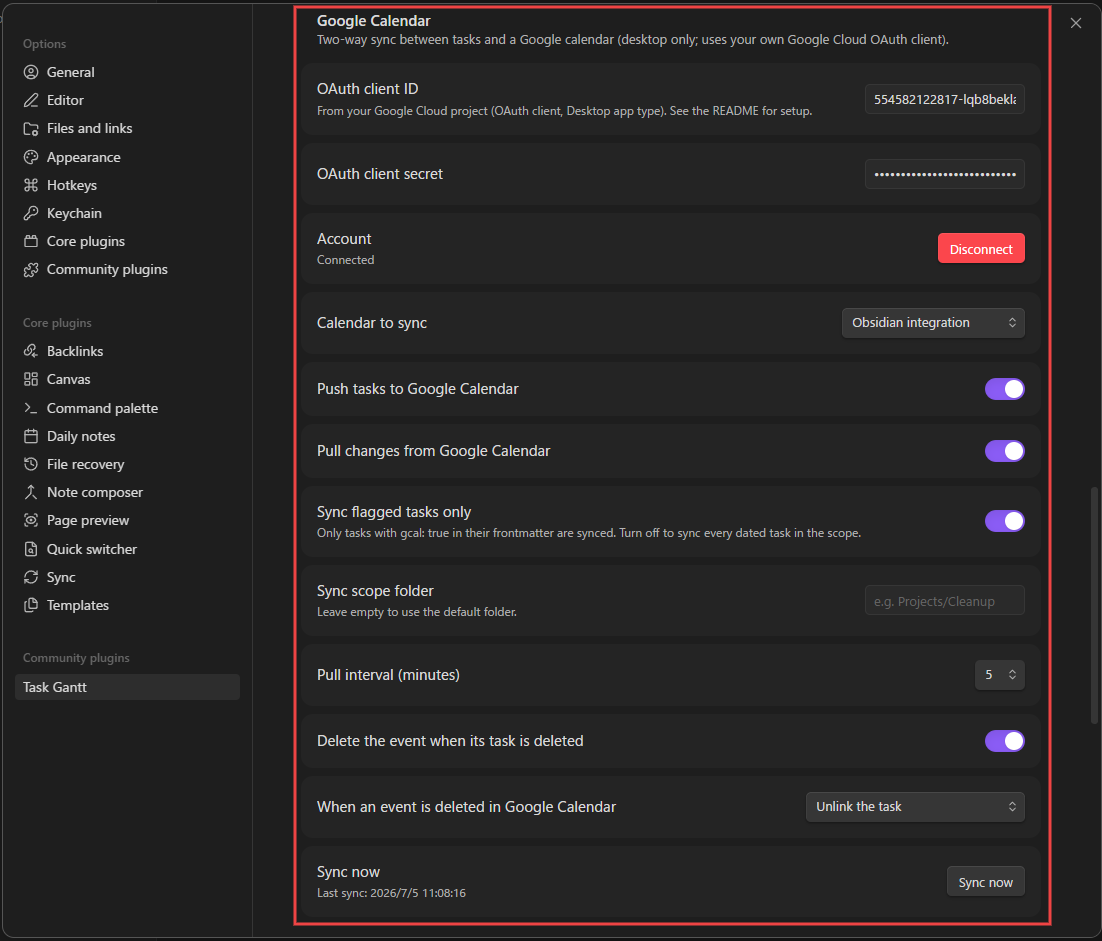
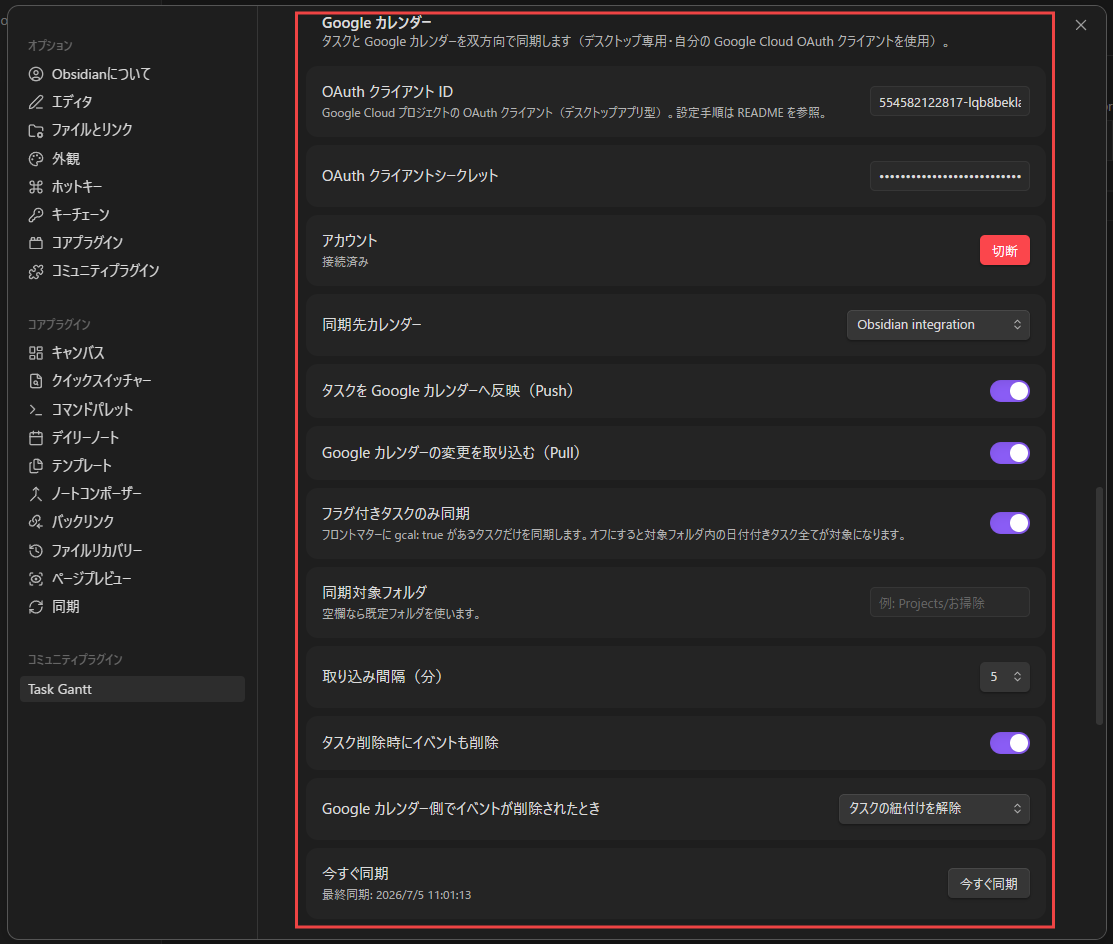
Task Gantt can keep tasks and a Google calendar in two-way sync: task changes (create / reschedule / delete) are pushed as events, and moving or deleting those events in Google Calendar flows back into the task's frontmatter. Each direction can be toggled independently in Settings → Task Gantt → Google Calendar.
Setup
The plugin has no server, so it uses your own Google Cloud project:
- In Google Cloud Console, create a project and enable the Google Calendar API.
- Configure the OAuth consent screen (External is fine) and add your own Google account as a test user. Because the app is yours and unverified, Google shows an "unverified app" warning during consent — expected, just continue.
- Create an OAuth client ID of type Desktop app, and paste the client ID and secret into the plugin settings.
- Press Connect — your browser opens Google's consent screen, and the plugin receives the authorization on
127.0.0.1(loopback). Then pick the calendar to sync (a dedicated calendar is recommended).
How it syncs
- Pull only ever touches events that Task Gantt itself created. Creating an event directly in Google Calendar does not create a task, and editing or deleting a foreign (non-plugin) event is ignored — the plugin only reads back changes to events it pushed. Anything already on your calendar is left untouched.
- By default only tasks with the
gcal: trueflag in their frontmatter sync (opt-in; toggle it per task in the detail panel — which also shows an Open in Google Calendar link once synced). Turn off Sync flagged tasks only to sync every dated task in the scope folder instead. - Date-only tasks become all-day events; tasks with a time of day on both ends become timed events (using the plugin's Timezone setting); milestones become one-day events. The linked event's ID is stored in the task's
gcalIdfrontmatter key (set automatically — don't edit it by hand). - Local edits push within seconds; remote changes are pulled at the configured interval (default 5 minutes). Titles sync one way only (task → event): renaming the event in Google Calendar is reverted on the next push, since renaming files from outside is risky.
- If both sides changed since the last sync, the newer edit wins and a notice tells you which side was kept.
- Deleting a task deletes its event (configurable). Deleting the event in Google Calendar just unlinks the task by default (optionally also clearing its dates) — files are never deleted.
- Recurring events are not supported (skipped by both directions).
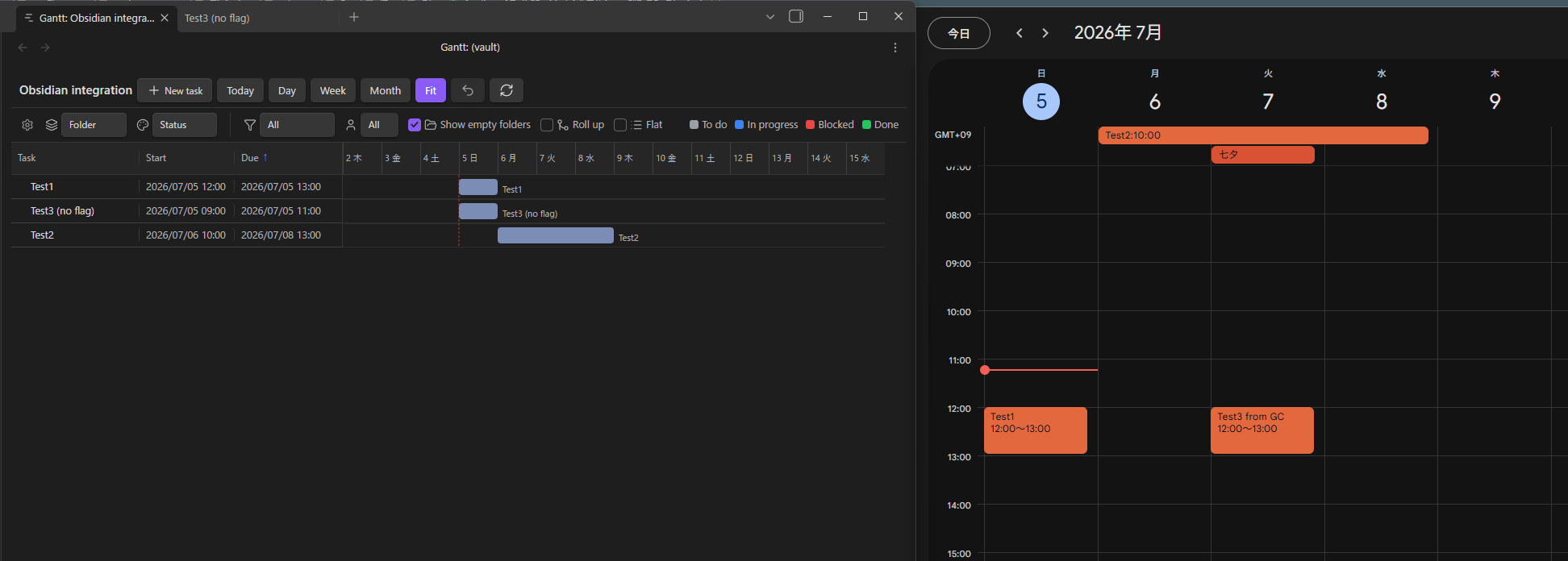
Example — Test1 and Test2 carry gcal: true and pushed through as events; Test3 (no flag) stayed local only. The Test3 from GC event and the 七夕 holiday were created directly in Google Calendar and never became tasks:
Disclosure
- Network use: when connected, the plugin talks to Google's OAuth and Calendar APIs only, sending the synced tasks' name, dates, and a body excerpt (first 500 characters) with a link back to the note. Leaving the feature unconfigured (the default) makes no network requests.
- Account & credentials: requires a Google account and your own Google Cloud OAuth client. The plugin requests only the
calendar.eventsandcalendar.calendarlist.readonlyscopes. The OAuth client secret and refresh token are stored in Obsidian's secret storage (the OS keychain), not in the plugin'sdata.json, so they don't travel with vault sync, backups, or git. Only the client ID stays indata.json. Secret storage is per device, so connect again on each device. Upgrading from 2.9.3 or earlier moves the old plain-text values out ofdata.jsonautomatically; if that file was ever committed to git or shared, reset the client secret in Google Cloud Console and reconnect. - Mobile is not supported (the OAuth loopback needs a desktop); other features work on mobile as usual.
Vault access
To build the board, the plugin lists the Markdown files in your vault and reads their frontmatter through Obsidian's metadata cache. When the board is opened on a folder, only notes under that folder are shown, but notifications look at the whole vault, and renaming a custom field's key searches every note for that key. Nothing read this way leaves your device; the only network use is the optional notifications and Google Calendar sync described above.
Development
npm install      # install deps
npm run dev      # watch build
npm run build    # type-check + production build
npm test         # headless model tests
Copy main.js / manifest.json / styles.css into <vault>/.obsidian/plugins/task-gantt/ to enable it.
Design
See docs/adr/ for the rationale behind design decisions (latest: ADR-0005) and CONTEXT.md for terminology.
Limitations
Auto-scheduling (critical path), sub-day time granularity, and cross-folder aggregation are not implemented. Custom fields can't be used in filters yet.
License
MIT — see LICENSE.
日本語
English | 日本語
プロジェクト管理ツールのようなタスク管理 UI を Obsidian で実現するプラグインです。1 ファイル = 1 タスクとし、指定フォルダ配下を 「表+タイムライン」ガントで表示・編集します。バーのドラッグで日程変更、依存の作成、マイルストーン、ソート・フィルタ、ドラッグでのフォルダ移動などができます。
Obsidian 1.11.4 以降が必要です。
スクリーンショット
左列のリボンボタン、またはフォルダの右クリック →**「Open as Gantt」**から Gantt として開きます:
「表+タイムライン」で開き、グループ・バー・マイルストーン・依存の矢印が表示されます:
タスクをクリックすると詳細パネルが開き、日付・状態・担当・進捗・本文を編集できます:
使い方
- 設定 → Task Gantt で対象フォルダを指定(例:
Projects/お掃除)。 - 左列の 「Gantt を開く」リボンアイコン(またはコマンド「Gantt を開く」)でビューを開く。リボンは、現在開いているノートのフォルダ(またはエクスプローラで選択中のフォルダ)を Gantt 表示し、どちらも無ければ設定の既定フォルダ(未設定なら Vault ルート)を開きます。フォルダを右クリック →**「Open as Gantt」**でも開けます。
- 直下のサブフォルダがグループ、その中の
.mdがタスクになります。 - バーをドラッグ/端をリサイズすると、そのファイルの
start/endに書き戻します。テーブルに表示できる列はすべて、セルをダブルクリックすればその場で編集できます。 開始・期限はカレンダー、期間は稼働日数の入力、進捗は % の直接入力(0–100。空欄または 0 で未設定)、ステータスはドロップダウン、担当者はボード内で既に使われている名前を候補に出すテキスト欄、タグは詳細パネルと同じエディタ(タグごとのチップと × による削除+Vault 内の既存タグを候補に出す追加欄)が開きます。Enter またはフォーカスを外すと保存、Esc で取消します。 - 表のタスクをクリック、またはバーをダブルクリックすると、右から詳細パネル(日付・ステータス・担当者・進捗・本文)がスライドインします。
- + 新規タスクボタンで現在のフォルダに1日タスクを作ってその場で命名、今日ボタンでタイムラインを今日へスクロールできます。
- Day / Week / Month / Fit ボタンで時間軸の拡大率を変更。Fit はペイン幅に自動で収め、リサイズにも追従します。
UI 表示は Obsidian の表示言語に追従します。対応言語:英語・日本語・韓国語・中国語(簡体/繁体)・フランス語・スペイン語・ロシア語(その他は英語にフォールバック)。
表示オプション
表の上のオプション行で、ボードの見せ方を調整できます。
グループ化(フォルダ/ステータス/担当者)と色分け(ステータス/担当者・凡例付き):
ソートは列ヘッダをクリック。もう一度クリックで昇順/降順を切替(↑/↓):
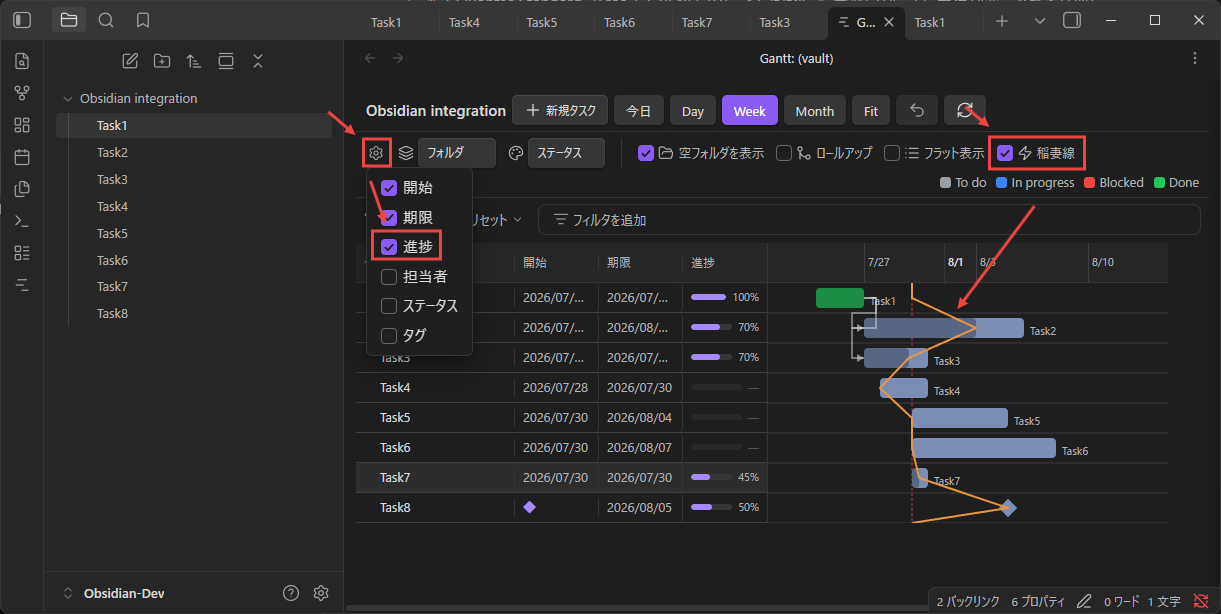
列の表示は歯車ボタンから、開始・期限・期間・進捗・担当者・ステータス・タグを出し分け。ここに出せる列はすべてセルのダブルクリックで編集できます。列レイアウトとソートはセッションをまたいで保存されます:
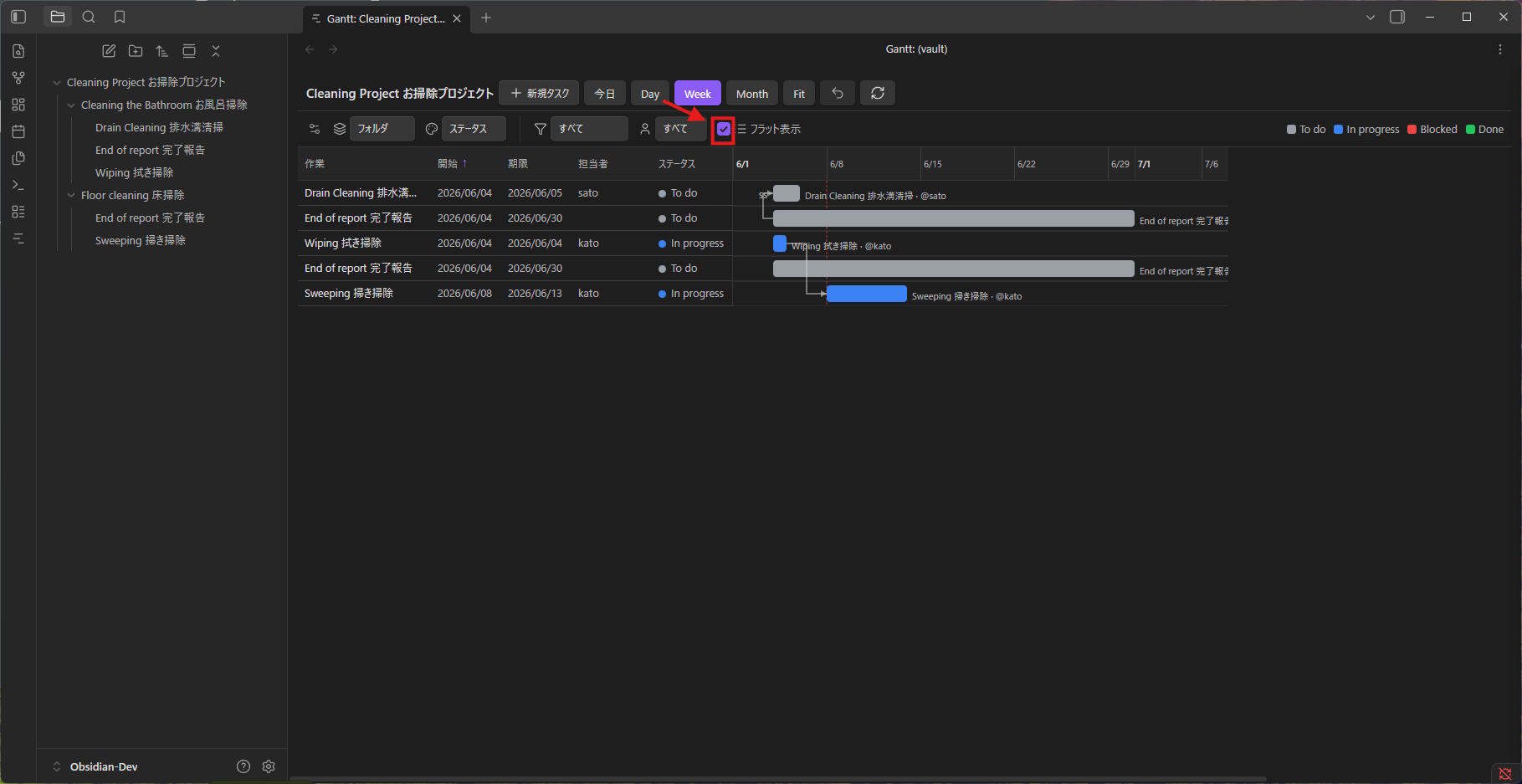
フラット表示は、フォルダや入れ子を無視して全タスクを1本のソート済みリストで表示します:
稲妻線は、今日を基準にした垂線を各タスクの実績到達点まで折り曲げた折れ線です。今日より左に折れれば遅れ、右なら進みを意味します。各行の点は、タスクの progress に対応するバー上の位置に置かれます(先週が期限なのに 40% のタスクは、線をその 40% 地点まで引き戻します)。100% のタスク、まだ開始日が来ていない未着手タスク、フォルダ行、ロールアップ中の親バーは今日線上を素通りします。開始日を過ぎているのに進捗 0% のタスクは、線を開始日まで引き戻します。線の色は設定 → Task Gantt → 稲妻線の色で変更できます。
カスタムフィールド
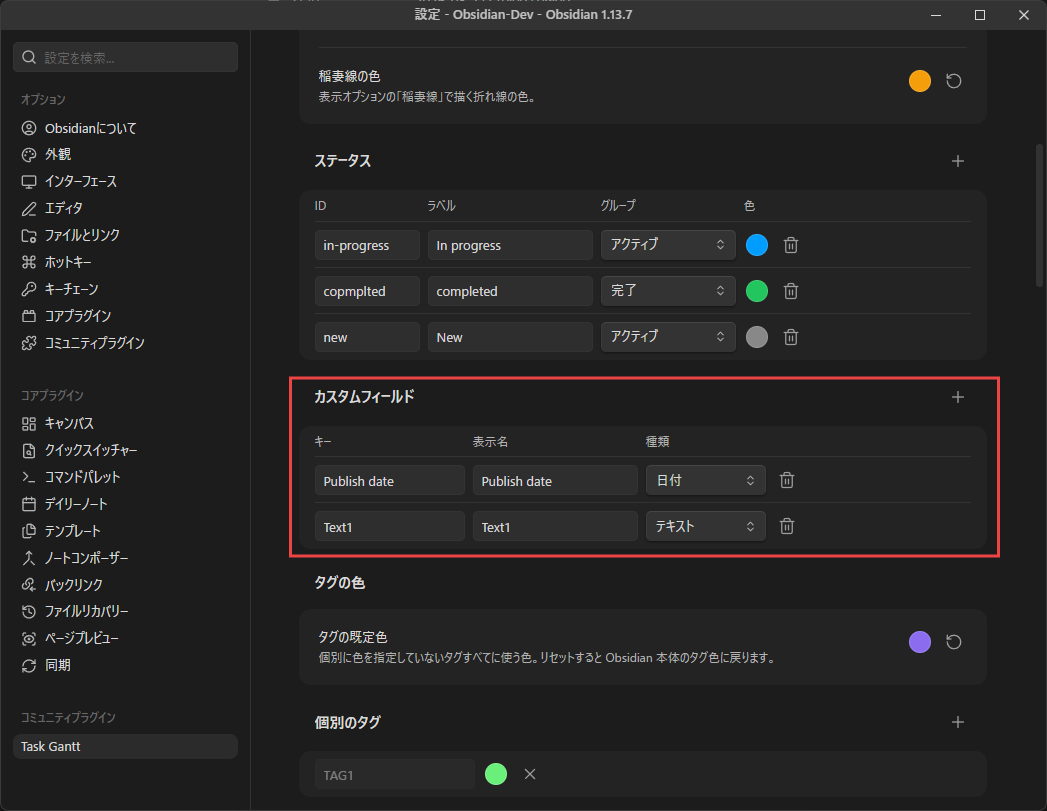
任意のフロントマターのキーを、テーブルの列として表示できます。設定 → Task Gantt → カスタムフィールドでフィールドを追加を押し、キー(フロントマターのプロパティ名。例: client)、列見出しに使う表示名(省略可)、種類を指定します。
- テキスト — そのまま表示します。リストの値はカンマ区切りで表示し、編集するとリストのまま書き戻します。
- 数値 — 右揃えで表示し、数値として並べ替えます。
- 日付 — 設定の日付形式で表示し、開始・期限と同じカレンダーで編集します(日付部分のみ)。
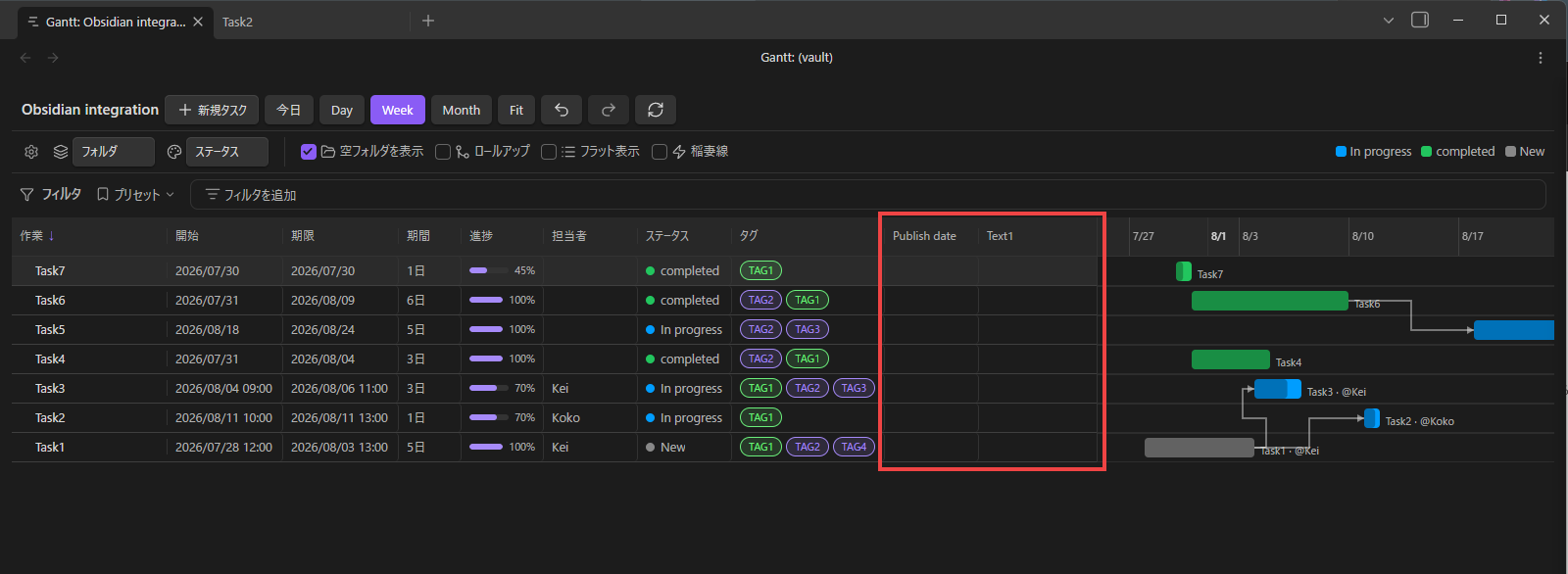
追加したフィールドの列はすぐに表示され、ほかの列と同じく歯車メニューで表示を切り替えられます。見出しのクリックで並べ替え、セルのダブルクリックで編集でき、編集はすべて取り消せます。キー名を変えても、列の表示・幅・並べ替えの設定はそのまま残ります。キーの変更は Enter を押すか入力欄を離れたときに反映され、旧キーの値を持つノートがあれば、ノート側のプロパティ名も変えるか(新しいキーに既に値があるノートは上書きしません)、列が読むキーだけを変えるかを尋ねます。プラグインが既に使っているキー(フロントマターのキー名にある開始・期限・ステータスなどのキーと tags)は使えません。また、同じキーのフィールドが複数あるときは最初の 1 つだけが列になります。どちらも設定画面に注意書きが出ます。
フィルタ
オプション行の下のフィルタ行でボードを絞り込めます。フィルタを追加から項目(名前/ステータス/ステータスグループ/担当者/タグ/開始日/期限日)を選び、条件を設定します。各フィルタはチップで表示され、クリックで編集、**×**で削除できます。
- 名前:と一致/以外/を含む/を含まない/で始まる/で終わる
- ステータス/ステータスグループ/担当者/タグ:複数値をチェックで選択((なし)=未設定も選べます)。と一致/以外/未設定/設定あり
- 開始日/期限日:プリセット(昨日・今日・明日)/具体的な日付/相対的な日付(例:1 週間後・毎日再計算)/期間と比較。と一致/より前/より後/以前/以後/未設定/設定あり
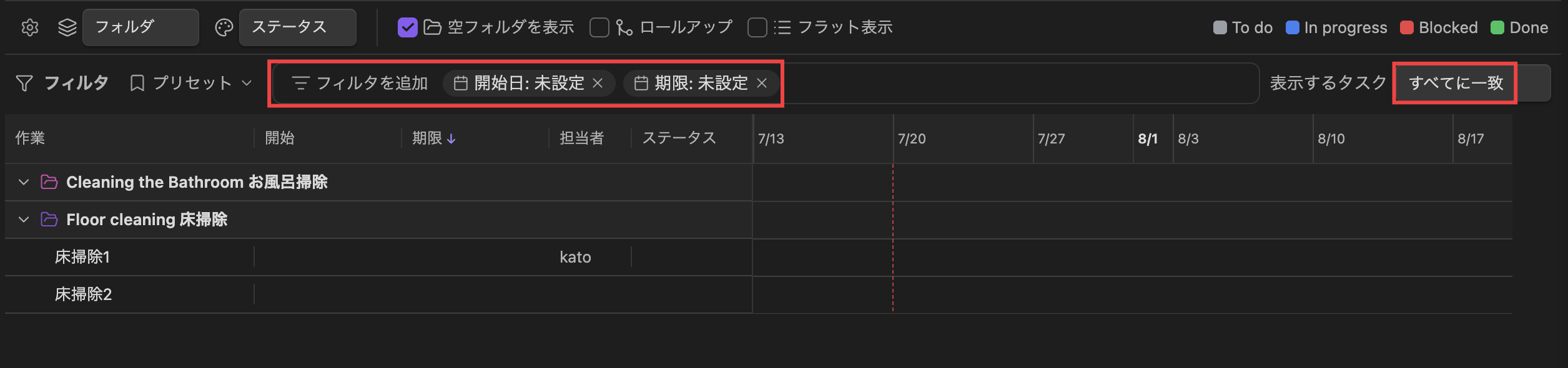
フィルタが2件以上あるときは、右端の 表示するタスク → すべてに一致(AND)/いずれかに一致(OR)で結合方法を選べます。
プリセット
プリセットからワンクリックでフィルタ構成を切り替えられます。組み込みプリセットは 日付なし(バーなし)/日付あり/期限切れ/未割り当て/完了済み/未完了。後ろの 2 つはステータス名ではなくステータスグループを見ます:完了済みは完了グループのタスク、未完了は完了でもキャンセルでもないタスク(アクティブ・延期・ステータス未設定)です。任意のフィルタ構成に名前を付けてプリセットとして保存でき、保存したプリセットは再適用・削除が可能です。フィルタをクリアで全解除。フィルタとプリセットはセッションをまたいで保存されます。
フォルダ間のタスク移動
フォルダでグループ化しているとき、タスク行をドラッグしてフォルダにドロップするとそのフォルダへ移動できます(別タスクへドロップすると、そのタスクと同じフォルダへ)。リンクは自動更新され、移動は Ctrl/Cmd+Z または取り消しボタンで元に戻せます。空のフォルダも行として表示されるので常にドロップ先になります(空フォルダを表示トグル=既定ON で切替)。
サブタスク
タスクに parent(別タスクへの単一 wikilink)を与えると、表でその親の下に入れ子表示され、シェブロンで折りたたみできます。フォルダでグループ化中は、タスクを別タスクへドラッグするとサブタスク化(親のフォルダへサブツリーごと移動)、フォルダへドラッグすると親を解除してトップレベルへ戻します。循環は禁止され、移動はすべて取り消し可能です。ロールアップトグルで、親のバー(と開始・期限セル)を子孫全体の範囲として描けます。親の設定・解除は詳細パネルからも行えます。
タグ
タスクは Obsidian ネイティブの tags(フロントマター tags: +本文 #tag)を使うので、Obsidian の検索・タグペインと同期します。タグでグループ化すると、各タグの下にそのタスクが表示され(多値のタスクは複数グループに登場)、タグでの絞り込みや、チップ表示のタグ列も使えます。タグでグループ化中は、タスクをタグのグループへドラッグするとそのタグを付与できます(フォルダへのドロップ=移動とは別動作)。タグの追加・削除は詳細パネル、またはタグセルのダブルクリックで同じエディタを開いて行えます。どちらもフロントマターの tags: に書き込むため、本文中に書いた #tag は表示されますがここからは削除できません。
タグ・フォルダの色
タグの色はすべて タグの既定色 を土台にし、そこから個別に上書きします。既定色は 設定 → Task Gantt → タグの色 で指定でき、未設定なら Obsidian 本体のタグ色に従います。フォルダは従来どおり名前から自動で色が付きます。
フォルダの見出し・タグの見出し・タグのチップを右クリックして、色の変更/リセットができます。色を指定すると、そのタグが設定の個別のタグに登録され、リセットすると登録が外れます。つまり一覧には自分で色を決めたタグだけが並び、それ以外は既定色に従います。設定側からは Vault のタグを選んで追加でき、削除には確認が入ります(設定画面には取り消しが無いため)。並びはタグ名順です(フォルダの色は右クリックのみ)。
上で動画が再生されない場合は こちら からご覧ください。
タスクの作成
+ 新規タスクで現在のフォルダに日付付きノートを作り、すぐ名前を付けられます。もちろんそこから始める必要はありません。対象フォルダ内のノートは、まだ日付が無いものも含めてそのまま行として表示されるので、既存ノートをクリックして詳細パネルで 開始 / 期限 を入力すれば、そのままスケジュール付きタスクになります。各セルは値が空のままでもダブルクリックで編集できるので、表から直接入力しても構いません。
タスクの書き方
各タスクは 1 つの Markdown ファイル。スケジュールはフロントマター、説明は本文に書きます。
---
start: 2026-02-04
end: 2026-02-07
status: in-progress
assignee: kato
progress: 40
after:
  - "[[掃き掃除]]"     # 先行タスク(依存=矢印)
---

# 拭き掃除
本文がタスクの説明(詳細パネルに表示)。
| フロントマター | 意味 |
|---|---|
start / end |
開始 / 終了日 YYYY-MM-DD(バーの位置と長さ)。YYYY-MM-DDTHH:mm+09:00 形式で時刻も設定可(詳細パネルで編集。オフセットはタイムゾーン設定に従う) |
status |
ステータス ID(設定で定義、バー色に反映。所属するステータスグループが完了済み/未完了フィルタの根拠) |
assignee |
担当者(バー脇にラベル表示) |
progress |
進捗 0–100(バー内の塗り。詳細パネルのスライダー、または進捗列のダブルクリックで編集) |
after |
先行タスクへの wikilink 配列(依存=矢印、違反は赤) |
milestone |
true で菱形(期間ゼロ) |
gcal |
true で Google カレンダー同期(後述)の対象にする(フラグ付きタスクのみ同期がオンのときだけ判定に使用) |
gcalId |
タスクを Google カレンダーへ Push すると自動で入る、紐付け先イベントの ID。手動編集不可 |
マイルストーン: end(終了日)だけがあり start(開始日)が無いタスクは、自動的にマイルストーンと判定され菱形で描画されます。milestone: true でも同じです。通常タスクに戻すには start(開始日)を与えてください。
タスク名はファイル名(拡張子なし)。グループは直上のサブフォルダ名。フロントマターのキー名は設定で変更できます。
examples/Cleaning Project お掃除プロジェクト/ に動作確認用のサンプルがあります(対象フォルダにそれを指定)。
依存関係
バーの丸ハンドルから別のバーへドラッグすると依存を作成します。つないだ端で種類が決まります:FS(終了→開始)・SS(開始→開始)・FF(終了→終了)。SS/FF の後続は、先行の日程変更に追従します。FS の後続は、先行が遅れて重なったときに後ろへ押し出されます。先行の期限日の次の稼働日へ移り、期間はそのまま保たれます。押し出しはその先の後続へも連鎖します。先行を前倒ししても後続は引き戻されないので、わざと空けた間隔は残ります。この動作は設定の FS の後続を自動で押し出す でオフにできます。マイルストーンは依存では動きません。依存線をクリックで切断(Ctrl/Cmd+Z または取り消しボタンで戻せます)。
期間(Duration)
期間列(歯車メニューで表示)は、タスクが何稼働日かかるかを表示します。両端の日を含めて数え、設定した休日(既定は土・日)は数えません。期間はどこにも保存されず、start と end から計算します(日付が常に正です)。
- 期間を変える(セルのダブルクリック、または詳細パネルの欄)と、開始日はそのままで期限日が動きます。開始日が無いタスクは今日から始まります。
- 開始日だけを変えると、期限日も一緒に動き、期間が保たれます(バーが平行移動します)。期限日を変えた場合は期間が変わります。タイムラインでバーの端をドラッグしたときは、これまでどおり伸び縮みします。
- FS 依存と組み合わせると 期間でスケジュールを組めます。各タスクに期間を入れて FS でつなげば、遅れたタスクがその後ろをまとめて押し出します。
取り消し・やり直し
ボード上の変更は、Ctrl/Cmd+Z または取り消しボタンで元に戻し、Ctrl/Cmd+Shift+Z・Ctrl/Cmd+Y またはやり直しボタンでやり直せます。対象はセルの編集、詳細パネルのすべての項目(名前の変更・本文を含む)、バーのドラッグ、依存、移動・サブタスク化、タグ、タスクの作成・削除です。削除を取り消すと、ノートが同じ場所に作り直されます。一緒に動いた後続も、まとめて元に戻ります。テキスト入力中は、ショートカットは入力内容の取り消しとして働きます。ファイルエクスプローラーでボードのタスクやフォルダをリネーム・移動した場合も履歴に入るので、取り消しは常に起きた順に遡ります。履歴はボードを開いている間保持されます。
Obsidian の外で行った変更(Windows のエクスプローラーや macOS の Finder、同期ツールでのノートのリネーム・移動・削除)は履歴に入りません。Obsidian からは「ファイルが消えて、別のファイルが現れた」としか見えないためです。そうしたノートに対するそれ以前の変更を取り消しても、何も起きません。取り消せるようにしたい場合は、リネームや移動を Obsidian の中(タイトル欄や Obsidian のファイルエクスプローラー)で行ってください。
設定
設定 → Task Gantt から、既定フォルダ・サブフォルダの再帰・既定ズーム・日付の表示フォーマット(YYYY/MM/DD/DD/MM/YYYY/MM/DD/YYYY。保存値は常に ISO YYYY-MM-DD)を設定できます。
タイムゾーン設定(システム / 固定GMTオフセット・代表都市付き一覧)で時刻の表示・保存に使うタイムゾーンを選べます。変更すると保存済みの時刻が新しいオフセットに換算されて表示されます。
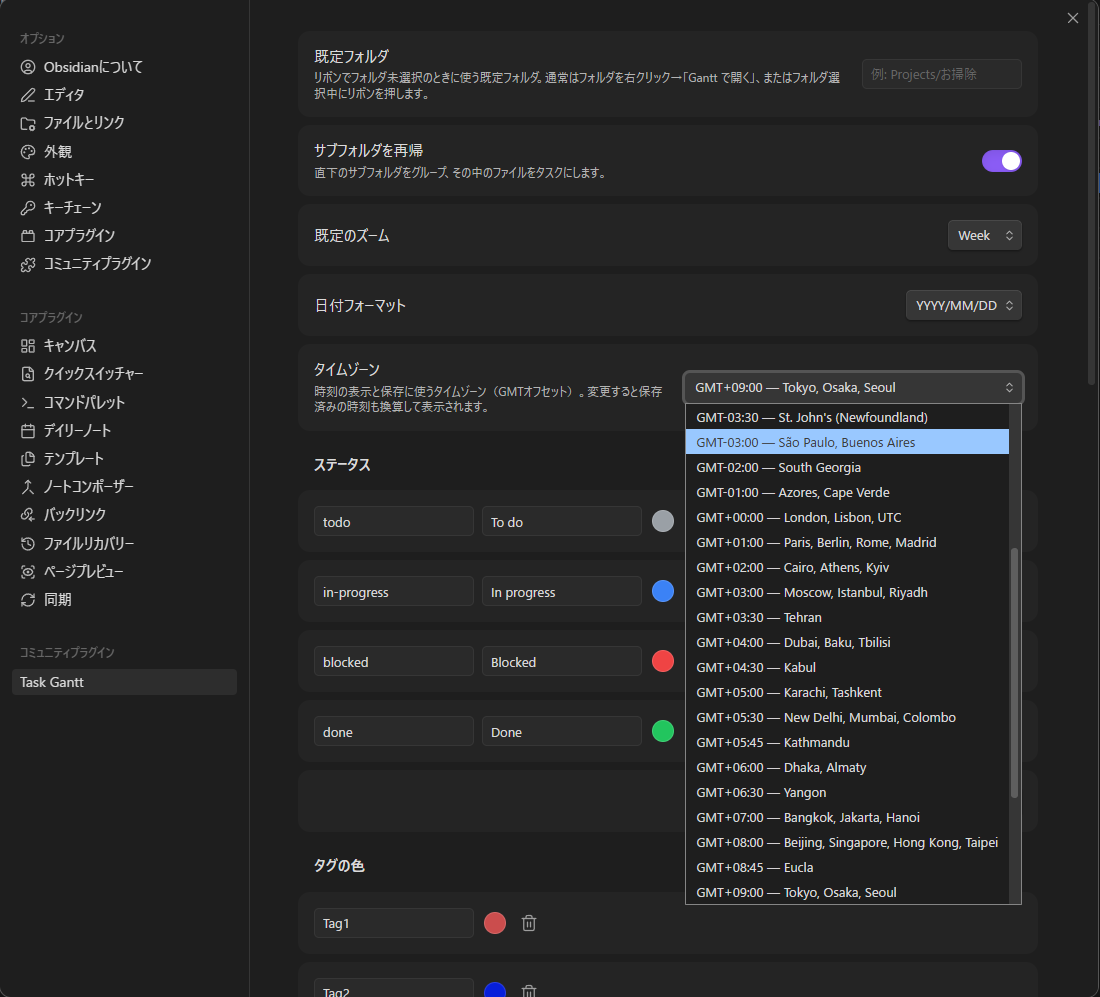
休日の曜日(土・日/金・土/日のみ/なし)は、期間の計算と依存による移動のときに数えません。FS の後続を自動で押し出す(既定はオン)で、先行の遅れを FS の後続へ伝えるかを切り替えます。
稲妻線の色設定で、表示オプションの稲妻線で描かれる折れ線の色を変更できます(既定の橙に戻すボタン付き)。
ステータスは自由に追加・編集・削除できます。各ステータスは id(フロントマターの status 値と対応)・ラベル・グループ・色(バー色に反映)を持ちます。
グループは「そのタスクが終わっているか」をプラグインが判断する唯一の根拠です。Wrike に倣った 4 種固定で、増やすことはできません:アクティブ(作業中)・完了(終了)・延期(保留・ブロック・待ち)・キャンセル(中止)。各ステータスはちょうど 1 つに属し、フィルタプリセットの完了済み/未完了はグループだけを見ます(ステータス名は見ません)。そのため リリース済み という名前でも、完了グループに入れておけば完了として扱われます。完了グループのステータスが 1 つも無い場合は設定画面に注意が出て、完了済みプリセットは常に 0 件になります。
2.8.x からの更新時:既存のステータスには、id とラベルからグループを一度だけ推測して設定します(
done/完了→ 完了、cancelled/中止→ キャンセル、on hold/blocked/保留→ 延期、それ以外 → アクティブ)。更新後に一覧を確認し、外れているものは直してください。
プラグインが読むフロントマターのキー名(start / end / status / assignee / after / progress / milestone)も、各自の Vault の慣習に合わせて変更できます。
通知(任意)
時刻を設定したタスクの開始・期限を、Incoming Webhook 経由で Discord / Slack に通知できます。設定 → Task Gantt → 通知 で Webhook URL・対象(開始/期限)・通知タイミング(1週間前・1日前・1時間前・10分前・時刻ちょうど)を設定してください。テスト送信ボタンで Webhook の疎通をすぐ確認できます。
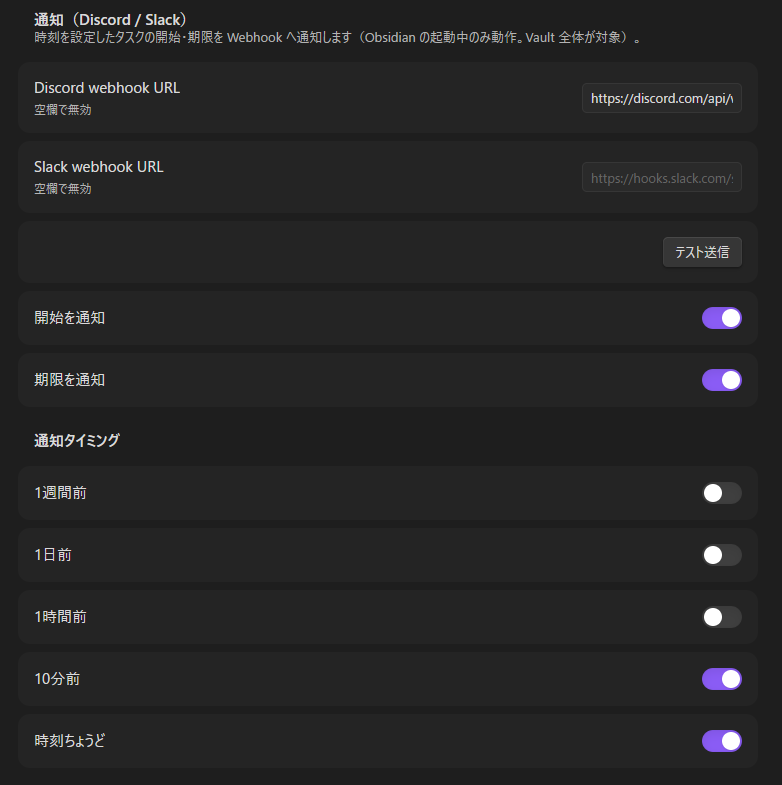
- ネットワーク利用について:有効にすると、設定した Webhook URL に対してタスク名と日時のみを HTTP POST で送信します。それ以外の情報は送らず、他の宛先にも送信しません。URL を両方空欄(既定)にすればネットワークアクセスは一切行いません。
- 通知は Obsidian の起動中のみ動作します。終了中に過ぎたタイミングはスキップされ、同じ通知は二度送られません。
- 日付のみ(時刻なし)のタスクは通知対象外です。
- 対象は Vault 全体です。フォルダの設定は不要で、時刻を設定したタスクはすべて対象になります。
Google カレンダー同期(任意・デスクトップ専用)
タスクと Google カレンダーを双方向で同期できます。タスクの作成・日程変更・削除はイベントとして反映され、Google カレンダー側でのイベント移動・削除はタスクのフロントマターへ書き戻されます。設定 → Task Gantt → Google カレンダー で方向ごと(Push / Pull)に ON/OFF できます。
セットアップ
プラグインにはサーバーがないため、ユーザー自身の Google Cloud プロジェクトを使います。
- Google Cloud Console でプロジェクトを作成し、Google Calendar API を有効化する。
- OAuth 同意画面を設定(External で可)し、自分の Google アカウントをテストユーザーに追加する。アプリは自分専用の未確認アプリなので、同意時に「確認されていないアプリ」の警告が出ますが想定どおりです(そのまま続行してください)。
- OAuth クライアント ID(種類:デスクトップアプリ)を作成し、クライアント ID とシークレットをプラグイン設定に貼り付ける。
- 接続を押すとブラウザで Google の同意画面が開き、
127.0.0.1(ループバック)で認可を受け取ります。その後同期先カレンダーを選択してください(専用カレンダーの利用を推奨)。
同期の仕組み
- Pull(Google カレンダー→タスク)が対象にするのは、Task Gantt 自身が作成したイベントのみです。 Google カレンダー側で直接イベントを新規作成しても、それがタスクとして取り込まれることはありません。また、プラグインが関与していない既存イベントの編集・削除も無視されます — Pull は自分がPushしたイベントへの変更を読み戻すだけで、カレンダーに元からある予定には一切手を付けません。
- 既定ではフロントマターに
gcal: trueフラグを付けたタスクだけが同期されます(オプトイン。詳細パネルのトグルで切替でき、同期済みタスクには Google カレンダーで開く リンクも表示されます)。フラグ付きタスクのみ同期をオフにすると、対象フォルダ内の日付付きタスク全てが対象になります。 - 日付のみのタスクは終日イベント、両端に時刻のあるタスクは時刻付きイベント(プラグインのタイムゾーン設定を使用)、マイルストーンは1日のイベントになります。紐付け先イベントの ID はタスクの
gcalIdキーに自動で保存されます(手動編集は不可)。 - ローカルの編集は数秒で Push され、Google カレンダー側の変更は設定間隔(既定5分)で Pull されます。タイトルの同期はタスク→イベントの一方向のみで、イベント名を Google カレンダー側で変更しても次の Push でタスク名に戻ります(外部からのファイルリネームは危険なため)。
- 前回同期以降に両側が変更されていた場合は新しい方の編集が勝ち、どちらを採用したかを通知します。
- タスクを削除するとイベントも削除されます(設定で変更可)。Google カレンダー側でイベントを削除した場合、既定ではタスクの紐付けを解除するだけです(日付もクリアする設定あり)。ファイルが削除されることはありません。
- 繰り返しイベントは Push / Pull とも対象外です。
例:Test1 と Test2 は gcal: true を付けて Push され、イベントとして反映されています。Test3 (no flag) はフラグが無いためローカルのみに留まっています。一方 Test3 from GC と祝日「七夕」は Google カレンダー側で直接作られたもので、タスクとしては取り込まれていません:
開示事項
- ネットワーク利用について:接続すると Google の OAuth / Calendar API とのみ通信し、同期対象タスクの名前・日付・本文抜粋(先頭500文字)とノートへ戻るリンクを送信します。未設定(既定)の場合、ネットワークアクセスは一切行いません。
- アカウントと認証情報:Google アカウントと自身の Google Cloud OAuth クライアントが必要です。要求スコープは
calendar.eventsとcalendar.calendarlist.readonlyのみです。OAuth のクライアントシークレットとリフレッシュトークンは Obsidian のシークレットストレージ(OS のキーチェーン)に保存され、プラグインのdata.jsonには書き込まれません。そのため Vault の同期・バックアップ・git には含まれません。data.jsonに残るのはクライアント ID のみです。シークレットストレージは端末ごとの保存なので、端末ごとに接続し直してください。2.9.3 以前から更新すると、data.jsonに平文で残っていた値は自動で移行・削除されます。過去にdata.jsonを git へコミット・共有したことがある場合は、Google Cloud Console でクライアントシークレットを再発行し、接続し直してください。 - モバイルは非対応です(OAuth のループバック受信にデスクトップが必要)。他の機能は従来どおりモバイルでも動作します。
Vault へのアクセス
ボードを組み立てるため、プラグインは Vault 内の Markdown ファイルを一覧し、Obsidian のメタデータキャッシュを通してフロントマターを読み取ります。フォルダを開いたときに表示されるのはそのフォルダ配下のノートだけです。ただし、通知は Vault 全体を対象にし、カスタムフィールドのキー名を変えるときは全ノートからそのキーを探します。読み取った内容が端末の外へ出ることはありません。ネットワークを使うのは、上に書いた任意の通知と Google カレンダー同期だけです。
開発
npm install      # 依存をインストール
npm run dev      # 監視ビルド
npm run build    # 型チェック+本番ビルド
npm test         # ヘッドレスのモデルテスト
main.js / manifest.json / styles.css を <vault>/.obsidian/plugins/task-gantt/ にコピーして有効化。
設計
設計判断の経緯は docs/adr/(最新は ADR-0005)、用語は CONTEXT.md を参照。
既知の制限
自動スケジューリング(クリティカルパス)・時刻粒度・複数フォルダ横断は未実装。カスタムフィールドはまだフィルタに使えません。
ライセンス
MIT ライセンス(LICENSE を参照)。