
README file from
GithubTasks Flowchart



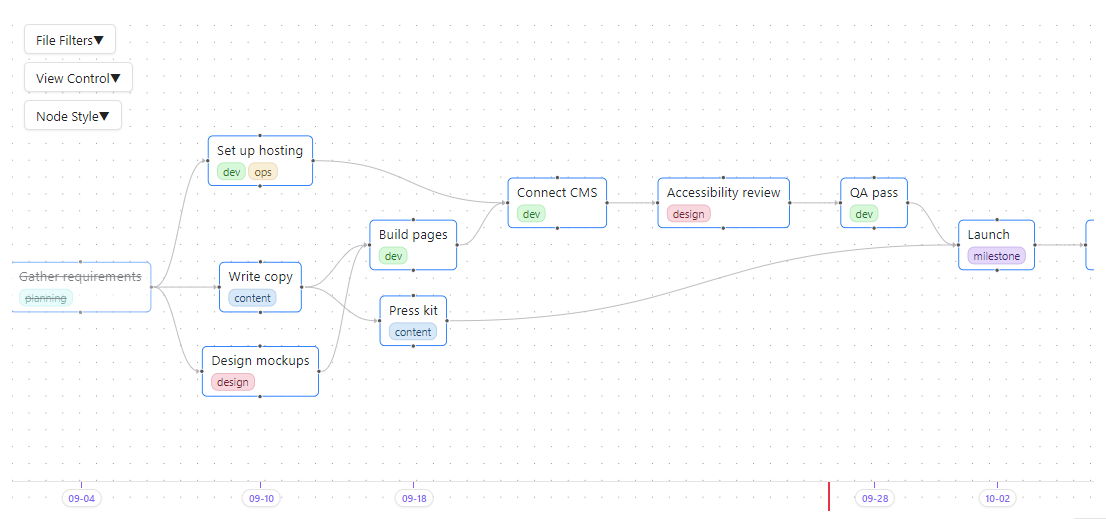
Tasks Flowchart is a plugin for Obsidian that draws your Tasks as a flowchart. Follow the flow of work along dependency chains, see what blocks what, link and create tasks by dragging, and keep everything as plain Markdown.
Drop a connection on empty canvas to create a linked task. It is written into your note and opened with its name selected.
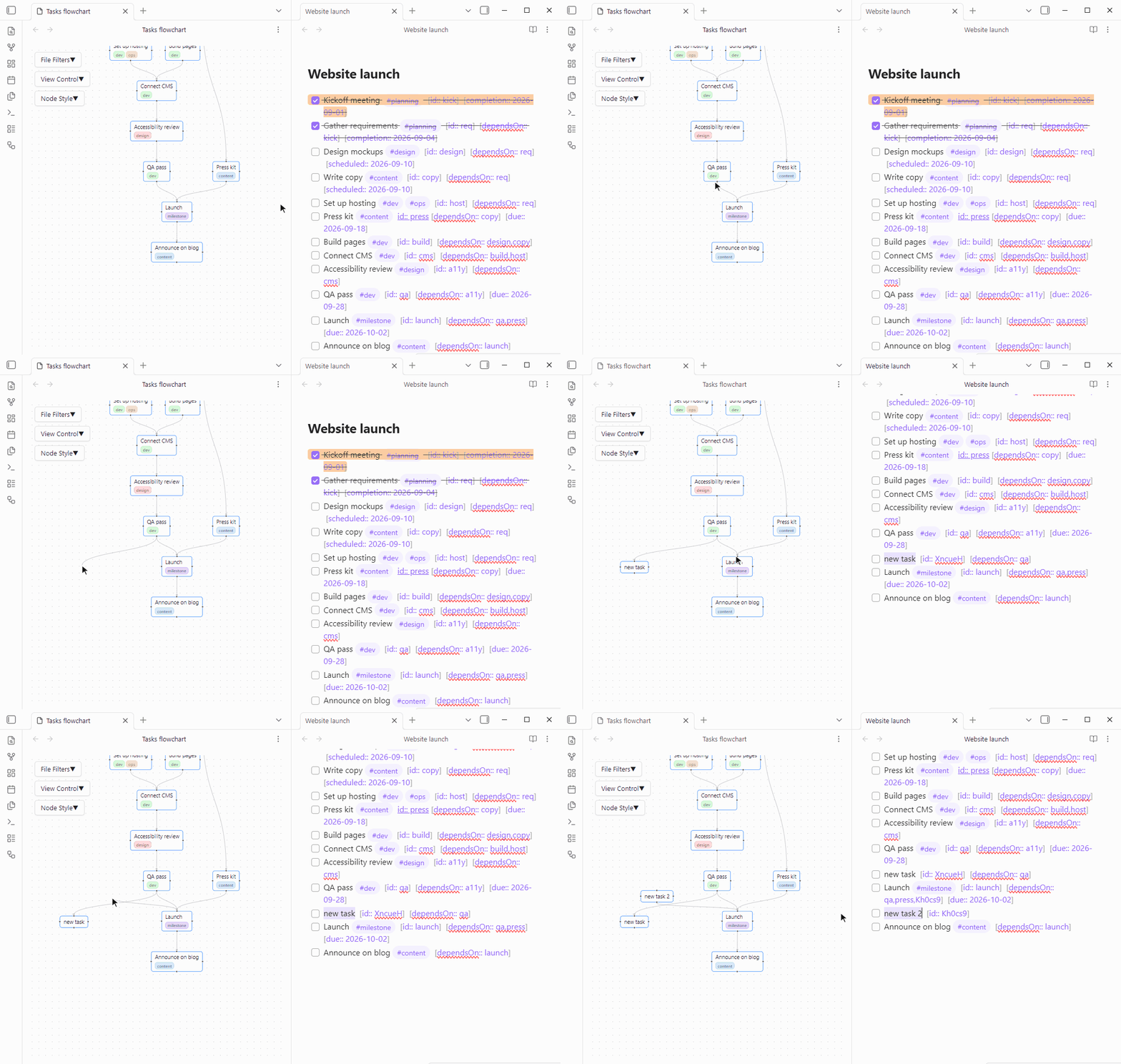
Drag between two tasks to link them. Select an arrow and press Delete to unlink.
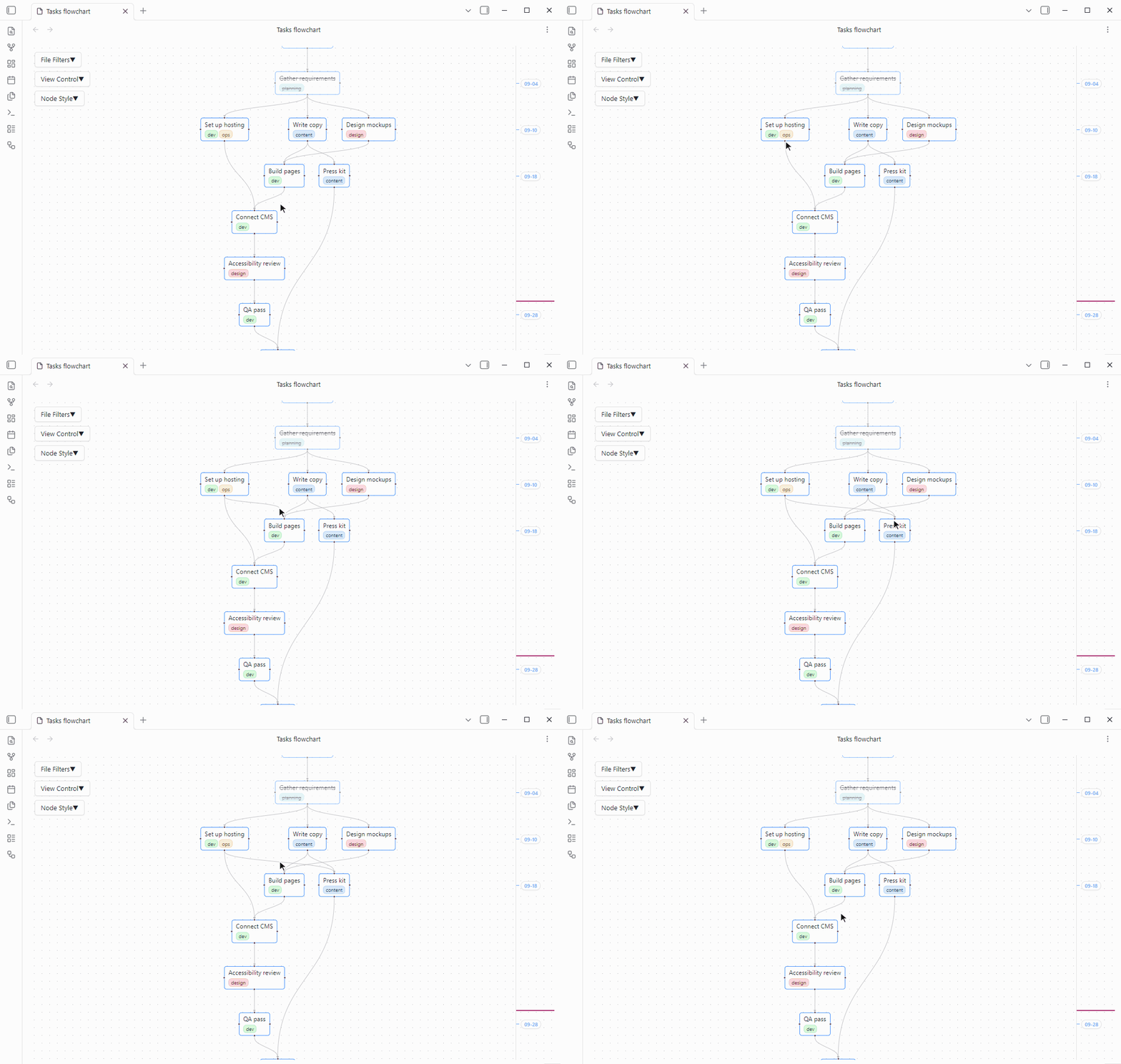
Turn on the time axis to order tasks by date.
Why Tasks Flowchart
- Your plan stays plain Markdown. Every node is a task line in your notes and every arrow is a field on that line. There is no database and no hidden file format, so the plan works in any editor, with git and sync, with Dataview and the Tasks plugin's own queries, and it is all still there if you uninstall Tasks Flowchart.
- See what blocks what. Upstream tasks come before the tasks that wait on them, and a task with nothing left above it is one you can start now.
Three lines like these become three connected nodes:
- [ ] Write copy  [id:: copy]
- [ ] Design mockups  [id:: design]
- [ ] Build pages  [dependsOn:: design,copy]
Getting started
- Install and enable the Tasks plugin. Tasks Flowchart reads its Dataview-style fields
[id:: ]and[dependsOn:: ]. The emoji format🆔and⛔is not supported yet. - Install Tasks Flowchart from Settings → Community plugins → Browse. To install manually, copy
main.js,manifest.jsonandstyles.cssfrom the latest release into<your-vault>/.obsidian/plugins/task-flow/. - Click Open tasks flowchart in the left ribbon, or run Tasks Flowchart: Open flowchart. In View Control, click Layout, then Overview.
All settings live in the three panels on the left of the view, File Filters, View Control and Node Style.
Usage
- Link: drag from a node's downstream side, the bottom in a top to bottom layout, or from its left or right side onto another node. That node now depends on the first one. Drag from the upstream side instead to make the first node depend on the other. A missing
[id:: ]is generated for you. - Unlink: click an arrow and press Delete or Backspace.
- Create: let go on empty canvas instead of on a node. A line
- [ ] new taskis added below the original task and its subtasks, linked by the same rule, and opened in a side pane withnew taskselected. Further ones are numbered, and the Tasks plugin's global filter tag is added if you use one. - Open: click a node to open its note at the task's line.
- Arrange: drag nodes freely, and their positions are remembered. Layout arranges everything in the chosen direction with curved, straight or stepped arrows, once or on a timer, and Overview fits the graph on screen.
- Time axis: each task is placed by its done, scheduled or due date. Tasks sharing a date line up, undated tasks fall between their neighbors, and the ruler marks each task's date and stretches with the tasks in between. A red line marks today, a red arrow marks a task dated before one it depends on, and dated nodes can only be dragged sideways.
- Filter: in File Filters, show only tasks with a dependency link, which is on by default, hide tasks containing keywords such as
archived on, and filter by status, tag or folder. Filters are kept between sessions and can be saved as named presets. - Style: in Node Style, set colors and font size, render task text as Markdown, show tags as chips with automatic colors, and color and size nodes by priority.
- Refresh: the graph follows your edits. A few seconds after you change a task line and the note is saved, its node shows the new text in the same place. Tasks also reload every 30 seconds by default, or with Refresh in View Control, and refreshing and automatic layout wait while you drag.
Troubleshooting
A task missing from the graph usually has no dependency link, and Only show tasks with a relation hides such tasks by default. Otherwise check the keyword, status, tag and folder filters, and check that the Tasks plugin indexes the line, which requires the Tasks global filter tag if you set one.
Tasks Flowchart reads [id:: ], [dependsOn:: ] and date fields anywhere on the line, so links survive text that archiving plugins append after them. The Tasks plugin only reads fields at the end of a line, so its own queries see no id, dependencies or dates on such a task.
Data
Dependencies live only in your notes. Node positions, filters, presets and view settings are saved in .obsidian/plugins/task-flow/data.json. Deleting that file resets the layout and settings without touching any task.
Development
The project requires Node.js 22 or later. npm install and npm run build write main.js, manifest.json and styles.css to dist/. Releases are built and published by GitHub Actions from a version tag, and the steps are described at the top of .github/workflows/release.yml.
License
MIT, see LICENSE.