
README file from
GithubTake Note
Nobody wants to take notes in meetings. Take Note records the meeting in Obsidian, transcribes it on your own computer with Whisper, works out who said what, and has an LLM of your choice turn it into a structured meeting note:
- 📋 Summary and ✅ decisions
- 📌 Action items as
- [ ]tasks with owner, priority and 📅 due date (works with the Tasks plugin) - ❓ Open questions and who to ask
- 🎫 Tickets (bug / feature / task / improvement) with acceptance criteria
- 🤖 AI assignments: work an AI assistant could do for you, each with a ready-to-paste prompt
- 👥 By person: what each person reported, committed to and asked
- ⚠️ Risks, 📝 facts worth remembering, 🔜 things to follow up next time
It also works without recording: write rough notes or paste a Zoom / Teams / Meet transcript, then run one command.
## 📌 Action items
- [ ] Send the API design template — [[Alice]] 📅 2026-11-21
- [ ] Investigate the checkout QR issue — [[Bob]]

## 👥 By person
### [[Dana]]
Ran the sync and approved the release plan.
- **Will do**
    - Review search options with the team next week
Privacy
- Audio never leaves your computer. Recording, transcription (whisper.cpp) and speaker separation (sherpa-onnx) all run locally.
- Only text is sent, and only to the LLM endpoint you configure. Use a local model (Ollama, LM Studio) and nothing leaves your machine at all.
- Your API key is stored in your system keychain through Obsidian's secret storage, not in the vault.
- Voice fingerprints are stored in
~/.take-note/on your computer, outside the vault, so they never sync. You can forget a voice from the settings at any time. - Recording people may require their consent where you live. Tell people you are recording.
Disclosures
As required by Obsidian's developer policies:
- Network use. The plugin only connects to the LLM provider you choose (OpenAI,
Anthropic, OpenRouter, or the server URL you enter), to list models and send your meeting
text. It sends no telemetry and has no ads. The
optional
scripts/setup-macos.sh(which you run yourself, not the plugin) downloads Homebrew packages, the Whisper model from Hugging Face, and sherpa-onnx from npm and GitHub. - Files outside your vault. It reads and writes
~/.take-note/(speaker-separation runtime and models installed by the setup script, voice fingerprints, per-meeting speaker data), reads the Whisper model you configure (default~/.cache/whisper/), uses temporary files in your system temp folder while transcribing, and reads recordings you import. - Local programs. It runs
ffmpeg,whisper-cliandnodefrom the paths in settings to convert, transcribe and separate speakers. It does not install or update anything itself. - Microphone. Used only while you are recording.
- Desktop only. Needs the desktop app for the microphone, file system and local programs.
Requirements
- Obsidian desktop 1.13.0 or newer
- An LLM. Built in: OpenAI, Claude (Anthropic), OpenRouter, plus local Ollama / LM Studio or any OpenAI-compatible server (vLLM, LiteLLM…). A model with a large context window (32K+) gives the best results on long meetings.
- macOS for the one-step setup script (Apple Silicon or Intel). The plugin itself is plain Obsidian + Node, so Linux/Windows should work if you install ffmpeg, whisper.cpp and sherpa-onnx yourself and set their paths in settings. This is untested; reports welcome.
Install
-
Local speech tools (macOS). Clone or download this repo, then run:
./scripts/setup-macos.shThis installs
ffmpegandwhisper.cppwith Homebrew, downloads the multilingual Whisper modellarge-v3-turbo-q5_0(~574 MB), and installs sherpa-onnx plus two small speaker models (~80 MB) into~/.take-note. Add--no-speakersto skip speaker separation. -
The plugin. Either:
- Manual: download
main.js,manifest.jsonandstyles.cssfrom the latest release into<your vault>/.obsidian/plugins/take-note/, or - BRAT: install the BRAT plugin and add
stevelohwc/obsidian-take-note.
Then reload Obsidian and enable Take Note in Settings → Community plugins.
- Manual: download
-
Settings → Take Note
- Provider: pick OpenAI, Claude, OpenRouter, Ollama, LM Studio or Other.
- API key: paste it for OpenAI / Claude / OpenRouter (each has a "Get a key" link). Switching providers remembers each one's key and model.
- Model: click Load models and pick one. Claude starts on Claude Opus 5.5.
- Your name: so "I will…" in your notes becomes your action item.
- Extra instructions (recommended): team context, such as who the initials in your notes are, client names and ticket conventions. It makes a big difference.
- Check Whisper setup / Check speaker setup confirm the local tools are found.
Use
| You want to… | Do this |
|---|---|
| Record a meeting | Click the floating mic button (or the ribbon icon). Type your own notes under My notes while it records. Click the red timer in the status bar to stop. Transcript and AI notes appear automatically. A recording stopped within 20 s is treated as a mis-tap and discarded (change it in settings). |
| Only take rough notes | New meeting note, type, then run Summarize & extract… |
| Process a Zoom/Teams/Meet transcript | Paste it into a note and run Summarize & extract… |
| Process a recording file | Import a recording… (audio or video; it is not copied into the vault) |
| Re-run after editing your notes | Run Summarize & extract… again. It only replaces the AI section. |
Sidebar: the Take Note panel in the right sidebar follows the meeting note you have open. Summary shows the AI notes (tick tasks right there), Transcript shows who said what with a search box, and clicking a timestamp plays the recording from that moment. Notes is a box for your own notes during the meeting; it saves into the note's "My notes" section, which the AI reads. Its toolbar records, summarizes, transcribes and names speakers. It comes back each time Obsidian starts; turn Sidebar off in settings if you don't want it.
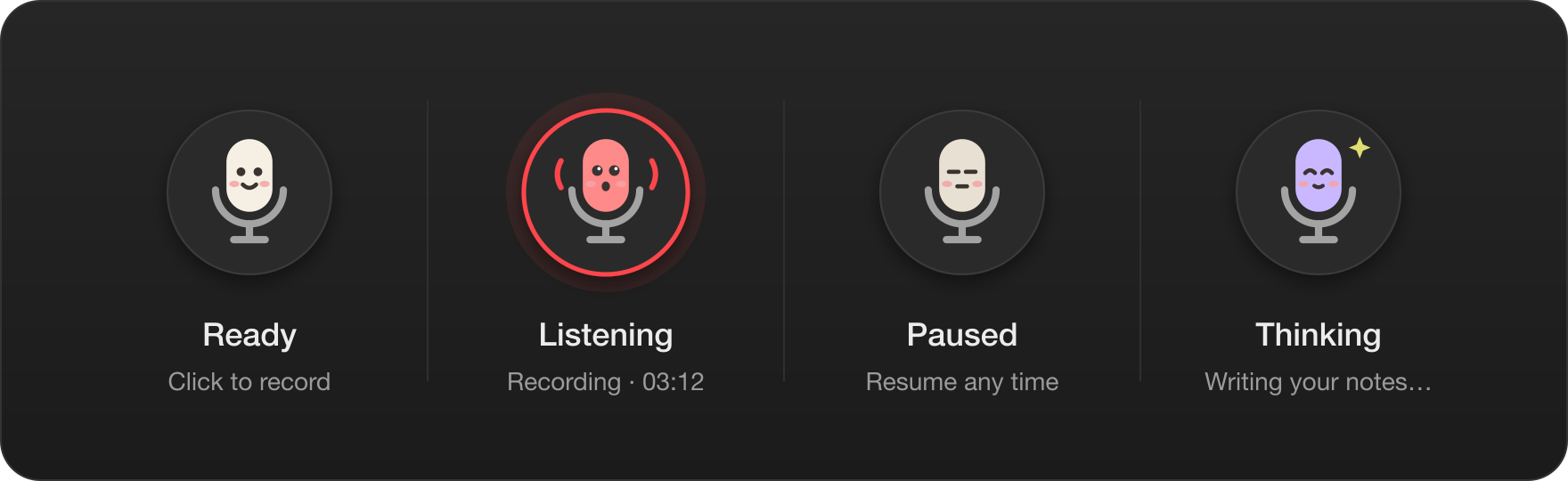
The floating mic button changes face while it listens, pauses and thinks. Right-click it for more actions, drag it anywhere, or hide it in settings.
All commands are in the command palette (Cmd/Ctrl+P) under "Take Note". You can assign hotkeys to Start / Stop recording.
Who said what
Transcripts are labelled by voice, like [00:03:12] Alice: the release is ready…. Voices it
has learned are named automatically, and new voices show as Speaker 1, Speaker 2…
- After a meeting: run Name the speakers in this note. You see two lines each voice said; type who it is. Their voice is remembered for next time. Save & redo AI notes regenerates the summary with the real names.
- Or ahead of time: run Record a voice sample for a person and have them read the text shown for about 20 seconds.
- People notes: with Update People notes on, each named speaker's
People/<Name>.mdgets a line like- [[2026-11-19 – Weekly Sync]] — reported the release is ready. - Accuracy: set Number of speakers when you know it; that helps most. If people get mixed up, adjust Voice match strictness and Separation sensitivity.
Online meetings with headphones
The microphone only hears you. To capture everyone, either use the meeting app's own recording or transcript (then import or paste it), or route system audio into an input device with a tool like BlackHole and pick that device under Settings → Microphone.
How it works
| File | What it does |
|---|---|
src/recorder.ts |
Microphone → .webm, written to disk every second so a crash loses nothing |
src/transcribe.ts |
ffmpeg → whisper-cli, with speaker separation running in parallel |
helper/speakers.cjs |
sherpa-onnx speaker separation + voice fingerprints (runs in a Node subprocess) |
src/speakers.ts |
Merging split speakers, matching saved voices, labelling transcript lines |
src/providers.ts |
Provider presets (OpenAI, Claude, OpenRouter, Ollama, LM Studio, custom) |
src/llm.ts |
Streaming client for any OpenAI-compatible /chat/completions |
src/claude.ts |
Claude through the official Anthropic SDK, streaming |
src/fab.ts, src/mascot.ts |
The floating mic button and its mascot |
src/view.ts, src/sidebar-data.ts |
The sidebar: summary, transcript, audio player |
src/extract.ts |
The prompt, JSON parsing, splitting long meetings and merging, priority checks |
src/render.ts |
The Markdown written into your note |
Priorities are only kept when your notes or transcript actually contain an urgency word (urgent, asap, blocker, today…) about that item. Models love to invent priorities otherwise.
Development
npm install
npm test                                   # unit tests
npm run build                              # typecheck + build main.js
VAULTS="$HOME/path/to/vault" npm run deploy # build and copy into a vault
Test the pipeline without Obsidian:
LLM_MODEL=qwen2.5:14b node scripts/run.ts path/to/meeting.m4a # or a .md file of notes
Credits
whisper.cpp · sherpa-onnx (pyannote segmentation, 3D-Speaker ERes2Net) · Obsidian
License
MIT