
README file from
GithubTag Ontology





English | 한국어 | 简体中文 | 繁體中文 | 日本語 | Español | Français | Deutsch | Português (Brasil) | Русский | Italiano
Link your tags the way you link notes.
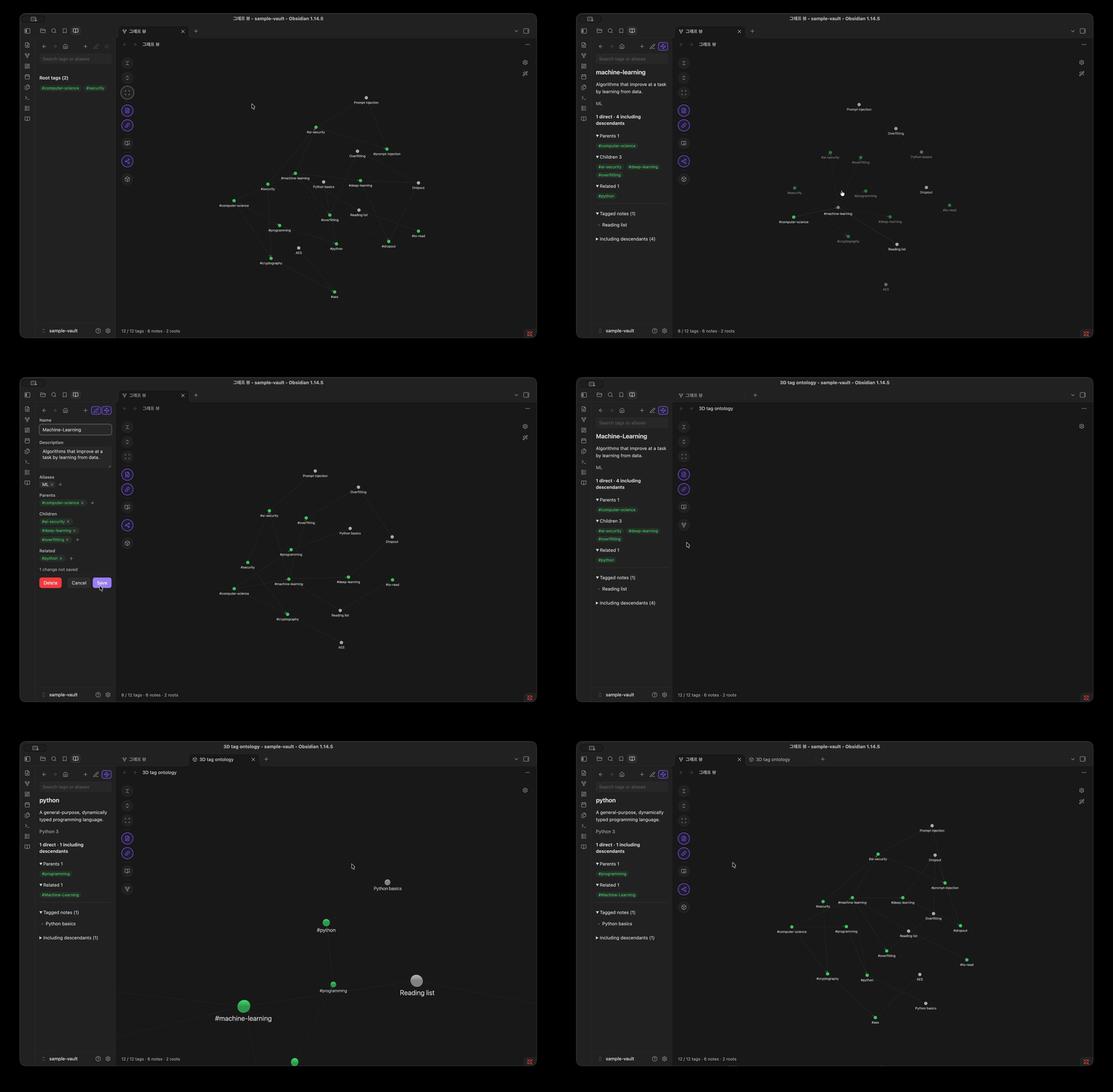
Tag Ontology lets you give each tag parents, children and related tags from a sidebar tab, with no file to edit. Then explore them in Obsidian's own Graph view: collapse and expand each branch, switch to a tree layout and keep the selected tag in focus. Notes, links between notes, filters, color groups and display settings keep working as before.
It never edits your notes. It writes only to the tag dictionary, a plain JSON file in your vault, and only when you add, edit or delete a tag in the sidebar tab.
Why Tag Ontology?
A concept can connect to several fields at once. For example, RAG is related to LLMs, information retrieval, and knowledge graphs. When organizing it with folders or nested tags, I had to choose which path to place it under, and that path alone made its other relationships hard to see.
I wanted to manage and explore relationships between concepts separately, while keeping document locations and source text intact. I built Tag Ontology so tags could have multiple parents and related tags, with those relationships navigable in Obsidian's graph. I later extended it so the CLI and TOW could use the same relationships and rules.
To start: the hierarchy is built from tag nodes, so it needs Filters → Tags on in the graph settings. A fresh install turns it on for you.
[!TIP] Using with AI agents: Pair it with TOW to manage tags and dictionaries with AI agents, alongside broader vault tasks. (Learn more)
Features
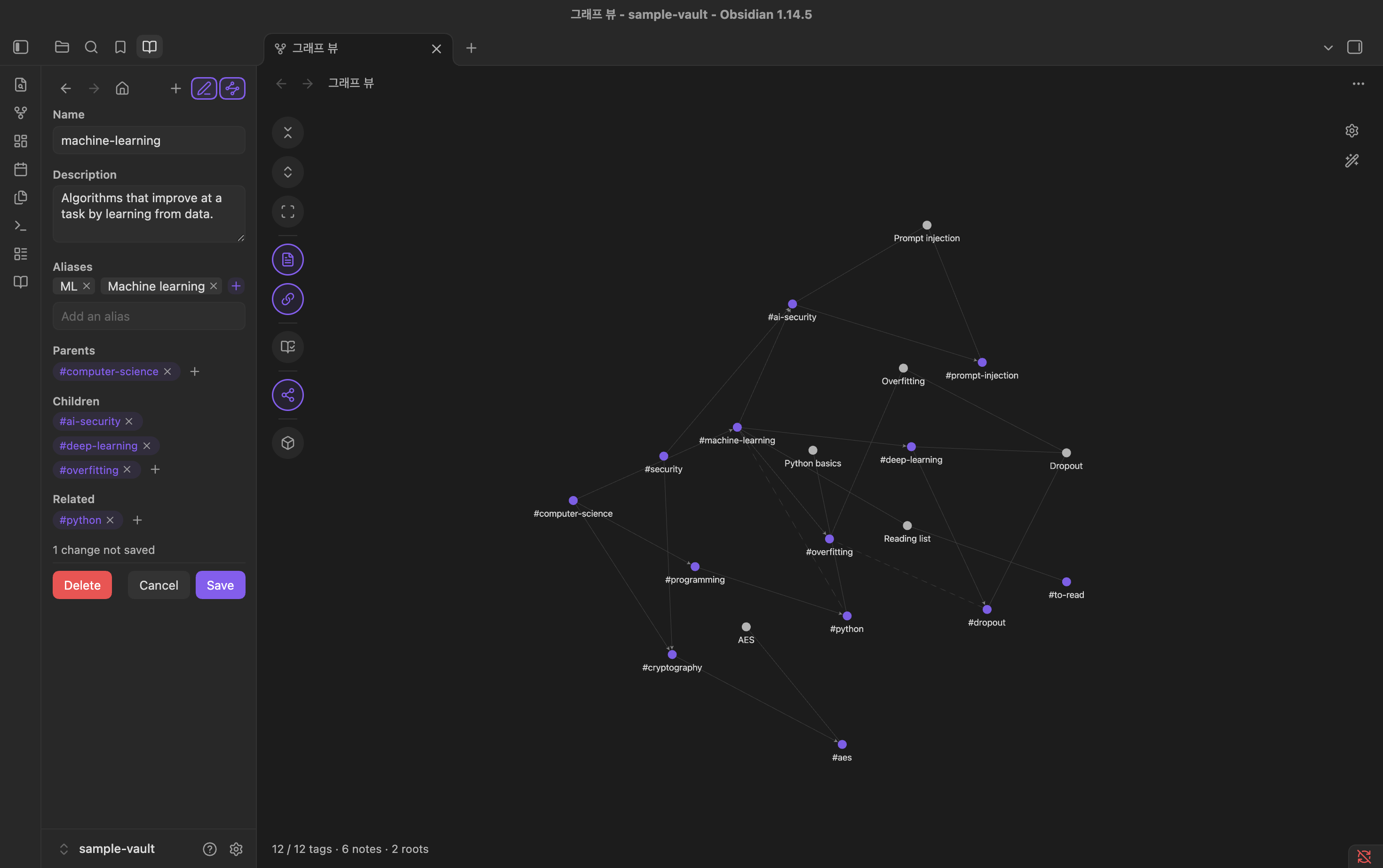
- Build your hierarchy in the sidebar. Add tags your notes already use or new names, edit a tag's name, description, aliases, facet, parents, children and related tags, and delete tags. No file editing, and saving never overwrites changes made elsewhere.
- An extension of the core graph. Notes, note links, filters, color groups, arrows and the other core settings work as usual.
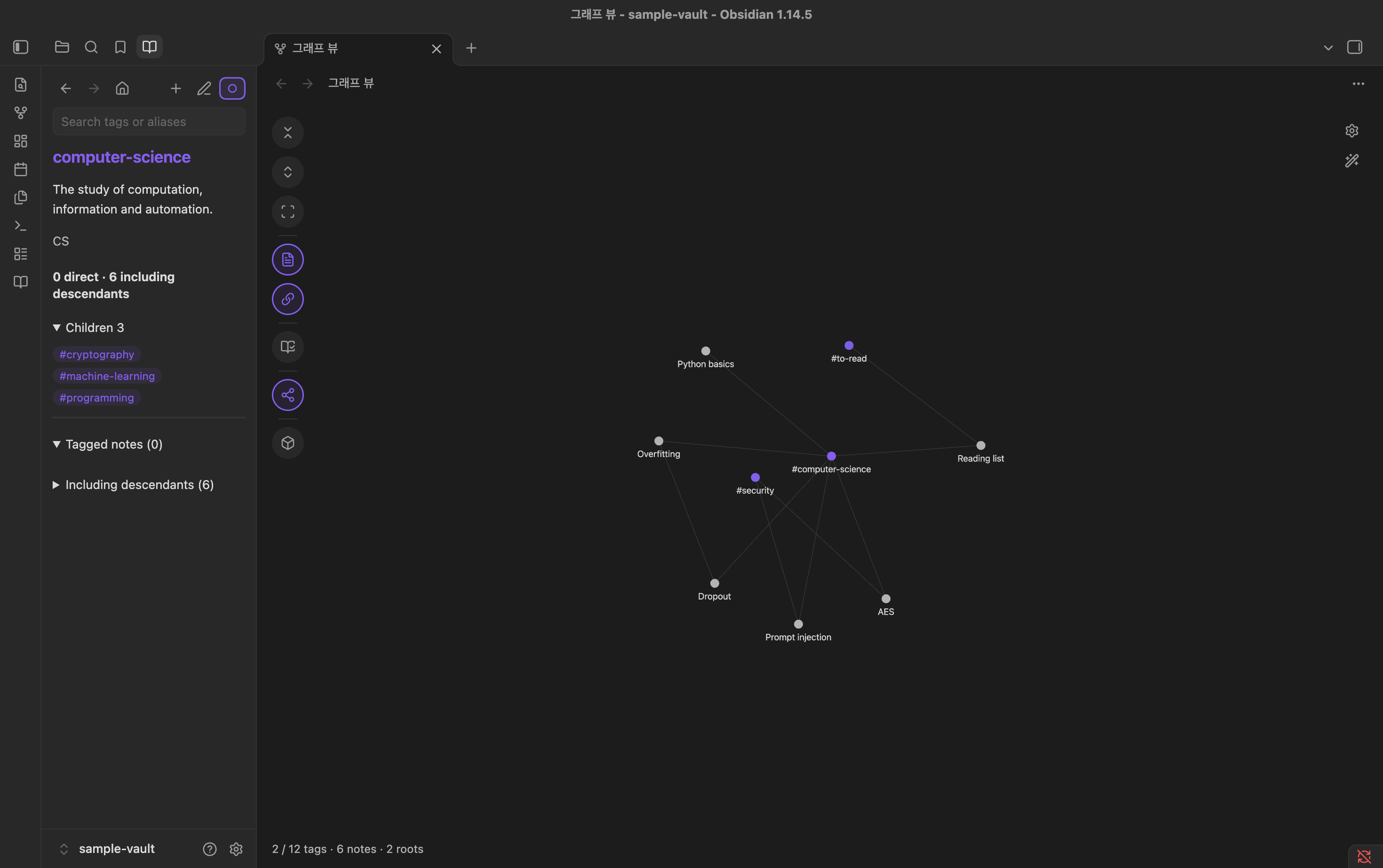
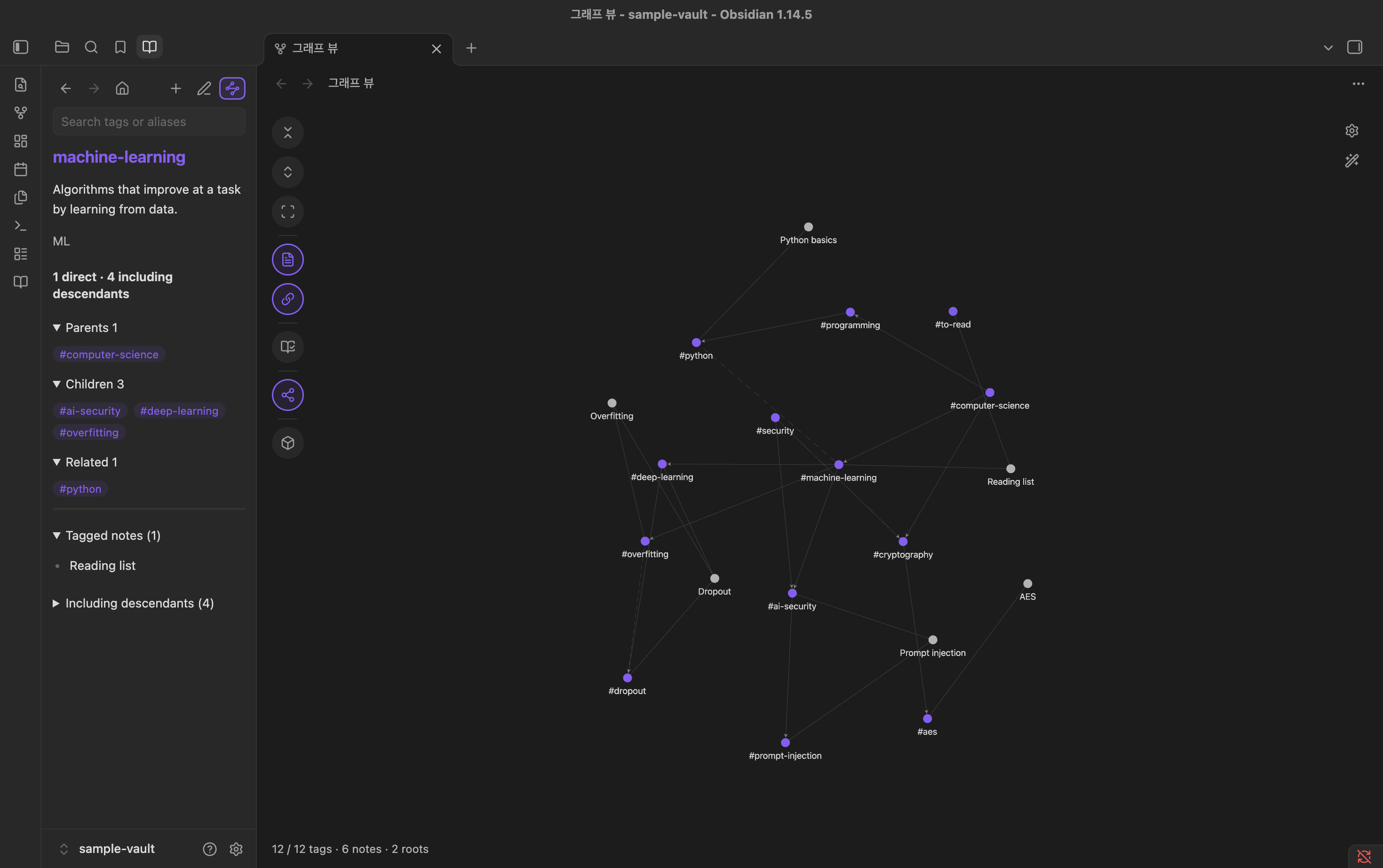
- Collapsible tag hierarchy. Dictionary tags start collapsed to their roots, and each note links to its nearest visible ancestor. Click a tag to select it and double-click it to expand it one level, and watch its notes move to the more specific child tags. Double-click it again to collapse it.
- Note counts with roll-up. For each tag you see the notes tagged directly and the notes tagged with the tag or any descendant.
- Multiple parents and related tags. Solid arrows go from parent to child. Dashed lines connect related tags.
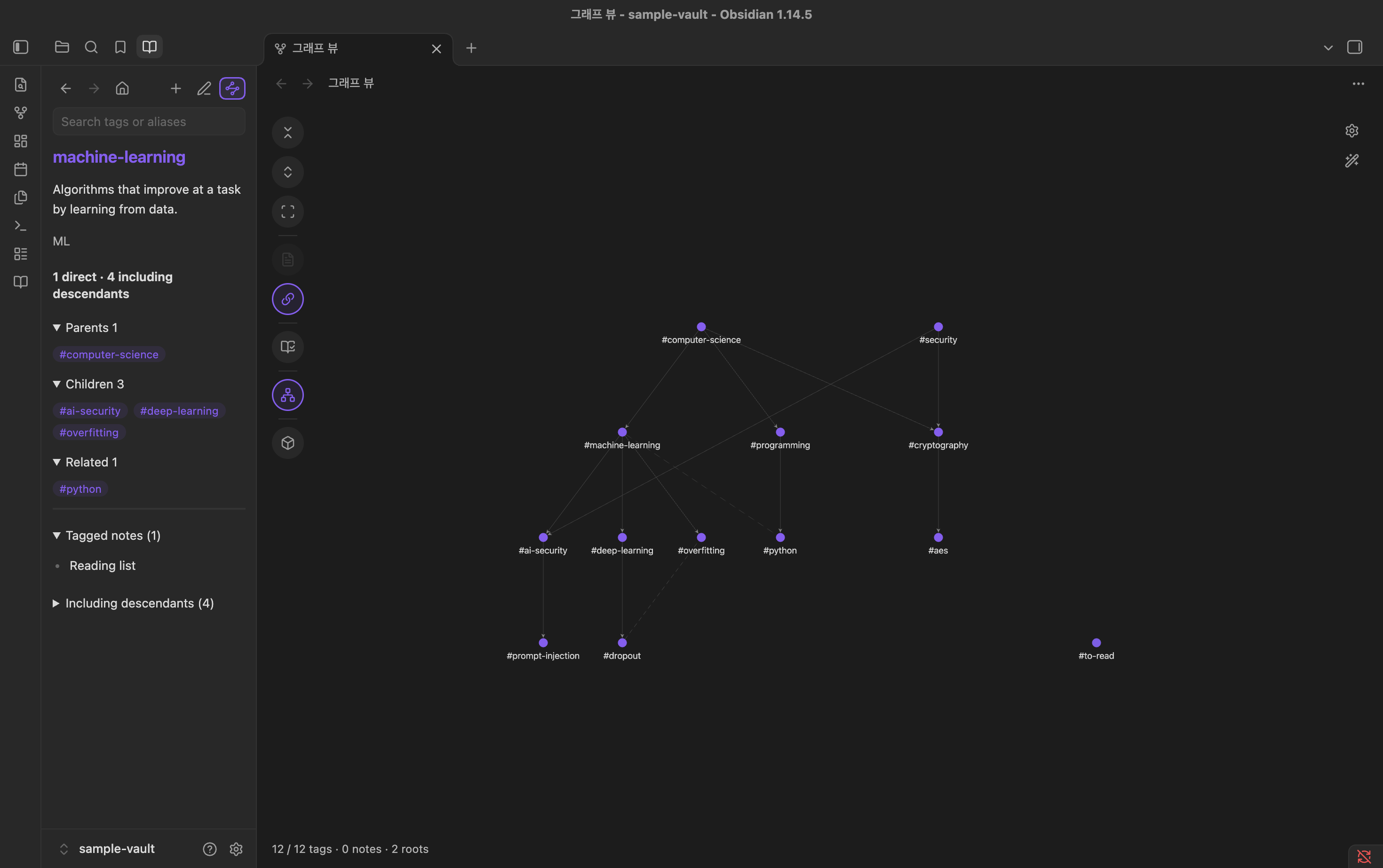
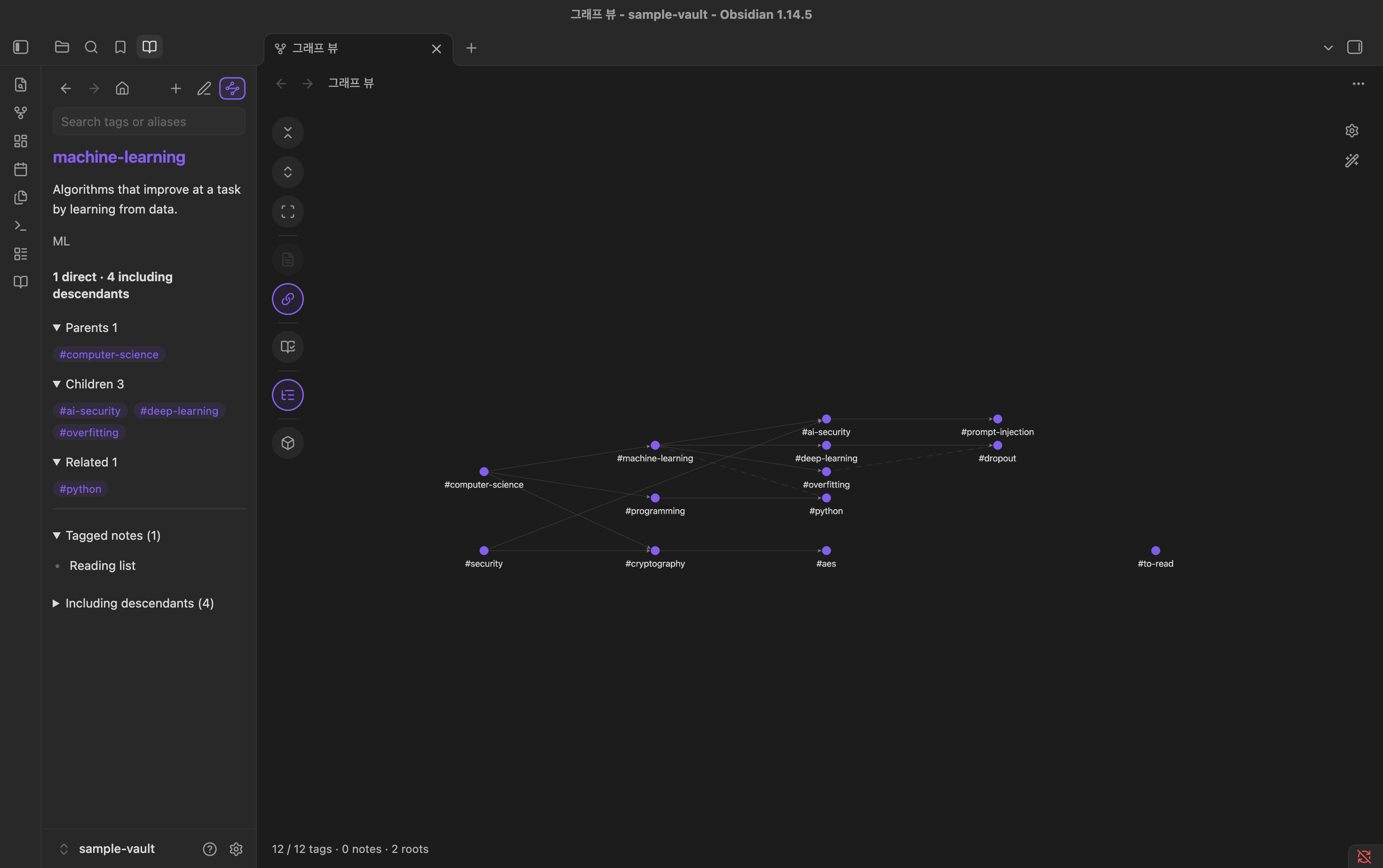
- Four layouts. Force, Mind map, a vertical tree and a horizontal tree. The regular trees retain their visible-hierarchy layout and wrap root trees into rows. Mind map starts its chosen root at level 0 and uses the longest currently open parent path for spacing. Tag colors continue to use the full dictionary depth.
- Mind map. Mind map first asks where to start: search hierarchy tags or choose one of the root suggestions, then explore only that tag’s branch. Use Change starting tag (the home button in the bottom row) to return to the picker. Returning to another layout restores its previous expansion; entering Mind map again shows the picker. Select a label for its sidebar details; use its arrow button to expand or collapse its children. Drag the background to pan, scroll to zoom, and use Fit to see the map. Shares the core graph filters and saved expansion state. Shared tags remain visible while another expanded parent reaches them. Notes stay hidden in this layout.
- 3D view (beta). The same hierarchy in three dimensions: orbit around it and click a tag to fly to it. Switch modes in the graph toolbar. Force, Mind map, both trees, 3D and the ontology explorer share one tab; right-click a mode button to open a separate tab for comparison. Adjust Filters (search, attachments, existing files only, orphans), Display (note-link arrows, text fade threshold, node size, link thickness, perspective and label size) and Forces (drag tension and force sliders) from its 3-section gear panel, with per-section and panel-wide restore defaults. Switching to 3D or the explorer preserves the other canvas; hidden 3D rendering pauses, and closing the graph tab releases its resources.
- Ontology explorer (beta). Start from one tag on an empty canvas and bring out its children, parents, related tags and notes with a right-click, as object cards, in the style of Palantir's ontology graphs.
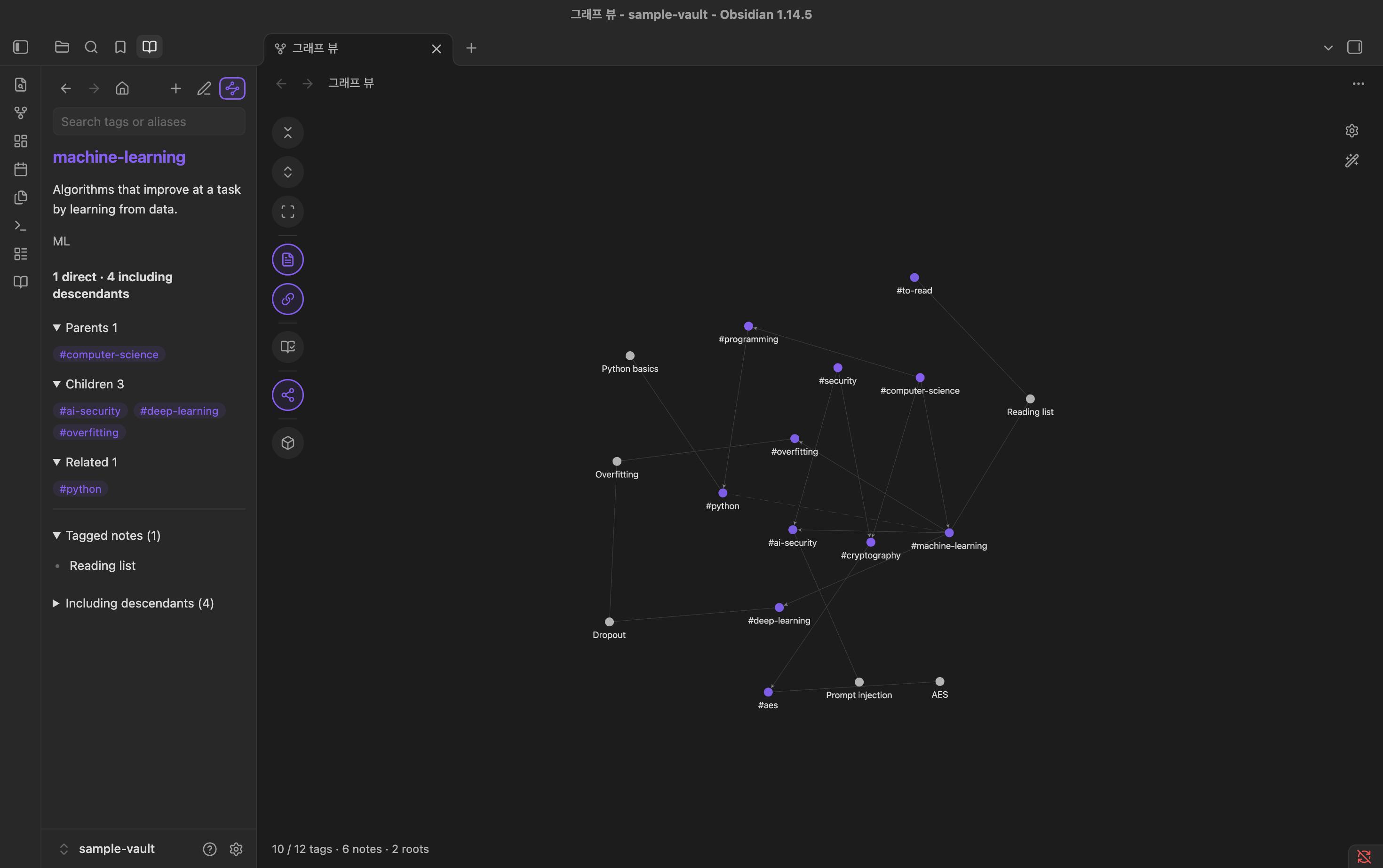
- A sidebar tab. Search by tag name or alias, read a tag's details and run the dictionary check in a tab next to Files and Search. Choosing a tag there zooms the open graph in on it and centers it.
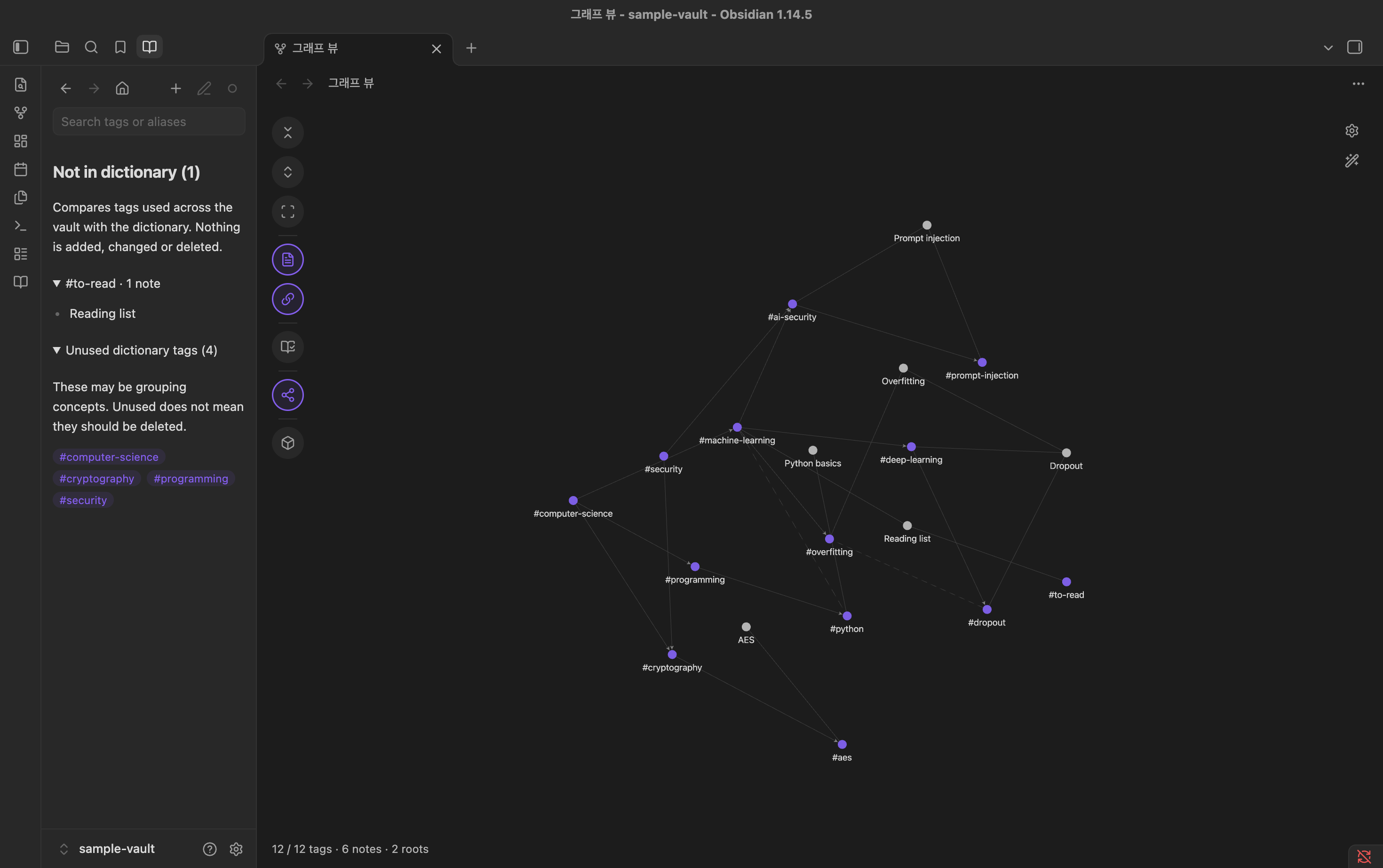
- Dictionary check. Lists tags used in your vault but missing from the dictionary, with similar dictionary names; dictionary tags no note uses yet; notes that write a tag as an alias or in another case; and notes that carry a broader tag next to a narrower one. It only reports and never changes anything.
- Custom colors (optional). Give every tag in the graph and in the sidebar one color, the accent color unless you pick another.
- Hierarchy depth colors (optional). Select Colors → Color mode → Hierarchy depth to color tags by the longest root-to-tag path in the full dictionary. Filtering and collapsing keep colors stable, and deeper levels use the final palette color. Default and Pastel use the same red→orange→yellow→green→cyan→blue→violet→pink order from the Tailwind CSS 3.4 color table, using 500 and 200 shades respectively. They resample across the full range when levels change; Rainbow, Warm and single-hue gradient examples are also available. Edit numbered colors horizontally and add/remove levels. The compact graph legend offers palette selection, color editing and Save as…. Edits there or in settings become a shared Working copy, automatically kept across restarts. Save as… adds an independent named snapshot under My palettes; switching examples or saved palettes leaves the working copy available. Saved names are unique and never overwrite another palette. My palettes → Manage… lists saved palettes with confirmed deletion; deleting the active palette selects Default and keeps the working copy. Earlier Custom palettes are retained as My colors, and existing active colors are preserved when examples change. Colors apply to 2D, 3D, explorer cards and the sidebar. Inspired by Colored Tags.
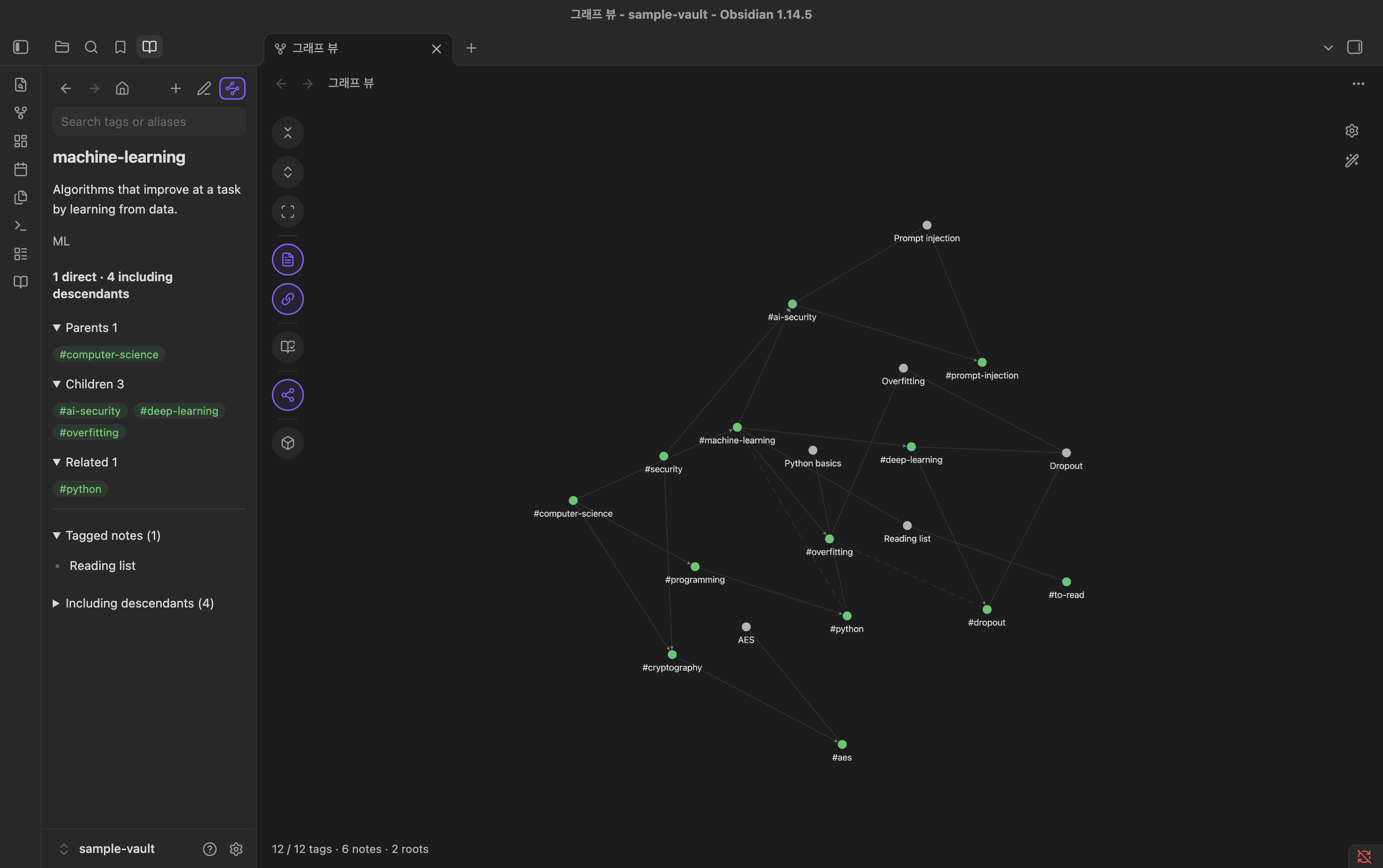
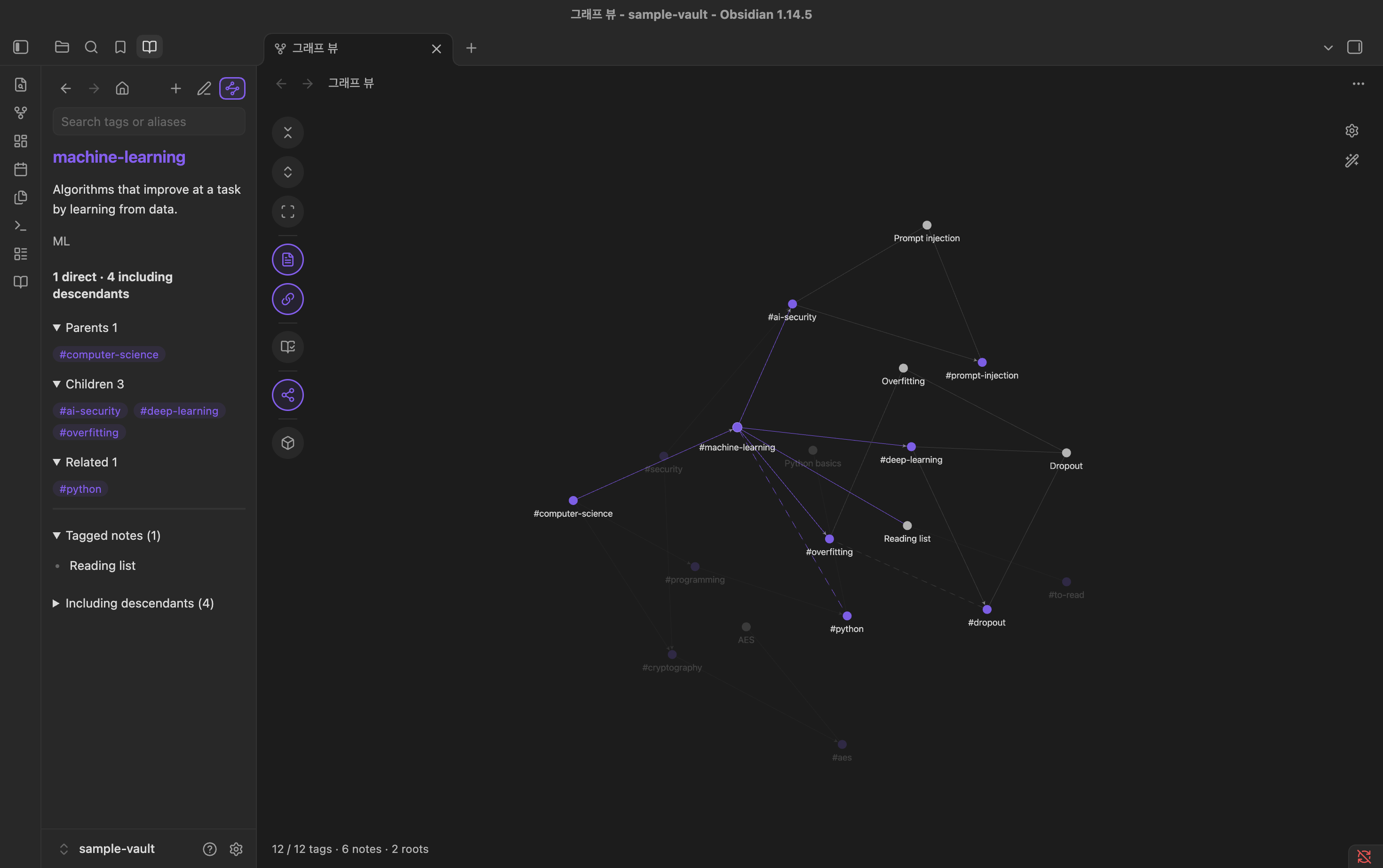
- Focus (optional). Keep the selected tag and the tags next to it (parents, children and related tags) bright while the rest fades. Options add every tag below it and its notes.
- Remembers your view. Expanded tags and the Notes/Related toggles are saved and shared by every graph tab.
- Localized interface (11 languages). Follows Obsidian's language automatically by default, or switch manually under General → Language across English, 한국어, 日本語, 简体中文, 繁體中文, Español, Français, Deutsch, Português (Brasil), Русский, and Italiano. Settings, the sidebar dictionary, 3D controls, depth legends, and graph views update live.
| Sidebar tab | Dictionary check |
|---|---|
 |
 |
| Collapsed to the roots | Expanded |
 |
 |
| Vertical tree | Horizontal tree |
 |
 |
| Original theme | Keep the selected tag focused |
 |
 |
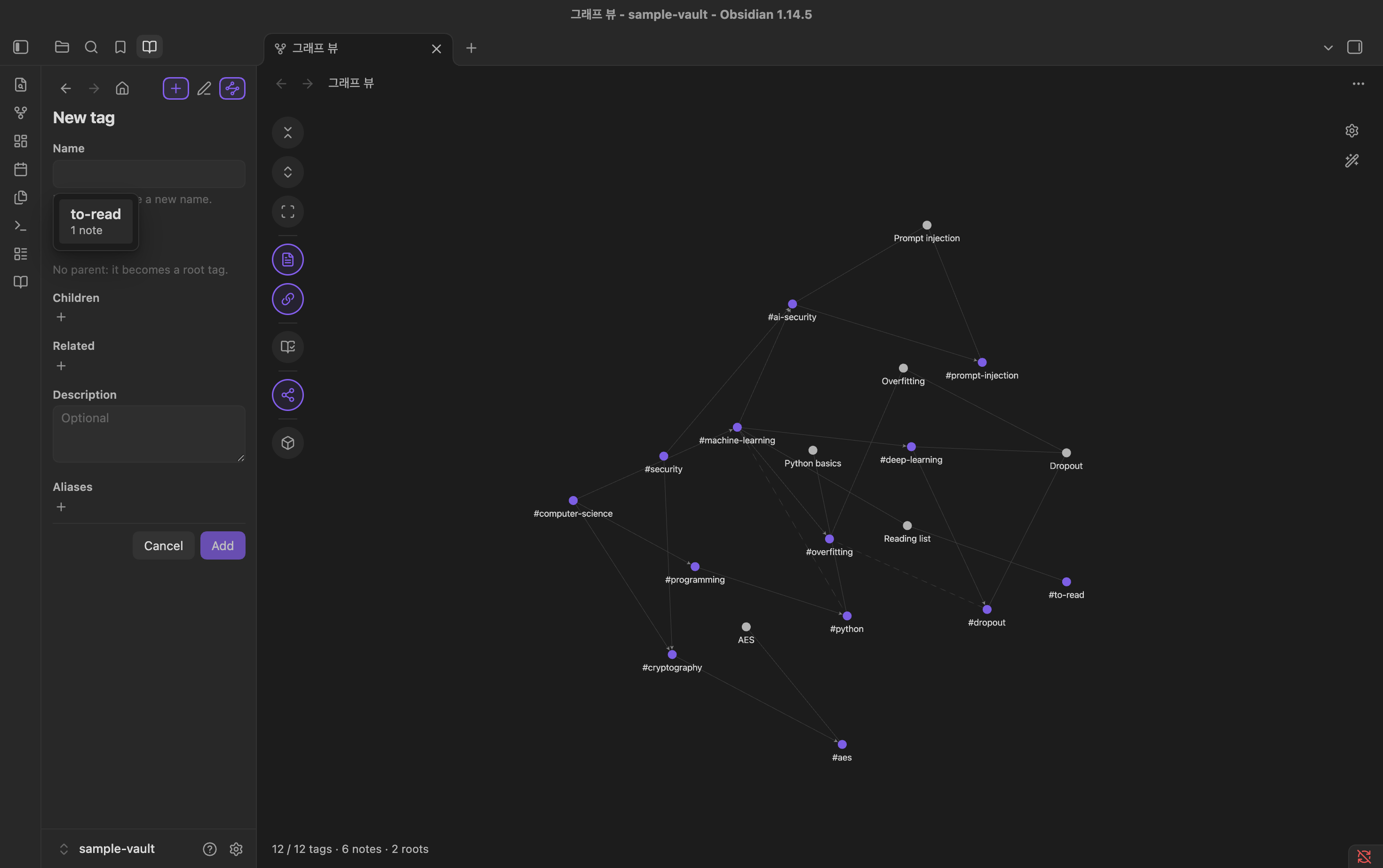
| Edit a tag | New tag |
 |
 |
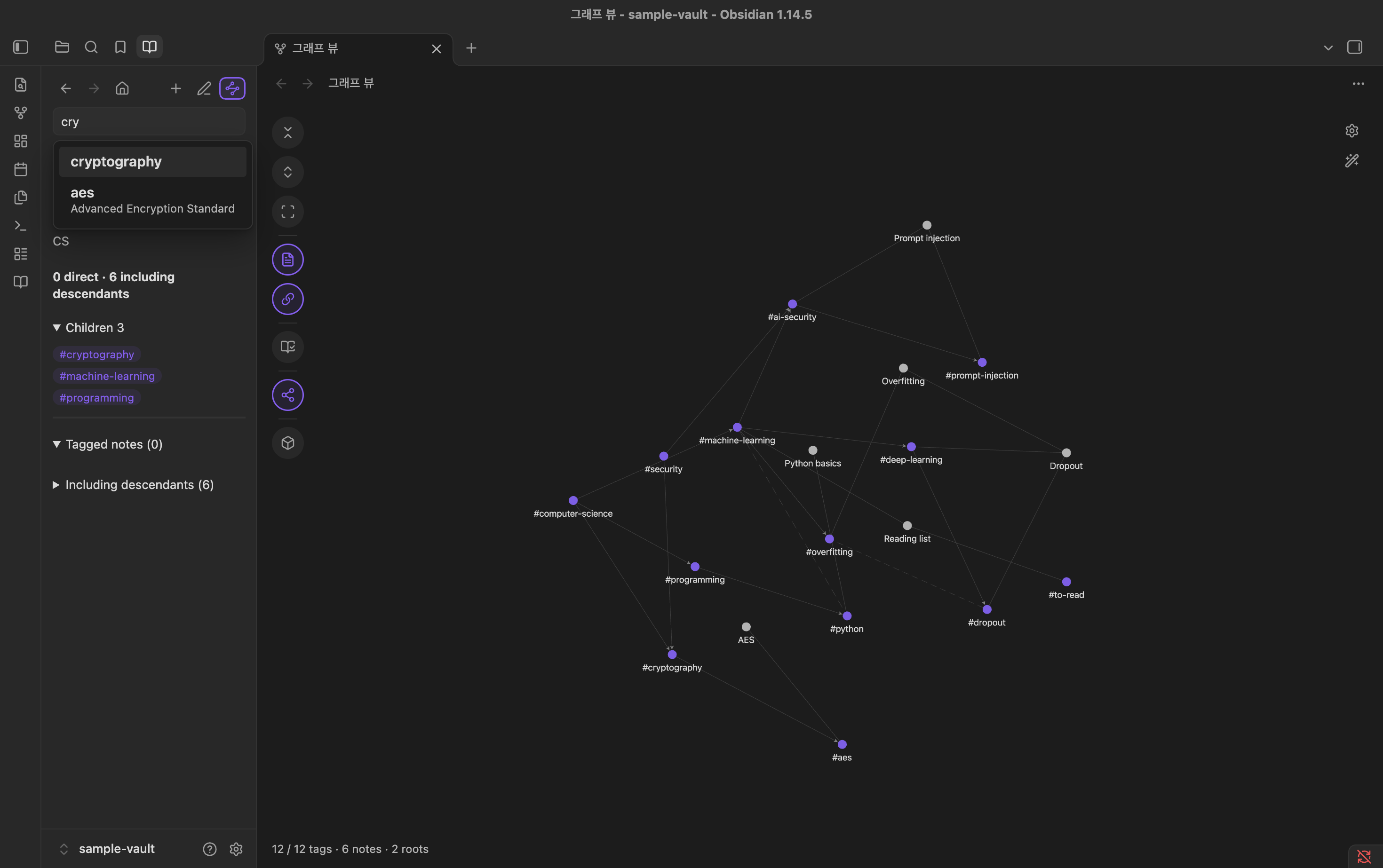
| Search suggestions | Delete a tag |
 |
 |
How it works
Tag Ontology works inside the core Graph view. It takes the graph Obsidian has already built with your filters and color groups, collapses the dictionary tags and adds the hierarchy and related links between them. Tags that are not in the dictionary stay ordinary tag nodes. The local graph is not affected, and disabling the plugin returns the Graph view to normal.
The 3D view (beta) is a separate tab. It builds the same notes and tags from the vault, layers the dictionary onto them with the same code, and draws them with three.js.
The ontology explorer (beta) is a separate tab too. It doesn't show the whole dictionary: you put tags on its canvas one by one and draw it with Cytoscape.js.
The hierarchy you build in the sidebar tab is saved in the dictionary file. See Advanced: the dictionary file if you want to read or edit it directly.
Tag usage comes from Obsidian's metadata cache, which includes frontmatter tags and inline #tags in every Markdown note.
Installation and Updating
For complete details, development builds, and troubleshooting, see the Full Installation & Updating Guide.
From Community plugins
- Install: Open Settings → Community plugins → Browse, search for "Tag Ontology", then install and enable it. You can also install it from its directory page.
- Update: Go to Settings → Community plugins, click Check for updates, then click Update all or Update next to Tag Ontology.
With BRAT (beta releases)
- Install:
- Install and enable BRAT.
- Choose BRAT: Add a beta plugin for testing and enter
NamhyeonKo/obsidian-tag-ontology.
- Update: Run command
BRAT: Check for updates to all beta plugins(orBRAT: Check for plugin updates).
Manually
- Install:
- Download
main.js,manifest.jsonandstyles.cssfrom the latest release. - Copy them into
.obsidian/plugins/tag-ontology/inside your vault. - Reload Obsidian, then enable Tag Ontology in Settings → Community plugins.
- Download
- Update:
- Download the latest
main.js,manifest.json, andstyles.css. - Overwrite the files in
.obsidian/plugins/tag-ontology/. - Run command
Reload app without savingor restart Obsidian.
- Download the latest
Standalone CLI tool
The standalone CLI is published on npm as tag-ontology:
# Run latest directly without installing:
npx tag-ontology@latest check --root /path/to/vault --json

# Or install / update globally:
npm install -g tag-ontology@latest
npm update -g tag-ontology
Requirement: The core Graph view plugin must be enabled, with Filters → Tags toggled ON in the graph settings.
Quick start with the sample vault
The repository includes a small vault in examples/sample-vault: a 12-tag dictionary and six notes.
- In Obsidian, choose Open folder as vault and select
examples/sample-vault. - Install the plugin into that vault using one of the methods above.
- Click the Open tag ontology ribbon icon (a book) or run Tag Ontology: Open graph from the command palette.
- If the graph shows no tags, turn on Filters → Tags in the graph settings (gear icon).
You should see two roots, computer-science and security, with the six notes linked to them, plus the unregistered tag #to-read. Double-click computer-science, then machine-learning: the Dropout note moves to deep-learning. cryptography and ai-security have two parents each.
Then try the sidebar tab: press + to add a tag of your own under machine-learning.
Usage
Sidebar tab
Open tag ontology (the book ribbon icon or the Open graph command) opens the graph and brings a Tag dictionary tab forward in the left sidebar, next to Files and Search. Clicking a tag in the graph or Dictionary check brings it forward too. You can drag the tab to the right sidebar.
- The bar at the top has back, forward and home (the root tags and every tag) on the left, and New tag, Edit tag and a button that expands or collapses the tag in the graph on the right. With no graph on screen, that button opens one and shows the tag; a tag without children shows it disabled, with No child tags.
- Search tags or aliases: type part of a tag name or alias and choose a suggestion with a click or Enter. An alias match shows the alias under the tag, so
convolutionor합성곱can findcnn. The graph expands down to the chosen tag, zooms in on it and centers it. - With no tag chosen, the tab lists the root tags, then every tag in alphabetical order under its first letter. The bar and search box stay in place while the list scrolls.
- A tag shows its description, aliases, note counts (direct and including descendants), its parents, children and related tags as
#taglinks, and its notes. Click a#tagto move to it.
Editing the dictionary
- New tag (
+in the bar): pick a tag your notes use but the dictionary lacks, listed by how many notes use it, or type a new name. Choose parents to place it under other tags; without parents it becomes a root tag. You can add children and related tags too, from the tags already in the dictionary. - Edit tag (the pencil): change the name, description, aliases, facet, parents, children and related tags. Press + after the last item of a field to add to it. Parents, children and related tags must already be in the dictionary, and related tags are saved on both sides. Renaming a tag doesn't change the notes that use it: they keep the old tag, which then shows as not in the dictionary. Changing only the case (
mltoML) keeps them linked, since tags match regardless of case. - Kebab-case tag names (a setting, off by default): a new or renamed tag must be lowercase letters and digits joined by hyphens, such as
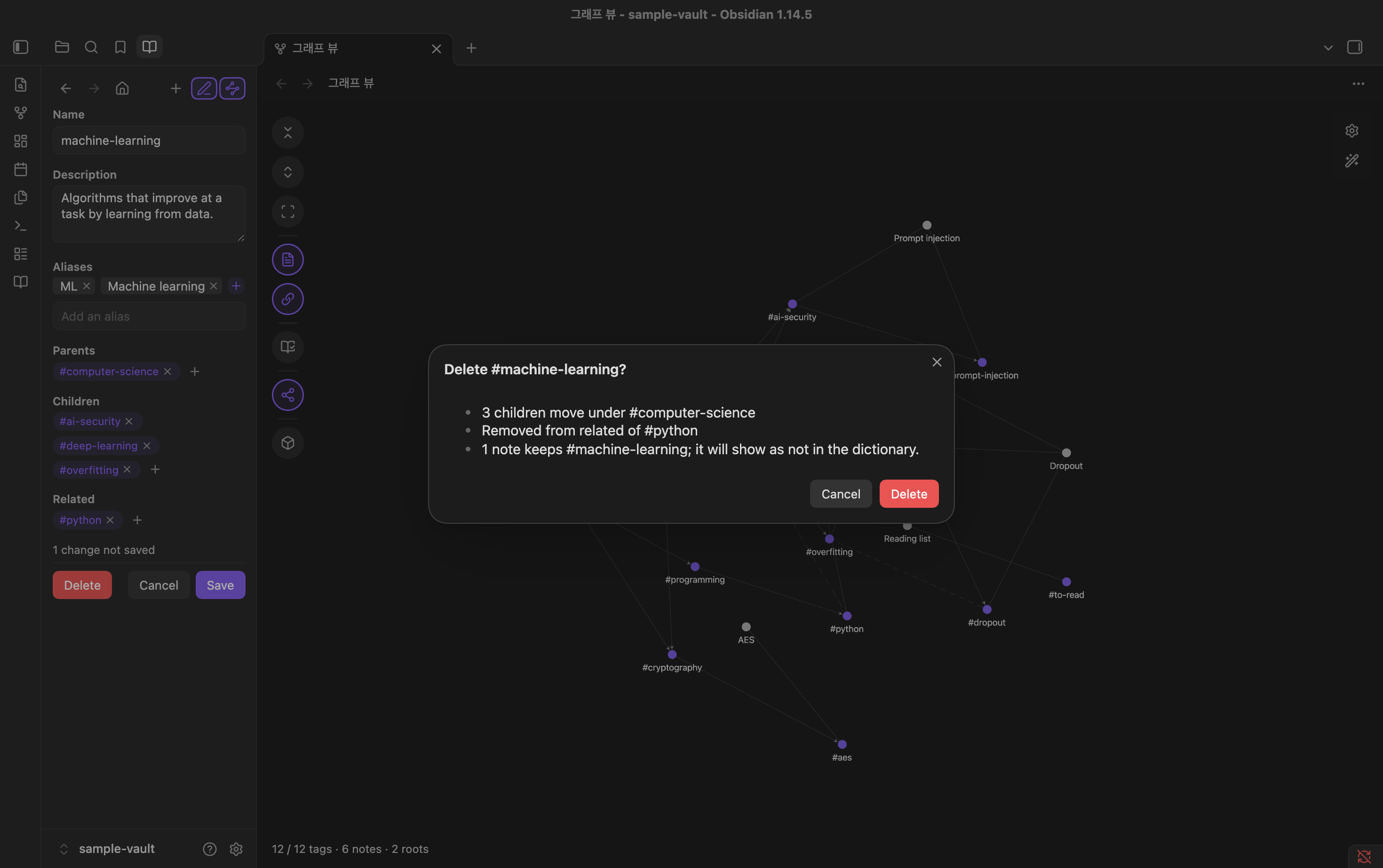
machine-learning, the names TOW checks. Existing names are kept. - Delete (in the edit form) asks first and shows what happens: the tag's children move under its parents, it leaves the related lists, and notes keep their tags.
- Changes stay in the form until you press Save, and leaving with unsaved changes asks first. If the tags you changed were changed elsewhere in the meantime, the save stops and tells you, and your edits stay in the form.
- The dictionary is saved one tag per line, so a save changes only the lines involved. A file written in another layout is reformatted on its first save. Its line endings (LF or CRLF) are kept.
Graph toolbar
Collapse all, Expand all and Fit sit in a row at the bottom centre of the graph; the other round buttons run down its left side, and the depth legend stands in the bottom left corner. Each shows its name when you hover it:
| Button | What it does |
|---|---|
| Collapse all | Collapse every dictionary tag to its root |
| Expand all | Expand every dictionary tag |
| Fit | Fit the graph into the part of the view the toolbar, legend and settings buttons leave uncovered |
| Notes | Show or hide every node that is not a tag (notes, attachments, unresolved links) |
| Related | Show or hide the dashed related links |
| Dictionary check | List unregistered and unused tags in the sidebar tab |
| Force / Mind map / Vertical tree / Horizontal tree / 3D / Ontology explorer | Switch the mode in this tab, in this order. The current mode is highlighted. Right-click one for Open in new tab, to compare two modes side by side. 3D and the explorer are hidden while their Enable setting is off |
- In the tree layouts and Mind map each tag hangs under its parent and notes are hidden, so the tag relations stay readable.
- Click a tag in the graph to center it and show it in the sidebar tab. Double-click it to expand it, and double-click it again to collapse it, like the button at the top of the tab. Tags you expanded below it stay expanded for the next time.
- Everything else keeps the core behavior: clicking a note opens it, and clicking a tag that is not in the dictionary opens search.
3D view (beta)
The 3D mode button on the graph toolbar, or Open 3D graph, switches the graph tab to the 3D view; another mode button switches it back. While another mode shows, 3D rendering pauses. It shares the expanded tags, the Notes and Related toggles, colors, Focus and the sidebar tab with the 2D graph, so a tag you expand in one is expanded in the other.
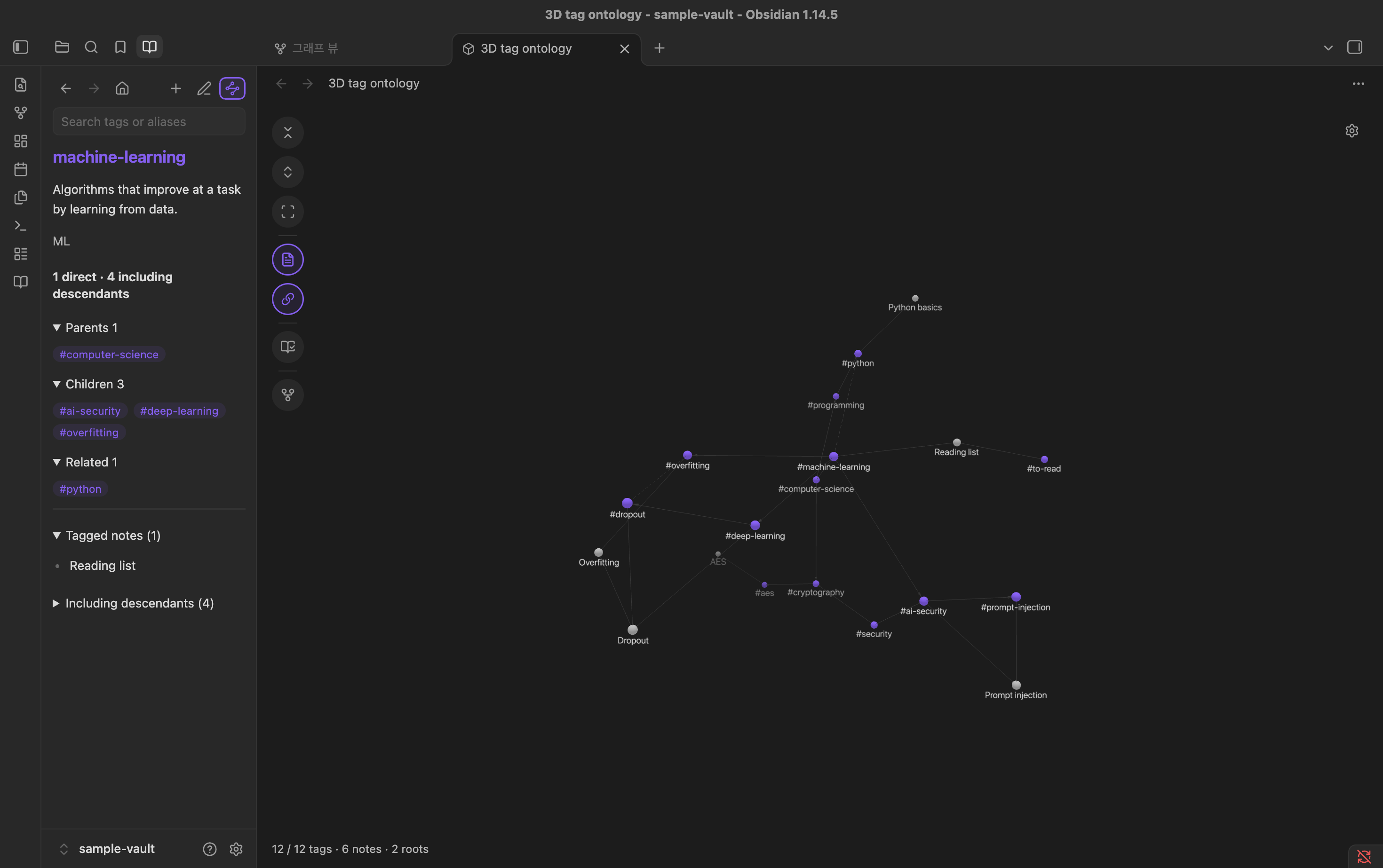
- Drag empty space to orbit, right-drag to pan and scroll to zoom.
- Drag a node to move it on its own. Let go and it springs back to its place, as in the tree layouts. The layout settles after the view opens and after expanding, then holds still.
- Click a tag to select it and fly to it, and double-click it to expand or collapse it. Click a note to open it. Choosing a tag in the sidebar flies to it too. A click on a tag that is not in the dictionary does nothing here; in 2D it opens search.
- The toolbar has Collapse all, Expand all, Fit, Notes, Related, Dictionary check and the mode buttons. Fit frames most of the visible nodes so the graph fills the view; a few distant stragglers can sit outside it.
- The gear button at the top right opens the 3D settings panel (Filters, Display, Forces), mirroring Obsidian's 2D graph panel. Its header includes a Restore default settings button for all sections, each section has its own Restore defaults button, and changes sync across every open 3D tab.
- Filters: search input supporting
path:,file:,tag:,-negation and quoted phrases; Attachments (off by default); Existing files only (on by default); and Orphans (on by default). - Display: Arrows on note links (off by default; hierarchy links always show arrows), Text fade threshold, Node size, Link thickness, Perspective labels (on by default) and Label size (
0.5to2,0.8by default). - Forces: Drag tension (on by default — keep linked nodes pulled while dragging a node; off moves only the dragged node), Center force, Repel force, Link force and Link distance using the 2D graph's ranges and defaults. Moving a force slider reheats the simulation.
- Filters: search input supporting
- The 3D view builds its notes, tags, attachments and unresolved links directly from the vault, and saves its gear settings separately from the 2D core graph.
- If the 3D view is slow or you don't use it, turn off Enable 3D view (beta) in the settings. Its mode button and command go away, and the 2D graph is unchanged.
Ontology explorer (beta)
The Ontology explorer mode button on the graph toolbar, or Open ontology explorer, switches the graph tab to the explorer. Its canvas is kept while another mode shows. It shares the sidebar tab with the graphs, but not their expanded tags, Notes and Related toggles or Focus.
- An empty canvas asks where to start: search for a tag, pick a root tag, or continue from the tag selected in the sidebar. Choosing a tag in the sidebar search or a tag link adds it to the canvas too.
- Every tag is an object card with its facet (or
concept), its direct notes, its notes including descendants and its number of children. Facets get their own colors; tags without one take the tag color. - Right-click a tag for Expand children, Expand parents, Expand related and Show notes. Each shows how many are not on the canvas yet. New cards stand in columns beside it, children and notes to the right and parents to the left, and nothing already on the canvas moves. Double-click a tag to expand its children.
- Lines follow the dictionary, as in the 2D graph: arrows from parent to child and dashed lines between related tags join any two tags on the canvas, whoever brought them out.
- A tag with more than 15 notes shows one group card instead. Click it to list its notes in the sidebar tab, newest first, filter them and take out the ones you tick or the latest 10. Double-click it to take out the latest 10. The group holds every note of the tag that isn't a card on the canvas: notes tagged later join it, and a note card you remove goes back into it.
- Click a card to show it in the sidebar tab; double-click a note to open it. Drag cards anywhere; they stay where you put them. Right-click a card to remove it; the cards brought out of it stay.
- The toolbar has Fit, Clear canvas and the mode buttons. The canvas is not saved: closing the tab clears it.
- Editing the dictionary or notes updates the cards: renamed tags and notes keep their place, and deleted ones leave the canvas.
- If you don't use it, turn off Enable ontology explorer (beta) in the settings. Its mode button and command go away.
Commands
| Command | Description |
|---|---|
| Tag Ontology: Open graph | Open the ontology in the core Graph view. Reuses an open tab. |
| Tag Ontology: Open 3D graph | Switch the open graph tab to 3D, or open one. Only offered while Enable 3D view (beta) is on. |
| Tag Ontology: Open ontology explorer | Switch the open graph tab to the explorer, or open one. Only offered while Enable ontology explorer (beta) is on. |
| Tag Ontology: Reload dictionary | Reload the dictionary and the note index. |
Settings
Settings use the same section and item order on Obsidian 1.13+ and earlier versions: General, Dictionary, Colors, Sidebar, Focus and Additional views. Single color and Hierarchy depth modes show color options; palette controls appear in Hierarchy depth mode. Focus options appear when focus is enabled.
| Setting | Description |
|---|---|
| General | |
| Language | Follow Obsidian's language (Automatic (follow Obsidian), default) or pick one of the 11 supported languages for plugin settings, the sidebar dictionary, 3D controls and graph views. Command names and already-open tab titles update after restarting Obsidian. |
| Dictionary | |
| Dictionary path | Vault-relative path to a .json file. Leave it empty to find the dictionary automatically: tow/tag-dictionary.json, then .tow/tag-dictionary.json, then Tag-Dictionary.json; when none exists, tow/tag-dictionary.json. A path you enter is always used. The field saves when you press Enter or leave it. |
| Kebab-case tag names | Off by default. On: the edit form accepts a new or renamed tag only as lowercase letters and digits joined by hyphens, the names TOW checks. Existing names are kept. |
| Colors | |
| Color mode | Obsidian default, Single color, or Hierarchy depth. Existing colors are kept when switching modes. |
| Palette | Examples, the current Working copy, and My palettes. Examples keep the active level count; named palettes restore their saved colors and count. |
| Level colors | Edit numbered colors horizontally; add or remove levels (at least one). Levels beyond the last color keep that color. |
| My palettes | Save as… opens a name field; Manage… lists palettes for confirmed deletion. Deleting the active palette switches to Default and preserves the working copy. Duplicate names are rejected. |
| Tag color / Color for tags outside the hierarchy | Base color in Single color mode, or fallback for tags outside the hierarchy in Hierarchy depth mode. Follows the accent until picked; reset returns to the accent. |
| Colored sidebar titles | Use the selected tag's color for its sidebar title. |
| Sidebar | |
| Tag lists | Show tags in the sidebar (root tags, all tags, parents, children and related tags) as wrapped chips or one per line. Chips by default. |
| Focus | |
| Keep the selected tag focused | Keep the selected tag and the tags next to it (its parents, children and related tags) bright and fade the rest. The selected tag and its links look hovered. Off by default. Turn it on to show the options below. |
| Its descendants | Also keep every tag under it bright, as far as they are expanded. On by default. |
| Include notes | Also keep the notes on the selected tag bright, and on its descendants when those are on. The notes on the tags next to it still fade. On by default. |
| Additional views | |
| Enable vertical tree | Show the vertical tree mode button on the graph toolbar. Turning it off moves a tab in that mode back to force. On by default. |
| Enable horizontal tree | The same for the horizontal tree mode button. On by default. |
| Enable 3D view (beta) | Show the 3D mode button on the graph toolbar and the Open 3D graph command. Turning it off releases the 3D view; a tab showing it returns to 2D. On by default. |
| Enable ontology explorer (beta) | Show the explorer mode button on the graph toolbar and the Open ontology explorer command. Turning it off clears the explorer canvas; a tab showing it returns to 2D. On by default. |
At low zoom levels the core graph hides labels and arrows. Zoom in to see them.
Advanced: the dictionary file
The sidebar tab reads and writes this file, so you never have to open it. It is plain JSON in your vault, so you can also edit it by hand.
The dictionary can live at any vault-relative path ending in .json, including inside tow/ or .tow/. With the Dictionary path field empty, the plugin checks tow/tag-dictionary.json, then .tow/tag-dictionary.json, then Tag-Dictionary.json. New installs create tow/tag-dictionary.json; existing Tag-Dictionary.json files keep working, and .tow/tag-dictionary.json from TOW 0.5.0–0.5.1 is still read. A chosen path is always used. If the dictionary goes missing later, the sidebar tab offers to create it.
Obsidian Sync does not sync dot-folders other than .obsidian (Sync settings). If you use Obsidian Sync, choose a visible path for the dictionary. Git and file-level sync tools carry dot-folders unless they are ignored.
The file is a single JSON object. Each key is a tag without #, matched case-insensitively like the core graph (#ML uses the key ml). Lowercase keys are recommended. A nested tag such as #lang/python uses the key lang/python.
{
  "machine-learning": {
    "aliases": ["ML"],
    "description": "Algorithms that improve at a task by learning from data.",
    "broader": ["computer-science"]
  },
  "dropout": {
    "description": "Randomly disabling units during training to reduce overfitting.",
    "broader": ["deep-learning"],
    "related": ["overfitting"],
    "facet": "technique"
  },
  "computer-science": {
    "description": "The study of computation, information and automation.",
    "broader": []
  }
}
| Field | Required | Type | Meaning |
|---|---|---|---|
description |
yes | string | Shown in the tag panel. |
aliases |
no | string[] | Other names. Used by search and by the dictionary check to suggest a match for an unregistered tag. |
broader |
no | string[] | Parent tags. [] marks a root tag. |
related |
no | string[] | Non-hierarchical links, drawn as dashed lines. |
facet |
no | string | Free-form category, such as language. Set it in the edit form or in the draft of a CLI changes file; a facet tag next to its narrower tags is not reported as redundant. |
Rules:
- Roots need
"broader": []. A tag with nobroaderkey at all is treated as not yet placed and does not appear in the graph. - Every tag named in
broaderorrelatedmust exist in the dictionary. - A tag cannot reference itself, and
broaderlinks cannot form a cycle. - If the dictionary is invalid, a notice shows the reason when Obsidian starts or when you open the view, and the sidebar keeps showing it until you fix the file. The graph keeps the last version that loaded, and New tag and Edit tag are off until then.
See examples/sample-vault/tow/tag-dictionary.json for a complete example.
Privacy
- No network requests, telemetry or accounts.
- Reads your notes' metadata and the dictionary file only.
- Writes only its own settings file (
plugins/tag-ontology/data.jsonin the config folder, usually.obsidian/) and, when you save a change in the sidebar, the dictionary file in use: the path you chose (including a custom path saved in an earlier version), ortow/tag-dictionary.json,.tow/tag-dictionary.json, orTag-Dictionary.jsonin automatic lookup order.
Compatibility and known limitations
- Desktop only. Tested on Obsidian 1.14.5 (macOS).
- The plugin hooks into undocumented internals of the core Graph view (renderer, PIXI, layout worker). A future Obsidian update may break it. If the internals look unfamiliar, the plugin detaches and leaves the core graph alone.
- On large vaults, expanding every tag with notes shown redraws a few thousand nodes and links; expect a short pause.
- Labels get dense when every tag is expanded, especially in Force.
- Untested together with other plugins that patch the Graph view.
- The 3D view uses WebGL and bundles three.js, and the explorer bundles Cytoscape.js, so the plugin file is about 1.6 MB. Each loads only when its tab opens. With many thousands of notes shown the 3D view slows down; hiding notes keeps it fast.
Roadmap
- Show the hierarchy in the local graph too.
Bug reports and feature requests are welcome in Issues. Please include your Obsidian version and OS for bugs.
Library and CLI
The standalone tag-ontology package exposes the same dictionary rules as an MIT-licensed ESM library and a Node CLI. It checks and scans a vault, reports tag usage, shows a tag's hierarchy and previews/applies dictionary changes with a content-hash check. Obsidian does not need to be installed.
It is published on npm as tag-ontology:
npx tag-ontology check --root /path/to/vault --json
See the package guide for library examples and the CLI contract for commands, JSON fields, exit codes and parser limits. The plugin and package have independent versions and release tags.
Related projects
TOW (Tag Ontology Wiki)
When used together with TOW, you can leverage AI agents to manage tags and dictionaries, alongside broader vault tasks like note search, frontmatter management, and document formatting.
- CLI-based dictionary management: Uses the
tag-ontologyCLI to inspect tags, validate dictionary integrity, and apply safe updates. - AI agent workflows: Automates repetitive vault maintenance such as discovering unregistered tags, syncing ontology entries, verifying frontmatter schema, and cleaning up note structure.
- Visual graph integration: Explore and navigate the agent-managed tag hierarchies directly within Obsidian's Graph view using this plugin.
Development
Requires Node.js 22.18 or later. The tests run TypeScript directly with Node's built-in type stripping.
npm ci
npm run lint        # Obsidian review rules + checked package lint
npm test            # unit tests, no vault needed
npm run build       # type-check + package dist + plugin main.js
npm run check:package  # inspect and install the actual npm tarball
npm run deploy -- "/path/to/vault"   # copy main.js, manifest.json, styles.css into the vault
deploy requires an existing .obsidian/ folder in the target vault and preserves an existing data.json. Reload the plugin in Obsidian afterwards.
npm run test:vault is the maintainer's integration test against a private vault (OBSIDIAN_VAULT_PATH). Other contributors don't need to run it.
Project structure
src/
├── main.ts            # Plugin entry: commands, settings tab, vault/metadata events
├── search.ts          # Suggestion popover for the search box and the edit forms
├── native.ts          # Hooks the core Graph view renderer (toolbar, sidebar tab, clicks, layouts)
├── graph-modes.ts     # Shared graph view mode switcher bar and open-in-new-tab menu
├── legend.ts          # Hierarchy depth legend, palette switcher and color swatches
├── palettes.ts        # Palette presets, working copy and saved-palette library state
├── colors.ts          # Color resampling and longest-path hierarchy depth color mapping
├── hierarchy.ts       # Dictionary model adapter and roll-up note counts
├── layer.ts           # Pure functions that layer the dictionary onto the core graph data
├── layout.ts          # Vertical and horizontal tree positions
├── mindmap.ts         # Cytoscape-backed mind map view with accessible DOM cards
├── mindmap-layout.ts  # Visible-branch mind map spacing and anchor placement
├── graph3d.ts         # The 3D view: draws the same layered data with 3d-force-graph
├── controls3d.ts      # Collapsible 3-section 3D settings panel (Filters, Display, Forces)
├── filter3d.ts        # Search query parser/evaluator and orphan pruning for 3D
├── geometry3d.ts      # 3D arrow placement, label scaling and camera depth helpers
├── three.ts           # three.js and 3d-force-graph, imported only when a 3D view opens
├── vault-data.ts      # Builds the core graph's data shape from the vault for the 3D view
├── explorer.ts        # The ontology explorer: a Cytoscape.js canvas of object cards
├── explorer-layout.ts # Pure functions for the explorer: card placement, Search Around counts, lines
├── explorer-card.ts   # The explorer's object cards as SVG images
├── check.ts           # Helpers grouping non-canonical and redundant tags for Dictionary check
├── settings.ts        # Settings schema, defaults and sanitization
└── i18n/              # 11-locale catalog, runtime formatting and live refresh helpers
tests/              # node:test unit tests (tests/integration is maintainer-only)
packages/tag-ontology/
├── src/core/       # Pure dictionary validation, hierarchy, usage and edits
├── src/vault/      # Node file access and Markdown/frontmatter readers
├── src/cli/        # Command-line arguments, JSON results and exit codes
└── tests/          # Package unit and real-process CLI tests
docs/cli.md         # Versioned CLI contract
examples/           # Sample vault with a tag dictionary
scripts/deploy.mjs  # Copies the build into a local vault
scripts/check-package.mjs  # Inspects and exercises the packed npm package
Contributing
Contributions from the community are warmly welcome! Whether you are fixing bugs, proposing new features, or improving documentation:
- Check existing Issues or open a new one.
- Fork the repository and create your feature branch based on
dev. - Follow Conventional Commits for commit messages.
- Ensure all checks pass:
npm run lint && npm test && npm run build. - Submit a Pull Request targeting the
devbranch.
Please review our CONTRIBUTING.md for full development guidelines, testing workflows, and the Code of Conduct.
Support
Tag Ontology is free and open source. If it saves you time, you can buy me a coffee.
Acknowledgements
- The approach of feeding custom data to the core graph renderer was inspired by Nested tags graph. That plugin is not required.
- The 3D view is built on 3d-force-graph, three-spritetext and three.js, all MIT. The ontology explorer is built on Cytoscape.js (MIT). The licence notices of every bundled package are at the top of
main.js.
License
Copyright (c) 2026 NamhyeonKo
This project is licensed under the MIT License. You are free to use, modify, and distribute this software under the terms of the MIT License.