
README file from
GithubTableBase for Obsidian
Transform standard Markdown tables into interactive Notion-like databases and Kanban boards — with 100% plain Markdown and zero vendor lock-in.




📦 Installation
From Obsidian Community Plugins (Recommended)
- In Obsidian, open Settings → Community plugins.
- Ensure Restricted mode is disabled.
- Click Browse, search for TableBase, and click Install → Enable.
Manual Installation
- Download
main.js,manifest.json, andstyles.cssfrom the Latest Release. - In your vault folder, navigate to
.obsidian/plugins/and create a folder namedtablebase. - Copy
main.js,manifest.json, andstyles.cssinto.obsidian/plugins/tablebase/. - In Obsidian, go to Settings → Community plugins, click Reload plugins, and enable TableBase.
🚀 How It Works
TableBase reads and writes standard, human-readable Markdown tables — no proprietary files or hidden databases:
1. Standard Markdown Tables (Reading View)
Create normal Markdown tables anywhere in your notes:
| Task | Status [select] | Tags [multi-select] | Due [date] | Budget ($) [number:sum] | Done [checkbox] |
| :--- | :---: | :--- | :---: | :---: | :---: |
| Redesign landing page | In Progress | Design, UI | 2026-09-25 | 1200 | [ ] |
| Implement auth API | Done | Backend | 2026-09-18 | 800 | [x] |
Press Cmd + E (switch to Reading View) — TableBase automatically renders the table as an interactive database.
2. Interactive Code Blocks (Live Preview & Reading View)
To view and edit an interactive database directly in Live Preview (Edit mode), wrap your table in a ```tablebase code block:
```tablebase
| Task | Status [select] | Priority [select] | Due [date] | Done [checkbox] |
| Launch website | In Progress | High | 2026-09-25 | [ ] |
| Security audit | Done | Critical | 2026-09-18 | [x] |
```
🌟 Features & How to Use
📋 Interactive Table View
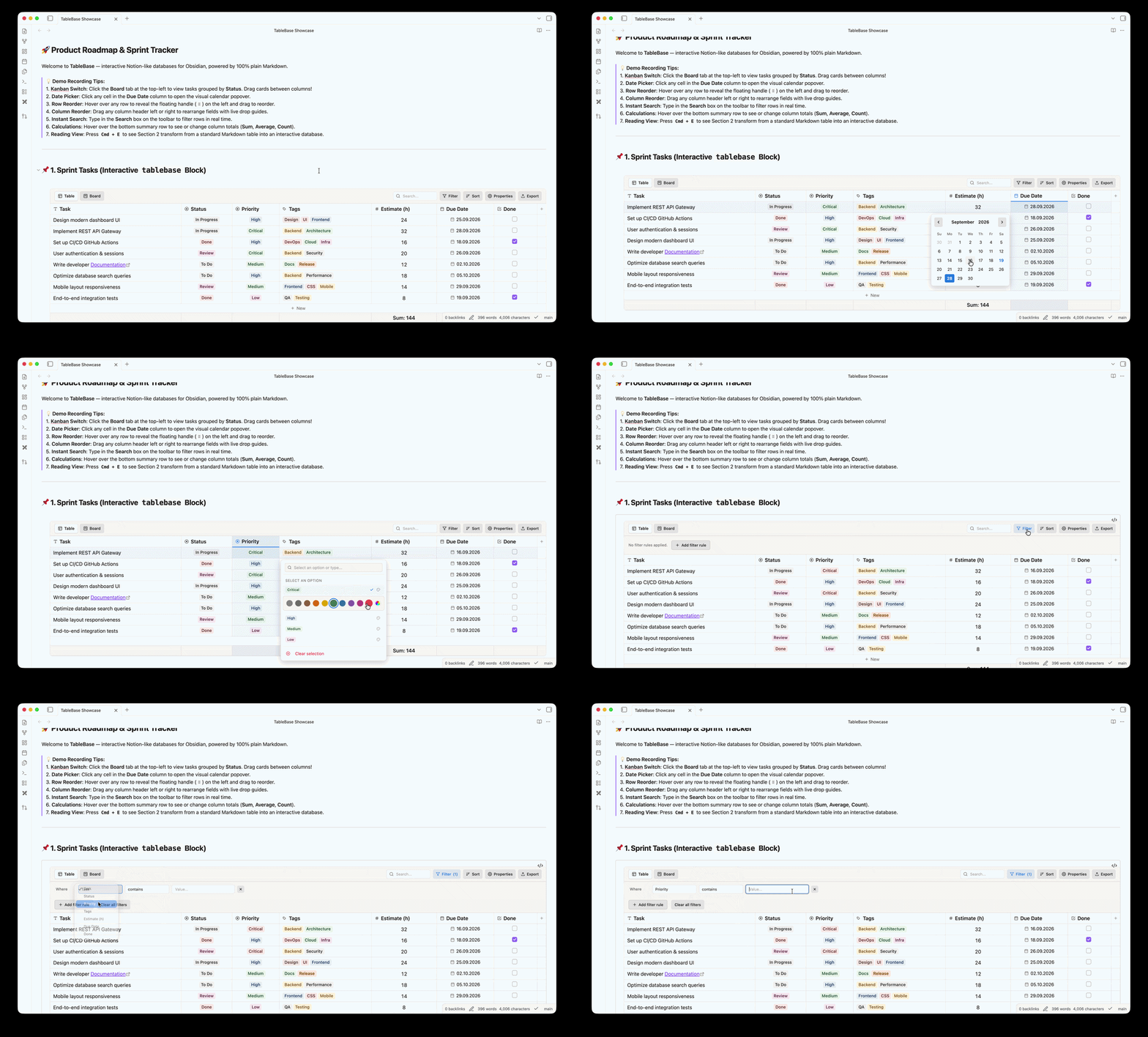
- Edit Cells: Double-click any cell or press
Enterto edit text, numbers, dates, or tags. - Clickable Links: Click
[Markdown links](url), raw URLs (https://...), or Obsidian[[WikiLinks]]to open them directly in your browser or notes. - Reorder Rows: Hover over any row and drag the floating handle (
⠿) in the left gutter to move rows up or down. - Reorder Columns: Drag any column header left or right with live drop indicators (
before/after). - Centered Controls: Centered row index numbers and a centered
+ Newbutton at the bottom for quick row insertion. - Scroll Memory: Automatically preserves your horizontal scroll position across edits, searches, and re-renders.
🗂️ 1-Click Kanban Board
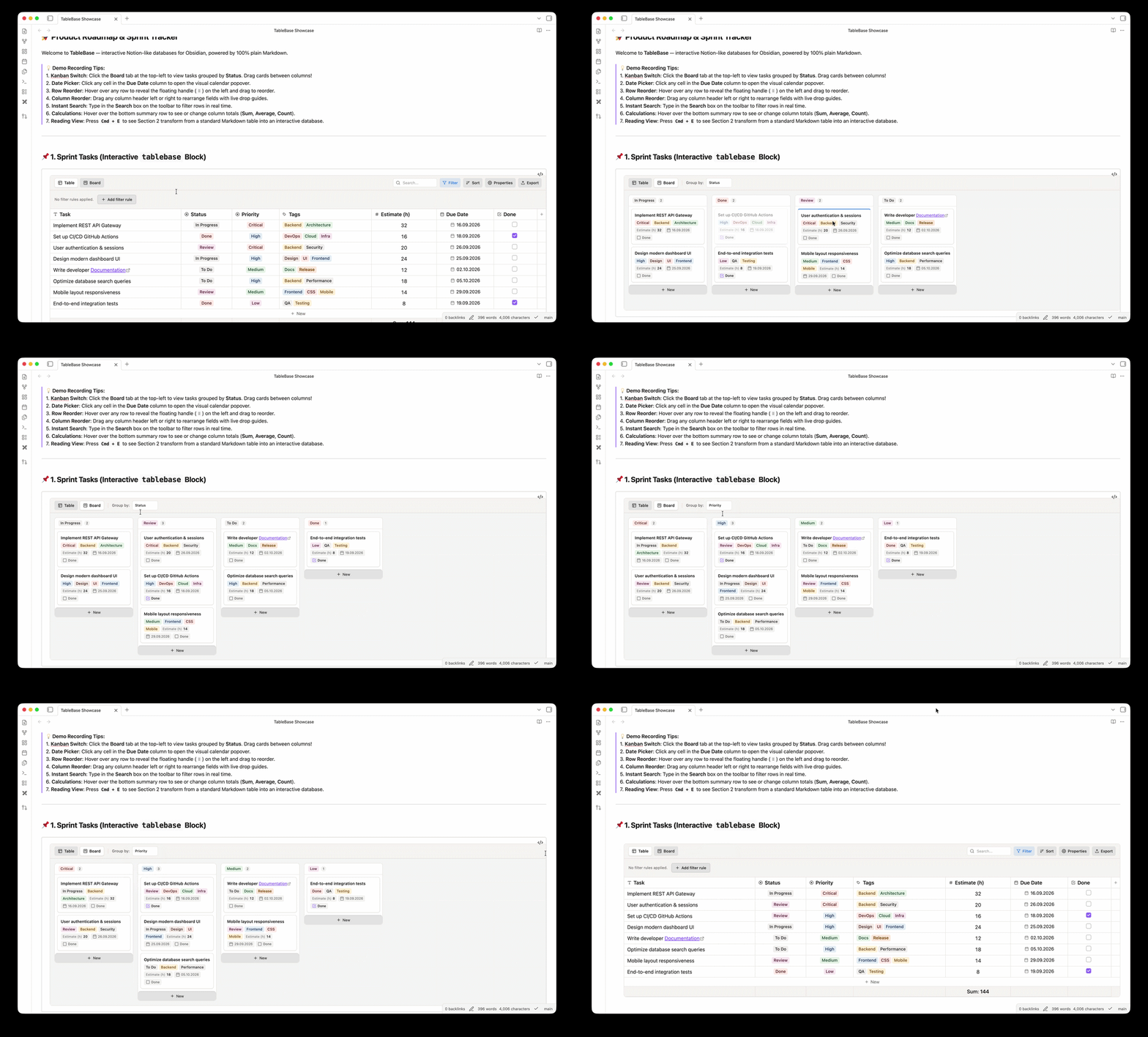
- Switch Views: Click the Board tab on the top-left toolbar to transform your table into a Kanban board grouped by your status column.
- Drag-and-Drop Cards: Move cards between columns to update status values in your note in real time.
- Card Properties: Shows colored tags, dates, formatted numeric badges (
# Amount), and clickable links directly on cards. - Quick Add: Click
+ Newat the bottom of any column to create a card pre-assigned to that status.
🏷️ Colored Tags & Multi-Select
- Single-Select Dropdowns: Select a status (Todo, In Progress, Done) from a Notion-style dropdown menu.
- Multi-Select Badges: Add multiple tags per cell with instant search-as-you-type and badge creation.
- Color Palettes: Choose from 10 Notion-inspired palette colors or pick custom colors.
📅 Visual Date Picker
- Click any date cell to open an interactive calendar popover.
- Pick dates in one click or navigate across months and years.
- Supports common formats (
YYYY-MM-DD,DD.MM.YYYY,DD/MM/YYYY,MM/DD/YYYY).
🔍 Search, Filter & Sort
- Live Search: Type into the Search box on the toolbar to instantly filter rows across all columns.
- Visual Filters: Click Filter to create rules with
AND/ORlogic (e.g. Status is "In Progress" AND Due date is not empty). - Multi-Column Sort: Click Sort or click column headers to sort ascending or descending.
- Properties Menu: Click Properties to toggle visibility of any columns.
🧮 Summary Calculations
- Hover over the footer row beneath the table and click a column to pick a summary:
- Numbers:
Sum,Average,Min,Max,Count - Tags & Text:
Count all,Unique count,Empty,Not empty - Checkboxes:
Checked count,Unchecked count,Percent completed
- Numbers:
- The calculation is saved in the header (e.g.
[number:sum]), so your choice persists when reopening the note.
🖨️ Clean Print & PDF Export
- When printing notes or exporting to PDF, interactive UI controls (handles, toolbars, buttons) are automatically stripped, leaving clean, standard tables.
📤 CSV Export
- Open the table menu to Copy as CSV (for Excel, Google Sheets) or Download CSV file with a single click.
📝 Column Type Syntax
TableBase automatically detects column types based on content, or you can explicitly tag headers in your Markdown:
| Syntax | Column Type | Description |
|---|---|---|
Task [text] |
Text | Text cell with clickable links and wikilinks |
Status [select] |
Single-Select | Single-choice colored tag dropdown |
Tags [multi-select] |
Multi-Select | Multiple colored tag badges |
Due [date] |
Date | Visual calendar picker (YYYY-MM-DD) |
Due [date:DD.MM.YYYY] |
Date | Calendar picker with custom date format |
Amount [number] |
Number | Strict numeric formatting (right-aligned) |
Amount [number:sum] |
Number + Calc | Auto-calculates column Sum in footer |
Done [checkbox] |
Checkbox | Centered interactive checkbox |
Type tags like [select] and :sum are automatically hidden in visual mode for a clean appearance.
⌨️ Keyboard Shortcuts
| Key | Action |
|---|---|
Arrow Keys |
Navigate between cells |
Tab / Shift + Tab |
Move to next / previous cell (wraps to next row; Tab on last cell adds a row) |
Enter |
Edit cell, toggle checkbox, or open date/tag picker |
Any letter / digit |
Start typing immediately to edit the focused cell |
Escape |
Close editor, close popover, or cancel selection |
Right Click |
Open row or column context menu |
⚙️ Settings
Configure under Obsidian Settings → TableBase:
- Default Date Format: Set preferred date display (
YYYY-MM-DD,DD.MM.YYYY, etc.). - Default Tag Format: Format tags as comma-separated,
#hashtags, or[[wikilinks]]. - Row Numbers: Toggle row numbers globally.
- Calculation Row: Show or hide the bottom summary row.
- Empty Board Properties: Show placeholders (
+ Property) for empty fields on Kanban cards. - Custom Tag Colors: Assign permanent colors to specific tags across your vault.
🔒 100% Plain Markdown & Zero Lock-In
- All data is stored directly in your
.mdfiles as standard GitHub-Flavored Markdown tables. - No hidden database files, no proprietary formats, no remote servers.
- If you disable or remove TableBase, all your notes and tables remain completely intact and readable anywhere.
📄 License
MIT License © 2026 Aleksei Chekodanov