
README file from
GithubSwiftSwitch
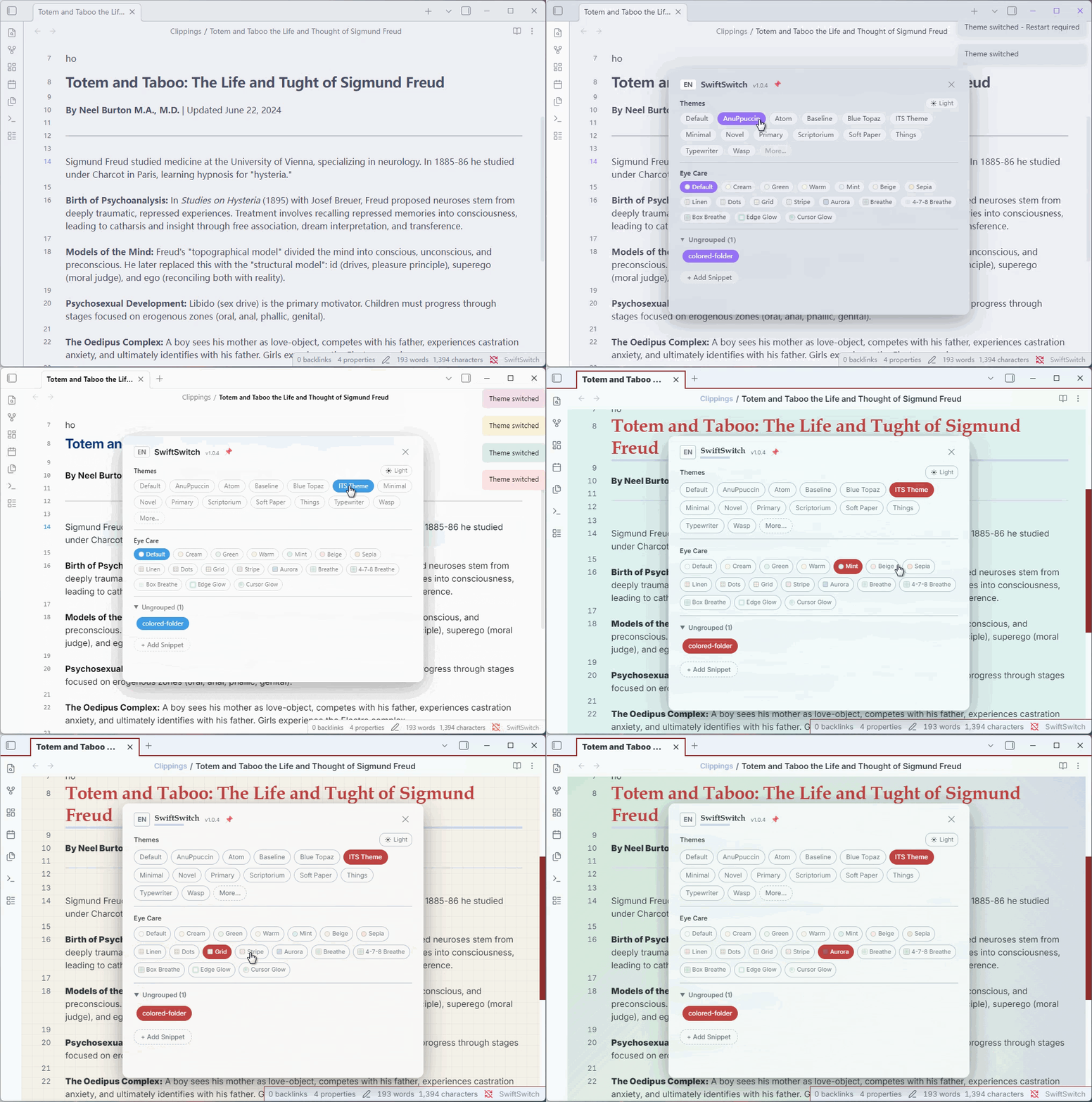
Quickly toggle Obsidian CSS Snippets from a status bar popup.
Features
- Status Bar Button — Click the SwiftSwitch button in the status bar to open the management popup
- Toggle Snippets — Click any snippet chip to enable/disable it instantly
- Custom Groups — Right-click empty space to add groups, then drag snippets into them
- Drag & Drop — Drag snippet chips between groups or back to "Ungrouped"
- Fold/Expand Groups — Click group header to collapse/expand, state is persisted
- i18n — Switch between Chinese and English via the CN/EN toggle in the popup header
- Right-click Menu — Copy content, edit, edit (open externally), delete, move to group
- Add New Snippet — Create new CSS snippets directly from the popup
- Eye Care Colors& Patterns — Textured backgrounds: linen, dots, grid, stripe, aurora, breathe
- Dark/Light Mode Auto-Switch — Eye care colors and floating button auto-adapt when switching modes
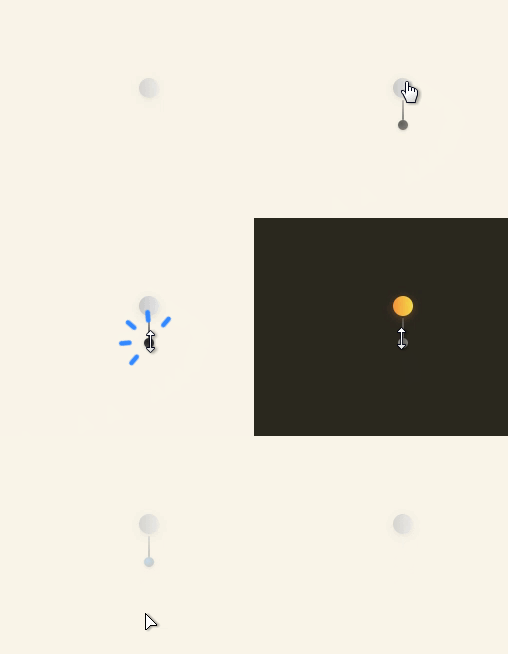
- Floating Button — Pin a draggable floating button with tangerine (dark) / grey (light) gradient style
Installation
From GitHub
- Download
main.jsandmanifest.jsonfrom the latest release - Create a folder named
SwiftSnippetsin your vault's.obsidian/plugins/directory - Place the downloaded files inside that folder
- Enable the plugin in Obsidian Settings → Community Plugins
From Obsidian Community Plugins (pending review)
- Open Settings → Community Plugins
- Search for "SwiftSwitch"
- Click Install, then Enable
Usage
- After enabling the plugin, a "SwiftSwitch" button appears in the status bar
- Click it to open the snippet management popup
- Click a snippet chip to toggle it on/off
- Right-click a chip for more options (edit, delete, copy, move to group)
- Right-click empty space in the popup to add a new group
- Drag snippets between groups to organize them
Changelog
v1.2.4 (2026-10-02)
- Theme Wheel Popup Fix — Fixed popup item height/padding not rendering due to CSS override; used setProperty + !important for inline styles
- Group Wheel Popup — New
_showGroupWheelPopupmethod: floating button wheel now pops up a group list (same style as theme list), clickable items, mouse-distance-based close (20px) - Wheel Groups Setting — Added checkbox list in settings to select which groups the floating button wheel cycles through
- Chip Hover Hint Toggle — Added settings toggle to show/hide chip hover tooltip text
- Theme Wheel Popup UX — List items clickable to switch theme; close on mouse moving 20px away from popup (no timer)
v1.2.3 (2026-10-02)
- Theme Switch Bug Fix — Fixed race condition where hover-preview wrote appearance.json asynchronously, causing theme to revert after switching tabs
- Memory Mode Panel (A+D) — Added "Memory" nav item showing per-tab remembered styles list: current tab highlighted, searchable, with forget/clean-invalid/forget-all actions
- Memory Chip Badges (D) — Theme and background chips show ◉N badge indicating how many tabs remember that value; click badge to see usage list and forget individually
- Memory Title Click-Open — Clicking a file title in the memory list opens that document directly
- Nav Instant Refresh — Enabling/disabling snippet chips now instantly updates left nav dot status and counts
- Floating Button Refresh — Switching theme/background via floating button wheel now instantly refreshes panel memory data when panel is open
v1.2.2 (2026-09-28)
- Panel Layout Refactor — Redesigned panel with left-right split: header → state bar (On now + search) → body (nav + main) → footer
- Nav Auto-Switch — Desktop: hovering nav items auto-switches groups; hovering On-now tags opens corresponding group
- Theme/Font Controls in Header — Moved memory mode chip and dark/light mode pull-cord switch from theme area to header
- Font Style Vertical Layout — Font style settings (color, opacity, line height, margins) now stack vertically for easier operation
- Search Filter — Search filters snippets across all groups; no search shows only current group
- Nav Counts & Separators — Nav shows item counts for ungrouped/background; separators between special and snippet groups; "Add Group" button at nav bottom (desktop)
- Ungrouped Rename — "未分组" renamed to "未分组 Snippets" / "ungrouped Snippets"
- Color Chip Hover Preview — Desktop: hovering background color chips previews the color live; mobile: tap directly applies (no hover preview to avoid tap conflict)
- Mobile Fixes — Mobile panel uses draggable window (not fullscreen); nav includes theme/font items; font style settings persist after restart; tap on group no longer closes panel
- Plugin Link — Added "file ops plus" link chip in footer alongside SwiftMatch/SwiftGloss
- Spacing Improvements — Increased font style row spacing, group title spacing, nav button spacing, chips container padding
- Dynamic Plugin Path — Use manifest.dir instead of hardcoded folder name for cross-platform compatibility
v1.1.9 (2026-08-13)
- Chip Hover Tooltip — Hover any chip (theme, background, snippet, etc.) to instantly see its right-click options as an interactive tooltip; click an option to execute it directly without right-clicking
- Background Leak Fix — Fixed background leaking to new pages when switching documents with style memory enabled; "Set as default for new pages" now works independently even when style memory is off; same-name image background no longer leaks to pages without a matching image
v1.1.8 (2026-07-06)
- Custom Background Color — Add "+ Add" chip at the end of background/image chips; click to open a color picker with manual hex input; custom colors auto-invert when switching dark/light mode
- Default Mode Toggle — Right-click theme or background chip to set "Default mode for new pages: dark/light" toggle below "Set as default for new pages"
- Cyclic Background Scroll — Floating button scroll wheel now cycles through backgrounds (wraps from last to first and vice versa)
- Independent Font Style Settings — Color, opacity, line height, and margin settings moved from under "Font" to a separate "Font Style" section at the same level; works regardless of font toggle state
- Settings Panel — ⚙️ icon in footer opens a settings popup; includes "Use same-name image as background on document open" option
- Fixed Footer — Settings icon and plugin links are now pinned to the bottom of the management panel
v1.1.7 (2026-07-05)
- Theme Delete — Right-click theme chip to delete theme; auto-switches to default if deleting active theme; confirmation dialog with hint
- Default Theme for New Pages — Right-click theme chip to set as default for new pages; when memory mode is on and a page has no saved style, the default theme is applied automatically
- Default Background for New Pages — Right-click background/image chip to set as default for new pages; supports preset snippets and custom images; auto-applied to pages without saved style
v1.1.6 (2026-07-02)
- Mobile Support — Support background/image switching on mobile; add ribbon icon entry; mobile font color/opacity/line-height/margin settings
v1.1.5 (2026-07-01)
- Mac Edit Crash Fix — Fixed
Cannot read properties of nullerror when editing snippets via right-click menu on macOS; click event no longer bubbles to overlay and closes popup prematurely
v1.1.4 (2026-07-01)
- Font Preload — System font list is preloaded in background after startup; first hover on font button no longer has long delay
- Startup Speed — Non-essential init tasks (pic folder scan, eye care snippet export) deferred to idle callback; no longer blocks Obsidian startup
- Dark/Light Font Color Inversion — Font color auto-inverts (RGB 255-x) when switching to dark mode; reverts to original in light mode
- Font Color for Side Panels — Font color now also applies to side panels (file explorer, search, outline, tags, backlinks)
- Style Memory Fix — Scroll-wheel background changes on floating button now properly saved to page style memory; no longer lost on restart
- Startup Memory Restore — Current page's remembered style is now restored on plugin startup, not only on tab switch
- Floating Button Edge — Dragging floating button to right/bottom edge no longer blocked by hardcoded 80px/40px margin
v1.1.3 (2026-06-26)
- Font Memory — Style memory mode now also remembers font settings (active font, enable/disable, color, opacity, line height, margins)
- Font Toggle Reversed — Font enable/disable button now shows the opposite action: "Disable" when enabled, "Enable" when disabled
- Font Section Collapse — Added ▶/▼ collapse toggle before font section header; collapse state is persisted
- Font Collapse on Close — If font section is expanded when closing the management popup, it starts collapsed on next open
- Font Applied to Side Panels — Font settings now also apply to side panels (file explorer, search, outline, tags, backlinks)
- Image Stretch Mode — Added "Stretch" chip option for background images (100%×100% fill), mutually exclusive with "Tile"
- Status Bar Font Button — New "f" chip in font section header adds a font button to the status bar; scroll wheel cycles through favorite fonts; hover to open standalone font manager panel
- Standalone Font Manager — Hovering the status bar font button opens a font management panel in the bottom-right corner; mouse-leave auto-closes; dragging the panel pins it (no auto-close)
v1.1.2 (2026-06-26)
- Hover Preview — Hover on snippet/theme/font chips to instantly preview the effect; mouse leave restores previous state; click to apply
- Font Management — New "Font" section with system font chips, ⭐ favorites, and settings (color, opacity, line height, left/right margin); lazy-loaded on click
- Font Enable/Disable — Toggle button in font section header to quickly disable/enable all font customizations
- Default Font Chip — First chip in font list resets to system default font
- Theme Hover Preview — Hover theme chips to preview theme in real-time without applying
- Image Chip Preview — Hover image background chips to preview the image effect on the editor
- Exclusive Group Preview — Hover preview on exclusive group chips temporarily disables other group members
- Drag Refresh Fix — Dragging snippets out of Background/Image group now properly refreshes both areas
- Image Click Fix — Clicking image chips now correctly applies instead of toggling off due to preview state
v1.1.1 (2026-06-25)
- Dark/Light Image Auto-Switch — Background images with
-light/-darksuffix (e.g.田-light.png+田-dark.png) auto-switch when toggling dark/light mode - Paired Image Chips — Paired light/dark images merge into a single chip with a rotating yin-yang icon and base name only
- Floating Button Wheel — Scroll wheel on floating button now cycles through both CSS snippets and background images
- Delete Preset Persistence — Deleted
ss-preset snippets are remembered; no longer recreated on plugin reload - No Delete Confirmation — Removed confirm dialog when deleting snippet chips
- Default Panel Width — Management popup starts at 480px width instead of full viewport; still resizable via drag handle
v1.1.0 (2026-06-25)
- Eye Care Presets as CSS Snippets — Exported all 22 eye care presets (colors + patterns) to
.obsidian/snippets/ss-*.cssfiles with.theme-dark/.theme-lightselectors for automatic dark/light mode adaptation - Background/Image Unified Group — Merged background colors and image backgrounds into a single "Background/Image" group with mutual exclusion; drag snippets in from other groups
- Mode Switch Visibility — Dark/light mode toggle in popup header now hides when floating button is active, reappears when floating button is closed
- Exclusive Background Group — Background/Image group is exclusive by default; enabling one snippet disables others; selecting an image disables all snippets and vice versa
- Language-Safe Group Key — Background group uses fixed
__bg__key instead of localized name, preventing duplicate groups on language switch; auto-migrates old "背景"/"Background" groups - Delete from Background Group — Deleting a snippet from the Background/Image group now removes the file entirely instead of moving it to "Ungrouped"
- Share/More Link — Added a "Share/More" link in the Background/Image section header linking to GitHub Discussions
v1.0.9 (2026-06-25)
- Open Folder Fix — Fixed "open background image folder" button not working; switched from
electron.shelltochild_process.execfor reliable folder opening - Header Bar Redesign — Removed standalone white header bar; header now flows naturally with popup content, no more floating white strip or content clipping
- Horizontal Scrollbar Fix — Removed unwanted horizontal scrollbar in the management popup by adding
overflow-x: hidden - Resize Handle Repositioned — Resize handle now sits at the true bottom-right corner of the popup (matching SwiftGloss style), using
position: fixedwith dynamic position tracking - Wheel Event Violation Fix — Added
{ passive: false }to wheel event listener to eliminate Chrome violation warning - Click Handler Performance — Deferred popup opening with
setTimeoutto avoid blocking the click handler and eliminate long-task violation
v1.0.8 (2026-06-22)
- Status Bar Editable — Right-click status bar button to edit text and CSS style, with live preview
- Context Menu Overflow Fix — Status bar right-click menu auto-adjusts position to stay within screen
- Version Auto-Read — Popup version tag now reads from manifest instead of hardcoded value
- Snippet Edit Error Handling — Failed to read snippet file now shows Notice with details instead of silent empty form
- Debug Console Logs — Added console logging for snippet edit file read operations
v1.0.7 (2026-06-22)
- Image Background — Support local image backgrounds from
picfolder; auto-detected and displayed as pill-shaped chips - Tile Mode — Added "Tile" option for image backgrounds to repeat small images instead of cover
- Opacity Control — Inline opacity slider in title row when an image is selected
- Minimap Fix — Fixed SwiftMatch minimap being displaced by image background CSS
- Plugin Dir Helper — Added
_getPluginDir()with fallback chain to fix image loading path issues - Image Section Redesign — New "背景-图片" title with "?" help tooltip; controls in title row, no duplicate display
v1.0.6 (2026-06-20)
- Silent Page Switch — No more notification popups when switching between pages with style memory
- Popup Scroll-through Fix — Mouse wheel properly passes through popup overlay to scroll the page beneath
- Pull Cord Fix — Pull cord no longer stretches the popup layout; positioned absolutely below the indicator button
- Indicator Button Redesign — Compact circular gradient button matching floating button style; click toggles floating button, pull cord switches dark/light mode
- Stable Scrollbar —
scrollbar-gutter: stableprevents chip reflow when scrollbar appears - Dialog Protection — Adding/deleting groups no longer accidentally closes the management popup
v1.0.5 (2026-06-20)
- Page Style Memory — Remember each page's theme, dark/light mode, eye care color, and enabled snippets; auto-restore on page switch
- Exclusive Groups — Snippets in exclusive groups (e.g. "标题") cannot be enabled simultaneously; toggle via group header ⊘ button or right-click menu
- Floating Button Toggle — Dark/light indicator button in popup now toggles floating button visibility; pull cord switches dark/light mode
- Popup Scroll-through — Mouse wheel events pass through the popup overlay to the page beneath
- Stable Scrollbar — Popup uses
scrollbar-gutter: stableto prevent chip reflow when scrollbar appears - Snippet Cache — In-memory cache for snippet enabled state, fixing stale chip status after toggling
v1.0.4 (2026-06-19)
- Meditation Breathing Presets — Added 4-7-8 breathing (inhale 4s-hold 7s-exhale 8s) and Box breathing (4-4-4-4) guided visual animations
- Edge Glow — Screen edge glow breathing effect via box-shadow overlay
- Cursor Glow — Mouse-following radial glow with breathing animation
- Scroll Wheel Swap — Scroll now cycles eye care colors; Ctrl/Shift+scroll switches themes
- Breathing Chip Hints — Hover on breathing chips to see rhythm description
v1.0.3 (2026-06-19)
- Pull Cord Fix — Fixed pull cord not hiding after drag, stale event listeners causing ghost pull cord on screen
- Floating Button Cleanup — Properly cleanup global event listeners when recreating floating button on mode switch
v1.0.2 (2026-06-19)
- Rename to SwiftSwitch — Plugin renamed from SwiftSnippets to SwiftSwitch (id unchanged)
- Eye Care Patterns — Added 6 textured eye care presets: linen, dots, grid, stripe, aurora, breathe
- Dark Mode Eye Care — All eye care presets now have dark mode counterparts with auto-switching
- Floating Button Redesign — New default gradient style: tangerine (dark mode) / grey (light mode)
- Popup Position Memory — Popup remembers its position after being dragged
- Feedback Chip — Added a "Feedback" link to GitHub in the popup footer
Development
This plugin is desktop-only because it uses Node.js APIs for file operations.
License
MIT
Sponsor / 赞助
If you find this plugin helpful, consider buying me a coffee! / 如果这个插件对你有帮助,请考虑支持我!