
README file from
GithubSVG Editor for Obsidian
SVG Editor for Obsidian brings an SVG-edit based vector editor directly into your vault. It lets you create, open, edit, and save .svg files without leaving Obsidian.
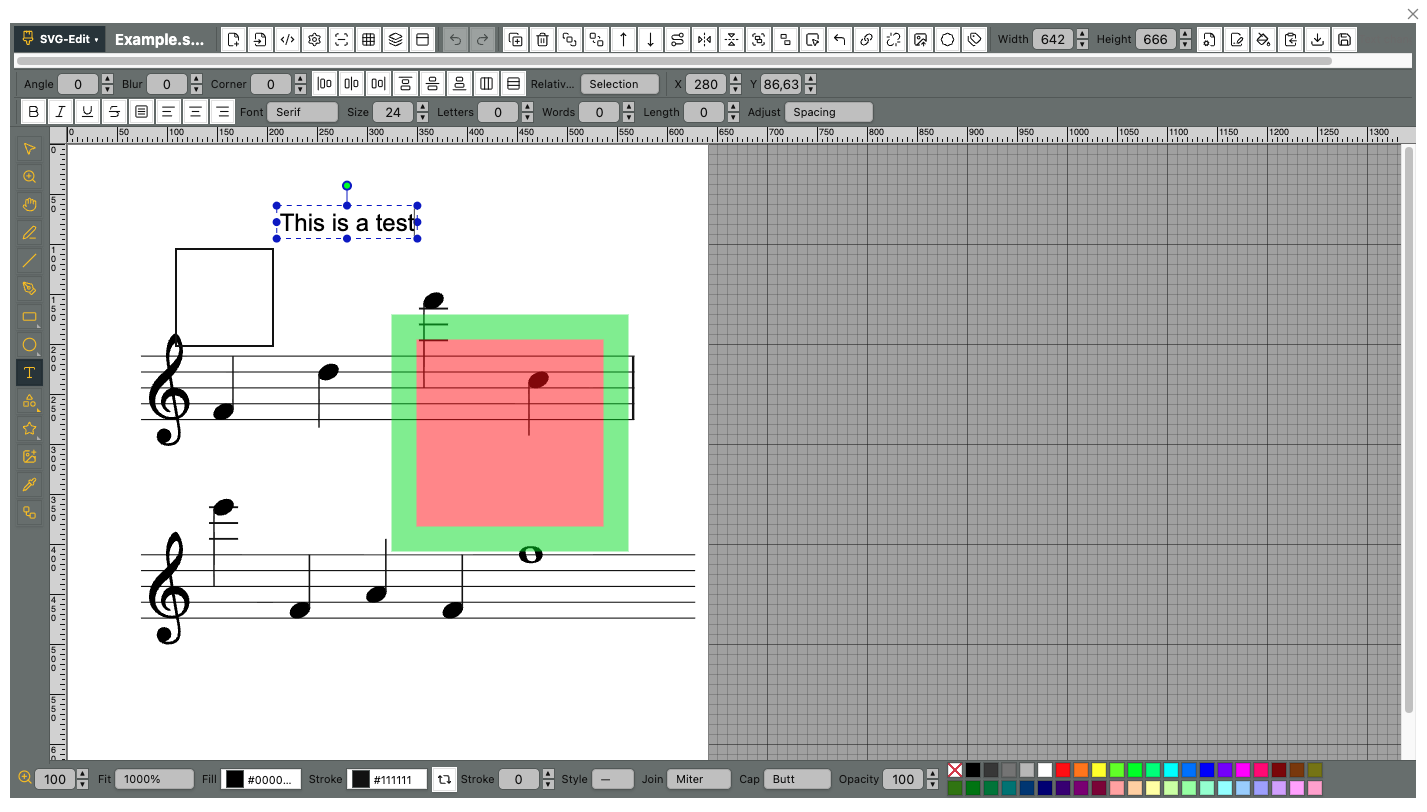
Features
- Direct SVG editing: Open
.svgfiles from the file menu, the ribbon icon, commands, or the pencil button on the SVG. - Edit button: Rendered SVGs show a small pencil button in the upper-right corner. Click it to open that SVG directly in the editor. This is enabled by default and can be disabled in the plugin settings.
- Drawing tools: Selection, rectangles, ellipses, lines, freehand paths, text, connectors, panning, zooming, and more.
- Shape library: Includes categories such as Basic, Arrows, Flowchart, Music, Mathematics, Animals, Objects, Symbols, and more.
- Rulers and grid: Use rulers, grid display, snapping, and multiple units including px, cm, mm, in, pt, and pc.
- Layers and overview: Manage layers, visibility, ordering, and use the overview panel for navigation.
- Styling controls: Edit fills, strokes, opacity, markers, gradients, line joins, line caps, and other SVG properties.
- Source editing and export: Edit SVG XML directly, use dynamic sizing, and export images from the editor.
- Draft safety: Changes are buffered as drafts before they are saved back to the vault file.
Usage
-
Create a new SVG
- Click the ribbon icon.
- Or run
SVG Editor: Create new SVGfrom the command palette.
-
Edit an existing SVG
- Right-click an SVG file in the file explorer and choose
Edit with SVGEdit. - Or focus an SVG file and click the ribbon icon.
- Or hover over a rendered SVG in a note and click the pencil button in its upper-right corner.
- Right-click an SVG file in the file explorer and choose
-
Use the editor
- Use the left toolbar for drawing and selection tools.
- Use the top and bottom toolbars for object properties, fill/stroke settings, zoom, source editing, export, and document options.
- Save to write the edited SVG back to the vault file.
Settings
- Show inline edit button: Shows or hides the pencil button on rendered SVGs. Enabled by default.
- Default document size: Controls the width and height used when creating new SVG files.
Technical Details
This plugin uses SvgCanvas from SVG-edit inside an Obsidian modal instead of embedding a separate iframe editor. The plugin integrates with Obsidian files (TFile), menus, commands, settings, and Markdown rendering so SVGs can be edited as normal vault files.
Disclaimer
This plugin was built to bridge a practical workflow gap in Obsidian. It is useful, but it is also ambitious and may still have rough edges. Please keep backups of important files and treat complex SVG editing with the usual care.