
README file from
GithubSupercharged Properties
Find notes by their properties and keep your vault's metadata consistent.
Supercharged Properties brings your properties, their values, and the notes that use them into one browsable view. Find every note marked doing, explore notes by author or topic, and clean up inconsistent property names and values across many notes at once.
Choose the properties you want to see, save views for different projects, and exclude template folders to keep your results focused. Bulk edits show a preview before you confirm, with one-step undo for the last batch.
Explore your notes
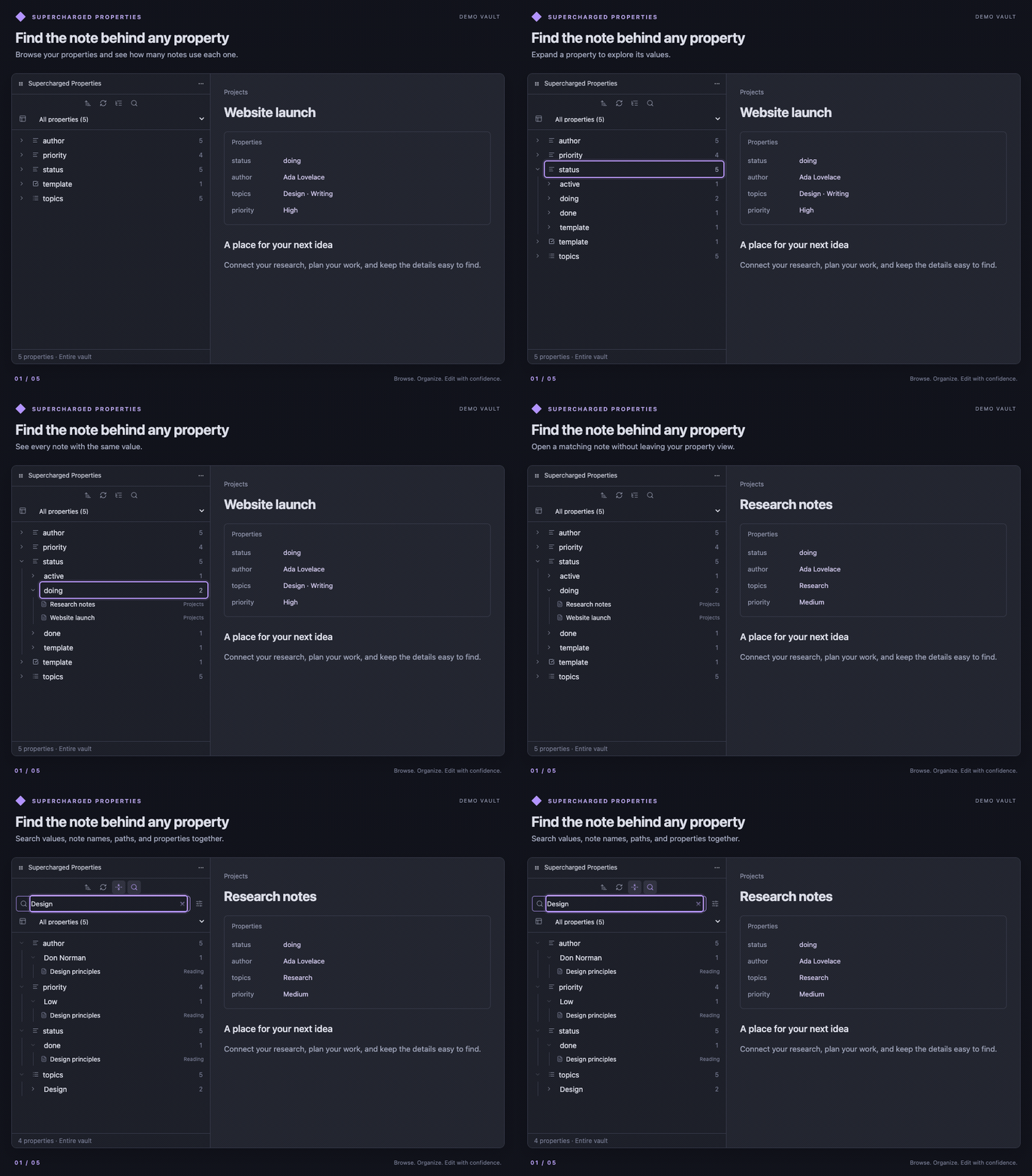
- Browse properties → values → notes. Expand a property to see its values, then open the notes that use them.
- Find what you need. Search property names, values, note names, or folder paths. Open matching notes in Obsidian Search or copy their links.
- See how properties are used. Note counts show how common each property or value is. Type icons help distinguish text, lists, numbers, dates, and checkboxes.
- Choose your order. Sort alphabetically or by how many notes use a property or value.
- Value filter. Explore other properties only among notes sharing a value, with counts and note links recalculated for that group.
- Stay up to date. The view refreshes as your notes change.
Explore notes sharing a value
Explore the rest of your metadata within a group of notes—for example, see which topics and authors occur among notes with status: active.
- Right-click a value on desktop or long-press it on mobile, then choose Filter by Value.
- Browse the remaining properties. Counts and note links now reflect only matching notes; the filter property stays in the bar above the tree.
- Expand the note count to see the matching note names and folders. Click a name to open it, or Ctrl/Cmd-click to open a new tab. Larger groups offer Show more after the first 200 notes.
- Choose Clear to return to the full tree.
On mobile and narrow panes, the property and value wrap so the full condition stays readable. The note-count and Clear buttons move together below the label when needed.
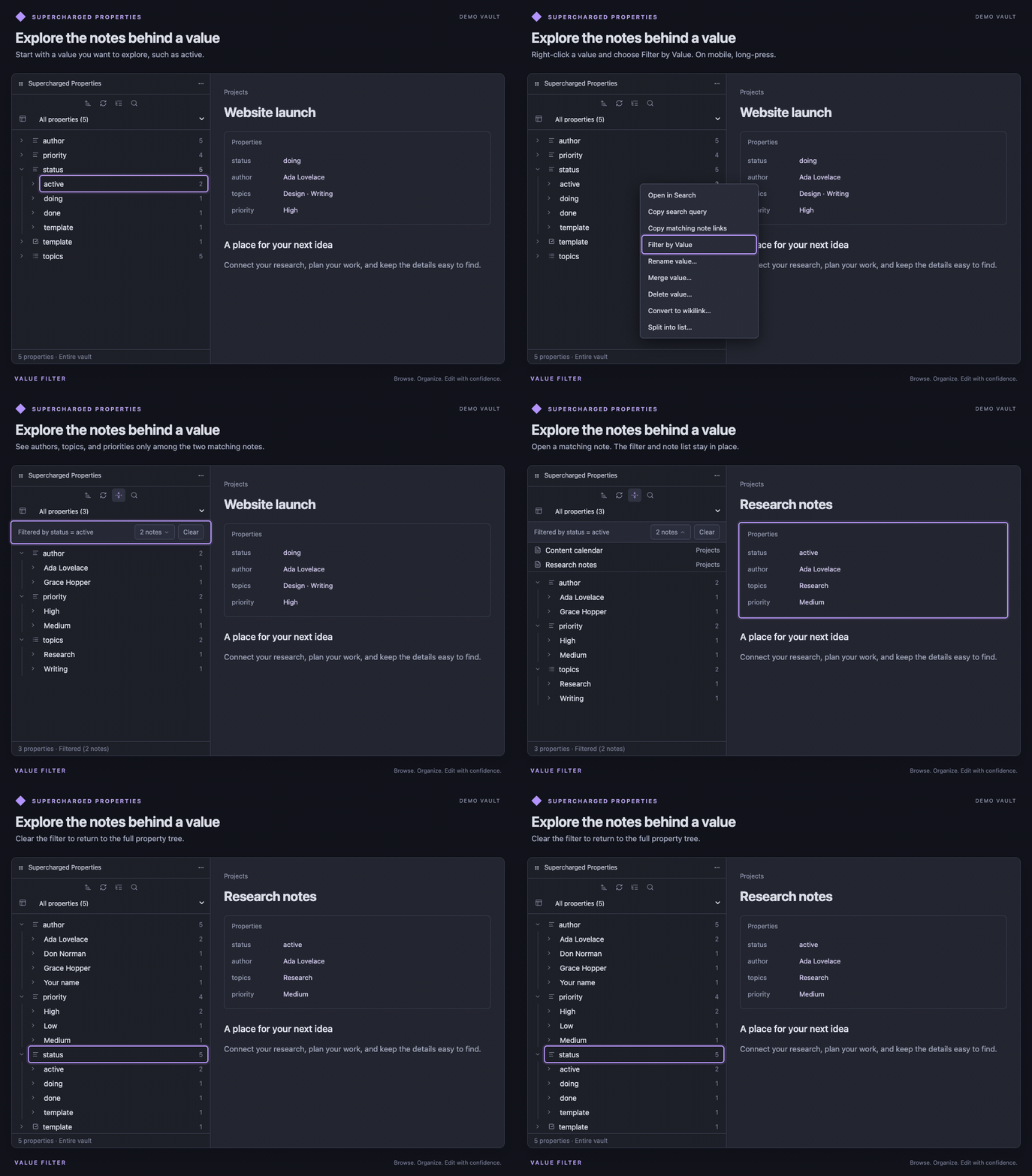
One filter is active per tab; choosing another replaces it. Notes entering or leaving that value update the results automatically. The filter is temporary and is not saved in a view. Open in Search and Copy search query remain vault-wide and do not include the value filter. See Value filter for edit scope and examples. Available in 1.4.0.
Design and concept inspired by @RedPandaLi|RedPandaLi's idea of Scoped Properties.
Keep your view focused
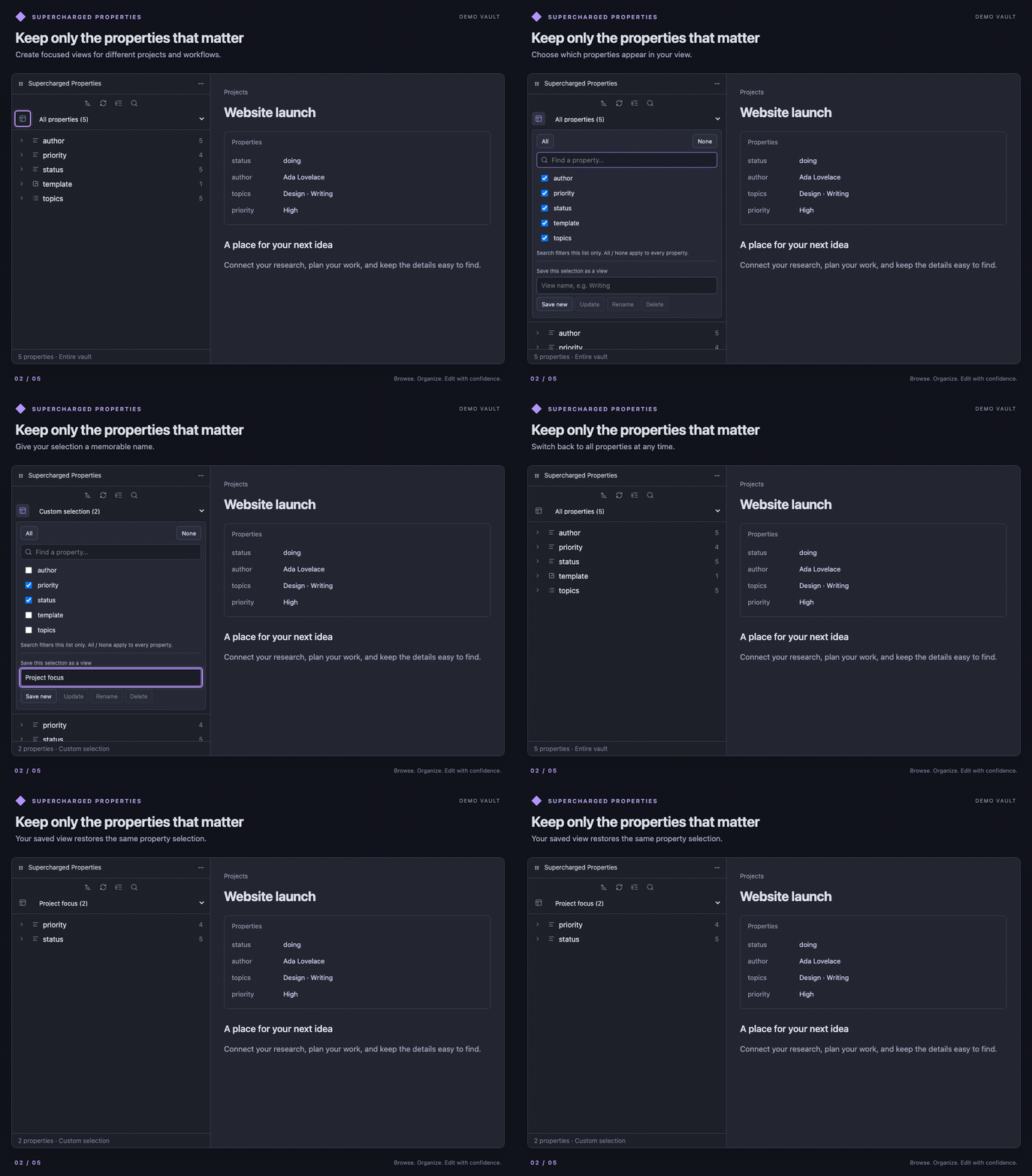
- Choose properties. Show only the fields relevant to your current work.
- Save views. Create selections such as Writing, Projects, or Reading and switch between them.
- Pin and hide. Keep frequently used properties at the top and hide fields you do not need to see.
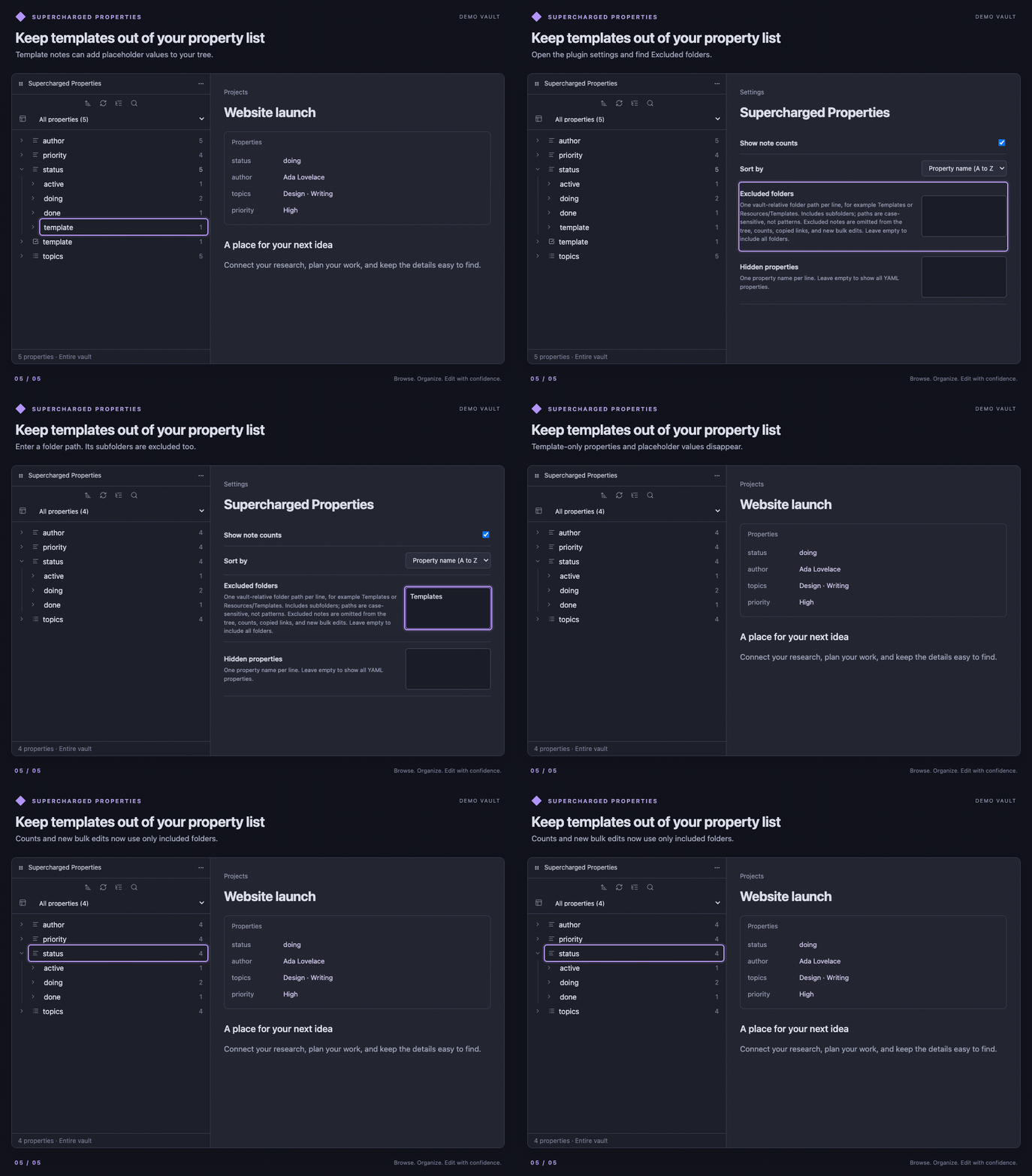
- Exclude folders. Leave templates, drafts, or other folders out of the property list and counts. Exclusions include subfolders and also apply to new bulk edits.
Change selected notes
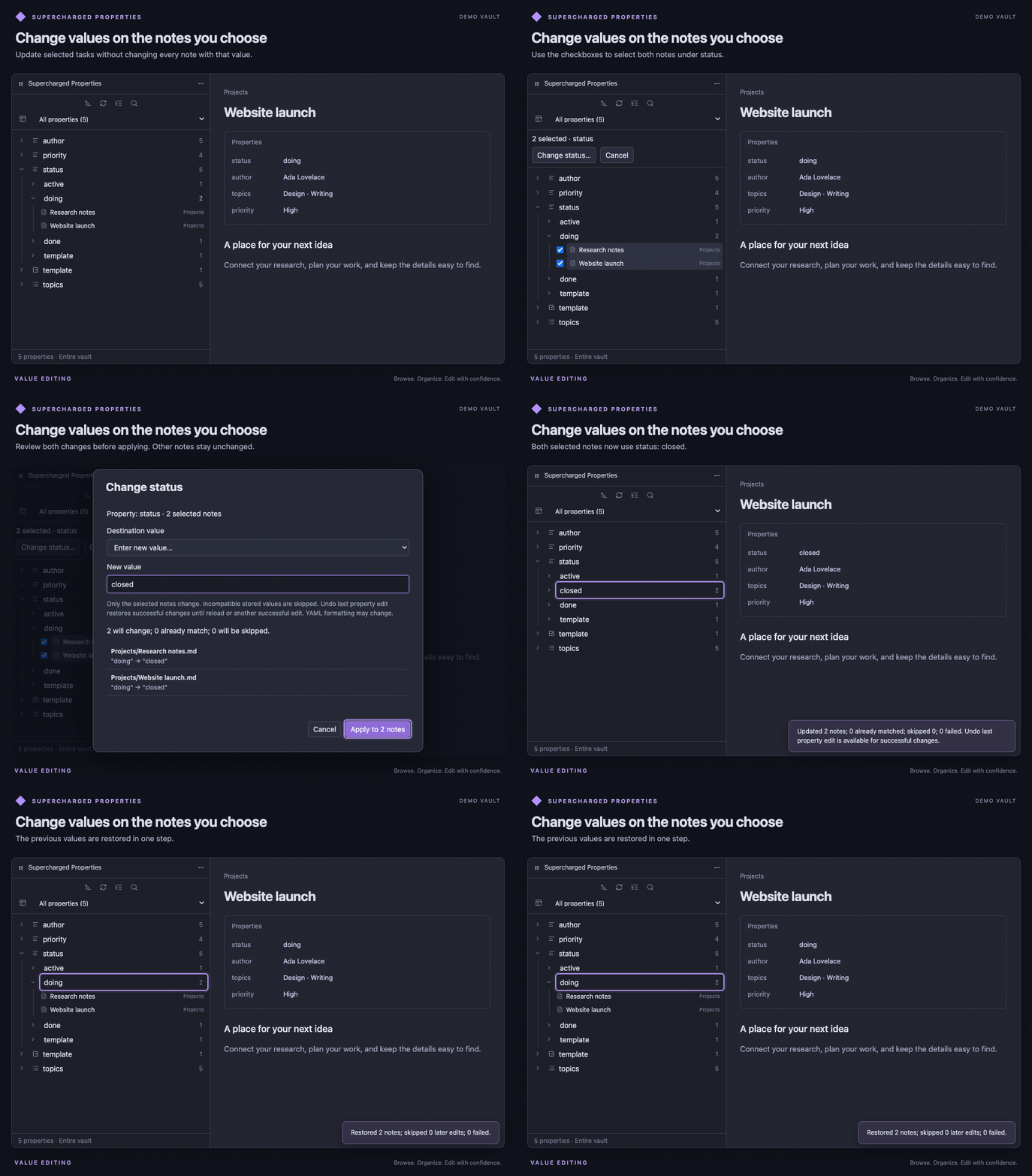
Update one note or several notes under the same property. For example, move selected tasks from status: todo and status: active to status: closed.
- Right-click a note on desktop or long-press it on mobile.
- Choose Change status… (the action uses your property's name). To edit several notes, choose Select notes…, select the notes, then choose Change status… in the selection bar.
- Choose the change, review the before/after preview, and confirm.
| Property type | What you can change |
|---|---|
| Text | Choose an existing value or enter new text. |
| Number | Set a number, such as a rating or estimate. |
| Checkbox | Set checked or unchecked. |
| Date / Date & time | Choose a date or local date and time. |
| List | Add or remove multiple text or number items while keeping the other items. |
| aliases / cssclasses | Add or remove text list items. |
Set empty (keep property) clears a scalar value while keeping its key. Remove property deletes the entire key and value from the selected notes, including every item in a list. Removing individual list values leaves an empty list if the last item is removed. Selected-note editing is unavailable for tags.
Selection shows checkboxes and highlighted rows on desktop and mobile. On desktop, Alt/Option-click toggles notes and Shift-click adds a displayed range. On mobile, use the checkboxes or tap rows in selection mode. You can select notes from different value groups under the same property. The mobile dialog keeps its actions above the keyboard.
Only the selected notes are changed. Review the preview before applying; Undo last property edit restores the last successful batch. See changing selected notes for examples, supported values, and selection behavior.
Clean up properties across notes
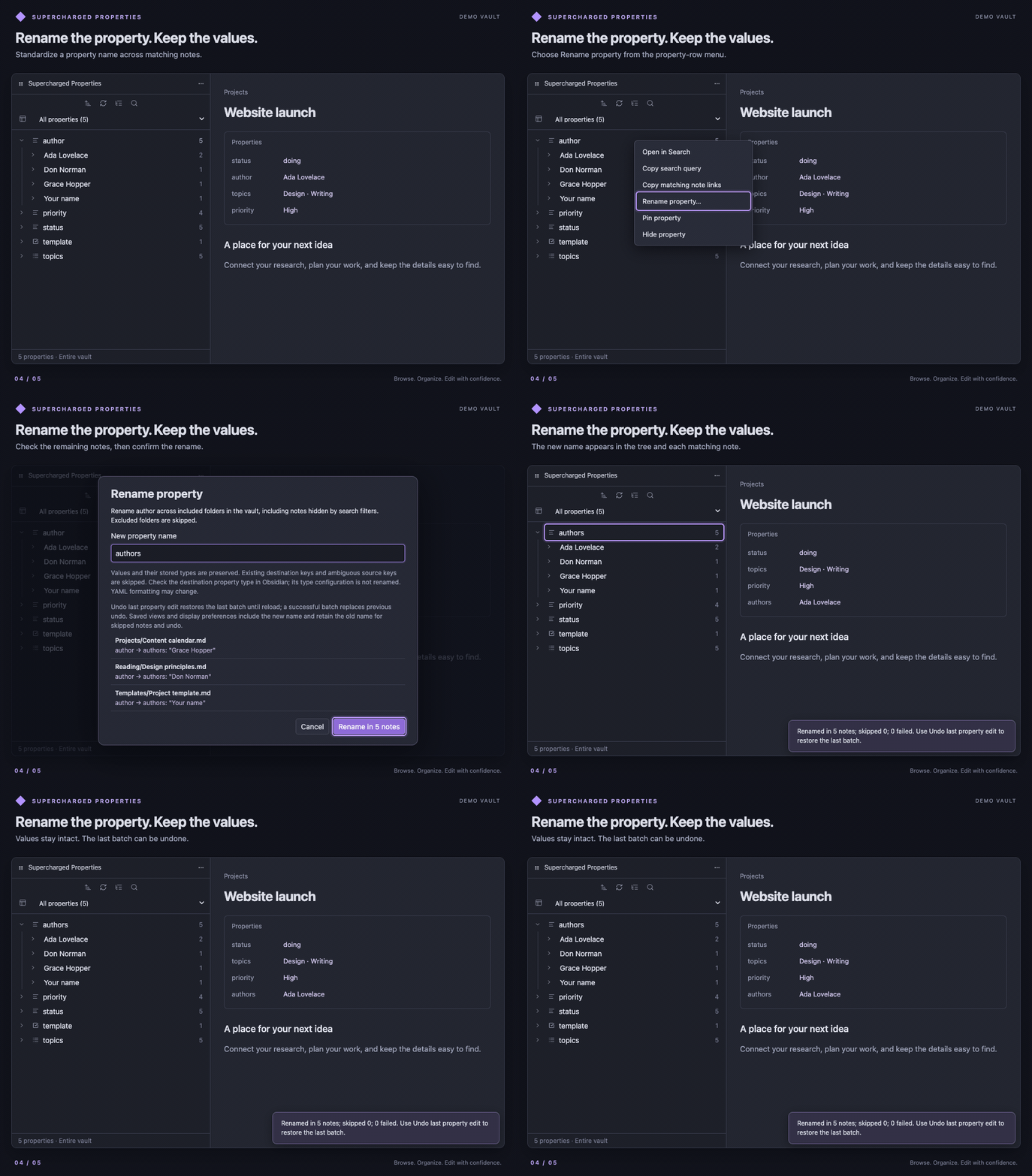
Right-click a property or value to make changes across matching notes:
| Action | Example |
|---|---|
| Rename a property | Change author to authors while keeping each note's value. |
| Delete a property | Remove deprecated from every note that still has it. |
| Rename a value | Change status: in-progress to status: active. |
| Delete a value | Remove obsolete from status values and list entries. |
| Merge values | Combine doing with an existing active value. |
| Convert text to a link | Change Ada Lovelace to [[Ada Lovelace]]. |
| Split text into a list | Turn research, writing, editing into three list items. |
Split into list is available only for text values under Text properties. It is not offered for List, Number, Checkbox, Date, Date & Time, tags, aliases, or cssclasses.
Each edit shows the affected notes before you confirm. Property-name and deletion conflicts, and changes made since the preview, are skipped rather than overwritten. Browsing and organizing the view do not change your notes.
Bulk edits apply to matching notes in included folders. An active Value filter narrows value edits, property renames, and property deletions to that group of notes. Tree search and saved views do not further narrow the affected notes. Review the preview before confirming.

Undo and edit limits
Use Supercharged Properties: Undo last property edit to undo the last successful batch. Undo preserves later edits by skipping conflicting values, including property keys recreated after a deletion. It is available until the plugin reloads or another successful batch replaces it. Deleting a property preserves your saved views and selections, so they still apply after undo.
Edits can change property formatting, including YAML comments and quoting; undo restores names and values, not the original formatting. Renaming a property does not update its configured type, templates, or queries that reference its old name. See the editing guide and property-renaming guide for details.
Get started
- Enable Supercharged Properties in Obsidian's community plugin settings.
- Click its ribbon icon, or run Supercharged Properties: Open sidebar or Open in tab from the command palette.
- Expand a property, then a value, to browse its notes.
- Use Choose properties to show to select fields and save a view.
To exclude templates, open Settings → Supercharged Properties → Excluded folders and enter one folder path per line:
Templates
Resources/Templates
Use paths relative to your vault, with matching capitalization. Templates excludes its subfolders but does not exclude Templates Archive. Changes take effect immediately. Obsidian's core Search is separate and can still return excluded notes.
Mobile use
Version 1.2.1 improves saved-view controls on small screens: the name field and action buttons appear above the property list, the picker scrolls when space is limited, and it adjusts to the visible area above the keyboard. Opening the picker does not automatically open the keyboard. After typing a new view name, tap Save new or use Done/Enter to save; a successful save dismisses the name-field keyboard.
When choosing properties, All and None keep the view name you have typed on both desktop and mobile. Saving All reports that the default view already exists; saving None asks you to select at least one property. The built-in All properties view cannot be deleted or renamed. These saved-view improvements are included in 1.2.1.
Settings
| Setting | What it does |
|---|---|
| Show note counts | Show how many distinct notes use each property or value. |
| Sort by | Choose alphabetical order or note frequency. |
| Excluded folders | Omit selected folders and their subfolders from the view and new bulk edits. |
| Hidden properties | Hide named properties; remove a name here to show it again. |
Requirements and installation
Works on desktop and mobile with Obsidian 1.7.2 or later. The core Search plugin is needed only for Open in Search.
If available in the community plugin browser, open Settings → Community plugins → Browse, search for Supercharged Properties, then install and enable it.
For manual installation, download main.js, manifest.json, and styles.css from the same release. Place them in <YourVault>/.obsidian/plugins/supercharged-properties/, reload Obsidian, and enable the plugin.
Privacy
Your notes stay in your vault. The plugin does not send vault data to external services or read your clipboard. Copy actions replace the clipboard with the query or note links you choose to copy. Changes to notes require your confirmation.
Help and documentation
- User guide — browsing, search, saved views, exclusions, keyboard controls, and troubleshooting.
- Change selected notes — typed values, list additions/removals, whole-property removal, desktop and mobile selection, and undo.
- Bulk value editing — rename, delete, merge, link conversion, splitting, and undo.
- Property-name renaming — renaming, deletion, previews, conflicts, and effects on saved views.
- Changelog — changes by version.
- Documentation index — all user and contributor guides.
- Report an issue.
Contributing and license
For source builds and development instructions, see Contributing. Release maintainers can refer to the release runbook, Publishing, and Release QA.
Copyright (c) 2026 Ajay Zapadiya. Released under the MIT License. See NOTICE.md for third-party notices.
Supercharged Properties is an independent community plugin and is not affiliated with or endorsed by Obsidian. Obsidian is a trademark of Dynalist Inc.