
README file from
GithubObsidian SSH Terminal
Run interactive SSH terminals directly inside Obsidian Markdown. SSH Terminal renders ssh code blocks in Reading View and Live Preview, so a note can become a runnable operations snippet, lab guide, or server runbook.
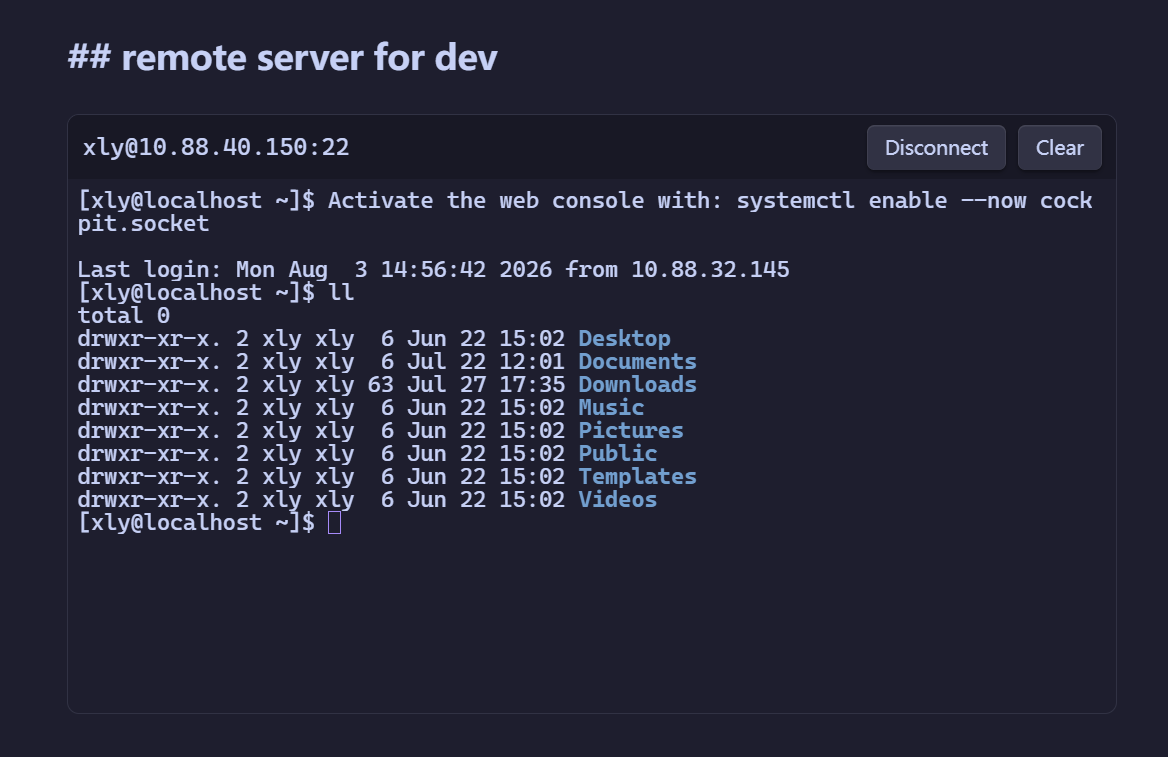
Highlights
- Write connection details directly in Markdown, including plaintext passwords when that tradeoff is useful.
- Click to connect only when you choose. Rendering a note never starts an SSH session automatically.
- Use strict host-key confirmation for both inline and profile-based connections.
- Keep connected terminals running when you switch documents during the current Obsidian session.
- Open SSH Sessions from the ribbon to see each terminal's status and original source document.
- Open any session in its own Terminal tab, then activate the same terminal back in its original Markdown block.
- Close and reopen Terminal tabs without disconnecting SSH; sessions are not restored after Obsidian restarts.
- Use profile mode when you want encrypted password storage instead of Markdown plaintext.
Quick Start: Inline Passwords in Markdown
The fastest way to make a note runnable is to put the SSH connection fields in the block:
```ssh
host: server.example.com
port: 22
username: root
password: "replace-with-password"
height: 360
```
Open the note in Reading View or Live Preview, then click Connect in the rendered terminal.
Inline mode requires host, username, and string password. port defaults to 22, height defaults to 360, and the connection timeout is 15000ms. Quote passwords that look like numbers, booleans, or contain YAML-special characters.
Warning: inline passwords are saved as plaintext in Markdown. They may be synced, backed up, indexed, or committed to Git along with the note. Use profile mode for secrets you do not want stored in Markdown.
Profile Mode
Profiles keep reusable host settings out of Markdown and store the password through Electron safeStorage, using the operating system's encryption support.
-
Open the plugin settings.
-
Create a profile with host, port, username, timeout, and password.
-
Reference the profile from Markdown:
```ssh profile: production-server height: 360 ``` -
Click Connect in the rendered terminal.
profile cannot be mixed with inline fields such as host, username, or password.
Security Notes
- Inline mode stores passwords directly in Markdown and does not copy them into plugin data.
- Profile mode stores encrypted password blobs in plugin
data.json; plaintext passwords are not written to Markdown. - If operating system encryption is unavailable, the plugin refuses to save profile passwords instead of falling back to plaintext.
- First connection uses TOFU host-key confirmation. A later host-key mismatch blocks the connection.
- Logs, notices, status text, and errors do not record passwords, typed commands, or terminal output.
First Release Scope
- Desktop Obsidian only.
- Password authentication only.
- SFTP, port forwarding, jump hosts, private keys, SSH Agent, and mobile are not supported yet.