
README file from
GithubSpotify MPRIS
Control the Spotify desktop app from a panel in Obsidian on Linux: see what's playing, play/pause, skip, search tracks and replay your recent tracks. It talks to Spotify over MPRIS (D-Bus), so it works with Spotify Free and needs no Spotify account login or API key.
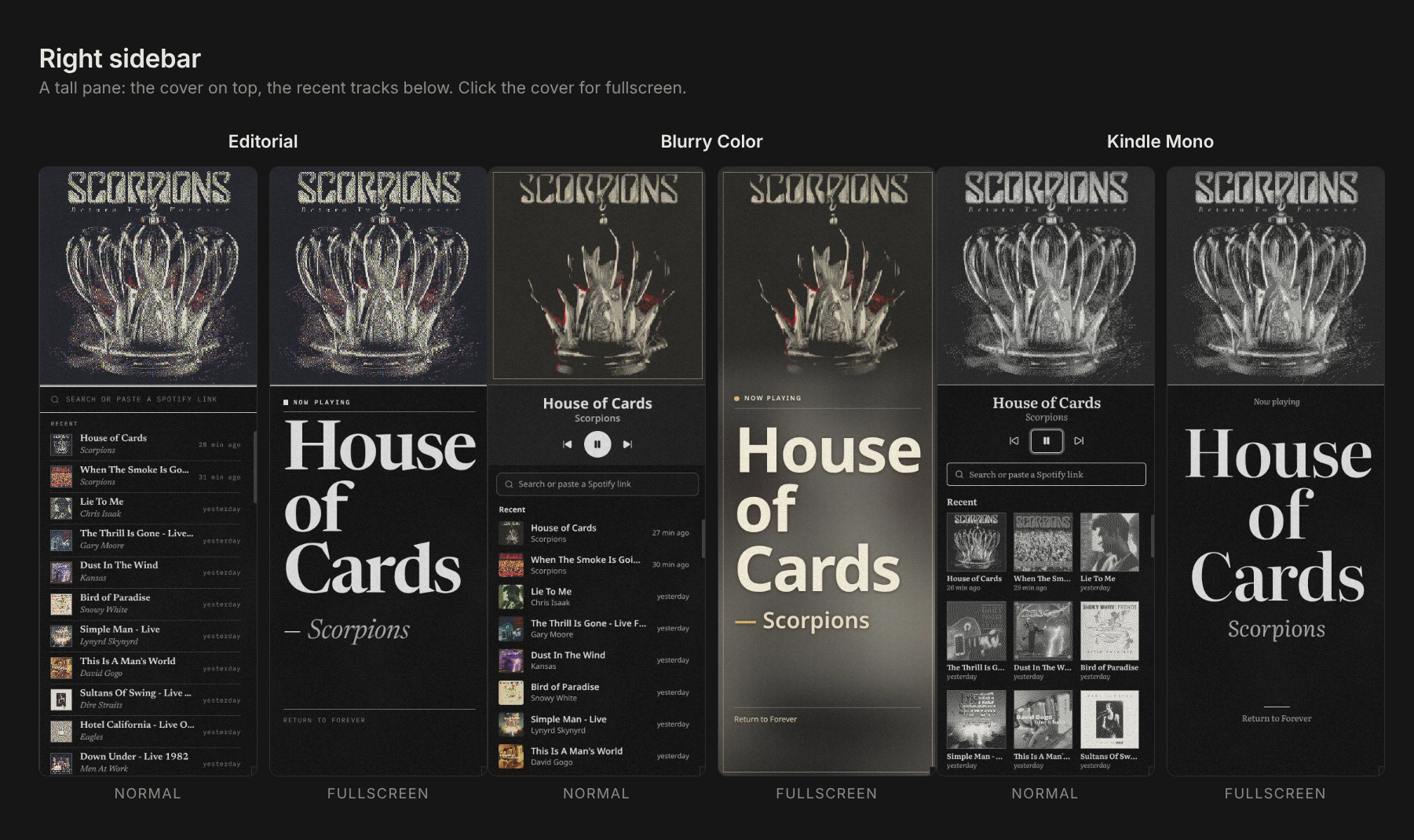
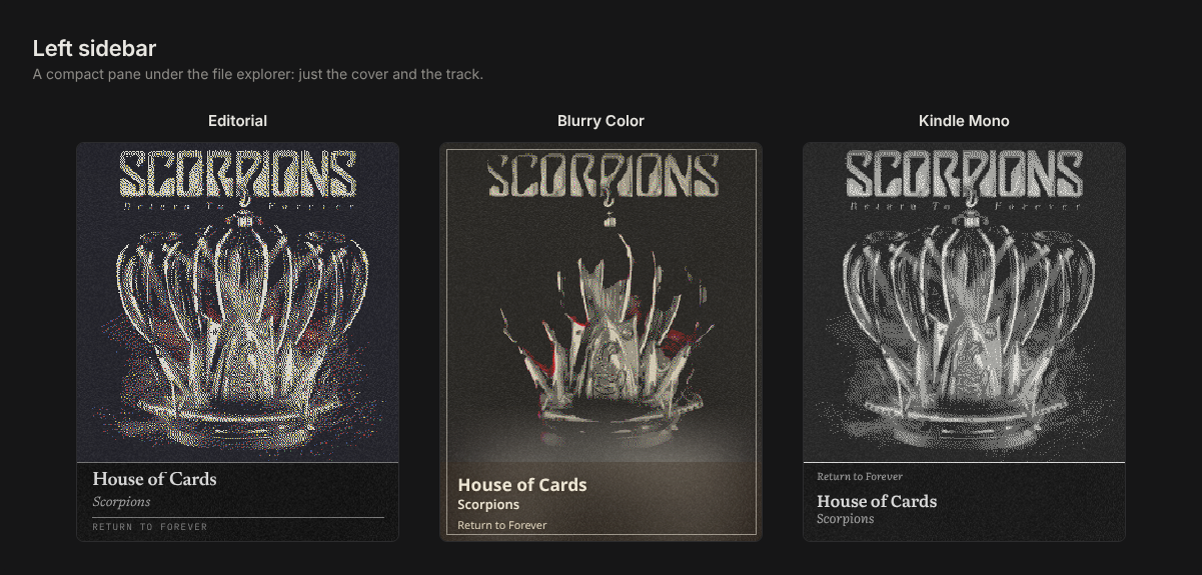
Features
- Mini player with the cover, title, artist and play/pause, previous and next.
- Fullscreen cover that fills the panel (see Fullscreen mode).
- Search tracks, or paste a Spotify link (
open.spotify.com/track/…orspotify:track:…) to play it directly. - Recent tracks: everything that plays while Obsidian is open (last 50), one click to play again.
- Three themes (Editorial, Blurry Color, Kindle Mono), plus an optional e-ink dither filter for the cover.
- Kindle Mono blinks like an e-ink screen refreshing when you enter or leave fullscreen and when you hover the controls. Turn it off with Blink effect in the settings.
- Commands: open panel, play/pause, next track, previous track. Assign hotkeys in Settings → Hotkeys.
Requirements
- Linux desktop. The plugin is desktop-only, so it doesn't run on mobile.
- Windows and macOS: not tested yet. They aren't expected to work either, because the plugin controls Spotify through MPRIS (D-Bus), which only exists on Linux.
- The Spotify desktop app, running. Any install works (deb, Snap or Flatpak).
dbus-send, which ships with almost every Linux desktop (packagedbusordbus-bin).
Obsidian installed as a Flatpak
A Flatpak Obsidian can't reach Spotify until you allow it. On the first start the plugin shows the command to run; you can also find it under Settings → Spotify MPRIS → Check Spotify:
flatpak override --user --talk-name=org.mpris.MediaPlayer2.spotify md.obsidian.Obsidian
Then quit Obsidian completely and open it again (reloading isn't enough).
Usage
- Open Spotify.
- Select the music icon in the ribbon, or run Spotify MPRIS: Open panel from the command palette.
- Type in the search field and press Enter, or paste a Spotify link.
Search results come from Deezer's public catalog (Spotify's own search API requires a Premium account). Selecting a result opens that search in the Spotify app. Recent tracks and pasted track links play directly. After the chosen track ends, the plugin starts its song radio.
Fullscreen mode
Fullscreen shows the cover across the whole Spotify panel (not the whole Obsidian window).
To enter
- Click the small cover in the mini player at the top of the panel.
- In a tall panel (for example a whole sidebar) with the Editorial, Blurry Color or Kindle Mono theme, the big cover is already on screen: click it.
While in fullscreen
- Left-click anywhere on the cover to play or pause.
- Hover the cover to show the previous, play/pause and next buttons.
To leave
- Right-click anywhere on the cover, or
- press Escape while the Spotify panel is the active tab.
A left-click never closes fullscreen, so you can play and pause without leaving it by accident. The panel remembers the mode, so it reopens in fullscreen if you left it that way.
Tip: double-click the divider above the panel to fit its height to the cover, or the sidebar's edge to fit its width.
Privacy and network use
- Spotify desktop app (local): the plugin runs
dbus-sendto read the current track and send play/pause, next, previous and "open URI" commands. Nothing leaves your computer for this. - Deezer API (
api.deezer.com): only when you search, the text you typed is sent to Deezer's public search API to find tracks. No account or key is used. - Spotify image CDN: cover images are loaded from the URLs Spotify reports for the playing track. With the e-ink filter on, they are downloaded so they can be redrawn locally.
- Files outside the vault: the plugin reads
/.flatpak-info(only present inside a Flatpak) to check whether Obsidian has permission to talk to Spotify.
There is no telemetry. The recent tracks list is stored in the plugin's data.json inside your vault.
Installation
- Community plugins: search for "Spotify MPRIS" in Settings → Community plugins → Browse.
- Manual: download
main.js,manifest.jsonandstyles.cssfrom the latest release into<vault>/.obsidian/plugins/spotify-mpris/, then enable the plugin in Settings → Community plugins.
Credits
Spotify is a trademark of Spotify AB. This plugin is not affiliated with or endorsed by Spotify.
The themes embed these fonts, all under the SIL Open Font License 1.1: Newsreader (Production Type), IBM Plex Mono (IBM), Noto Sans (Google) and Literata (TypeTogether).