
README file from
GithubSpatial Task Graph
Spatial Task Graph transforms your linear markdown tasks into a dynamic, interactive infinite canvas. Visualize dependencies, manage workflows with a Kanban-style sidebar, and organize your thoughts spatially—all with a premium Apple-style aesthetic.
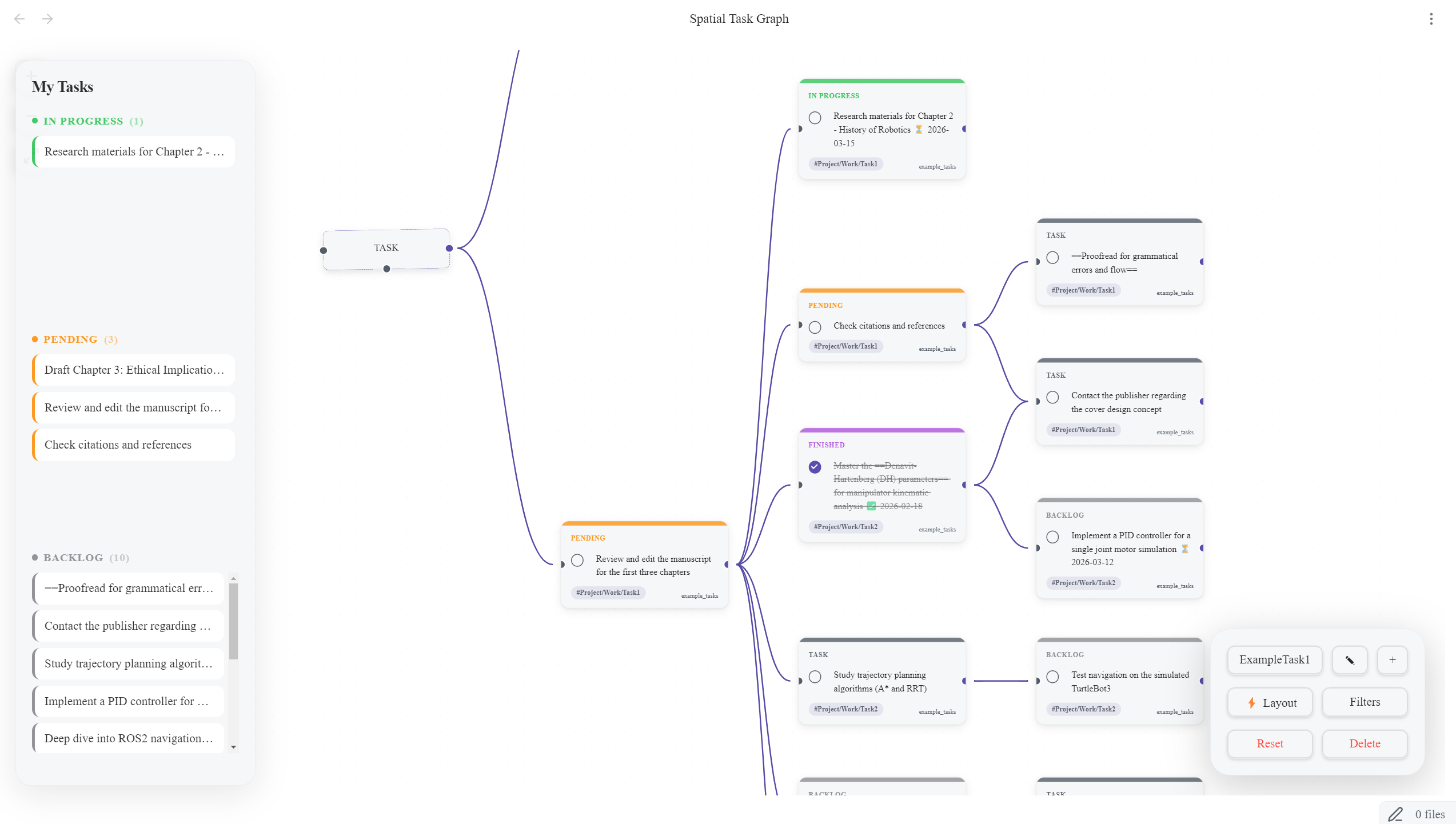 (Above: A preview of the Spatial Task Graph infinite canvas and control HUD)
✨ Key Features
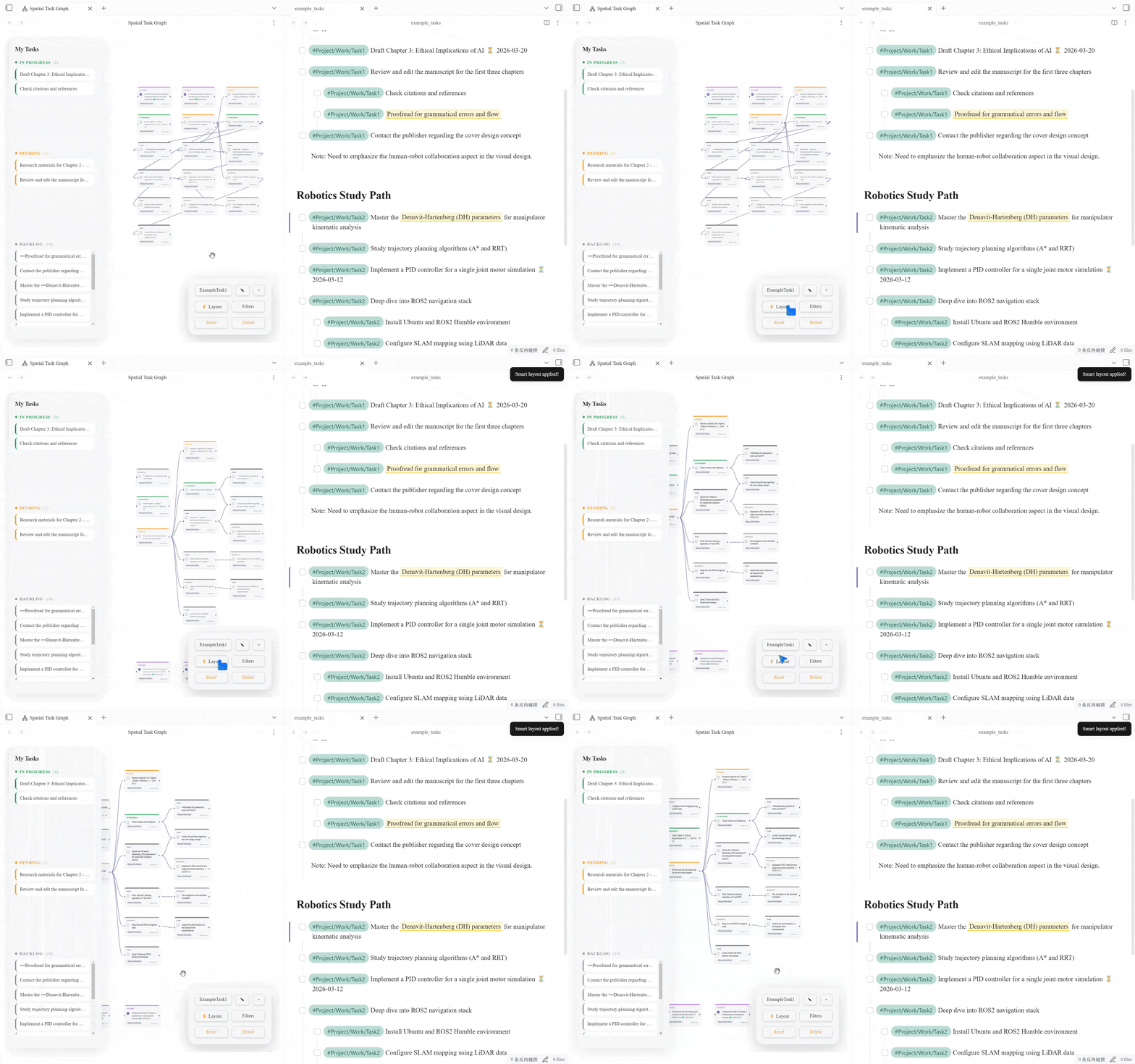
1. Smart Layout & Organization
Automatically organize your messy graph with a single click. The intelligent layout algorithm centers parent nodes and sinks completed, isolated tasks to the bottom to keep your view clean.
2. Intuitive Graph Interactions
Manage your tasks spatially with fluid mouse gestures.
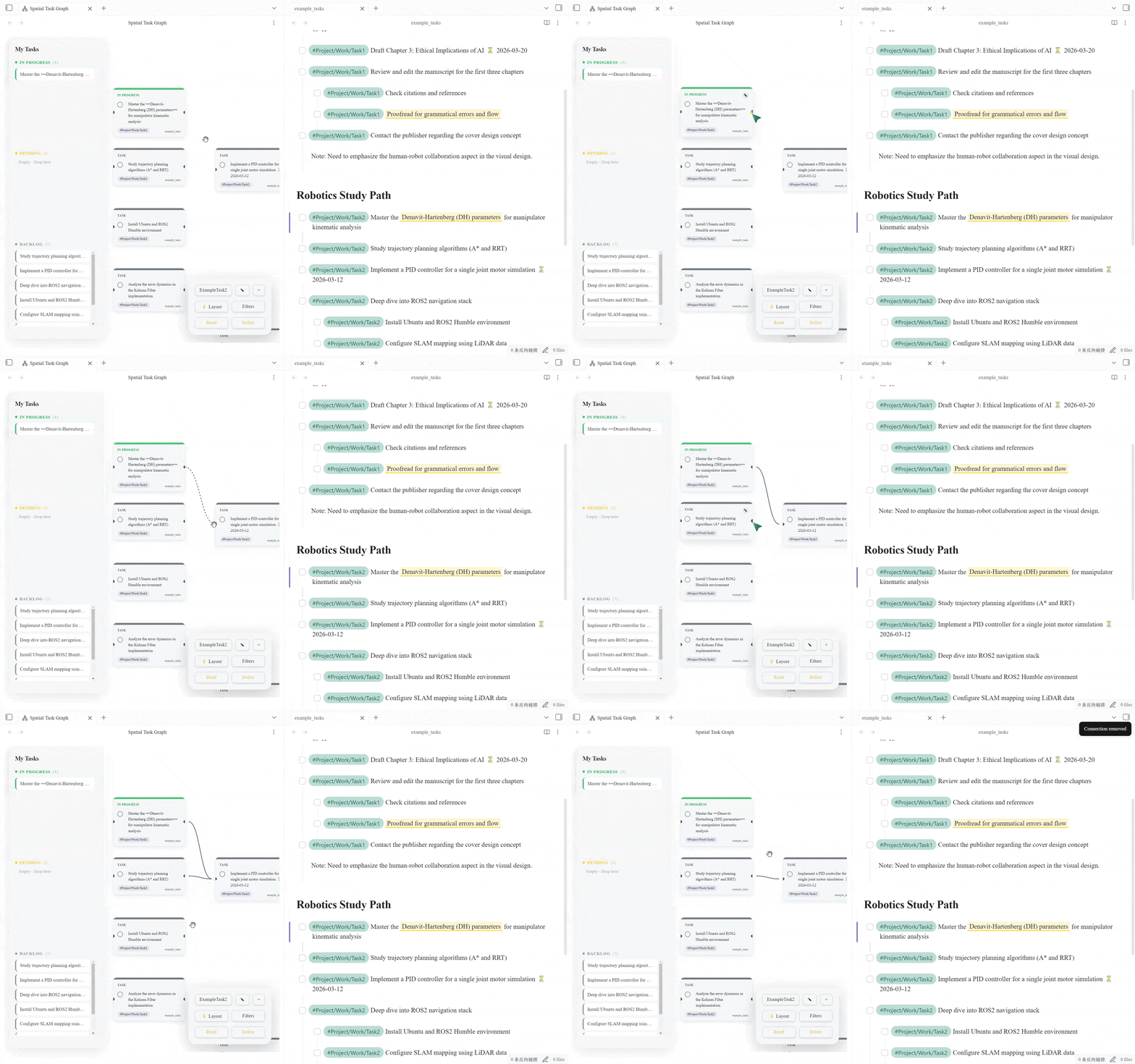
- Connect & Edit: Drag to connect tasks. Right-click connections to delete them.
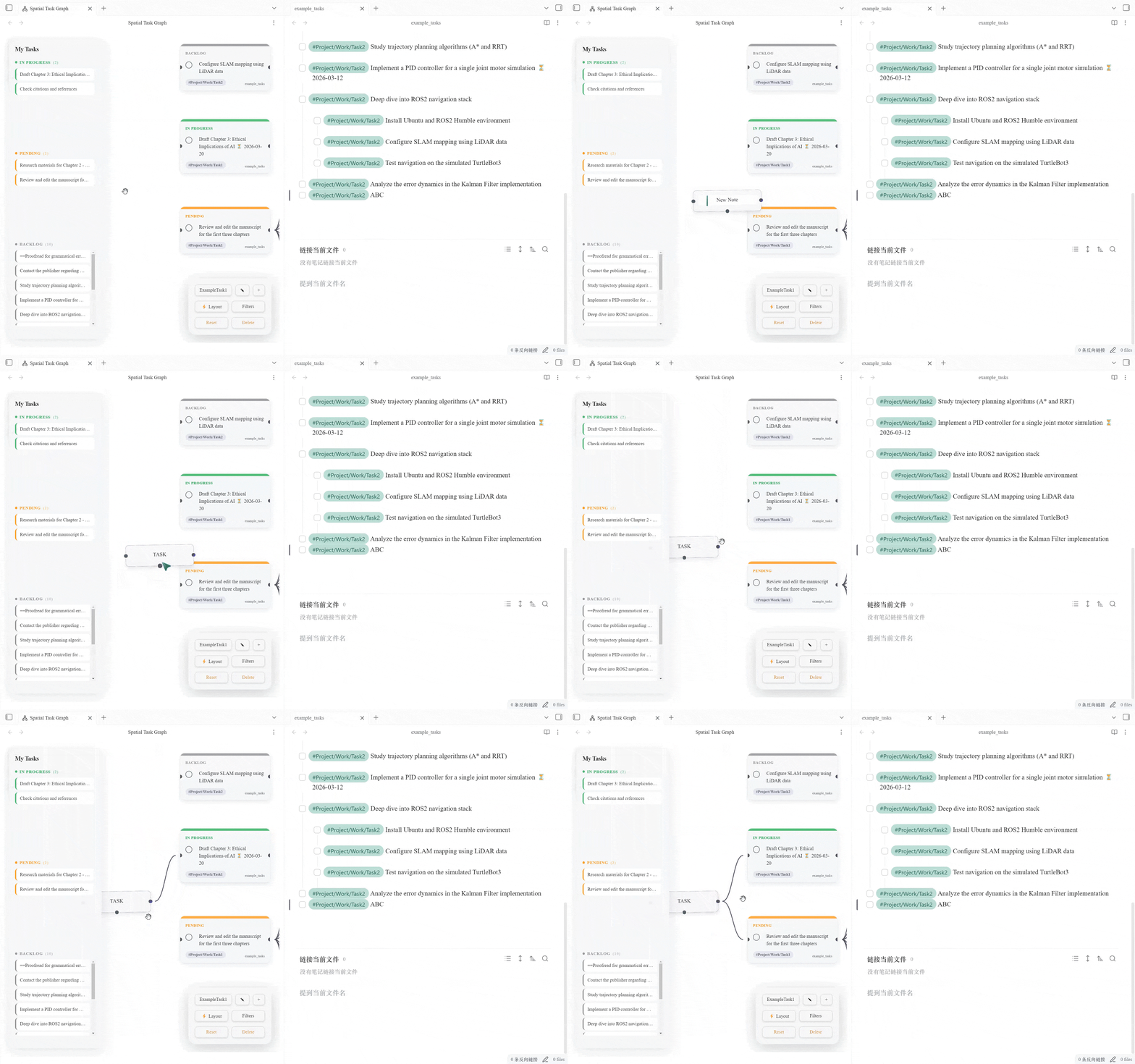
- Text Notes: Right-click on the canvas to add sticky notes for context or headers.
- Batch Move: Hold Left Click to box-select multiple nodes and move them as a group.
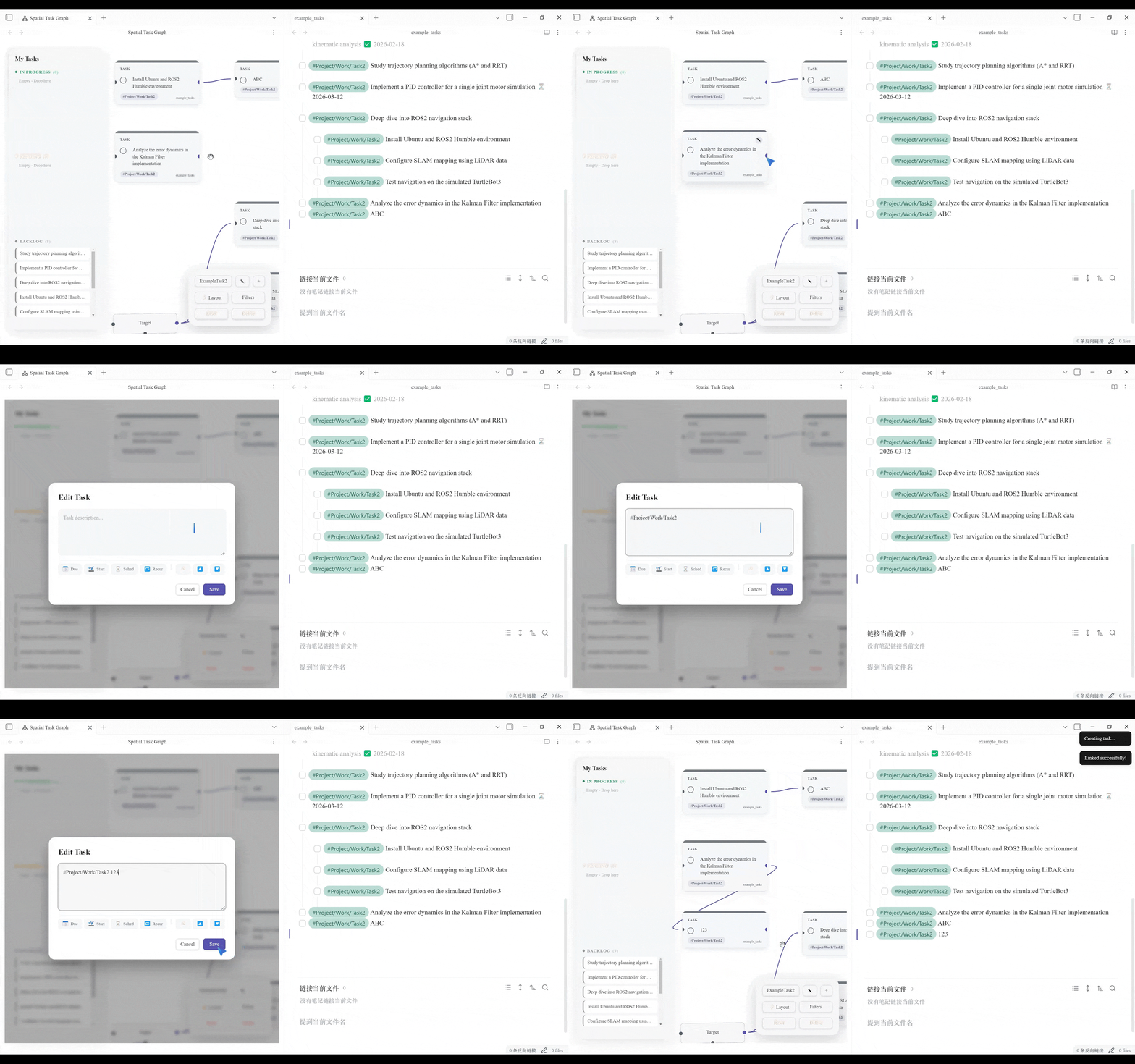
3. Seamless Creation Flow
Don't break your flow. Create new tasks directly from the canvas.
- Drag-to-Create: Drag a connection line to an empty space to instantly open the creation modal. The new task is automatically appended to the parent file and linked.
4. Powerful Workflow Management
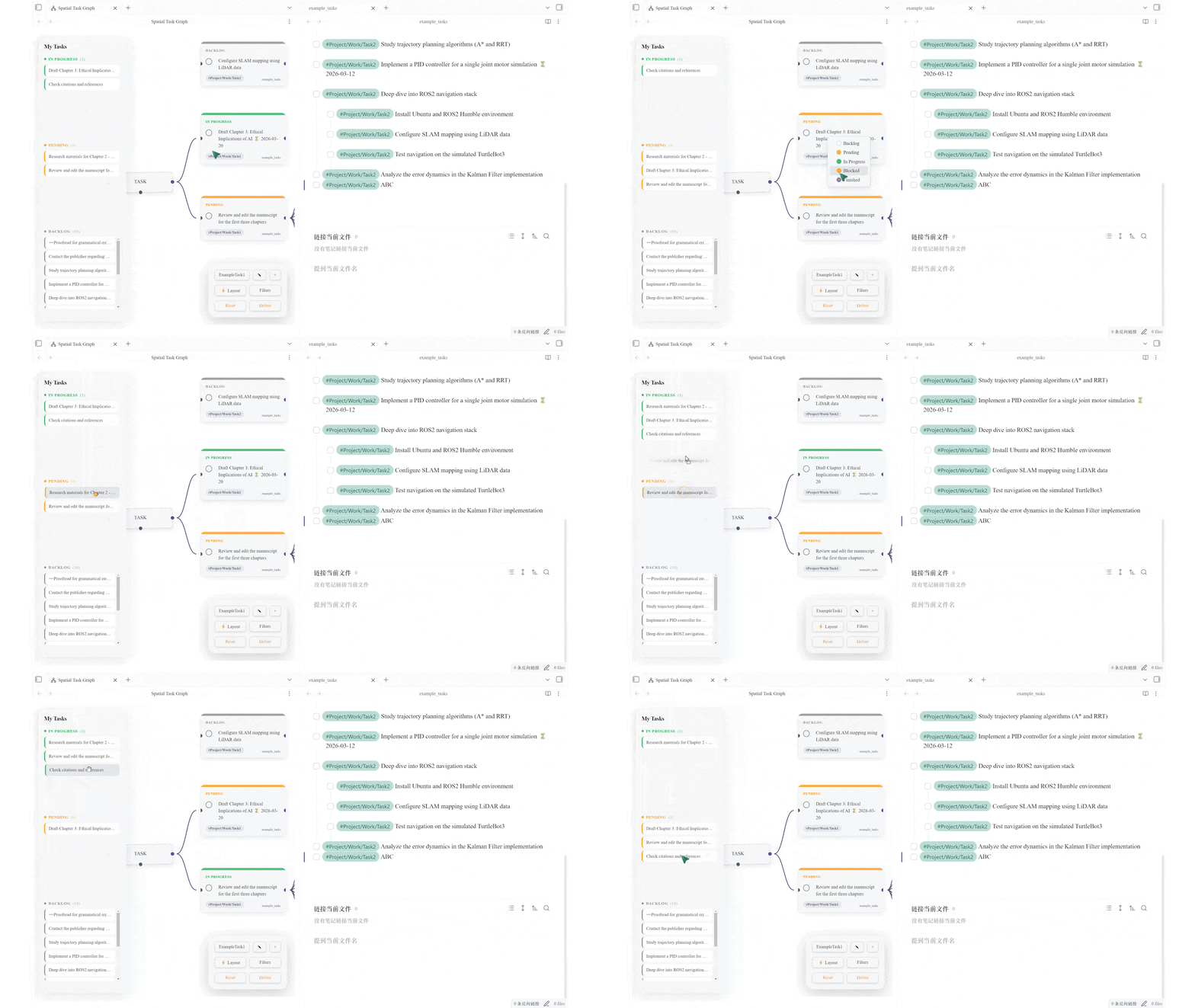
Manage task status directly without opening files.
- Interactive Sidebar: Drag and drop tasks between In Progress, Pending, and Backlog in the left sidebar to switch their status instantly.
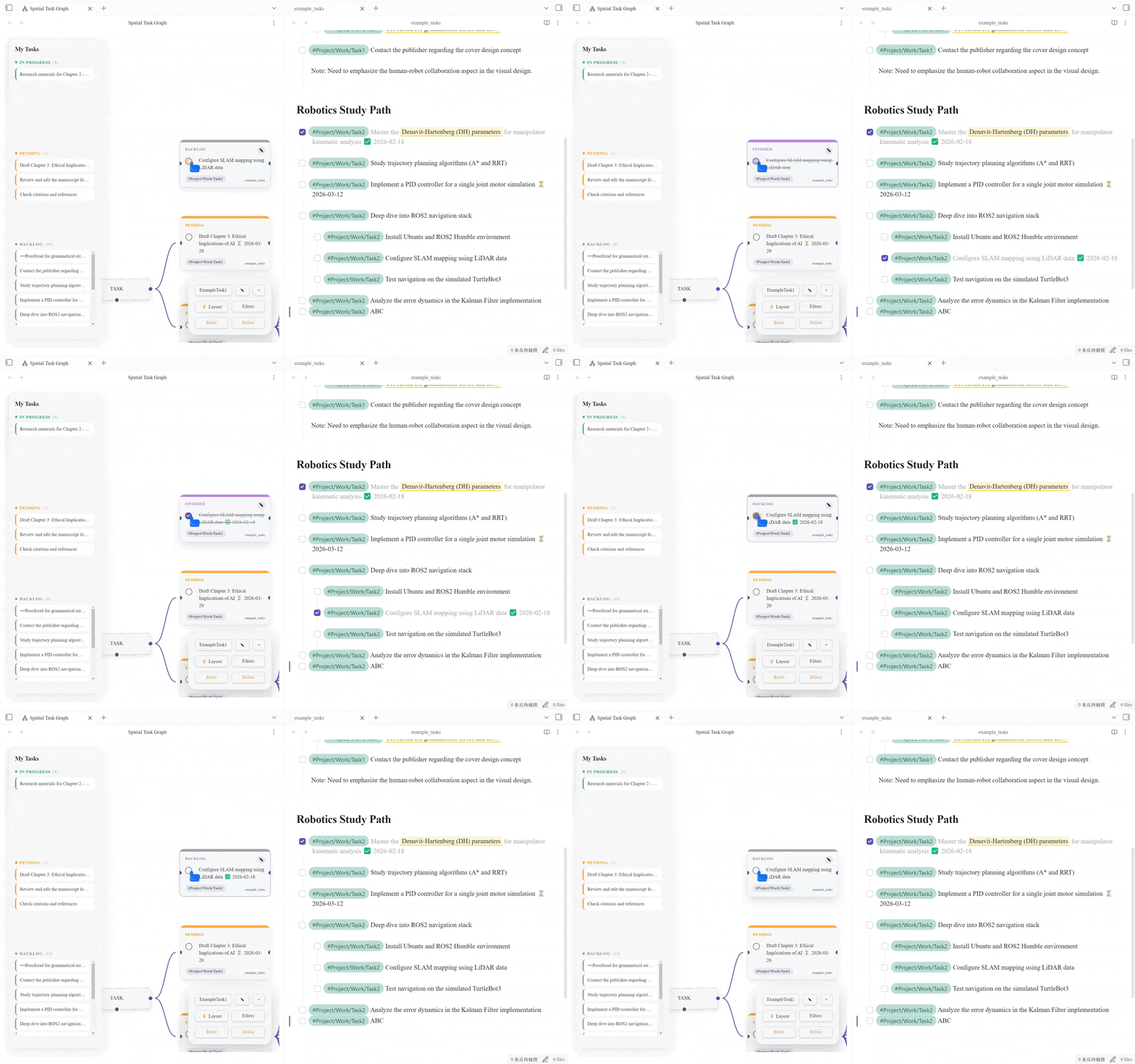
- Real-time Sync & Quick Navigation: Click the checkbox circle on a node to complete it. The change is immediately written to your markdown file with a timestamp (Tasks plugin format). Click any task text to jump directly to the source file.
5. Context Menu & Styling
Right-click any task node to quickly change its priority or status color via the context menu.
🚀 Installation
Manual Installation
- Download
main.js,manifest.json, andstyles.cssfrom the Latest Release. - Create a folder
spatial-task-graphin your vault's.obsidian/plugins/directory. - Move the files into that folder.
- Reload Obsidian and enable the plugin.
Privacy
Spatial Task Graph indexes markdown task list items locally so it can render your task graph. It does not send vault contents, file names, or task data to any external service.
🎮 Usage Guide
The Interface
- Left Sidebar (HUD): Your cockpit. Shows all tasks categorized by status. Click to center the view; Drag to change status.
- Bottom Right (Control Panel): Switch between different Boards, apply filters (Tags/Paths), and trigger Auto Layout.
- Top Left (Toolbar): Zoom and Fit View controls.
Editing Tasks
- Click the Pencil Icon on a node to edit.
- Type
#to autocomplete tags. - Use the metadata toolbar to insert Dates (📅), Priorities (🔺), and more.
- Right-click a task node to quickly change its status color via the context menu.
🤝 Contributing
Contributions are welcome! Please create an issue or submit a Pull Request.
📄 License
MIT License