
README file from
Github


Website | Community store | Changelog
Install
Smart Gantt is live on the Obsidian community plugin store.
- In Obsidian: Settings -> Community plugins -> Browse, search for Smart Gantt, install and enable.
- Or one click from your browser: Add to Obsidian.
What it does
- Tracks every task across your vault - no plugin-specific syntax to learn.
- Understands dates written in plain language ("due next monday", "tomorrow"), Tasks-style emoji dates, and Dataview
[due:: ]fields. - For Tasks and Dataview dates, the bar starts on the start date (🛫 /
[start:: ]) when present, otherwise on the due date; the bar ends on the due date (📅 /[due:: ]). - Renders them as an interactive Gantt chart: drag a bar to reschedule and the date is rewritten in your note, resize edges to change start/end, zoom Day/Week/Month/Quarter.
- Click any bar to jump straight to the task in its note.
- Works on desktop and mobile.
Use it two ways
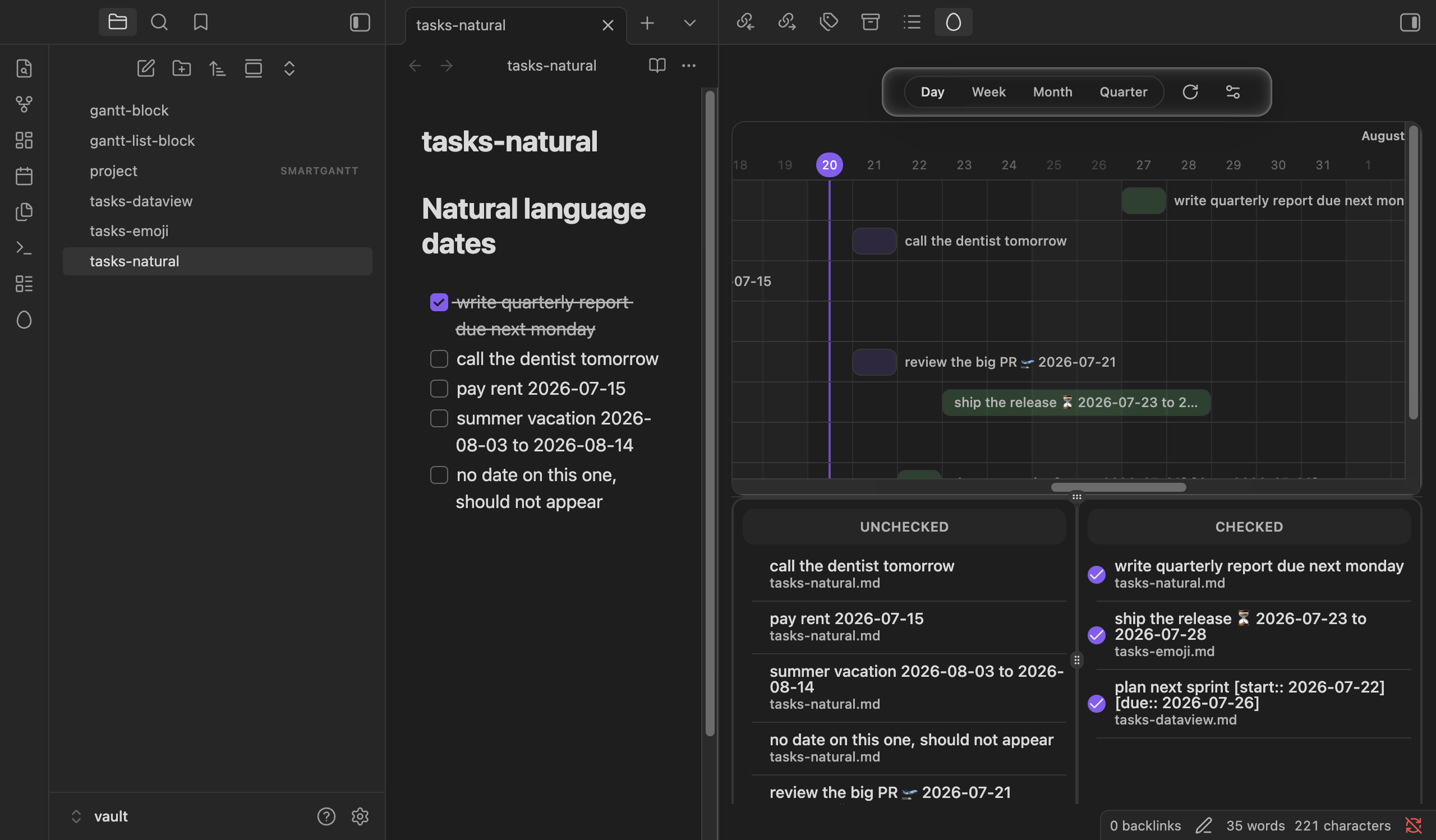
The sidebar view
Open the Smart Gantt view from the right sidebar and every dated task in your vault shows up on one timeline.
A gantt code block
Drop a gantt code block anywhere in a note to embed a chart scoped to that document:
```gantt

```
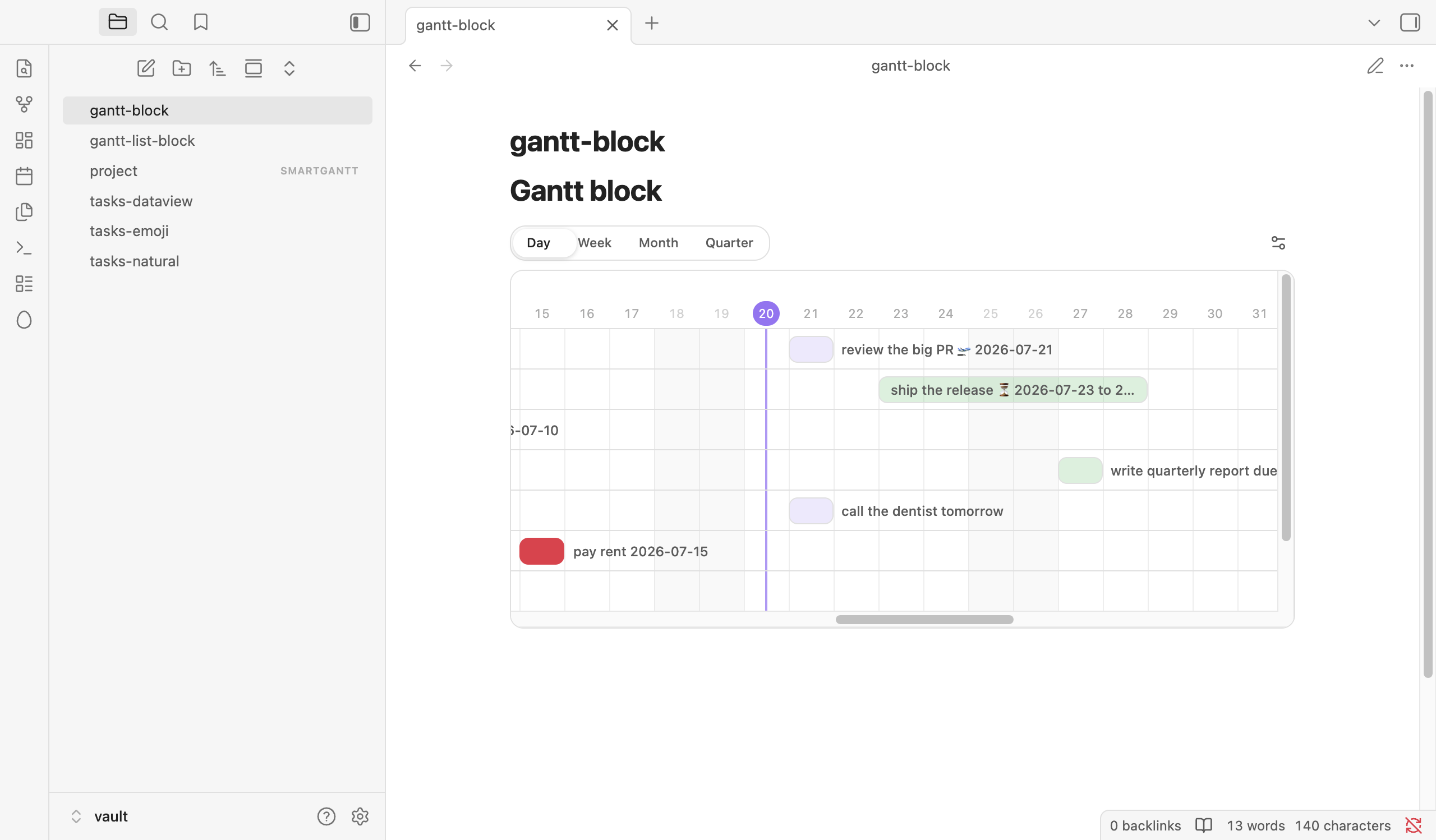
Right click (hold on mobile) the chart to open the settings view. Settings are stored as JSON inside the code block, so you can also edit them by hand.
Limitations
Smart Gantt tracks lines with a checkbox that contain something interpretable as a time or time range. Its natural language parsing is good, not psychic:
- A bare year like "2024" is not enough context - write the date a bit more clearly.
- Time of day must come after the date:
Sat Aug 17 2024 9 AMworks;9 AM Aug 17 2024parses as two separate points in time. - Relative phrases ("today", "tomorrow", "last friday") technically work but re-anchor to the current moment every refresh, which is rarely what you want.