
README file from
GithubSimple Password
Protect your Obsidian vault with a password
Features
- Lets you lock your vault so that no one snoops
- Never touches your files
- Auto Lock after inactivity
- Different 'privacy modes': simple blur & closing affected tabs
- You can target specific paths (multiple paths supported)
- Multiple ways to lock: command, hotkeys, ribbon & URL (
obsidian://lock) - Protects against page preview core plugin
- Protects against embeds
- Protects against search
- (Optionally) locks graph view
- Allows cancelling, letting a person look through unprotected parts
- Plays well with theming - most things have unique classes
[!WARNING] This plugin DOES NOT encrypt files. So if you are looking for "real" security, you gotta use some other plugin - like Protected Note or Cryptsidian
How to use, how it works, etc
To set the plugin up, go into the settings and set a password & alter the protected paths as you wish.
After that, the vault has 2 states: locked & unlocked. On load, the state is always locked.
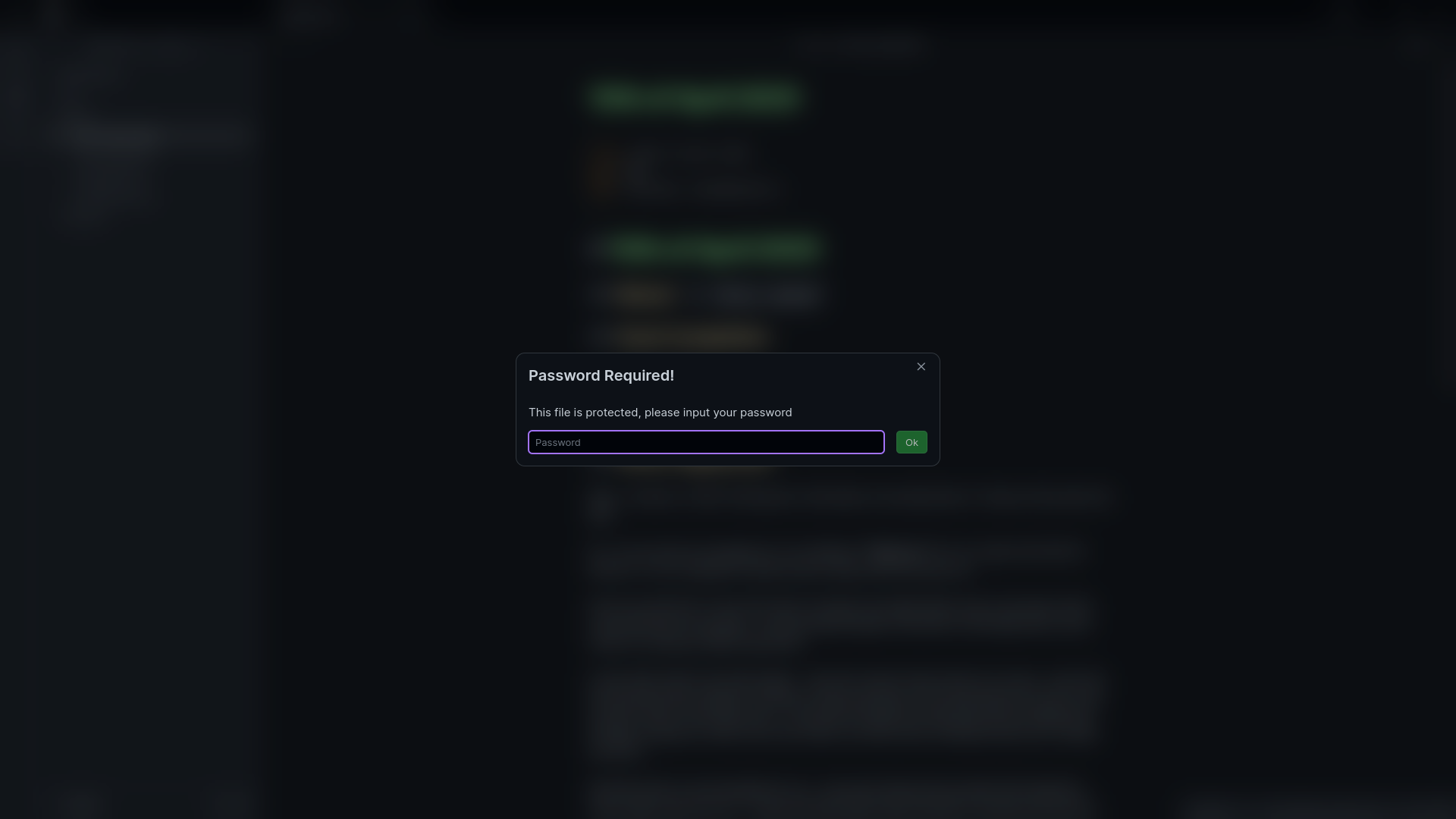
When locked, if you try to open a file or get the preview for a file in a protected path, it will prompt you for a password. If unlocked, it will open the files as normal.
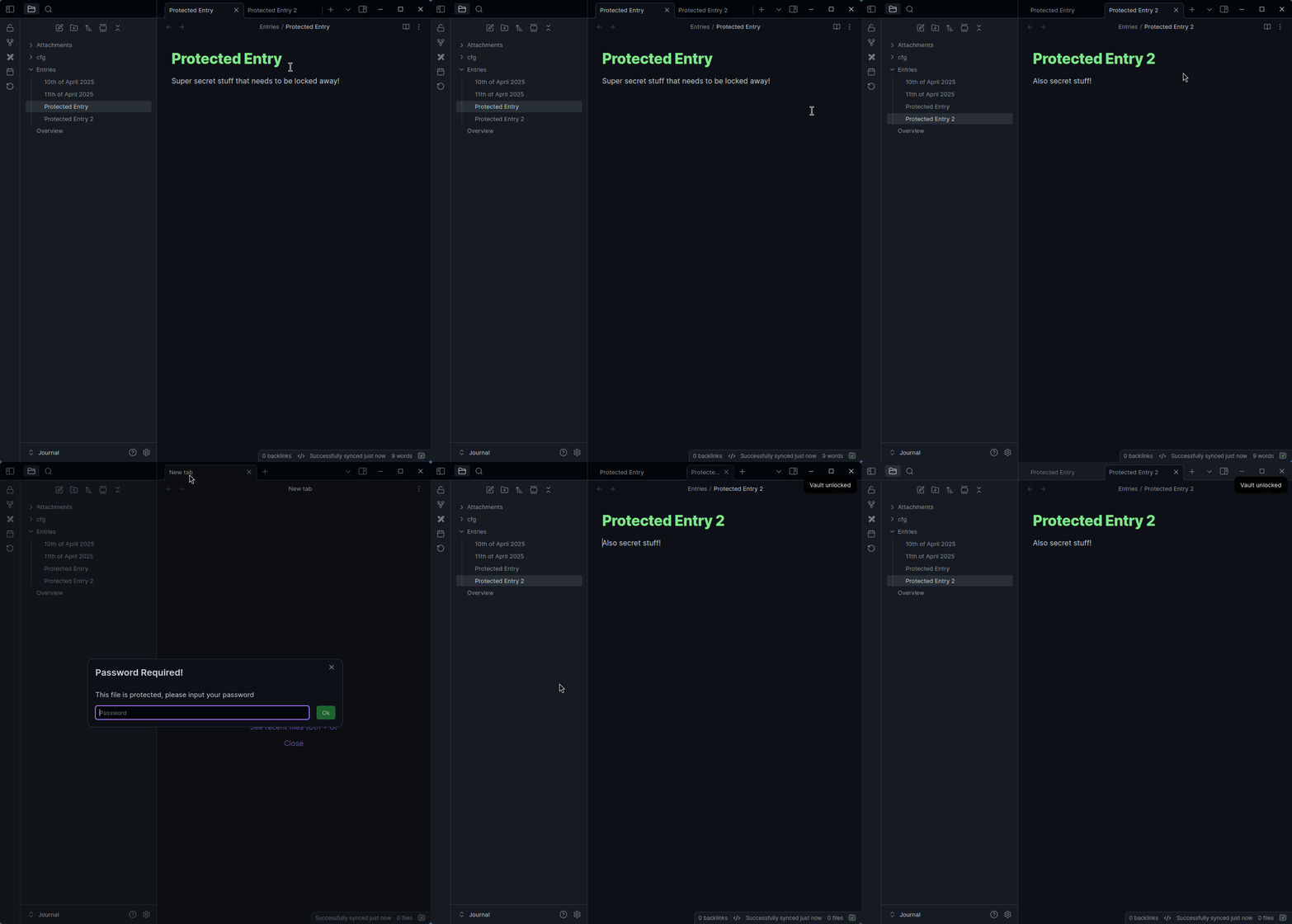
When the privacy mode is set to close tabs, it will not let tabs open for protected files (when locked). After a password is entered, the closed tabs will re-open.
When the privacy mode is set to blur, it will only blur the background of the modal.
Preview
Blur Mode
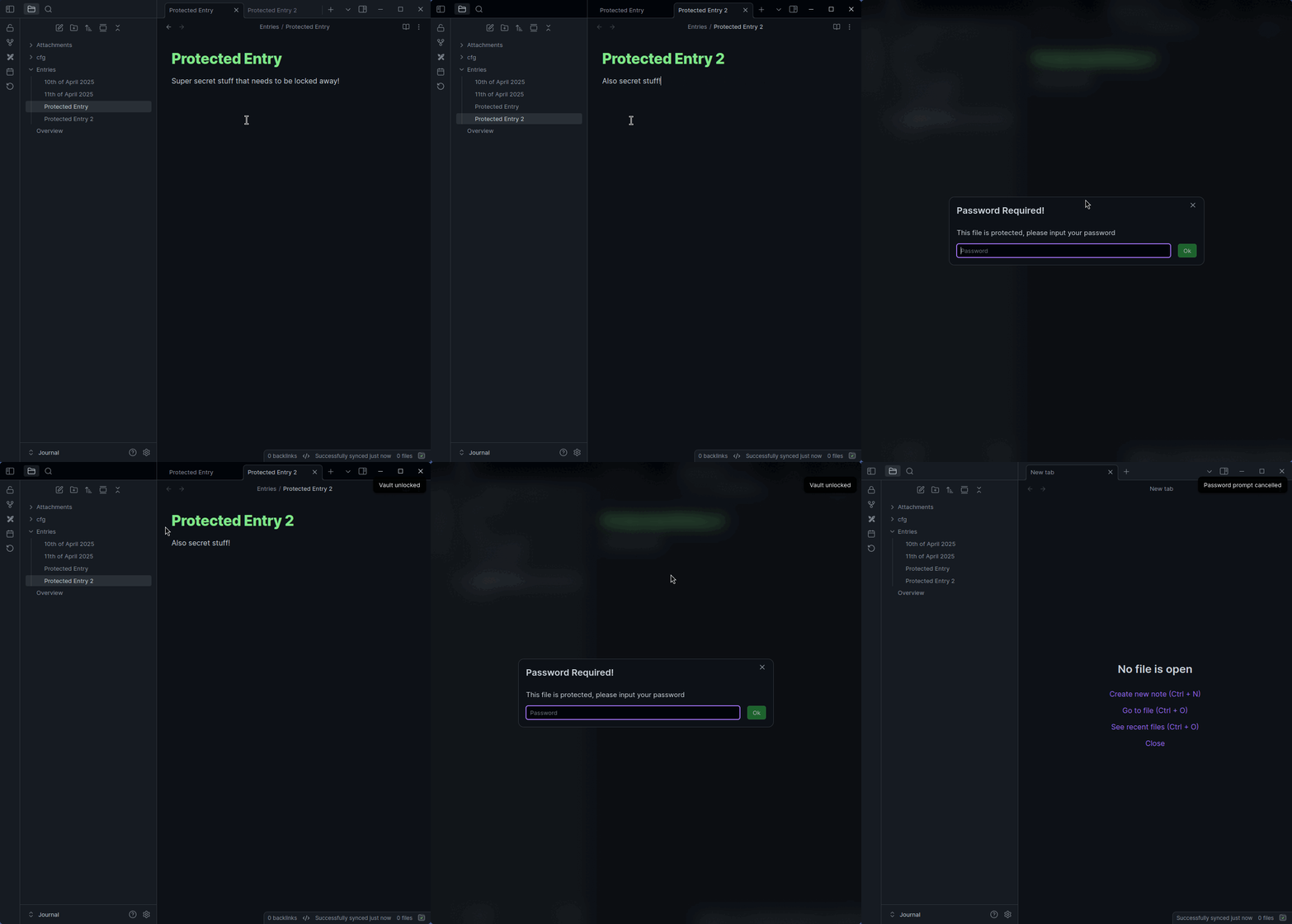
Tab Closer
Acknowledgements
HEAVILY inspired by Qing Li's Password Protection plugin - I just wanted to add a few things to their plugin & the codebase didn't allow for my ideas to be easily implemented. Used the sample plugin template
Contributing
I'm open to issues, PRs, etc!