
README file from
GithubSidecar AI
A native, privacy-first AI chat companion for Obsidian powered directly by your authenticated local CLI tools: Google Antigravity (agy), GitHub Copilot (copilot), Pi Coding Agent (pi), or any Custom CLI with zero API keys, proxies, or per-token charges.
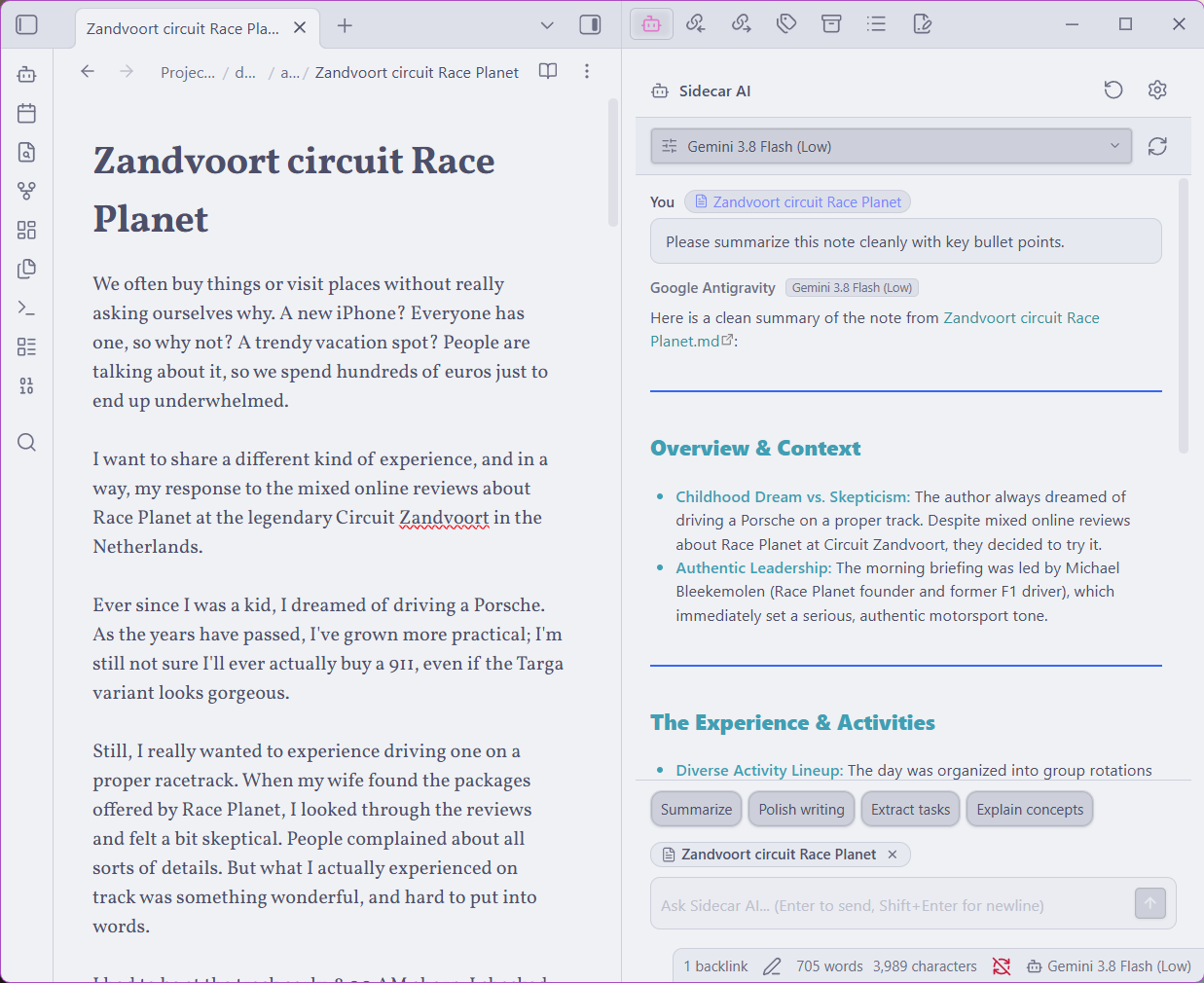
✨ Why Sidecar AI?
Most AI plugins for Obsidian require you to manage paid third-party API tokens, configure proxies, or paste secret keys into plugin settings.
Sidecar AI bridges your vault directly to the command-line agents already running on your machine. It utilizes your existing subscriptions (Google AI subscriptions, GitHub Copilot, Pi Coding Agent, or your own custom agent scripts) in a native sidebar designed to match Obsidian's interface.
⚡ Quick Start
- Install & Enable: Click Install and then Enable in Obsidian Settings → Community Plugins.
- Ensure CLI is Ready: Make sure at least one supported tool is installed and logged in:
- Google Antigravity: run
agyin your terminal. - GitHub Copilot: run
copilot loginin your terminal. - Pi Coding Agent: install via
npm install -g @earendil-works/pi-coding-agentand runpi. - Custom CLI: have your custom binary (e.g.
super-ai) available in your terminal or PATH.
- Google Antigravity: run
- Open Sidecar AI:
- Click the Sidecar AI bot icon in the left ribbon, or
- Press
Ctrl/Cmd + Pand selectSidecar AI: Open chat sidebar.
- Chat with Context: Ask questions, summarize notes, or select text in your active note to query the AI assistant.
- Navigate Referenced Files: Click any
file://link produced in chat to jump directly to referenced notes and lines in Obsidian, or open external files in your default code editor.
🔌 Supported Providers
| Provider | CLI Tool | Authentication / Subscription | Supported Models |
|---|---|---|---|
| Google Antigravity | agy |
Google AI Subscription | Gemini 3.8 Flash, 3.7 Flash, 3.1 Pro, Claude Sonnet 4.6, Claude Opus 4.6, GPT-OSS 120B |
| GitHub Copilot | copilot |
GitHub Copilot Subscription | GPT-5.2, GPT-5, Claude 3.7 Sonnet, Claude 3.5 Sonnet, OpenAI o1, OpenAI o3-mini |
| Pi Coding Agent | pi |
Local / Configured Providers | Configurable models with Thinking controls (Off, Low, Medium, High, Max) |
| Custom CLI | Configurable (e.g. super-ai) |
Local binary / Custom script | Any CLI agent using arguments template (e.g. super-ai tell "<prompt>") |
🚀 Key Features
- 🔐 Zero API Keys Needed: Interacts directly with authenticated local CLI processes. No keys or billing details are ever stored in Obsidian.
- 💬 Multi-Turn Conversation Memory: Subsequent messages within a chat session retain full dialogue history and note context across all providers.
- 🔗 Clickable File Links & Deep Navigation:
file://links produced by the AI assistant are fully interactive. Clicking vault notes opens them directly in Obsidian and scrolls to referenced lines (e.g.#L42) or headings; clicking external files opens them in your system's default editor (e.g. VS Code). - 🖱️ File Link Context Menu: Right-click any file link in chat to Open file, Open in new tab, Reveal in system folder (Windows Explorer / macOS Finder), Copy file path, or Copy link address.
- 📝 Full Text Selection & Context Actions: Select any text across messages and code blocks. Right-click selected text or full messages to Copy or Insert into note at the current cursor position.
- 📋 Message & Code Action Buttons: 1-click header buttons to copy entire user prompts or assistant responses, insert responses directly into your active note, and copy individual code snippets.
- 🛠️ Custom CLI & Agent Support: Plug in any custom coding agent or local CLI with configurable arguments templates (e.g.
tell {prompt}). - 🌐 Cross-Platform & WSL Support: Native execution on Windows, macOS, Linux, and Windows Subsystem for Linux (
wsl). - 🎯 Unified Model & Reasoning Switcher: A single fuzzy-search modal accessible from the chat header, the bottom status bar widget, and plugin settings to switch providers, models, and reasoning effort levels on the fly.
- 📄 Active Note & Selection Tracking: Automatically references your currently focused note path (
The context: "<path>":) and text selection as context. - 📚 Additional Context Attachment: Link an additional context file or entire vault folder to prompts with interactive sidebar pill controls and smart session deduplication.
- 🏷️ Clear Attribution: Every assistant response clearly displays the provider, model, and reasoning effort used.
- 🔘 Quick Action Bar: One-click prompt chips to Summarize, Polish writing, Extract tasks, and Explain concepts from your active note.
- 🔄 Session Management: Dedicated New session button to clear conversation memory and restart context on demand.
- 🎨 Obsidian Native Design: Strictly styled with Obsidian theme CSS variables for seamless Dark and Light mode support.
💡 Interactive Workflows
🔗 Deep File Navigation
When AI coding assistants generate file links (e.g. [main.ts](file:///path/to/main.ts#L42-L60)), Sidecar AI makes them native and clickable:
- In-Vault Notes: Clicking a link to a file inside your vault opens the note directly in an Obsidian leaf and scrolls immediately to the target line number (
#L42) or heading. - External Files: Files outside the vault automatically open in your operating system's default application (such as VS Code or text editor).
- Open in New Tab: Hold
Ctrl/Cmdor middle-click on any link to open it in a new tab. - Right-Click Menu: Right-click any file link to reveal the file in Windows Explorer or macOS Finder, open in a new tab, or copy the path/URL.
📝 Text Selection & Note Insertion
- Full Text Selection: Highlight any portion of assistant responses or prompts using standard mouse drag and copy via
Ctrl+C/Cmd+C. - Right-Click Context Menu: Right-click selected text or full messages to Insert into note at your cursor position, or Copy response.
- 1-Click Header Buttons: Header buttons on each message allow quick copying or inserting without selecting text.
⚙️ Settings Overview
| Setting | Default | Description |
|---|---|---|
| Active AI provider | Google Antigravity |
Choose between Google Antigravity, GitHub Copilot, Pi Coding Agent, and Custom CLI. |
| Active model and reasoning effort | (Dynamic) | View current model and effort, search available models, or query the CLI dynamically (hidden for Custom CLI). |
| CLI command or path | agy / copilot / pi / super-ai |
Executable command name or absolute path for the selected provider. |
| Command arguments format | tell {prompt} |
(Custom CLI only) Template for passing the prompt. Use {prompt} as the placeholder. |
| Run in WSL | false |
Enable if the provider CLI is installed inside Ubuntu/WSL on Windows. |
| Extra CLI flags | (empty) | Custom arguments passed on each invocation (e.g. --thinking high, --allow-all-tools). |
| Auto-attach active note | true |
Automatically includes the active note file reference and selection in prompts. |
| Enable context link attachment | false |
Enable attaching an additional context file or folder reference when sending prompts. |
| Attach context by default | true |
Automatically include the context reference when starting a new chat session. |
| Context scope | Single file |
Choose whether to attach a single file or a whole folder. |
| Context path | (empty) | Vault path to the context file or folder. Defaults to active note or folder if blank. |
| Auto-scroll chat | true |
Automatically scrolls the chat container as responses stream in. |
| Show status bar item | true |
Shows the active provider and model status bar widget. |
| Reset conversation memory | — | Clears saved session ID and starts fresh on the next prompt. |
🔒 Security & System Permissions
Sidecar AI uses a privacy-first, zero-telemetry architecture:
- Shell Execution (
child_process.spawn):- The plugin spawns local CLI processes solely to communicate with your user-installed and authenticated AI CLI tools (
agy,copilot,pi, or custom agent). - It executes exclusively the command configured in Settings (prefixed with
wslif enabled), passing user prompts via standard CLI arguments and reading streaming output via stdout. No background scripts, remote downloads, or arbitrary commands are executed.
- The plugin spawns local CLI processes solely to communicate with your user-installed and authenticated AI CLI tools (
- Clipboard Access (
navigator.clipboard.writeText):- Clipboard access is strictly write-only.
- It is triggered solely when you explicitly click a user-initiated copy action (such as the "Copy" button on code blocks, "Copy response" / "Copy message" buttons on message headers, or the right-click context menu "Copy" options).
- The plugin never reads, inspects, or monitors system clipboard contents.
⌨️ Command Palette Shortcuts
| Command | Action |
|---|---|
Sidecar AI: Open chat sidebar |
Opens or reveals the Sidecar AI sidebar view. |
Sidecar AI: Switch model & effort |
Opens the fuzzy search modal to switch models and effort. |
Sidecar AI: Restart session (new chat) |
Resets the conversation context and starts fresh. |
📚 Advanced Setup & Manual Installation
For instructions on building from source, manual installation from GitHub releases, or installing via Obsidian BRAT for beta testing, see the Development & Manual Installation Guide.
📄 License
Licensed under the MIT License.
🤖 Development & Transparency
- This extension was built using Google Gemini AI.
- Each change, implementation detail, and line of code was reviewed and verified by the author.