
README file from
GithubShared Blocks


Write a block of text once, in one note, and reuse it anywhere in your vault. When you edit the original, every place that references it re-renders while you look at it.
Everything happens locally. The plugin reads and renders notes from your vault and nothing else: no account, no server, no telemetry, no network access of any kind.
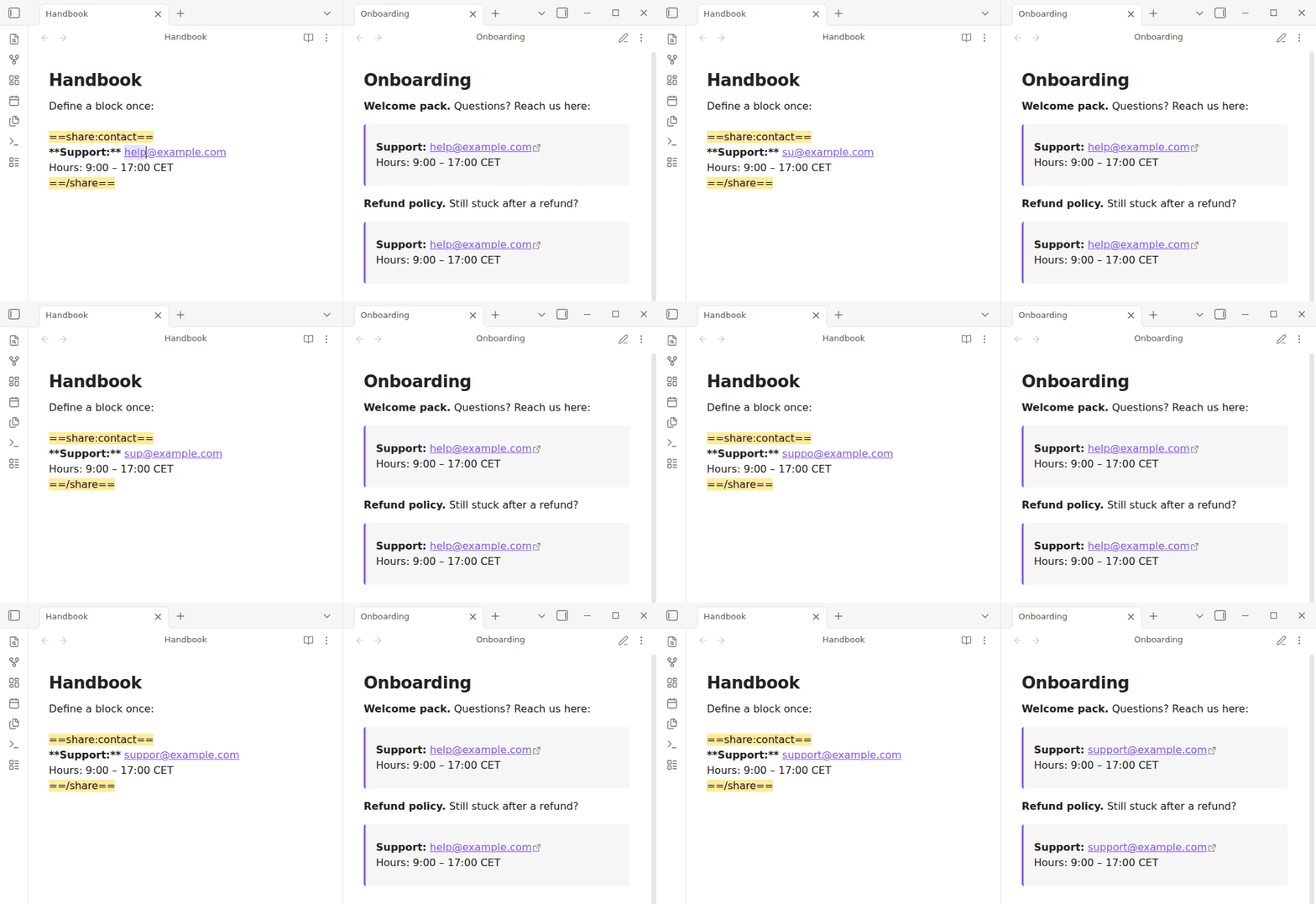
Left: the note that defines the block. Right: a note that uses it twice, in Reading view. Editing the definition updates both copies as you type.
How it works
Define a block in any note, between two markers on lines of their own:
==share:contact==
**Support:** [email protected]
Office hours: 9:00 – 17:00 CET
==/share==
The name accepts letters (accented and non-Latin included), digits, _ and -.
A block with an empty body is ignored, so a half-written block reports itself as
missing instead of quietly rendering nothing.
Reference it from any other note:
==ref:Company handbook^contact==
Company handbook is the note holding the definition — the same link text you
would put in [[ ]], so a bare name, a subfolder path, or anything Obsidian can
resolve from the note you are writing in. contact is the block name.
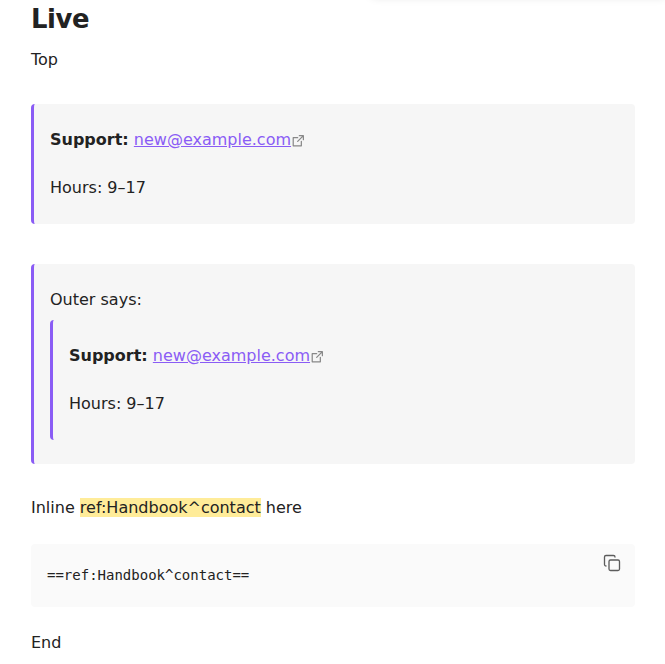
The reference renders the block's markdown in place, styled as a quoted block,
in Reading view and in Live Preview alike. In Live Preview a reference on a line
of its own shows as the rendered block, the way an embed does, and turns back
into its ==ref:…== text when you click it or move the cursor onto its line.
Edit the definition and every reference on screen updates, without reopening the
note.
You rarely need to type a reference in full. After ==ref: the editor
suggests the notes that define blocks; pick one and it suggests that note's
blocks, then closes the reference for you.
References can be nested: a shared block may itself contain a reference to another one. A cycle is detected and reported in place rather than hanging.
Commands
| Command | What it does |
|---|---|
| Share selection as a block | Wraps the selected text in ==share:…== markers after asking for a name, and copies a reference to it, ready to paste into another note |
| Insert reference to a block | Searches every block in the vault by name, note or text, and inserts a reference to the one you pick |
| Open the block referenced on this line | Opens the note that defines the block, with the cursor on its ==share:…== marker |
| Refresh all blocks | Rescans the whole vault and re-renders every reference on screen |
| Show cache stats | Reports how many blocks are currently cached |
You should not normally need the refresh command; it is there for when a block goes stale after an edit made outside Obsidian.
Performance
Opening a vault costs nothing: there is no scan at startup. A block is read the first time a reference asks for one, and edits are coalesced rather than handled per keystroke. The manual refresh scans in chunks, yielding between them, so a large vault does not freeze the window.
Limitations
- In Live Preview only a reference on a line of its own is rendered. One in the middle of a sentence renders in Reading view and stays as highlighted text while you edit.
- The markers use Obsidian's highlight syntax, so a block definition shows as a highlighted line in its source note.
- Blocks are matched by note path and block name. Renaming or moving a note
rewrites every
==ref:…==that pointed at it, the way Obsidian updates ordinary links; renaming a block means updating the references yourself.
Installing
In Obsidian, open Settings -> Community plugins -> Browse, search for Shared Blocks, then install and enable it.
To install it by hand instead, copy main.js, manifest.json and
styles.css into <vault>/.obsidian/plugins/shared-blocks/ and enable the plugin in
Settings → Community plugins.
Development
npm install
npm run dev     # esbuild in watch mode
npm run build   # type-check, then a production bundle
npm test        # unit tests for the parsing and cache logic
Tests run on plain Node with no extra dependency — Node strips the types itself
from 22.18 onward, which is what engines asks for. They cover src/blocks.ts,
the pure half of the plugin: block parsing, reference parsing, cache keys, and
which blocks changed between two reads of a note. main.ts is the only file
that touches the vault, the metadata cache or the DOM.
More plugins by Siulved54
| Plugin | What it does | Source |
|---|---|---|
| Text Case and Cleanup | Change case, make camelCase or slugs, sort lines and remove duplicates, and repair text pasted out of a PDF, without touching code or URLs. | text-format |
| Typography as You Type | Curly quotes, dashes and ellipses as you type, kept out of code and maths, with Backspace to take one back. | smart-typography-plugin |
| Section Numbering | Number headings as an outline (1, 1.1, 1.2) and keep every link to them working when they renumber. | section-numbering |
| Spreadsheet to Table | Paste cells from Excel or Google Sheets as a Markdown table with a real header, insert CSV files, and copy tables back out. | spreadsheet-to-table |
| Hybrid Line Numbers | Relative and hybrid line numbers for Vim-style jumps, where a folded section counts as one line. | hybrid-line-numbers |
| List Item Callouts | Colour a single list item as a callout by starting it with a character such as &, ! or ?. |
list-item-callouts |
| Folder Counts | See how many notes or files each folder holds, right in the file explorer, with a vault total and folder exclusions. | folder-counts |
| Note Reading Time | Reading time of the current note or your selection in the status bar, optionally saved to a property. | note-reading-time |
| Task Rollover | Roll unfinished tasks from your last daily note into today's when it is created, with a real undo. | task-rollover |
| Zoom Into Section | Zoom into a heading or list item to see only it and its contents, with a breadcrumb bar to climb back out. | zoom-into-section |
| Link Title on Paste | Paste a web address and get a Markdown link with the page's title, fetched in the background and undone in one step. | link-title-on-paste |
| Update Radar | Checks your installed community plugins for updates in the background, shows what changed, and flags the ones that look abandoned. | community-update-checker |
| Dataview to Bases | Convert Dataview queries into Bases blocks, and see which queries in your vault can be converted. | dataview-to-bases |
All of them are in the community directory: Settings -> Community plugins -> Browse, then search for the name.
License
MIT. See LICENSE.