
README file from
GithubShare to Save
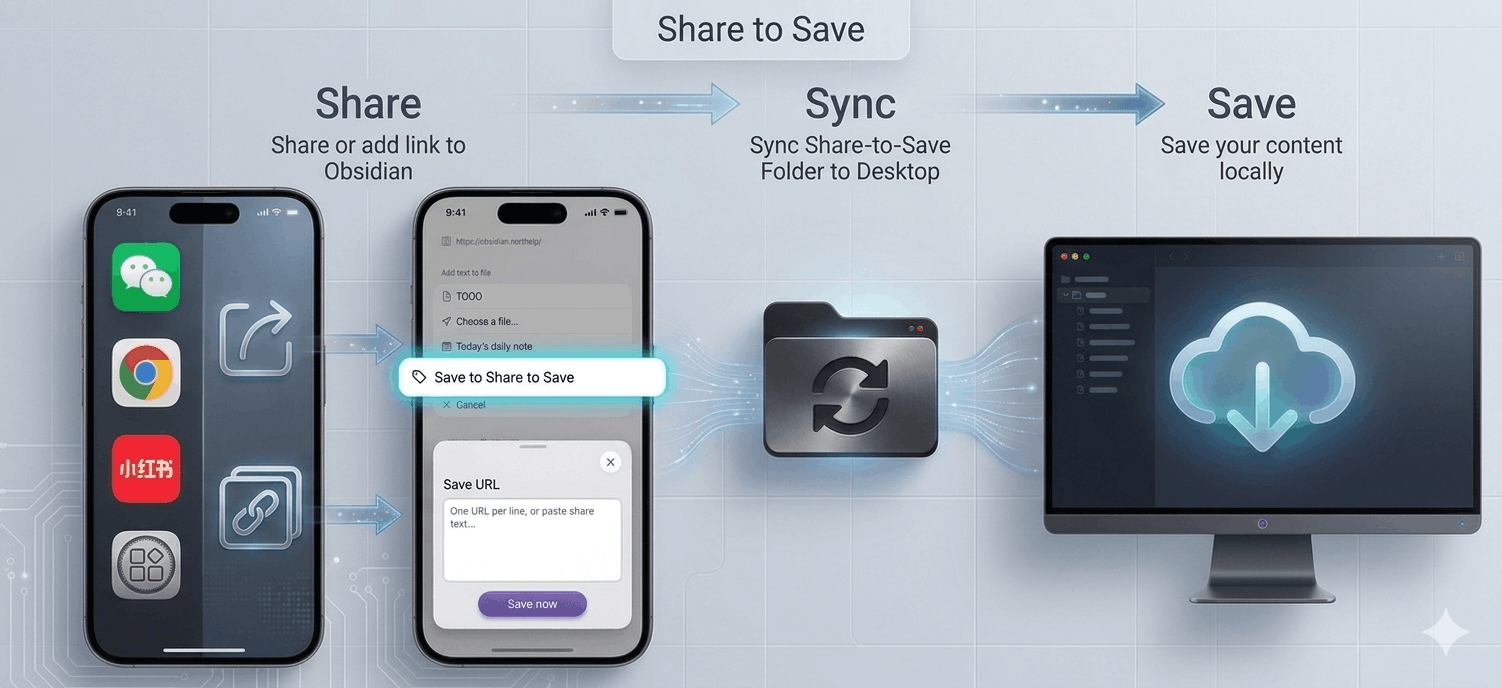
An Obsidian plugin that automatically downloads web pages as Markdown notes, with quick text note capture.
1. Save web pages: Share / Add links from mobile → Auto-download on desktop → Save to your vault
2. Save text: Type text in the plugin input and save
3. Quick capture: Home screen shortcut for one-tap access to the input, see Add to Home Screen below
Typical Usage
- General Web Pages — Any standard article page (news, blogs, documentation) works out of the box via the built-in defuddle fallback.
- WeChat Articles — Share an article from WeChat Official Accounts to Obsidian, and it will be saved with full text, images, and metadata intact.
- Xiaohongshu (RED) Posts — Copy a RED post link, add the link in the plugin, and both the text content and all images will be extracted and saved.
- Quick Notes — Home screen shortcut for one-tap access to the input, quickly capture fleeting thoughts or clipboard text
Workflow
📱 Share or Add URL on Mobile → 💻 Auto-Download on Desktop
Web Page Saving
- Share to Obsidian via the share button on your mobile device
- Select "Save to Share-to-Save" in the share menu
- Or click the plugin ribbon button, then paste a URL
- URL is written to the queue file under the Share-to-Save folder
- Sync to your desktop (see Sync Methods below)
- The desktop plugin detects the entry and automatically fetches the full web content, saving it as a
.mdnote - On desktop, you can also click the ribbon button to directly enter a URL
Text Saving
Desktop ribbon button ☁️ or mobile menu ☰ → ☁️ input text → click "Save Text" button
Installation
- iOS Obsidian ≥ 1.13.0 — Obsidian 1.13 introduced a new share sheet menu. Install the plugin on desktop only (mobile not required). When sharing, select
Share-to-Saveas the target folder in the new share sheet menu. - iOS < 1.13.0 / Android — Install the plugin on both mobile and desktop. Share via the in-app share menu (the plugin injects a "Save to Share-to-Save" button).
Sync Methods
The plugin relies on file sync to transfer the queue file from mobile to desktop. We recommend one of the following:
| Method | Cost | Speed | Setup |
|---|---|---|---|
| Fast Note Sync | Free | Instant | Easy — another Obsidian plugin |
| iCloud | Free | ~1-10s | Built-in on Apple devices |
| Syncthing | Free | ~1-5s | Cross-platform, self-hosted |
| Git | Free | Manual push/pull | Versioned, but requires manual steps |
Recommendation: Fast Note Sync provides near-instant queue delivery — your desktop starts downloading within seconds of sharing on mobile. Unlike iCloud it works cross-platform, and unlike Syncthing it needs no separate daemon.
Add to Home Screen
One-tap access to the plugin input from your home screen for quick note capture.
iOS
Shortcuts app → New Shortcut → Add "Open URL" → obsidian://share-to-save → Share → Add to Home Screen
Android
Use Shortcut Maker to create an Intent shortcut (see plugin settings for parameters).
Submitting Issues
If you encounter extraction problems, please open an issue on GitHub Issues with the following information:
- The URL — The specific link you tried to save (required)
- What went wrong — Which part was not extracted correctly? (title, author, body text, images, etc.)
- Failure type — Is it:
- Cannot extract at all (nothing saved, queue stuck, error message shown)
- Extraction is wrong (saved but content is incomplete, garbled, or incorrect)
Providing a sample URL is essential — different pages on the same platform can have completely different HTML structures.
License
MIT
This plugin bundles defuddle (MIT © Steph Ango), turndown (MIT © Dom Christie), and @joplin/turndown-plugin-gfm (MIT © Dom Christie). See LICENSE for full license texts.
中文
Share to Save 是一款 Obsidian 插件,将网页自动下载为 Markdown 笔记,也可以快速记录闪念文字。
1. 保存网页完整内容: 手机端分享 / 添加链接 → 桌面端自动下载 → 保存到你的知识库
2. 保存文字: 插件输入框里输入文字,保存
3. 闪念速记: 桌面快捷方式一键直达输入框,见下方创建桌面快捷方式
典型用法
- 通用网页 — 任何标准文章页面(新闻、博客、文档)均可通过内置 defuddle 兜底直接使用。
- 微信文章 — 分享微信公众号文章到 Obsidian,本地保存包括图片在内的全部内容。
- 小红书笔记 — 复制小红书链接,在插件中添加URL保存,本地保存笔记正文和全部图片。
- 闪念文字 — 桌面快捷方式一键直达输入框,快速记录闪念文字或剪贴板内文字
工作流程
📱手机分享或添加URL → 💻电脑自动下载
网页保存
- 手机端分享通过分享按钮 分享到 Obsidian
- 在分享菜单里选择 保存到Share to Save
- 也可以 点击插件ribbon按钮,粘贴添加URL
- URL 写入 Share-to-Save文件夹下的队列文件
- 同步到桌面端(见下方同步方式)
- 桌面端插件检测到条目,自动获取网页全部内容,保存为
.md笔记 - 桌面端可直接点击ribbon按钮输入URL提取网页内容保存
文字保存
电脑 ribbon 按钮 ☁️ 和 手机菜单 ☰ → ☁️,打开插件输入框,输入文字后点击”保存文字”按钮
安装说明
- iOS Obsidian ≥ 1.13.0 — Obsidian 1.13 引入了新的原生分享菜单。插件只需安装在桌面端(手机无需安装)。分享时,在新分享菜单的 Folder 中选择
Share-to-Save目录。 - iOS < 1.13.0 / Android — 需要在手机和电脑上都安装插件。通过 Obsidian 应用内分享菜单操作(插件会自动注入"保存到 Share to Save"按钮)。
同步方式
插件依赖文件同步将队列文件从手机传输到桌面。推荐以下方式:
| 方式 | 费用 | 速度 | 配置难度 |
|---|---|---|---|
| Fast Note Sync | 免费 | 即时 | 简单,免费,强大 |
| iCloud | 免费 | ~1-10秒 | Apple 设备内置 |
| Syncthing | 免费 | ~1-5秒 | 跨平台,需自托管 |
| Git | 免费 | 需手动 push/pull | 有版本控制,但需手动操作 |
推荐:Fast Note Sync 可实现近乎即时的队列传送——手机端分享后几秒内桌面端即开始下载。相比 iCloud 支持跨平台,相比 Syncthing 无需额外后台进程。
创建手机桌面快捷方式 - 一键直达输入框,闪念速记
iOS
快捷指令 App → 新建快捷指令 → 添加「打开 URL」→ 填入 obsidian://share-to-save → 分享按钮 → 添加到主屏幕
Android
使用 Shortcut Maker 新建 Intent,填写 Action/Data URI 等参数(详见插件设置页)
提交 Issue
如有提取问题,请在 GitHub Issues 提交,并提供以下信息:
- 提供 URL 链接 — 你尝试保存的具体链接(必填)
- 哪块提取不对 — 哪部分内容没有正确提取?(标题、作者、正文、图片等)
- 完全不能提取还是提取错误 — 属于哪种情况:
- 完全不能提取(没有保存任何内容、队列卡住、显示错误信息)
- 提取错误(保存了但内容不完整、乱码或不正确)
提供示例 URL 至关重要——同一平台的不同页面可能拥有完全不同的 HTML 结构。
许可
MIT
本插件打包了 defuddle(MIT © Steph Ango)、 turndown(MIT © Dom Christie)和 @joplin/turndown-plugin-gfm(MIT © Dom Christie)。 完整许可证文本见 LICENSE。