
README file from
GithubSemantic Map Canvas
English | 简体中文
Semantic zoom for the official Obsidian Canvas. Assign importance levels to notes and groups, then zoom out to move from detailed content to compact titles and an overview.
The plugin interface is in English. This guide is available in English and Chinese.
Current release: 0.0.12. Desktop Obsidian 1.9.14+ is required. Mobile and broad theme/plugin compatibility have not been verified.
See it in action
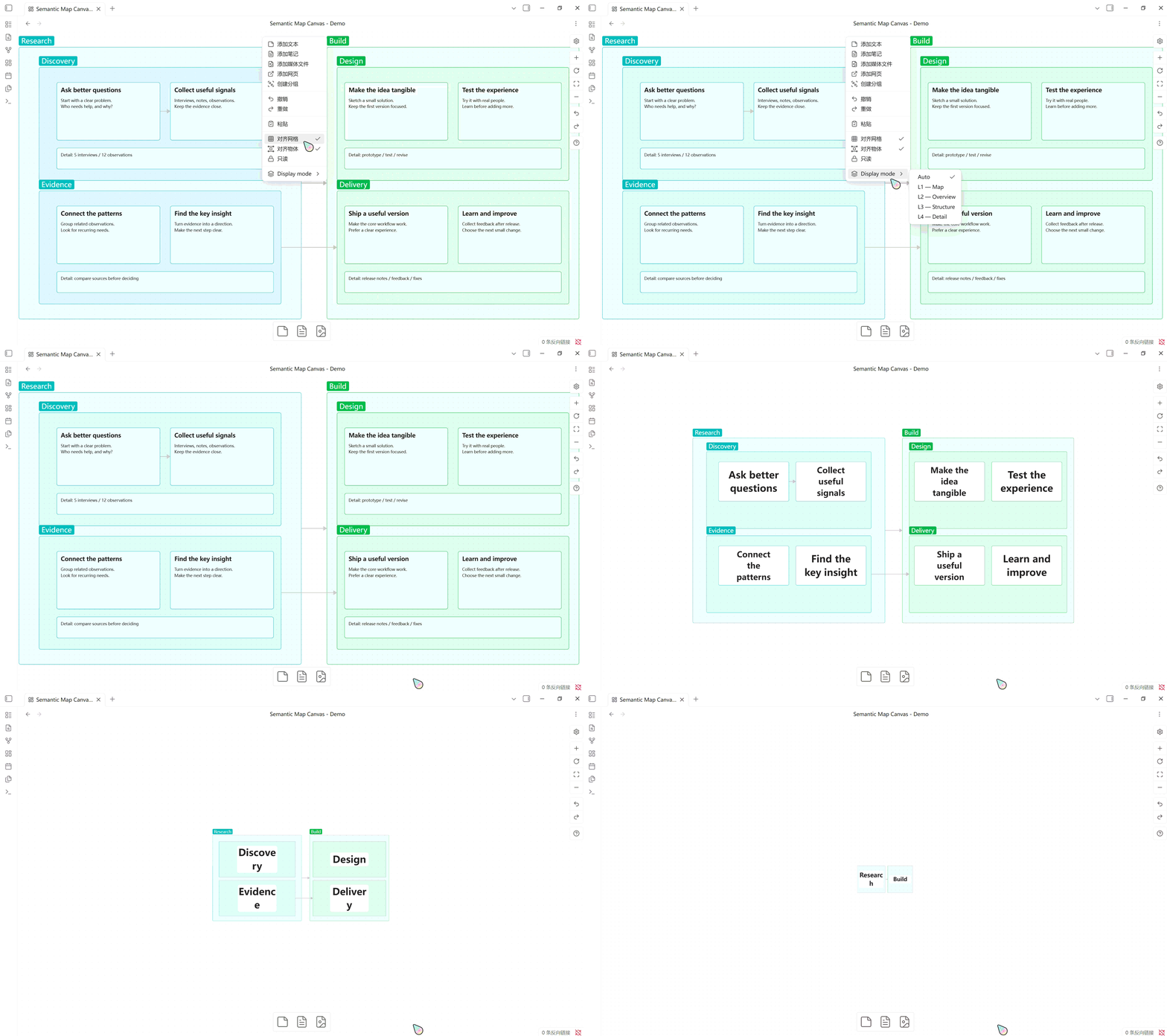
Auto — zoom out, keep the meaning
Move from detailed notes to a clear overview by zooming out.
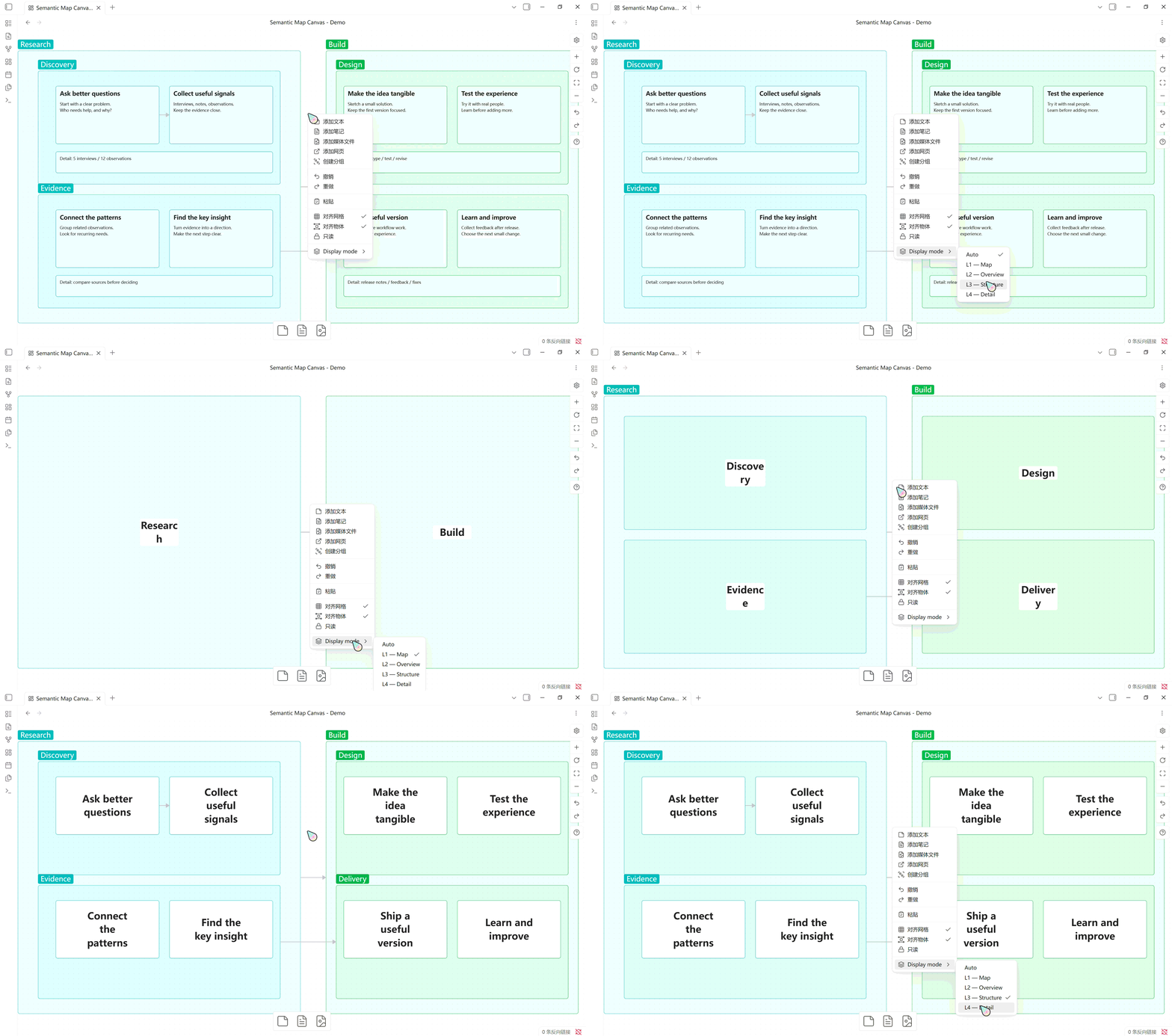
Manual — choose the view, keep the zoom
Switch between Detail, Structure, Overview, and Map without changing the zoom level.
Install
- Open Releases and choose a release, including a pre-release if available.
- Download its three individual assets: main.js, manifest.json, and styles.css. The automatically generated source archives are not installable plugin packages.
- Create
.obsidian/plugins/semantic-map-canvas/inside your vault and place all three files there. - Restart Obsidian and enable Semantic Map Canvas in Settings → Community plugins.
If no release assets are available yet, build from source using the development instructions below and copy the same three files into your vault. A GitHub release does not automatically add the plugin to Obsidian's community catalog.
Use
Right-click an ordinary node (text, file, or link) or a group and select Semantic level:
| Level | Meaning | Default |
|---|---|---|
| L1 Domain | Broadest topics | |
| L2 Core | Core ideas | Groups |
| L3 Structure | Supporting structure | Ordinary nodes |
| L4 Detail | Fine detail |
Zoom in and out to change the display. Moving or nesting a node does not change its assigned level.
| Mode | Ordinary nodes | Groups |
|---|---|---|
| DETAIL | L1–L4: native content | Native edge titles |
| STRUCTURE | L1–L3: compact titles; L4: hidden | L1/L2: edge titles; L3: central titles when possible; L4: hidden |
| OVERVIEW | L1/L2: compact titles; L3/L4: hidden | L1: edge titles; L2: central titles when possible; L3/L4: hidden |
| MAP | L1: compact titles; L2–L4: hidden | L1: central titles when possible; L2–L4: hidden |
A group keeps its edge title while it contains a visible node or group of equal or higher priority, or an object being edited. Nested groups at the default L2 keep outer titles at the edge and summarize the innermost eligible group in the center. Hiding a group does not automatically hide its contents. An edge is hidden if either endpoint is hidden.
In Auto, the farthest display mode follows the highest level actually present: L1 → MAP, L2 → OVERVIEW, L3 → STRUCTURE, L4 → DETAIL. This prevents a blank display caused solely by a missing higher level. Actual zoom remains unrestricted; extreme zoom or panning away can still make content invisible.
Central titles wrap and shrink to fit. Ordinary nodes use an existing shortLabel override, otherwise the first nonempty text line, file basename, or URL hostname. Group titles use the group name. Titles are plain text. Long titles are not truncated and there is no fixed line limit. The maximum screen font size is about 24px; tiny regions require zooming in to read. There is currently no UI for editing shortLabel.
If you lose track of hidden nodes, choose Auto or L4 ? Detail; in Auto you can also zoom in. Or run Semantic Map Canvas: Toggle semantic visibility from the command palette. This pause lasts only for the current plugin session. Disabling the plugin, switching the active canvas, or opening a normal note restores native rendering on the previous canvas. Only the active canvas is processed.
Auto and manual display modes
Right-click the empty canvas background and open Display mode:
- Auto (default): follows zoom, hysteresis and the highest-level display cap.
- L1 — Map, L2 — Overview, L3 — Structure, L4 — Detail: fix the display to that mode while you freely zoom and pan.
Manual choices do not change node Semantic levels and bypass the highest-level cap. Selecting L1 — Map without any L1 nodes can hide all nodes; right-click the background and choose Auto or L4 — Detail to recover. Zooming in alone does not leave a manual mode. Central titles continue to resize.
The choice is saved per Canvas in plugin data.json, survives reopening and renaming, and defaults to Auto for old data. A failed save keeps the previous selection. Pausing semantic visibility restores native content without resetting the choice. Switching back to Auto uses the current zoom.
The menu also appears in native canvas settings. The plugin extends an internal menu builder on the active Canvas instance and restores it on switch/unload. In native read-only mode, use the canvas settings menu if the background menu is unavailable.
Data and privacy
The plugin operates locally without network requests or telemetry. Semantic levels and optional shortLabel values are saved in the plugin's data.json, keyed by canvas path and node ID. Rendering changes do not rewrite node positions, dimensions, or content in your Canvas files.
Renaming a canvas moves its metadata; deleting a canvas removes its record. Metadata for an individually deleted node is retained to support undo. A failed save preserves the previous in-memory state and displays a notice.
Legacy schema v1 metadata is backed up and verified before migration to schema v2: old L1 → L2, L2 → L3, L3 → L4. shortLabel values are preserved. This migration is not repeated. Historical recovery instructions are in the Phase 7 report (Chinese).
Limits and compatibility
- Uses internal Canvas APIs and DOM structures, which may change between Obsidian versions.
- Native selection can still include visually hidden nodes. Pause semantic visibility before bulk editing if necessary.
- Containment requires a fully enclosed rectangle. Partial overlaps do not count; groups with identical bounds are peers. Arbitrary overlapping titles are not rearranged.
- Large canvases, especially thousands of nodes, can pause briefly during initial rendering or geometry changes.
- Text fitting caches measurements; zoom updates reuse the layout. Font, title, and size changes trigger recalculation.
- Node size presets and a shortLabel editor are not implemented.
Initial mode boundaries are 10%, 25%, and 60%. Hysteresis uses 9%/11%, 23%/27%, and 58%/62% to reduce flicker near boundaries. Zoom is sampled every 100ms; geometry, editing, and DOM changes are reconciled approximately every 300ms.
Report problems through Issues, in Chinese or English. Include the plugin and Obsidian versions, reproduction steps, and a screenshot or minimal example with private content removed.
Development
Use Node.js 18+ and npm.
npm ci
npm run build
npm run lint
npm test
npm run dev watches source changes. npm run benchmark runs the simulated-DOM performance benchmark; npm run test:visual runs isolated Chrome/Edge layout checks. These do not replace testing in Obsidian.
npm run deploy:test builds and copies the three plugin assets into VaultsforTest/.obsidian/plugins/semantic-map-canvas/ within this project, preserving existing data.json. The test vault and generated artifacts are not tracked in Git. Phase-specific test canvases mentioned in historical reports are local development fixtures, not included in a source clone.
src/canvas/: active canvas, native menus, viewport sampling, compatibility adapter.src/semantic/: semantic levels, display rules, containment, metadata and migration.src/rendering/: visibility classes, adaptive labels and cleanup.tests/: rules, storage, DOM and lifecycle regression tests.
Historical development and validation reports are currently in Chinese: Phase 12, Phase 11, Phase 10 performance, and Canvas runtime.
Based on the Obsidian sample plugin. Licensed under MIT.
Bilingual release notes for 0.0.12
Upstream template attribution and its original license: third-party notices.