
README file from
GithubSection Blocks
Turn a "home" or index note into a clean dashboard of sections, and keep the pages and images it links to filed away automatically.
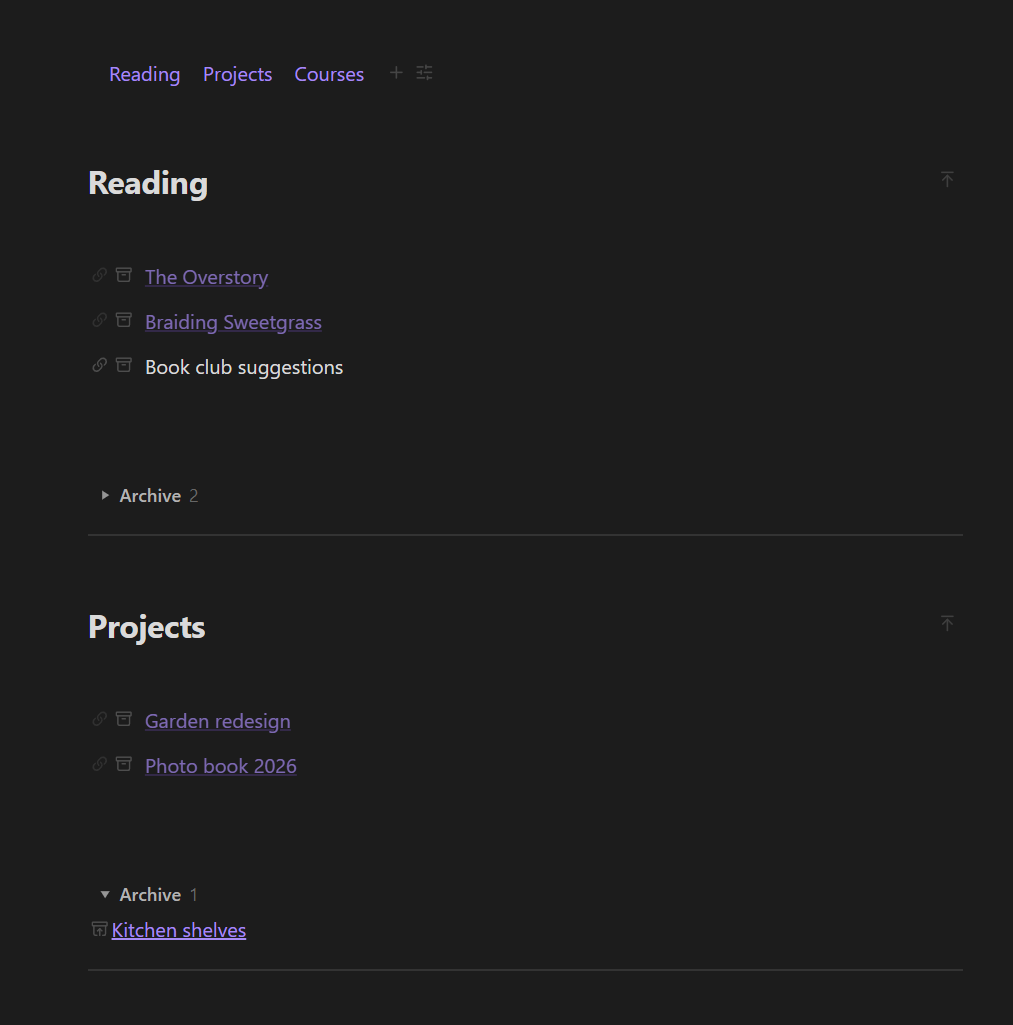
Is this for you?
- You have one main note, such as Home, Projects or Reading, with lists of links that keep growing.
- Finished items clutter the list, but you don't want to delete them.
- New pages end up dumped in the vault root, and images land in one giant attachments folder.
- Moving a note means its images get left behind.
What you get
Sections
- Create section adds a heading with link rows underneath and a folded Archive at the bottom.
- Hover a row: 🔗 turns plain text into a new linked page; 🗄 moves the row into the archive (and back).
- A section index at the top lists every section as a clickable chip. Hide the ones you don't need.
Automatic filing
- Organize section pages of this note: each page a section links to moves into
<Pages root>/<Section title>/. - Organize media: each note's images and videos live in a
<note name> mediafolder right next to the note, and links are updated for you. Run it for one note or the whole vault. - With Organize media turned on, anything you paste or drop into a note goes straight into that note's media folder.
Quick start
- Open your index note and run Create section. Type a title.
- Add one item per line. Click 🔗 on a plain-text row to create the page.
- Done with something? Click 🗄 to archive it.
- Optional: run Insert index at top for the clickable section list.
Plain Markdown
# Reading
[[The Overstory]]
Book club suggestions

%% sb-archive {"open":false} %%
[[Atomic Habits]]
%% /sb-archive %%
Without the plugin you just see a heading and links.
Works on
Windows, macOS, Linux, iPhone / iPad and Android. Folder names are built with characters that are valid on every system, so a synced vault stays consistent everywhere.
Good to know
- The organize commands move files and rewrite links. Back up your vault (or use Obsidian Sync / git history) before the first Organize media of every note.
- Interface in English and Chinese: follows Obsidian's language by default, or pick one under the plugin's Language setting.
- To organize media for the whole vault the plugin lists all files in it. It only works inside your vault and nothing is sent anywhere.
- Works on its own. With Paipa Gallery, files dropped into a gallery follow the same
<note> mediarule; with Editor Enhancer, sections join its block menu.
Install
Settings → Community plugins → Browse, search Section Blocks, then Install and Enable.
License
MIT