
README file from
GithubScholiast · 笺注
在 Obsidian 里读 Markdown、PDF 和电子书:在原文上高亮、写想法,不用切窗口,原文不被改动。
Read Markdown, PDF and ebooks in Obsidian — highlight and note in place, without the mouse, keeping the original file untouched.

使用手册版本 0.9.2。最低 Obsidian 版本 1.13.0。
30 秒了解
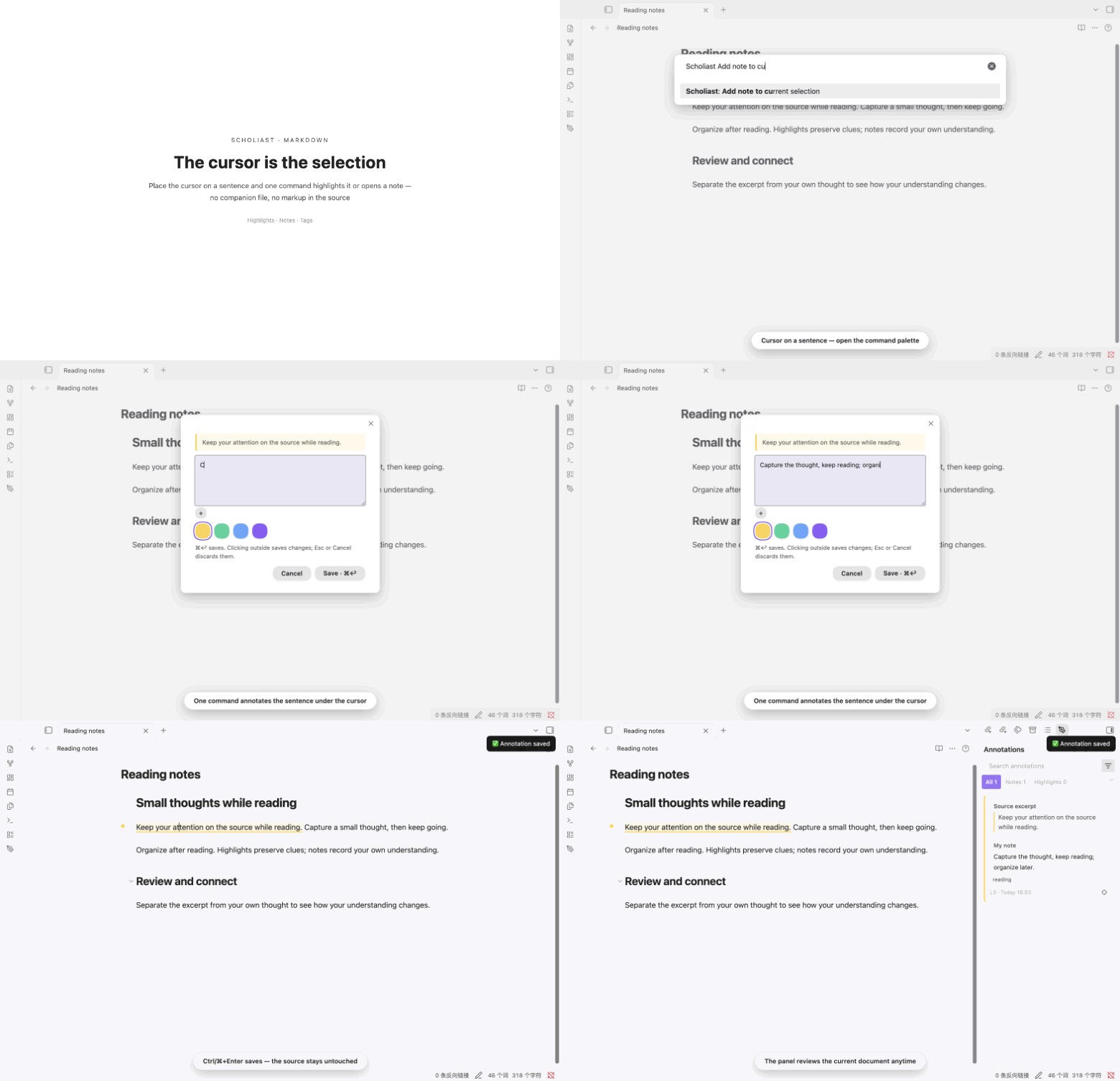
- 就地记录:选文或光标停在句子上,一条命令高亮或写想法,不新建笔记,不插标记。
- 键盘优先:Markdown 光标即范围;PDF 与电子书按一下激活键、输字母标签圈选。鼠标也全程可用。
- 先记后理:分组、筛选、导出留给阅读之后。
- 原文不动:批注存在知识库
scholiast/的 JSON 里,可随库同步;不依赖网络。
English guide
Scholiast keeps you reading: capture a thought where you are, without switching windows or touching the original file.
- Install: download
main.js,manifest.json,styles.cssfrom releases into.obsidian/plugins/scholiast/, then enable Scholiast. Keepdata.jsonand the vault'sscholiast/folder when updating. - Markdown: place the cursor on a sentence, heading or code line (or select text), run Add note to current selection or Highlight current selection (default color), save with
Enter/Ctrl+Enter. - Ebooks & PDF: enable keyboard selection once in Settings → Scholiast. Press the activation key to show labels, type a label to pick a start, extend with Left/Right,
Enterwrites a note. PDF page and region notes work from the command palette. - Review: the pen ribbon or Toggle annotation panel shows the current document; Open annotation library reviews across documents. Exports are one-way Markdown snapshots.
- Data: annotations in
scholiast/annotations.json, reading state inscholiast/reading-state.json, settings indata.json. No account, no network, originals never modified.
The full bilingual guide continues below. Report issues with plugin/Obsidian version, OS and steps in the source issue tracker.
安装与更新
- 从分发仓库 Releases 下载
main.js、manifest.json、styles.css。 - 在知识库配置目录创建
plugins/scholiast/(常见为.obsidian/plugins/scholiast/),放入三个文件。 - 在 设置 → 社区插件 启用 Scholiast。更新时替换三个文件并重新加载,保留
data.json与scholiast/数据目录。
阅读引擎离线内嵌,不需要 calibre、账户或转换服务。
快速上手
Markdown:光标停在句子、标题或代码行上(也可先选文)→ 命令面板运行 给当前选中写批注 或 高亮当前选中(默认颜色) → Enter / Ctrl+Enter 保存。
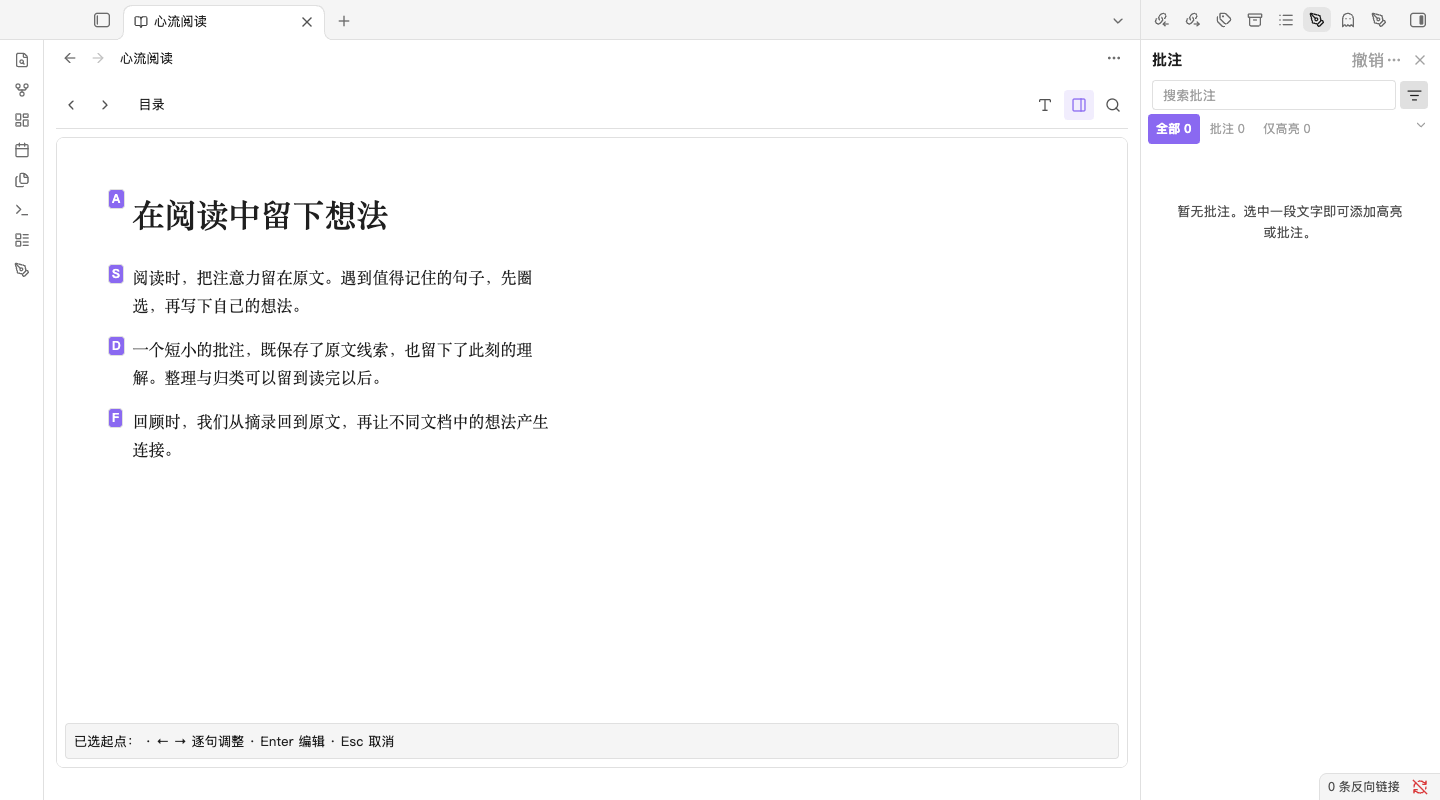
电子书:设置 → Scholiast 开启键盘圈选(默认关闭)→ 聚焦正文按一下激活键(默认 Space,macOS 新装默认反引号)→ 输标签选起点 → 左右键逐句调终点 → Enter 写想法。
PDF:同开关。聚焦页面,方向键翻页 → 按激活键输文字块/句标签 → 松键保留范围 → Enter 写想法。扫描页用 给 PDF 页面写想法 / 给 PDF 区域写想法。
推荐快捷键
命令出厂不带默认热键,在 设置 → 快捷键 自行绑定。一套 Mac 起点:⌘⇧E 编辑光标处批注、⌘⇧L 侧栏定位、⌘⇧⌫ 删除、⌘⇧H 快速高亮、⌘⇧N 给选中写批注。电子书的激活键不要再分给别人。
| 命令 | 用途 |
|---|---|
| 给当前选中写批注 | 记下想法 |
| 高亮当前选中(默认颜色) | 快速高亮 |
| 编辑光标处批注 | 免选中改最近一条 |
| 删除批注(光标 / 选择 / 可见页) | 免选中删除 |
| 切换批注面板 | 回看当前文档 |
| 撤销上次批注操作 | 记错可撤 |
三种格式怎么批注
| 格式 | 怎么做 |
|---|---|
| Markdown | 选中文字,或只放光标让命令推断范围;工具条与命令面板都能高亮、写想法 |
| 键盘标签圈选或右键菜单;范围限同一页;扫描页用页面/区域想法 | |
| EPUB / MOBI / AZW3 / FB2 | 内置阅读器打开未加密文件;色板或铅笔批注,可开键盘圈选 |
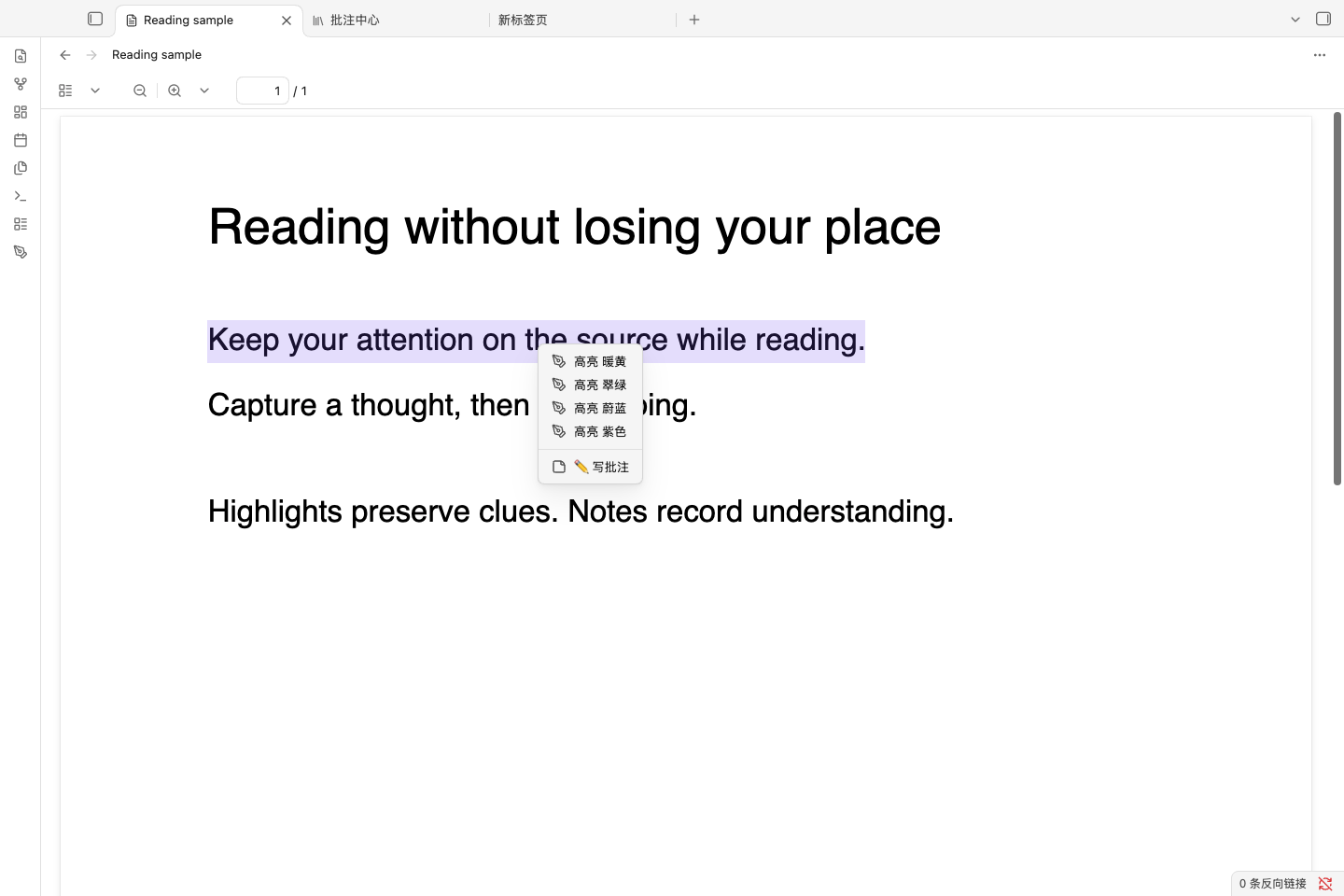
圈选与编辑细节
电子书圈选:按一下激活键进入、再按退出(默认单击切换;设置可改回长按)→ 输段落/句子标签选起点 → 左右键逐句调终点,同章跨页跟随 → Enter 写想法、⌘↩ 存纯高亮、E 编辑已有批注、Esc 取消。设置里可开「Enter 直接存高亮」快速模式。松键不保存;Backspace 回上一层。
PDF 圈选:按住激活键 → 输块/句标签 → 松键保留范围 → 左右键调同页终点 → Enter 写想法、Ctrl+Enter 直接高亮。未圈选时方向键翻物理页;扫描页页面/区域想法不要求开圈选。
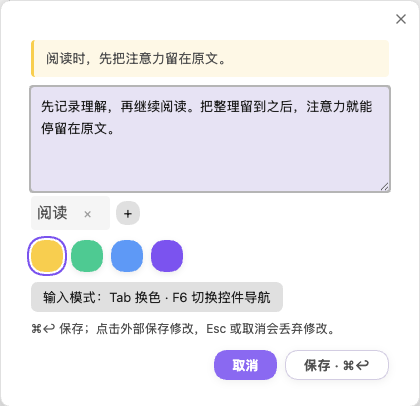
编辑弹窗:摘录、想法、标签、色板共用。⌘S/Ctrl+S 保存;Esc 草稿有改动先确认;点外部有变化才存。可选「输入中 Tab 换色」「Enter 直接保存」。
删除与撤销:删除批注(光标 / 选择 / 可见页) 有明确目标直接删;无目标按可见页取候选,一条直接删、多条输标签删。三种阅读器共用 Ctrl/Cmd+Z 撤销、Ctrl/Cmd+Y 或 Ctrl/Cmd+Shift+Z 重做;输入框与 Markdown 源码保留文字历史。
回顾与整理
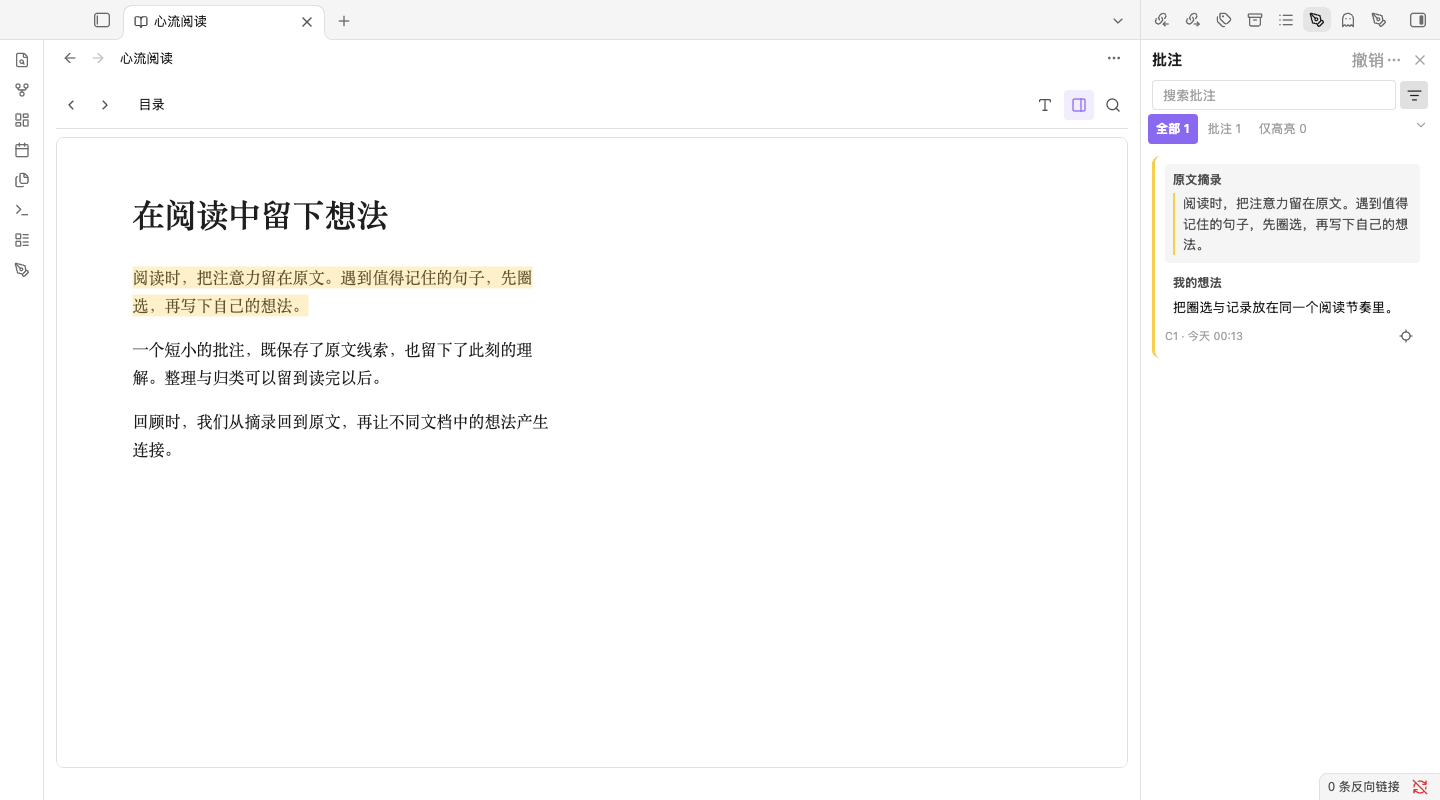
侧栏笔形图标或 切换批注面板 看当前文档;打开批注中心 跨文档回顾。卡片分原文摘录与我的想法,支持搜索、颜色/标签/文件筛选与排序。点卡片回原文;铅笔编辑;更多菜单可复制摘录、精确链接、改色、重新指定、转独立笔记。
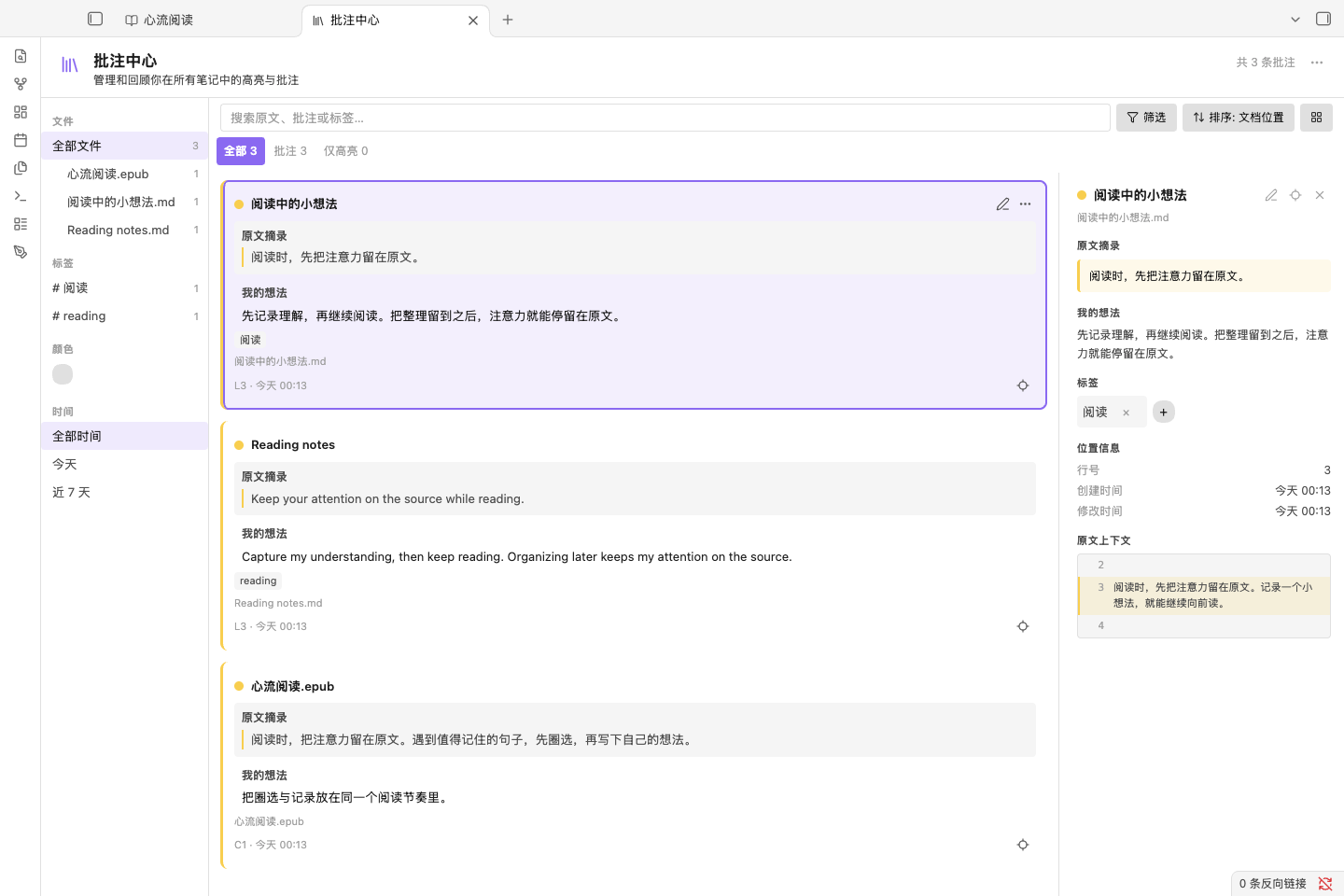
导出与独立笔记是单向快照:按原文分组排序,含摘录、想法、标签、颜色名、位置和精确链接;改它们不写回批注。需要原生双链标签,在导出的 Markdown 里自己加。
数据与隐私
- 批注、文档身份、分组存
scholiast/annotations.json;阅读位置、最近阅读、面板开关存scholiast/reading-state.json;设置存插件data.json。 - 备份包含原文件与两个 JSON。多设备纳入同步,避免两台设备同时编辑。
- 阅读与批注不依赖网络;书内脚本与外部资源被阻止;无云账户,不自动合并冲突。
- 库内改名/移动保留身份与批注;删除保留记录并标记缺失。换版后失联可在卡片菜单 重新指定,或对缺失文件 重新关联缺失文档。
使用边界
- 键盘圈选默认关闭;范围:电子书限同章,PDF 限同一物理页。复杂多栏、旋转、扫描页按块降级或用页面/区域想法。
- 电子书仅未加密文件,单文件 ≤ 100 MiB;不支持 DRM 与格式转换。
- 批注不自动进 Backlinks/Graph;导出的 Markdown 快照才参与双链。
- 移动端快捷按钮提供 Markdown 高亮/想法/面板入口;移动端电子书待验收。
常见问题
- 文件列表找不到电子书:启用宿主「显示所有类型文件」,或用阅读/导入命令。
- 高亮失联:原文可能变了;摘录与想法仍在,选中正确原文后 重新指定。
- 扫描 PDF 不能选文:改用页面或区域想法;不支持跨页选区。
- 电子书打不开:仅支持未加密、≤ 100 MiB 的文件。
- 快捷键在 EPUB 里没反应:用
⌘Q完全重启 Obsidian,确认manifest.version与磁盘一致。
更多命令与设置以插件内命令面板、设置 → Scholiast、设置 → 快捷键 为准。问题反馈请附插件/Obsidian 版本、系统与复现步骤:源码问题区。
License / 许可
MIT · Source / 源码 · 开发文档